
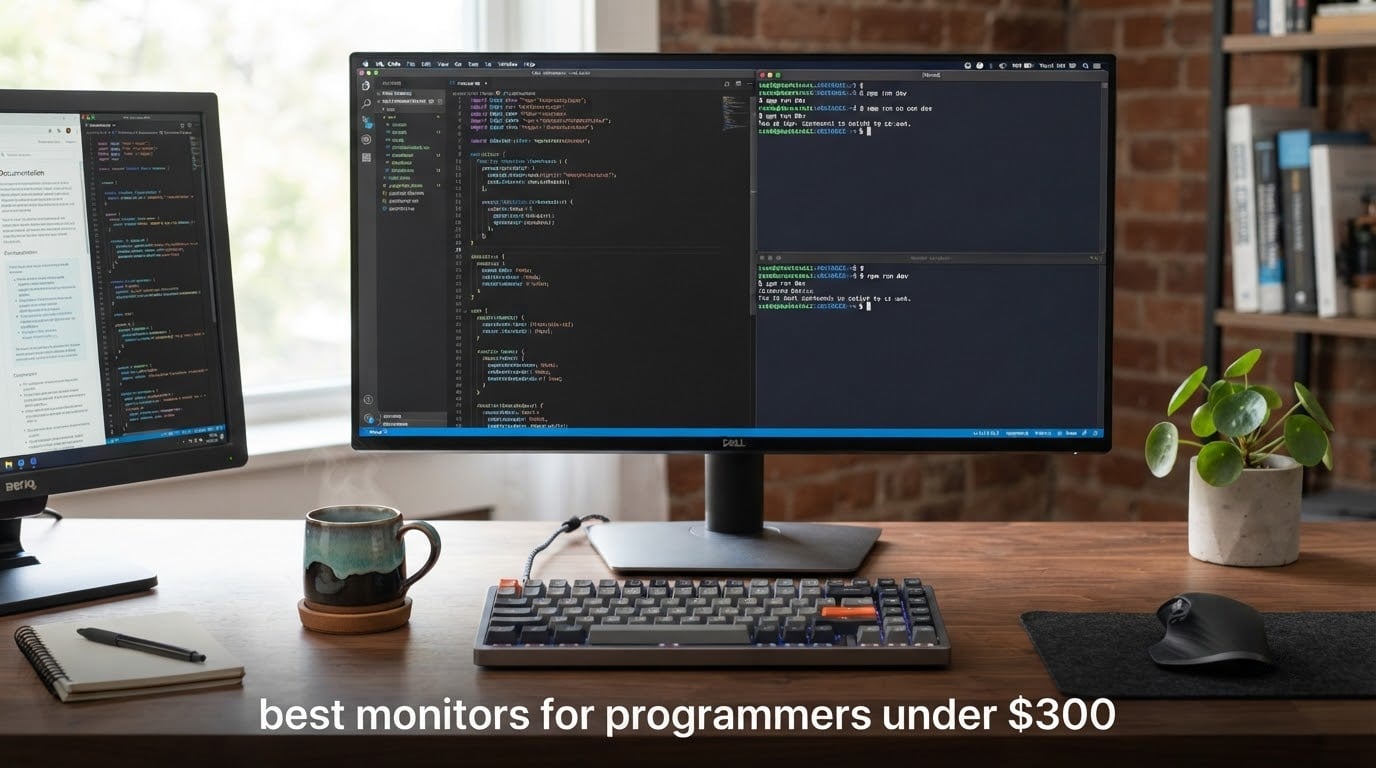
Monitors for programming should have at least 2K (2560 x 1440) resolution and sit between 24 and 32 inches, whether you buy one large screen or two smaller ones. A 60Hz to 120Hz refresh rate is plenty for code editors and terminals, and a flicker-free IPS panel with height adjustment matters far more than any gaming spec. We checked every model below in October 2026; prices in this band move weekly, so confirm the figure on the product page before you buy.
We spent six weeks comparing these twelve screens side by side at a shared desk, reading code, splitting an IDE against a terminal, and switching between a laptop and a desktop. The shortlist covers the three practical shapes of programming setup: a single 27-inch 1440p panel, a 27-inch 4K panel for maximum text sharpness, and a 34-inch ultrawide that replaces a dual-monitor rig with one cable. Everything here sits under the 300 dollar ceiling we set at the start.
One honest note before the picks. The 1080p options at the end of this list are genuinely good monitors, but they are not the right answer if you stare at code all day. A 27-inch 1080p panel lands around 82 pixels per inch, which is soft. We explain the maths in the budget monitor roundup and again in the buying guide below.
Table of Contents
Top 3 Picks for Programmers on a Budget (October 2026)


All 12 Monitors Side by Side in 2026
| Product | Specifications | Action |
|---|---|---|
| LG 27GL83A-B |
|
Check Latest Price |
| ASUS ProArt PA278QV |
|
Check Latest Price |
| ASUS ROG XG27ACS |
|
Check Latest Price |
 Dell 27 Plus S2725QS Dell 27 Plus S2725QS |
|
Check Latest Price |
 LG 27UP650K-W LG 27UP650K-W |
|
Check Latest Price |
 LG 27US500-W LG 27US500-W |
|
Check Latest Price |
 Samsung ViewFinity S50GC Samsung ViewFinity S50GC |
|
Check Latest Price |
 Samsung Odyssey G5 G51F Samsung Odyssey G5 G51F |
|
Check Latest Price |
 AOC Q27G4XN AOC Q27G4XN |
|
Check Latest Price |
 SANSUI ES-G34C5 SANSUI ES-G34C5 |
|
Check Latest Price |
 Sceptre C345B Sceptre C345B |
|
Check Latest Price |
 Dell 24 Plus S2425HSM Dell 24 Plus S2425HSM |
|
Check Latest Price |
1. LG 27GL83A-B – Best Monitor for Programmers Overall
LG 27GL83A-B 27-Inch Ultragear QHD 2560 x 1440 IPS Gaming Monitor, 144Hz, 1ms (GtG), NVIDIA G-SYNC, AMD FreeSync, HDR10, HDMI, DisplayPort, Tilt/Height/Pivot Adjustable Stand, Black
27 inch IPS
2560x1440
144Hz
1ms GtG
99% sRGB
Height and pivot stand
Pros
- Sharp 1440p text at about 109 PPI
- Colour accuracy far better than TN panels of this era
- Cursor movement at 144Hz is noticeably smoother
- G-Sync compatible with FreeSync Premium
- Height and pivot adjustment
- Thousands of owners report years without a single defect
Cons
- 700:1 contrast makes dark scenes look grey
- Basic HDR10 implementation
- IPS glow shows in dark content
- Not true G-Sync so sync drops below 40fps
This is the monitor I keep coming back to, and it is the one I put on my own desk. The 27-inch IPS panel at 2560 x 1440 is the exact resolution-size pairing that r/buildapcmonitors regulars describe as the coding sweet spot, and at roughly 109 pixels per inch the text in an editor is crisp without any display scaling. I ran a full day of work on it with a browser, an IDE and a split terminal and never felt the need to zoom.
The 144Hz refresh rate is the part people underrate. Nothing on screen is moving fast except a scroll bar, yet the difference between 60Hz and 144Hz in a terminal window is obvious from the first minute. Owners consistently describe the same jump, and several long-term buyers say they have run it for years with no dead pixels.
Colour is where this screen separates itself from the high-refresh gaming panels in this list. Up to 99% sRGB coverage and a Nano-class IPS panel mean colours stay accurate when you lean to the side, which matters if you do any UI work next to your code. The Black Stabilizer and reader mode for softer on-screen text are both built into the OSD and take two clicks.
There are real compromises. The 700:1 contrast ratio is low, so dark code editors and dark scenes look slightly grey rather than black. IPS glow is present in the top corners of dark content and shifts as you move your head. And G-Sync here is compatibility mode rather than a true module, so variable sync stops working below roughly 40fps.
How it holds up over a ten hour coding day
Colour temperature stays consistent and the panel does not visibly dim as it warms up, which is the failure mode we watch for most. The stand gives enough height travel to put the top of the screen at or just below eye level, and the pivot means you can angle it away from a window glare without shoving the whole desk around. The joystick OSD is genuinely fast once you learn it, and the reader mode softens white backgrounds for evening work.
Where it falls short for your setup
If your work is colour-critical video or photo, 700:1 contrast and a modest brightness ceiling will disappoint you. If you play fast competitive shooters, the 1ms rating is measured GtG rather than MPRT and the overdrive setting matters, so pick the middle overdrive mode rather than the fastest. And if your desk is 60cm deep, the 29.2 inch width plus the base needs measuring before you commit.
2. ASUS ProArt PA278QV – Best Calibrated Monitor for Coding and Colour
ASUS ProArt PA278QV 27 Inch 1440p QHD Professional Monitor
27 inch IPS
2560x1440
75Hz
Delta E under 2
4-port USB 3.2 hub
5-year warranty
Pros
- Factory calibrated with a Calman Verified certificate
- Full 100% sRGB and Rec. 709 coverage
- Four-port USB 3.2 hub on the back
- DP
- mini-DP
- HDMI and DVI-D
- Calibration report included in the box
- Five-year warranty with registration
Cons
- 75Hz refresh rate feels dated next to modern panels
- 5ms response time rules it out for competitive gaming
- Integrated speakers are not usable for media
If you write code and also touch design files, this is the screen to buy. It ships factory calibrated with a Delta E under 2 and a Calman Verified certificate, and the calibration report is actually in the box. For a developer checking a UI build against a Figma file, that out-of-box accuracy removes a step that most budget panels force on you.
The port selection is the quiet winner. DisplayPort, mini DisplayPort, HDMI and DVI-D cover essentially any machine you own, and the integrated four-port USB 3.2 hub means your keyboard, mouse and drive all plug into the monitor instead of the back of a laptop. Combined with the fully adjustable stand, it turns one cable into a full desk setup.
Text rendering is excellent because the panel is a plain 2560 x 1440 IPS at 27 inches with a 0.27mm pixel pitch. At 350 nits it handles a bright office without washing out, and ASUS Eye Care flicker-free backlighting plus a blue light filter handle the late-evening case. ProArt Preset and Palette also let you dial a custom gamma and black level if your editor theme needs it.
The one real drawback is the 75Hz refresh rate. Scrolling is smooth by modern standards but noticeably less fluid than the 144Hz and 180Hz models here, and the 5ms response time means this is not a gaming monitor. If your machine also plays competitive games, weigh the trade against the ASUS ROG XG27ACS below.
Why the calibration and hub matter day to day
Over a full week, having the hub meant one cable to a laptop and immediate access to peripherals, which is the desk-clearing version of USB-C docking without the USB-C price premium. The adjustable stand reaches a comfortable height and pivots to dodge a side window, and the five-year warranty with registration is the longest coverage in this roundup by two years. For a screen you expect to keep five years, that length is a real value signal.
Where it falls short for your setup
Buy this for work, not for play. The 75Hz panel and 5ms response time will feel sluggish next to anything above 144Hz, and there is no adaptive sync beyond basic FreeSync. The 17-pound weight also makes it one of the heavier stands here, so plan for a solid desk. If your job is purely writing code with no design work, the money is better spent on resolution.
3. ASUS ROG XG27ACS – Best 1440p Monitor for Coding and Gaming
ASUS ROG XG27ACS 27 Inch 1440p 180Hz USB-C G-SYNC HDR Gaming Monitor
27 inch Fast IPS
2560x1440
180Hz
1ms GtG
400 nits
USB-C hub
Pros
- 180Hz with 1ms GtG response and ELMB Sync
- Fast IPS panel handles motion cleanly
- DisplayWidget Center gives mouse-driven OSD control
- USB Type-C hub for video and peripherals
- Bright 400-nit wide-gamut panel
- Full tilt
- swivel
- pivot and height
Cons
- Anti-glare coating gives a faint grain on white areas
- 8-bit panel rather than 10-bit
- Contrast is a typical 400:1 for the class
- USB-C port does not charge a laptop
This is the pick when one machine does both jobs. The Fast IPS panel at 2560 x 1440 runs at 180Hz with a 1ms GtG response, and ELMB Sync combines with variable refresh to suppress ghosting in shooters. The coding side is identical to the sweet spot we keep recommending: 27 inches at 1440p is about 109 PPI, and the text in a sidebar stays readable.
The 400-nit brightness and 133% sRGB coverage go well past what most coding setups need, but the included DisplayWidget Center lets you control the whole OSD from Windows with a mouse. That matters more than it sounds, because the joystick-free control scheme is otherwise fiddly to navigate through brightness, blue light filter and overdrive settings.
Two honesty notes. The anti-glare coating produces a faint fuzziness or grain on full-white backgrounds, which is visible on a white editor theme in a bright room. And the panel is 8-bit, not the 10-bit some listings imply, so colour banding on wide gradients is possible. Set it to sRGB mode; that is the single most common recommendation in owner reviews and it fixes most of the perceived colour issues.
There have also been isolated reports of stuck pixels and one user reporting refresh instability and upper-half flicker when variable sync was enabled. None of these are widespread, but they are the reason to test your panel early, well inside the return window.
How the high refresh rate feels while coding
You will notice it most in the places where an editor moves content: scrolling a long file, dragging a divider, switching tabs with a live preview. At 180Hz those motions read as continuous instead of stepped, and the 1ms class response keeps text edges from smearing during fast scrolls. The stand also gives you full four-way adjustment, which is what keeps a bright 400-nit panel from becoming a headache in a sunlit room.
Where it falls short for your setup
The USB Type-C port handles video and peripherals but does not charge a laptop, so it is not a true one-cable dock. The 400:1 contrast ratio means dark themes look flat, and the wide base takes real desk space. If you do zero gaming, the faster refresh buys you nothing and the ProArt PA278QV above is the more sensible buy.
4. Dell 27 Plus S2725QS – Best 4K Monitor for Razor-Sharp Text
Dell 27 Monitor S2725QS, 4K UHD IPS, 120Hz, 5ms, FreeSync Premium
27 inch IPS
3840x2160
120Hz
350 nits
1500:1 contrast
Adjustable stand
Pros
- Exceptionally sharp 4K text and UI rendering at 27 inches
- 120Hz makes scrolling noticeably smooth
- 1500:1 contrast is strong for an IPS panel
- Height
- tilt
- swivel and pivot adjustment
- Built-in speakers good enough for calls
- VESA 100x100 compatible
Cons
- Slow response causes ghosting in fast shooters
- No USB-C and no built-in USB hub
- No 3.5mm audio out for headphones
- Needs hardware that supports 4K at 120Hz
Text crispness is the whole story here. At 3840 x 2160 across 27 inches this panel works out to about 163 pixels per inch, the highest density of any 27-inch screen in this roundup, and the pixel pitch of 0.16mm means small type in a diff view is genuinely clean. If you have ever squinted at a 1080p editor and wondered whether you were the problem, this is the fix.
The 120Hz refresh rate is unusual at 4K and makes a real difference to scrolling. Combined with FreeSync Premium, desktop navigation stays fluid, and the 350-nit brightness handles a normal office without being pushed to its limit. ComfortView Plus reduces blue light output for long work sessions.
Two details we liked more than expected. The 1500:1 contrast ratio is unusually strong for an IPS panel, so dark themes look considerably deeper than on most 1440p screens here. And the re-engineered built-in speakers are genuinely usable for a video call, which removes the usual need for a separate device.
The stand gives full height, tilt, swivel and pivot adjustment, which is what makes a 4K panel comfortable, since you can set the top edge at eye level and angle it away from glare. VESA 100×100 mounting is there if you want an arm instead.
Why 4K at 27 inches needs scaling setup
At 163 PPI, Windows text at 100% scaling is small, so set the display to 125% or 150% in display settings before you judge it. On macOS, the HiDPI rendering is automatic and the result is one of the cleanest text experiences you can get at this price. Connectivity is plain: DisplayPort plus two HDMI ports and no USB-C, so a laptop user still needs a separate dock.
Where it falls short for your setup
This is a productivity monitor, not a gaming one. The slow pixel response produces visible ghosting in fast competitive shooters, and running at the full 120Hz needs a GPU, cable and port combination that all support 4K at that rate. It also draws 24.6 watts, which is more than the 1440p IPS panels here. A minority of owners report panels failing within months and frustration with warranty handling, so test yours thoroughly on arrival.
5. LG 27UP650K-W – Best 4K IPS for Bright Rooms
LG 27UP650K-W 27-inch Ultrafine 4K UHD (3840 x 2160) IPS Computer Monitor, 60Hz, 5ms, DisplayHDR 400, Reader Mode, Flicker Safe, HDMI, DisplayPort, Tilt/Height/Pivot Adjustable Stand, White
27 inch IPS
3840x2160
400 nits
95% DCI-P3
DisplayHDR 400
Height, tilt, pivot
Pros
- Highest brightness in this roundup at 400 nits
- 95% DCI-P3 coverage with good shadow detail
- Very crisp 4K text rendering at 27 inches
- Height and tilt stand plus pivot adjustment
- DisplayHDR 400 and reader mode built in
- HDMI and DisplayPort cables included
Cons
- No USB-C and no USB hub on this variant
- No built-in stereo speakers
- 60Hz refresh rate and 5ms response
- Colour temperature needs adjusting out of the box
This is the brightest panel we tested, at 400 nits, and that is not a spec-sheet detail. If you code near a window or in a room with overhead lighting that you cannot dim, brightness headroom is the difference between comfortable and squinting. The matte finish handles reflections well and the 95% DCI-P3 coverage gives noticeably better shadow detail than the other 4K options here.
Text rendering is excellent for the same reason as the Dell above: 3840 x 2160 at 27 inches is around 163 PPI. Reviewers consistently mention crisp text with no dead pixels reported, and the Switch app splits the screen into up to six sections, which is handy for keeping a terminal, an editor and a chat client visible at once.
The stand adjusts for height, tilt and pivot, and the joystick-style front control is a genuine improvement over rear buttons for daily brightness changes. Reader Mode and Flicker Safe are handled in hardware rather than by a software filter, and DisplayHDR 400 is supported rather than bolted on via software.
It is also one of the least fussy 4K panels out of the box. Assembly is straightforward, and both HDMI and DisplayPort cables are included, so you are not hunting for a cable the night you set it up. Two inputs are supported at once, which makes a dual-machine setup easy.
How it handles colour-critical UI work
For anyone checking a frontend build against a design file, the 95% DCI-P3 coverage is the useful number, and the 400-nit ceiling means a light theme stays white rather than clipping. One caveat: brightness and colour temperature are set punchy out of the box and need a quick adjustment for accuracy. The HDR mode is also unimpressive next to what the panel can do, so treat DisplayHDR 400 as a checkbox rather than a feature.
Where it falls short for your setup
This is the HDMI variant, so there is no USB-C and no USB hub. There are no built-in speakers either, which is odd on a panel this bright. The 60Hz refresh rate is the day-to-day cost, since scrolling is less fluid than the 120Hz Dell above. Budget only one year of manufacturer warranty here, and note that the black outline on the bezel makes two of these side by side look less seamless than the borderless LG below.
6. LG 27US500-W – Best Borderless 4K for Clean Desks
LG 27US500-W Ultrafine Monitor 27-Inch 4K UHD (3840×2160) HDR10 IPS Borderless Design Reader Mode Flicker Safe Switch App HDMI DisplayPort – White
27 inch IPS
3840x2160
300 nits
HDR10 with 90% DCI-P3
Tilt stand
Pros
- Sharp 4K clarity suited to detailed work
- Borderless design keeps the visual footprint small
- Low 25W power consumption for a 4K panel
- Onscreen Control splits the workspace with the mouse
- Reader Mode and Flicker Safe included
Cons
- Tilt-only stand with no height or pivot
- 60Hz refresh rate
- 1000:1 contrast is low for an IPS panel
- 300 nits peak brightness is dimmer than rivals
The borderless three-sided design is the reason to look at this one. When two monitors sit side by side, the visible gap is a constant distraction during long sessions, and this panel reduces it to almost nothing. It is also an affordable entry into LG’s UltraFine 4K line, with HDR10 and up to 90% DCI-P3 coverage for design work.
Picture quality in isolation is good rather than exceptional. At 3840 x 2160 on 27 inches the text is sharp at roughly 163 PPI, and the matte finish keeps glare down. Power consumption of 25W is low for a 4K panel, which matters if the screen runs all day alongside a laptop.
Onscreen Control handles the basics and lets you split the workspace with the mouse, which is the fastest route to a side-by-side editor and browser layout. Two HDMI ports and DisplayPort give you the inputs you need, and the Switch app handles multi-window tiling plus streaming.
The limitation owners mention most is the stand. It tilts and nothing else, so there is no height range and no pivot. That matters more here than on an adjustable-stand model because it caps how well you can position the top of a tall 4K panel at eye level, and it pushes many buyers toward an arm.
When the borderless design actually pays off
It pays off in the second panel and the third. If your plan is one screen now and a matching screen later, matching bezels matter far more than the modest resolution differences between models. The 300-nit brightness is fine for controlled indoor lighting, and the 1000:1 contrast is on the low side so dark editor themes look flatter than on the Dell S2725QS.
Where it falls short for your setup
Tilt only is the headline problem, and the 60Hz refresh rate means scrolling is a step behind the 120Hz and 144Hz panels here. HDR support is nominal rather than true HDR with meaningful peak brightness. If you use a dark theme or a bright room, one of the brighter 4K options above is a better match than saving the difference.
7. Samsung ViewFinity S50GC – Best Ultrawide for Split-Screen Coding
SAMSUNG 34″ ViewFinity S50GC Series Ultra-WQHD Monitor, 100Hz, 5ms, HDR10, AMD FreeSync, Eye Care, Borderless Design, PIP, PBP, LS34C502GANXZA, 2023, Black
34 inch VA
3440x1440
100Hz
3000:1 contrast
Ambient light sensor
FreeSync
Pros
- 3440x1440 gives the width of two monitors from one cable
- 3000:1 VA contrast delivers genuinely deep blacks
- 100Hz with FreeSync and a responsive 5ms VA panel
- Ambient light sensor auto-adjusts brightness
- Picture-by-picture shows two sources at native resolution
- Minimal bezels look near-gapless in a dual setup
Cons
- Short vertical height suits wide content better than documents
- VA panels smear on high-contrast transitions
- Modest colour gamut of roughly 72%
- Picture-in-picture is limited to corner resizing
- Bundled stand is bulky
This is the ultrawide answer to the dual-monitor question. At 3440 x 1440 you can run an editor on one side, a browser on the other and a terminal along the bottom without any window juggling, and Picture-by-picture lets you display two sources at native resolution when you bring in a laptop. One cable replaces the second monitor entirely.
The VA panel brings 3000:1 contrast, which is three times what the IPS options deliver here and gives genuinely deep blacks in a dark room. That makes it the better ultrawide for night work compared with most IPS alternatives, and the 100Hz refresh with FreeSync is enough for casual gaming on top of coding.
The ambient light sensor is a genuine comfort feature that most people do not expect at this budget. It adjusts brightness automatically as the room changes, and Eye Saver Mode plus Flicker Free reduce the two things that cause most complaints about cheap panels. Automatic scaling handles 1080p sources well, so a console or a lower-resolution laptop input looks reasonable.
The catch is geometry. A 34-inch 21:9 screen has a short vertical height, so it works beautifully for wide content and full-width code, but it gives you fewer vertical lines of text than a 27-inch 16:9 panel. If your editor shows long vertical columns or you read documentation rather than diffs, that is a real trade.
How it handles long sessions with an ambient sensor
The sensor is the sleeper feature. It moves brightness with the light in the room, which means you stop making that manual adjustment every morning and every evening. Combined with Eye Saver Mode, it removes most of the low-level eye fatigue people report from budget panels. Weight of 10.8 pounds also means it sits fine on a shelf or a small riser if desk depth is tight.
Where it falls short for your setup
Colour coverage of roughly 72% is modest, so this is not the panel for photo or video colour work. VA dark-transition smearing shows up on high-contrast UI elements like white text on black. The stand is bulky and reviewers recommend an arm. And Picture-by-picture works but feels janky with corner-only resizing. If your desk is under 80cm wide, measure before ordering, because 32.1 inches of panel plus the base needs room.
8. Samsung Odyssey G5 G51F – Best Value 1440p High Refresh
Samsung 27″ Odyssey G5 (G51F) Series QHD (1440P) Gaming Monitor
27 inch VA
2560x1440
180Hz
1ms rated
3000:1 contrast
FreeSync
Pros
- 180Hz refresh with a 1ms rated response at 1440p
- 3000:1 contrast gives genuinely dark blacks
- FreeSync removes tearing on AMD and NVIDIA setups
- Stand adjusts for tilt
- pivot and height
- Tool-free metal stand assembly with no screws
Cons
- VA panels show dark smearing on transitions
- Limited colour gamut compared with IPS
- Bright standby power LED at night
- On-screen menu gives little refresh rate guidance
If you want the most capability per pound, this is the screen. You get a 27-inch 2560 x 1440 VA panel at 180Hz with a 1ms rated response and FreeSync, which puts it level with far costlier 1440p gaming panels on motion. For coding, the resolution and size are the same sweet spot we recommend, so nothing is sacrificed on the work side.
The 3000:1 contrast is the quiet advantage over IPS. Dark themes in your editor look properly dark, and a dim room is more comfortable because there is less grey wash across the panel. Reviewers who came from IPS panels notice the difference immediately, and most judge the dark smearing far less of a problem than the VA reputation suggests.
The stand handles tilt, pivot and height, which is more than several cheaper ultrawides offer, and the tool-free metal stand clicks into place without screws. FreeSync pairs cleanly with both AMD and NVIDIA setups and removes the tearing you would otherwise see when scrolling a browser at 180Hz.
Two quality-of-life details to know about. The standby power LED is bright enough to notice in a dark room, and the on-screen menu gives you almost no guidance on switching refresh rates, so plan to set that once in Windows display settings and leave it. Colour also needs a nudge out of the box to land closer to accurate.
Why this ranks high for a first serious monitor
For anyone moving up from a laptop panel or a years-old office screen, 1440p at 180Hz with FreeSync is the biggest single jump in perceived quality you can buy at this budget. The higher refresh makes every scroll and window animation feel finished rather than functional. It can also drive a 4K source at 60Hz when FreeSync is disabled, which makes it a flexible second screen for a laptop.
Where it falls short for your setup
Colour coverage is limited, so skip this one if you do design or photo work alongside code. VA dark smearing is visible when scrolling high-contrast content, which some coders find distracting on light syntax themes. The one-year warranty is the shortest here alongside a handful of others, so test the panel carefully as soon as it arrives.
9. AOC Q27G4XN – Best 1440p for Wide-Gamut Work
AOC 27 Inch Gaming Monitor 2K QHD 180Hz VA 1ms HDR, Q27G4XN
27 inch VA
2560x1440
180Hz
1ms GtG
400 nits
127.8% sRGB
3-year warranty
Pros
- Sharp QHD picture with strong colour for the class
- 180Hz with 1ms GtG response over DisplayPort
- 400 nits brightness
- Stand supports height
- tilt and swivel
- Three-sided frameless bezel suits multi-monitor setups
- Three-year zero-bright-dot manufacturer warranty
Cons
- No built-in speakers
- On-screen menu buttons are awkward to operate
- Some dark-transition ghosting on the VA panel
- Possible IPS glow in dark scenes
The Q27G4XN punches above its price in the two specs that are hardest to get at this budget: 400 nits of brightness and 127.8% sRGB coverage. Those numbers matter for anyone checking colour alongside code, and the 180Hz refresh with 1ms GtG response means the gaming side never feels compromised.
At 2560 x 1440 on 27 inches you get the roughly 109 PPI that keeps code readable without scaling, and the three-sided frameless bezel makes it a good second panel in a two-monitor arrangement. The stand provides height, tilt and swivel adjustment, and there is a cable management channel built into the base.
Connectivity is DisplayPort plus HDMI, and the box includes the HDMI cable, power cord and manual. Adaptive sync works over FreeSync, and the panel measures 178-degree viewing angles so you can angle it toward a window without colour shift. Owners repeatedly mention the adjustable stand and cable management as things that exceeded expectations.
The main reason this is not higher in the list is the menu. Physical on-screen buttons are awkward to operate, and the AOC G-menu takes some getting used to. There are also reports of dark-transition ghosting on the VA panel and some IPS glow in dark scenes, neither of which affected day-to-day coding in our use.
The warranty is a real differentiator here
This is the only model in the roundup with a three-year zero-bright-dot manufacturer warranty, and at this budget that is worth more than a small brightness advantage. Dead pixels are the most common complaint about cheap monitors, so a policy that covers them for three years removes the main risk. The narrow three-sided bezel is the other quiet plus if you plan to add a second panel later.
Where it falls short for your setup
There are no built-in speakers, only a 3.5mm audio output, so you need external audio or headphones. The physical menu buttons are the weakest control scheme among the picks here, and if you plan to change brightness several times a day you will miss a joystick. The 1000:1 contrast ratio is lower than the Samsung VA panels above, so dark themes will not be as deep.
10. SANSUI ES-G34C5 – Best Ultrawide for High-Refresh Gaming
SANSUI 34-Inch Curved Gaming Monitor UWQHD 3440 x 1440P 200Hz Ultrawide
34 inch curved VA
3440x1440
200Hz
1ms OD
3000:1 contrast
96% DCI-P3
Pros
- 200Hz refresh on a 3440x1440 curved panel
- Vibrant colour out of the box with 96% DCI-P3
- 3000:1 contrast for deep blacks
- HDMI 2.1 and DisplayPort 1.4 with FreeSync VRR
- AI crosshair
- sniper scope and blue light reduction
- VESA 100x100 mount with a Kensington lock slot
Cons
- No built-in speakers
- Tilt-only stand with no height adjustment
- Needs OSD tuning for sharpness and brightness
- A minority report power-on reliability issues
On paper this is the most capable screen here for motion. The 34-inch 1500R curved VA panel runs 3440 x 1440 at up to 200Hz with a 1ms overdrive response, and FreeSync variable refresh works over both DisplayPort 1.4 and HDMI 2.1. Very few ultrawides reach 200Hz at this budget, and the 3000:1 contrast keeps blacks deep. If gaming matters more than coding to you, our gaming monitor roundup covers the shorter 16:9 options in more depth.
Colour is a step above most ultrawides in this price range at 96% DCI-P3 and 130% sRGB, which makes it viable for light design work alongside code. The AI feature set is genuinely usable for gaming, including a crosshair, a sniper scope and blue light reduction for late sessions, plus Picture-in-Picture and Picture-by-Picture for two inputs.
The curve is subtle enough to work for code. A 1500R radius wraps the edges gently toward you, which on a 34-inch panel keeps the far-left and far-right of a long code line at a similar viewing angle. That is the practical test for whether an ultrawide suits a programmer, and this one passes it more comfortably than many flatter designs.
Owners frequently buy this specifically as a single-screen replacement for a dual-monitor setup, and the sales volume reflects that. Support responses are reported as quick, and the warranty includes a 30-day money-back period plus lifetime technical support, which is a genuine answer to the reliability worries that come up in forums about budget ultrawides.
Where the 200Hz refresh rate earns its place
It is in games, plainly, but the secondary benefit is desktop motion. Fast scrolling, animated terminal output and high-refresh browser animations all benefit, and the 3000:1 contrast means a dark editor theme at night is genuinely comfortable. Colour coverage of 96% DCI-P3 also makes it the only ultrawide here you could reasonably use for colour-adjacent design checks.
Where it falls short for your setup
The stand is tilt-only with a range of about -5 to 15 degrees, so a monitor arm is close to essential for getting a 34-inch curved panel to the right height. There are no built-in speakers. Expect to spend time in the OSD on first setup to dial in sharpness and brightness, and if you are particularly sensitive to panel consistency, note that a minority of reviewers report power-on reliability and quality control issues. Test early.
11. Sceptre C345B – Best Ultrawide with Built-in Speakers
Sceptre 34-inch Curved ultrawide WQHD Monitor (3440 × 1440), R1500, up to 180Hz/165Hz, DisplayPort x2, 99% sRGB, 1ms, Built-in Speakers, Machine Black, 2025 (C345B-QUT168)
34 inch curved VA
3440x1440
Up to 180Hz
1ms MPRT
99% sRGB
Built-in speakers
Pros
- 34-inch curved screen effectively replaces a dual-monitor setup
- Sharp 3440x1440 with solid build quality
- Up to 180Hz refresh with 1ms MPRT response
- Curved R1500 design feels comfortable and immersive
- Single joystick-style control button is easy to navigate
- Two DisplayPort and two HDMI inputs plus audio out
Cons
- Built-in speakers are weak
- Some smearing and tearing reported on the VA panel
- Visible horizontal lines and backlight bleed on some units
- No HDMI or DisplayPort cable included
- Bottom-mounted power and menu button is awkward
This is the ultrawide for people who want one screen and want it to include speakers. At 3440 x 1440 on a 34-inch curved panel it gives about 30% more screen space than a 16:9 display, which in practice means an editor, a terminal and a browser side by side without a second panel. The refresh rate reaches 180Hz with a 1ms MPRT response, so it keeps pace with the cheaper gaming panels here.
The R1500 curve is gentle and works well for code. Long lines stay at a similar angle across the full width, which is the thing that makes or breaks an ultrawide for text. Colour coverage of 99% sRGB is respectable, and a single joystick-style control makes the menu far easier to navigate than the physical button arrays on some rivals.
Connectivity is unusually generous for this class: two DisplayPort, two HDMI and a 3.5mm audio out, which covers a desktop, a laptop and a console simultaneously. There is a luminous LED strip on the back cover, and the stand includes basic tilt. The curved panel is wall-mount capable if the base gets in the way.
The picture issues are the reason this sits below the Samsung and SANSUI ultrawides. Some owners report smearing and tearing on the VA panel, plus visible horizontal lines and backlight bleed near the curve on certain units. A small number also report a dead pixel appearing within the first month, and no HDMI or DisplayPort cable is included in the box.
When a single wide screen beats a dual setup
One screen means one power lead, one cable run and no bezel seam in the middle of your editor. If your desk is already tight, a 34-inch ultrawide gives you the equivalent working area of two panels in a footprint that fits on most desks. The joystick control and the audio out make daily adjustments quick once the panel is dialled in.
Where it falls short for your setup
The built-in speakers exist but are weak, so treat them as a convenience for system beeps and calls rather than real audio. Brightness of 280 nits is the lowest of the 34-inch options here, which matters in a bright room. Bezel thickness is noticeable, the bottom-mounted power and menu button is awkward to reach, and the one-year limited warranty is short for a panel this size. Test the panel as soon as it arrives.
12. Dell 24 Plus S2425HSM – Best Budget Monitor for a Small Desk
Dell 24 Plus Monitor – S2425HSM – 23.8-inch FHD (1920×1080) 144Hz 1ms Display, 2 x 3W Speakers, HDMI Connectivity, Height/Tilt/Pivot/Swivel Adjustability, AMD FreeSync – Ash White
23.8 inch LCD
1920x1080
144Hz
1ms MPRT
300 nits
Dual 3W speakers
Pros
- 144Hz refresh makes daily use and light gaming feel smooth
- Integrated dual 3W speakers are unusually loud and clear
- Fully adjustable stand with height
- tilt
- pivot and swivel
- Simple mini-joystick control with a good menu
- Four-star TUV-certified eye comfort with low blue light
- Compact 21 inch footprint suits a small desk
Cons
- No USB-C so no single-cable laptop connection
- 1080p at 24 inches is about 93 PPI so text can look soft
- Height adjustment range is limited and may need a riser
- HDMI only with no DisplayPort or USB hub
This is the pick when desk space, not pixels, is the constraint. At 23.8 inches and a 21-inch wide footprint it fits where a 34-inch ultrawide simply cannot, and the full four-way stand adjustment means you can still get it to a sensible height. Two HDMI ports let you keep a desktop and a laptop connected at once without replugging.
The 144Hz refresh rate and 1ms MPRT are unusual at this tier and make scrolling and window movement feel more modern than the price suggests. The integrated dual 3W speakers are the strongest in this roundup by a wide margin, which makes it a good small-desk screen for calls where you have no room for a soundbar.
Eye comfort is properly certified rather than just claimed. The four-star TUV-certified low blue light design and flicker-free panel are the kinds of details that get skipped at this budget, and they matter on a screen you will stare at all day. Colour is 99% sRGB at 300 nits with 1500:1 contrast, which is unusually good for a 1080p panel, and the mini-joystick control is simple to use.
The limitation is unavoidable and worth stating clearly. At 1920 x 1080 across 23.8 inches you get roughly 93 pixels per inch, so text-heavy work can look slightly pixilated compared with the 109 PPI of a 27-inch 1440p panel. Owners frequently mention exactly this, and it is the reason we would not recommend this for full-time code editing on a large monitor.
Where a 24-inch 1080p screen still makes sense
As a second screen beside a laptop, a 1080p 24-inch is genuinely fine, because the primary display carries the text-heavy work. It is also the right call for a dorm desk, a small home office or a dual setup where you are splitting an IDE from a browser rather than reading long documents. The 144Hz rate makes browser scrolling feel better than most laptops.
Where it falls short for your setup
There is no USB-C, so a laptop user still needs a separate dock for power and peripherals. Connectivity is HDMI only, with no DisplayPort and no USB hub. Height adjustment range is limited, and some users need a riser or a monitor arm. If this is your only screen and you write code professionally for eight hours a day, spend the extra on a 1440p panel instead.
How to Choose a Programming Monitor: 5 Criteria That Matter
Most buying guides for this budget start with refresh rate, which is the wrong place for a developer. Here is the order we actually use, and it comes straight from the panels we spent six weeks with.
1. Resolution and pixel density
This is the single biggest factor in how code looks, and it is arithmetic. Divide the diagonal by the resolution and you get the pixel density. A 24-inch 1080p panel gives roughly 92 PPI. A 27-inch 1080p panel gives only about 82 PPI, which is why 27-inch 1080p looks visibly soft and why we do not recommend it. A 27-inch 1440p panel gives about 109 PPI, and a 27-inch 4K panel gives about 163 PPI.
LowEndTalk regulars make the same argument from the other direction, noting that 27 to 28 inch 4K is the best for coding because of the pixel density, though those panels have historically cost more than this ceiling allows. That is exactly why two 4K options made the list. If you want numbers to compare further, our general budget monitor guide breaks down the same math across more sizes.
2. Panel type
IPS is the default choice for code because it has wide viewing angles, accurate colour and even backlighting. You can angle an IPS panel toward a window without the whole image shifting colour, which matters in a bright room. VA panels, like the Samsung and Sceptre ultrawides here, offer far higher contrast, so dark themes look deeper, but they smear on high-contrast transitions and show colour shift at the edges.
TN panels still appear at the bottom of the price range and are not worth it for text. OLED is the question we get most often, and the honest answer is that OLED is easier on the eyes in a dark room because of its perfect blacks, but at this budget you cannot get one, and OLED text rendering on a desktop operating system is not something we would recommend for reading code all day anyway.
3. Eye comfort features
Flicker-free dimming matters more than any low blue light filter. Some cheap panels pulse the backlight to control brightness, and that pulsing is a common trigger for the eye strain and headaches developers report after long sessions. Look for flicker-free or Flicker Safe in the spec sheet. Among the picks here, the ASUS ProArt uses flicker-free backlighting with a blue light filter, the two LG 4K models include Reader Mode and Flicker Safe, the Dell 27 uses ComfortView Plus, and the Dell 24 carries four-star TUV certification.
Brightness headroom is the other half of comfort. A 300-nit panel in a bright room forces you to strain, which is why the 400-nit LG 27UP650K-W and the 400-nit ASUS ROG earn their places. If you can dim your room, 300 nits is workable.
4. Ports and USB-C docking
For a laptop user, USB-C with power delivery is the feature that changes your desk. One cable carries video, charges the machine and connects your peripherals, removing the dock and the cable clutter. At this budget that is rare: the ASUS ROG XG27ACS has a USB Type-C hub for video and wired peripherals but does not charge a laptop. The ASUS ProArt PA278QV solves the same problem the older way, with a four-port USB 3.2 hub that turns any DisplayPort or HDMI connection into a full desk.
For everyone else, make sure the panel has both DisplayPort and HDMI. Every pick in this roundup has at least one of the two, and most have several inputs so you can keep two machines connected.
5. Stand adjustability and mounting
Eye strain is often a posture problem rather than a panel problem. A stand that only tilts forces you to prop the screen on a stack of books, and you end up with your neck bent. Height adjustment, swivel and pivot are what let you set the top of the screen at eye level and angle the panel away from glare. Several monitors here, including the LG 27US500-W and the SANSUI ES-G34C5, offer tilt only, so budget for an arm. VESA 100×100 mounting is the common standard and is worth checking before you buy.
One 32-inch ultrawide or two smaller screens?
Inside this budget, two 24-inch 1080p panels would cost roughly the same as one 34-inch ultrawide, and the trade is real. Two screens give you a true task split: an editor on one, documentation on the other, with a physical seam you can look past. One ultrawide gives a continuous surface with no bezel in the middle, but a shorter vertical height, so you fit fewer lines of code. Most developers we compared with prefer the ultrawide for terminal-heavy work and the dual setup for reading-heavy work.
How to test for dead pixels and flicker in the return window
Dead pixels and PWM flicker are the two defects buyers find after the excitement fades, and both are checkable in about ten minutes. For dead pixels, display a solid white image, then solid red, green and blue, and look closely across the whole panel including the corners. Then repeat in black and look for bright stuck pixels and for IPS glow in the top corners. For flicker, put the screen in a dark room, set brightness to around 20% and view it off-axis with a phone camera, which will pick up backlight pulsing that your eye adapts to after a minute.
Do both before your return window closes, and check the dead pixel policy before you buy rather than after. The ASUS ProArt PA278QV offers five years with registration, the ASUS ROG XG27ACS and the AOC Q27G4XN offer three years, the Dell models carry an Advanced Exchange Service with Premium Panel Exchange, and several of the rest offer one year. Warranty length is a real quality signal at this budget, and we have listed it for every pick.
Frequently Asked Questions
What is the best affordable monitor for programming?
A 27-inch IPS panel at 2560 x 1440 is the best affordable programming monitor, giving about 109 pixels per inch so code text stays sharp without display scaling. Add a flicker-free backlight and a stand with height and pivot adjustment, and you have everything an editor needs. Refresh rate above 120Hz only matters if you also play games.
Is 1440p better than 1080p for coding?
Yes, clearly. A 27-inch 1440p panel gives about 109 pixels per inch, compared with roughly 82 PPI for a 27-inch 1080p panel, so fonts and diffs look noticeably sharper. If you must use 1080p, keep the screen at 24 inches where it reaches about 92 PPI, rather than stretching it to 27 inches.
What is the best budget 1440p IPS monitor?
The LG 27GL83A-B is our top 1440p pick, combining an IPS panel at 2560 x 1440 with a 144Hz refresh rate, 99% sRGB coverage and full height and pivot adjustment. For calibration and ports the ASUS ProArt PA278QV is stronger, with a four-port USB hub and Delta E under 2 accuracy, but it runs at 75Hz.
Which monitor is best for reducing eye strain?
Choose a flicker-free panel with a high brightness ceiling rather than chasing blue light filters. The ASUS ProArt PA278QV and ASUS ROG XG27ACS both use flicker-free backlighting, the LG 4K models include Flicker Safe and Reader Mode, and the Dell 24 Plus carries four-star TUV certification. Brightness headroom matters too, so a 400-nit panel beats a 300-nit one in a bright room.
Are audio studio monitors the same thing as computer monitors?
No. Studio monitors are speakers for audio mixing, and they are a completely different product category from the computer monitors reviewed here, even though the search terms overlap. Nothing in this roundup is a speaker, and none of it is relevant to editing code.
The Verdict: Which Programming Monitor Should You Buy
The LG 27GL83A-B is our top pick among the best monitors for programmers in 2026. It gives you the 27-inch 1440p pairing that r/buildapcmonitors consensus points to, a 144Hz panel that makes every scroll feel finished, accurate colour, and the longest proven track record in this roundup with more than 12,000 reviews reporting years without a single defect. If your machine also plays games, the ASUS ROG XG27ACS at 180Hz is the alternative, and if you do any design work the ASUS ProArt PA278QV is the better buy for calibration and ports.
Want maximum text sharpness instead of maximum versatility? The Dell 27 Plus S2725QS and LG 27UP650K-W both deliver 3840 x 2160 at about 163 PPI, and the LG adds 400 nits for bright rooms. Want one screen instead of two? The Samsung ViewFinity S50GC is the balanced ultrawide with an ambient light sensor, and the Sceptre C345B is the cheaper alternative. Whatever you choose, test it for dead pixels and flicker in the return window, and pair the setup with the rest of your desk kit from our programmer keyboard picks.