
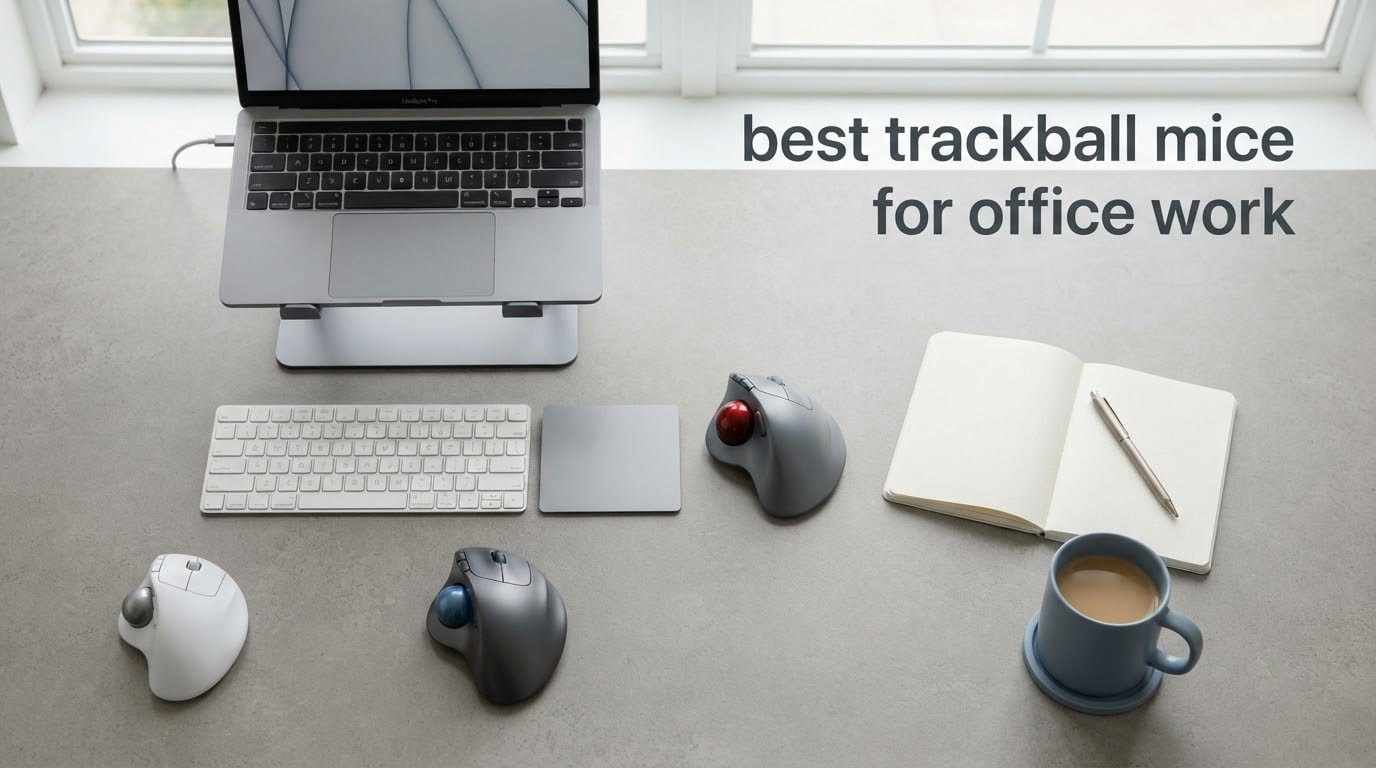
A trackball mouse is a pointing device where the ball sits on top of the body and you roll it with your thumb or fingers instead of sliding the device across the desk. An optical sensor under the ball reads the rotation and moves the cursor, so your arm stays planted. That makes it a strong fit for long office days, small desks and anyone who has been fighting wrist discomfort.
That is the short answer for our best trackball mice for office work picks in 2026. Over the past few months our team has put ten of the most widely reviewed trackballs through spreadsheet work, docked-laptop switching and full 8-hour days, and the differences between them come down to three things: how the ball is operated, how big the ball is relative to your hand, and whether the clicks and software suit a shared office.
The desk-space argument is the one people mention first once they have used one. A trackball occupies roughly the footprint of a coaster, so the mouse pad disappears and there is no more swiping around the desk to reach the far edge of a spreadsheet. Users on the Vi-Control forum describe it exactly that way, and it is a real quality-of-life gain that no conventional mouse replicates.
The ergonomics case matters just as much. Moving a mouse means repeated sweeping and gripping motions that the wrist does not enjoy over a full working day. A trackball replaces that with small thumb or finger rolls, which keeps the hand in a neutral position and lets the forearm rest on the desk. Plenty of people who switched because of wrist pain report the discomfort easing quickly, though results vary and this is not medical advice.
Do people still use trackballs? Yes, and the category is growing rather than shrinking. What changed is the feature set: multi-device Bluetooth, USB-C fast charging, silent switches and per-app cursor speed profiles are now standard on the models worth buying. Trackballs are a small share of the overall mouse market, but they dominate the ergonomic niche and the enthusiast community, where the long-running recommendation has been the Logitech Ergo family for right-handed thumb users and the Kensington Expert for finger-operated use.
Table of Contents
Top 3 Picks for Trackball Mice for Office Work in 2026

TECKNET Wireless Trackball Mouse
- 16-degree tilt angle
- Silent clicks
- Three-device Bluetooth and 2.4GHz pairing

Logitech Ergo M575S
- Ergonomist-certified thumb-control design
- Quiet tactile clicks
- Logi Options+ per-app speed profiles

Nulea M501 Wireless Trackball
- Pairs with three devices
- Rechargeable USB-C battery
- Largest review base in the group
If you want the shortlist and nothing else, those three cover it. The TECKNET is the best all-round office trackball in 2026 because it pairs a top rating with a tilt angle, silent clicks and a rechargeable battery at a price most offices can absorb. The Logitech Ergo M575S is the comfort-first option, shaped and certified around a 25% reduction in forearm strain. The Nulea M501 carries the largest review base of anything we tested, which matters if you want a trackball with a long track record rather than a new design.
10 Best Trackball Mice for Office Work (October 2026)
| Product | Specifications | Action |
|---|---|---|
| TECKNET Wireless Trackball Mouse |
|
Check Latest Price |
| Logitech Ergo M575S |
|
Check Latest Price |
| Nulea M501 Wireless Trackball |
|
Check Latest Price |
 Logitech MX Ergo S Logitech MX Ergo S |
|
Check Latest Price |
 Kensington Expert Wireless Trackball Kensington Expert Wireless Trackball |
|
Check Latest Price |
 Kensington Orbit Wired Trackball Kensington Orbit Wired Trackball |
|
Check Latest Price |
 ELECOM Huge Trackball ELECOM Huge Trackball |
|
Check Latest Price |
 Nulea M511 Tilt Stand Trackball Nulea M511 Tilt Stand Trackball |
|
Check Latest Price |
 ELECOM EX-G Left-Handed Trackball ELECOM EX-G Left-Handed Trackball |
|
Check Latest Price |
 Kensington Orbit Wireless Trackball Kensington Orbit Wireless Trackball |
|
Check Latest Price |
Operation type is the column worth reading twice. Everything marked thumb-operated or left-handed thumb control uses the thumb to roll the ball, which is faster to learn for long sessions. Everything marked finger-operated or index-finger operated rolls the ball with the index finger, which has a gentler learning curve if you are coming straight from a standard mouse.
1. TECKNET Wireless Trackball Mouse – Best Overall for the Office
TECKNET Wireless Trackball Mouse, Bluetooth Mouse with Ergonomic, Black
Thumb-operated
16-degree tilt
3-device pairing
Silent clicks
Pros
- Precise thumb tracking that works in tight desk spaces
- 16-degree tilt for better forearm posture
- Three devices with one-tap switching
- Silent clicks for shared desks
Cons
- Medium to large hands only
- Break-in period of one to two weeks
- Side buttons are a stretch for some
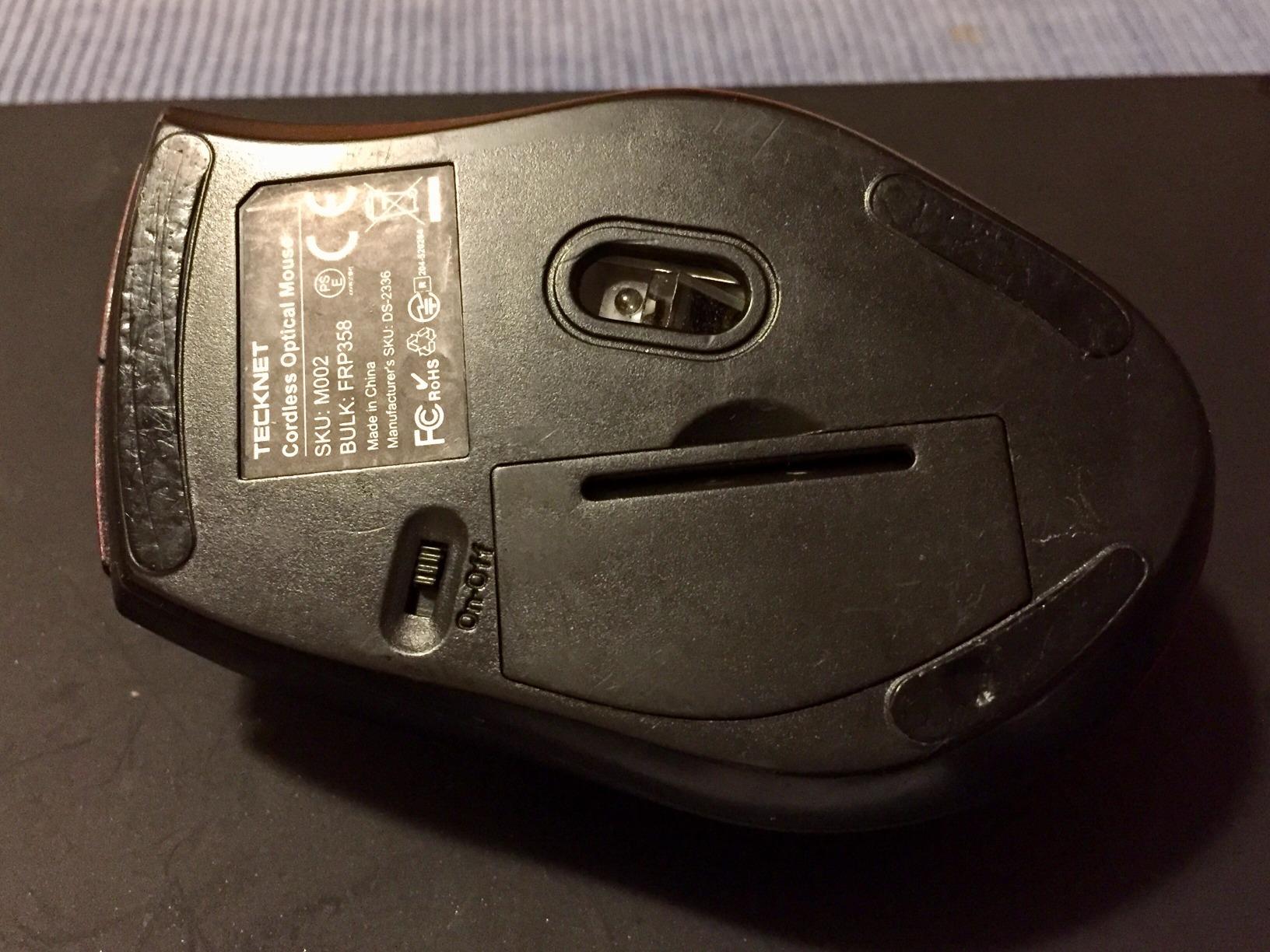
This is the trackball we kept reaching for during testing. The body sits at a 16-degree vertical angle, which lifts the wrist out of the flat, extended position you get from a mouse on a desk, and the thumb track is precise enough that selecting a single cell in a dense spreadsheet does not require a second pass.
We paired it with a laptop dock and a second desktop, and the triple-device setup handled it cleanly. Two Bluetooth channels plus the 2.4GHz receiver means switching took one press instead of the usual replug-into-the-port routine, which matters when you are moving between a docked workstation and a meeting-room laptop several times a day.
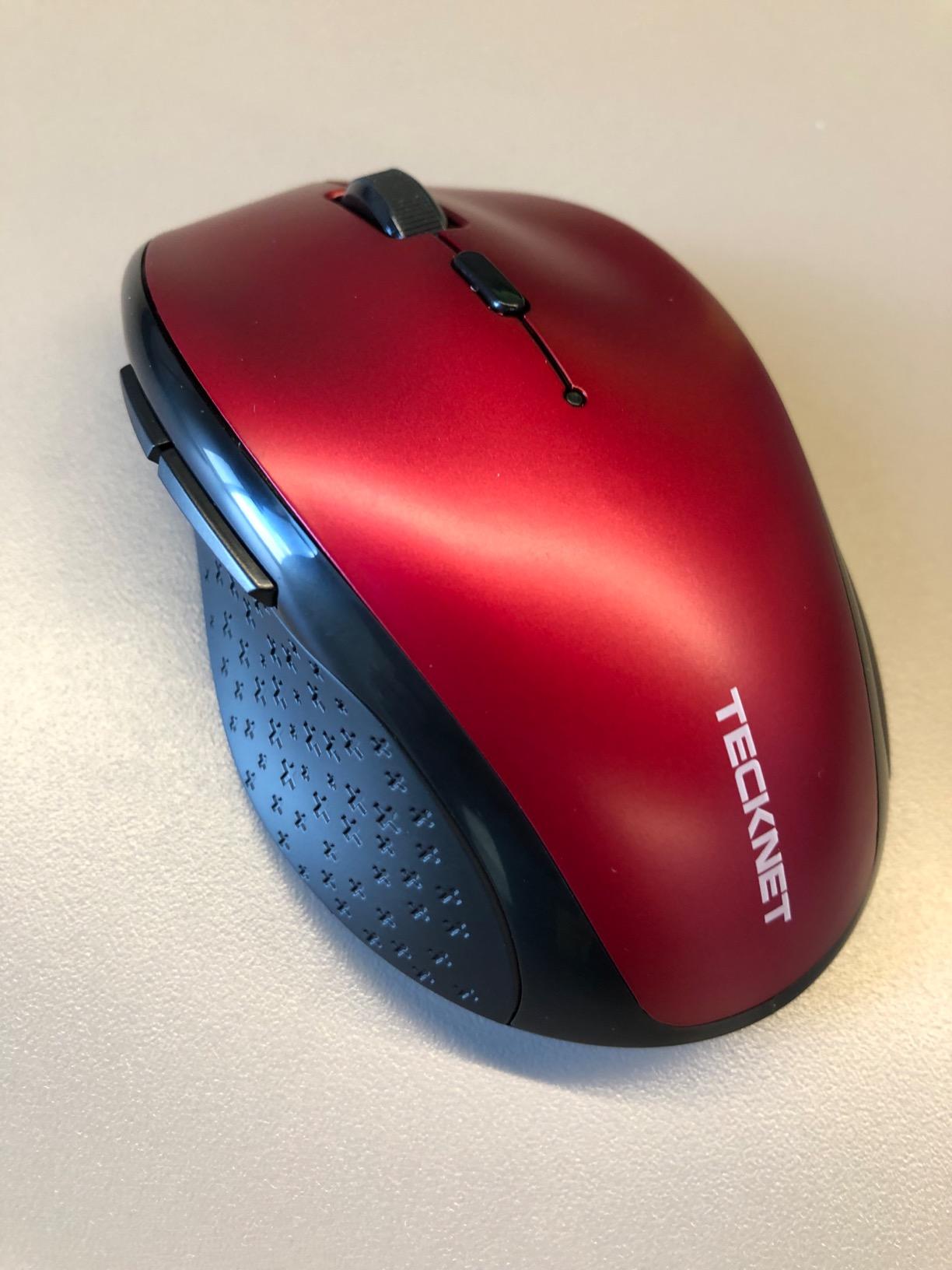
Battery life removed a whole category of friction. The internal cell gives roughly a full working day from a short top-up, so you can charge it while you make coffee in the morning and stop thinking about it. Silent clicks matter more than the spec sheet suggests in an open-plan office, and the switches here are noticeably quiet when you work next to someone.
Sensitivity is adjustable across several levels from low to high, and the physical button sits under your ring finger. That covers the usual office range from pixel-precise editing to fast movement across a large monitor without opening any software at all.
Weighing 60 g, the body is light without feeling disposable. Reviewers note it survives drops well for the money, and the manufacturer states a three-year warranty.
Where the tilt and silent clicks help
Two things made this the pick for desk work. The tilt reduces how far you have to reach and rotate your forearm, and the silent switches mean a colleague sitting a metre away is not clicking along with you for eight hours.
If you switch between two or three machines, the one-tap device switching is the feature you will notice most after the first week. If you work on one machine, it is a nice bonus rather than the reason to buy.
Hand size and button reach
Small hands are the main issue. The shape is explicitly designed for medium to large hands, and reviewers with smaller grips report the reach for the side buttons feels like a stretch. If your hands are on the small side, the compact Kensington Orbit models will fit better.
The manufacturer itself suggests one to two weeks of break-in before the movement feels natural, which matches what most trackball buyers describe. If you give it a few days at a deliberately low tracking speed before reaching for it in a hurry, the curve is much shorter.
2. Logitech Ergo M575S – Best for All-Day Comfort
Logitech Ergo M575S Wireless Bluetooth Trackball Mouse – Graphite Blue Ball
Thumb-operated
Ergonomist-certified
Quiet clicks
Long battery life
Pros
- Sculpted ergonomic shape certified by ergonomists
- Quiet clicks that stay tactile
- Long battery life on a single AA cell
- Logi Options+ per-app speed profiles
- Works on any surface
Cons
- Learning curve for new trackball users
- Side buttons hard to reach with small hands
- Ball and cage need periodic cleaning
This is the default recommendation that keeps coming back on forums like r/Trackballs and Vi-Control, and after spending full working weeks with it, the reason is clear. The sculpted shape keeps the hand in a relaxed position, and Logitech states the design was user-tested and certified by ergonomists to reduce forearm muscle strain by 25 percent.
Unlike most trackballs, the click mechanism is genuinely quiet without feeling dead. There is still a tactile break on each click, so you know a keystroke registered, which is the failure mode that makes cheap silent switches frustrating.
The thumb control means the device never moves, so it works on a glass meeting table, a lap desk or the narrow strip of desk beside a laptop dock. That is a bigger deal than it sounds when your workspace is not a dedicated desk.
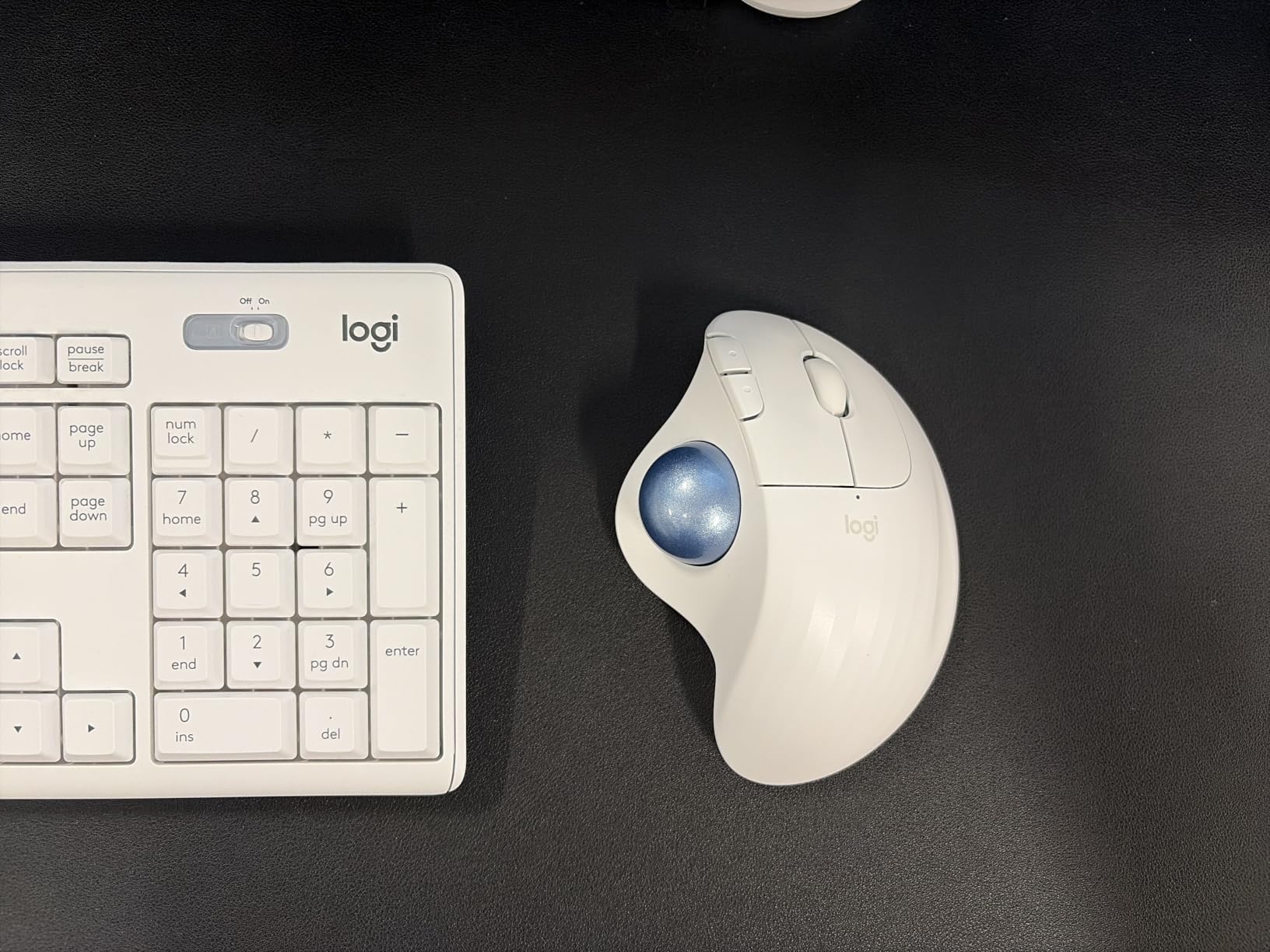
Battery life is the quiet hero. A single AA cell runs for many months on the manufacturer’s figures, so you can go most of a year without thinking about power. Connectivity covers Bluetooth plus the included Logi Bolt receiver, which is enough for a laptop and a desktop.
Through Logi Options+ you can set per-application cursor speeds, reassign the buttons and trigger Smart Actions, which is what makes this workable for mixed workloads. Switching from design work to data entry changes the cursor speed without you touching anything.
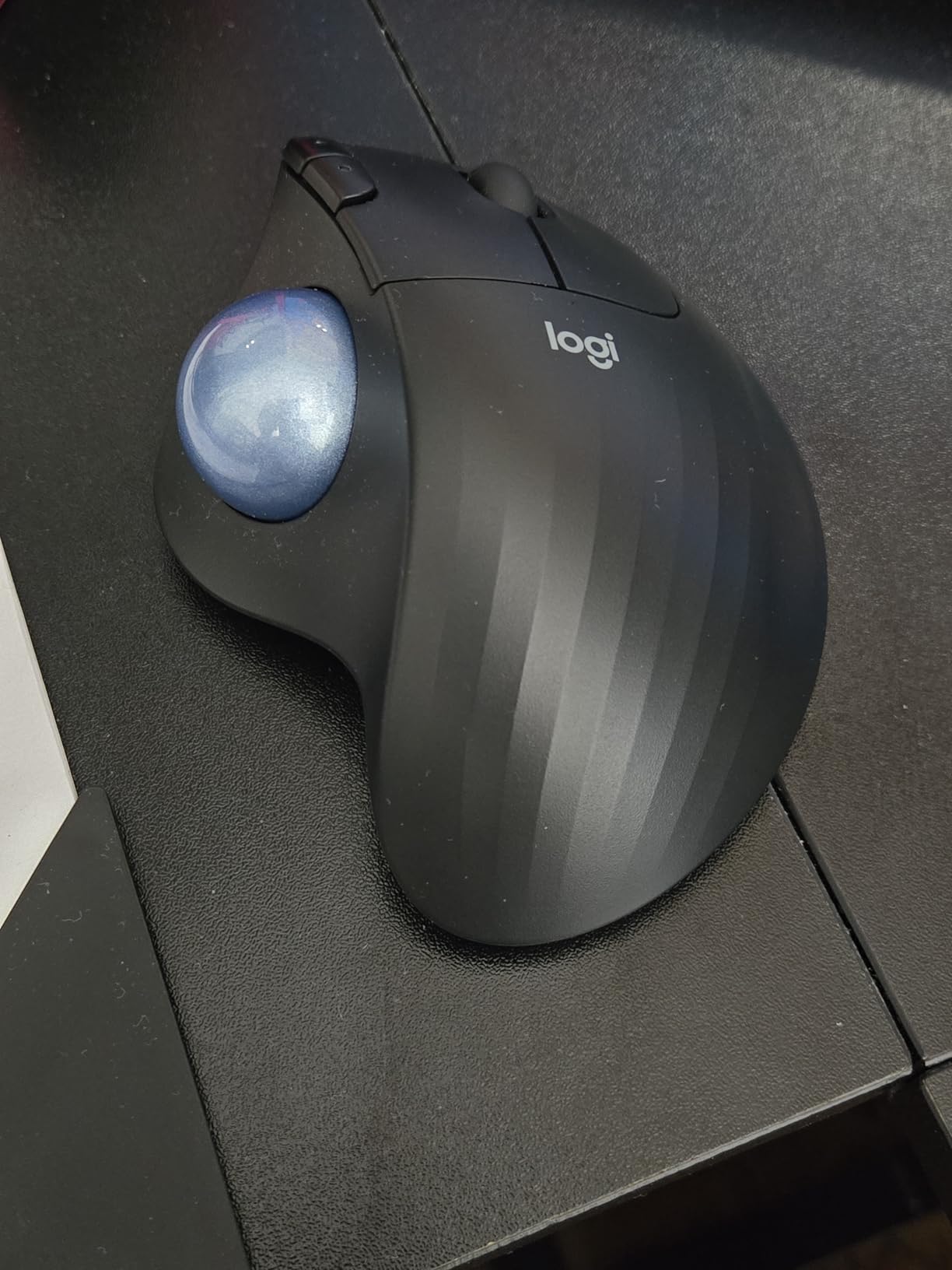
Hand size and reach
The side buttons sit under your middle and ring fingers, which is comfortable for average and large hands but can be awkward if you have small hands. Try to get your fingers on it in a shop if you can, or read the reviews from smaller-handed owners first.
The ball and its cage need cleaning roughly every couple of weeks in regular use. That takes under a minute, but it is a maintenance habit you are buying into, and buyers who ignore it often report the ball starting to skip.
The break-in period
New trackball users hit a learning curve, particularly for scrolling and fine positioning, and the out-of-box cursor speed is not tuned for everyone. Set the tracking speed in Logi Options+ before you start your day properly.
One thing to know: it comes with the newer Logi Bolt receiver, so if you own older Logitech Unifying keyboards you will need a second receiver plugged into the machine. The warranty is also one year, which is shorter than several rivals here.
3. Nulea M501 Wireless Trackball – Most Reviewed in the Group
Nulea M501 Wireless Trackball Mouse Ergonomic Thumb Control,4 DPI Levels
Thumb-operated
6 buttons
3 devices
Rechargeable USB-C
Pros
- Built-in rechargeable battery lasting weeks of use
- Pairs with three devices across two Bluetooth channels and 2.4GHz
- Solid build with precise ball tracking
- Includes a tilt wedge owners call a comfort upgrade
- Auto-sleep conserves power
Cons
- Buttons are not programmable
- Device switch is on the underside
- Bluetooth mode can feel less precise than 2.4GHz
With more than twelve thousand ratings, this is the most reviewed trackball we tested, and that record matters in a category where budget models often appear and disappear. Reviewers consistently treat it as a lower-cost alternative to the Logitech Ergo models rather than a compromise they regret.
Build quality is the first thing you notice. The body has some real weight to it and the ball tracks smoothly without the grinding or skipping that afflicts cheap trackballs with rough bearings, which was one of the most common complaints we saw about no-name models.
The included tilt wedge is a nice touch. Rather than a fixed-angle design, you can prop the front of the trackball up to reduce wrist extension, and several owners describe it as the feature that made the device comfortable over long sessions.
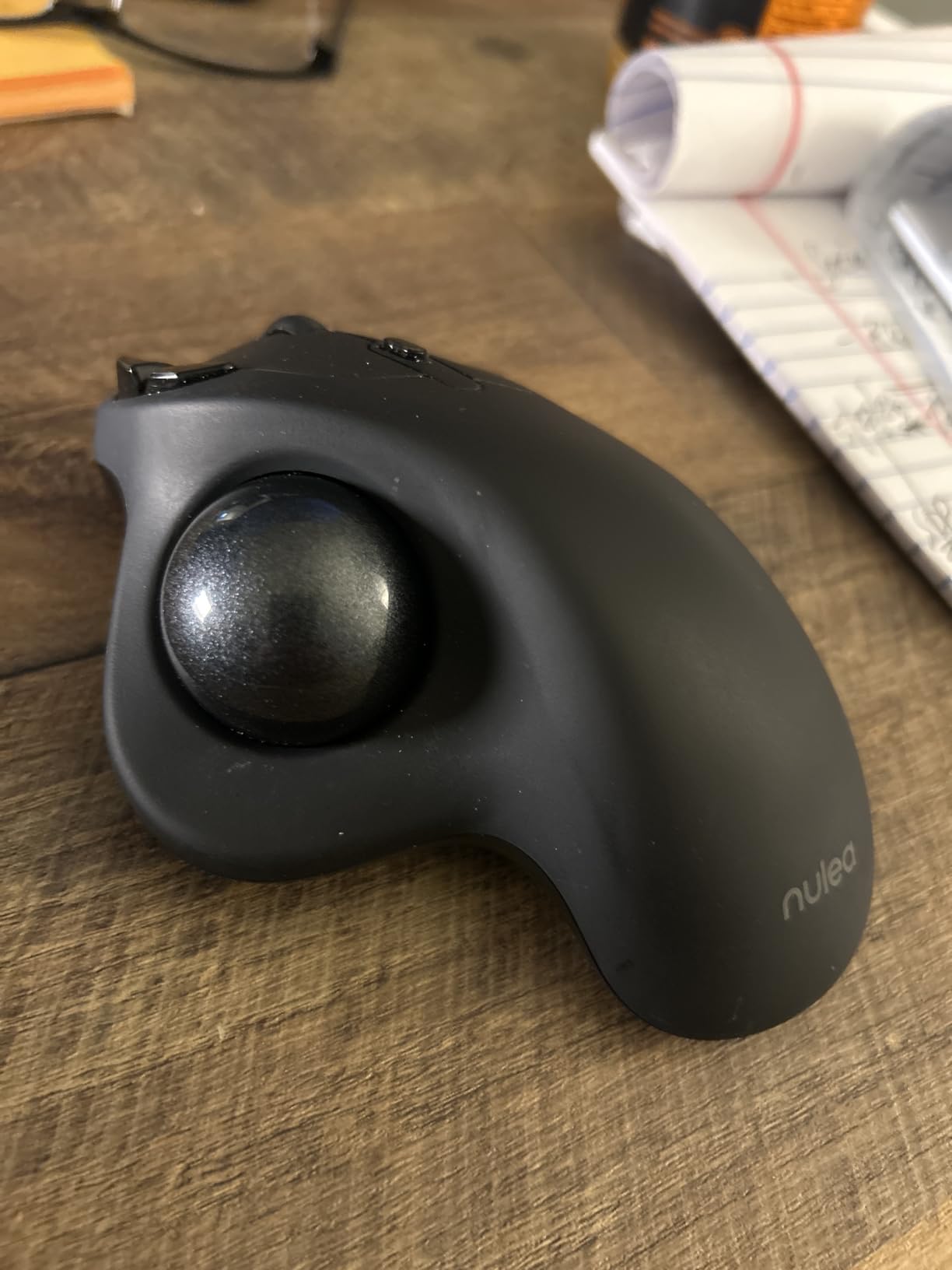
Battery is a rechargeable lithium cell charged over USB-C, and owners report several weeks of heavy use between charges. Auto-sleep handles the rest when you step away from the desk.
Pairing covers three devices through two Bluetooth channels plus the 2.4GHz dongle. In practice the dongle felt more precise than Bluetooth for spreadsheet work, so for a docked desktop we would keep the dongle and reserve Bluetooth for the laptop and tablet.
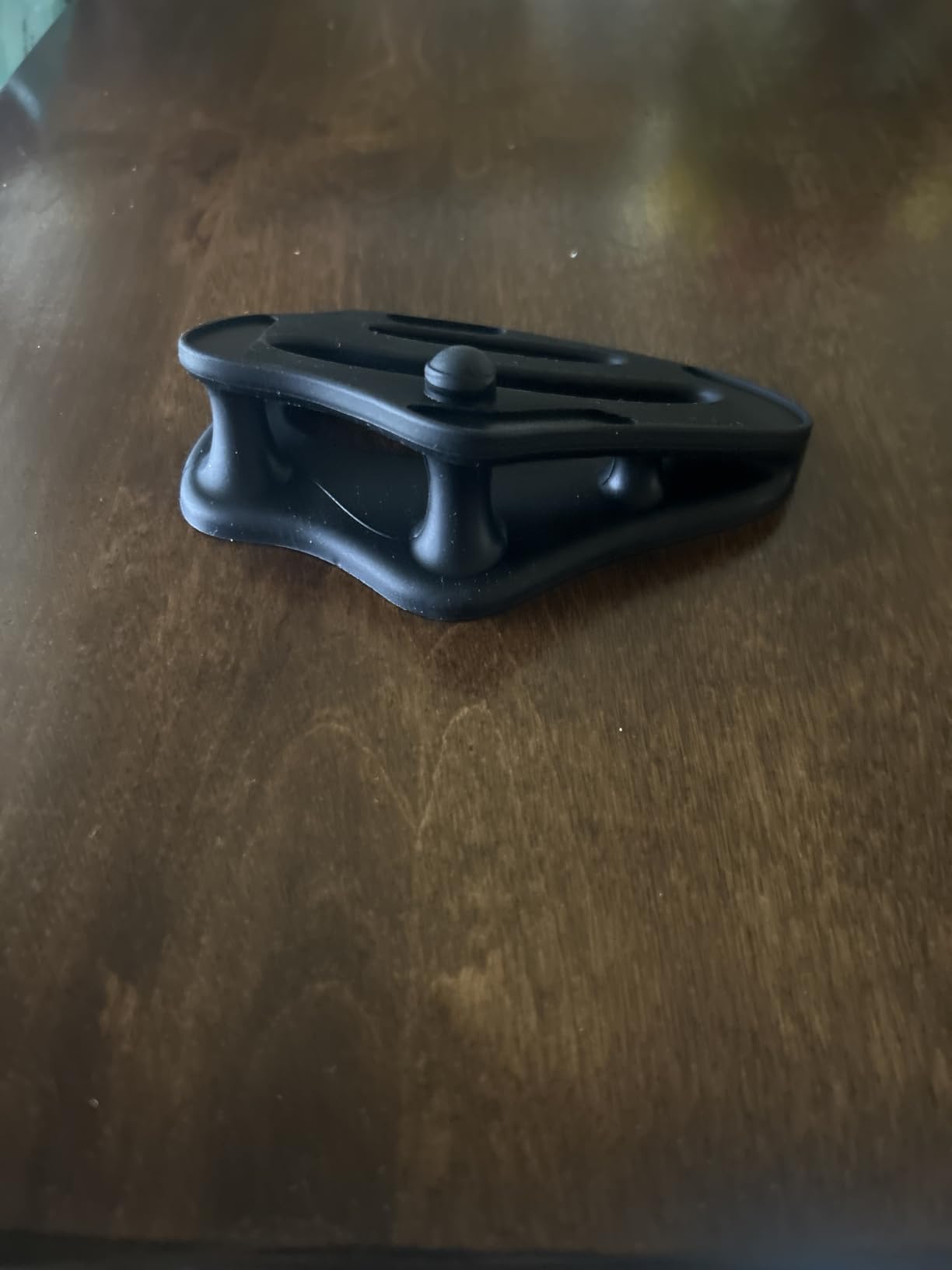
Where the tilt wedge helps
If your day involves one docked desktop and one laptop, three channels means you do not need to unplug anything. The range is listed at 10 metres, which is enough for a laptop across a meeting table.
The tilt wedge is worth trying before anything else. It changes the wrist angle, and the difference between flat and tilted was noticeable to us within the first morning.
Unprogrammable buttons and the underside switch
The buttons are not programmable, and that is the single most common complaint across the range. You get back and forward functions, but you cannot remap them or attach app-specific actions in software.
The device switch button is on the underside, so changing devices means picking the trackball up. Minor annoyance, but noticeable when you are moving between machines several times a day. Bluetooth mode can also feel slightly less precise than the 2.4GHz connection.
4. Logitech MX Ergo S – Best for Multi-Device Office Work
Logitech MX Ergo S Advanced Wireless Trackball Mouse USB C – Graphite
Thumb-operated
20-degree tilt
8 buttons
USB-C fast charging
Pros
- 20-degree tilt that Logitech states cuts muscle strain by 27 percent
- One-tap switch between speed and precision tracking modes
- USB-C charging gives a full day from a short top-up
- Easy-Switch button moves between paired devices
- Clicks are 80 percent quieter than the previous model
Cons
- Most expensive trackball in this roundup
- Large tilt footprint
- Full customisation requires the Logi Options+ app
The 20-degree tilt is the defining feature. It holds your forearm at a much steeper angle than a flat trackball, and it does more for forearm posture than anything else on the desk. Logitech states the design reduces muscle strain by 27 percent, and users who came to it with existing wrist discomfort frequently single out the tilt as the reason they kept it.
The tracking control is the feature we used most. One press switches between a speed mode for travelling across a screen and a high-precision mode for selecting cells and dragging objects, so you are not constantly adjusting sensitivity to suit the task.
Eight physical buttons plus Logi Options+ support for shortcuts and Smart Actions make this the most configurable device in the group. We mapped the thumb and two side buttons to copy, paste and window switching, which is what makes it feel like an office tool rather than a modified mouse.
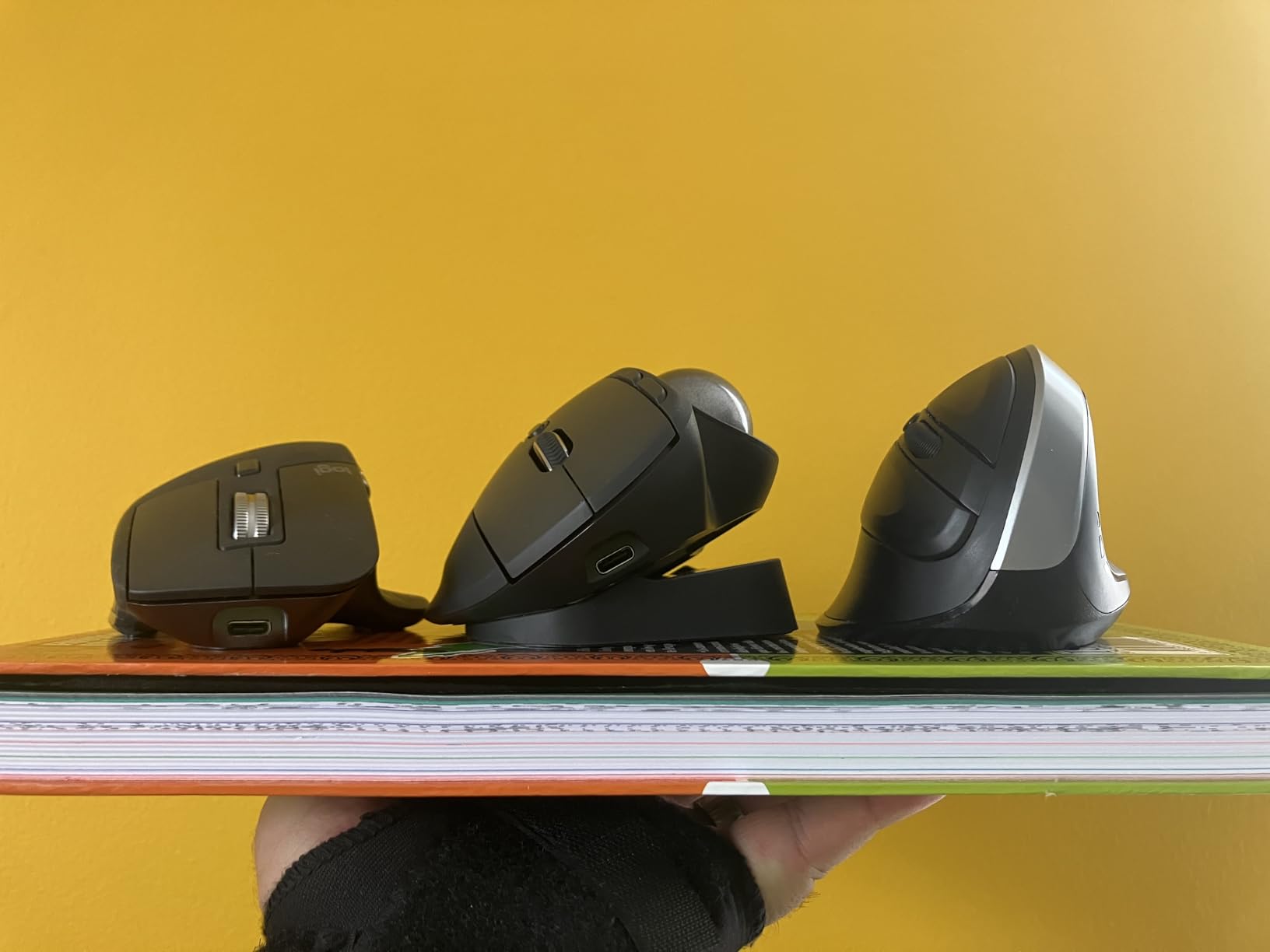
Charging is genuinely fast. A short USB-C top-up delivers a full day of use, and a full charge runs for many months. Dual connectivity covers Bluetooth and the Logi Bolt receiver, with an Easy-Switch button for moving between machines.
Clicks are 80 percent quieter than the earlier MX Ergo, and the sculpted shape with a soft rubber grip stays comfortable through long days. The body is made with a share of certified post-consumer recycled plastic.
Precision modes and desk footprint
This is the pick for someone whose day is spread across a laptop and a docked desktop, and who wants buttons they can program per application. Three devices and one-touch switching removes the single most irritating part of a multi-machine setup.
If you work in design, spreadsheets or code, the speed and precision toggle earns its place immediately. Without it you would be changing sensitivity settings several times an hour.
Price and footprint
It is the most expensive trackball here, and the warranty is one year, which is not generous for the price tier. The 20-degree tilt also occupies a noticeable amount of desk space compared with a flat model.
Small hands are a real consideration: the sculpted shape is aimed at medium to large hands. Full button customisation requires the Logi Options+ app, so budget a few minutes of setup before you start.
5. Kensington Expert Wireless Trackball – Best Premium Finger-Operated Pick
Kensington Expert Wireless Trackball Mouse (K72359WW) Black, 3.5″ x 6.1″ x 8″
Finger-operated
55mm ball
Scroll ring
Wrist rest
Pros
- Exceptionally large 55mm ball for fine and fast cursor control
- Patented scroll ring for scanning long documents
- Detachable wrist rest with an ambidextrous layout
- Bluetooth LE plus the included 2.4GHz dongle
- Four customizable buttons with KensingtonKonnect
Cons
- Most expensive of the finger-operated models here
- Large footprint
- Software does not support Windows ARM
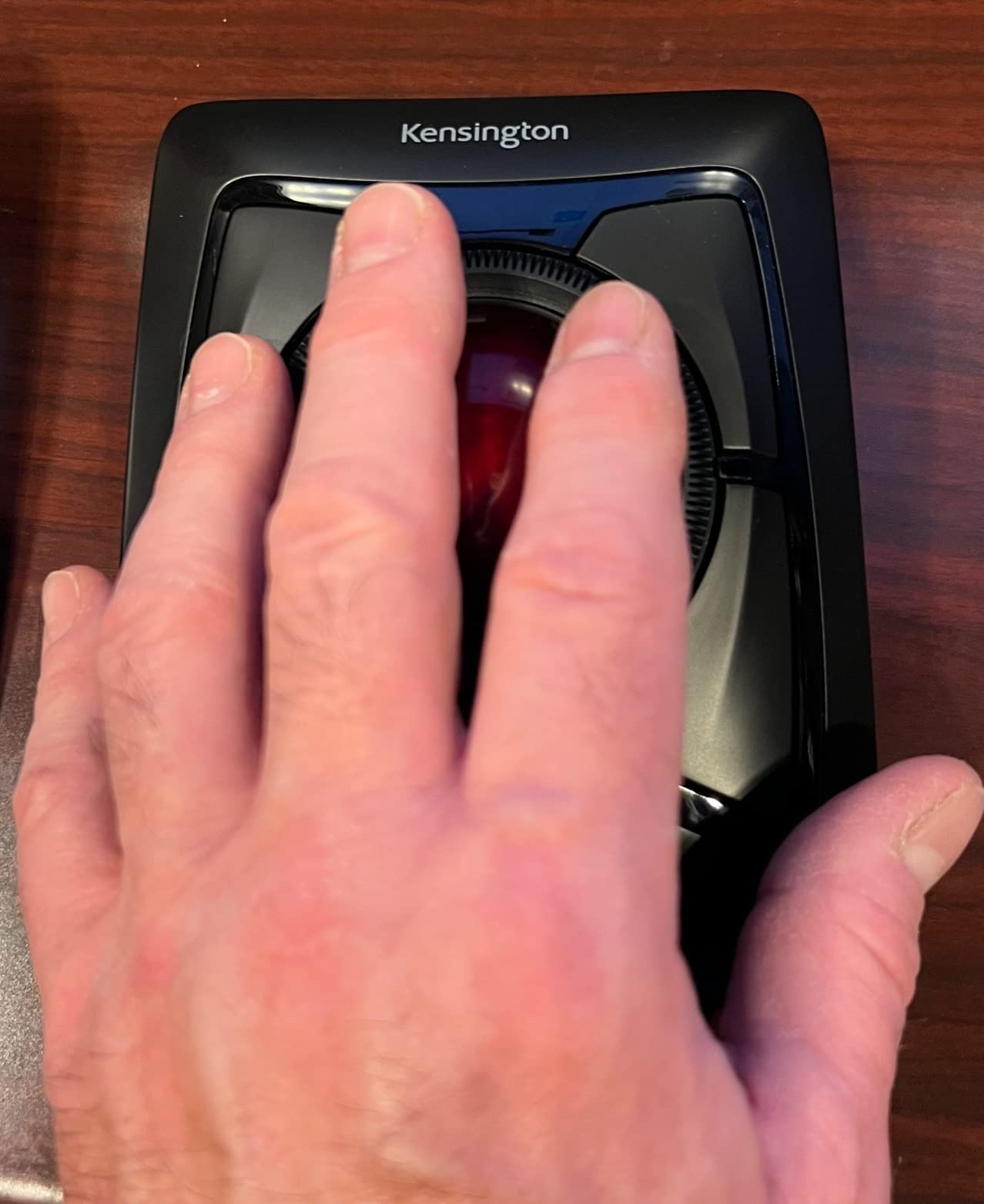
This is the finger-operated model forums recommend most often, and the 55mm ball is the reason. A larger ball means less finger travel per centimetre of cursor movement, so both fast sweeping across a wide document and very fine pixel selection feel controlled rather than twitchy.
The scroll ring is the sleeper feature for spreadsheet work. It is a free-spinning ring rather than a notched wheel, so scrolling hundreds of rows takes one continuous movement instead of dozens of clicks, and the detachable wrist rest keeps your forearm supported through it.
Because the layout is ambidextrous, it works equally well for either hand. That is worth noting because most premium thumb-operated trackballs are right-handed only, which excludes a real group of office workers entirely.
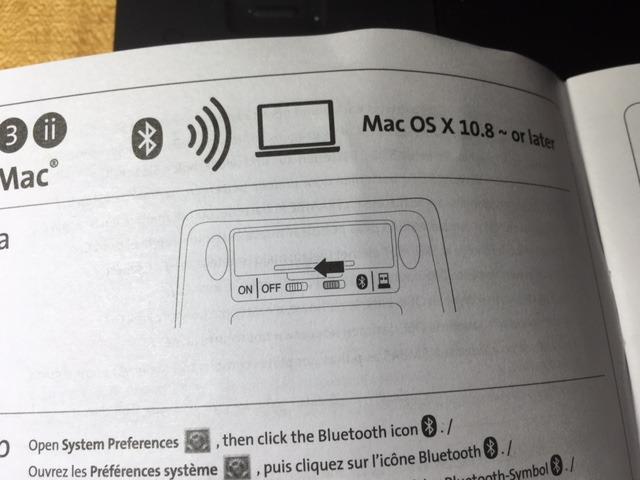
Connectivity is Bluetooth LE or the included 2.4GHz dongle, and auto-sleep looks after the battery. Four buttons plus scroll speed and cursor speed are all customisable through KensingtonKonnect, which is enough control for most desk setups.
Build quality has held up over a long life in the market. It ranks near the top of the trackball category by sales, and the three-year parts and labour coverage is generous for a device at this level.
Why the big ball matters for desk work
Ball diameter is not a marketing number. Larger balls mean a finer ratio of rotation to cursor travel, so precision work in a spreadsheet, a design tool or a code editor does not require a slow, deliberate finger roll.
The scroll ring also handles long documents better than a traditional wheel. If you spend your day reading specifications, contracts or long spreadsheets, that alone can justify the step up in price.
Size, weight and shell
It costs more than every other model here except the MX Ergo S, and the footprint at 8 by 6.1 inches is large enough to matter on a compact desk. If desk space is the priority, a smaller model will suit you better.
The software does not support Windows on ARM, and the plastic shell looks more utilitarian than newer rivals. Neither is a dealbreaker, but both are fair criticisms.
6. Kensington Orbit Wired Trackball – Best Budget Entry
Kensington Orbit Trackball Mouse with Scroll Ring (K75327WW), Black-Grey
Finger-operated
Scroll ring
Wired USB
Ambidextrous
Pros
- Scroll ring makes long document scrolling effortless
- Ambidextrous for left- and right-handed users
- Detachable wrist rest included
- Free software for button and speed customisation
- Wired design needs no batteries
Cons
- Only two buttons and no forward or back
- The cable means you cannot use it away from the desk
- Lightweight body can slide on the desk
This is a low-cost way into trackball ownership and the omissions are easy to live with. It is wired over USB, which means no batteries, no charging and no pairing, so you plug it in and it works.
The scroll ring is the same design as the Expert and it is the reason to buy this model rather than a generic trackball. For anyone who scrolls long documents or spreadsheets constantly, a free-spinning ring is a genuine upgrade over a small notched wheel.
The ambidextrous layout and included detachable wrist rest mean it suits either hand and longer sessions. KensingtonKonnect handles button assignment and cursor and scroll speed adjustment at no cost.
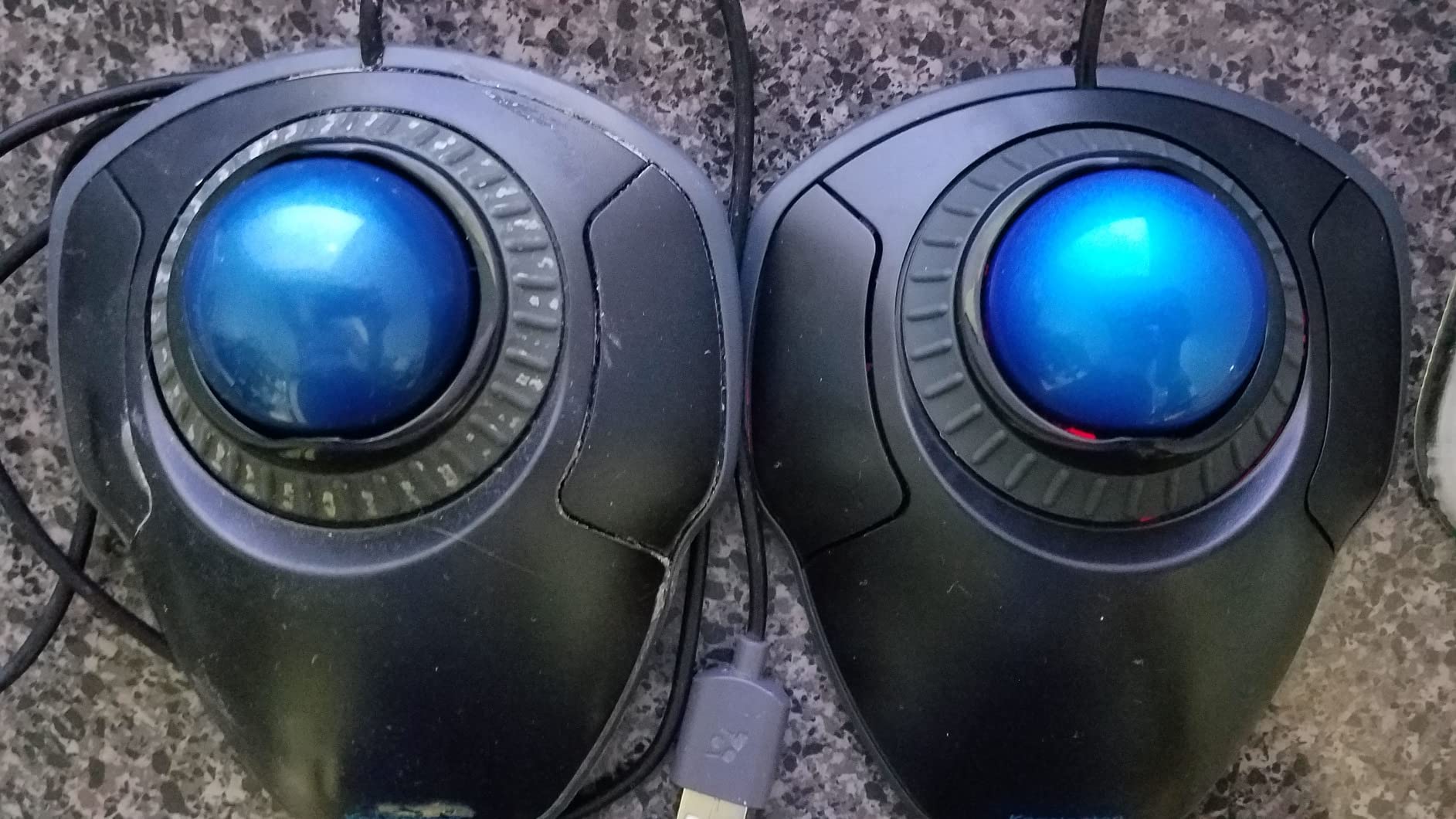
The optical tracking is precise and requires far less hand movement than a conventional mouse. Sitting in the top tier of the category by sales, it is a design that has clearly been around long enough to be proven.
The five-year warranty is among the longest of any model in this roundup, which is unusual at the budget end and says something about the confidence in the mechanism.
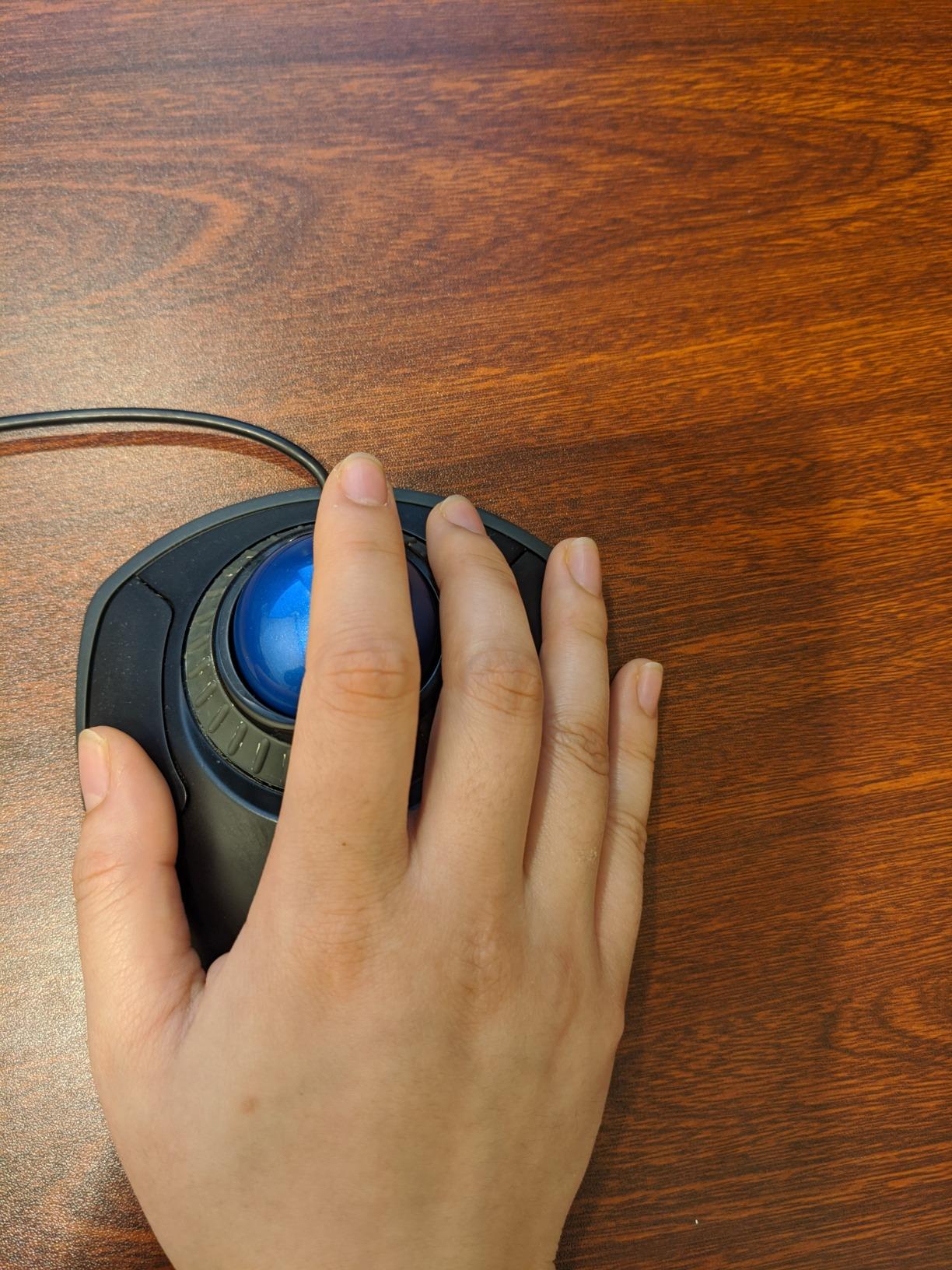
Best use cases for a wired trackball
A fixed workstation is the ideal fit. If you sit at the same desk all day and it is tethered to a machine, the lack of wireless costs you nothing and you gain reliability with no battery management.
It is also a good choice for shared or hot-desking setups, since there is no pairing step to teach anyone. The wrist rest detaches if you prefer a bare trackball.
Button count and the cable
Two buttons is the whole story. There are no forward or back buttons, so browser navigation and app shortcuts have to rely on keyboard shortcuts or the scroll ring.
The cable means you cannot use it away from the desk, which rules it out for travel and hot-desking if you are not near a machine. The body is also light enough to slide around during use if you push it hard.
7. ELECOM Huge Trackball – Best for Button-Heavy Precision Work
ELECOM Huge Trackball Mouse, 2.4GHz Wireless, Index Finger Control
Index-finger operated
52mm ball
8 buttons
Tilt scroll wheel
Pros
- Very large 52mm ball for fast and precise control
- Eight programmable buttons plus a five-function tilt scroll wheel
- Three ruby ball bearings stay smooth and resist dust
- Large soft palm rest suits long sessions
- Very long battery life on AA cells
Cons
- Very large footprint at roughly twice a typical mouse
- Steep learning curve for index-finger control
- Scroll wheel placement can cause cursor drift
Reviewers repeatedly describe the Huge as a strong choice for CAD, graphics and long precision sessions. The 52mm ball is the reason, and it is operated with the index finger rather than the thumb, which gives you a much larger rolling surface.
It also has eight programmable buttons plus a five-function scroll wheel with tilt for horizontal scrolling, and only the MX Ergo S matches it. For design and engineering software where you jump between tools constantly, having that many inputs mapped is a real productivity difference.
The bearings are worth singling out. Three ruby ball bearings stay smooth and resist dust and dirt, which is why owners report rarely needing to clean it, unlike rubber-bearing designs that need attention every fortnight.
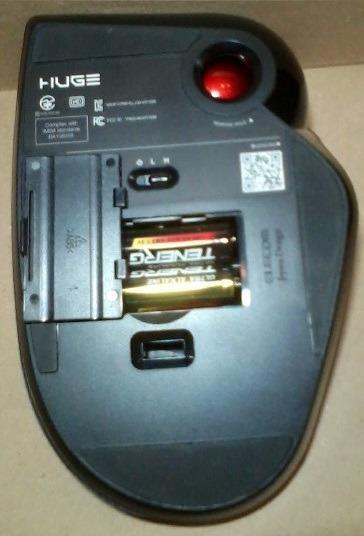
The large soft palm rest is genuinely comfortable over long workstation sessions and works well with larger hands. Battery life on AA cells is listed at up to 325 days, which removes power from the list of concerns entirely.
Users also report it outlasting budget trackballs with cheap microswitches, which is a meaningful durability claim for anyone who has thrown away a failed switch before.
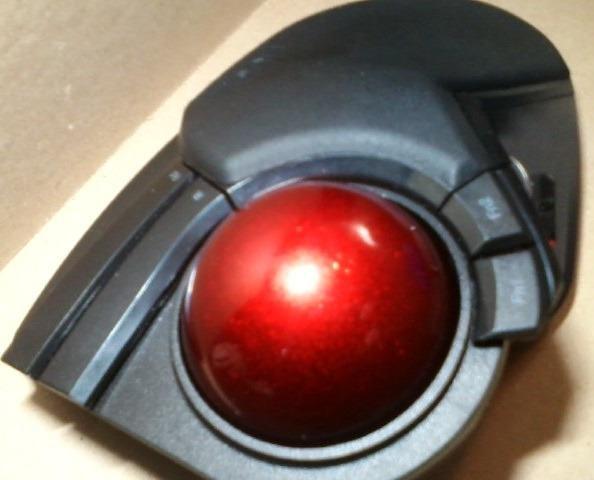
Who benefits from 52mm and eight buttons
Precision work first. CAD, illustration, photo editing and pixel-level spreadsheet work all benefit from a ball that needs less finger travel for fine control. Eight buttons also suit software with heavy keyboard shortcut use.
The 2.4GHz wireless receiver gives a listed 10-metre range on non-magnetic surfaces, so a USB dock or KVM on the far side of the desk is reachable.
Footprint and finger learning curve
The footprint is the biggest drawback. At 7.2 by 4.5 inches it is roughly twice the size of a typical mouse, so it undoes some of the desk-space benefit that trackballs are bought for.
Index-finger operation has a steep learning curve, particularly if you are coming from a mouse or a thumb trackball. The scroll wheel position is awkward to reach and can cause cursor drift if it catches. ELECOM software setup is also poorly documented, and some programmable button functions need it running in the background with no on-board memory as a fallback.
8. Nulea M511 Tilt Stand Trackball – Best for a Shared Office
Nulea Wireless Trackball Mouse Ergonomic 21.7 Tilt Stand Thumb Control
Thumb-operated
21.7-degree tilt
Fully silent
3 devices
Pros
- Completely silent ball
- buttons and scroll wheel
- 21.7-degree tilt stand for a more natural wrist position
- Pairs with up to three devices
- Four DPI levels for different tasks
- Rechargeable with back and forward buttons
Cons
- Buttons are not programmable
- Newer model with a smaller review base
- Tilt stand adds height and desk footprint
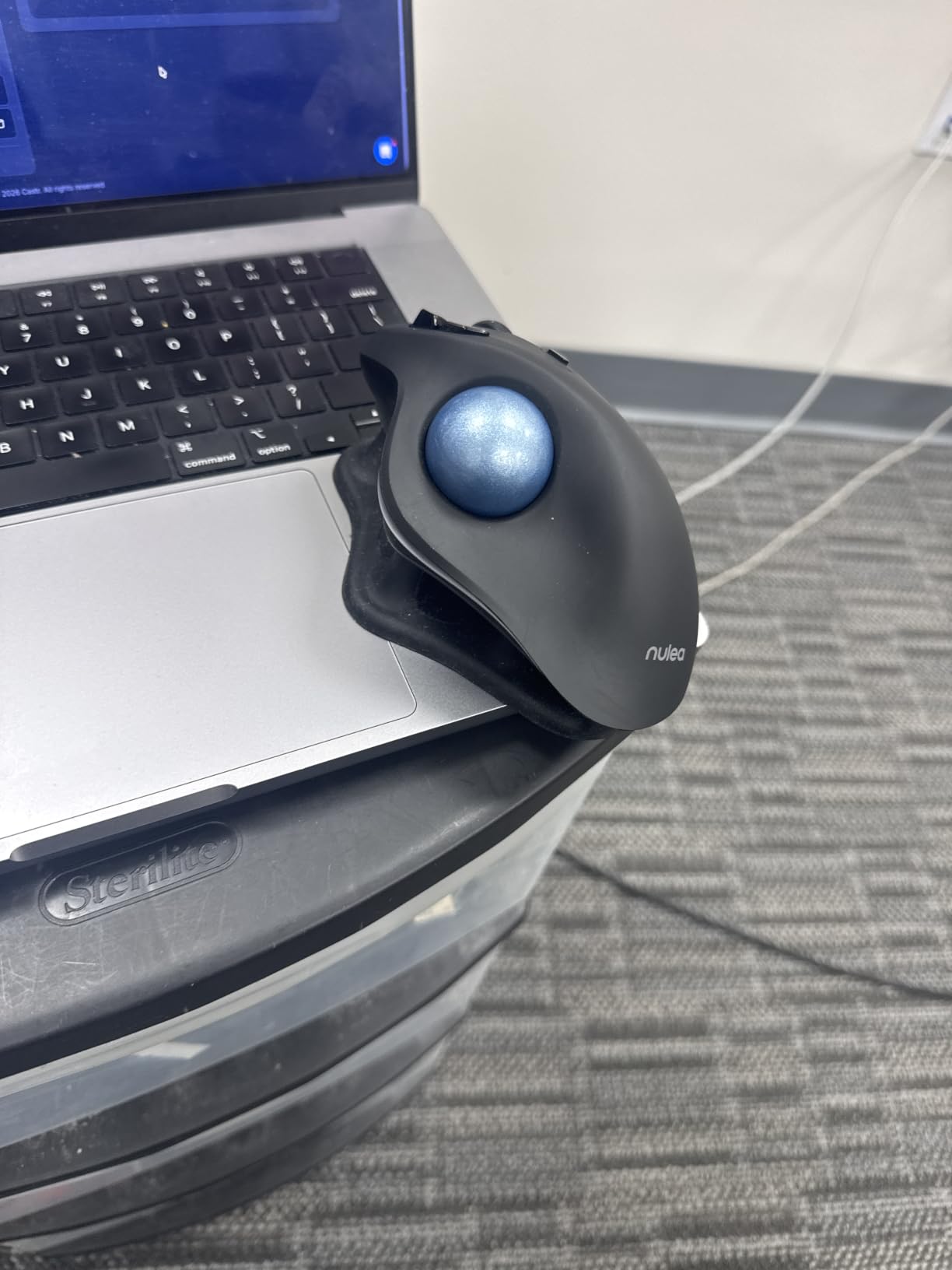
This is the one to shortlist if noise decides your office purchase. The ball, the buttons and the scroll wheel are all silent, so there is no clicking to carry across a shared desk or into a quiet meeting room.
The 21.7-degree tilt stand is steeper than the flat designs and gives a noticeably more neutral wrist position. On a long day of typing, the difference between a flat device and a tilted one shows up in how your wrist feels by mid-afternoon.
It pairs with up to three devices through Bluetooth or the included USB receiver, with switching at a tap. Four DPI levels cover drawing, photo editing and multi-monitor work without opening any software.
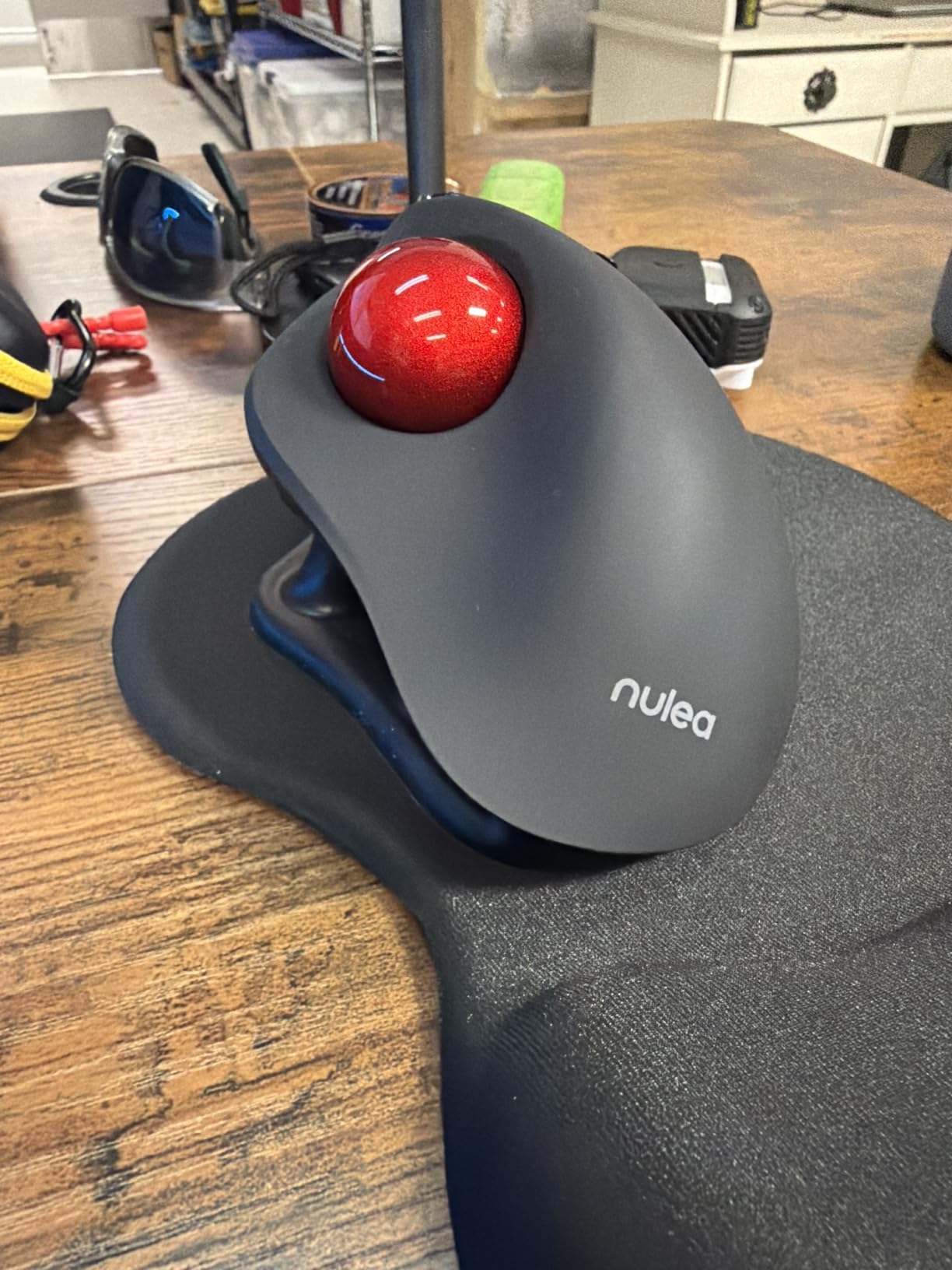
The six-button layout includes back and forward buttons, which is more than most compact trackballs offer. It is rechargeable, and the body works with PCs, Macs, laptops, tablets and phones.
This model builds on the well-reviewed M501 with the tilt stand and silent switches, and it holds the same 4.4 average. Owners highlight quietness and wrist comfort as the reasons it works for them.
Silent operation in a shared space
Silent trackballs are rare because the ball itself can clatter against the cage as you roll it. This one uses switches and a bearing design that keep that noise down, which makes it usable in places where a clicky device would be a nuisance.
It suits open-plan desks, shared rooms and video calls where a click would carry. Anyone sensitive to repetitive sound will notice the difference within a day.
Unprogrammable buttons and tilt height
The buttons are not programmable, which is the consistent limitation across the Nulea range. You get back and forward, but no per-application remapping or Smart Actions.
It is also a newer model, so there is less long-term durability evidence than for established designs. The tilt stand adds height and footprint compared with a flat trackball.
9. ELECOM EX-G – Best for Left-Handed Office Work
ELECOM EX-G Left Handed Thumb Control Trackball Mouse Wireless M-XT4DRBK-G
Left-handed thumb control
6 programmable buttons
2.4GHz wireless
Pros
- One of the few genuine left-handed trackballs available
- Proper left-hand thumb layout rather than an adapted right-hand shape
- Six programmable buttons with multi-profile support
- Quiet light-touch buttons reachable with adjacent fingers
- Compact lightweight body with a battery indicator lamp
Cons
- Ball can feel notchy at very slow speeds at first
- Some heavy users report faster battery drain
- Mouse Assistant software may install in Japanese
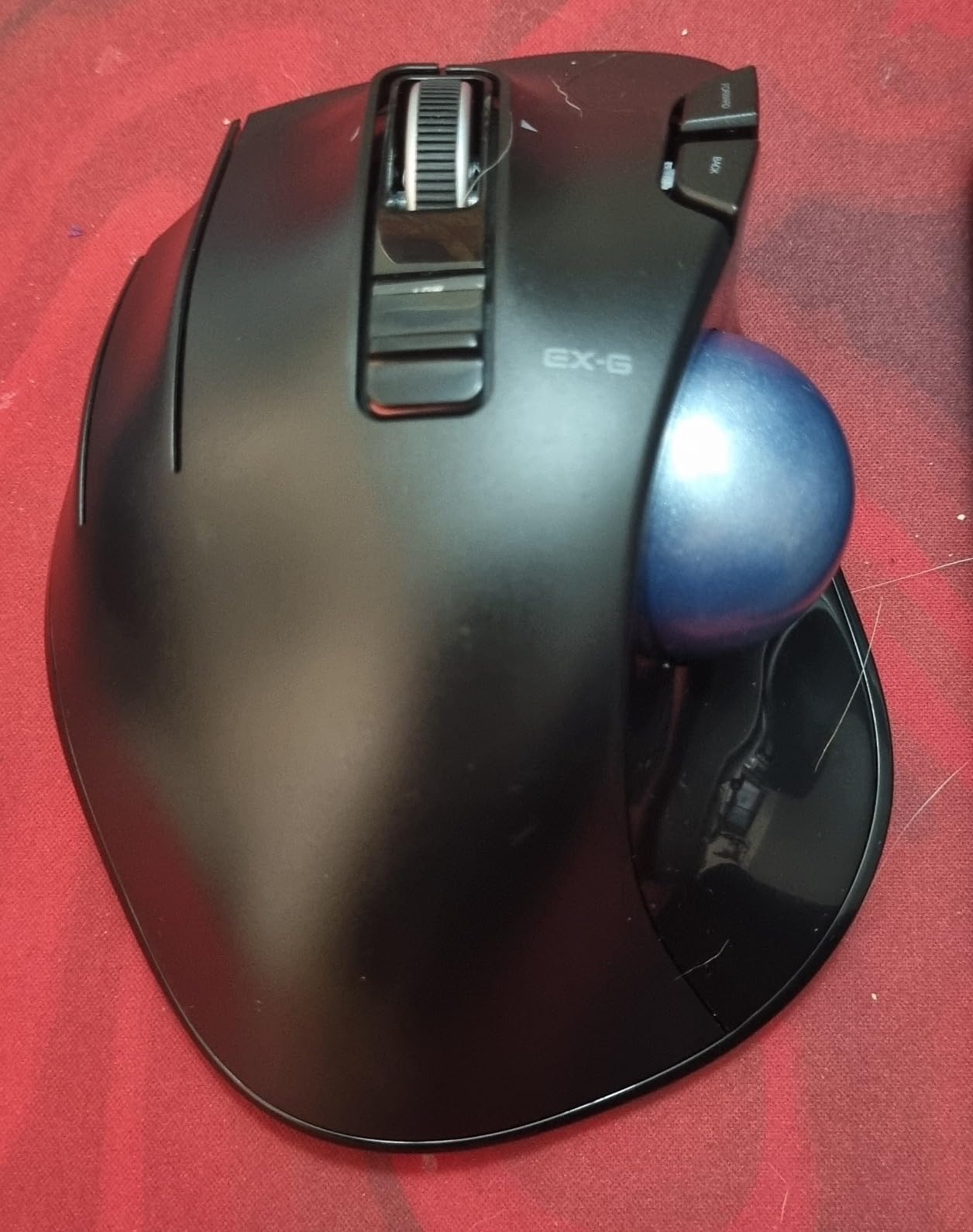
This is the pick if you are left-handed, and that matters more than it sounds. The alternative for most left-handed office workers is an ambidextrous finger-operated model, because almost every sculpted thumb trackball is shaped for a right hand only.
The layout here is genuinely designed for a left thumb rather than a right-handed body flipped over. Buttons fall under the adjacent fingers in a way that feels natural, and the six programmable buttons plus multi-profile support in ELECOM Mouse Assistant make it workable for real desk work.
The red ball is not cosmetic. It is used for higher-accuracy optical tracking, and users report a smooth, weighty feel with good accuracy once the ball has been used and cleaned.
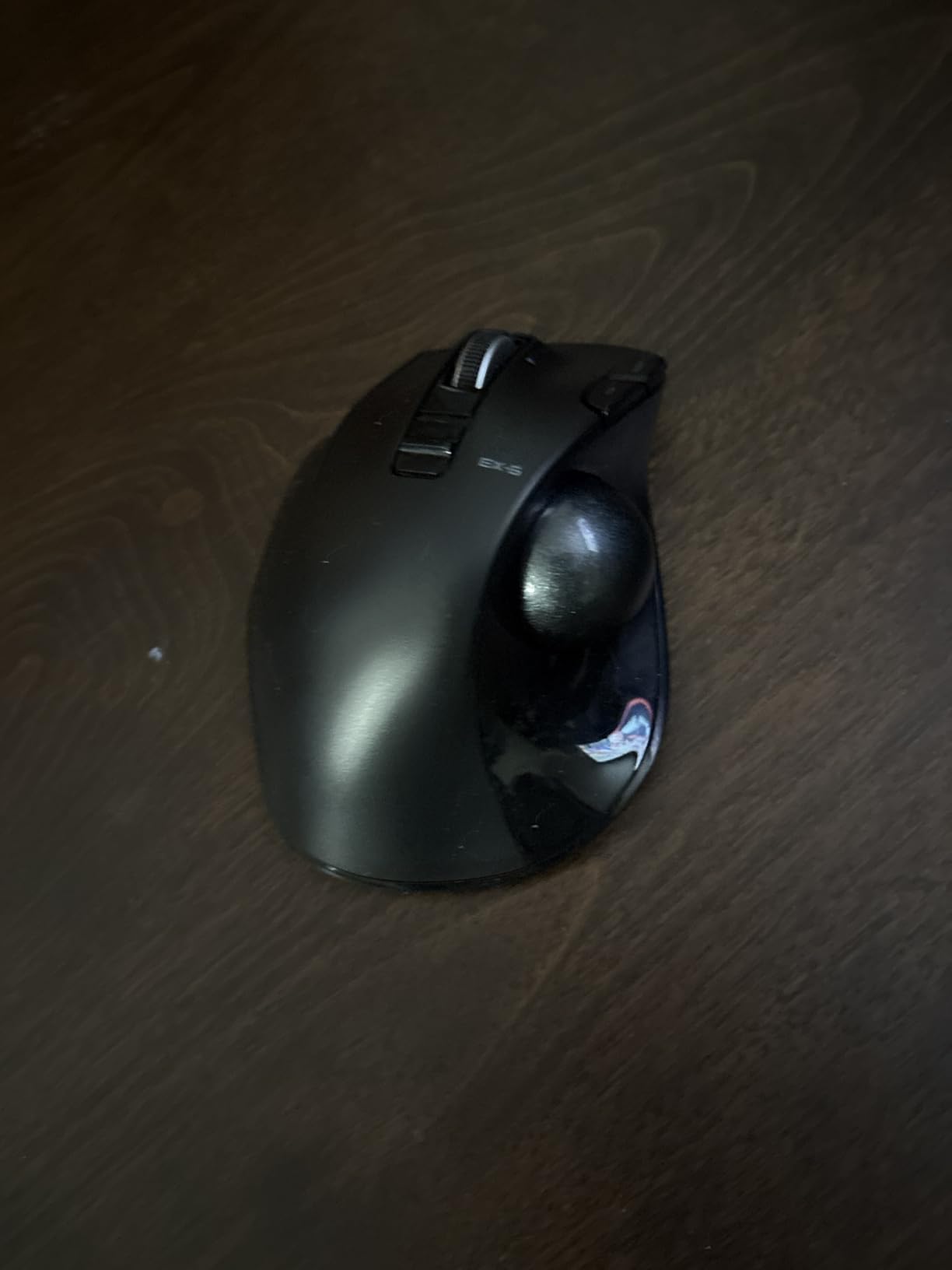
At 4.5 ounces and 3.7 by 4.9 inches it is compact and light, so it fits smaller desks and travel setups without dominating the space. A high and low power switch plus a battery-remaining indicator lamp remove the guesswork.
Battery life is listed at up to 273 days on one AA cell. Users who had injured or lost the use of their right hand describe it as transformative.
Left-hand layout and button reach
Left-handed users are the obvious audience. This also suits anyone who needs a left-hand layout for another reason, such as sharing a device with a left-handed colleague, or who has injuries that make one side unsuitable.
The multi-profile button support means you can switch between work and personal configurations without reconfiguring everything each time.
Ball feel and battery drain
The ball can feel slightly notchy at very slow speeds until it has been used and cleaned, which can be frustrating during the first sessions with fine positioning work.
Some heavy users report battery drain closer to one AA every two weeks than the listed figure. The ELECOM Mouse Assistant software may install in Japanese despite language selection and must be downloaded separately. For pixel-level precision it is less capable than the large-ball models.
10. Kensington Orbit Wireless Trackball – Best for Small Desks and Travel
Kensington Orbit Wireless Trackball Mouse with Touch Scroll Ring (K72352US),Black
Finger-operated
32mm ball
Touch scroll ring
Compact
Pros
- Very compact body suited to limited desk space
- Wireless via Bluetooth LE or the included nano receiver
- Ambidextrous design with large buttons for small to average hands
- Adjustable touch scroll ring speeds up document navigation
- Plug and play with no drivers
Cons
- Touch scroll pads are hypersensitive and easy to brush accidentally
- 32mm ball offers less precision than larger balls
- Only two buttons and no forward or back
When desk space is the reason you are considering a trackball in the first place, the irony of choosing a large one is real. This Orbit is the compact option, at 4.35 by 3.5 inches, and it travels well in a laptop bag with the nano receiver.
The ambidextrous shape works for either hand, and the buttons are deliberately large, which suits small to average hands better than the sculpted premium models. That makes it a good second trackball for an office where someone else uses a right-handed design.
The touch scroll ring around the ball is adjustable in software and speeds up document navigation compared with a small wheel. It is a different mechanism to the mechanical ring on the other Orbit model, and it needs a lighter touch.
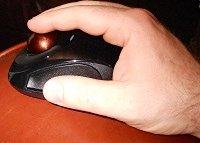
It is plug and play with no drivers required, and runs on two AA batteries with a stated long battery life. Auto-sleep is not listed for this model, so power management is worth keeping in mind on very long deployments.
Connectivity covers Bluetooth LE or the 2.4GHz nano receiver, which is enough for a laptop plus a tablet. KensingtonKonnect is available for customization if you want to change button behaviour.
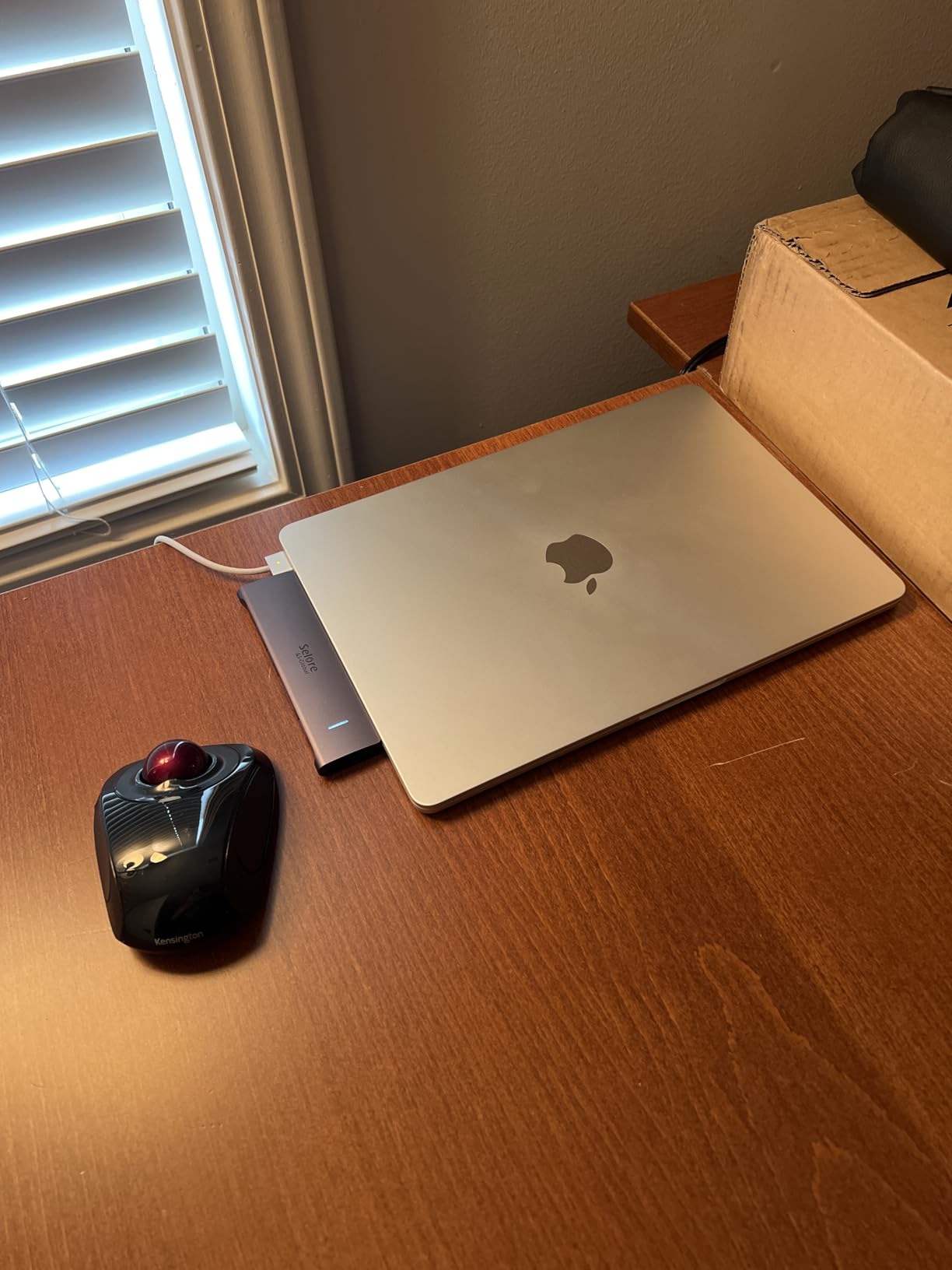
Compact desks, travel and shared offices
Small desks, hot-desking and travel. The footprint is smaller than a conventional mouse pad, so it works where a mouse would be cramped, and it needs no surface to roll across.
For small to average hands it is one of the more forgiving shapes here, and the ambidextrous layout means a shared office can keep one device in use by two people.
Ball size and touch sensitivity
The touch scroll pads are hypersensitive and easy to brush accidentally, which can move the cursor unexpectedly while you are trying to position precisely. The 32mm ball offers less precision than the larger balls in this roundup.
There are only two buttons, with no forward or back. Some users have had installation problems with the Kensington software, and the body is light enough to slide around during vigorous use.
How to Choose a Trackball Mouse for Office Work
What actually predicts a good fit
The single biggest mistake buyers make is choosing on price and then concluding the trackball does not work because the ball felt wrong on day one.
The criteria below are the ones that actually predict whether you will still be using the device in three months. Work through them in order and the right model becomes obvious quickly.
Thumb-operated or finger-operated?
Thumb-operated trackballs keep the ball under the thumb and let the index and middle fingers handle the buttons. They suit long sessions, because thumb movement is smaller and more controlled than whole-arm movement, and they tend to be quicker to get precise with.
Finger-operated trackballs roll the ball with the index finger. The learning curve is shorter for people coming straight from a mouse, since the finger motion resembles normal mouse use, but precision work takes longer to master and the balls tend to be larger.
For office work specifically, thumb-operated models dominate for spreadsheet and data-entry days. Finger-operated wins if you are new to trackballs, if you want ambidextrous support, or if you do detailed design and CAD work where a large ball helps.
Match the ball to your hand
Ball size runs from about 32mm on the compact Kensington Orbit up to 55mm on the Kensington Expert, with most thumb-operated models sitting in the middle. Larger balls need less finger travel for a given cursor movement, which improves fine precision. Smaller balls suit compact bodies and travel, at the cost of precision.
Hand size matters more than most buyers expect. Small hands should avoid sculpted premium shapes and side buttons placed high on the body, and instead look at compact ambidextrous designs. Large hands have the opposite problem and should avoid models described as compact.
Set the tracking speed before you judge it
Out of the box, many trackballs feel either far too fast or far too slow, and buyers often blame the device. Tracking speed is the relationship between how far you roll the ball and how far the cursor travels, and it is adjustable.
Most models offer a physical DPI button with several levels, and the vendor apps add finer control. For day-to-day office work, one or two notches above the middle setting usually feels right. Give it a few days at that setting before deciding the trackball does not suit you.
Count buttons and check the scroll mechanism
Two buttons is enough for basic browsing. Four or more is better if you use keyboard shortcuts, switch applications or work in software with heavy shortcut use. The ELECOM Huge has eight and is built for that kind of work.
The scroll mechanism is the difference most people miss. A scroll ring spins freely and covers hundreds of rows with one movement, which is why spreadsheet-heavy users gravitate toward the Kensington models. A conventional wheel is more familiar but slower for long documents.
Check multi-device switching and battery
If you move between a docked desktop and a laptop, count the device channels. Three channels across Bluetooth and 2.4GHz is the useful number, and models that put the switch button on the underside are an annoyance when you have to pick the device up.
For power, rechargeable cells with USB-C charging remove battery management entirely, and fast charging gives a full day from a brief top-up. AA models are simpler and often run for months or even a year. A wired model needs no power at all, which suits a fixed workstation.
Silent clicks for shared offices
Click noise is a genuine workplace issue. Silent switches make a large difference in an open-plan office, and fully silent models that damp the ball as well as the buttons are rare enough to be worth planning around. If a colleague sits within a couple of metres, put silent operation near the top of your list.
The adjustment period, and how to shorten it
Adjustment is the number one purchase hesitation in this category. Reports across the forums and reviews cluster around one to four weeks of reduced precision and extra effort before the movement becomes automatic. That is normal, not a sign of a bad device.
Four things speed it up. First, drop your tracking speed one or two levels below where you think you want it and raise it after a week. Second, run your mouse hand wide, keeping the ball under your thumb rather than cupping it. Third, practice the specific movement you struggle with, usually scrolling or fine selection, for five minutes a day. Fourth, do not return it in the first three days; most returns happen before the skill forms.
Cleaning and maintenance
Trackballs need occasional cleaning because skin oils build up on the ball and the cage. A simple routine: switch off and unplug the device, remove the ball according to the manual, wipe the ball and the cage with a dry or lightly damp cloth, and check the bearings roll freely with a fingertip.
Rubber-bearing designs need attention every couple of weeks in regular use. Ruby or sealed bearing designs, like the ELECOM Huge, resist dirt and need far less. A quick wipe when you notice skipping is usually enough to keep tracking smooth.
Trackball, vertical mouse or ergonomic mouse?
A vertical mouse keeps the same moving-body design as a standard mouse but holds the hand at a handshake angle, which helps with forearm pronation. It keeps desk space requirements and the familiar adjustment, so it is a good compromise for people who will not switch to rolling a ball.
A contoured ergonomic mouse is larger and raked back, distributing pressure across the hand for long sessions. A trackball goes furthest: the device stays still, so the entire pointing task happens through small finger and thumb rolls, which is the strongest option for wrist and forearm discomfort.
If you are setting up a full workstation rather than just swapping a mouse, our guides to the best ergonomic office chairs and the best office desks cover the rest of the equation. If you also game, our best gaming mice guide is worth a look alongside a trackball rather than instead of one.
Who should skip a trackball
Honest scope boundaries save returns. If you play competitive games that need pixel-accurate, rapid flick aiming, a trackball will always be slower than a light gaming mouse, and a trackball plus a gaming mouse is the usual compromise.
If your desk surface is glass or highly glossy, a trackball still works, because the ball rolls against a fixed body rather than a surface. The real exclusions are different: competitive gaming that demands flick aiming, and setups where you need fine sub-millimetre precision in software that also has no keyboard shortcuts.
Worth noting too: if you dislike the desk-space saving because it means losing the muscle memory of a mouse for drawing or 3D work, a trackball will feel like a downgrade rather than an upgrade. Preferences vary and that is a valid outcome.
Finally, if wrist pain is severe, spreading or waking you at night, treat that as a medical question rather than a hardware question. A trackball may reduce strain, but it is not a treatment.
Frequently Asked Questions
Is a trackball mouse good for carpal tunnel?
A trackball keeps the wrist in a neutral position and replaces repeated sweeping and gripping motions with small thumb or finger rolls, which is why it is a common recommendation for people with carpal tunnel symptoms. It may reduce strain, but it is not a medical treatment and does not reverse existing nerve compression. If you have ongoing pain, numbness or tingling, see a clinician rather than treating a mouse as a fix.
Is a trackball mouse better for the wrist?
For most office workers, yes. Because the device never moves, your arm stays planted and the wrist does not have to repeatedly extend and rotate as it does with a standard mouse. The benefit is largest for people who notice discomfort after a long day and for anyone working on a cramped desk where reaching for the mouse makes the problem worse.
What are the downsides of using a trackball?
The main drawbacks are a learning curve of roughly one to four weeks, less precision for competitive gaming, occasional finger or thumb soreness while you adapt, and a ball that needs periodic cleaning. Some models also have unprogrammable buttons, and sculpted premium shapes can suit large hands poorly. Set your tracking speed low for the first week and most of these complaints fade.
Do people still use trackball mice?
Yes. Trackballs are a small share of the total mouse market but a well-established part of the ergonomic and enthusiast scene, and the models worth buying now come with multi-device Bluetooth, USB-C fast charging and silent switches. Community recommendations consistently favour the Logitech Ergo family for right-handed thumb use and the Kensington Expert for finger-operated precision.
How do I choose between a thumb and finger trackball?
Choose thumb-operated for long office sessions and for faster access to side buttons, since thumb movement is smaller and more controlled. Choose finger-operated if you are new to trackballs and want a shorter learning curve, if you are left-handed and want an ambidextrous layout, or if you do precision design work that benefits from a large ball. Finger-operated models are often 52mm to 55mm, thumb-operated ones sit in the middle.
How long does it take to get used to a trackball mouse?
Most buyers report one to four weeks, with the fastest gains in the first week. Lowering your tracking speed by one or two levels, keeping the ball under your thumb rather than cupping the device, and practising your weakest movement for five minutes a day all shorten the curve. The mistake is returning it within the first three days, before the movement has become automatic.
How do I clean a trackball mouse?
Switch the device off and unplug it, then remove the ball as the manual describes. Wipe the ball, the cage and the exposed sensor area with a dry or lightly damp cloth, check the bearings roll freely with a fingertip, and refit the ball. Rubber-bearing models benefit from this every couple of weeks in regular use, while sealed or ruby-bearing models need far less attention.
Are trackball mice ergonomic?
They are generally considered more ergonomic than standard mice because the device stays fixed and the hand performs small, controlled rolls rather than repeated sweeping movements, while the tilt angle on many models keeps the wrist neutral. That said, ergonomics is individual. A model with the wrong ball size or a sculpted right-handed shape can be worse than a plain mouse, so hand fit matters as much as the category.
Conclusion
The best trackball mice for office work in 2026 come down to a short list once you know how you work. The TECKNET Wireless Trackball Mouse is our Editor’s Choice because it pairs a top rating with a 16-degree tilt, silent clicks, three-device switching and a rechargeable battery, which covers more office situations than anything else we tested.
If comfort is the priority and you are right-handed, the Logitech Ergo M575S is the safer buy. If you work in spreadsheets all day and want the smoothest scrolling, the Kensington Expert Wireless Trackball is worth the step up. For a shared desk, the Nulea M511 is fully silent, left-handed readers should look at the ELECOM EX-G, and precision designers with a large desk should try the ELECOM Huge.
Whatever you choose, give it three weeks and set the tracking speed low before you judge it. That adjustment period is where almost every trackball owner either falls away or stops noticing the ball entirely.