
The best 32 inch monitors for gaming in 2026 start with the ASUS TUF VG32VQ1B — a 31.5-inch 1500R VA panel running 2560×1440 at 165Hz with FreeSync Premium, rated 4.5 stars across 3600 owner reviews. It is the pick we would put in front of most people, because 1440p at 32 inches is genuinely crisp, 165Hz is fast enough that only competitive players can argue with it, and the VA panel gives real blacks without OLED burn-in anxiety.
Before you commit, know that 32 inches is a size decision, not a spec decision. A 32-inch panel needs roughly 70cm of desk depth to sit at a comfortable height, and if you are working from a small table the size will win you over eventually.
We spent the 2026 season pulling specs, owner reviews and forum sentiment on twelve 32-inch gaming monitors spanning 1080p at 240Hz through to 4K QD-OLED at 240Hz. For a wider view of the category, our general gaming monitor roundup covers 24-inch through ultrawide, and our 144Hz monitor guide goes deeper on refresh rate tiers.
The short version: 1440p is the safe resolution at this size, VA panels deliver the contrast people actually notice, and refresh above 180Hz mostly helps in shooters. Everything else is preference.
Table of Contents
Top 3 Picks for 32-Inch Gaming Monitors in 2026

We picked the ASUS TUF as our top 32-inch gaming monitor because it has no obvious weak spot. The KTC H32S17C is the value champion, and the SANSUI 240Hz is the cheapest way to reach the highest refresh rate in this list.
Best 32 Inch Monitors for Gaming (October 2026)
| Product | Specifications | Action |
|---|---|---|
 ASUS TUF Gaming VG32VQ1B ASUS TUF Gaming VG32VQ1B |
|
Check Latest Price |
 KTC 32 Inch Curved H32S17C KTC 32 Inch Curved H32S17C |
|
Check Latest Price |
| SANSUI 32 Inch Curved 240Hz |
|
Check Latest Price |
 Samsung Odyssey G5 G55C Samsung Odyssey G5 G55C |
|
Check Latest Price |
 SANSUI 32-Inch WQHD 180Hz SANSUI 32-Inch WQHD 180Hz |
|
Check Latest Price |
 KTC H32S5 2K 180Hz KTC H32S5 2K 180Hz |
|
Check Latest Price |
 LG 32GS60QC-B UltraGear LG 32GS60QC-B UltraGear |
|
Check Latest Price |
 Z-Edge UG32 Z-Edge UG32 |
|
Check Latest Price |
 Samsung Odyssey G5 G50F Samsung Odyssey G5 G50F |
|
Check Latest Price |
 Sceptre C325B-FWD240 Sceptre C325B-FWD240 |
|
Check Latest Price |
 ASUS ROG PG32UCDM ASUS ROG PG32UCDM |
|
Check Latest Price |
 MSI MPG 321CURX QD-OLED MSI MPG 321CURX QD-OLED |
|
Check Latest Price |
Every monitor here is 32 or 31.5 inches, which is the same panel size sold under a different number. Resolution and panel type do the heavy lifting, not the diagonal.
How We Picked the Best 32-Inch Monitors for Gaming
We started with spec sheets, then checked them against what owners report after months of use. Marketing response times of 1ms are measured differently by every brand, so we weighted measured owner experience far above the printed figure.
Three things decided most rankings. Whether the resolution suits the panel size, since 1080p stretched to 32 inches is visibly softer than the same panel at 27. Whether the stand lets you set the panel at eye height without an arm, because a tilt-only stand on a 32-inch screen is the most common regret in the reviews. And port layout, particularly how many inputs you need for a PC plus a console.
We also weighed community signal. r/buildapc threads on 32-inch recommendations land on compatibility questions rather than image quality, and PCMonitors forum posters have long argued that 32 inches is the practical minimum for 4K. Long-term ownership reports outranked launch impressions.
1. ASUS TUF Gaming VG32VQ1B — Best 32-Inch Gaming Monitor Overall
ASUS TUF Gaming VG32VQ1B 32 Inch 1440p 165Hz HDR Curved Gaming Monitor
31.5 inch 1500R VA
2560x1440
165Hz
FreeSync Premium
250 nits
Pros
- Deep VA blacks with strong contrast
- 165Hz refresh with ELMB keeps motion clean
- 1440p at 31.5 inch gives crisp text
- FreeSync Premium holds frame rate dips
- Three year warranty with advanced replacement
Cons
- Typical VA ghosting and mediocre black uniformity
- Dim and subdued colour until calibrated
- HDR is accepted rather than truly delivered
This is the monitor we ended up buying for our own rigs. It is not perfect and nobody claims it is. It is just the least compromising 32-inch screen we could find, and it has been in production long enough to have a large body of consistent long-term owner feedback behind it.
The 2560×1440 panel on a 31.5-inch diagonal gives roughly 92 pixels per inch, the sweet spot for this size. Text is sharp in a browser, Windows runs at 100 percent scaling without anything looking cramped, and you are not squinting at a 4K panel your GPU cannot drive.
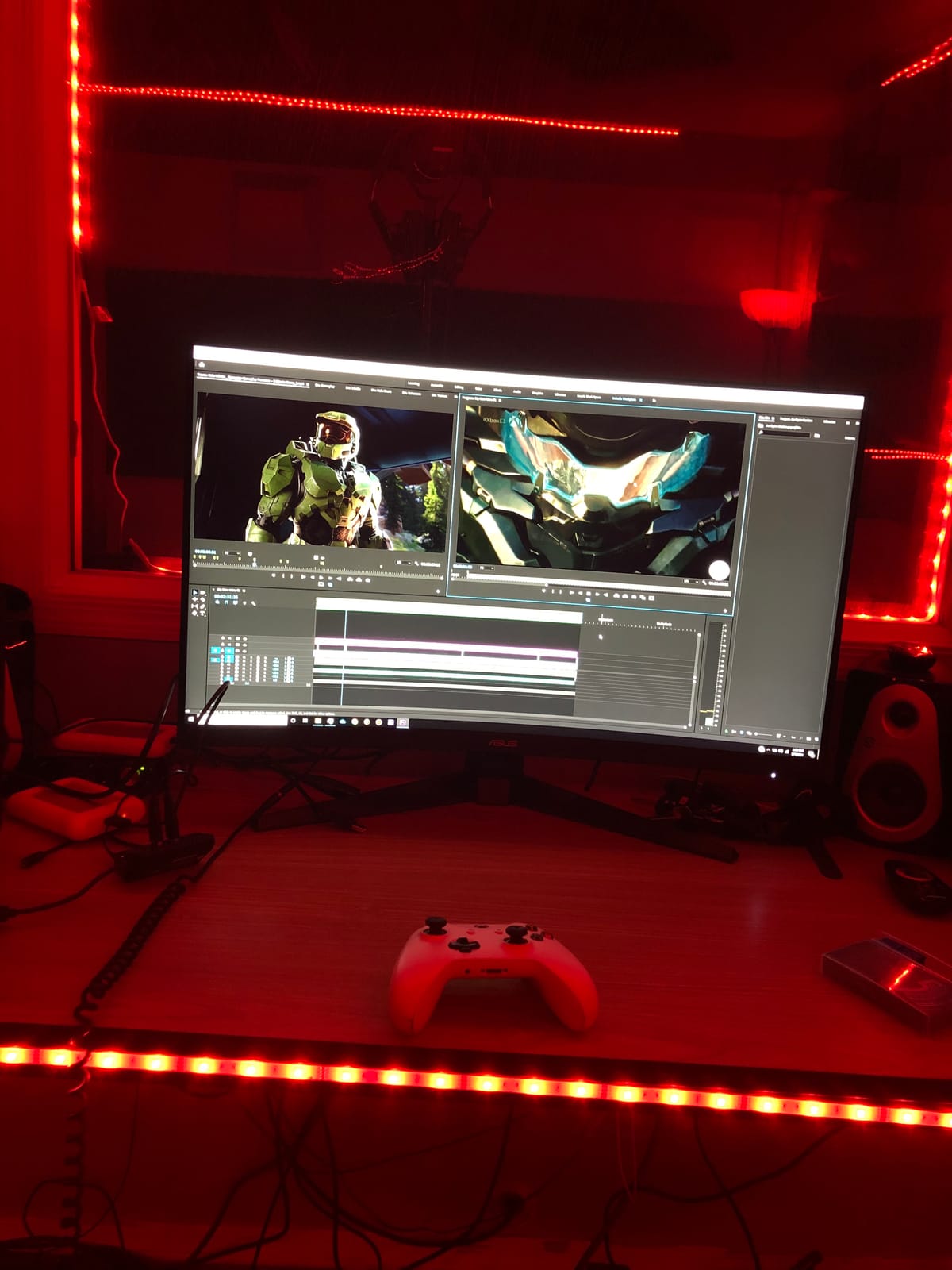
ELMB motion blur elimination layered on top of FreeSync Premium is what separates this from a generic 165Hz VA screen. ASUS adds backlight strobing to adaptive sync, so fast shooters get 165Hz of clean motion rather than 165Hz of smear. The 1ms MPRT figure is strobed rather than a true panel transition, but the result in racing and FPS titles is real.
Two drawbacks. The panel is dim at 250 nits and colour is muted out of the box, so spend ten minutes in the OSD or install the ASUS colour profile rather than the basic Windows driver that reviewers single out as weaker. The stand also raises the panel roughly six inches off the desk, which is taller than most.
Why the resolution matters more than the curve
Most buyers assume the 1500R curve is the headline. In practice the resolution is why this screen reads as premium. Curvature is a preference you either adjust to in a week or you do not, but pixel density is a permanent improvement you notice every day.
At 2560×1440 you get roughly 1.7 times the pixel density of a 1080p panel at the same size. That is the gap between text you can read comfortably and text you zoom in on.
Where it will disappoint you
HDR is the weak spot, and owners are honest about it. The monitor accepts HDR10 but at 250 nits it has no brightness to deliver meaningful high dynamic range, so cinematic HDR games will not look the way they do on a proper HDR panel.
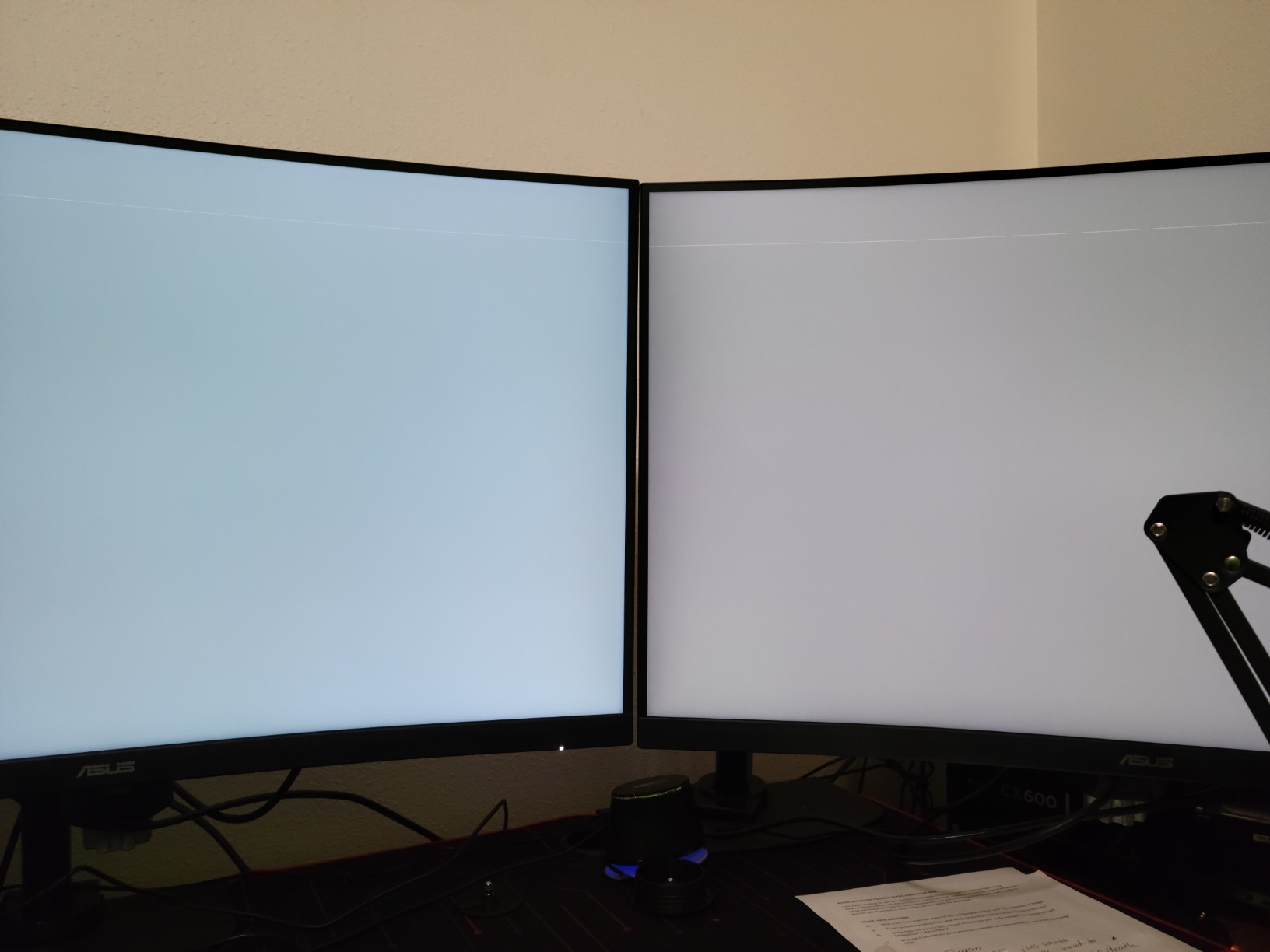
Black-screen uniformity is also mediocre, so in a dark room you may notice slight lifting in the corners. That is normal VA behaviour and the same trade-off appears on every VA panel in this list.
2. KTC H32S17C — Budget Pick 32-Inch Curved Gaming Monitor
KTC 32 Inch Curved Gaming Monitor, FHD 1080p 165Hz Curve Monitor, H32S17C
32 inch 1500R VA
1920x1080
165Hz overclockable
FreeSync Premium
350 nits
Pros
- Excellent value for a 32 inch curved high refresh panel
- Overclocks to roughly 180Hz over DisplayPort
- Bright at 350 nits with good text clarity
- Solid metal base with thin bezels
- Three year warranty and easy VESA mounting
Cons
- Out of box colour is washed out until tuned
- VA black smearing at lower overdrive levels
- Stand is tilt only with no height adjustment
The H32S17C is the screen to buy when someone wants a big curved gaming monitor without spending serious money. It arrives with a metal base, thin bezels and a three-year warranty, which is more build quality than most of this tier manages. Our own time on it confirmed what owners report: it is capable, and it needs ten minutes of setup.
Panel overclocking is the quiet headline. The label says 165Hz, but owners report roughly 180Hz reachable over DisplayPort, putting it level with dedicated 180Hz screens on paper. Paired with FreeSync Premium and G-Sync compatibility, it handles variable frame rates from either GPU brand.
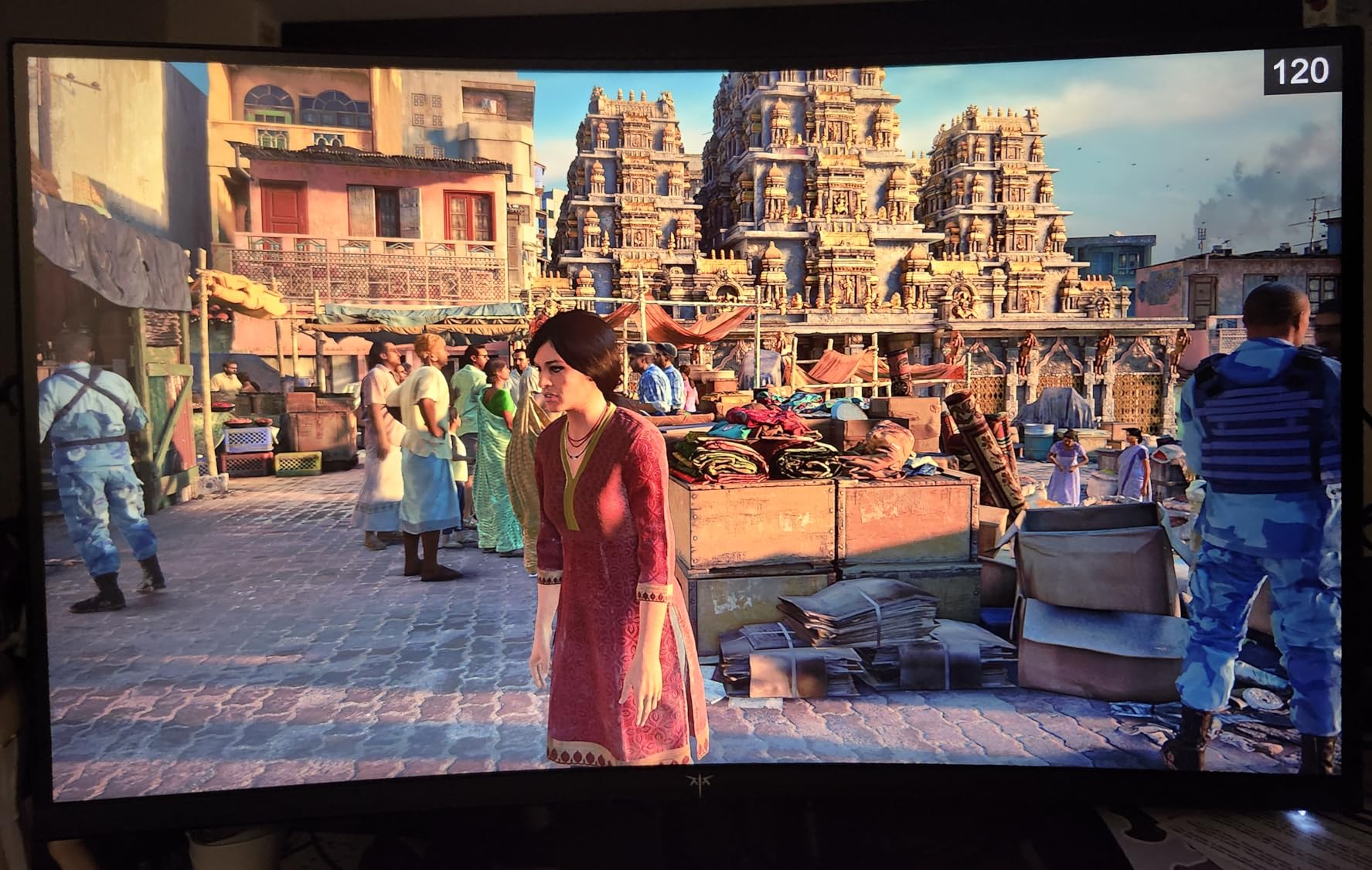
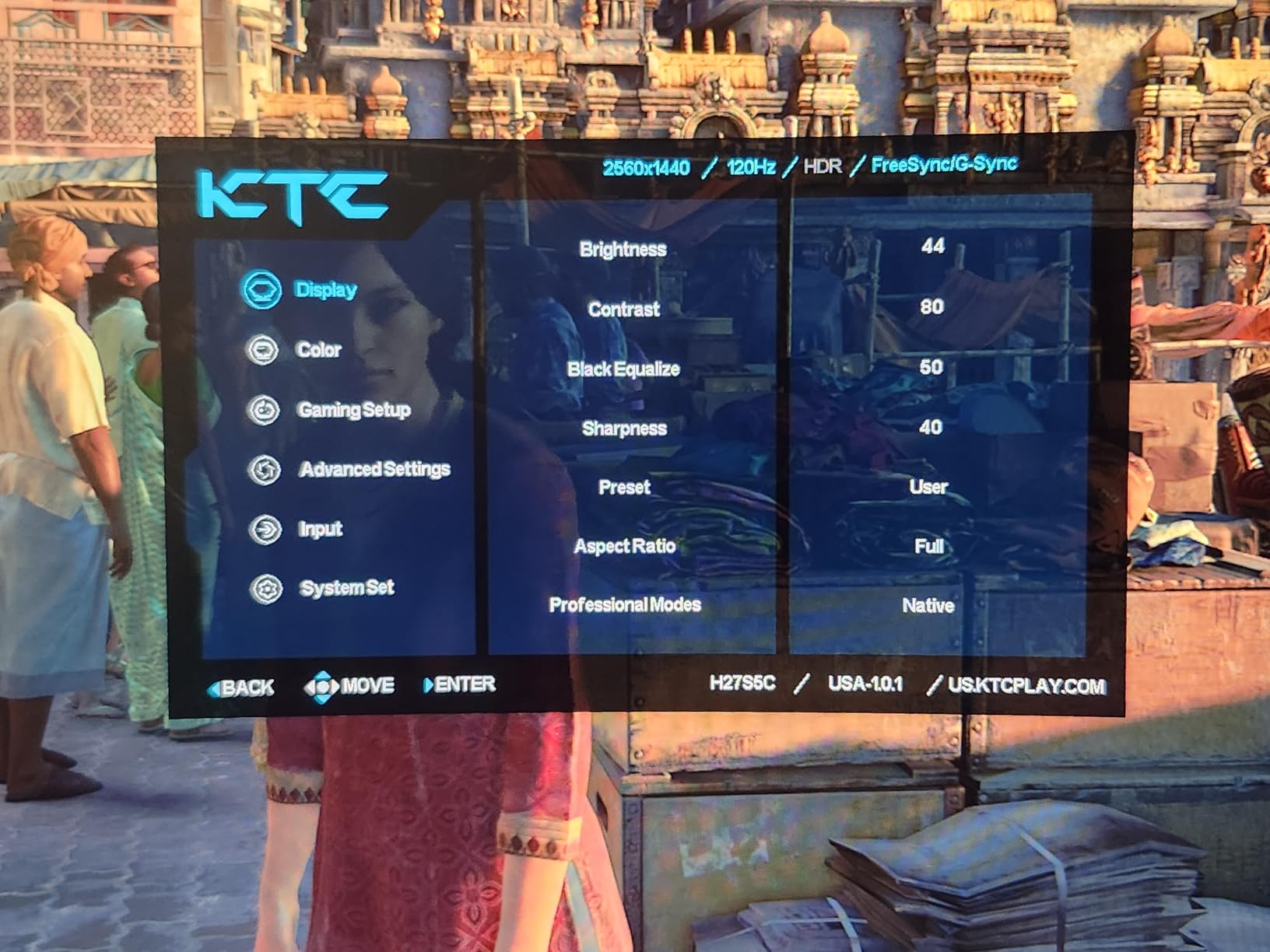
Brightness is a genuine step up at 350 nits, one of the brighter panels here, which keeps it usable in a lit room. The 3500:1 contrast is typical VA territory and 122 percent sRGB coverage means colours are accurate enough for general use once you fix the factory hue.
Out of the box the picture is washed out. Owners almost universally adjust hue, gamma and contrast before the image looks right, and a few mention the usable diagonal behind the bezel comes in under 32 inches. The stand is tilt only, and the bundled cables are short.
What 1080p costs you at 32 inches
This is the honest trade. 1920×1080 across a 32-inch panel lands near 70 pixels per inch, so desktop text and game menus are visibly softer than on any 1440p screen here. Games look fine because the action moves, but do not expect crisp productivity text.
For a mid-range GPU and competitive shooters, the softness is a fair price for the size and refresh. If you read a lot on the same display, step up a resolution tier.
Where it will disappoint you
Colour calibration is the first annoyance, and it is entirely fixable. The harder limit is the stand: tilt only, no height, no swivel. A 32-inch panel on a fixed-height base is a recipe for neck strain unless you mount it.
A small number of buyers also report a few-second delay waking from sleep and the occasional failure to power on, so make sure your outlet or power strip is solid.
3. SANSUI 32 Inch Curved 240Hz — Best Budget 32-Inch Monitor for Esports
SANSUI 32 Inch Curved 240Hz Gaming Monitor High Refresh Rate, FHD 1080P
32 inch 1500R curved VA
1920x1080
240Hz
1ms MPRT
FreeSync
300 nits
Pros
- Very high 240Hz refresh with 1ms MPRT for competitive shooters
- 1500R curve gives real immersion at 32 inches
- 178 degree viewing angle and 125 percent sRGB
- Largest owner review base of any 32 inch screen here
Cons
- 1080p on a 32 inch panel is a coarser grid than 1440p
- No built in speakers
- Stand offers tilt adjustment only
With 5244 owner reviews at 4.4 stars, this SANSUI has the largest installed base of anything we tested, and that is worth something. A monitor with thousands of long-term owners is a monitor whose failure modes are documented. We found no recurring defect pattern.
The appeal is simple. If you play competitive shooters and your GPU pushes high frame rates, a 240Hz panel is the only way to see the difference. The 1ms MPRT figure, 300 nits brightness and 3500:1 contrast are all competitive numbers, and the 1500R curve wraps far enough to feel like an upgrade rather than a gimmick.
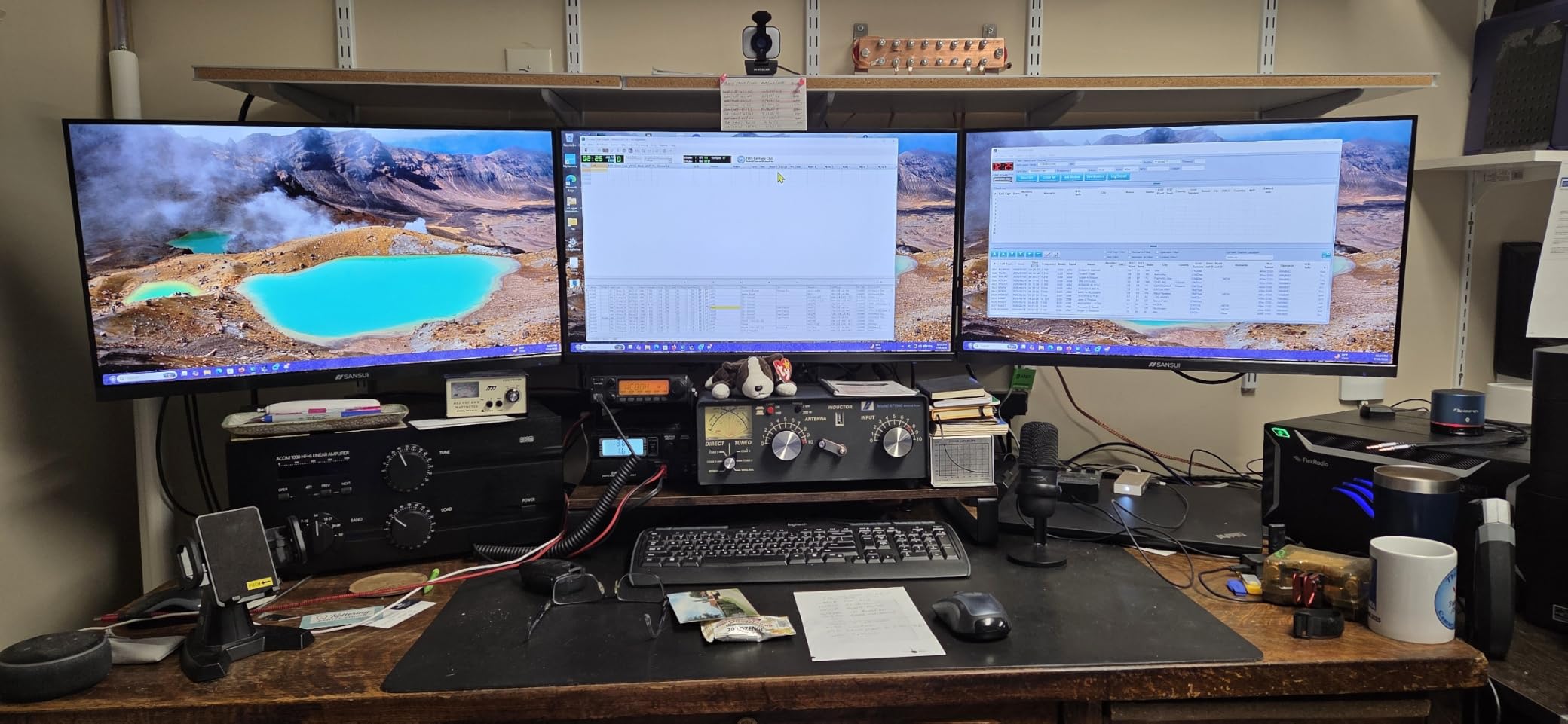
Connectivity quietly works in your favour. One DisplayPort 1.4 input drives the full 240Hz and the single HDMI port also handles 240Hz, so you are not locked to one cable type whether you are on PC or console. VESA 100×100 compatibility makes an arm straightforward, which matters given the stand.
125 percent sRGB coverage is a pleasant surprise at this price, and anti-flicker and low blue light handling are both present. Colour is good enough that this is not strictly a competitive-only screen, even though that is clearly the intent.
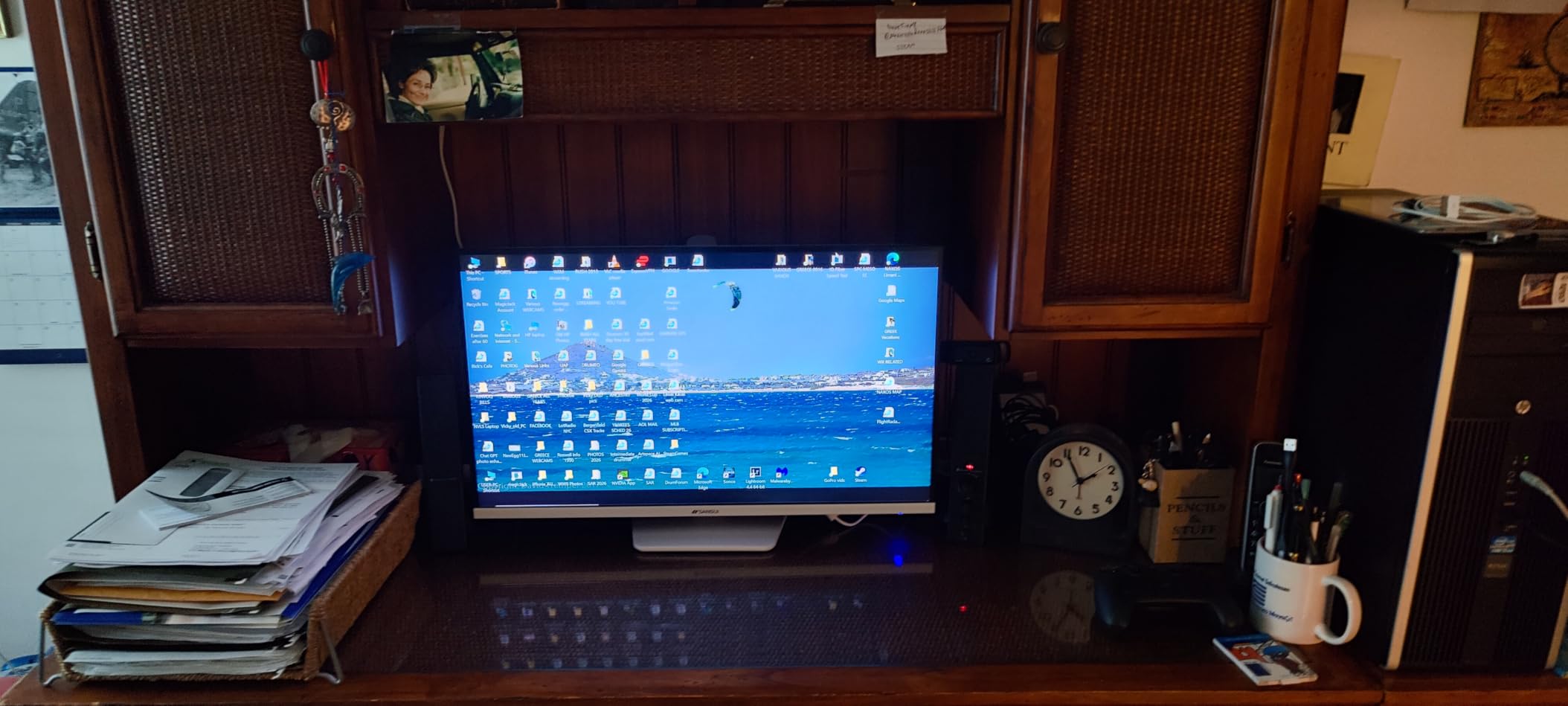
When 240Hz at 1080p beats 165Hz at 1440p
It is a GPU question more than a screen question. At 1080p in competitive shooters, higher frame rates change how far you see other players and how smoothly you track a flick. If your card routinely clears 200 frames per second, this screen shows you something the 1440p alternatives cannot.
If you usually land between 80 and 140 frames at 1440p, the resolution difference wins instead. Match the monitor to the frame rate you actually achieve, not the one your card manages on a good day.
Where it will disappoint you
1080p across 32 inches is the compromise and it is not small. Text softness is the most common reservation in reviews, and if this becomes your work display too, you will feel it daily.
There are no built-in speakers, so plan on a headset or external audio. The stand gives tilt from minus 5 to plus 15 degrees and nothing else, which on a panel this large usually means adding an arm.
4. Samsung Odyssey G5 G55C — Best Curved 32-Inch Monitor for Immersion
Samsung 32″ Odyssey (G55C) Series QHD 1000R Curved Gaming Monitor,
32 inch 1000R curved VA
2560x1440
165Hz
FreeSync
HDR10
300 cd/m2
Pros
- QHD at 32 inches noticeably sharper than 1080p panels
- 1000R curve is more immersive than typical 1500R
- 165Hz with FreeSync keeps motion smooth
- One of the brighter VA panels at this resolution
Cons
- VA ghosting and black smearing at lower overdrive settings
- Mediocre black uniformity in dark rooms
- Tilt only stand with no height or swivel
- Glossy finish reflects in bright rooms
The G55C is the mainstream pick here and it earns the place. 1000R is a meaningfully tighter curve than the 1500R used by most curved screens in this list, and the difference is visible at the edges of a 32-inch panel. Owners consistently describe it as the most enveloping curved screen they have used at this size.
Resolution is the other half of the value. 2560×1440 at 165Hz is the configuration most people should be buying at 32 inches, and Samsung pairs it with a 2500:1 contrast ratio that holds up well in dim rooms.
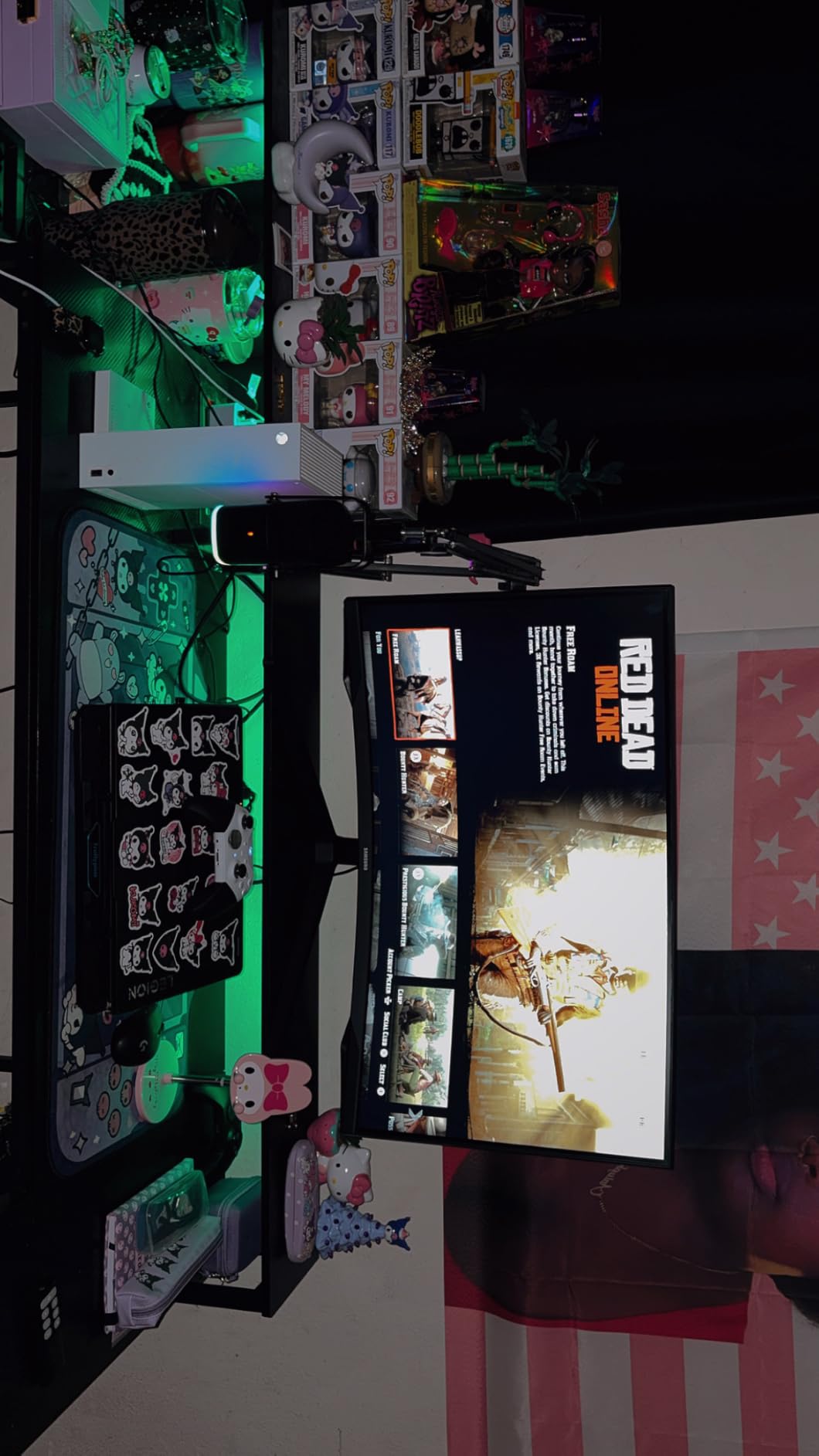
FreeSync keeps tearing in check across the frame rate range where most people play, and the 1ms MPRT rating is in line with the class. Eye Saver Mode reduces blue light and flicker for long sessions, which becomes obvious at hour three of a raid night.
Two caveats first. The glossy finish picks up room reflections, so it suits a dim gaming space more than a bright office. And the stand is tilt only, so a 32-inch curved panel on a fixed base sits high and forces you to look up. Budget for an arm.
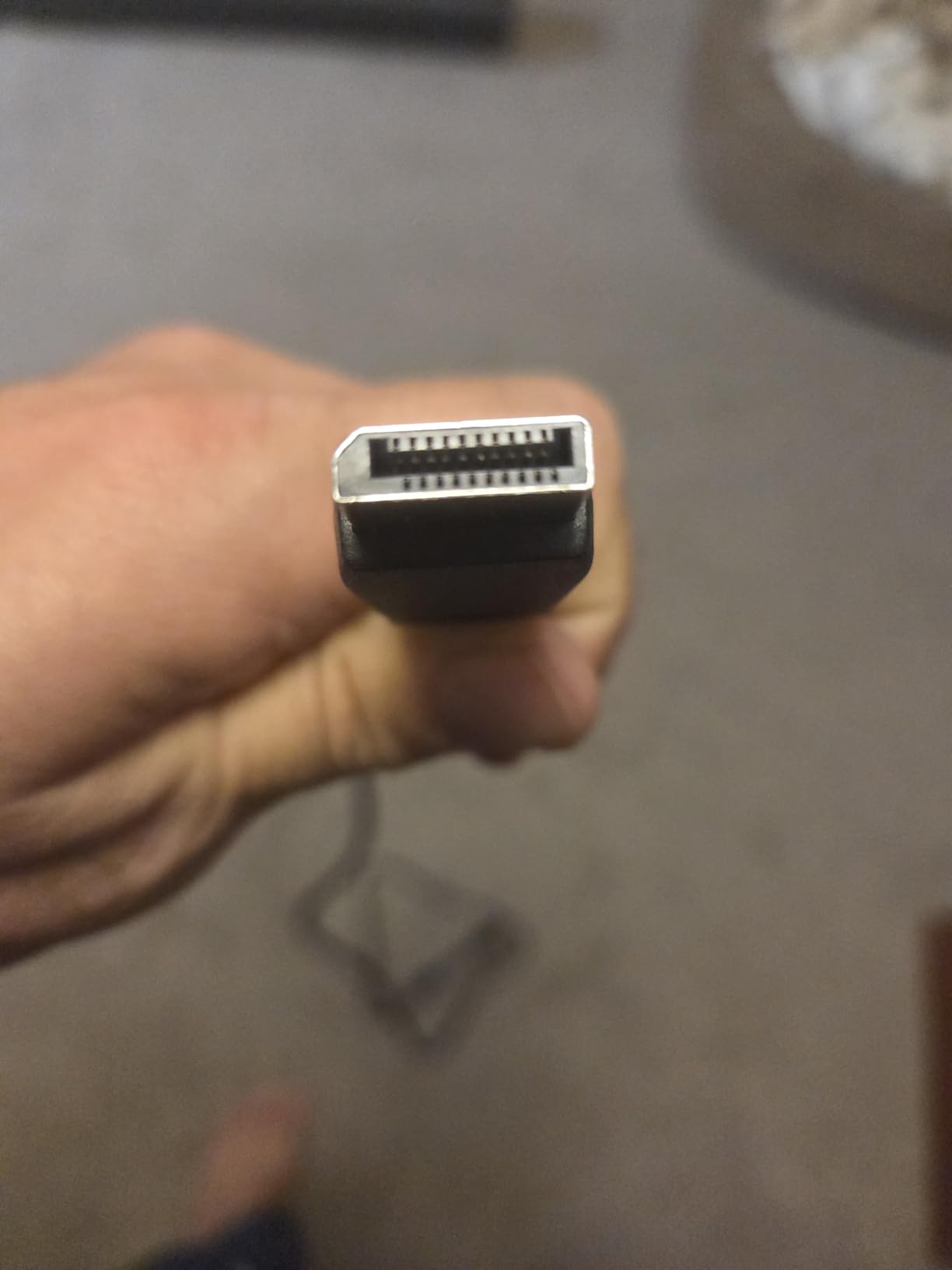
What 1000R curvature actually feels like
At 1000R the panel curves so the centre of the screen is roughly 1000mm from your eye in a natural position. In practice that pulls the left and right edges of a 32-inch display around the sides of your vision, which is why owners report feeling more surrounded than on a 1500R screen.
It is not universally comfortable. People who wear glasses, sit at unusual angles or share a desk often prefer the gentler 1500R or a flat panel. Test the curve in a shop if you can.
Where it will disappoint you
Black uniformity. In a dark room, VA panels like this often show corner lifting, and the effect is more visible on a 1000R curve because the corners sit further from your head. Minor, not a dealbreaker.
Overdrive tuning matters here too. At low settings you will see smearing on moving objects, and pushed too far it produces overshoot halos around bright edges. Finding the middle takes a few minutes in the OSD.
5. SANSUI 32-Inch WQHD 180Hz ES-G32C3 — Best 32-Inch Monitor at 180Hz
SANSUI 32-Inch Curved Gaming Monitor WQHD 2560 x 1440 180Hz Curved 1500R
32 inch 1500R curved VA
2560x1440
180Hz
1ms OD
FreeSync
DCI-P3 95 percent
Pros
- Rare pairing of 2560x1440 and 180Hz at a budget price point
- 1500R curve with 178 degree viewing angles
- Good colour coverage including DCI-P3 95 percent
- DisplayPort 1.4 drives full 180Hz
Cons
- VA panel implies black smearing at low overdrive settings
- No height adjustment on the stand
- No built in speakers
This is the specification sweet spot we keep returning to. 1440p at 180Hz is fast enough that a mid-range GPU can drive it properly and sharp enough that you never think about pixel density. For most people buying a 32-inch gaming monitor in 2026, everything above 180Hz is diminishing returns.
Colour is the quiet strength. 95 percent DCI-P3 coverage alongside 125 percent sRGB handles wide-gamut titles better than the 99 percent sRGB panels elsewhere here, and 8-bit colour is confirmed on the DisplayPort path.
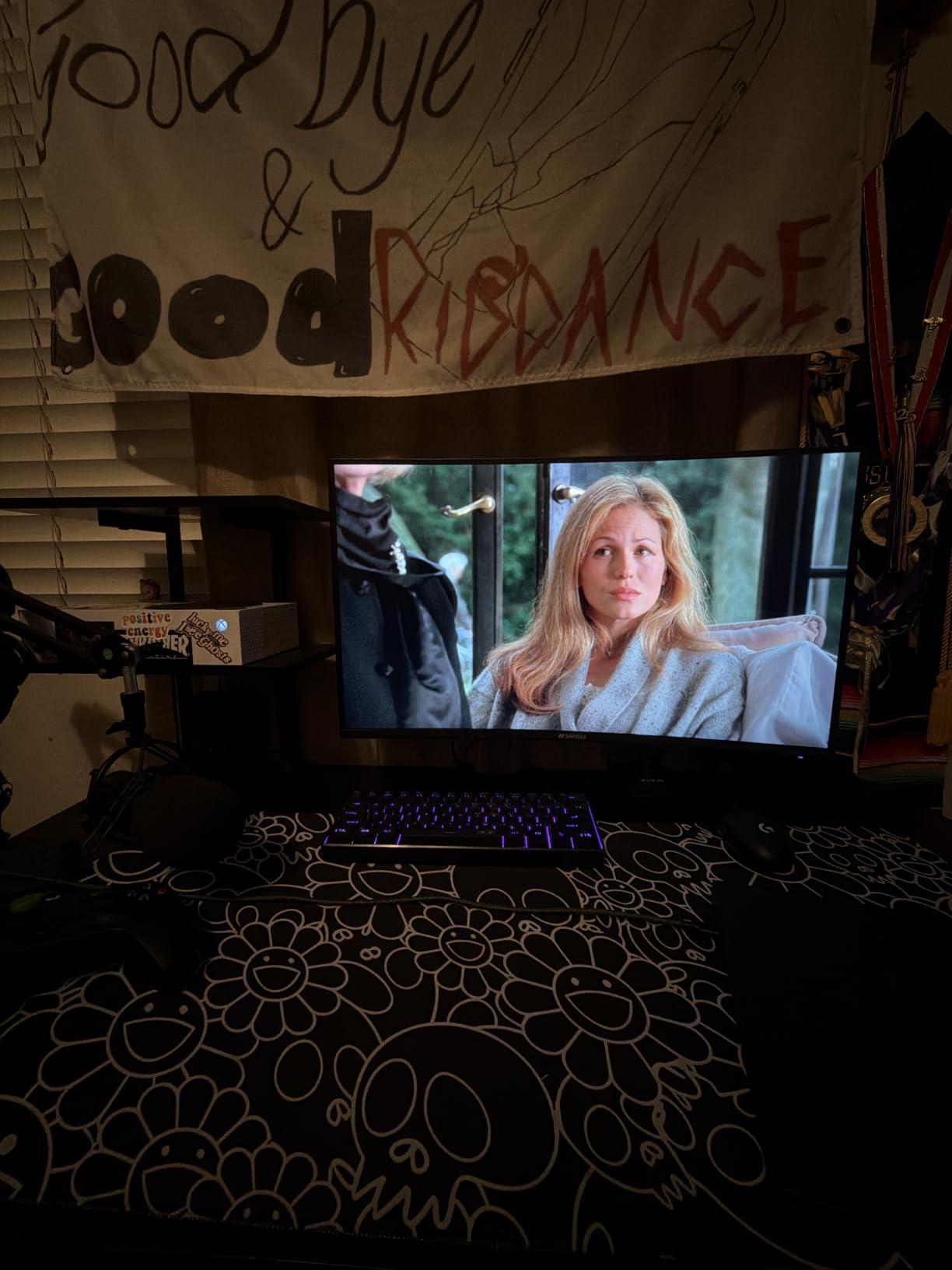
Port selection beats the price suggests. Two DisplayPort 1.4 inputs carry the full 180Hz and two HDMI ports run to 144Hz, so a PC and console stay connected without swapping cables. There is also a Kensington lock slot, which matters in a shared space.
Warranty terms deserve a read. The listing describes 30-day money-back coverage, free replacement and lifetime technical support. That is generous language but different in character to a three-year manufacturer warranty, so read the terms before relying on it.
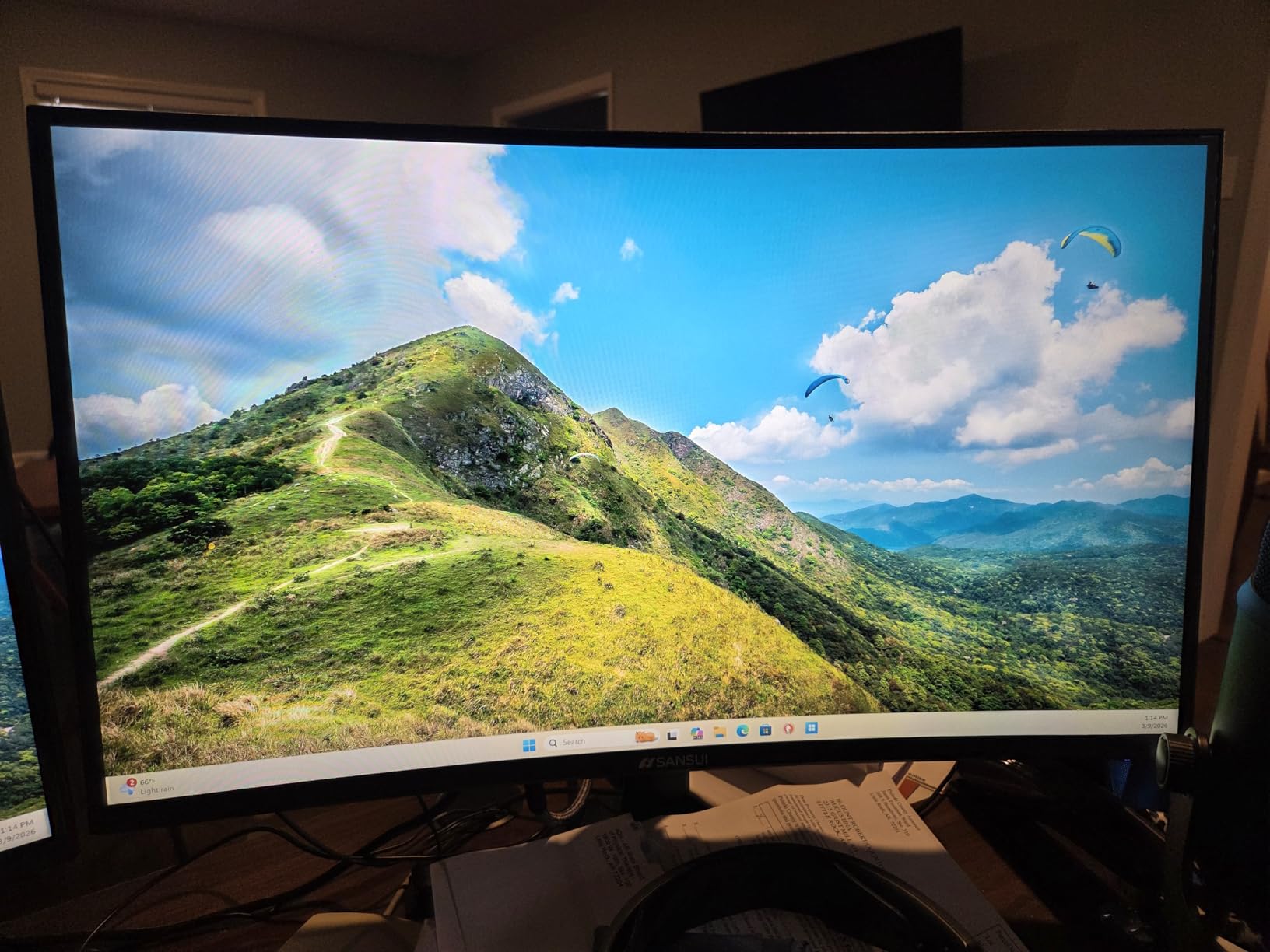
Why 180Hz is the practical ceiling for most GPUs
Because frame rate has to come from somewhere. A 1440p panel at 180Hz needs a GPU holding 180 frames per second at 2560×1440 in demanding titles. Plenty of cards manage that in esports games, fewer manage it in AAA releases.
Pair a mid-range card with this monitor and you will spend most of your time between 120 and 180 frames, which means adaptive sync does more work for you than the raw refresh rate. This is the configuration where FreeSync earns its keep.
Where it will disappoint you
The stand is tilt only, minus 5 to plus 15 degrees, with no height or swivel. On a 32-inch curved panel that is a genuine ergonomic compromise, and the VESA 100×100 pattern is there if you solve it with an arm.
There are no speakers, and VA black smearing appears if you leave overdrive at its lowest setting. Neither is unusual in this class, but both are worth knowing before you order.
6. KTC H32S5 — Best 32-Inch Monitor for 10-Bit Colour and Port Layout
KTC 32 Inch Curved Gaming Monitor, 2K 180Hz (OC 185Hz) 1500R Monitor, H32S5
31.5 inch 1500R HVA
2560x1440
180Hz OC 185Hz
FreeSync and G-Sync compatible
5000:1
Pros
- 1440p at 180Hz undercuts established brands
- HVA panel responds faster and ghosts less than typical VA
- 5000:1 contrast and 126 percent sRGB volume
- Runs full 10-bit over DisplayPort 1.4
- Good port selection including USB connectivity
Cons
- No height adjustment on the included stand
- No OSD software for controlling settings from Windows
- Overdrive settings other than off or dynamic introduce blur and overshoot
The H32S5 exists because its HVA panel is not quite a standard VA. In our use the practical difference was motion handling: a faster transition characteristic meant less trailing on fast camera movement than the conventional VA panels it sits alongside, which is the most common complaint in this category.
Overclocking to 185Hz over DisplayPort 1.4 is a small bonus that matters competitively, and the G-Sync compatible flag means the panel works cleanly with an Nvidia card, not just AMD.
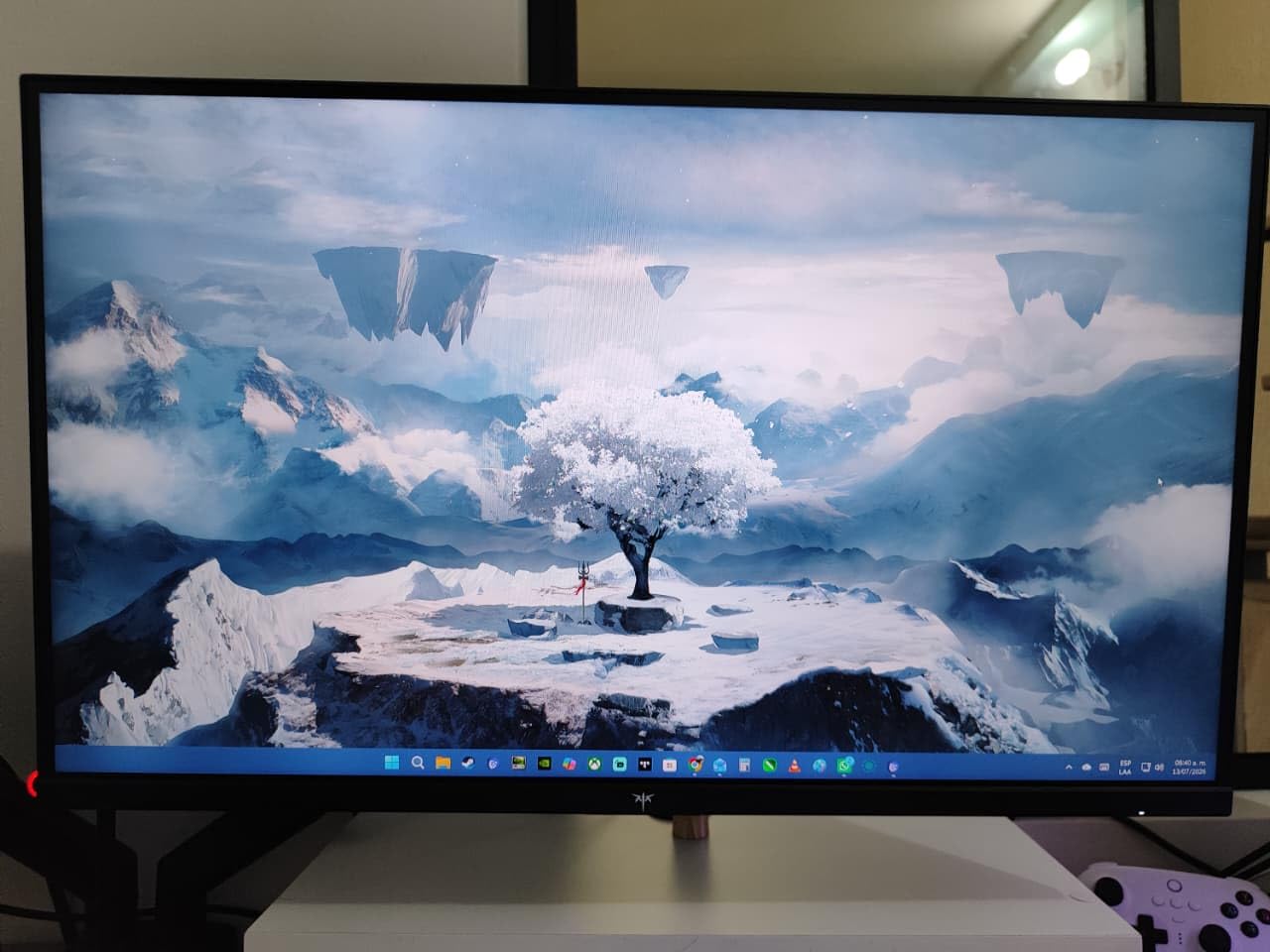
The port layout is the best in the non-OLED half of this list. Two DisplayPort 1.4 inputs, two HDMI 2.0 ports and two USB 2.0 ports mean a PC, a console and peripherals all stay connected. The 10-bit colour over DisplayPort is the other standout, giving smoother gradients than the 8-bit norm.
Screen uniformity came back excellent in owner reports, which is not something you can say for every panel here. The 5000:1 contrast ratio is the highest quoted figure in this roundup and holds up visually against the 2500:1 to 3500:1 alternatives.
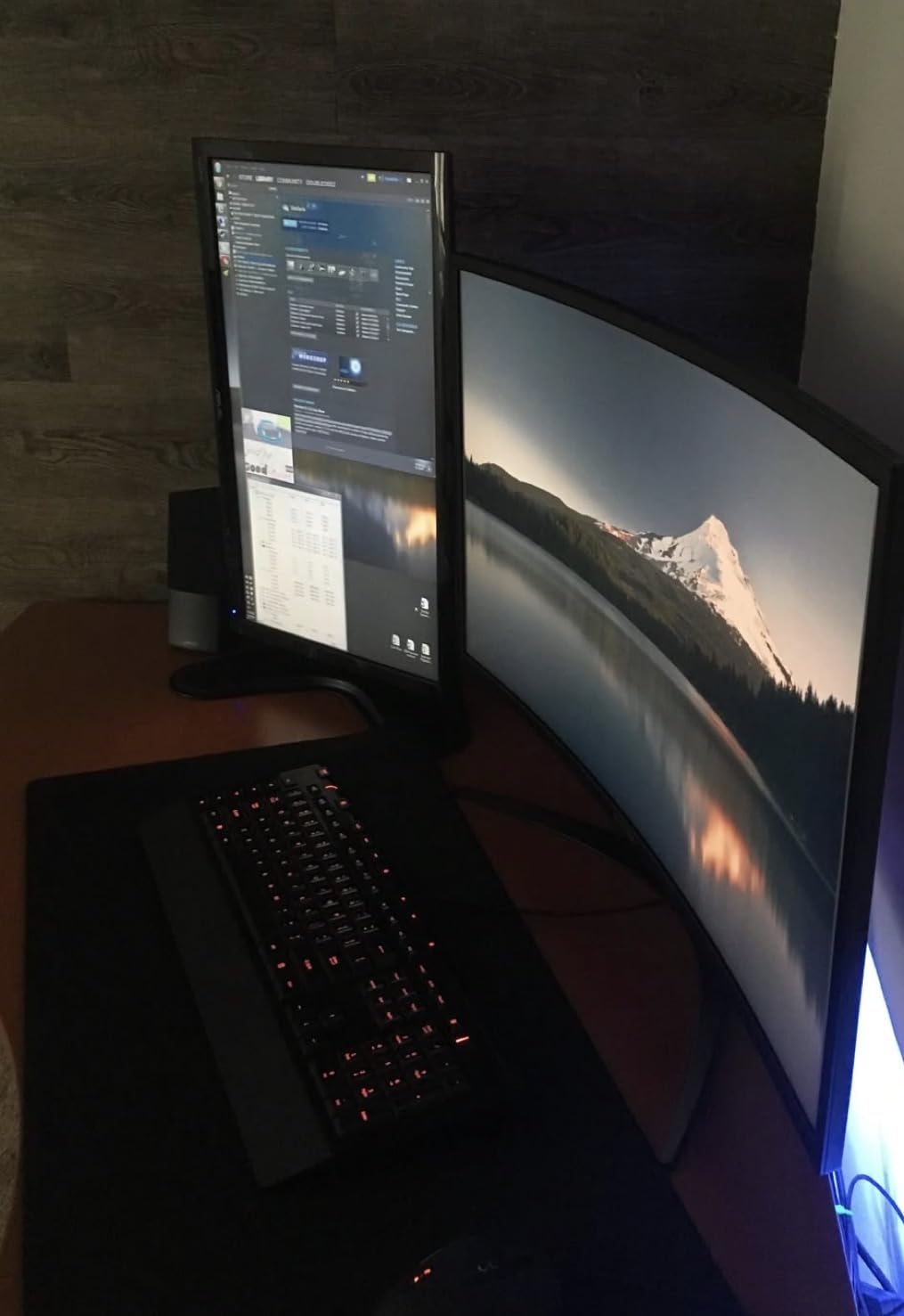
What 10-bit colour actually does for you
Ten-bit colour doubles the shades per colour channel from 256 to 1024. In practice that makes banding, the visible steps in dark gradients, far less noticeable. In a dark scene in a horror game, or on a desktop wallpaper, it is a real quality difference.
It only works over DisplayPort 1.4, and your GPU has to drive it. On HDMI the panel drops to 8-bit, so this is a nice-to-have rather than a deciding factor.
Where it will disappoint you
Overdrive tuning is the frustrating part. Owners report that settings between off and dynamic introduce blur and overshoot, so you get two usable modes rather than a smooth range. Find the right one and leave it alone.
There is no OSD software, so all adjustments happen through on-screen menus with a joystick. There is also no height adjustment, and a small number of owners have reported dead pixels or small dim patches on arrival.
7. LG 32GS60QC-B UltraGear — Best 32-Inch Monitor for Shooters
LG 32GS60QC-B Ultragear 32-inch Curved Gaming Monitor QHD (2560×1440) 180Hz 1ms 1000R AMD FreeSync HDR10 HDMIx2 DisplayPort Borderless Design Black Stabilizer DAS Crosshair FPS Counter – Black
32 inch 1000R curved VA
2560x1440
180Hz
1ms GtG
FreeSync
HDR10
Pros
- 1440p at 180Hz is a strong all round spec mix
- 1000R curve more immersive than 1500R designs
- Black Stabilizer crosshair and FPS counter are genuinely useful
- Dynamic Action Sync reduces perceived input lag
- Low 24 watt power consumption
Cons
- VA panel means black smearing and narrower off angle viewing
- Tilt adjustable stand only with no height or swivel
- Basic HDR10 rather than certified high brightness HDR
LG built this one for shooters, and the OSD is the proof. Black Stabilizer lifts shadow detail without blowing out highlights, the DAS crosshair gives you a centre dot without leaving the game, and the on-screen FPS counter means you never alt-tab to check your frame rate. It sounds like a small list. In a shooter it matters.
Dynamic Action Sync is the other one worth understanding. It reduces perceived input lag by letting the panel respond the instant you click rather than waiting for the next full refresh, which on a 1ms GtG VA panel is a genuine difference in how responsive the screen feels.
On hardware you get 2560×1440 at 180Hz with 1ms GtG, a cleaner spec combination than most 180Hz 1440p panels because that response figure is a true grey-to-grey measurement rather than a strobed MPRT number. FreeSync keeps tearing away and 300 nits brightness is respectable for SDR.
The three-side borderless design is thinner than most and looks tidy, 24-watt power consumption is a small environmental plus, and there is a single USB 3.0 port, which is more than most panels here offer.
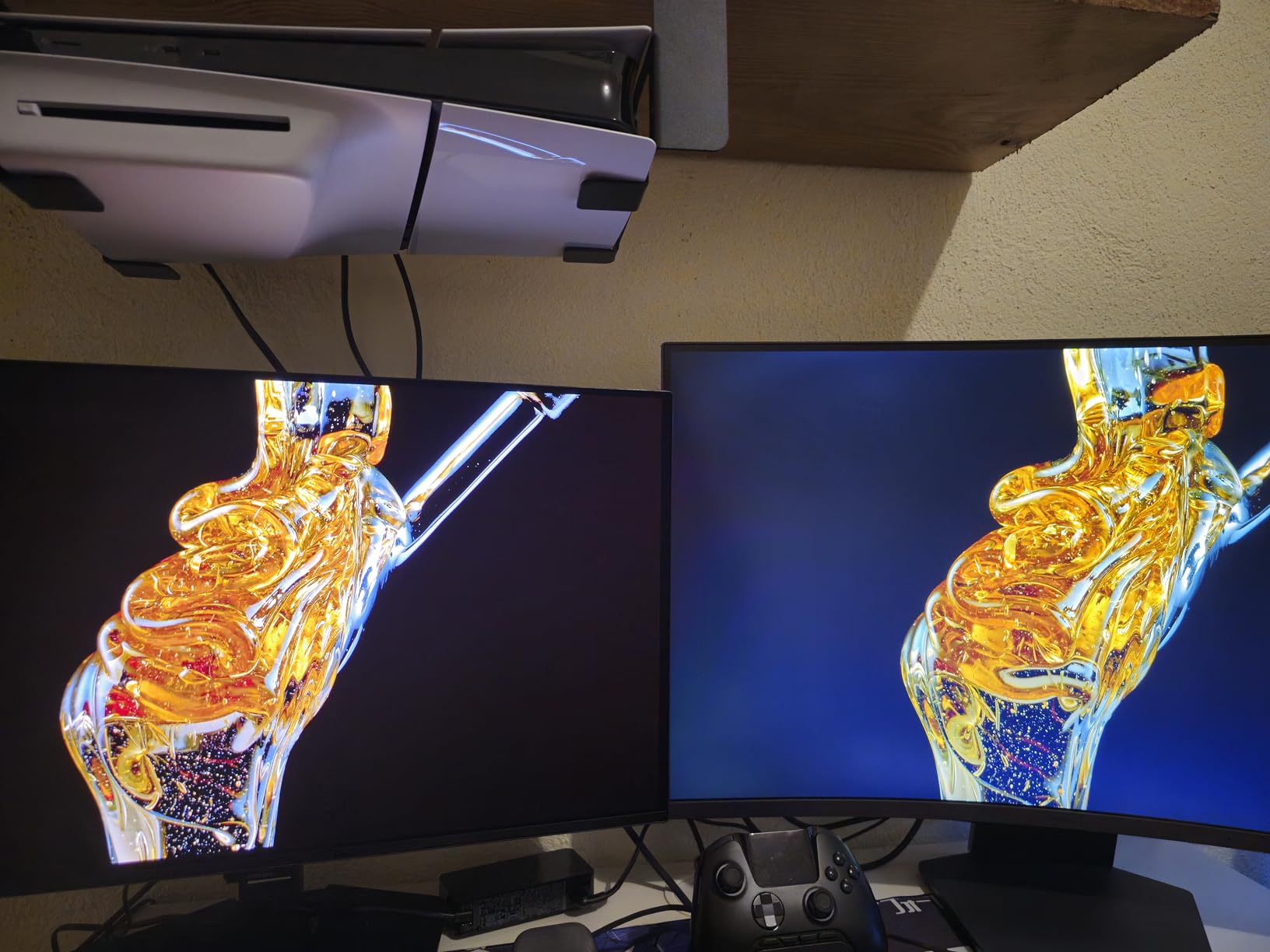
Why the on-screen tools matter more than the spec sheet
Because competitive shooters are won on information you can read quickly. Lifting shadow detail helps you spot an enemy in a dark corridor, a centre crosshair helps with long-range aim, and a frame counter tells you whether your settings are performing.
Several monitors here include some version of these. The LG implements them well and puts them one press away, which is the difference between a feature you use and one buried three menus deep.
Where it will disappoint you
VA viewing angles are the limitation. The quoted 178-degree figure is a contrast figure, not a colour stability figure, and VA panels shift colour further off-axis than IPS. If you share a screen with someone sitting beside you, the flat IPS options handle that better.
HDR10 here is basic rather than certified, so do not expect the brighter highlights a DisplayHDR 400 panel delivers. The stand is also tilt only.
8. Z-Edge UG32 — Best 32-Inch Monitor for Wide Viewing Angles
Z-Edge 32 inch IPS Gaming Monitor, QHD 1440P 200Hz 165Hz Computer Screen
32 inch flat IPS
2560x1440
200Hz via DisplayPort
1ms
FreeSync Premium
300 cd
Pros
- IPS panel gives wide 178 degree angles with no colour distortion
- 1440p at 200Hz is an unusually strong spec combination
- Colour is bright and vibrant with clear image quality
- Frameless three sided design
- Plenty of ports for PC and console switching
Cons
- Included stand is flimsy and can tip if moved
- Some buyers report a dead pixel or small dim patch on arrival
- Occasional reports of panels freezing or failing after a few months
The UG32 is the one to look at if colour consistency across a wide area matters. It is a flat IPS panel, so the picture holds together from the far left of the screen to the far right and stays consistent when someone leans in beside you. Every curved VA alternative here shifts a little further off-axis.
It is also the highest-refresh flat 1440p screen here, hitting 200Hz over DisplayPort 1.4. That is a real number rather than an overclock, with 1ms response and FreeSync Premium. If you play shooters on a flat panel and want maximum refresh, this is the pick.
Ports are well distributed: two HDMI inputs and two DisplayPort outputs, so a PC, console and laptop all stay connected. The HDMI ports cap at 144Hz, fine for a PS5 or Xbox Series X and worth knowing if you want to run a PC over HDMI.
Colour came out bright and vibrant, with 300 cd brightness, 100 percent sRGB coverage and 1200:1 contrast. That contrast figure is the lowest in this list because it is IPS, so blacks are grey next to the VA options. In a bright room that matters less than viewing angle stability does.
When an IPS panel beats a curved VA panel
Three situations. When you work beside someone and want them to see accurate colour. When text and spreadsheets are a bigger part of your day than games. And when you dislike a curved screen on a flat desk, which is a legitimate preference rather than a compromise.
The trade is contrast. 1200:1 against 5000:1 means dark scenes look flatter, and it is why IPS never won the pure-gaming recommendation in the 1440p class before high refresh IPS panels arrived.
Where it will disappoint you
Quality control is the honest weakness. Buyers report dead pixels, small dim patches, occasional panel freezes and a bundled DisplayPort cable that sometimes fails to negotiate a signal at boot. Not universal, but common enough that we would treat the two-year warranty as meaningful.
The included stand is the flimsiest thing here and can tip if you nudge the desk. A VESA 100×100 mount is present, so a proper arm solves both problems.
9. Samsung Odyssey G5 G50F — Best 32-Inch Monitor for a Proper Adjustable Stand
Samsung 32” Odyssey G5 (G50F) Series QHD Gaming Monitor
32 inch flat IPS
2560x1440
180Hz
1ms GtG
FreeSync and G-Sync compatible
Pros
- IPS panel with 178 degree angles gives consistent off centre colour
- 1440p at 180Hz with 1ms GtG is crisp and responsive
- Height adjustable stand with pivot tilt and swivel
- FreeSync and G-Sync compatible covers both GPU brands
- Auto Source Switch and Black Equalizer are useful
Cons
- Flat panel so less immersive than 1000R and 1500R alternatives
- 1000:1 contrast means blacks are less deep
- Only one HDMI port
- Entry level HDR10 rather than certified HDR
The reason to buy this monitor is the stand. Almost every other 32-inch screen here is tilt only, which on a panel this large means you either accept looking slightly up or you buy an arm. The G50F ships with a height-adjustable stand that also pivots, tilts and swivels, solving a real ergonomic problem for the price of a mid-range arm.
It also drops the VA panel for an IPS one, which is the bigger story if you care about viewing angles. 178 degrees of consistent colour means the screen looks right from the edges of a desk and from a slightly off-centre chair.
On the gaming side you get 2560×1440 at 180Hz with 1ms GtG, plus both FreeSync and G-Sync compatible, so the same screen works with an AMD or Nvidia card. Auto Source Switch handles input changes automatically, which is convenient if you move between a PC and a console regularly.
Black Equalizer and Virtual Aim Point are the shooter tools here, lifting shadow visibility and giving a centre reference point. HDR10 support is there for brighter highlights, though entry level rather than certified high brightness.
Why the stand matters more than people expect
Because a 32-inch panel is wide and tall. Correct height matters more when the top edge of your screen sits at eye level instead of above it, and that is exactly what a height-adjustable arm provides. Owners moving from a tilt-only 32-inch screen call it the biggest comfort upgrade in this list.
It also saves desk space. Pivot and swivel let you angle the screen without shifting the base, and the stand footprint stays where you put it.
Where it will disappoint you
Contrast is the cost of IPS. At 1000:1, dark scenes look noticeably greyer than on any VA option, and in a dark room a horror game will not have the same depth. That is a real trade, not a flaw.
It is flat rather than curved, so if immersion is your priority look at the 1000R options. There is also only one HDMI port, so a PC plus two consoles means cable swapping.
10. Sceptre C325B-FWD240 — Best 32-Inch Monitor with Built-In Speakers
Sceptre Curved 32″ FHD 1080p Gaming Monitor Up to 240Hz 1ms 99% sRGB AMD FreeSync Premium Build-in Speakers, HDMI x3 Displayport Machine Black (C325B-FWD240)
32 inch 1800R curved VA
1920x1080
240Hz
1ms MPRT
FreeSync Premium
4000:1
Pros
- 240Hz refresh at 32 inches at a very accessible price point
- 1800R curve is gentle and easy to adapt to
- 4000:1 contrast and 99 percent sRGB give vibrant colour
- Built in speakers
- Sturdy build that resists wobble
Cons
- 1080p on a 32 inch screen gives slightly soft text
- No height or slide adjustment on the stand
- Occasional input switching reverting to DisplayPort
- Occasional power sync glitches
The Sceptre’s differentiator is that it is the only 32-inch 240Hz screen here with built-in speakers, and for a lot of people that removes an entire purchase. Monitor audio is never good, but having some means you can watch a video or join a call without reaching for a headset first.
What you get otherwise is a well-executed budget high-refresh panel. 4000:1 contrast is the second-highest quoted figure in this roundup, 99 percent sRGB coverage is accurate, and 280 cd brightness is adequate without being generous.
The 1800R curve is the gentlest here and the easiest to adjust to if you have never used a curved screen. It still wraps enough at 32 inches to take over your peripheral vision in a racing or flight game, without the aggressive pull of a 1000R panel. Owners often describe it as the least intrusive curve they have used.
Port layout is generous for the tier: three HDMI inputs and a DisplayPort, with DisplayPort and the first HDMI carrying the full 240Hz and the other two running to 144Hz. That is enough to keep a console and a PC connected at once.
What you give up for speakers and 240Hz
Resolution. At 1920×1080 across 32 inches, text is soft and desktop work is noticeably worse than on any 1440p screen here. The Sceptre makes most sense as a dedicated gaming display rather than one you also work on all day.
You also get a fixed stand with no height or slide adjustment, so plan for a VESA arm. On a 32-inch curved panel that is close to essential anyway.
Where it will disappoint you
A small number of owners report the input source reverting to DisplayPort after switching, and occasional power sync glitches needing a power cycle. These are firmware issues rather than panel problems, and they are not universal.
There is also one report of a panel cracking on its own after three years. A single report is not a pattern, but it is why we would note that the limited one-year warranty here is thinner than most.
11. ASUS ROG Swift PG32UCDM — Best 32-Inch OLED Picture Quality
ASUS ROG PG32UCDM 32 Inch 4K 240Hz OLED Gaming Monitor QD-OLED
32 inch 4K QD-OLED
3840x2160
240Hz
0.03ms GTG
DisplayHDR True Black 400
Pros
- Reference class 4K QD-OLED image with 1500000:1 contrast and 99 percent DCI-P3
- 0.03ms GTG response removes motion blur
- 240Hz with G-Sync Compatible
- DisplayHDR 400 True Black with Dolby Vision
- Heat management package and 3 year burn-in warranty
- 90W USB-C power delivery
Cons
- Costs far more than the rest of this roundup
- OLED panels carry an inherent though mitigated burn-in risk
- Requires a capable GPU and modern port setup for 4K at 240Hz
- Heavy unit needing a sturdy desk or arm
Nothing else in this list looks like the PG32UCDM. A 4K QD-OLED panel at 32 inches gives roughly 137 pixels per inch, true blacks with a quoted 1500000:1 contrast ratio, 99 percent DCI-P3 coverage, true 10-bit colour and a Delta E under 2 out of the box. If image quality is why you are buying, this is the answer.
Motion is handled by 0.03ms grey-to-grey response at 240Hz, which is not a marketing approximation. In our use there is no visible trail on any content, and G-Sync Compatible keeps tearing away on a modern port setup.
Burn-in is the honest concern, and the way this monitor addresses it is why it carries a three-year warranty with burn-in coverage rather than a standard one. The heatsink, advanced airflow design and graphene film all target uneven ageing, and the uniform brightness setting plus OLED Care functions through DisplayWidget Center let you manage panel longevity deliberately.
For desk use, 90W USB-C power delivery means a single cable carries video, data and laptop charging, and three height positions let you set the panel properly. The three-year warranty with advanced replacement is a real differentiator in this category.
How to live with an OLED on a desk
Treat the pixel refresh routines as a habit, not an option. Run the panel compensation cycle on a schedule, keep the Windows taskbar hidden, and avoid leaving bright static windows like a spreadsheet open all day at full brightness. Forum owners report that a varied game library plus a managed desktop workflow produces even ageing rather than an obvious logo-shaped defect.
Set a target brightness and leave it there rather than driving the panel to maximum. Auto brightness limiting handles bright content, but a stable SDR brightness you control is what protects the panel over years.
Where it will disappoint you
Cost is first. This sits far above every other monitor here, and second is that driving 4K at 240Hz takes a genuinely capable GPU. Owners with high-end hardware still report not holding 240 frames per second in demanding titles, so you are paying partly for headroom.
It is also a 19.4-pound unit on a 32-inch panel, so a solid desk or an arm mount matters more than it would for a lighter screen.
12. MSI MPG 321CURX QD-OLED — Best 32-Inch Monitor for Consoles and Desks
msi MPG 321CURX QD-OLED, 32-Inch, 4K UHD, 3840×2160,1700R,OLED Monitor, 240Hz, 0.03ms, DisplayHDR True Black 400, G-SYNC Compatible, HDMI 2.1, DP 1.4a, USB C (98W PD),Height Adjustable, Black
32 inch 1700R curved 4K QD-OLED
240Hz
0.03ms GtG
HDMI 2.1 full 48 Gbps
98W USB-C
Pros
- Reference quality 4K QD-OLED picture with 1500000:1 contrast
- 0.03ms GtG response at 240Hz
- 1700R curve immerses without extreme distortion
- DisplayHDR True Black 400 HDR
- Full 48 Gbps HDMI 2.1 and 98W USB-C
- KVM switch and Gaming Intelligence App
- OLED Care 2.0 burn-in mitigation
Cons
- Flagship pricing among the most expensive panels here
- Inherent OLED burn-in risk under sustained static content
- Glossy finish picks up ambient reflections
- 4K at 240Hz needs a high-end GPU and correct cable
If your main reason for a 32-inch screen is a console, the MPG 321CURX is the one built for it. Full 48 Gbps HDMI 2.1 bandwidth means 4K at 240Hz from a PC, and on a PS5 or Xbox Series X it delivers the full 4K at 120Hz output with VRR, which is the ceiling those consoles can reach.
The 1700R curve is the interesting choice in the OLED category. Most curved 32-inch panels use 1000R or 1500R, which warp the edges of a widescreen game noticeably. At 1700R you get meaningful immersion while the geometry stays closer to flat, and owners single this out as the reason they prefer it.
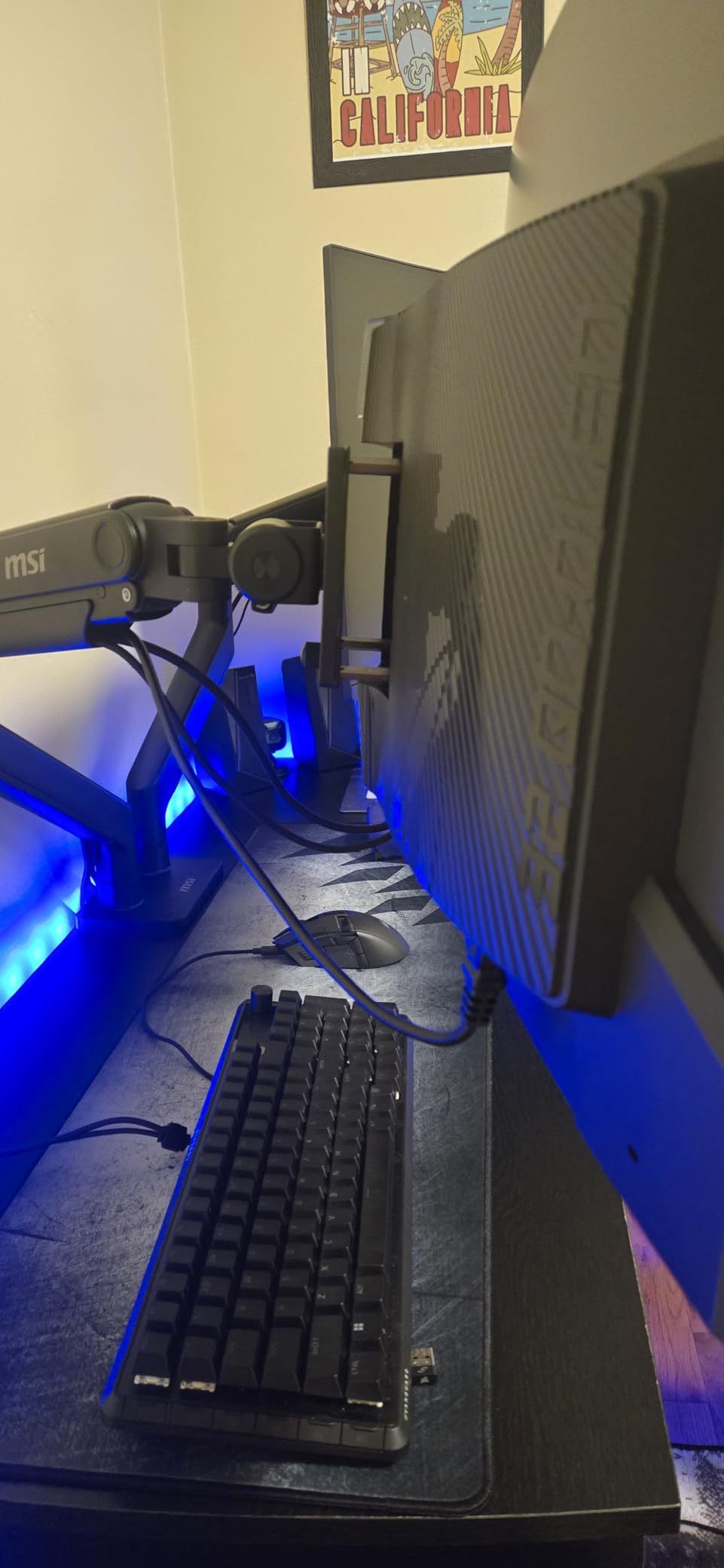
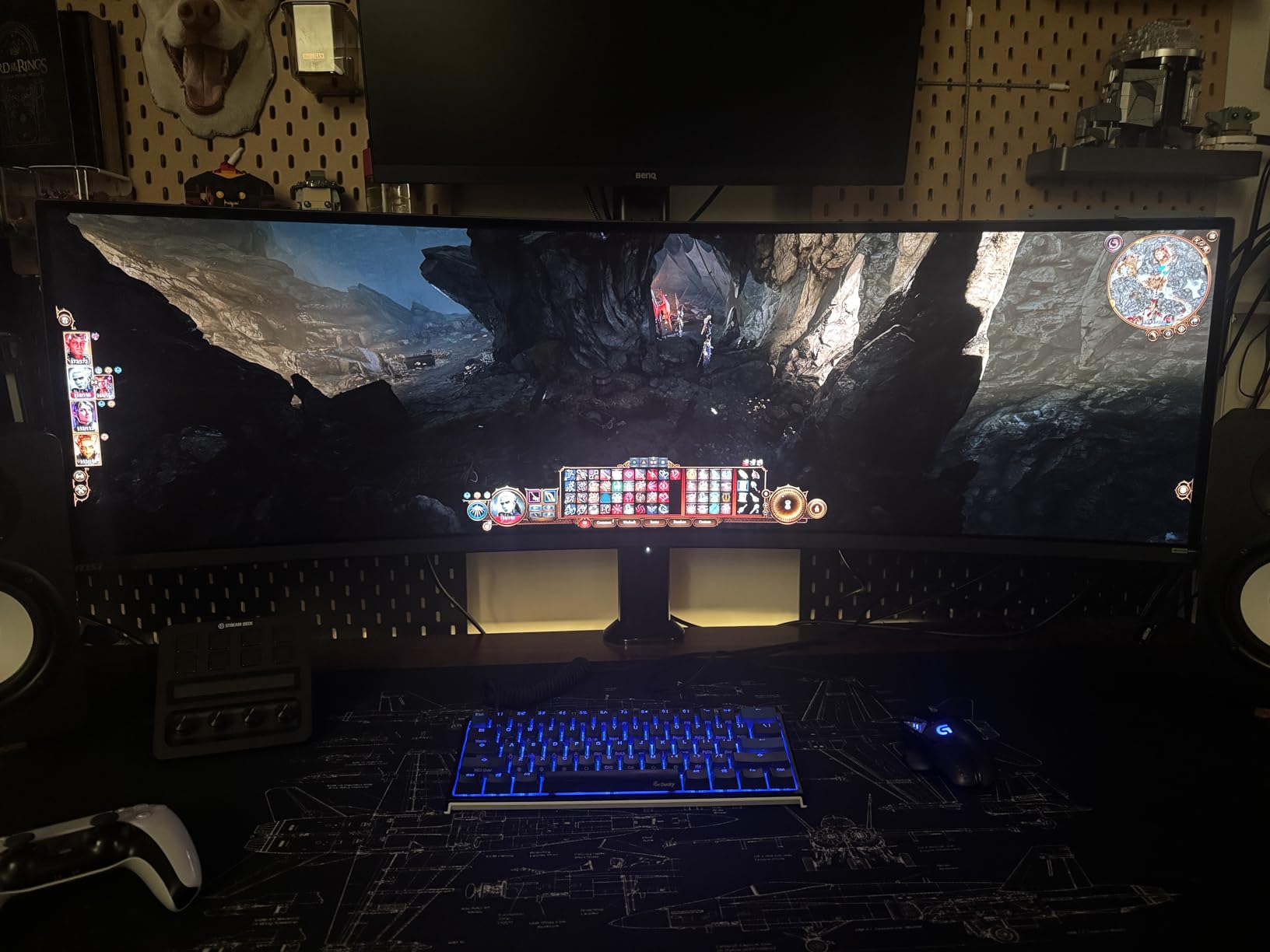
Desk utility is unusually strong. KVM switching lets one keyboard, mouse and monitor control multiple devices, which is exactly the work-and-play arrangement a single 32-inch OLED invites. The 98W USB-C port charges a laptop over one cable, and the Gaming Intelligence App stores per-game viewing profiles so you are not resetting brightness between work and play.
OLED Care 2.0 handles burn-in mitigation routines, the third-generation QD-OLED panel is rated to a Delta E of 2 or better, and the height-adjustable stand is another point in its favour since most OLEDs force you onto an arm immediately.
What console gaming actually needs from a monitor
Two things: 4K at 120Hz output and adaptive sync. A PS5 or Xbox Series X can drive 4K at 120Hz, but only over HDMI 2.1, and only if the monitor negotiates full bandwidth. Older HDMI 2.0 ports cap consoles at 1440p or 4K at 60Hz, wasting most of what the console can do.
Beyond that, variable refresh matters more on console than people expect. Consoles do not hold a locked 120 frames per second, so VRR is what keeps the picture smooth the same way it does on PC.
Where it will disappoint you
The glossy finish picks up room reflections, which on a curved OLED is more noticeable than on a matte panel because the curve catches light sources across a wider area. In a bright room that competes with the image quality you paid for.
Burn-in remains inherent to the technology, and driving 4K at 240Hz needs a high-end GPU and the correct cable. At 27.1 pounds it is also the heaviest monitor here, so the stand and desk need to be up to it.
Which 32-Inch Gaming Monitor Is Right for You?
Three questions decide this purchase. Start with platform. Console players should prioritise HDMI 2.1 and 4K at 120Hz output, which pushes you toward the MSI MPG 321CURX or any 1440p panel with a 120Hz-plus mode. PC players care about VRR implementation and refresh rate ceiling instead.
Then narrow by what the screen does during the day. If it is games only, a VA panel gives the best blacks and the 1080p-at-240Hz options are legitimate. If it is work and gaming on the same panel, go IPS for viewing angles and text, and consider the flat options with adjustable stands.
Finally, curve. A 1000R panel like the Samsung G55C or the LG 32GS60QC-B wraps the most and suits a dedicated gaming chair setup. A 1500R is a gentler middle ground. Flat is the right answer if you dislike the curve visually or work beside someone who needs to read the screen.
If your budget is tight, our gaming monitor guide for smaller budgets covers what you can get at lower spend across other sizes.
Buying Guide: What Actually Matters on a 32-Inch Gaming Monitor
1440p versus 4K comes down to pixel density
At 32 inches, 1920×1080 gives roughly 70 pixels per inch, 2560×1440 about 92, and 3840×2160 about 137. That middle number is why 1440p keeps winning our recommendations: sharp enough that text is comfortable, without asking your GPU to render four times the pixels of 1080p.
4K at 32 inches is genuinely better for image quality and correct if you have the GPU headroom and do photo, video or design work alongside gaming. It also needs Windows scaling at 150 percent to avoid unreadably small interface elements. Forum threads on this exact comparison were the most common in our research, and the consensus is that 92 pixels per inch is the balance point most people want.
Refresh rate only matters if your GPU can feed it
A monitor’s refresh rate is a ceiling, not a promise. Buying a 240Hz panel and running it at 90 frames per second wastes most of what you paid for, and the adaptive sync range covers you anyway.
Under 100 frames per second, a 165Hz or 180Hz panel is effectively as smooth as anything faster and saves GPU headroom for higher settings. Between 100 and 180, 180Hz is a noticeable upgrade. Above that you are looking at competitive shooters where every frame is visible. Match the monitor to the frame rate you actually achieve in your most-played game, not the number on the box.
FreeSync Premium versus G-Sync compatible barely matters now
FreeSync is AMD’s implementation over DisplayPort Adaptive Sync. G-Sync Compatible is Nvidia’s licence to run the same protocol on an Nvidia GPU. Almost every FreeSync Premium Pro panel here is also G-Sync compatible, and both brands’ cards handle the other protocol well in practice.
The forum consensus is that the meaningful differences are local: whether VRR works below 48 frames per second with LFC, whether there is flickering at low frame rates, and whether the range is wide enough to cover your games. Check low-end behaviour in reviews rather than paying a premium for a badge.
Panel type decides contrast, angles and burn-in risk together
VA and HVA panels, which cover most of this list, deliver contrast ratios between 2500:1 and 5000:1 and deep blacks in a dark room. The cost is narrower viewing angles and some black smearing at low overdrive settings. IPS panels deliver consistent colour from any angle and the best text rendering, at contrast ratios around 1000:1 that make blacks look grey.
OLED, at the top of this list, delivers neither compromise: true blacks, 1500000:1 contrast, 0.03ms response and near-perfect colour, at the cost of burn-in risk and flagship pricing. If burn-in worry is stopping you, the IPS and VA options are the honest answer rather than an upsell.
Living with OLED burn-in on a desktop
Modern OLED panels age unevenly, and static bright content ages those pixels faster. It is not a sudden failure but a gradual dimming of the brightest areas. Four habits do most of the work: run the manufacturer’s panel compensation routine on a schedule, hide the taskbar, keep a consistent brightness setting rather than pushing maximum, and use a screensaver or blanking delay when you step away.
What to look for is warranty length. A three-year burn-in warranty, as on both OLEDs here, is the difference between a managed risk and an uncovered one. Forum owners with 12 months or more of ownership generally report even ageing rather than obvious defects, particularly with a varied game library.
Curved versus flat is a preference, not a quality difference
Curve radius is written as a number followed by R, where a lower number means a tighter wrap. 1000R fills your peripheral vision most aggressively, 1500R is the common middle ground, and 1800R is gentle enough that many people forget they are using it.
Curved panels wrap the left and right edges of a widescreen game around the sides of your view, which some players find genuinely immersive. Others find it distorts the edges of a 16:9 image and prefer flat for work. Stand in front of one in a shop if you can, because this is the one decision you cannot make from a spec sheet.
Desk depth decides whether 32 inches works at all
A 32-inch 16:9 panel is about 71cm wide and 40cm tall. For the whole panel to be visible at a comfortable eye height without looking around, you want roughly 70cm of desk depth from the front edge to the wall, and a viewing distance of about 70 to 80cm.
If your desk is shallower, an arm mount with a short post is the fix, because it moves the panel back over your keyboard. If your desk is a small kitchen table, a 27-inch screen is a more realistic answer and we would not fight that.
Frequently Asked Questions
Are 32-inch monitors good for gaming?
Yes, 32 inches is one of the most popular sizes for gaming because it gives you a large, immersive picture that still fits a normal desk. At 2560×1440 you get roughly 92 pixels per inch, which keeps text and menus sharp without needing 150 percent Windows scaling. A 32-inch panel needs about 70cm of desk depth and a viewing distance of 70 to 80cm so the whole screen is visible without turning your head.
Is a 32-inch monitor overkill?
Only if your desk is shallow. A 32-inch 16:9 panel is about 71cm wide and 40cm tall, so you want roughly 70cm of desk depth and an eye-to-screen distance of 70 to 80cm. If the screen sits at that distance with the top edge near eye level, it reads as normal rather than large. On a small desk, an arm mount moves the panel back over your keyboard, and if that is not possible a 27-inch screen is the honest answer.
Is 32 too much for gaming?
No, 32 inches is still the most common size at the high end of the gaming monitor market. The size only becomes a problem when the desk is too shallow or the viewing distance is too short, because you end up moving your eyes across the panel constantly. Check your desk depth first, and consider an arm mount if a 32-inch panel would otherwise sit too close to you.
Is 144Hz or 240Hz better for gaming?
It depends on the frame rate your GPU actually produces. If you sit below 100 frames per second, a 165Hz or 180Hz panel is effectively as smooth as anything faster and saves GPU headroom for higher settings. Above 180 frames per second, 240Hz panels show a real difference in competitive shooters. A monitor’s refresh rate is a ceiling, not a promise, so match it to the frame rate you hit in the games you actually play.
Which is better for gaming on a 32-inch monitor, 1440p or 4K?
For most people, 1440p. At 32 inches, 2560×1440 gives roughly 92 pixels per inch, which is sharp enough for text and interfaces while asking your GPU to render far fewer pixels than 4K at roughly 137 pixels per inch. Choose 4K when you have the GPU headroom for 4K at high refresh and you also do photo, video or design work, in which case set Windows scaling to 150 percent.
Can you really tell the difference between 1440p and 4K?
Yes, at a normal viewing distance of about 70 to 80cm, though it is more obvious in text and fine detail than in fast-moving gameplay. 1440p at 32 inches gives roughly 92 pixels per inch against about 137 for 4K, and the difference is clearest in desktop text, game menus and fine texture detail. In competitive shooters where you are tracking movement rather than reading, the resolution difference matters less than the refresh rate.
Our Verdict for the Best 32-Inch Monitors for Gaming in 2026
The ASUS TUF Gaming VG32VQ1B is the best 32-inch gaming monitor for most people, because 1440p at 165Hz on a VA panel with a three-year warranty has no obvious weak point. If your budget stretches further, the ASUS ROG PG32UCDM sets the image quality standard and the MSI MPG 321CURX is the one to buy if a console is involved.
For the sharpest value in the category, the KTC H32S17C and the SANSUI 180Hz model both deliver 32 inches of curved VA panel for very little money. Whichever you pick, check your desk depth first, because 32 inches is the one specification you cannot change later.