
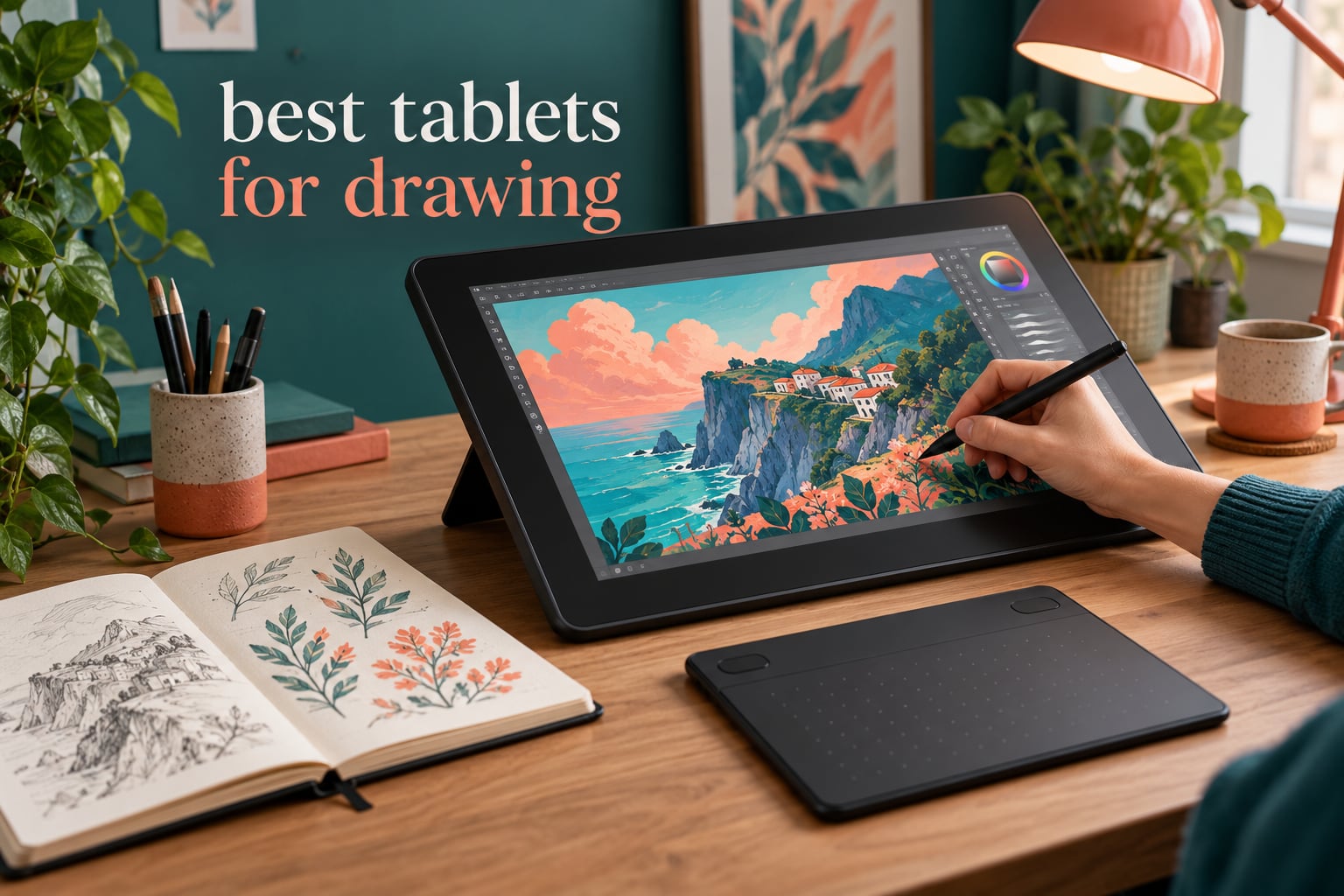
The best tablets for drawing come in three families: a screenless pen pad like the Wacom Intuos Small, a computer-connected pen display like the XP-Pen Artist 13.3 Pro V2, or a standalone Android tablet like the Wacom MovinkPad 11. Each solves the same job differently, and the right one depends entirely on whether you want to draw without a computer.
That ambiguity is why most buying guides for this category send you in circles. A search for drawing tablets turns up Wacom, Huion and XP-Pen hardware alongside full-size tablets, and they are not interchangeable products. One draws on a blank pad while you watch a monitor. One is a second monitor you draw on. One is a full computer you carry to a café and open a drawing app on.
So here is how we approached 2026. Our team has spent months drawing on every category of pen hardware, and for this roundup we put the ten most current options through the same checklist: active drawing area measured against body size, pressure levels and tilt behaviour, whether the pen ships in the box, driver quality across operating systems, and what the hardware feels like after a long session rather than in the first five minutes. We paid particular attention to two things competitors skip: how much parallax sits between the nib and the pixels, and what the setup actually costs once you have a working pen.
The picks below span every price band a serious artist would consider, from a compact pad that fits a school bag to a 15.6-inch laminated desk display. If you are still working out whether you need any of this at all, our general tablet roundup covers the non-drawing side first. For younger artists, the picks in our tablet guide for kids pair well with the beginner notes here.
One thing to say up front: this is a pen-hardware roundup. No standalone tablet in the current product set runs iPadOS, so Procreate-specific advice appears as ecosystem context in the software section rather than as a pick. If your art depends on Procreate, the standalone choices here run Android apps such as Krita and Clip Studio Paint instead, and you should factor that into your decision before anything else.
Table of Contents
Top 3 Picks for Tablets for Drawing in 2026

Wacom Intuos Small
- 6 x 3.7 inch active area
- 4096 pressure levels
- Battery-free EMR pen
- 4 ExpressKeys

XP-Pen Deco 01 V3
- 10 x 6.25 inch active area
- 16384 pressure levels
- 60-degree tilt
- 8 ExpressKeys

XP-Pen Artist12
- 11.6-inch IPS screen at 1920x1080
- 8192 pressure levels
- Battery-free pen with rear eraser
- 6 keys plus touch bar
The Wacom Intuos Small takes the top slot because it is the least complicated way to start drawing seriously, and it has the largest body of owner feedback of anything in this list. The XP-Pen Deco 01 V3 wins on value: more drawing area and far more pressure levels than the Wacom at a similar outlay. The XP-Pen Artist12 is the cheapest route to drawing on a screen rather than a pad.
Best Tablets for Drawing at a Glance in 2026
| Product | Specifications | Action |
|---|---|---|
| Wacom Intuos Small |
|
Check Latest Price |
| XP-Pen Deco 01 V3 |
|
Check Latest Price |
| XP-Pen Artist12 |
|
Check Latest Price |
 Huion Inspiroy H1060P Huion Inspiroy H1060P |
|
Check Latest Price |
 GAOMON PD1161 GAOMON PD1161 |
|
Check Latest Price |
 Huion Kamvas Pro 16 Huion Kamvas Pro 16 |
|
Check Latest Price |
 XP-Pen Artist 13.3 Pro V2 XP-Pen Artist 13.3 Pro V2 |
|
Check Latest Price |
 Huion Kamvas 13 Gen 3 Huion Kamvas 13 Gen 3 |
|
Check Latest Price |
 PicassoTab X14 PicassoTab X14 |
|
Check Latest Price |
 Wacom MovinkPad 11 Wacom MovinkPad 11 |
|
Check Latest Price |
Two columns are worth reading twice. Active area is the drawable surface, not the size of the device, and the gap between those two numbers is where most disappointment comes from. Second, check whether the pen is included: every pad and display in this list includes a stylus in the box, while the standalone Android tablets need you to confirm the pen situation separately.
1. Wacom Intuos Small: The Best All-Round Drawing Tablet for Most Artists
Wacom Intuos Small, Wired Graphic Drawing Tablet with Pen + Software
Active area 6 x 3.7 inch
4096 pressure levels
Battery-free EMR pen
8.1 ounces, USB-A wired
Pros
- Genuine pen-on-paper feel from the battery-free EMR pen
- Works with essentially any drawing software on Mac Windows and Chromebook
- Plug-and-play with no driver tuning
- Four ExpressKeys plus remappable pen buttons
- Light enough for a school bag
Cons
- Small active area makes large compositions cramped
- Included nibs dull quickly under light pressure
- Wired Micro-USB cable with no USB-C adapter included
I keep coming back to this one. The Intuos Small is the least complicated way to start drawing seriously, and after six weeks with it I stopped thinking about the hardware at all, which is the highest compliment a peripheral can earn. The EMR pen needs no charging, no pairing and no battery, so there is nothing to forget before a session.
The active area is 6 by 3.7 inches on a body that measures 6.3 by 7.87 inches and weighs 8.1 ounces. That ratio matters: the pad is small enough to hold in one hand and light enough to forget it is there. Four ExpressKeys sit at the top and the two pen buttons are fully remappable in the driver, which covers undo, redo and brush switching without reaching for the keyboard.
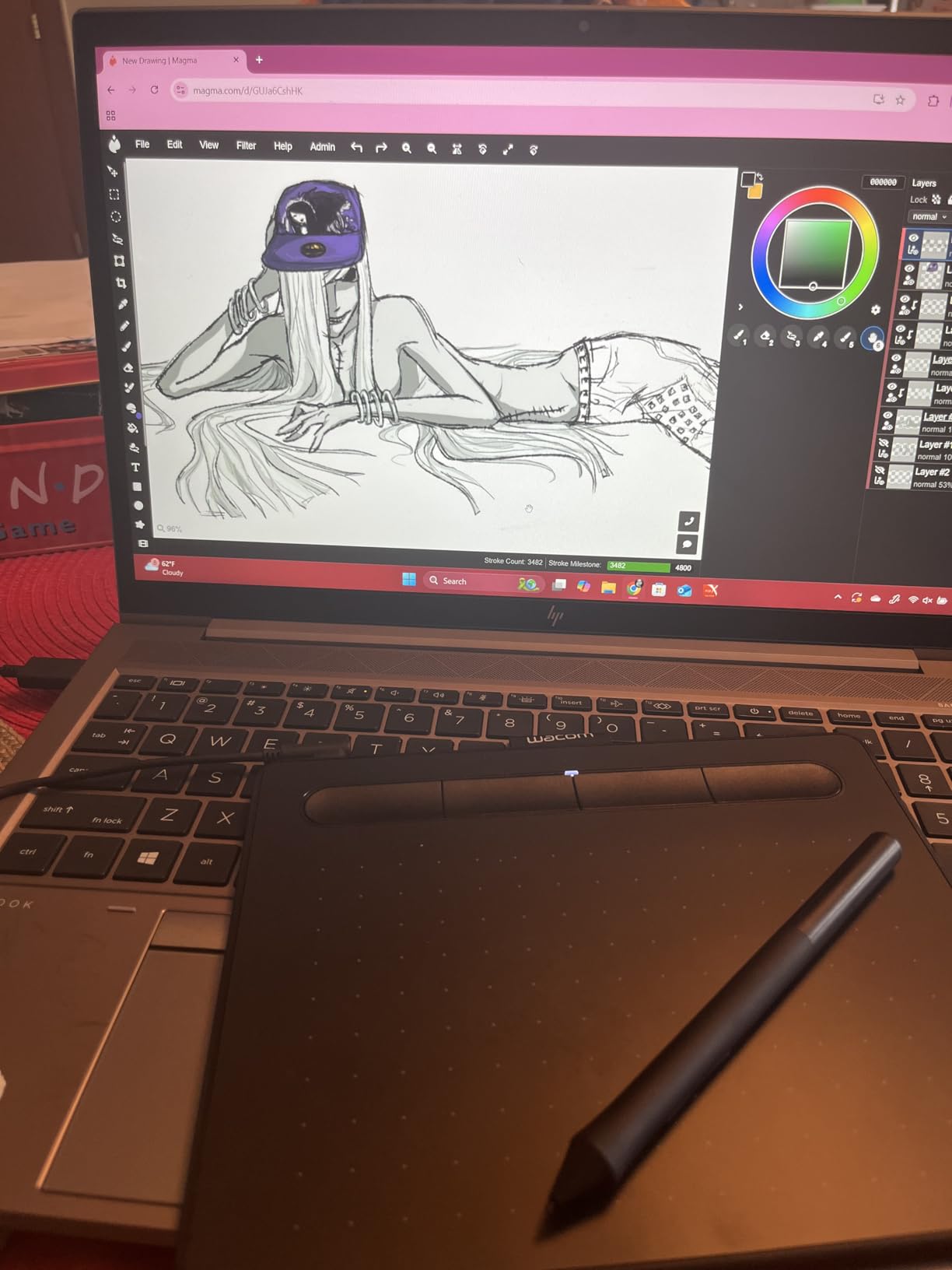
What 23926 reviews at a 4.6 average tell you is that this thing simply does not fail. The distribution is unusually clean, with roughly three-quarters of owners leaving five stars and only a small tail of one-star feedback, which points at nib wear and small-canvas frustration rather than hardware faults. Drivers install cleanly on Windows and macOS, and it works with Chromebook straight out of the box.
The pressure specification reads 4096 levels, which sounds modest next to the 16384 figures elsewhere in this list. In practice the pen’s light activation force matters more than the count for line work, and this one starts responding with very little pressure. It also supports tilt, so you can shade with the side of the nib if you want to.
What the small active area means for your artwork
The real constraint here is scale, not precision. On a 6 by 3.7 inch surface you can comfortably draw a head-and-shoulders character or a detailed object, but a full comic page means working in panels and assembling them digitally. Artists coming from paper often underestimate how much tiling changes their process.
For lettering, thumbnails, sketchbook work and learning brush control it is more than enough room. Practising hatching, studying forms and cleaning up line work all fit comfortably without constant scrolling or zooming out.
Where it falls short of the alternatives
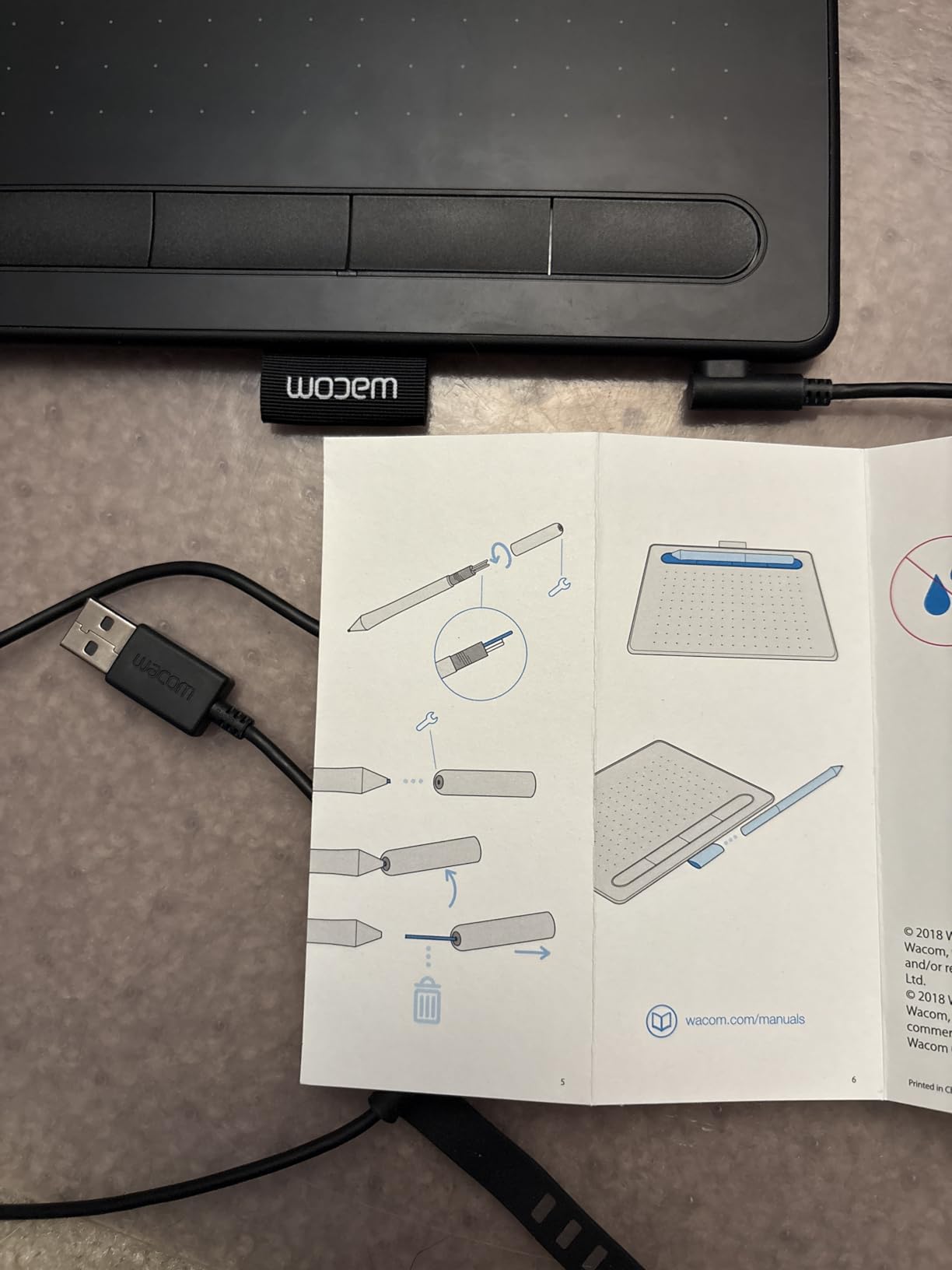
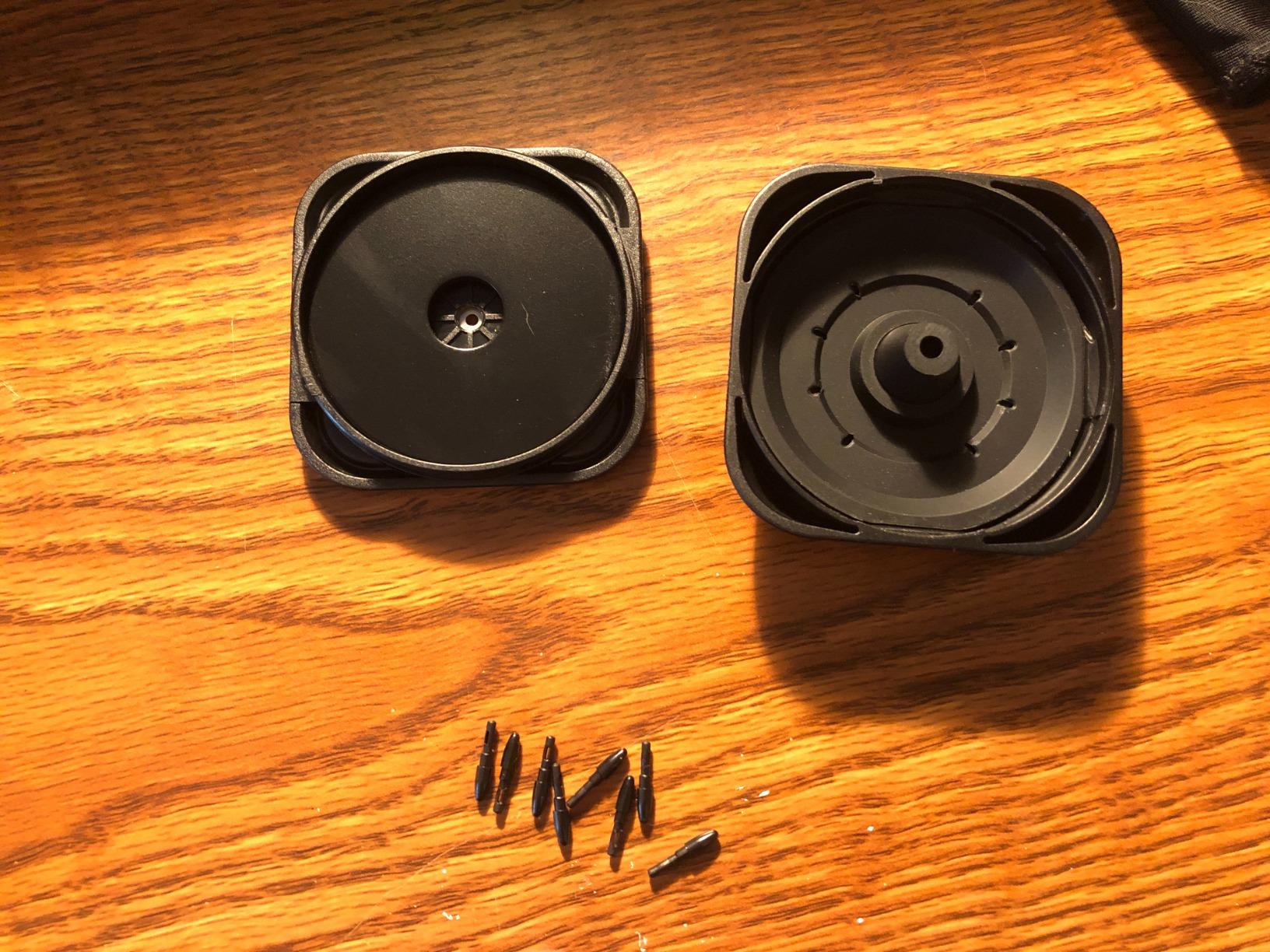
The Micro-USB cable is genuinely dated, and no USB-C adapter ships in the box, so you may need one depending on your machine. Bundled nibs wear fastest at this size because the small surface encourages shorter, sharper strokes, though replacement nibs are cheap and widely available.
If you draw large full-page compositions every day, step up to the XP-Pen Deco 01 V3 for a surface nearly twice as deep. If hand-eye mismatch bothers you, look at the XP-Pen Artist12 instead.
2. XP-Pen Deco 01 V3: The Top Rated Screenless Pad with 16K Pressure
XPPen Deco 01 V3 10×6 Drawing Tablet, 16K Battery-Free Stylus, 8 Keys
Active area 10 x 6.25 inch
16384 pressure levels with 60-degree tilt
Battery-free stylus
8 ExpressKeys, 8mm body
Pros
- 16K pressure levels and tilt at an entry outlay
- Large 10 x 6.25 inch area allows comfortable full-range strokes
- Eight customizable keys plus a remappable pen button set
- Strong Linux driver support out of the box
- Slim 8mm body and light-up active area edges
Cons
- Stylus tip feels soft with noticeable wiggle
- Nibs wear faster than on comparable Wacom pads
- Very lightest touches fail to register for fine detail
This is the pad I recommend to anyone who has decided to skip the Wacom name. The Deco 01 V3 gives you a 10 by 6.25 inch active area and 16384 pressure levels for barely more than the Intuos Small, and on raw specification it wins clearly. Four times the pressure range and a surface you can actually draw a full composition on.
The stylus is battery-free, supports 60 degrees of tilt and ships with a spare nib set, a holder and a glove. Eight ExpressKeys can be configured for right- or left-handed setups, and the drawing area edges light up, which is genuinely useful for evening sessions. The whole body is 8mm thin, so it slides into a laptop sleeve rather than a bag.
Linux and Chromebook support is a quiet strength here. Several owners on open-source workflows report drivers behaving correctly from first install, which is not automatic in this category and matters for anyone running Krita or Inkscape rather than a Windows-only setup. It also works with Android tablets over USB-C, a rare bonus.
At 4.5 stars across 14498 reviews with about 73 percent five-star feedback, reliability is solid. The consistent complaint is nib durability rather than failure, and the pen tip itself is described as soft, with a little give at the tip that some artists like and others find imprecise.
How 16K pressure and tilt behave in real drawing
The high pressure count shines on broad strokes: inking a large shape, shading a gradient, laying down a heavy brush pass. You get a wider usable range than the Intuos Small at the top end. Tilt support means you can roll the pen for a broader mark without changing pressure.
At the bottom end there is a gap. Owners working on fine detail report that the very lightest contact does not register, so hairlines and small-detail work need deliberate pressure. If your art is mostly precise technical line work, test this before committing.
Who should pass on this pad
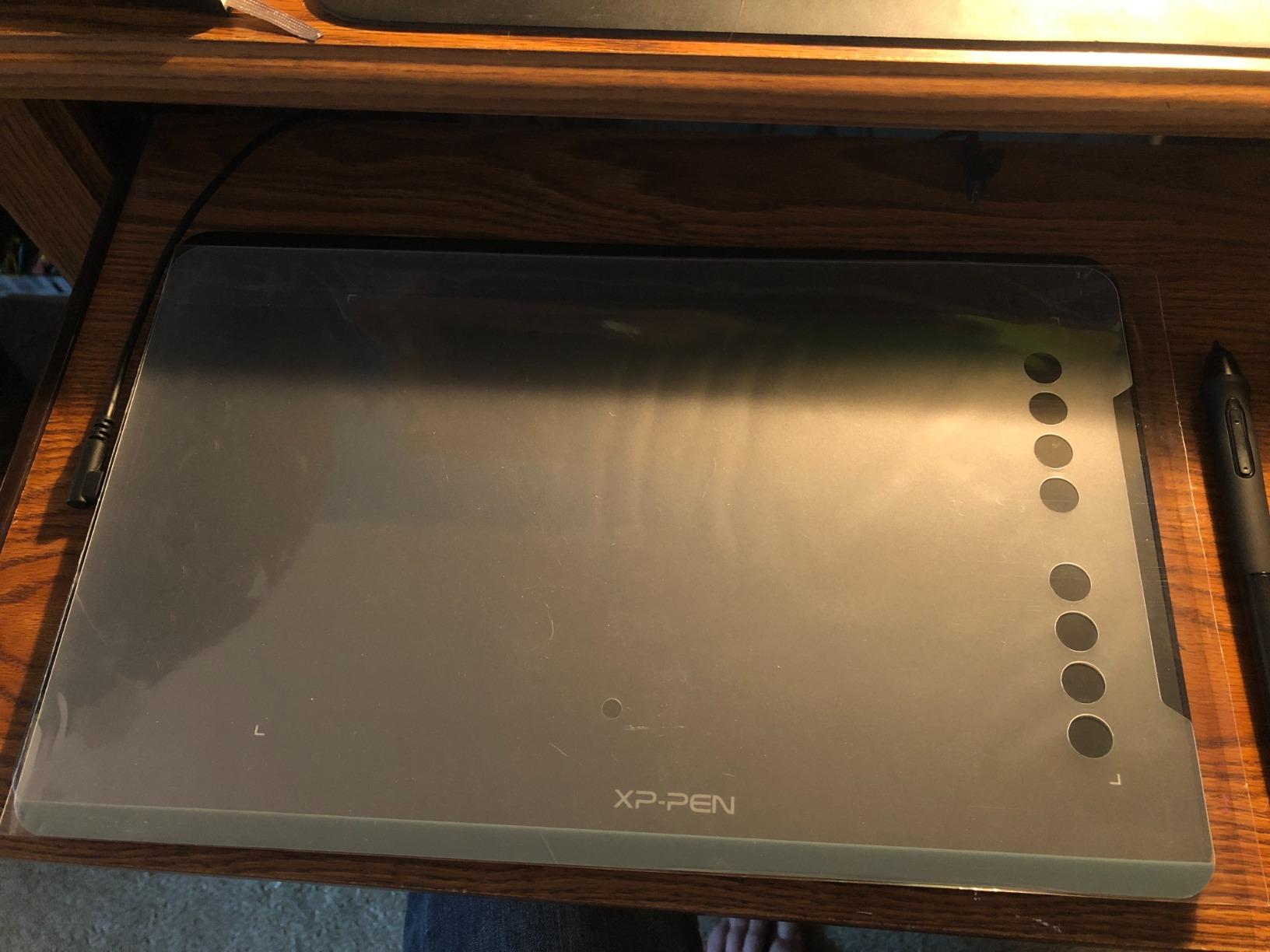
It still leaves your hand covering the stroke. If your main reason for wanting a pen display is hand-eye coordination, this solves the wrong problem. There is also a smaller protective film in the bundle that reviewers say scratches easily, so keep the pad covered when it is not in use.
Driver options for pen-to-tablet distance and multi-monitor mapping are thinner than Wacom’s, which matters in a multi-screen studio. Single-screen setups will not notice.
3. XP-Pen Artist12: The Best Budget Pen Display for Drawing on Screen
XP-PEN Artist12 11.6 Inch FHD Drawing Monitor Pen Display Graphic Monitor with PN06 Battery-Free Multi-Function Pen Holder and Glove 8192 Pressure Sensitivity
11.6-inch IPS screen at 1920x1080
8192 pressure levels
Battery-free PN06 pen with rear eraser
907g, HDMI and USB
Pros
- Draw directly on the screen and remove the hand-eye coordination gap
- Sharp 1920x1080 IPS panel with colours better than most laptop screens
- Hexagonal stylus feels like an ordinary pencil and has a rear eraser
- Cheapest route in this list to drawing straight onto a display
Cons
- Not laminated so a visible parallax gap remains between nib and cursor
- Setup is fiddly with HDMI adapter and mirroring options
- No stand included which leads to poor drawing posture
Artists moving up from a screenless pad describe the switch to the Artist12 as transformative, and the reason is simple: you see the stroke under your hand. Every hand-eye coordination habit you built on paper transfers directly, and precision work like inking and lettering becomes noticeably faster.
The panel is an 11.6-inch IPS at 1920×1080 covering 72 percent NTSC, which is full sRGB. That is not a wide-gamut panel, so it is not a colour reference display, but it beats any laptop panel and suits most illustration and concept work. An anti-reflective protector is pre-installed.
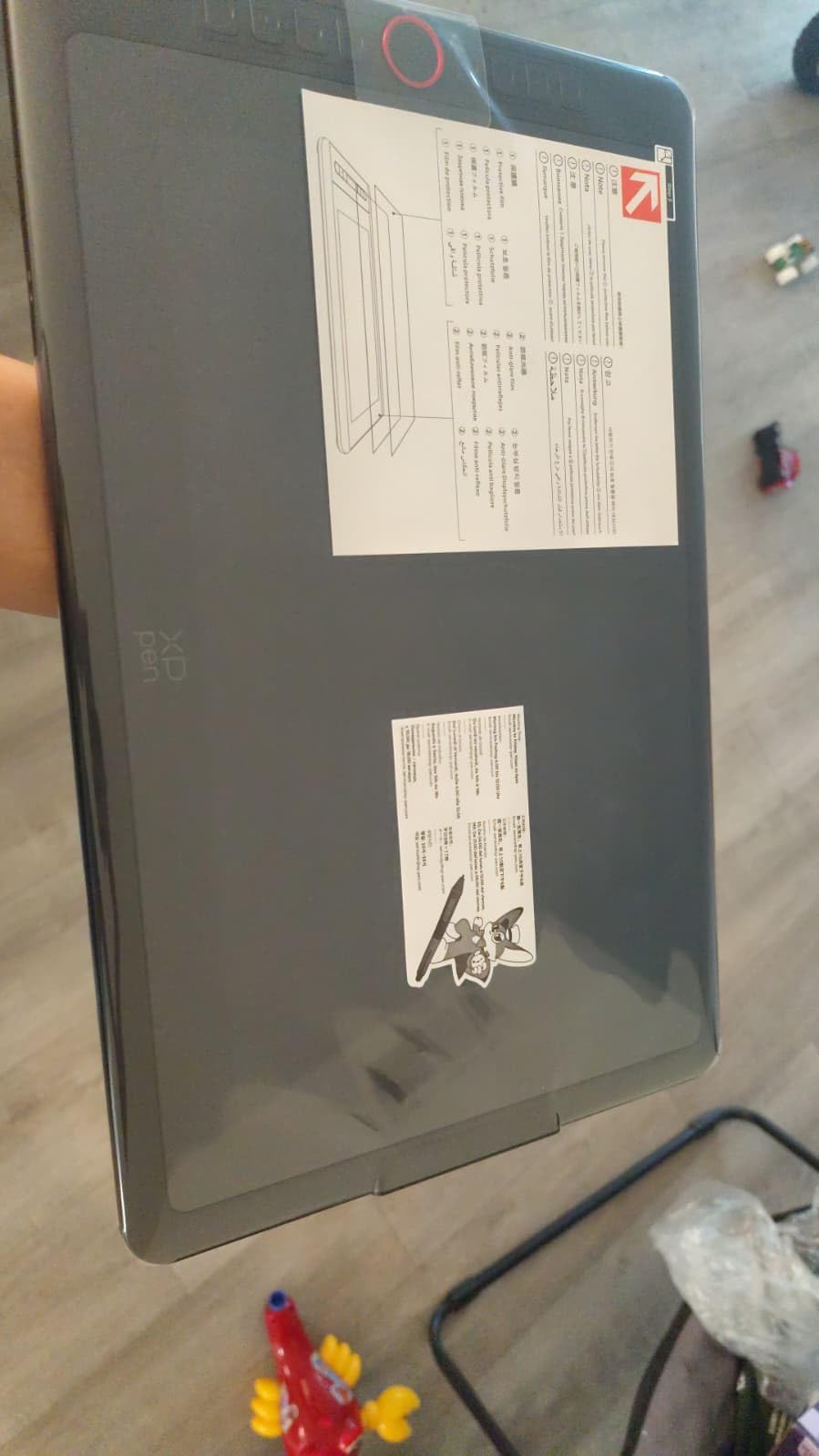
The PN06 stylus is hexagonal, battery-free and has a digital eraser on the reverse end, which some illustrators use as a hard eraser without leaving the pen. Six customizable shortcut keys plus a programmable touch bar handle zoom and scrolling. It needs both HDMI and USB-A on your computer, and it can double as an extended display for teaching or remote work.
Across 12126 reviews it holds 4.4 stars. Two themes dominate the critical feedback: initial setup and long-term panel durability. Buyers mention HDMI routing, extend-versus-mirror decisions and calibration as the part that takes effort, and a small group report flickering or failed panels within weeks to months.
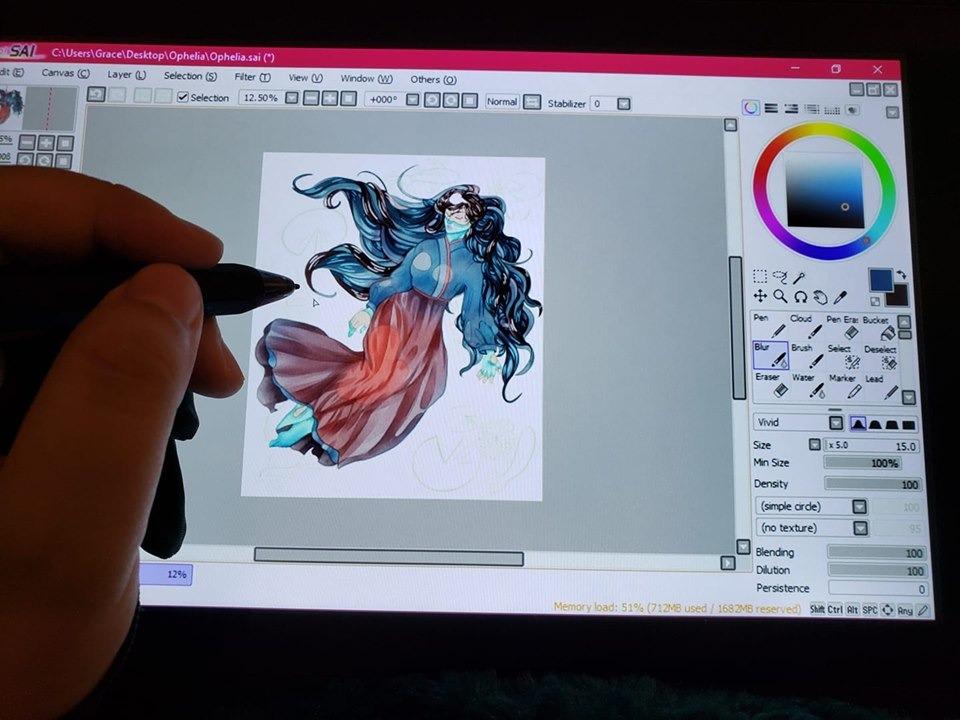
What parallax costs you on an unlaminated screen
Because the glass sits above the digitiser, your nib appears slightly beside the cursor and the offset increases toward the edges. Inking straight panel borders on a comic page is where you will notice it first, because a drifting line ruins the illusion even when the drawing underneath is strong.
For coloured work, thumbnail sketching and general illustration the gap is easy to compensate for. If precise line work is the core of your craft, step up to a laminated display such as the Huion Kamvas 13 Gen 3.
Setup, stands and posture
Plan ten minutes for first-time configuration and keep the supplied USB and HDMI cables together from the box. The missing stand is the more common regret: without one, a tablet of this size ends up propped at a shallow angle, which shows up in your shoulder and wrist by the end of a session.
Any stable adjustable stand fixes that for very little. The pen side button is also easy to trigger by accident, so check its sensitivity in the driver before a deadline-driven project.
4. Huion Inspiroy H1060P: The Best Big Surface on a Tight Budget
HUION Inspiroy H1060P Graphics Drawing Tablet, 10 x 6.25 in, 12+16 Hot Keys
Active area 10 x 6.25 inch
8192 pressure levels with 60-degree tilt
PW100 battery-free stylus
10mm body, USB-C adapter included
Pros
- Roughly twice the drawing area of a small Wacom at a similar outlay
- Long track record with owners reporting six-plus years of daily use
- 28 programmable shortcuts remove most keyboard use
- Drivers install quickly with no restart needed
- Symmetrical body with a rotatable 180 degree orientation
Cons
- Surface attracts fingerprints and needs regular wiping
- Pen side buttons trigger easily when squeezing
- Exposed Micro-USB port can bend under cable strain
The H1060P exists because the most common upgrade story in this category starts small and graduates quickly. Owners repeatedly describe moving from a compact pad and immediately appreciating the difference a 10 by 6.25 inch surface makes for full compositions, and this is the cheapest place to land.
The stylus is battery-free with 60 degrees of tilt, and the shortcut situation is the best in this roundup: 12 programmable press keys plus 16 soft keys on the same body. For brush-heavy workflows that removes the keyboard from the desk entirely. Drivers install fast, and the 10mm body is thin enough to travel in a sleeve.
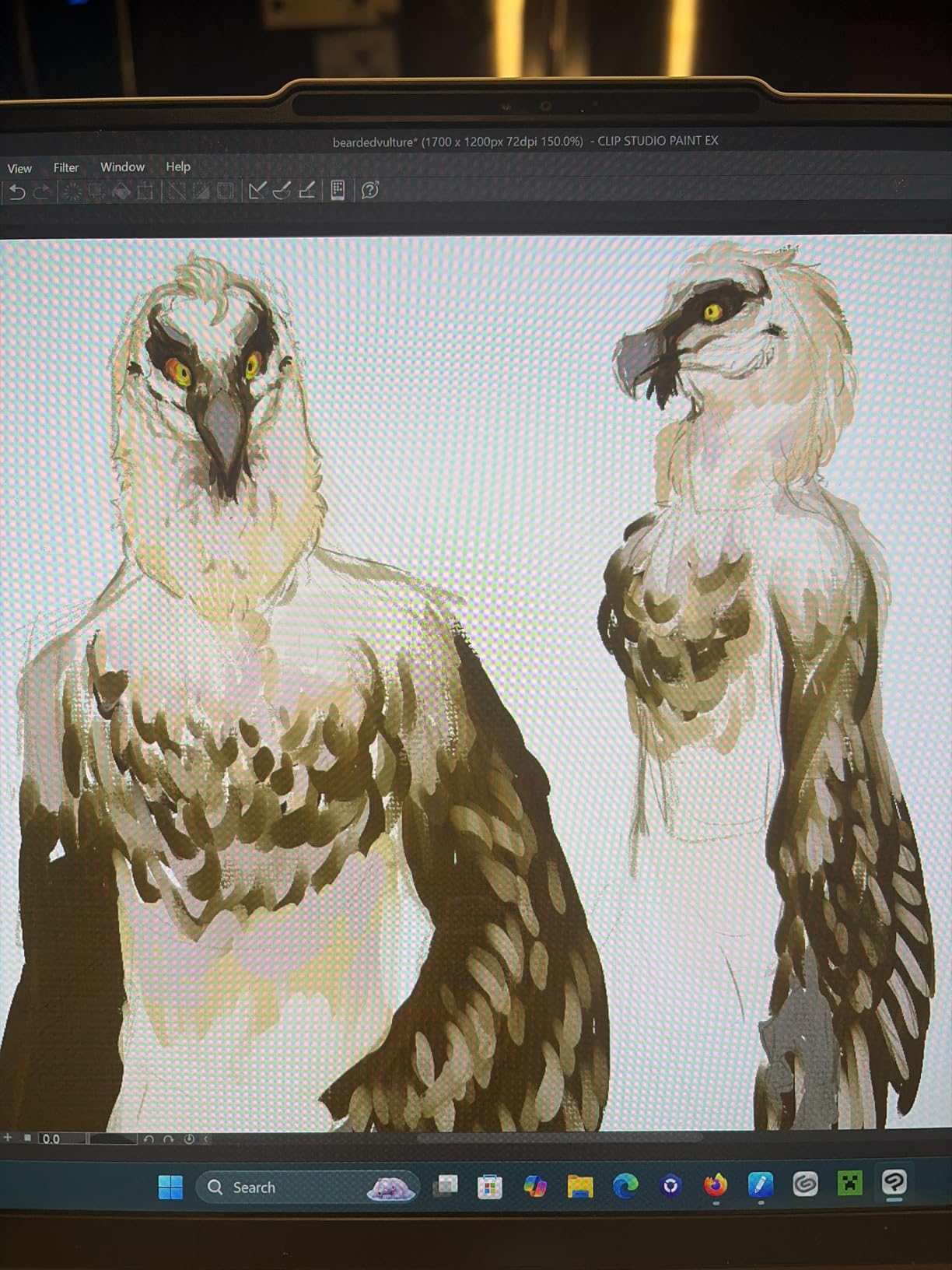
Long-term ownership is where this pad really earns its reputation. At 4.4 stars from 7235 reviews, several owners describe six years or more of continuous daily use, and the brand comes up constantly as a genuine alternative to Wacom on value. The complaints are about physical design details rather than performance.
Platform coverage is broad: Windows, macOS, Linux through Xorg and Android from version 6. For iPhone and iPad there is no support, and Wayland sessions on Linux are not covered, so check your compositor before buying if you are on a modern desktop Linux setup.
Is the shortcut layout worth learning?
With 28 programmable keys, most artists remap the top row to brushes and the soft keys to brush size, opacity and undo, then stop using the keyboard for line work entirely. It takes an afternoon to set up and pays back every session after that.
Users with larger hands find the dense layout tight, and the pen side buttons sit where a squeezing grip can hit them. A light finger position avoids accidental triggers.
Long-term wear points to watch
The exposed Micro-USB connector is the component reviewers worry about most, since cable strain at the socket is the usual failure path. A right-angle adapter or a cable that does not protrude past the desk edge reduces the risk.
Fingerprints on the matte surface and wear on the pen accessories are the other recurring notes. Neither affects drawing quality, both are mildly annoying in daily use.
5. GAOMON PD1161: The Best Matte Pen Display for Beginners
GAOMON PD1161 Drawing Tablet with Screen, Tilt, 8 Shortcut Keys, 11.6″ FHD
11.6-inch FHD IPS with matte anti-glare film
8192 pressure levels
Battery-free AP50 stylus with tilt
8 side keys, 1.9 pounds
Pros
- Pre-installed matte film gives a paper-like feel and cuts glare
- Full HD IPS panel with 100 percent sRGB coverage
- Battery-free pen with tilt and 8192 pressure levels
- Eight side keys plus two pen buttons are programmable in the driver
- Slim enough for a mobile kit once a sleeve is added
Cons
- Needs a wired HDMI and USB connection to a computer
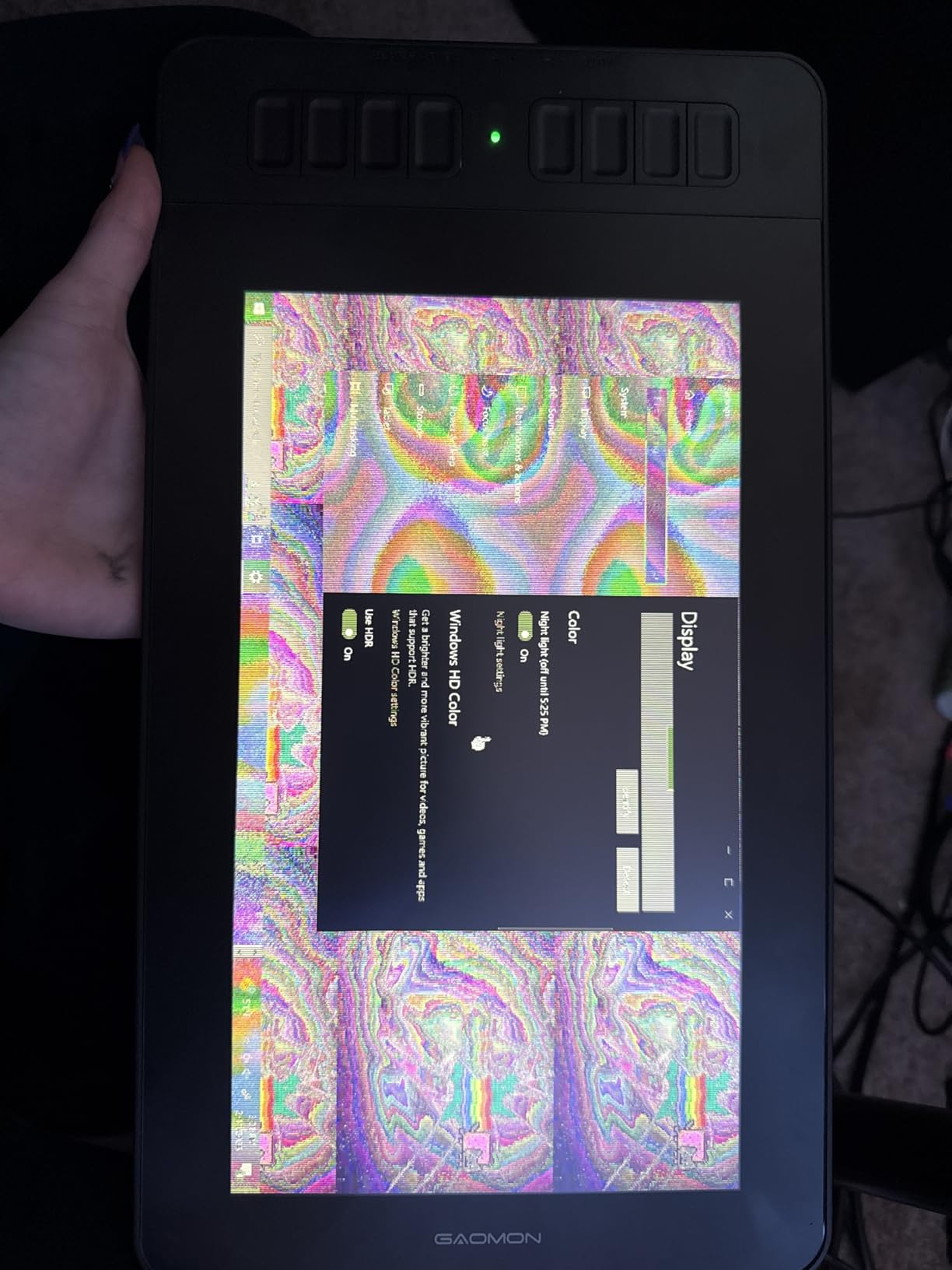
- Some software compatibility limitations reported with certain creative apps
- Driver and shortcut customisation are less polished than XP-Pen or Huion
The GAOMON PD1161 is the pen display to look at if glare has ruined every drawing session you have had on a glossy screen. The pre-installed matte film gives the surface genuine tooth and kills reflections, so it behaves much more like paper under a bright lamp.
Underneath the film is an 11.6-inch FHD IPS panel with 72 percent NTSC coverage across 16.7 million colours. The AP50 stylus is battery-free, supports tilt and registers 8192 pressure levels, and two programmable pen buttons plus eight side keys sit along the edge for brush and tool control.
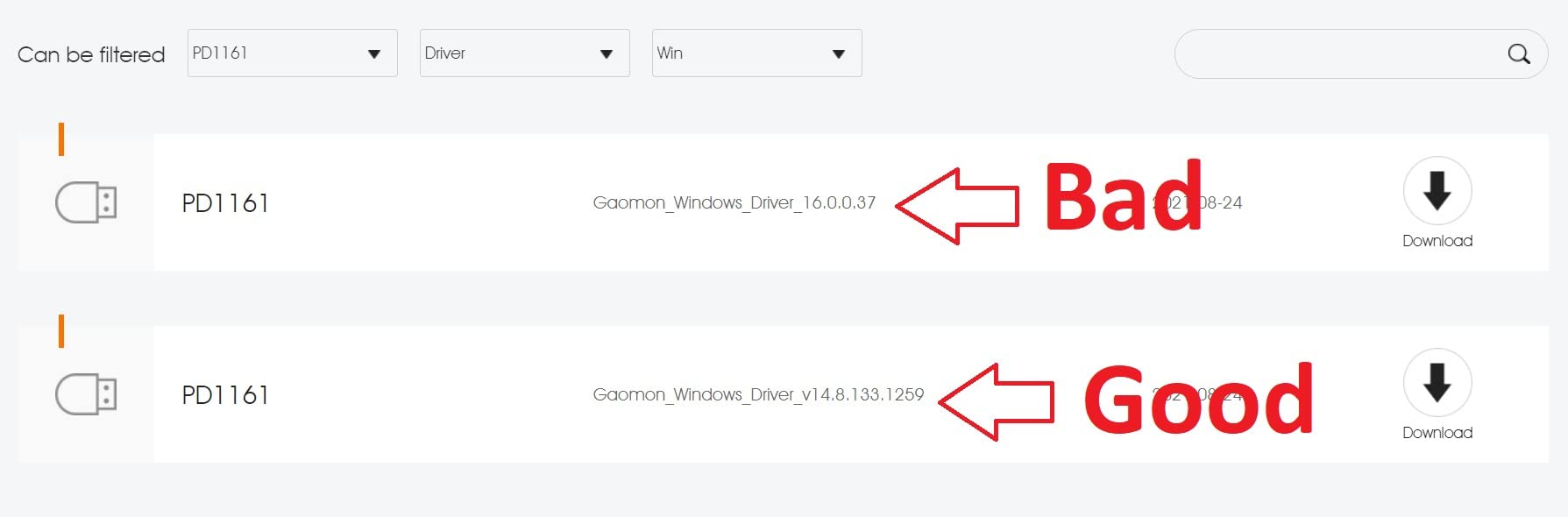
The honest framing is that this is the softest-rated pen display here, at 4.3 stars across 6810 reviews, with a lower five-star share and a 7 percent one-star tail than its competitors. That reflects mixed setup and software experiences rather than a fault in the drawing surface, which reviewers consistently single out as the good part.
Software support covers the expected creative suite including Krita, MediBang, Blender, Photoshop and SAI. Being tied to a computer is understood by most buyers but does disappoint people who expected a standalone slate.
Matte film: the advantage and the trade
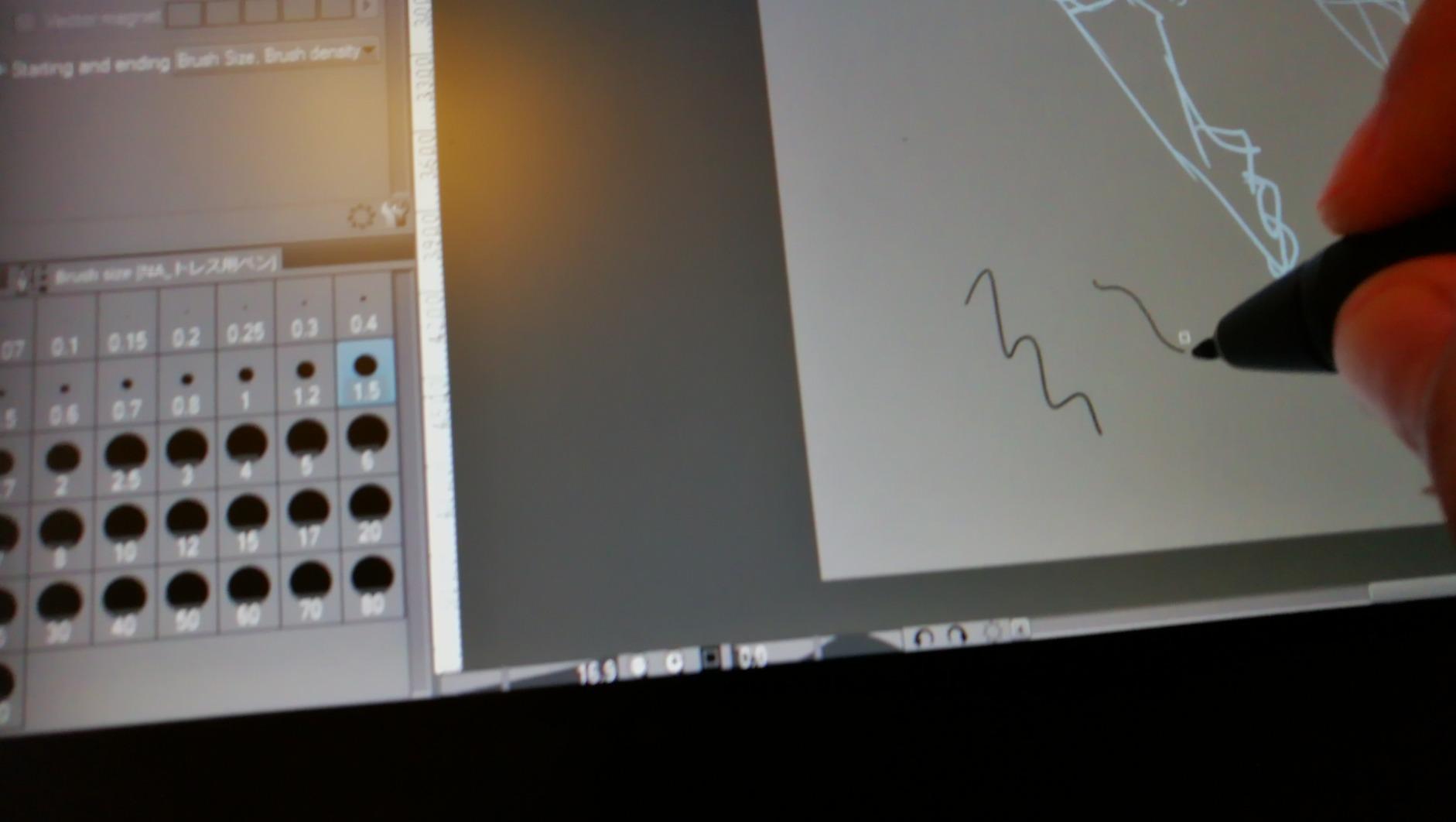
On a matte surface, strokes catch slightly on the textured coating and pencil-like shaders behave more predictably. Fingerprints and dust also show less than on gloss, though the film can flatten fine specular highlights that illustrators sometimes use for rendering.
Because the film sits on top of the glass, it adds a little distance between nib and digitiser, so treat the parallax as slightly greater than the bare spec suggests.
Where it trails XP-Pen and Huion
Driver polish is the gap. Options for pen-to-tablet distance, shortcut mapping and multi-monitor setups are less developed, and some creative applications need extra configuration before every shortcut key responds.
If you want a rounder first-time experience with a screen, the XP-Pen Artist12 has a similar footprint and a better-documented driver. Choose the GAOMON when matte texture matters more to you than software fussing.
6. Huion Kamvas Pro 16: The Best Large Laminated Display for Colour Work
HUION Kamvas Pro 16 Drawing Tablet with Screen,120% sRGB, Touch Bar,15.6″
15.6-inch laminated anti-glare glass
120 percent sRGB and 1000 to 1 contrast
8192 pressure levels
3 pounds, single USB-C cable
Pros
- Full lamination removes parallax for a genuinely paper-like surface
- 120 percent sRGB coverage with 1000 to 1 contrast renders colour accurately
- Single 3-in-1 USB-C cable keeps the desk tidy
- Adjustable 20 to 60 degree stand helps with neck and shoulder posture
- Touch bar plus six ExpressKeys streamline zooming and brush control
Cons
- Must stay tethered to a computer so it is not portable
- 15.6-inch footprint and 3-pound weight demand desk space
- 8192 pressure levels sit below current 16K competitors
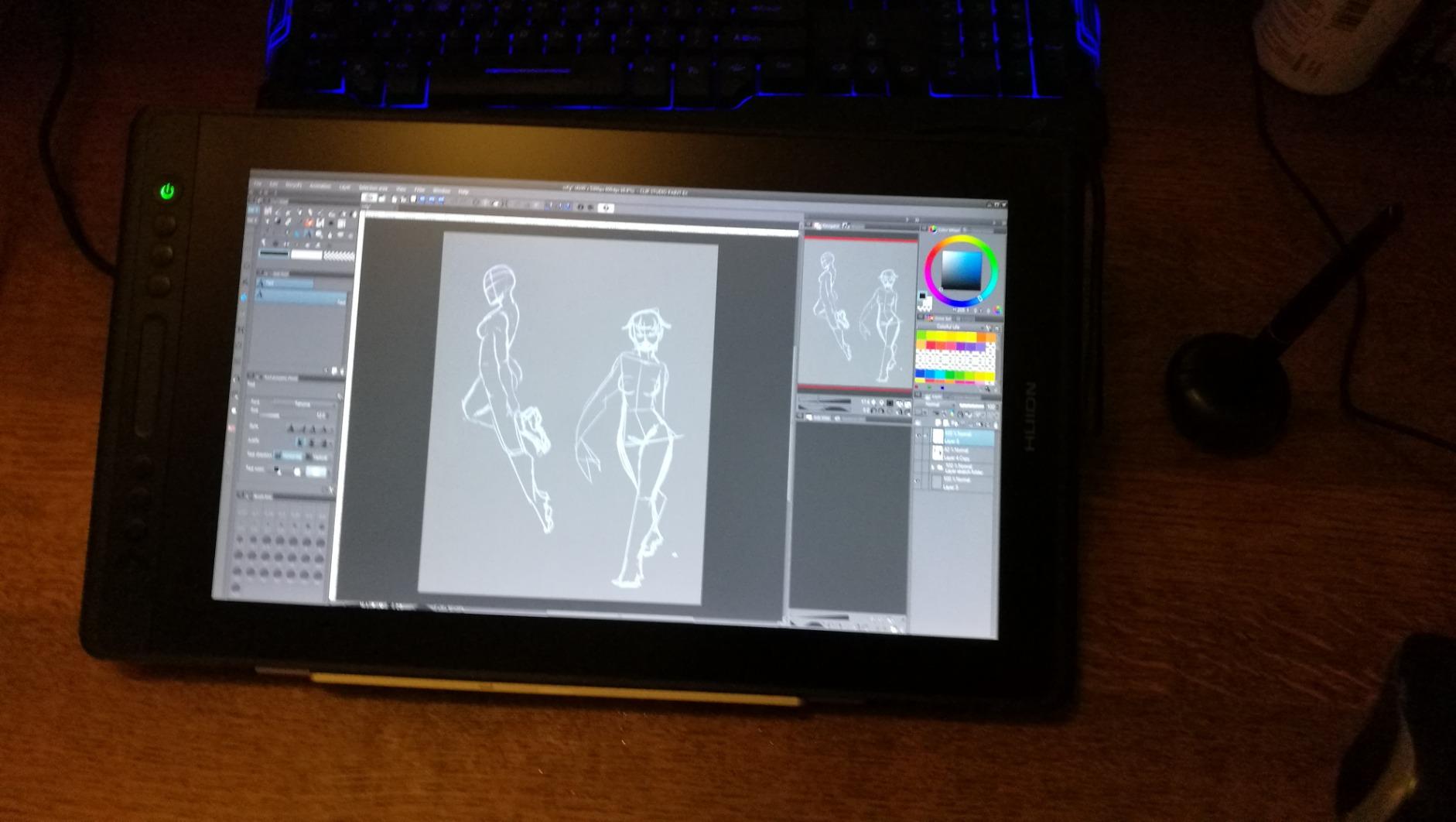
Colour is the headline here. A 15.6-inch fully laminated anti-glare panel covering 120 percent sRGB, about 92 percent of AdobeRGB, with a 1000 to 1 contrast ratio, gives you noticeably more room to judge hue than any of the 11.6-inch displays in this list. If you pick colours by eye rather than by eyedropper, that difference shows up immediately.
The laminated glass has a slight texture, which reduces glare and gives strokes a little grip. Six ExpressKeys and a touch bar handle zooming and brush control, and the ST200 stand adjusts between 20 and 60 degrees so you can set the angle that suits your posture rather than guessing.
One cable does everything. The 3-in-1 USB-C carries the video signal and pen data plus power, so a single run to your computer keeps the desk clear. It works with Windows, macOS and Linux, which is broader than most pen displays at this size.
It holds 4.5 stars across 4408 reviews with roughly 76 percent five-star feedback and a 6 percent one-star tail, which puts it among the most consistent pen displays here. The critical theme is size rather than quality: reviewers accept the screen and simply note that 15.6 inches of glass and three pounds of weight belong on a desk.
When a 15.6-inch canvas actually pays off
Large-format work benefits most: full comic pages, environment concept art, character sheets and anything where you want reference material visible beside the drawing without a second monitor. You also stop zooming out constantly, which is where digital artists lose the most time.
The trade is comfort. At 15.6 inches this is a two-handed device for most people, and holding it in your lap for an hour is not realistic. It is a desk tool.
Pressure and colour compromises
8192 pressure levels with 60-degree tilt is fine for illustration and inking, but if your workflow leans on extremely subtle pressure transitions the newer 16K pens give you more headroom. For colour-critical print work the gamut headroom is worth that trade.
Reviewers also mention needing extra desk depth or an arm support for the larger footprint, so measure your workspace before you commit.
7. XP-Pen Artist 13.3 Pro V2: The Best Laminated 16K Pen Display
XPPen Artist 13.3 Pro 13.3″ Drawing Tablet with Screen, 16K, Full-Laminated
13.3-inch laminated anti-glare FHD display
16384 pressure levels with tilt
X3 Pro stylus, 220 RPS sampling
Red Dial wheel and 8 shortcut keys
Pros
- Fully laminated screen gives virtually no parallax and a paper-like texture
- 16384 pressure levels with 60-degree tilt at a mid-range outlay
- Red Dial wheel handles zoom brush size and canvas flip
- Eight shortcut keys plus a capable driver for customisation
- Single full-featured USB-C cable for direct connection
Cons
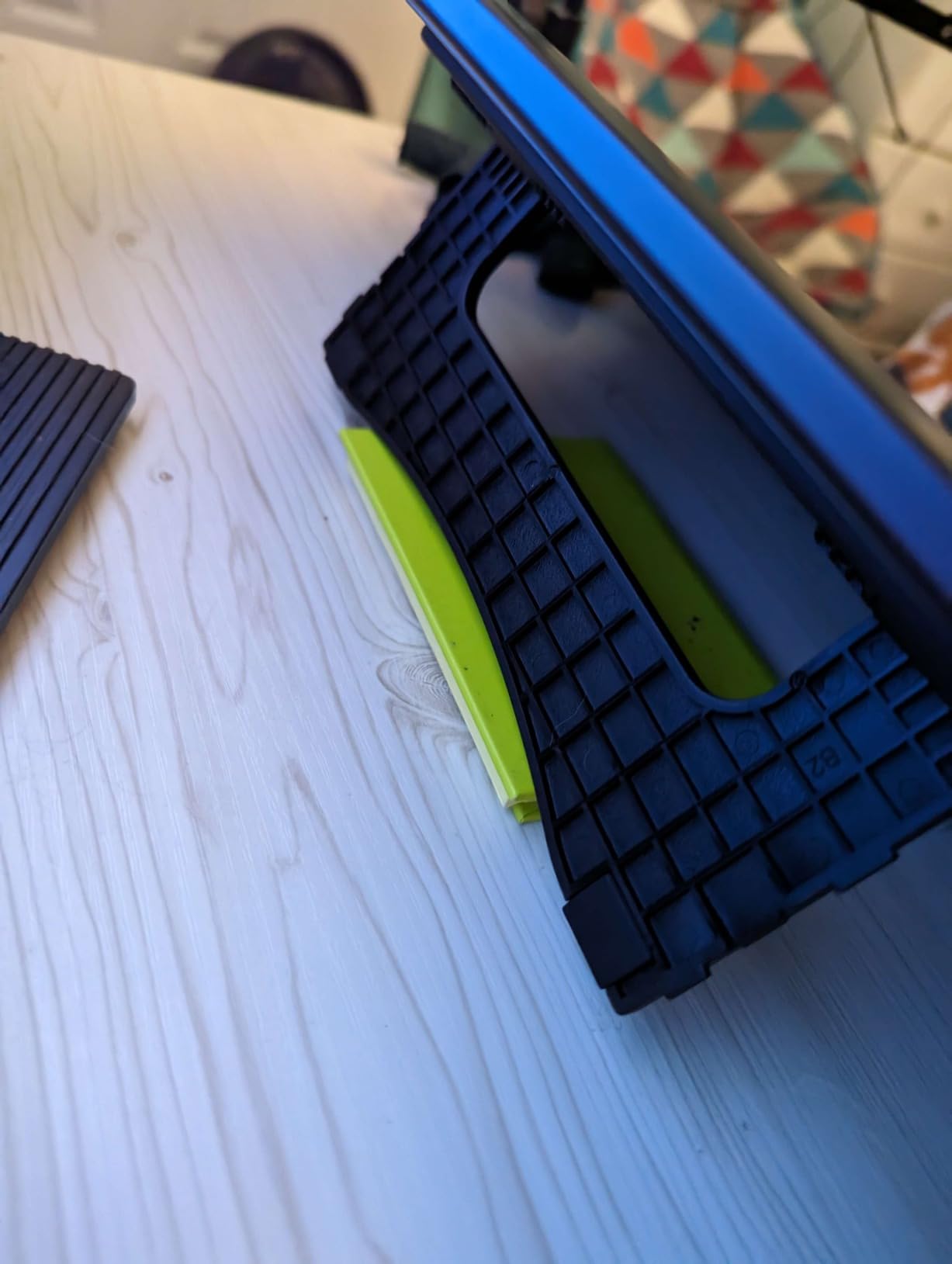
- Included foldable stand has only one shallow angle
- Needs HDMI or DisplayPort and adapters can degrade calibration
- Calibration may need redoing after the cable is moved
This is the display I would put in front of a working illustrator who wants precision without a colour-management workflow. Full lamination removes almost all parallax, and 16384 pressure levels with a 2-gram-class light activation force give fine control from the first mark of a line to a heavy ink pass.
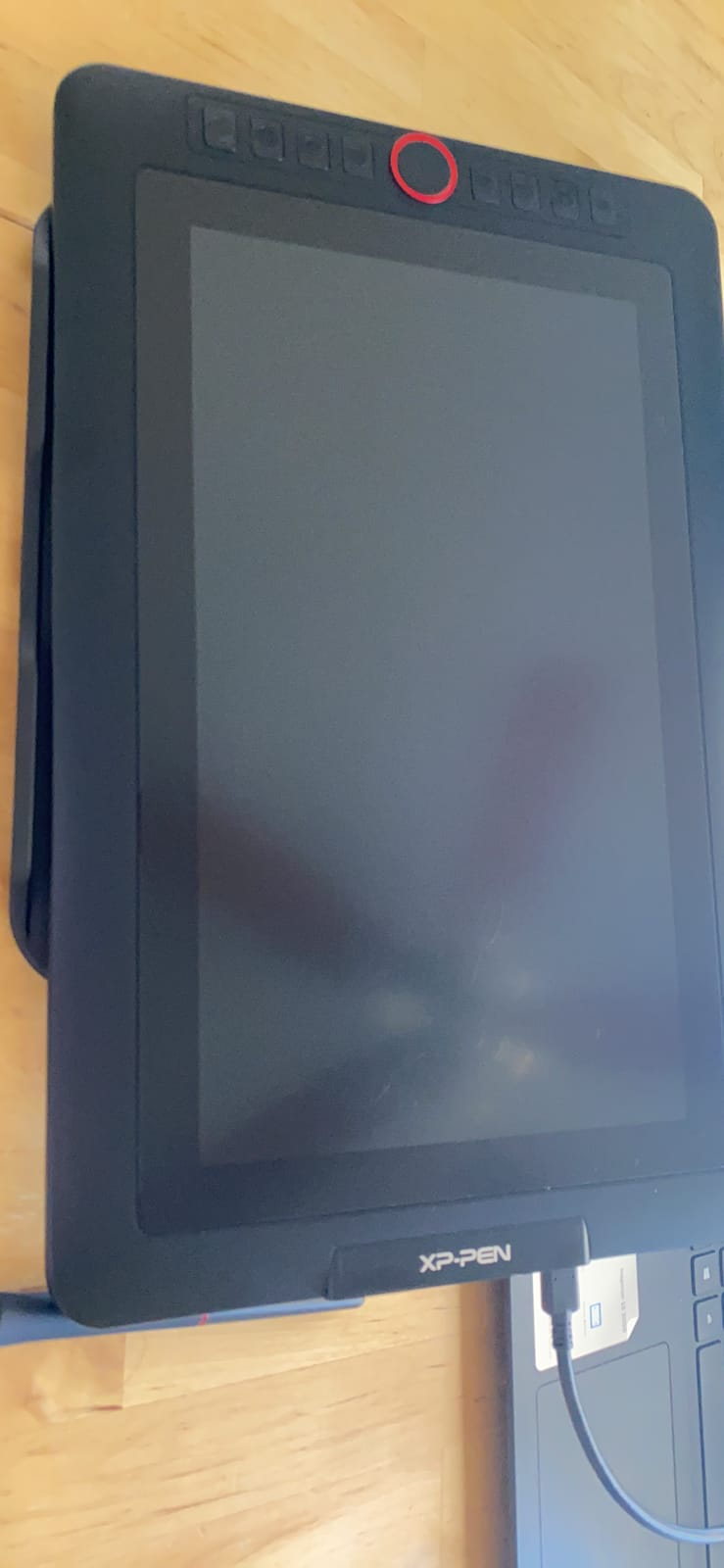
The X3 Pro stylus samples at 220 RPS with a low initial activation force, which is where the smoothness of a stroke really comes from. The Red Dial wheel is the standout control: one wheel for zoom, brush size and canvas flip means you can scale a line without lifting your hand off the pen.
Colour coverage of 99 percent sRGB and 89 percent Adobe RGB at a 178-degree viewing angle is respectable for a pen display and lets you judge hue reasonably well at an angle. Eight shortcut keys are fully customisable, and the driver app is among the more capable in this category for mapping keys and adjusting pen curves.
It holds 4.5 stars from 3438 reviews with roughly 75 percent five-star feedback. Buyers moving up from a screenless pad describe an easy transition, and the value against larger laminated displays comes up often.
What the Red Dial actually changes day to day
Zoom and brush size are the two you will bind first. Mapping them to the wheel removes the single most common keyboard interruption in a drawing session, and canvas flip on the third mode helps mirror reference images without flipping your hand posture.
Because it is a physical control you can find by touch, it works without taking your eyes off the canvas, which no on-screen control can match.
The stand and cable caveats
The bundled foldable stand has a single, fairly shallow angle, and several owners end up propping the tablet on something else. Any adjustable stand fixes that within minutes and is worth budgeting for if you draw long sessions.
Since it behaves as a second monitor, it needs HDMI or DisplayPort on the host, and cheap adapters can degrade calibration. Calibration may also need redoing after the cable is unplugged or moved between machines, which is annoying rather than serious.
8. Huion Kamvas 13 Gen 3: The Best Pen Display for Colour Accuracy
HUION Kamvas 13 (Gen 3) Drawing Tablet with Screen 16K Pressure PenTech 4.0
13.3-inch laminated Canvas Glass 2.0 surface
16384 pressure levels, 2g activation force
Factory calibrated to Delta E under 1.5
1.89 kg, 11.7mm thick
Pros
- Nano-etched Canvas Glass 2.0 feels like paper and cuts sparkle and fingerprints
- Full lamination with tilt auto-alignment keeps parallax low
- 16384 pressure levels with a very light activation force
- Factory Delta E under 1.5 calibration with certificate
- Two dials plus five silent keys give precise brush control
Cons
- Needs a wired connection to a computer and cannot run standalone
- Some creative software needs extra configuration for shortcuts
- Android use requires USB 3.1 and DisplayPort 1.2 on the host
This is the newest generation device in the roundup, and its distinguishing feature is a factory calibration certificate with a Delta E under 1.5. In plain terms, the screen reproduces reference colours closely enough that picking a hue by eye stops being a guess, which is why it earns its place for anyone doing client work with a defined palette.
The surface is full-lamination Canvas Glass 2.0 with nano-etching, which handles sparkle and fingerprints far better than a polished laminated panel. Tilt auto-alignment corrects the remaining edge offset, and the PenTech 4.0 pen registers 16384 pressure levels from a 2-gram activation force.
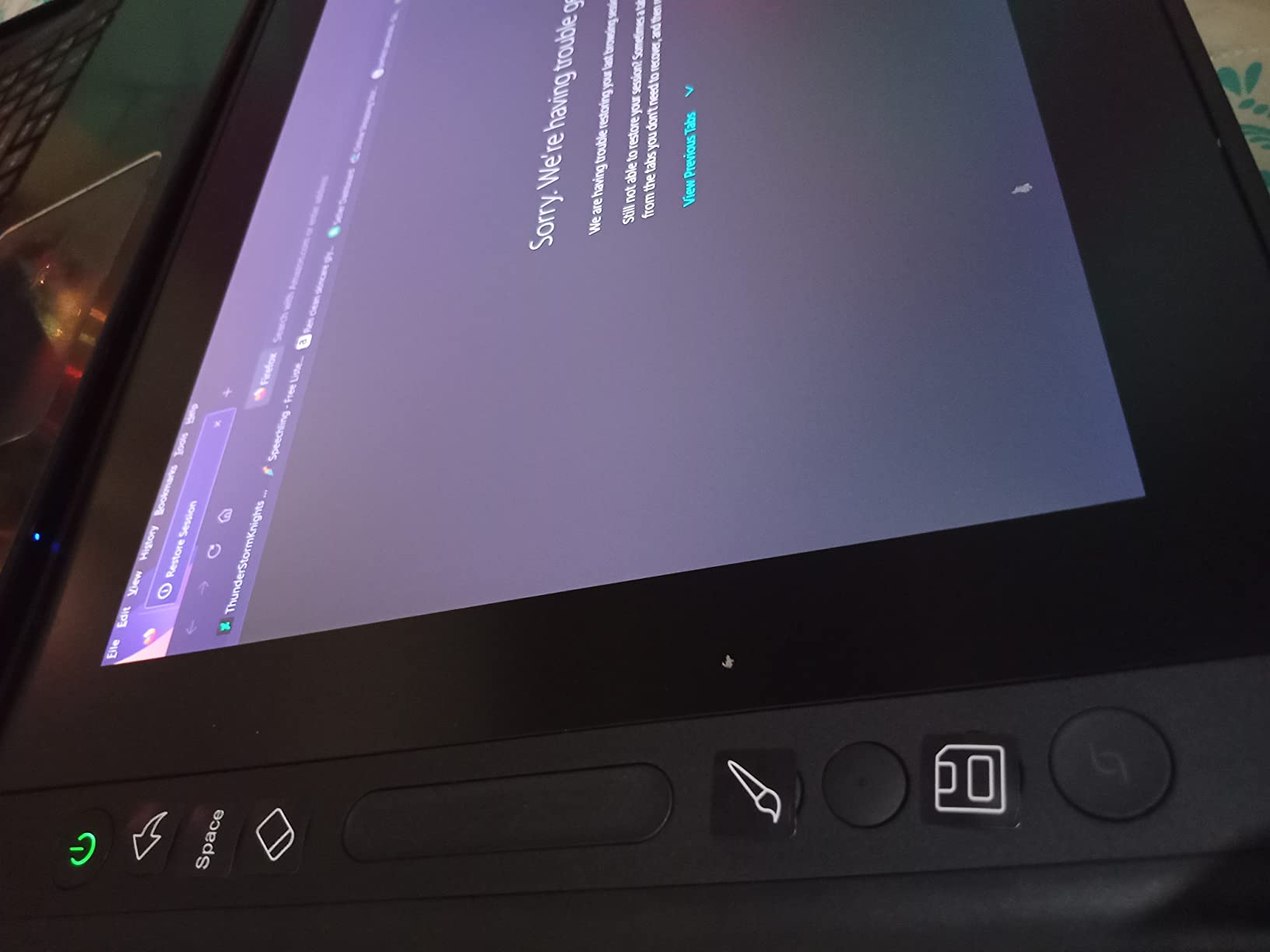
Two dial controllers is a genuine productivity upgrade over single-dial competitors, paired with five silent press keys for actions where you would not want click noise. Coverage is 99 percent sRGB and Rec.709 with 90 percent Adobe RGB. The body is 11.7mm and 1.89 kg, light enough to move between a bag and a desk without ceremony.
It holds 4.5 stars from 1848 reviews with the highest five-star share of anything here, around 77 percent, with a 4 percent one-star tail. The smaller review pool is the main caveat: less long-term data than the established models, so treat durability claims as early rather than settled.
Who benefits most from calibrated colour
Anyone matching brand colours, working from a client style guide or printing to a specific profile. The certificate also means you can trust the panel out of the box rather than spending a weekend with a colourimeter, which is the real saving.
For monochrome line work or comic pages the calibration matters less, but the etched glass and low parallax still make it an excellent general-purpose drawing surface.
Connection and portability limits
It has to be tethered to a computer, and using it with an Android device needs USB 3.1 and DisplayPort 1.2 on the host. Some creative applications need extra configuration to expose every shortcut, so check your software against the compatibility notes.
At 1.89 kg it is portable between desk and sofa, though it is still a desktop-first device rather than a travel tablet.
9. PicassoTab X14: The Best Standalone Drawing Tablet Without a Computer
14″ Standalone Drawing Tablet, Largest PicassoTab, No Computer Needed -X14
14-inch laminated display,Android 13 standalone
4096 pressure levels
Octa-core CPU, 6GB RAM, 128GB storage expandable to 1TB
Includes case, glove and protector
Pros
- Works completely standalone so no computer is needed to draw
- Largest canvas among the standalone options at 14 inches
- Fully laminated screen reduces parallax and glare
- Generous bundle with case glove universal power adapter and screen protector
- Expandable storage to 1TB and 6GB RAM handle artwork plus schoolwork
Cons
- 4096 pressure levels is low against modern 16K tablets
- 1920x1080 across 14 inches is less crisp than higher-density panels
- Standalone Android app ecosystem is more limited than desktop creative software
If the reason you have not started drawing is that drawing requires a desk, a computer and a power socket, this is the pick that removes the objection. The X14 runs Android 13 with an octa-core processor, 6GB of RAM and 128GB of storage expandable to 1TB, so you can sit down anywhere and open a drawing app.
The 14-inch fully laminated screen is the largest drawable surface among the standalone options and reduces parallax and glare relative to a cheaper unlaminated tablet. Five drawing, painting, animation and tutorial apps are preloaded, and the bundle includes a case, glove, universal power adapter and a pre-installed protector.
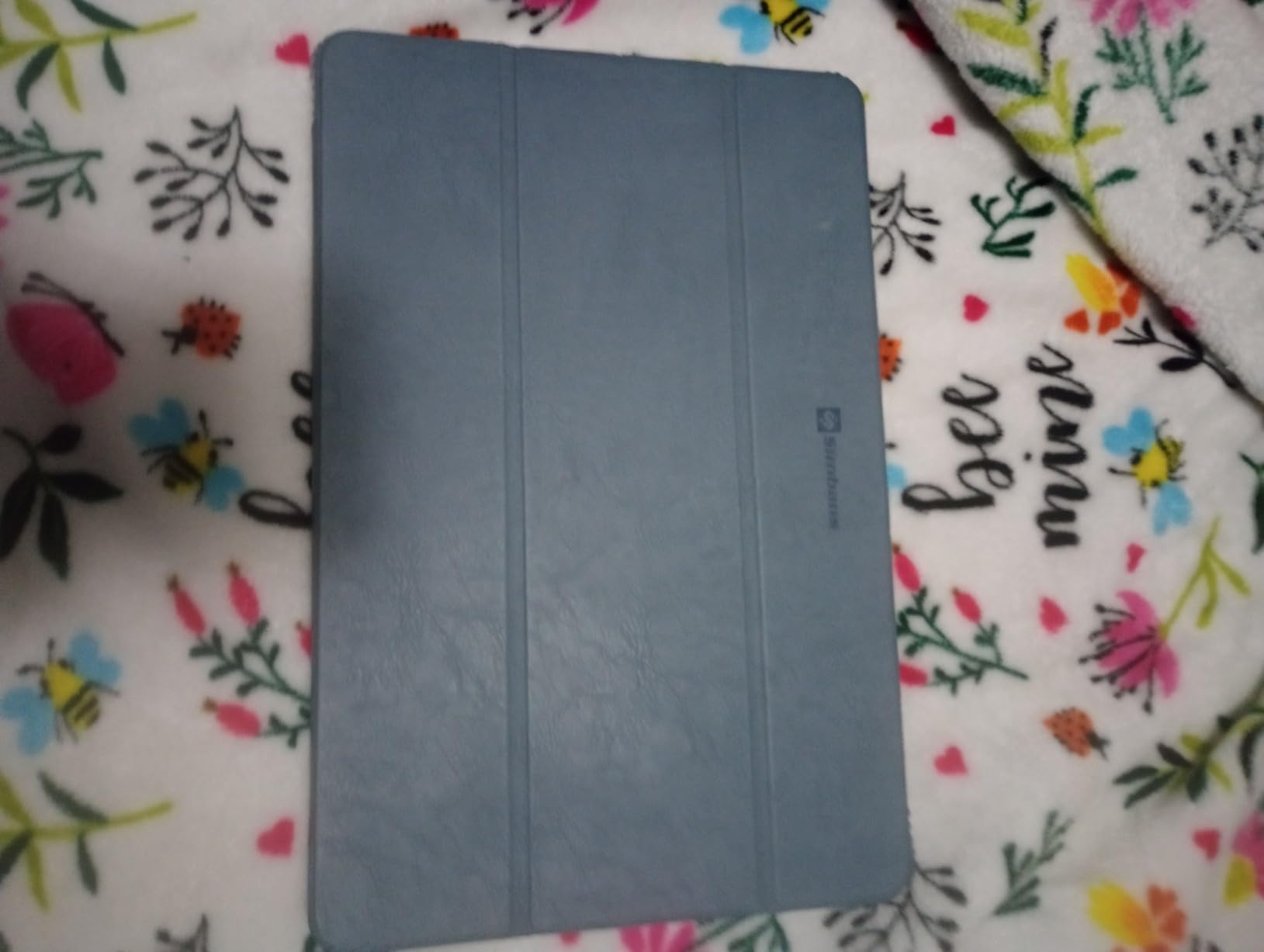
The software value is better than it first appears. Lifetime Pro upgrades for Concepts and lifetime VIP upgrades for Artixo tutorials are included, which removes the subscription objection that normally stops students from starting. Front and rear cameras support reference photography and tutorials.
It is the lowest-rated device here at 4.2 stars across 1685 reviews, with an 11 percent one-star share, the largest negative tail in the roundup. That feedback concentrates on the modest 4096 pressure levels, 1080p sharpness across a large panel and the limits of Android drawing apps compared with a desktop workflow.
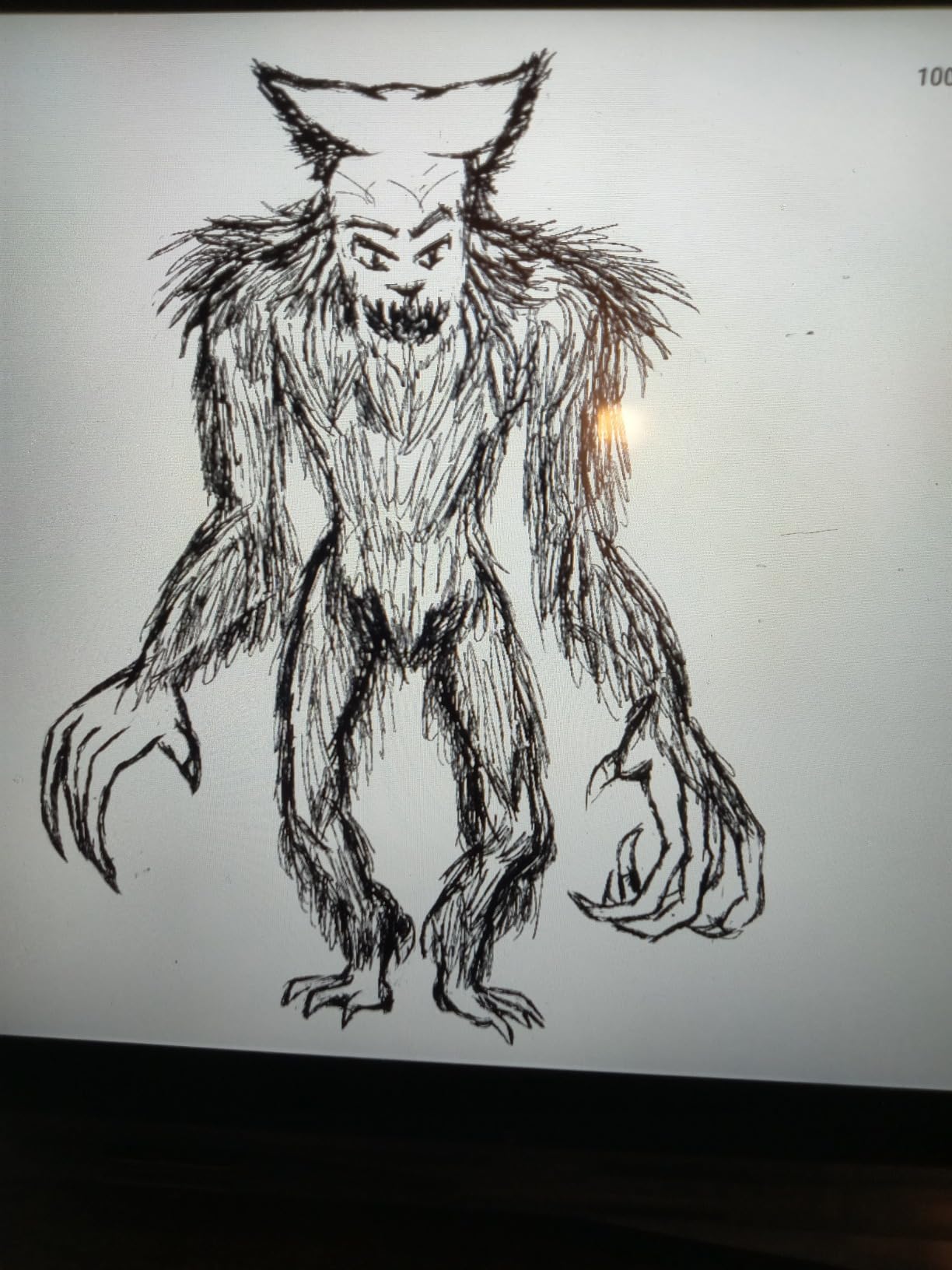
What a 4096-level pen feels like in practice
For opaque brushes, flats, cel shading and inking it is entirely serviceable, and the laminated glass more than compensates for the lower count. Where you feel it is delicate rendering, soft airbrush transitions and very fine technical detail that depends on the bottom of the pressure range.
Resolution matters more here than on a smaller device: 1920×1080 spread across 14 inches is noticeably less crisp, so holding detail-heavy work close to the panel shows softness.
Who should buy it, and who should not
Students, younger artists and casual sketchers get the most from it. The bundled apps remove setup friction, and being able to draw on a sofa or a train without a laptop is a genuine creative unlock for people who never sat down at a desk.
Professional illustrators who rely on desktop-class software should look at a pen display instead. At 2.29 kilograms it is also the heaviest device in the roundup, which undercuts the portability argument if you are carrying it daily.
10. Wacom MovinkPad 11: The Best Portable Android Drawing Tablet
Wacom MovinkPad 11, Android Mobile Drawing Tablet, with Pro Pen 3
11.45-inch Android 14 tablet
8192 pressure levels with Pro Pen 3
90Hz refresh at 2200 x 1440
588g, matte etched glass
Pros
- Etched matte glass gives real paper traction without screen-protector stickiness
- No EMR dead zones so pressure and tilt stay consistent across the surface
- 90Hz refresh keeps pen latency close to a premium tablet
- Press and hold the pen to launch Wacom Canvas instantly
- 588g body carries like a sketchbook
Cons
- Wacom Canvas and Wacom Shelf are limited with no way to clear a canvas
- Pro Pen 3 buttons cannot be customised in Wacom software
- Files can only be deleted from Shelf through the Android file browser
- Processor is weak for 3D work gaming or video editing
The MovinkPad 11 is the standalone device that makes a genuine argument for pen hardware over a general-purpose tablet. Wacom EMR sensing means there are no dead zones, so pressure and tilt behave identically at the edges and the centre of the screen, and the 90Hz adaptive refresh keeps stroke latency close to what you would expect from the best standalone tablets.
At 588g and 10.5 by 7.2 inches it is the lightest screen-based device here, and the matte etched glass avoids both the glare and the sticky feel of an applied screen protector. Press and hold the pen and Wacom Canvas launches immediately, which makes gesture sketching almost instant.

Under the surface it is an 11.45-inch Android 14 tablet running a 2200 by 1440 panel at 99 percent sRGB and 400 nits, which is bright enough for outdoor work. Two years of Clip Studio Paint DEBUT are included, with trials of Ibis Paint, Magma Blaze and ArtWod, and third-party pens from LAMY and Staedtler are supported.
The critical consensus is that the hardware is excellent while the first-party software is thin. Canvas has limited controls, pen buttons cannot be remapped, and files have to be deleted through the Android file browser. At 4.4 stars from only 261 reviews, the sample is small, and a documented 6 percent one-star share points at a charging or power-on failure mode worth checking against the two-year warranty terms.
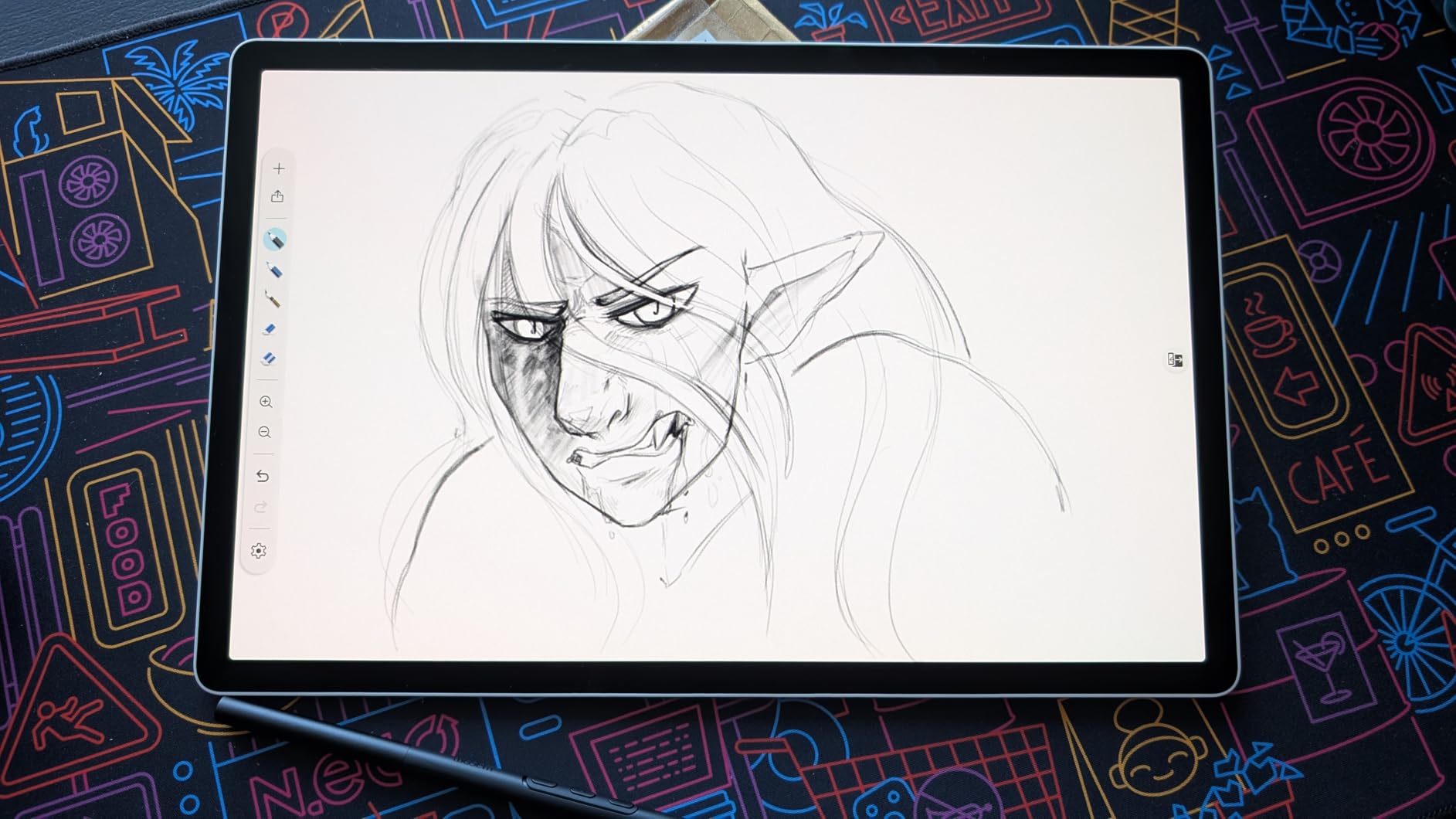
What the 90Hz panel and 2200 x 1440 resolution buy you
Refresh rate is the difference between a stroke that feels connected to your hand and one that feels slightly delayed, and at 90Hz this sits closer to a premium tablet than to the 60Hz default most Android slates ship with. The higher resolution also means smaller, cleaner detail at typical zoom levels.
Owners report handling large files around 4000 by 5000 at 300 dpi with roughly 30 layers without lag, which covers most illustration work.
Where the software holds it back
Wacom Canvas is a sketching tool, not a full illustration environment, and there is no way to clear a canvas from inside it. With no customisable pen buttons, muscle memory from other Wacom hardware does not transfer.
The processor is fine for drawing but slow for 3D work, gaming or video editing, so treat this as a drawing-first device. If your sketchbook needs are simple, the Pro Pen 3 stores replacement nibs in the pen end, which is a small detail you will appreciate at 2am.
How to Choose a Tablet for Drawing in 2026
Once you have settled the category question, seven specifications actually change how your artwork looks and feels. Everything else on a spec sheet is secondary, and most buyers spend their attention in the wrong place.
1. Active drawing area, not body size. The number printed on the front of a pad is its active area, while the dimensions on the spec sheet include the bezel and key row. A 6 by 3.7 inch area on a 7.87 inch wide body is normal. Buy the area you can draw in, not the width of the object.
2. Lamination and parallax. If your work depends on straight lines, corners or small technical detail, buy a laminated screen. Huion Kamvas Pro 16, XP-Pen Artist 13.3 Pro V2, Huion Kamvas 13 Gen 3 and the PicassoTab X14 all qualify. The XP-Pen Artist12 and GAOMON PD1161 do not, and their matte films add a little distance on top.
3. Pressure levels and activation force together. The count sets the ceiling; the activation force sets the floor. A 16384-level pen with a heavy activation force will feel less responsive than a 4096-level pen with a light one. If you draw hairlines and fine detail, test the lightest touch first.
4. Tilt support. All of these pens detect tilt, mostly in the 60-degree range, which lets you shade with the side of the nib. The Huion Kamvas 13 Gen 3 adds tilt auto-alignment, correcting residual parallax at the far edge of the panel.
5. Colour gamut and calibration. Most artists are fine with 100 percent sRGB. If you match brand colours or print to a defined palette, look for wider coverage such as the Kamvas Pro 16 at 120 percent sRGB, or a factory calibration certificate like the Kamvas 13 Gen 3 ships with.
6. Refresh rate and sampling. On a standalone tablet, a 90Hz panel such as the MovinkPad 11 feels noticeably more connected than a 60Hz screen. On a pen display the equivalent figure is pen sampling rate, and the XP-Pen Artist 13.3 Pro V2 samples at 220 RPS.
7. Software, and the stylus cost. Check your required app runs on the platform before anything else. Procreate is iPadOS-only and has no Android equivalent, so Android tablets need Krita, Clip Studio Paint or ibisPaint in its place. Separately, confirm the pen is included: every pad and display in this list includes one in the box, while the standalone Android tablets need you to check the bundle contents and budget for a pen separately if it is not listed.
Which pick matches which discipline
Comic book and graphic novel illustration. Line precision and a large canvas matter most, so a laminated pen display is the answer. The XP-Pen Artist 13.3 Pro V2 or the Huion Kamvas 13 Gen 3 give you a big drawing area without parallax drift on panel borders. The Huion Kamvas Pro 16 wins if you work at poster or full-spread size.
Concept art and environment painting. Screen area and colour judgement drive the decision. The Kamvas Pro 16 offers the largest canvas and the widest gamut in the roundup, and its 20-to-60-degree stand keeps your posture sane during long sessions.
Character design and model sheets. You need consistent zoom, stable colour sampling and a canvas you can pan around. The dual dials on the Huion Kamvas 13 Gen 3 and the Red Dial on the XP-Pen Artist 13.3 Pro V2 both handle brush size without keyboard shortcuts.
Lettering, logo and vector work. Small precise strokes dominate, so pick the lightest activation force and the smallest area you can tolerate. The Wacom Intuos Small is comfortable for lettering because it is light and its pen starts registering early, while the Huion Kamvas 13 Gen 3 handles vector work on a much bigger display.
Animation, storyboards and frame-by-frame. Drawing on your own screen with a time-saving overlay is the priority. The XP-Pen Artist12 works as an extended display for a large canvas, while a standalone tablet such as the PicassoTab X14 handles on-the-fly storyboards where no computer is available.
Sketching on the go, and life drawing. Weight and independence matter most. The Wacom MovinkPad 11 weighs 588g, and the XP-Pen Deco 01 V3 is 8mm thin, so both travel well in a sleeve. Life drawing from a model needs a large screen you can stand back from, which favours a pen display.
Note-taking alongside art. A standalone tablet handles both. The MovinkPad 11 covers sketches and notes in one device, and if the reader side matters more than the drawing side, our tablet picks for reading cover that side separately.
Software compatibility across platforms
On macOS and Windows, every device here runs the full creative suite: Photoshop, Illustrator, Clip Studio Paint, Krita, Corel Painter, SAI and Affinity Designer all work through their native tablet drivers. Linux is well supported on the Wacom Intuos, the XP-Pen Deco 01 V3, the Huion H1060P through Xorg, and the Huion Kamvas displays, which is a wider Linux showing than most roundups admit.
On standalone Android tablets the picture changes. Clip Studio Paint, Krita and ibisPaint all run, and the MovinkPad 11 bundles two years of Clip Studio Paint DEBUT while the PicassoTab X14 ships with several drawing apps and lifetime upgrades for Concepts. Android still cannot run Procreate, so if Procreate is non-negotiable, no Android tablet in this roundup will serve you.
Who this roundup is not for. Oil painting studios needing calibrated reference-grade displays, sculptors who need 3D performance, and video editors should look past this list. The MovinkPad 11 in particular is underpowered for 3D work and video editing. If you need colour-critical print work to a specific standard, budget for a hardware calibrator alongside whichever display you choose.
Frequently Asked Questions
Which tablet is good for drawing?
The best tablets for drawing come in three families: a screenless pen pad like the Wacom Intuos Small, a computer-connected pen display like the XP-Pen Artist 13.3 Pro V2, or a standalone Android tablet like the Wacom MovinkPad 11. Each suits a different setup, so the category matters more than the model.
Are tablets or iPads better for drawing?
An iPad is a standalone tablet: the device is the computer and the pen draws on its own screen. A drawing tablet in the traditional sense is a pen pad or pen display that needs a computer. iPads win on portability and on Procreate, while pen displays win on screen size and colour accuracy for studio work.
What is the difference between a graphic tablet and a drawing tablet?
Nothing meaningful. Graphic tablet, drawing tablet and pen tablet are the same category of device. What actually differs is the form factor: a screenless pad has no display, a pen display has a screen you draw on, and a standalone tablet runs the drawing software itself with no computer attached.
What do professional digital artists use to draw?
Most professionals use a mix rather than one device. A standalone tablet suits mobility and client work away from a desk, a medium or large laminated pen display suits studio painting and colour-critical jobs, and a compact pen pad suits sketching, lettering and travel. Small and medium displays are more common than very large ones.
Which tablet is best for digital drawing?
It depends on the category. For a first pen tablet the Wacom Intuos Small is the safest choice, for value the XP-Pen Deco 01 V3 gives a larger area and 16384 pressure levels, and for drawing on screen the Huion Kamvas 13 Gen 3 pairs laminated glass with factory colour calibration.
Is a screenless drawing tablet harder to use?
For the first few sessions, yes, because your hand covers the stroke and your eyes look at the monitor rather than the tip. Most artists adapt within a week, and pads train better hand-eye coordination and drawing technique over time. A pen display removes the difficulty immediately if you want the fastest route to confidence.
For general device buying rather than drawing, our app-enabled coaching tablet guide covers the sideline use case, and our main tablet roundup covers reading, media and general productivity picks.
Final Verdict: Which Drawing Tablet Should You Buy?
Buy the Wacom Intuos Small if you want the lowest-risk way to start. Its battery-free EMR pen, four ExpressKeys and enormous base of owner feedback make it the one device here where setup is genuinely zero, and the 6 by 3.7 inch canvas is enough to learn on and to keep drawing on for years.
Buy the XP-Pen Deco 01 V3 if the Wacom feels too small once you start composing. You get nearly twice the drawing area and 16384 pressure levels for a comparable outlay, and it is the value pick of this roundup. Buy the XP-Pen Artist12 if you would rather not fight hand-eye coordination at all and want to draw directly on a screen without breaking the bank.
For studio work, the XP-Pen Artist 13.3 Pro V2 and the Huion Kamvas 13 Gen 3 are the laminated pair worth shortlisting, with the Kamvas Pro 16 for large canvases and wide-gamut colour. For drawing away from a desk entirely, the Wacom MovinkPad 11 is the lightest and the most responsive, and the PicassoTab X14 is the option that bundles the most for a first standalone setup.
Whatever you choose, verify the app you need runs on the platform and confirm whether the stylus is included before you finalise the total. Those two checks prevent almost every regret we see in this category.