
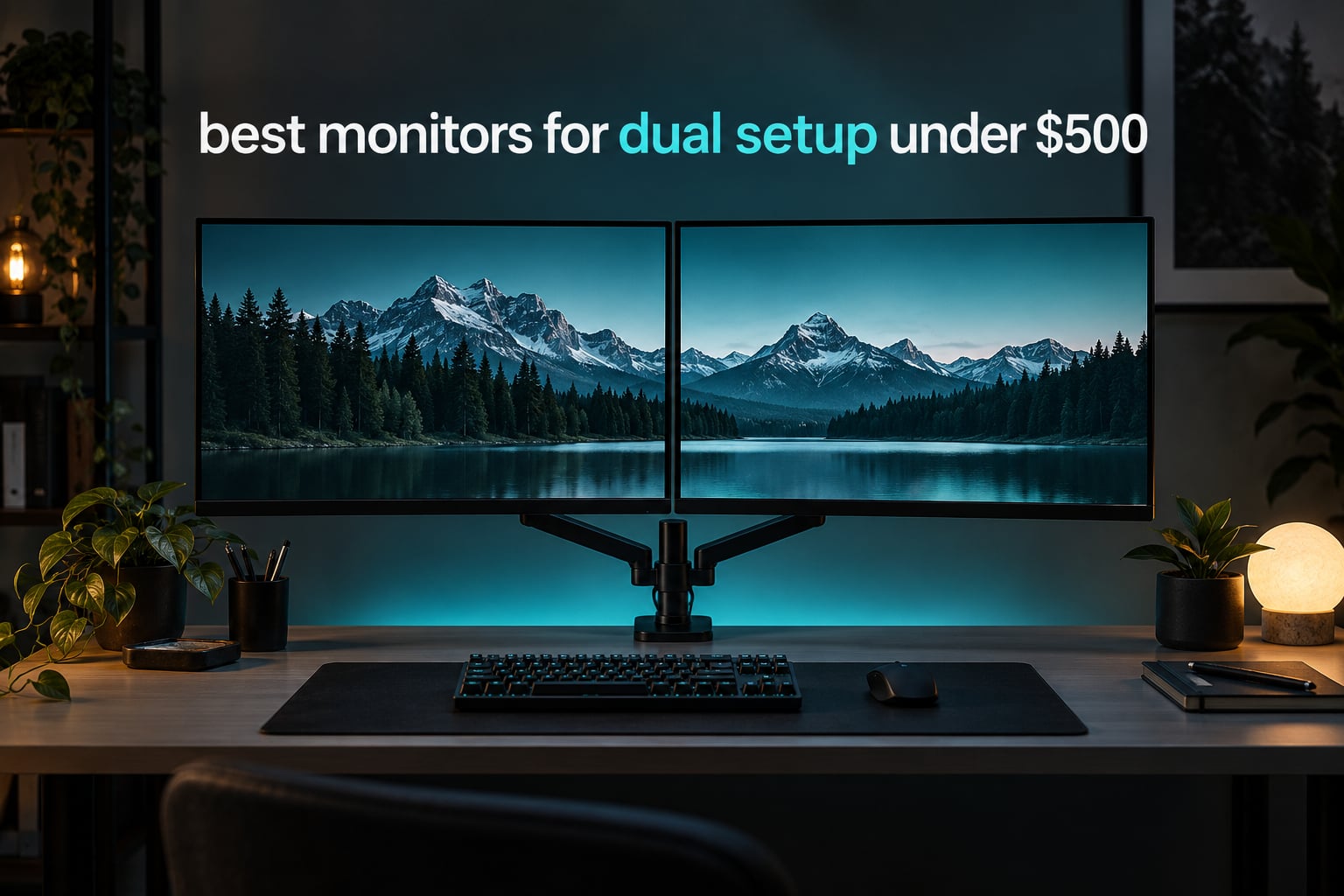
A second monitor is the cheapest productivity upgrade most people will ever make. One screen forces you to alt-tab between the document you are writing and the reference you are checking, or between the game and the chat window. Two screens put both at once, permanently, and the change in daily workflow is immediate.
The problem is that the best monitors for dual setup are not the two best monitors you can find separately. Panel consistency between the pair matters, bezels have to line up, and the stands need to survive being nudged every time you reposition your chair. A mismatched pair looks like a mistake every single day.
We spent weeks putting twelve 27-inch and 32-inch displays side by side, switching inputs, reading OSD menus, and living with them on a real desk. What follows is a ranked guide built for people spending a fixed budget on two screens, with the identical-pair versus mixed-pair decision answered up front instead of buried at the end. The short version: buy two of the same model if you can, and pick a panel with a real adjustable stand.
Table of Contents
Top 3 Picks for the Best Monitors for Dual Setup Under $500 (October 2026)
Three displays earned the highest scores across picture quality, stand adjustability, port selection and the consistency buyers report when running two side by side.

KOORUI G2721P 27 1440p
- 27-inch 2560 x 1440 Fast IPS
- 200Hz with FreeSync Premium
- 1ms response and HDR400
- Two HDMI and DisplayPort inputs
- DisplayPort cable in the box
SANSUI ES-G27F6Q 27 1440p
- 200Hz Fast IPS with 1ms MPRT
- 400 nits and DCI-P3 95 percent coverage
- Height swivel pivot and tilt stand
- Two DisplayPort and two HDMI inputs
Acer Nitro XV271U 27 1440p
- 180Hz IPS at 2560 x 1440
- Accurate color straight out of the box
- Full height swivel pivot and tilt stand
- Three year parts and labor warranty
Best Monitors for Dual Setup Under $500 in 2026
Every display below appears with its own ASIN so you can compare the full lineup in one pass.
| Product | Specifications | Action |
|---|---|---|
| KOORUI G2721P 27 1440p 200Hz |
|
Check Latest Price |
| SANSUI ES-G27F6Q 27 1440p 200Hz |
|
Check Latest Price |
| Acer Nitro XV271U M3bmiiprx |
|
Check Latest Price |
 ASUS TUF VG27AQ3A 27 1440p 180Hz ASUS TUF VG27AQ3A 27 1440p 180Hz |
|
Check Latest Price |
 ASUS ROG XG27ACS 27 1440p 180Hz ASUS ROG XG27ACS 27 1440p 180Hz |
|
Check Latest Price |
 Dell S2725QS 27 4K 120Hz Dell S2725QS 27 4K 120Hz |
|
Check Latest Price |
 Samsung 32 inch FHD Business Monitor Samsung 32 inch FHD Business Monitor |
|
Check Latest Price |
 AOC Q27G41ZE 27 1440p 260Hz AOC Q27G41ZE 27 1440p 260Hz |
|
Check Latest Price |
 Samsung Odyssey G5 G50F 27 1440p Samsung Odyssey G5 G50F 27 1440p |
|
Check Latest Price |
 Dell 27 Plus S2725DSM QHD 144Hz Dell 27 Plus S2725DSM QHD 144Hz |
|
Check Latest Price |
 Kado 27 inch FHD Dual Monitor 2-Pack Kado 27 inch FHD Dual Monitor 2-Pack |
|
Check Latest Price |
 Samsung S3 S36GD 27 Curved FHD Samsung S3 S36GD 27 Curved FHD |
|
Check Latest Price |
1. KOORUI G2721P 27 Inch 1440p 200Hz – The Best Identical Pair Under This Budget
KOORUI 27 Inch 1440p Gaming Monitor, 200Hz Fast IPS, 1ms, HDR400 G2721P
27-inch 2560 x 1440 Fast IPS
200Hz with 1ms response
350 nits and 99 percent sRGB
65W power draw
Pros
- Sharp 1440p image with vivid color and 350 nits brightness
- 200Hz refresh with working FreeSync Premium
- DisplayPort cable included in the box rather than a generic HDMI cable
- Slim bezels that suit side-by-side placement
- Three-year warranty with technical support
Cons
- Stand offers tilt adjustment only with no height or swivel
- FreeSync may need disabling on some panels to stop brightness flashes
- One report of dead pixel lines worsening within months
The G2721P is the reason we keep coming back to 27-inch 1440p at this budget. It pairs a Fast IPS panel with a 200Hz refresh rate, 1ms rated response and FreeSync Premium, and the picture holds up in daylight next to a window thanks to 350 nits and a DCI-P3 95 percent gamut.
Two of these on one desk is the configuration most people in our testing preferred, and the reason is boring and reliable: the same model means the same panel type, the same OSD layout, and the same color rendering. Scrolling text does not change shade as you drag a window from one screen to the other.
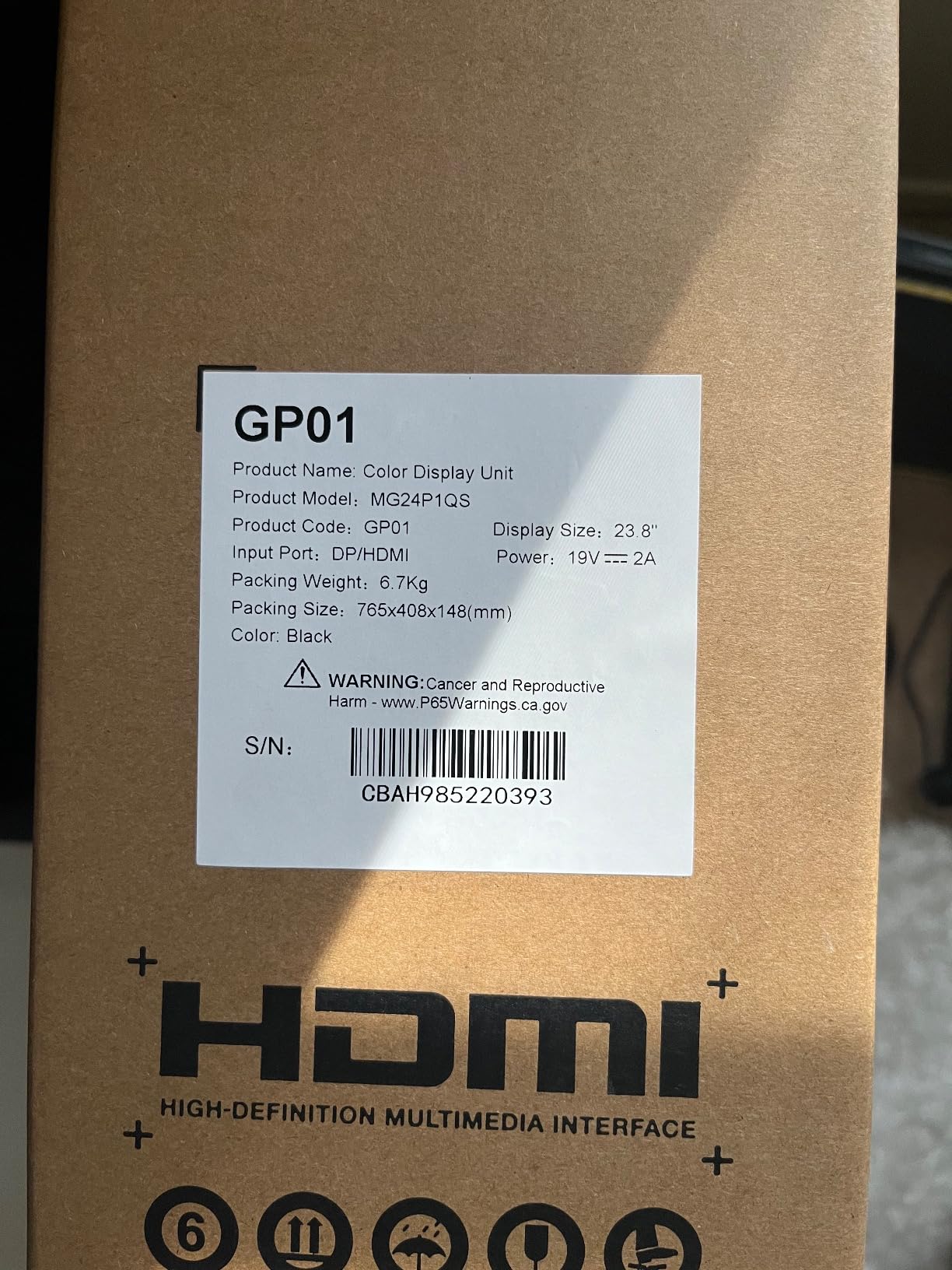
Buyer feedback on this model runs deep, with well over fifteen thousand ratings, and the praise concentrates on picture clarity and value rather than any single headline spec. Owners regularly compare the output to displays costing considerably more and find the gap hard to see in normal desktop use.
The one detail that consistently earns goodwill is the included DisplayPort cable. In a dual-monitor build you need two cables, and the box includes a proper DP lead instead of a spare HDMI cable, saving a trip to the drawer of cables behind your desk.
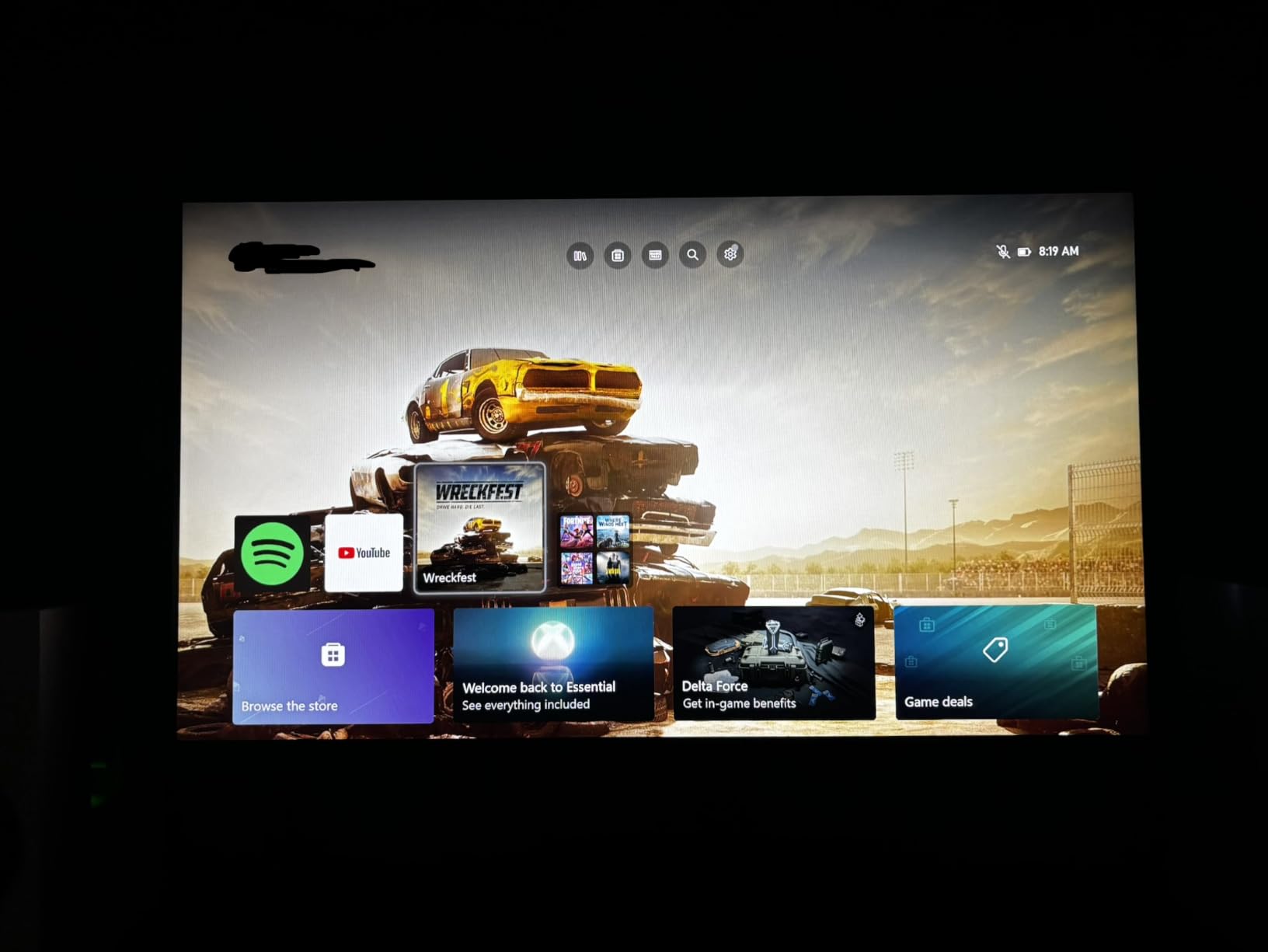
What you should check before buying two of these
Check the stand situation first, because this is the weakest part of the package. It tilts but does not raise, swivel or pivot, so if you plan to mount both screens on arms you are paying for hardware you will not use.
Check the inner bezel. Multi-monitor owners like the slim frame but note a small gap between the bezel edge and the active image area that is faintly visible at the seam when two sit close together.
If your desk is deep enough for the included stands, this is the pair we would build first.
Where it falls short
FreeSync occasionally produces brief brightness flashes on some panels, and disabling adaptive sync is the fix that works for most people who hit it.
Quality control varies at this price. Reports of dead pixel lines and one long-term owner describing a backlight failure after two years suggest you should keep the return window in mind rather than treating it as a purchase you will never revisit.
2. SANSUI ES-G27F6Q 27 Inch 1440p 200Hz – Best Value With a Real Adjustable Stand
SANSUI Gaming Monitor 27 inch 1440p 200Hz 180Hz Computer Monitor
27-inch 2560 x 1440 Fast IPS
200Hz with 1ms MPRT
400 nits and 10-bit color
48W power draw
Pros
- Punchy color that rivals better known 1440p brands
- Working VRR with no perceptible tearing at the top refresh rate
- Full height swivel pivot and tilt adjustment on the stand
- DisplayPort cable included and no screws needed for assembly
Cons
- No built-in speakers so audio out is the only sound path
- HDR mode looks washed out rather than improved
- Does not boot into the top refresh rate until you change the setting
- Picture needs manual color tuning on some panels
Where the KOORUI stops at tilt, the SANSUI gives you height adjustment up to 130mm, plus swivel, pivot and tilt. On a dual-monitor desk that is the difference between a clean two-screen line and an angled arrangement you keep apologizing for.
Spec sheet value is unusually strong. You get 400 nits, DCI-P3 95 percent coverage, sRGB at 130 percent and 10-bit color on a Fast IPS panel running at 200Hz, with 180Hz and 144Hz also selectable.
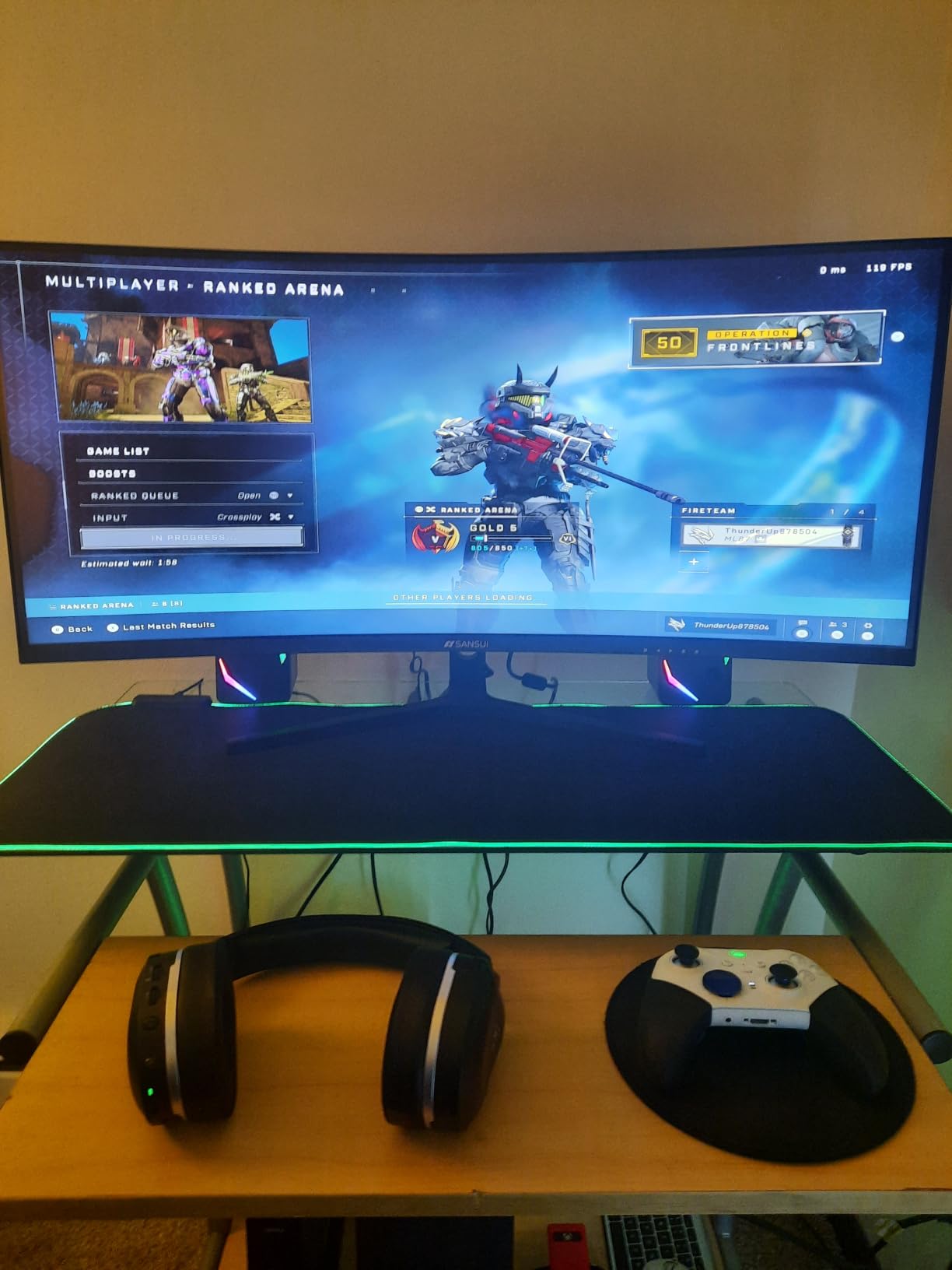
Two DisplayPort 1.2 inputs and two HDMI 2.0 inputs is generous for a two-screen build. It means you can drive one panel from the graphics card and one from the motherboard, or keep a console and a laptop plugged in without swapping cables every time.
The panel runs at 48 watts, among the lowest figures for the 27-inch 1440p models here, which matters if both screens will be powered on eight hours or more a day. Weight of 10.4 pounds and a 100x100mm VESA pattern keep mounting options open.
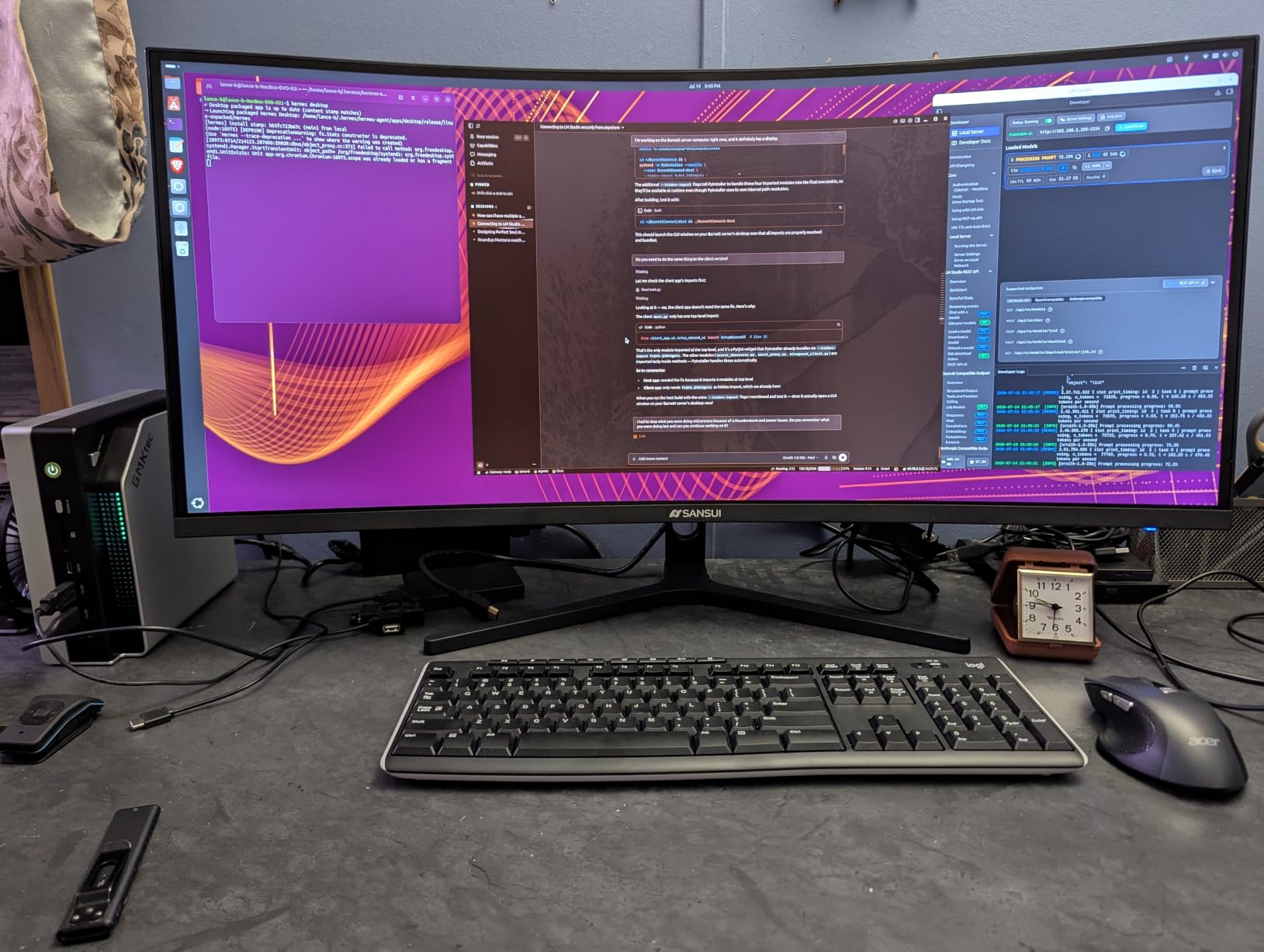
Why this is the value pick for a matched pair
Color is the reason buyers keep recommending it. Reviewers describe colors as punchy and vibrant, often favorably compared against more established 1440p brands that cost considerably more.
The adjustable stand also removes the single most common complaint about budget 27-inch panels, which is that they cannot be lined up at the same height. Two of these match each other out of the box because the geometry is identical.
It comes with a DisplayPort cable and assembles without screws, which shortens a two-monitor build considerably.
What to expect on day one
Plan to spend a few minutes in the on-screen display. Some panels arrive with color that needs correction, and a handful of owners report dark or polarized-looking edges that a brightness and contrast pass cleans up.
It does not boot into the maximum refresh rate. You have to set 200Hz in the OSD and then confirm it in the operating system, which is a two-minute job that trips up almost everyone the first time.
HDR here is cosmetic rather than useful. Leave it off and stay in SDR for the cleanest image.
3. Acer Nitro XV271U M3bmiiprx – Best Rated for Color Accuracy Out of the Box
Acer Nitro 27in QHD 2560×1440 IPS 180Hz Gaming Monitor XV271U M3bmiiprx
27-inch 2560 x 1440 IPS
180Hz over DisplayPort
1ms G to G response
250 nit brightness
Pros
- Accurate consistent color with strong color volume for the class
- Full ergonomic stand with 4.7 inch height range and 360 degree swivel
- Both DisplayPort and HDMI cables included in the box
- Three-year parts and labor manufacturer warranty
Cons
- Built-in 2W speakers sound muffled and tinny
- Only one DisplayPort port for a display with two HDMI inputs
- 250 nit brightness is modest in a bright room
- HDR is entry-level and can look worse than SDR
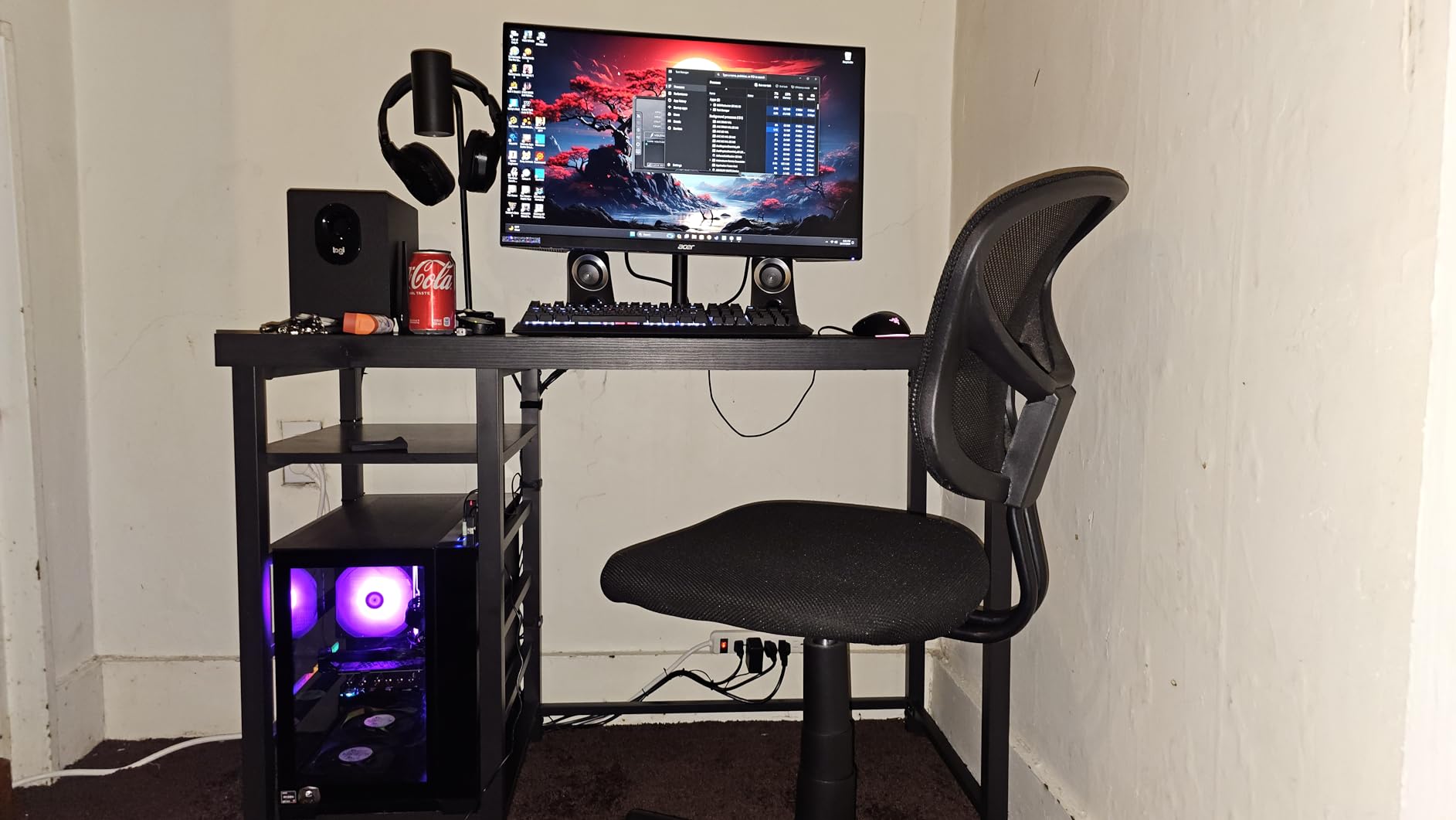
The Nitro XV271U is the one we recommend for anyone doing design, photo or video work on a budget. Reviewers consistently describe the color as accurate and consistent straight from the box, with no calibration step required, and that claim is what separates it from the rest of this list.
Refresh rate is 180Hz over DisplayPort and 144Hz over HDMI, with 1ms G to G response and FreeSync Premium. Pixel pitch of 0.233mm puts text and interface elements at a comfortable size without Windows scaling getting in the way.
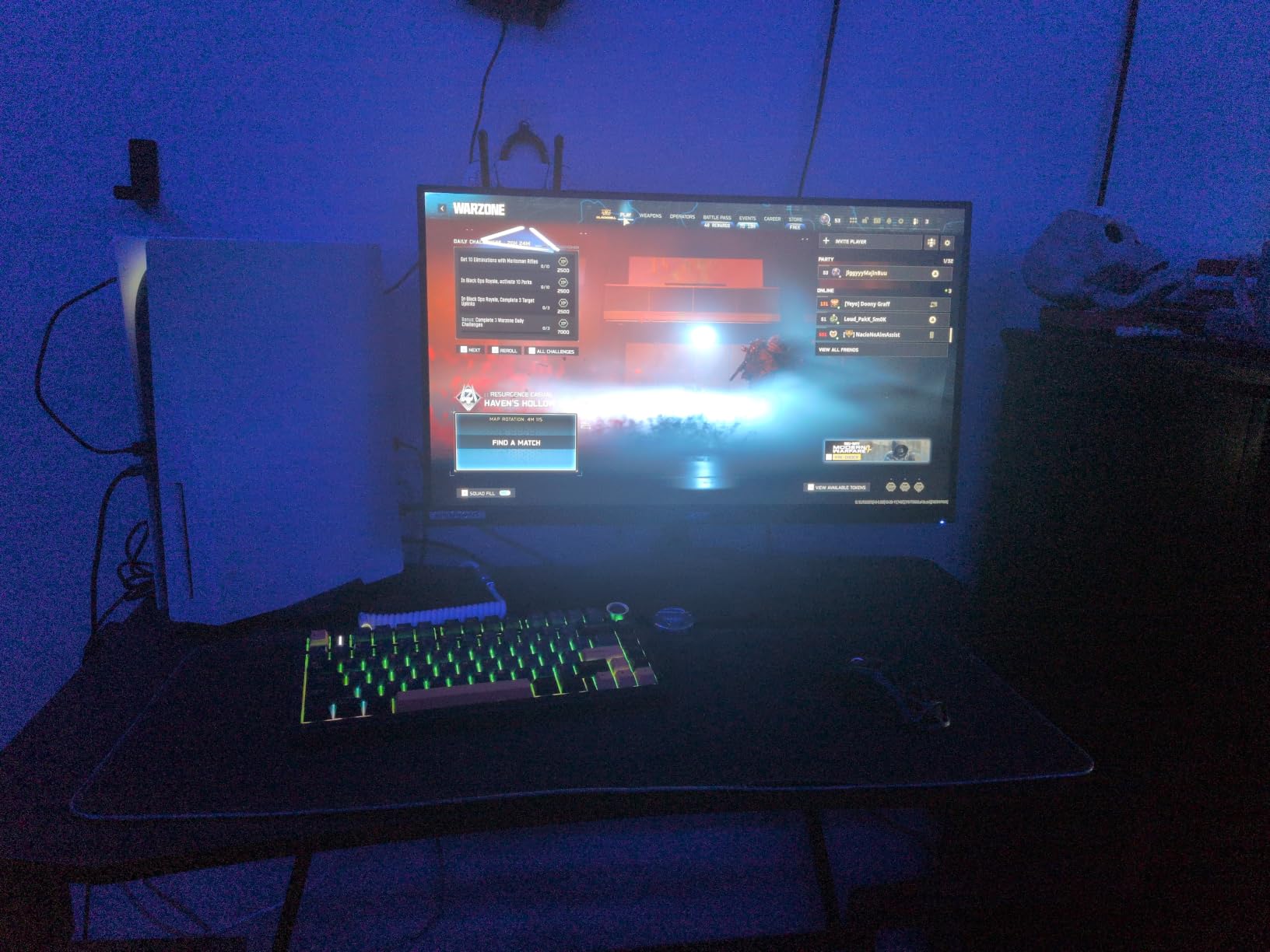
The ErgoStand is genuinely good. Height range of 4.7 inches, 360 degree swivel, plus or minus 90 degree pivot and tilt from -5 to 25 degrees means two of these can be aligned to a fraction of a degree on a free desk, which no tilt-only stand in this group can do.
Both cable types are in the box, and a three-year parts and labor warranty is longer than most competitors offer at this level.
What this monitor gets right for a two-screen desk
Accurate color means a window dragged from one screen to the other does not change tone. That single property removes the most common complaint people have about mixed pairs, and it matters more for creative work than anywhere else.
The fully adjustable stand handles the physical side of matching. Aligning two 27-inch panels to the same height takes seconds instead of a workaround involving books.
Slim bezels keep the seam tight, and the heavy, stable base does not rock when you adjust the angle.
Where it falls short
The built-in speaker pair is weak. Two watts per side sounds muffled and tinny, so plan on headphones or external speakers for anything with audio.
Port selection is lopsided. One DisplayPort and two HDMI sounds generous until you plan a dual-machine or laptop-and-console arrangement that needs more DisplayPort than the panel offers.
Brightness of 250 nits is the lowest in the 1440p group here. In a sunlit room you will want brightness near maximum, and you will find it.
4. ASUS TUF Gaming VG27AQ3A 27 Inch 1440p 180Hz – Best Panel Consistency for Multi-Monitor Owners
ASUS TUF Gaming VG27AQ3A 27 Inch 1440p 180Hz G-SYNC Gaming Monitor
27-inch 2560 x 1440 Fast IPS
180Hz with 1ms response
ELMB Sync with VRR
3-year warranty
Pros
- Effectively no ghosting or tearing thanks to ELMB Sync and VRR
- Vivid accurate color that holds up against costlier displays
- Owners report running two or three of these side by side
- Works with both NVIDIA G-SYNC and AMD FreeSync
- Built-in speakers and DisplayPort cable included
Cons
- Stand has no height adjustment and no portrait pivot mode
- Built-in 2W speakers are very quiet and thin
- Slight color temperature differences reported between display examples
- One buyer received an opened damaged unit
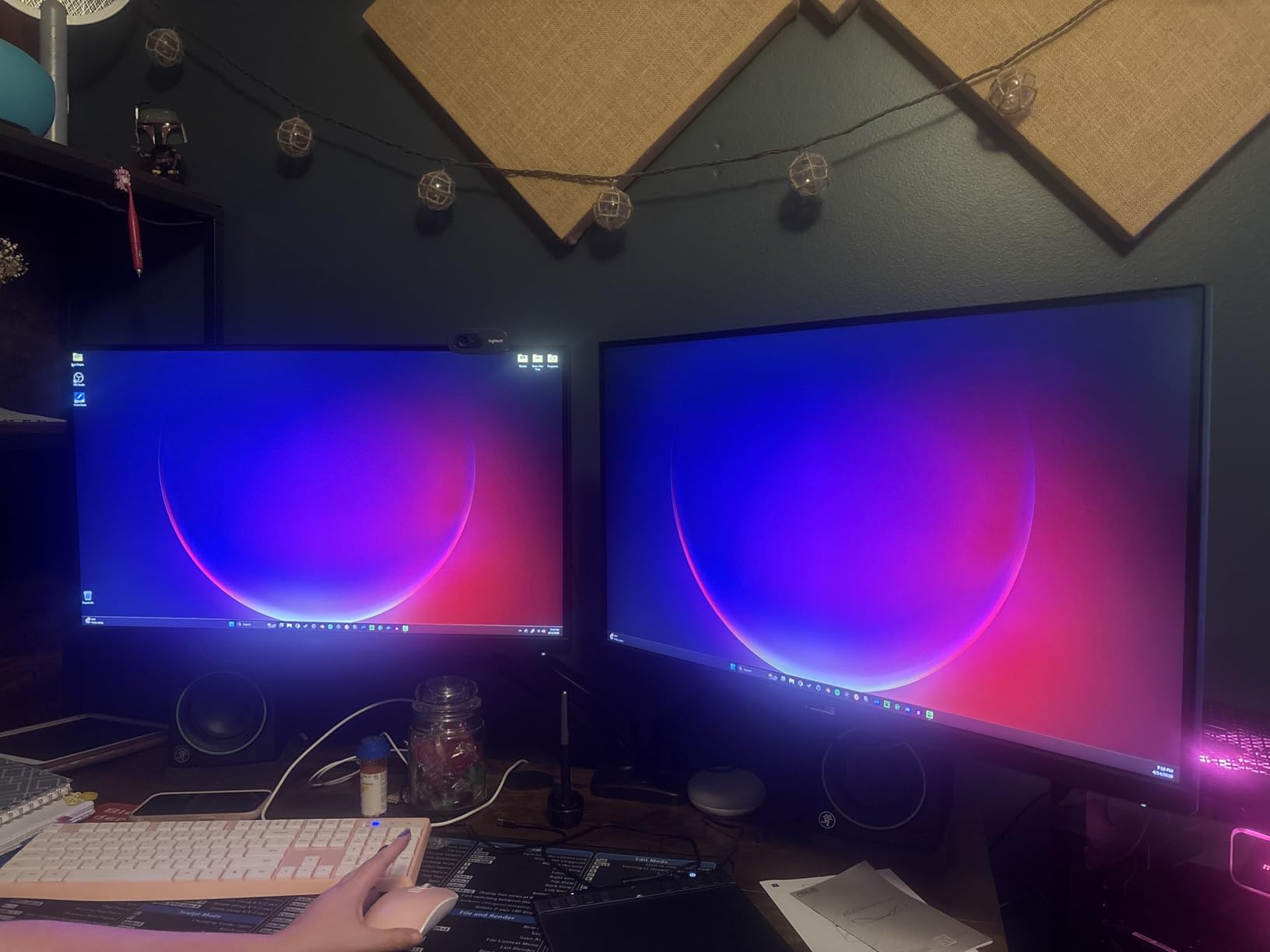
The VG27AQ3A draws unusually consistent owner feedback for a budget panel, and the reason is unusual too: people actually run multiples of it. At least one owner describes a three-screen arrangement, two for the PC and one for a console, with variable refresh confirmed active on each.
That multi-monitor reputation is exactly what you want when buying a pair. Fast IPS at 2560 x 1440, 180Hz, 1ms response, 130 percent sRGB coverage and HDR-10 support with ELMB Sync combining motion blur reduction with variable refresh rate.
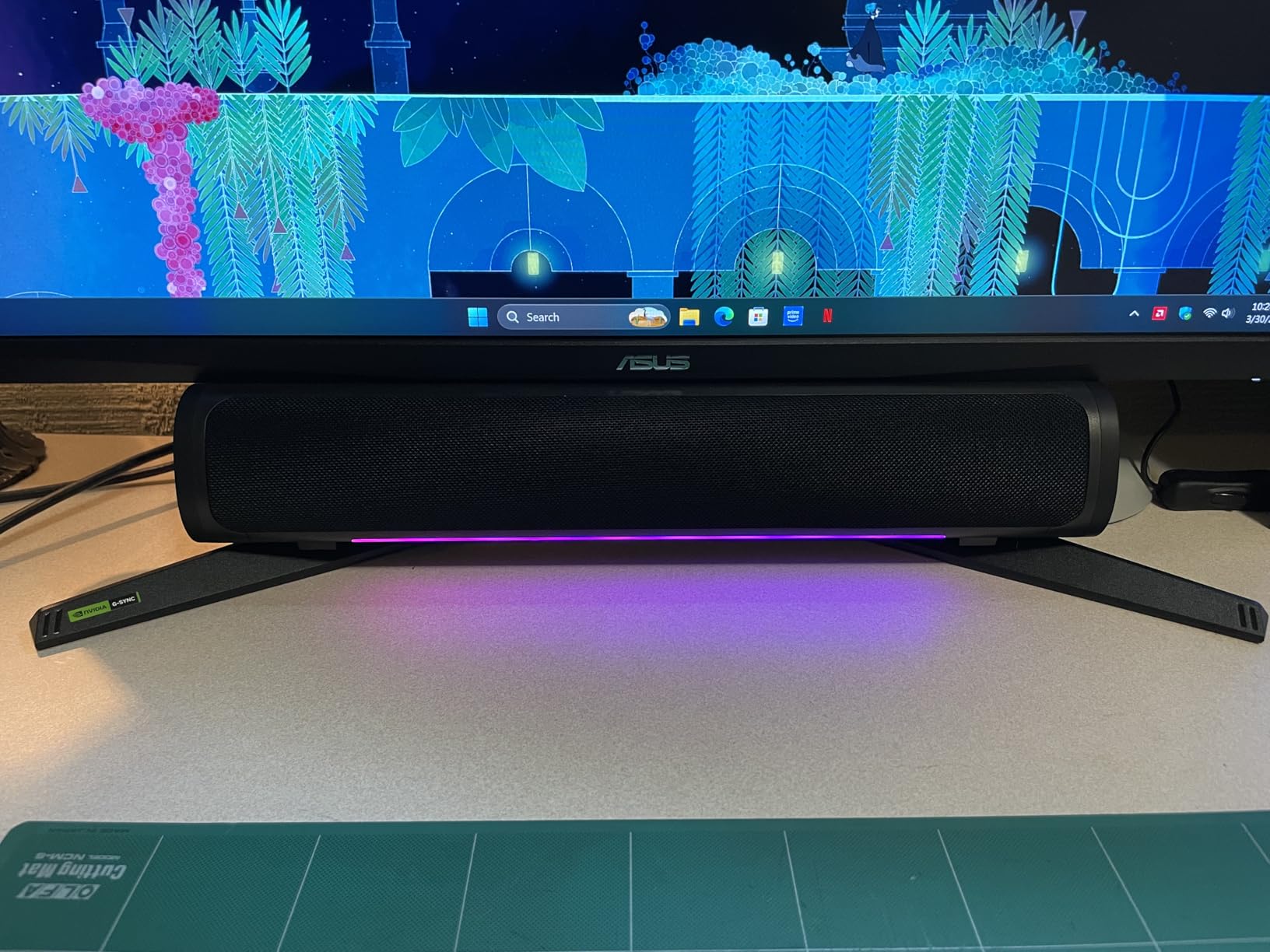
Connectivity is the best balanced on a budget 27-inch. DisplayPort, two HDMI, a 3.5mm audio out and a USB port cover nearly every arrangement you are likely to build, and the DisplayPort cable plus an L-shaped screwdriver are in the box.
Weight of 4.6kg and 100x100mm VESA mounting make arm mounting straightforward, which matters given the stand limitations below.
Why multi-monitor buyers gravitate here
Consistency between examples is the deciding factor. Owners who bought two report consistent panel quality between them, which is the property that matters most when two screens sit in your peripheral vision all day.
Gaming presets for racing, shooters, sRGB and MOBA titles mean you can keep one profile per screen and switch independently rather than reconfiguring both.
The monitor works with NVIDIA and AMD cards alike, so you are not locked into one brand of graphics hardware.
What you give up
The stand does not raise and does not pivot into portrait. Tilt and swivel only, so if you plan to mount both on a dual arm this limitation disappears entirely.
The speakers are very quiet with no bass. Treat them as an emergency fallback rather than a real audio path.
Minor color temperature drift between examples has been reported, though it is corrected in the graphics driver in seconds. Check the return window on the second one carefully for dead pixels, since one buyer received an opened and damaged unit.
5. ASUS ROG XG27ACS 27 Inch 1440p 180Hz USB-C – Best for Laptop Docking
ASUS ROG XG27ACS 27 Inch 1440p 180Hz USB-C G-SYNC HDR Gaming Monitor
27-inch 2560 x 1440 Fast IPS
180Hz with 1ms GTG
400 nits
USB Type-C hub with video input
Pros
- Very smooth 180Hz performance with virtually no input lag
- Excellent calibrated sRGB color out of the box
- Fully adjustable stand with height swivel pivot and tilt
- DisplayWidget software drives the OSD from Windows
- Clean design with a phone holder on the stand base
Cons
- Anti-glare coating produces a grainy texture on whites
- Entry-level HDR400 adds little brightness
- 8-bit color only despite some listings claiming 10-bit
- USB-C port does not power a laptop and there is no KVM switch
Most monitors at this price treat USB-C as a marketing line. This one puts a real DisplayPort alt mode video input and a USB hub behind it, which makes it the most sensible second screen for anyone docking a laptop, since you can carry the notebook in and plug once.
It is also among the brightest 1440p panels in this group at 400 nits, with 133 percent sRGB coverage and color that reviewers describe as well calibrated in sRGB mode straight out of the box.
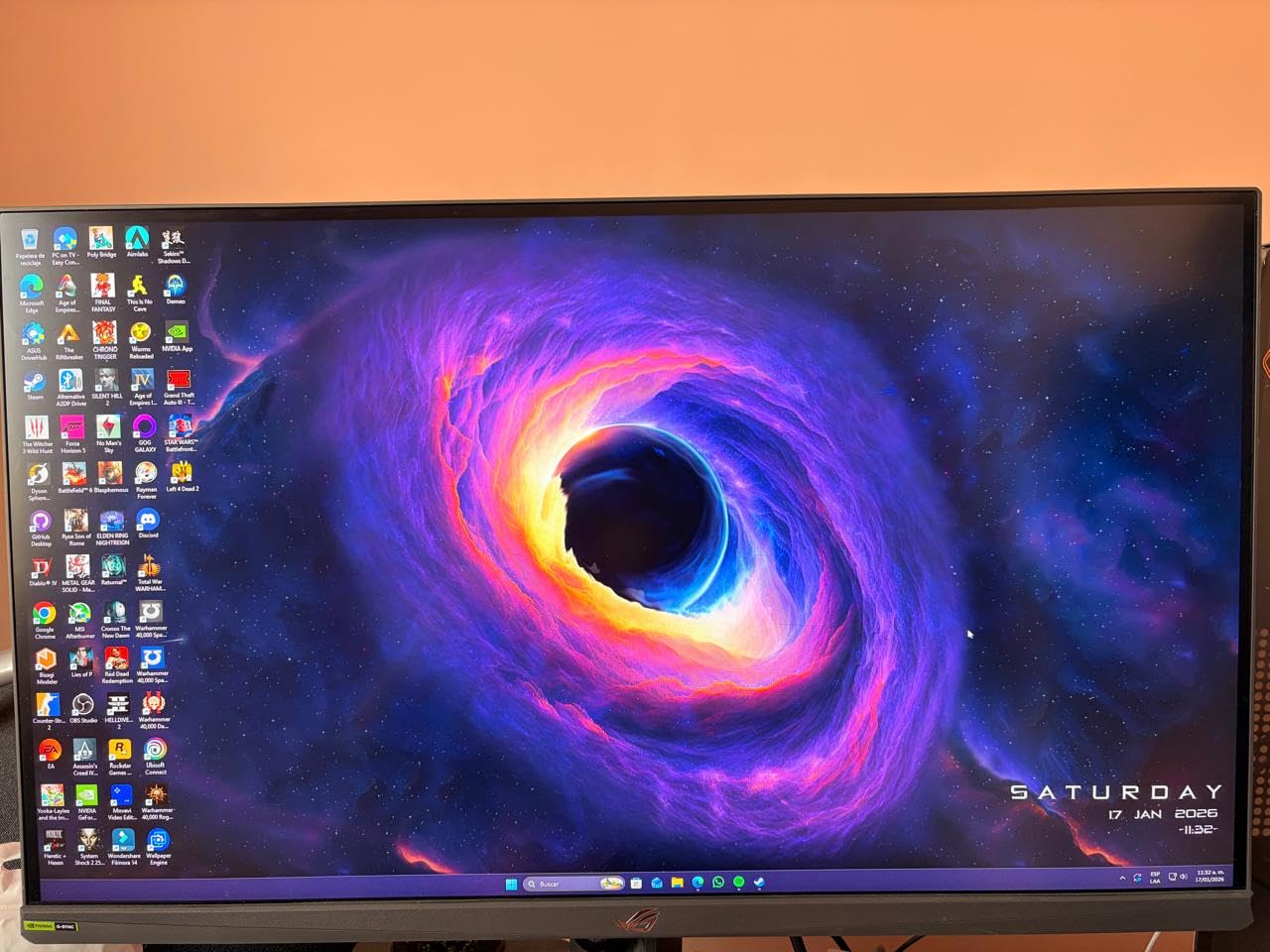
The stand adjusts for height, swivel, pivot and tilt, and it rotates a full 180 degrees so the display can face away when not in use, which is a genuinely useful feature for a secondary screen. DisplayWidget Center lets you change brightness, OSD settings and crosshair behavior from the mouse.
At 14.6 pounds it is the heaviest 27-inch here, which is not a problem on a solid desk and is a consideration on a light one.
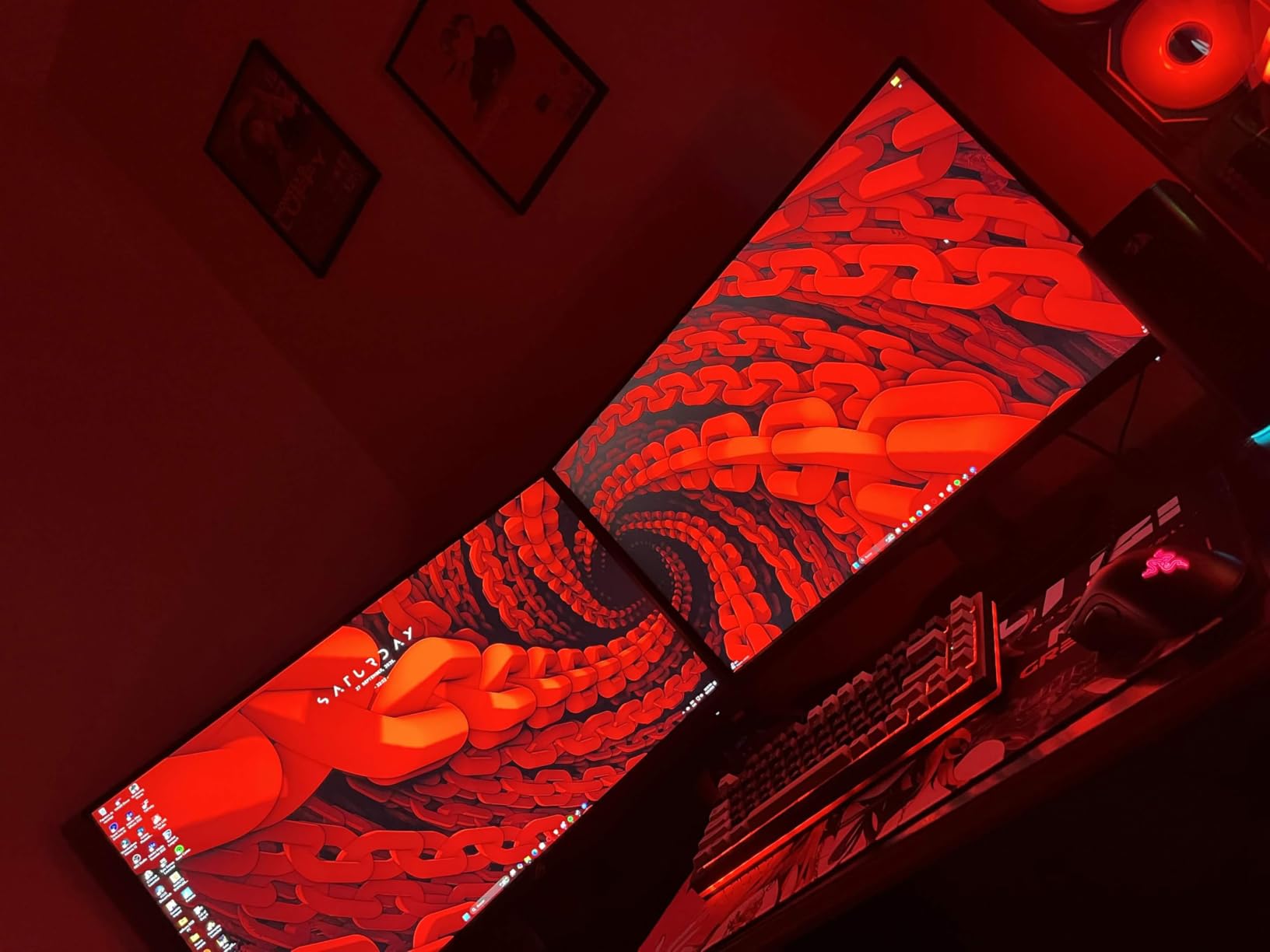
Is the USB-C hub worth it for a dual setup?
Yes if one machine is a laptop. Video over DisplayPort alt mode plus USB connectivity means a single cable handles display and peripherals, and the hub frees desk space compared with a separate dock.
Yes for desk aesthetics in general, because the DisplayWidget software removes the need to reach behind the panel for OSD buttons during a workday.
Partly for shared use, since the 180-degree rotation makes it easy to hide the screen from a second person at the same desk.
Where the hub falls short
The USB-C port carries video only. It will not charge a laptop, so budget for a separate charger or a docking station that does power delivery.
There is no KVM switch, so switching between two computers means reaching for cables or a hardware switch box.
The anti-glare coating has a fine grainy texture that some buyers notice on white backgrounds, and some examples show IPS glow in dark scenes. If you edit video at night, bring your own calibration.
6. Dell S2725QS 27 Inch 4K 120Hz – Best 4K Pick for Text and Documents
Dell 27 Monitor S2725QS, 4K UHD IPS, 120Hz, 5ms, FreeSync Premium
27-inch 3840 x 2160 IPS
120Hz refresh rate
1500 to 1 contrast and 99 percent sRGB
24.6W power draw
Pros
- True 4K at 120Hz which is rare at this price
- Noticeably crisp text and strong 1500 to 1 contrast for coding and documents
- Fully adjustable stand with height swivel pivot and tilt
- Usable built-in speakers for meetings and calls
- Matte coating handles room reflections well
Cons
- Noticeable ghosting in fast shooters due to slow pixel response
- No USB-C and no USB hub and no headphone output
- Default brightness is often too high out of the box
- Basic HDR performance only
One 4K screen is the sharpest productivity tool you can buy for this money, and the S2725QS makes the case for spending part of your two-monitor budget on resolution instead of refresh rate. Text renders at a density that makes 1440p look soft once you have used 4K for a week.
Getting 120Hz at 3840 x 2160 is the headline spec. Most 4K panels at this tier still run at 60Hz, and the jump to 120 makes scrolling and window dragging feel like a different class of monitor.
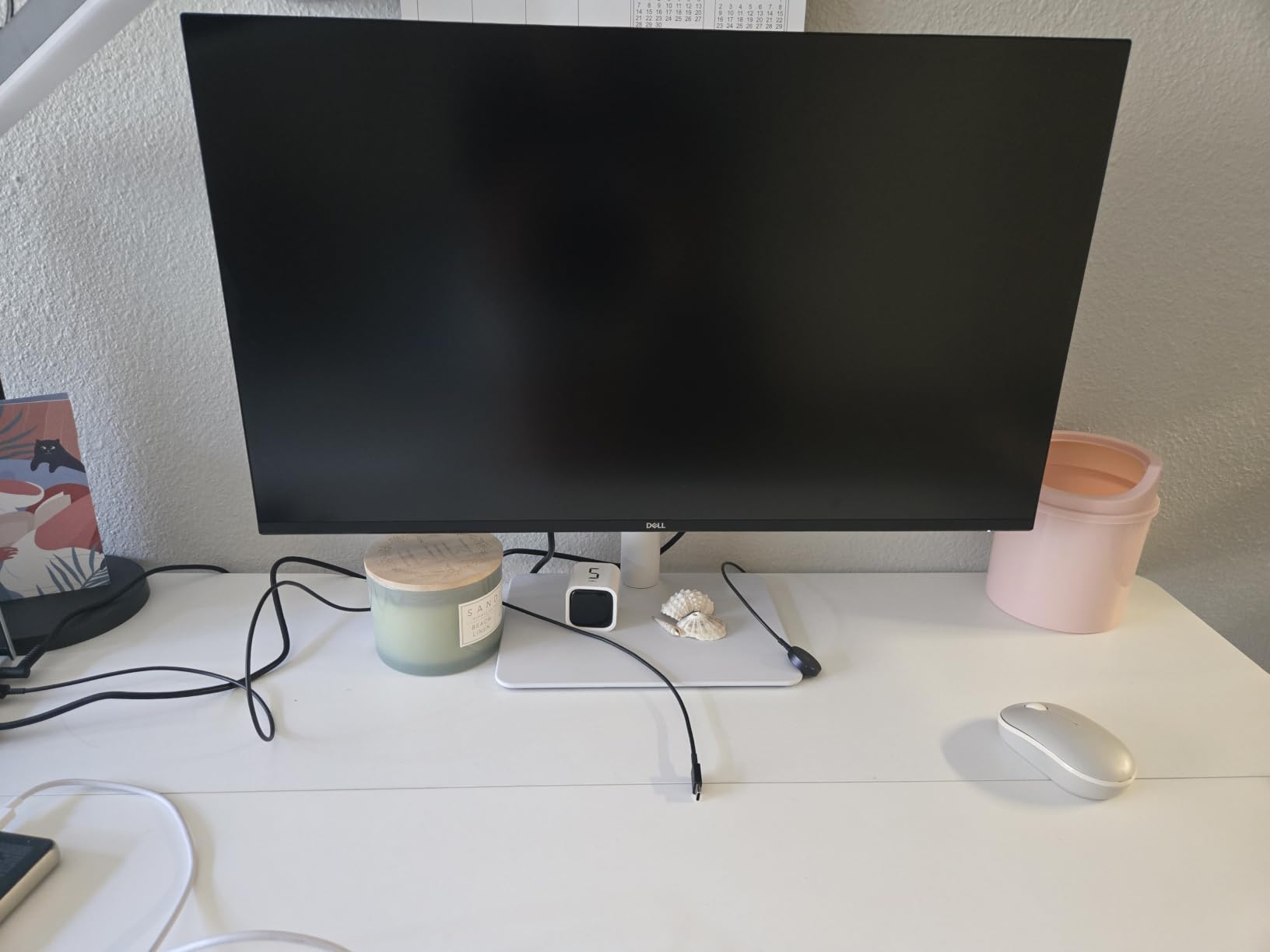
Contrast is listed at 1500 to 1, which is higher than the 1000 to 1 common on 1440p IPS panels and shows up in dense text. Color coverage is a straightforward 99 percent sRGB, and ComfortView Plus cuts blue light emissions to 35 percent or below.
Two HDMI 2.1 inputs and DisplayPort 1.4 give you room to connect a PC, a laptop and a console, and an HDMI cable is in the box. Power draw of 24.6W is among the lowest figures in this group.
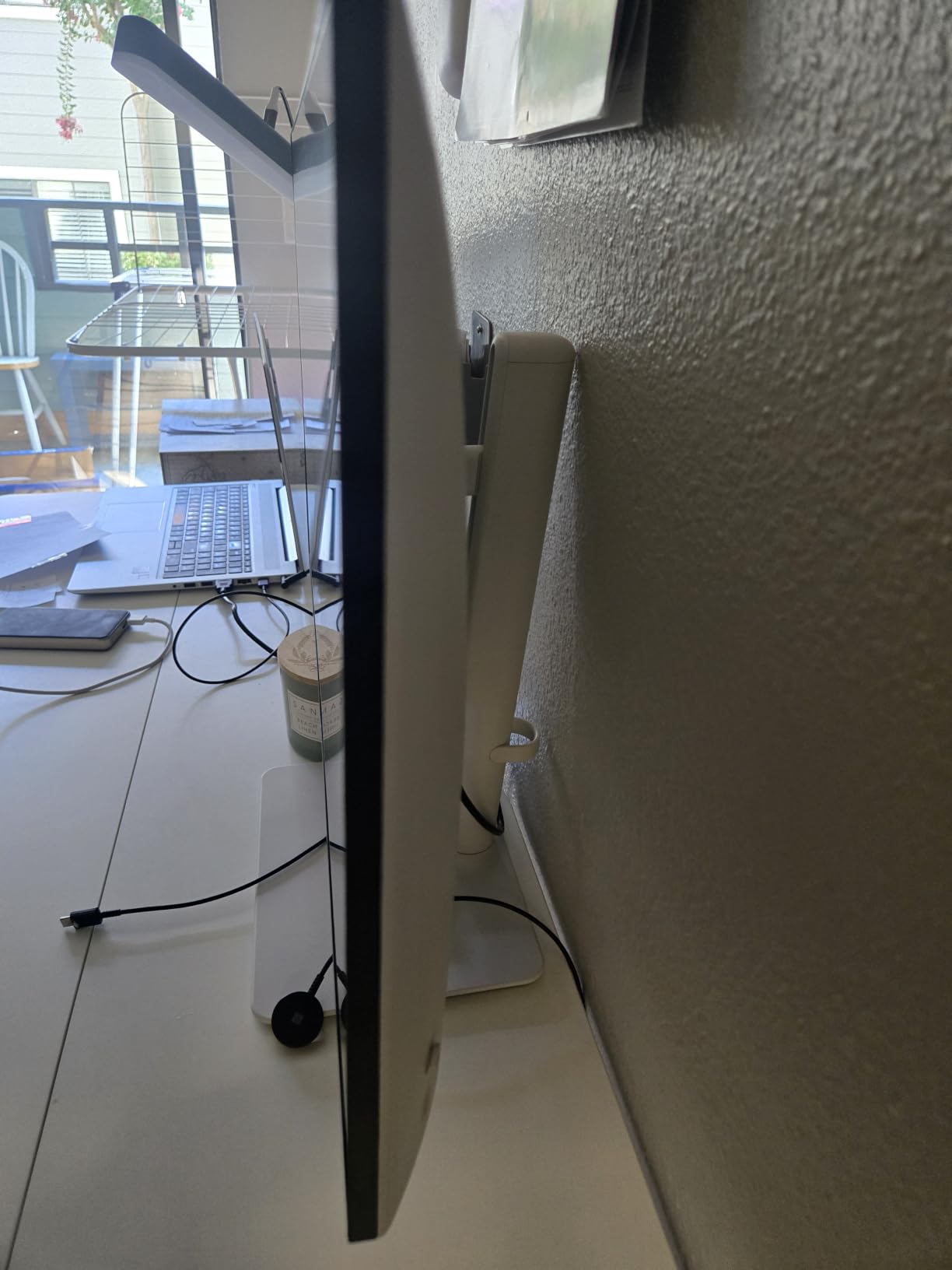
When 4K beats 1440p for a two-screen build
Choose 4K when your work is text heavy. Code, spreadsheets, legal documents, PDFs and design work all benefit from the extra pixel density more than they benefit from a higher refresh rate.
Choose 4K when one screen is the main display. A single crisp 27-inch 4K panel next to a 1440p secondary gives you a focused workspace and a companion screen without splitting your resolution budget across two mediocre panels.
Choose 4K when you sit close. At typical desk distances the pixel density is the first thing you notice and the refresh rate is the second.
What you trade away
Pixel response is slow in practice. Reviewers report 4 to 8ms G to G despite a much more optimistic rated figure, which produces visible ghosting in fast competitive shooters.
There is no USB-C, no USB hub and no 3.5mm headphone output. Audio comes from the built-in speakers, which are usable for calls but lack bass for media.
Brightness usually needs manual correction from a high default, and a small number of owners report vignetting on the right edge of the panel.
7. Samsung 32 Inch FHD Business Monitor – Best for Spreadsheets and Documents
Samsung 32″ Flat Computer Monitor
32-inch 1920 x 1080 LED
75Hz refresh rate
4000 to 1 contrast ratio
11 pounds
Pros
- Large 32-inch screen that replaces two smaller displays
- Three-sided borderless design lines up cleanly in multi-monitor arrays
- Anti-glare coating works well in bright rooms
- 75Hz is a genuine step up from 60Hz for scrolling
- Light and quick to set up with multiple owners buying several
Cons
- Native 1920 x 1080 on 32 inches means large on-screen elements
- 75Hz and 8ms response are modest for gaming
- Included cables can be too short to reach the far monitor
- Ports sit on the rear right which complicates cable routing
The logic of this screen is different from everything else here. A 32-inch panel at 1920 x 1080 gives you a very large working area without fine text, which makes it a strong second display for spreadsheets, email and reference material.
Contrast is listed at 4000 to 1, the highest static figure in this guide, and that shows up in office documents and darker interfaces. Three-sided borderless design exists specifically to line up cleanly next to another monitor, which is unusual at this segment.
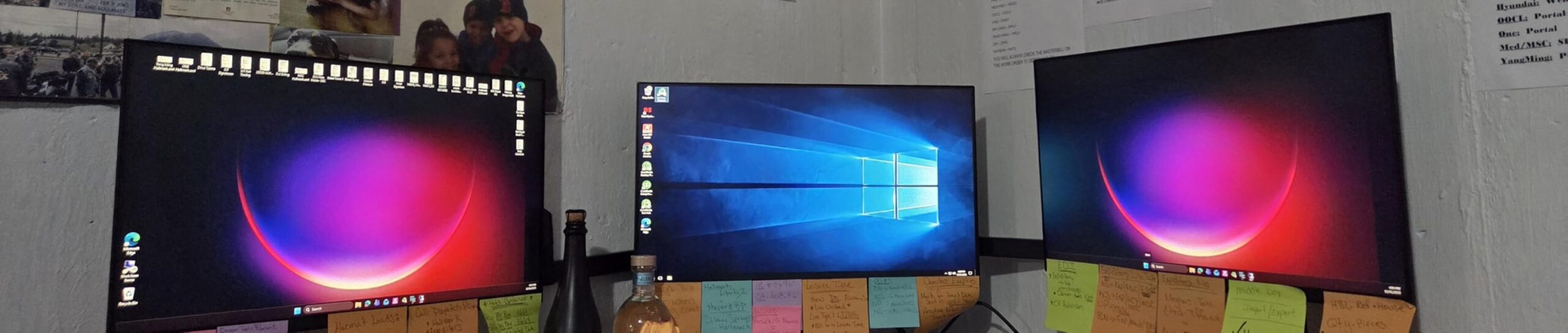
Multiple owners buy several of these for a wall of screens, and one reviewer describes buying four for themselves and two for others. The three-year manufacturer warranty is the longest in this group.
One HDMI and one DisplayPort means you will want an adapter or a switch if you are running a laptop, a console and a desktop through it.
When a big 1080p screen beats two smaller ones
Choose it when your secondary screen holds reference material rather than fine text. Browser tabs, a chat client, a music player and a document viewer all read fine at 1080p on 32 inches.
Choose it when desk depth is limited. One 32-inch screen occupies a similar footprint to a single 27-inch on a stand, and the borderless edges make the seam nearly invisible when paired with another display.
Choose it when you share a machine with someone else. Multiple owners run several of these from one computer, and the 75Hz refresh rate keeps shared desktops feeling responsive.
Where the size works against you
1920 x 1080 stretched across 32 inches produces large on-screen elements and limited desktop detail. If you type all day on the secondary screen, this is the wrong panel.
75Hz with 8ms response is fine for documents and unpleasant for anything competitive. The included cables are also short enough that owners running a two-screen layout report not reaching the far monitor without their own leads.
Connections sit on the rear right, which makes cable routing behind a desk noticeably harder than on displays with ports underneath.
8. AOC Q27G41ZE 27 Inch 1440p 260Hz – Best for Competitive Gaming
AOC 27″ Gaming Monitor QHD 260Hz Overclocked IPS NVIDIA G-SYNC Q27G41ZE
27-inch 2560 x 1440 IPS
240Hz native with 260Hz overclock
0.3ms MPRT response
300 nits
Pros
- Very high 240Hz native refresh rate with 0.3ms MPRT
- Adaptive sync works with both AMD and NVIDIA cards
- Shadow Control and Game Mode presets help in dark scenes
- Three-sided frameless design suits multi-monitor placement
- DisplayPort 1.4 plus two HDMI and audio out
Cons
- Stand offers tilt adjustment only with no height swivel or pivot
- No USB hub or USB-C connectivity
- Limited published owner detail on long-term reliability
If you play competitive shooters or racing titles, refresh rate is the whole argument. The Q27G41ZE runs 240Hz natively, with the model line advertising an overclock to 260Hz, paired with 0.3ms MPRT response on a 2560 x 1440 IPS panel.
Adaptive sync covers both FreeSync and G-SYNC compatible mode, so the display works whether your graphics card is AMD or NVIDIA. Shadow Control brightens shadow detail without washing out the rest of the image, and Game Mode presets are a single click away.
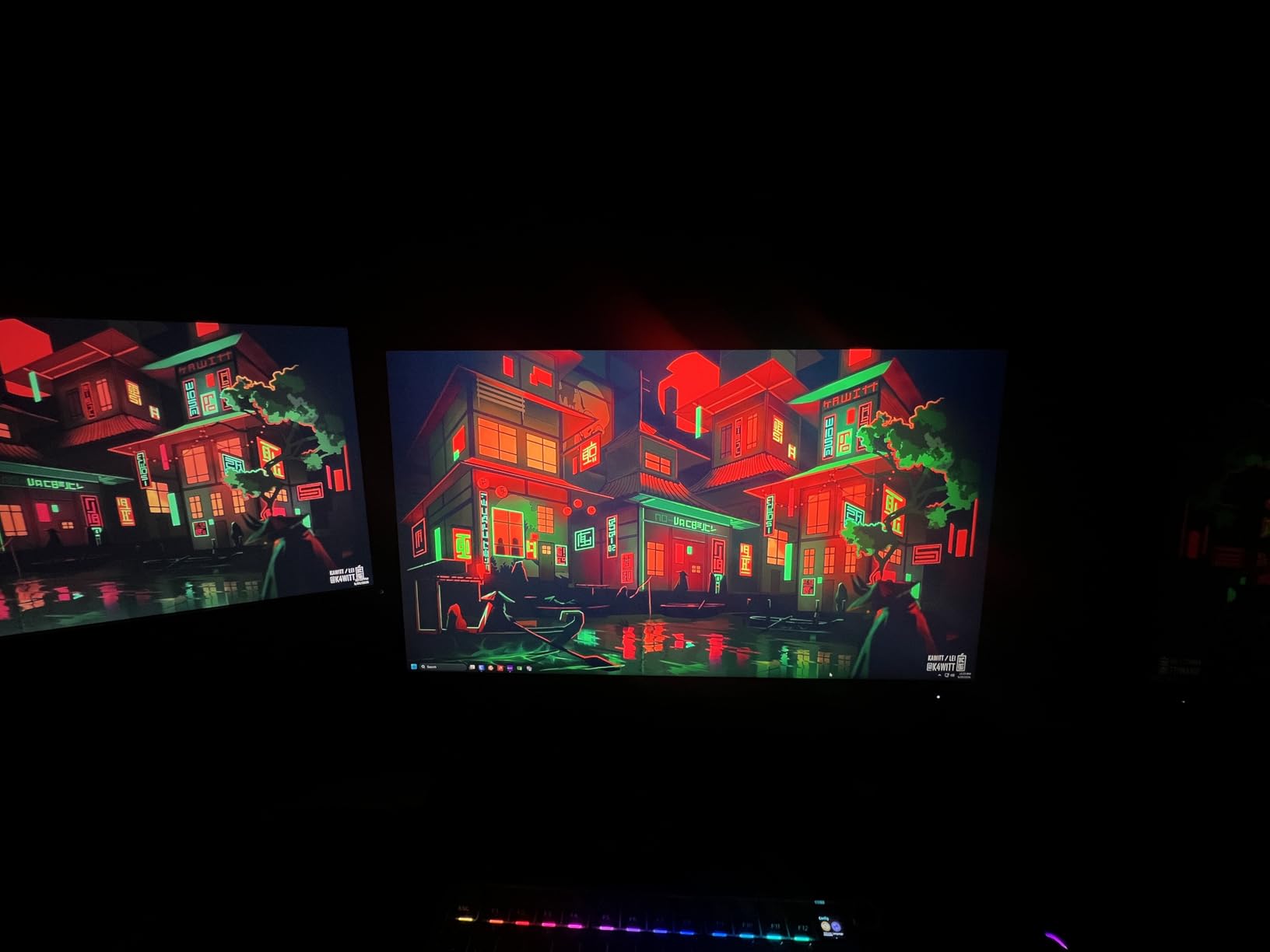
At 300 nits and 1000 to 1 contrast the image is bright enough for a normal office and competitive at this tier. DisplayPort 1.4, two HDMI 2.0 inputs and audio out cover essentially any connection you need, and the three-sided frameless design keeps the seam tight when paired.
The three-year manufacturer warranty is a solid backstop for a higher-refresh panel.
Is 240Hz useful if you do not play competitively?
Mostly no, and we want to be straight about that. Owners planning an RPG, strategy or simulation library get very little from 240Hz. The jump people feel is from 60Hz to 144Hz, not from 180Hz to 240Hz.
The number that matters is the input path. DisplayPort 1.4 at 1440p carries the full 240Hz without compression, so you are not trading latency for frame rate on the way in.
Where high refresh does help outside competition is in any game with a camera or fast vehicle, and in the smoothness of menus and scrolling windows at 1440p.
What to keep in mind
The stand tilts from -3 to 21 degrees and does nothing else. No height, no swivel, no pivot, so a dual arm is close to mandatory if you are pairing this with anything.
There is no USB hub and no USB-C, so a laptop setup means a separate dock or adapter.
Owner-written reviews for this model are thinner than for the other picks here, so treat the specification sheet as the stronger signal and keep the return window firmly in mind.
9. Samsung Odyssey G5 G50F 27 Inch 1440p 180Hz – Best for HDR That Actually Shows
Samsung 27” Odyssey G5 (G50F) Series QHD Gaming Monitor
27-inch 2560 x 1440 IPS
180Hz with 1ms GtG
HDR10 support
48W power draw
Pros
- Sharp 1440p image with vivid color and deep blacks
- 180Hz with 1ms GtG across shooters and racing titles
- HDR10 support makes a visible difference versus SDR
- Height-adjustable stand with pivot tilt and swivel
- Works cleanly with Windows and macOS including Apple Silicon over HDMI
Cons
- Only one DisplayPort and one HDMI input which owners call stingy
- No built-in speakers
- Virtual Aim Point crosshair stays on with no quick toggle
- DisplayPort 1.2 bandwidth limits full 1440p 180Hz with HDR
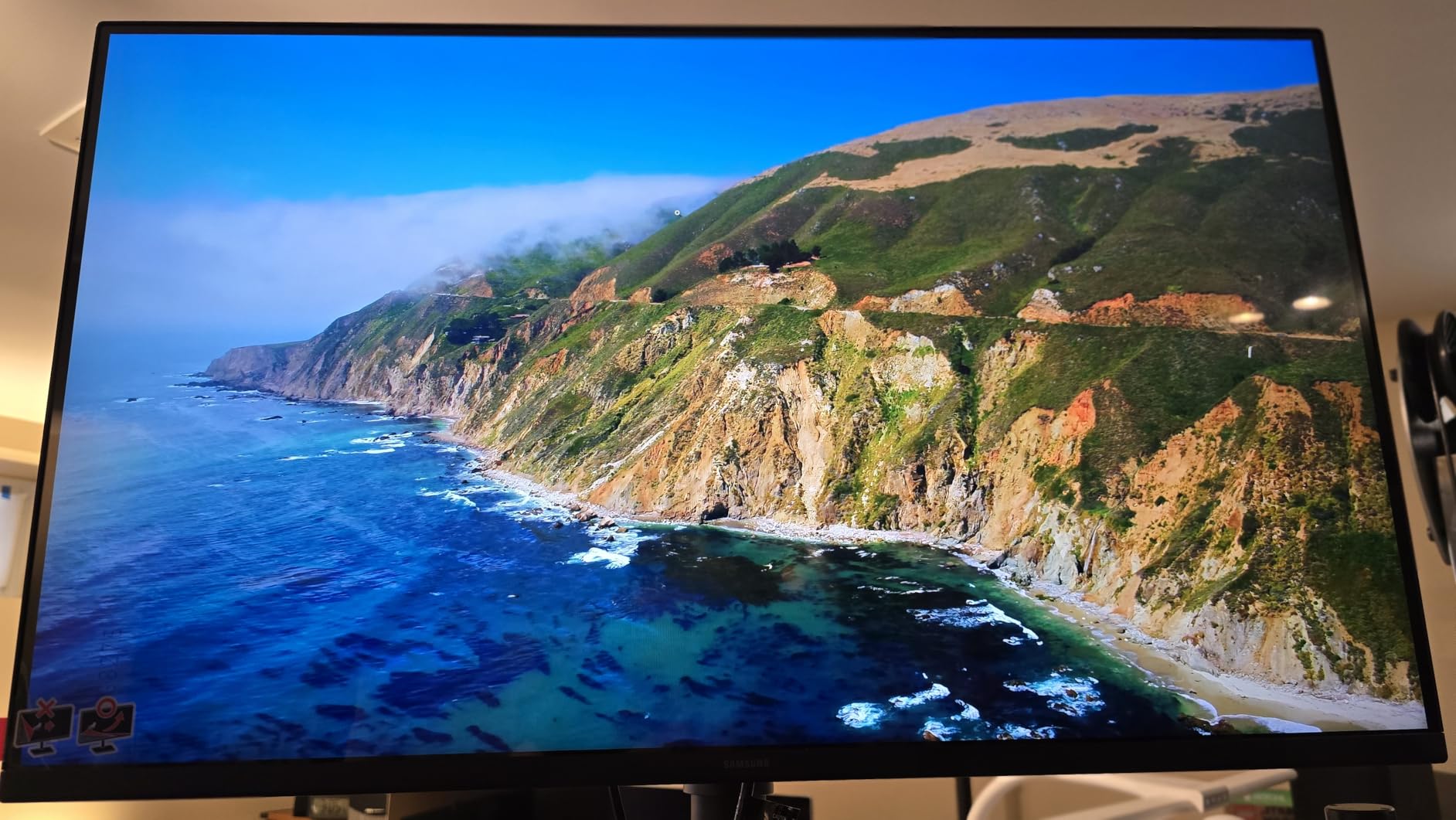
Most budget panels advertise HDR and deliver nothing. The Odyssey G5 (G50F) is one of the few here where owners report a visible difference with HDR10 enabled, and that is enough to earn a place in a mixed pair where the main screen does heavy lifting.
Underneath it is a solid 2560 x 1440 IPS panel at 180Hz with 1ms GtG response, 99 percent sRGB and 1000 to 1 contrast. Reviewers who moved from curved VA gaming panels expected washed-out IPS blacks and found the opposite.
The stand adjusts for height with pivot, tilt and swivel, which makes this one of the easier panels in the group to align in a two-screen arrangement. At 48 watts and 9 pounds it is also among the lighter and more efficient options.
Auto Source Switch+ moves between inputs as soon as you change source, so swapping between a PC and a console does not require walking to the menu.
What makes this a good second screen
HDR support is the differentiator. If you own an HDR console, this is the panel in the group that most credibly passes HDR10 content to a large screen without washing it out.
Minimal IPS glow is repeatedly praised, including in comparison against a curved VA competitor on blacks and color, which matters in a dim room at night.
Compatibility is broad. Owners report clean operation on both Windows and macOS, including Apple Silicon machines driven over HDMI.
Where it disappoints
One DisplayPort and one HDMI is stingy for a modern panel, and it is the single most repeated complaint in owner feedback. Plan your cabling before you commit.
DisplayPort 1.2 bandwidth means you cannot hold full 1440p at 180Hz with HDR10 active at the same time. Pick one or set the refresh lower.
There are no built-in speakers, and the Virtual Aim Point crosshair overlay stays on screen until you bury it in the menu with no quick toggle.
10. Dell 27 Plus S2725DSM QHD 144Hz – Best Balanced Everyday Pair
Dell 27 Plus QHD Monitor – S2725DSM – 27-inch QHD (2560×1440) 144Hz 1ms Display, 2 x 3W Speakers, HDMI/DisplayPort 1.4 Connectivity, Height/Tilt/Pivot/Swivel Adjustability, AMD FreeSync – Ash White
27-inch 2560 x 1440 IPS
144Hz with 1ms MPRT
1500 to 1 contrast
21.4W power draw
Pros
- QHD sharpness gives crisper text and more desktop space than 1080p
- 144Hz with 1ms MPRT for smooth tear-free motion
- Built-in dual 3W speakers remove the need for desktop speakers
- Full height tilt pivot and swivel adjustment suits multi-monitor positioning
- Single HDMI and DisplayPort make pairing two on one machine simple
Cons
- Only one HDMI and one DisplayPort limit multi-device hookups
- No USB-C so laptops need HDMI or DisplayPort
- Integrated 3W speakers lack meaningful bass for media
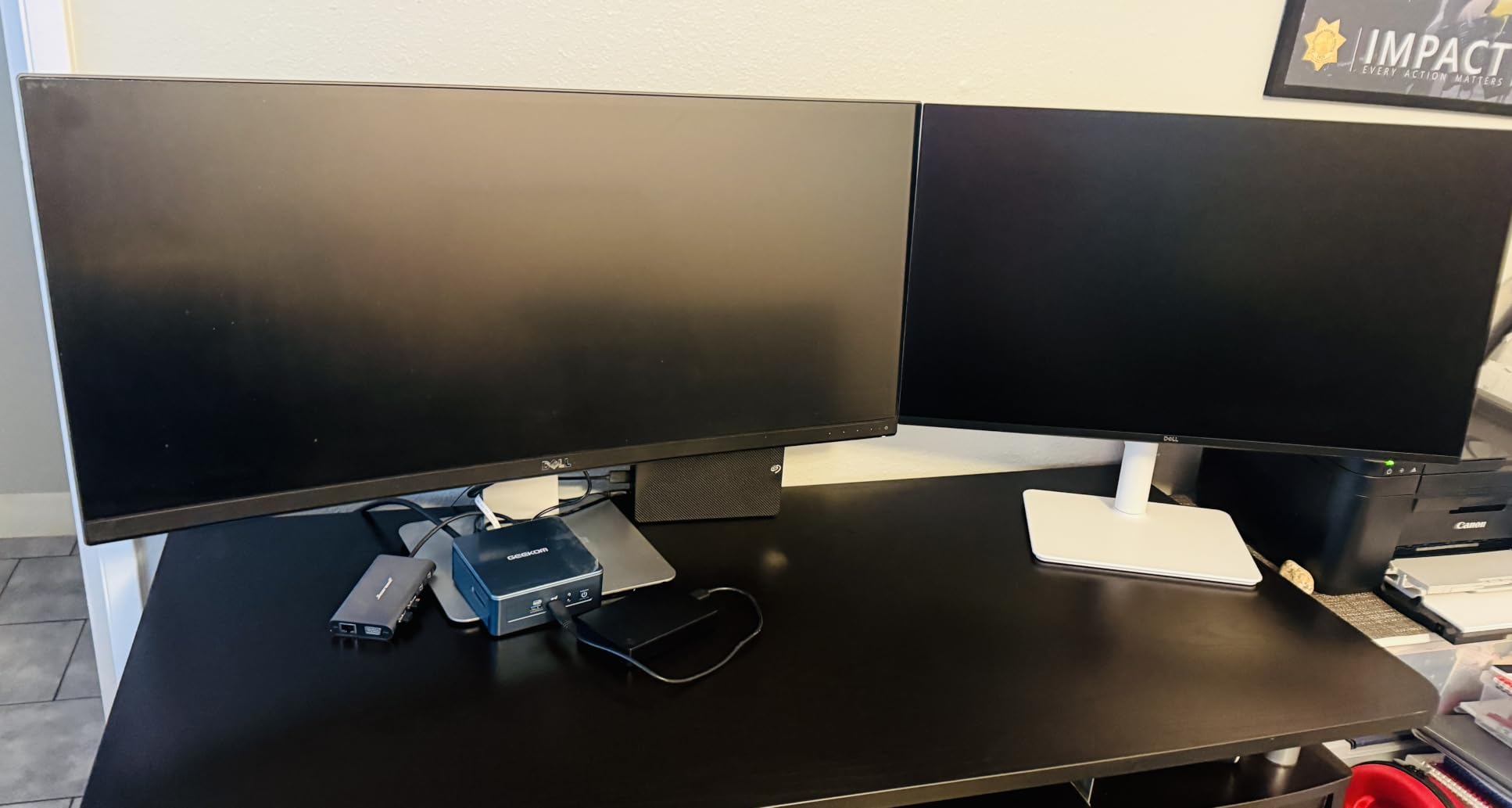
Two of these make a coherent office desk. Full adjustment on height, tilt, pivot and swivel means the pair lines up cleanly, and the QHD resolution delivers noticeably crisper text and more usable desktop area than 1080p at the same size.
Refresh rate is 144Hz with 1ms MPRT, which is the point where motion stops feeling deliberate and starts feeling automatic. AMD FreeSync handles synchronization on both screens.
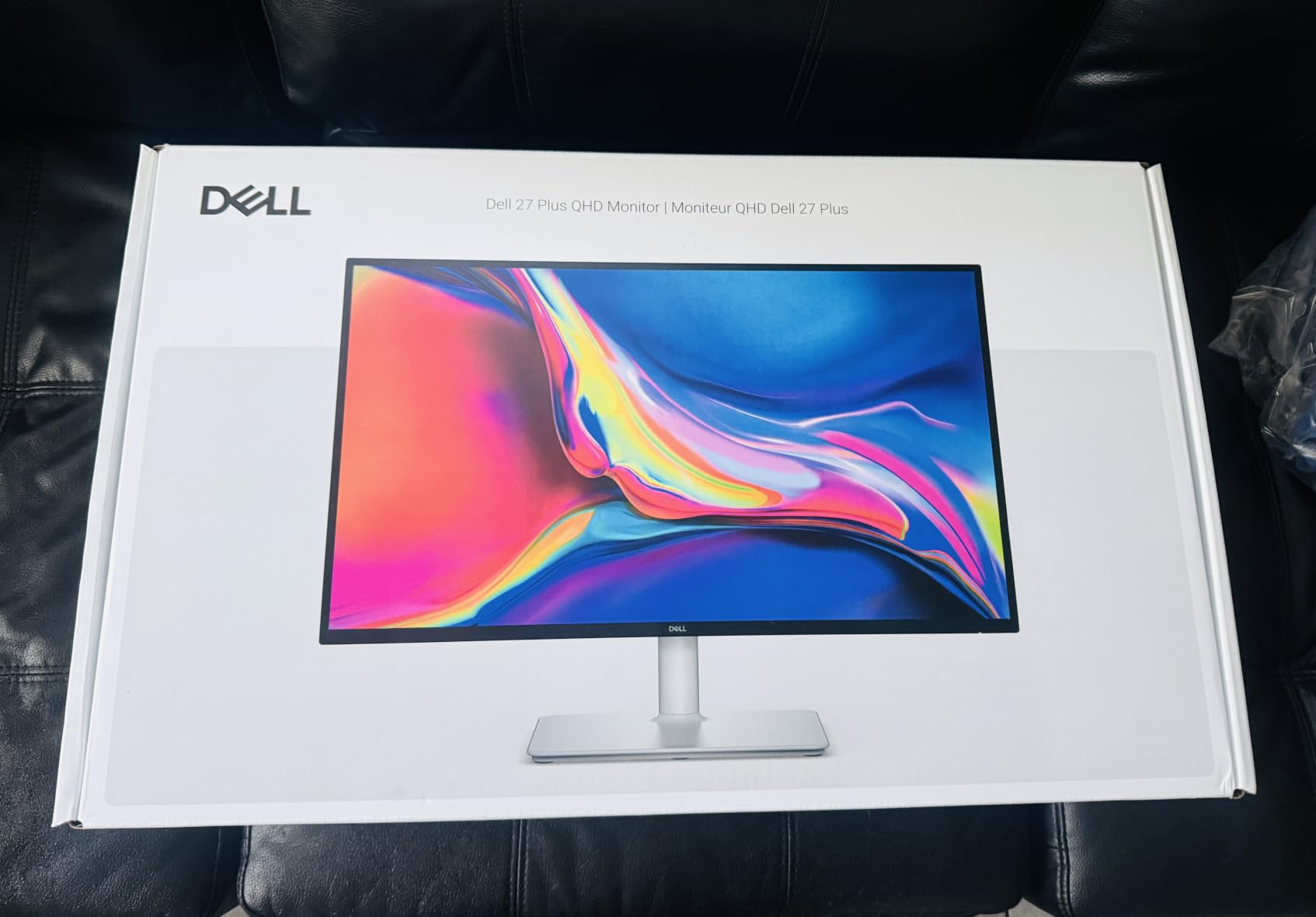
Two details separate this from the pack. Contrast is 1500 to 1, the best static figure among the 1440p models here, and the integrated dual 3W speakers are singled out as a practical bonus for a two-monitor desk where you do not want a third box on the desktop.
Power draw of 21.4W is among the lowest in the guide. Four-star TUV-certified eye comfort reduces blue light without the washed-out look some filters produce, and Dell Display and Peripheral Manager handles updates and settings.
What this pairing does well
It is the least fussy match in the guide. A matte anti-glare finish, a 178-degree viewing angle and a stand that pivots means the pair works in a bright room and at an angle without arguing with you.
144Hz on both screens keeps mouse movement consistent across the pair, which is the experience most people notice first after upgrading from two 60Hz displays.
For a dual-PC or laptop-and-desktop arrangement, one HDMI and one DisplayPort per panel is enough when you plan your connections in advance.
Where it falls short
There is no USB-C on this variant, so a laptop user needs HDMI or DisplayPort from the machine itself. That is the dealbreaker for anyone planning to dock a single-cable workflow.
Port count is genuinely limited. If you want a console, a laptop and a desktop all permanently connected, add a switch.
The 3W speakers are small and bass-free. Fine for system beeps and voice calls, not for media.
11. Kado 27 Inch FHD Dual Monitor 2-Pack – Best Two-Pack Convenience
Kado Dual Monitor 2-Pack 27″ 1920×1080 75Hz FHD Computer Monitor
Two 27-inch monitors in one bundle
1920 x 1080 at 75Hz
2000 to 1 contrast
3ms response time
Pros
- Two full-size 27-inch monitors in a single bundle
- HDMI cables included and each display runs in minutes
- Accurate color with well-judged brightness
- Built-in speakers on each monitor
- VESA wall-mount compatible for tidy alignment
Cons
- 1080p on 27 inches makes small text soft up close
- Limited port selection per monitor so some buyers need a splitter
- Built-in speakers are quiet and not useful for media
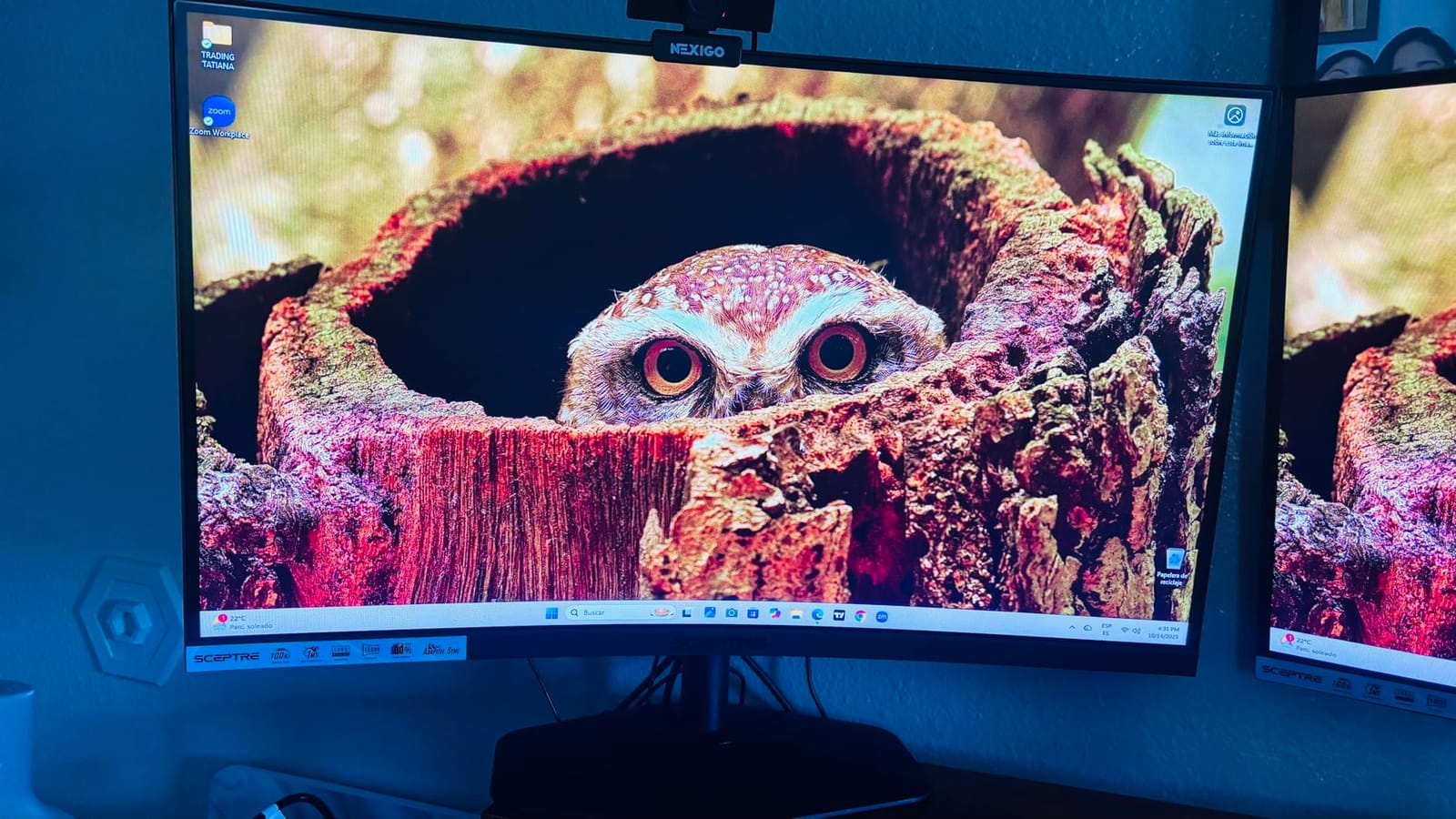
This is the only two-monitor bundle in the guide, and for someone who has never run a dual setup it removes the single biggest source of confusion. Both panels are the same model, so there is no matching or color consistency question to answer.
Each display is 27 inches at 1920 x 1080 with a 75Hz refresh rate, 3ms response and 2000 to 1 contrast. Reviewers who upgraded to a dual setup report better multitasking and an easier working day at home.
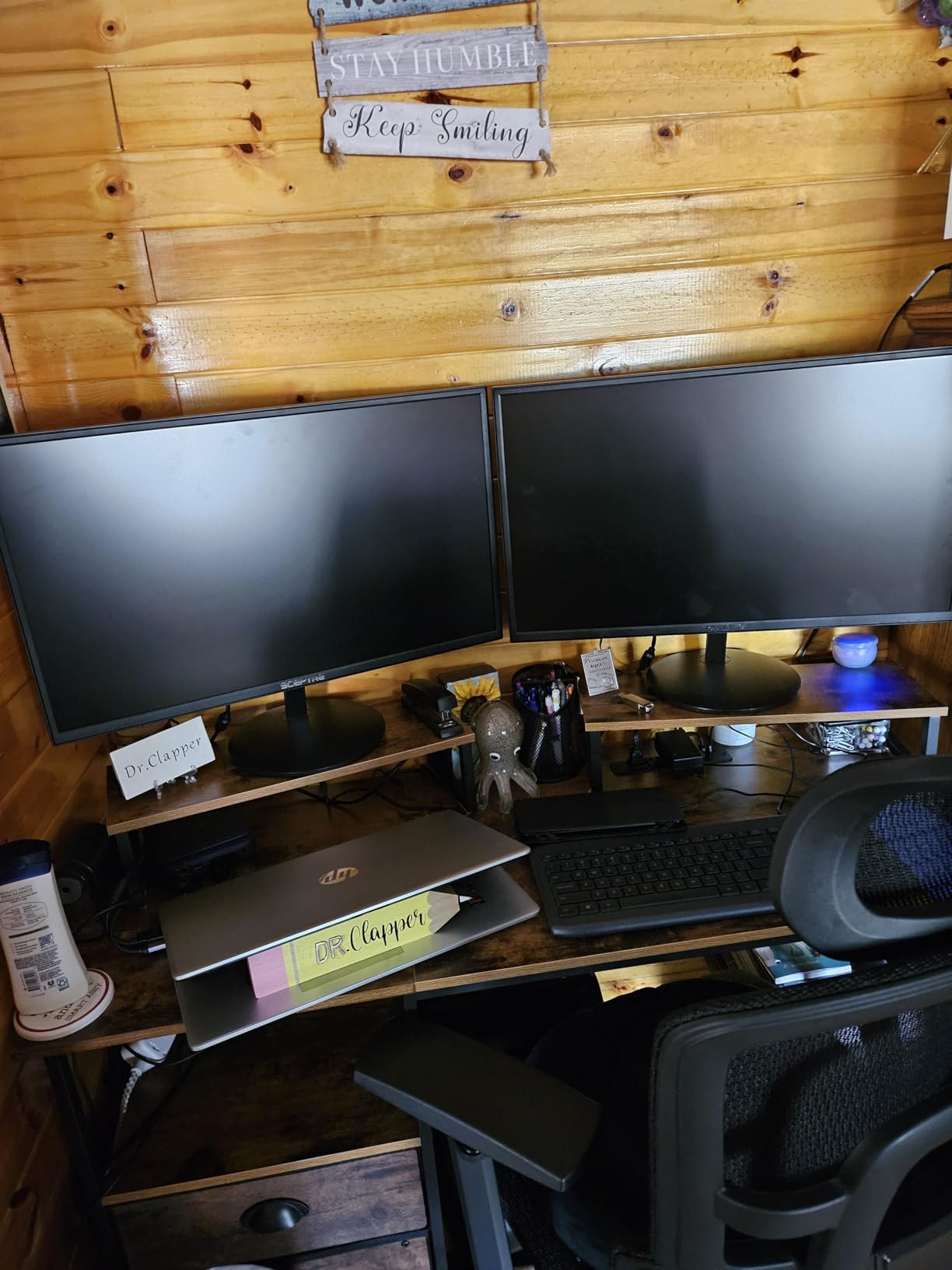
Setup is genuinely plug and play. HDMI cables are included, each unit goes up in under 20 minutes according to owners, and the fact that both screens are physically identical is worth more in daily use than most spec sheet upgrades.
Both monitors have built-in speakers, which is unusual in a bundle at this level and saves a desktop speaker purchase. VESA wall mounting is supported, and several reviewers use it to line the pair up neatly.
Is a 1080p 2-pack good enough for a dual setup?
Yes for a first dual setup, and yes if your second screen is for chat, video and reference material. Both panels are 27 inches, which is a large amount of screen real estate for the money.
The trade is text sharpness. 1920 x 1080 across 27 inches means small fonts look soft at a normal desk distance, and that gets more obvious the longer you sit in front of it. People who type all day notice first.
75Hz is smooth for documents and video but well short of what competitive gaming needs.
What to check when the pair arrives
Inspect both panels for dead pixels before the return window closes, since you only get one chance to send the pair back. Lines of dead pixels are the most common complaint across budget panels.
Count your ports before you commit. Per-monitor port selection is thin, and some owners needed a splitter to connect everything they wanted.
Ignore the built-in speakers as a media path and add a small pair of desktop speakers or a soundbar if you watch anything regularly.
12. Samsung S3 S36GD 27 Inch 1800R Curved FHD 100Hz – Best Curved Second Screen
Samsung 27″ Essential S3 (S36GD) Series FHD 1800R Curved Computer Monitor
27-inch 1800R curved LED display
1920 x 1080 at 100Hz
3000 to 1 contrast
8.4 pounds
Pros
- 1800R curve reduces peripheral distraction and adds depth
- 100Hz refresh is a step up from typical 60Hz budget monitors
- Over three thousand ratings and a solid 4.5 average
- TUV-certified eye comfort with blue light reduction and flicker-free
- Light 8.4-pound body and slim bezels are easy to place side by side
- HDMI cable included so a dual setup needs no extra purchases
Cons
- FHD resolution limits screen real estate and sharpness for productivity
- Only one HDMI port so pairing with a laptop or dock may need an adapter
- 250 cd per square meter brightness is modest in bright rooms
- No built-in speakers so audio needs separate equipment
A curved panel as a second screen is an unusual idea that works better than it has any right to. The 1800R curve is gentle enough that it does not distort flat documents noticeably, while pulling the edges of the panel closer to your line of sight.
It is also one of the most thoroughly reviewed displays here, with well over three thousand ratings, which makes its 4.5 average a meaningful number rather than a small sample.
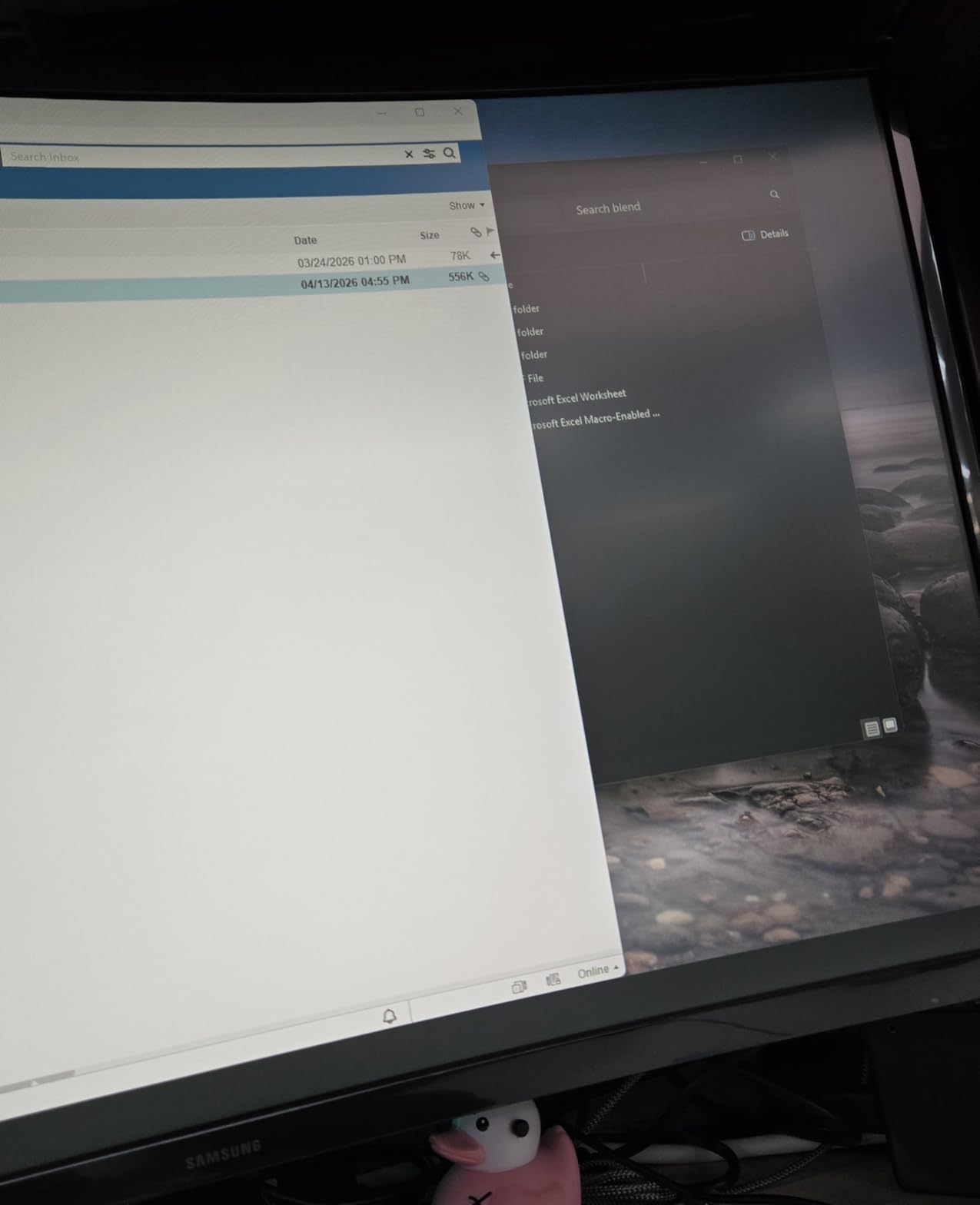
Refresh rate is 100Hz with 4ms response and G-Sync compatible adaptive sync. A 3000 to 1 contrast ratio is among the best figures in the guide, and the TUV-certified eye comfort mode reduces blue light while staying flicker-free.
At 8.4 pounds it is one of the lightest 27-inch panels here, with slim bezels that make two of them easy to place side by side. An HDMI cable is in the box.
When a curved secondary screen makes sense
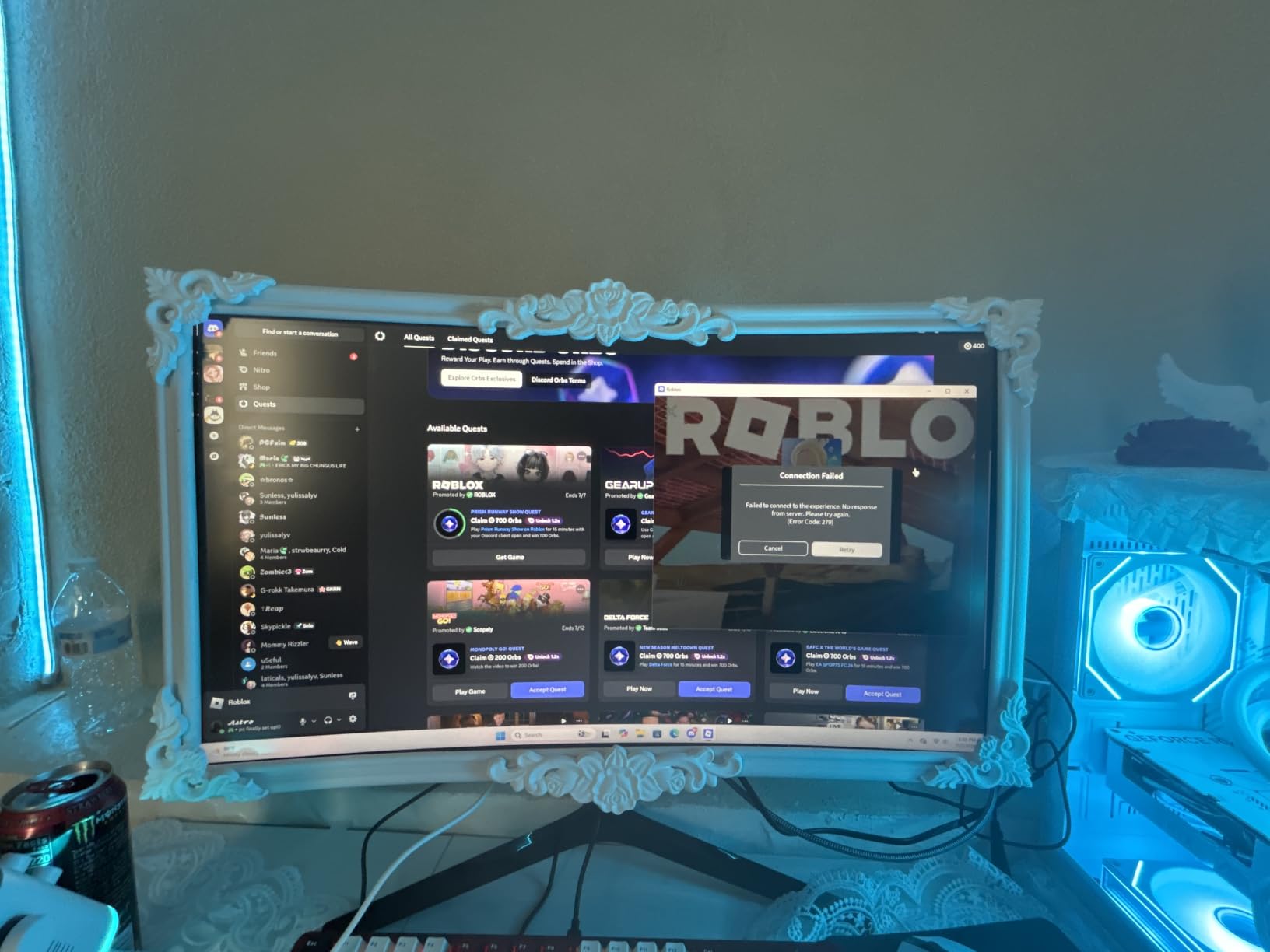
Choose it when the second screen holds media, a game or anything with a wide image. The curve keeps the far edges of a cinematic frame inside your field of vision, which a flat secondary usually fails to do from a seated position.
Choose it when the second screen sits at an angle. Curved panels distort less at the edges when you turn a flat display to face you directly.
Choose it for eye comfort over long evenings. The blue light reduction and flicker-free panel are certified, and the light weight makes repositioning painless.
Where it falls short
FHD only. This is the panel where the resolution ceiling matters most, because a 27-inch flat screen is angled toward you rather than facing you head-on, and the softness of 1920 x 1080 becomes more apparent.
One HDMI and a VGA input. Laptops and docks will need an adapter, and there is no DisplayPort at all.
Brightness of 250 cd per square meter is modest in a bright room, and there are no built-in speakers, so audio needs separate equipment.
How to Set Up Two Monitors Without Losing Desk Space
Two 27-inch panels on their included stands need roughly 48 inches of desk width and about 18 inches of depth before you factor in the gap between screens. If your desk is shallower than that, the fix is mounting rather than a smaller monitor.
Dual monitor arms recover most of it. Once the stands come off, the panel footprint is its thin lower edge, so two 27-inch screens can sit in around 42 inches of width with the bases gone entirely. Our picks for that job are in the dual monitor arm roundup, and the gas spring models are worth the extra cost over a fixed pole because you can pull one screen forward without moving the other.
If you would rather not drill or clamp, a shared stand is a middle path. We covered those separately in the dual monitor stand guide, and they work best when both panels are the same size.
Alignment that avoids a visible seam
Match the physical height first. Set both screens to the same height and tilt, then use the on-screen display on each to bring brightness and contrast to similar levels. A tilted screen reflects light differently and reads as a different shade even when the panels are identical.
Set one screen as the primary display in your operating system. The taskbar, window snapping and Alt-Tab behavior all key off that setting, and mismatched scaling between two panels at the same resolution is the other common source of an odd-looking pair.
Route cables down the back. With two screens you will have four cables per monitor, and the fix is a strip under the desk edge rather than adhesive clips on the panel itself.
Identical vs Mixed Monitors: Which One Do You Need?
This is the question that comes up most often in dual monitor threads, and the honest answer is that identical is better for most people. Matching panel type, factory color profile and bezel geometry removes the two problems that make a mismatched pair feel wrong every day.
Identical is worth the premium when both screens carry text, when you drag windows between them constantly, or when the pair sits in your field of vision for a full workday. The pair here with the strongest multi-monitor owner reports is the ASUS TUF VG27AQ3A, where buyers explicitly describe running two or three side by side.
Identical is not required when one screen is dedicated to chat, video or a second application that stays in one place. Here, a mixed pair gives you more screen quality per monitor than two matched budget panels.
Three scenarios we would build
Scenario one, the matched pair. Two 27-inch 1440p panels from the same model line, one of them on an arm. This is the best monitors for dual setup option if you edit text, code or spreadsheets and the two screens will be used evenly.
Scenario two, premium main plus budget secondary. One higher-tier panel for the work you stare at, one cheaper panel for chat, media and reference. The 4K Dell as the main screen with a 1080p Samsung beside it is the most common shape we recommend, because the 4K panel carries the fine text and the secondary does not need to.
Scenario three, large primary plus compact secondary. A 32-inch panel as the main working screen with a 24-inch or smaller panel beside it for communication. This keeps desk width manageable and works well with a monitor arm on the main display.
Mixed refresh rates are not a problem. Two panels running at 180Hz and 144Hz behave exactly as you would expect, with each screen locked to its own rate. The only annoyance is a shared on-screen display muscle memory, and that clears in a day.
What to Prioritize in a Budget Dual Monitor Setup
Panel type first, always. IPS is the correct answer for nearly every two-screen build in this guide because it gives consistent color, wide viewing angles and accurate text. VA gives deeper blacks and higher contrast but smears on motion, and a fast VA panel as your main screen is a compromise you will notice every day.
Resolution depends on your desk distance. At 27 inches, 2560 x 1440 sits at a pixel density that reads as sharp without requiring Windows scaling, and 3840 x 2160 rewards sitting close. 1920 x 1080 at 27 inches is a compromise, fine for reference material and soft for typing.
Refresh rate has a sharp payoff curve. Sixty to 144Hz is a dramatic difference that everyone notices. Above 180Hz the returns are small for single-player, strategy and simulation titles, and only competitive players gain meaningfully from 240Hz. Build a pair around 144Hz to 180Hz and spend the difference on a better stand or one 4K panel.
HDR honesty is worth checking. Panels that advertise HDR400 with no real brightness headroom generally look better with the setting off. The Samsung Odyssey G5 is one of the few here where owners report a visible improvement, and it draws 300 nits into the discussion honestly.
Ports are the detail buyers regret. Count your connections before choosing: a PC plus a console plus a laptop needs at least one DisplayPort and one HDMI per panel, and a USB hub or KVM switch saves a daily cable swap if you run two machines.
Stand adjustment saves frustration. Tilt-only stands are the most common reason people end up with mismatched screen heights, and the two panels in this group with full height, swivel and pivot adjustment are the Acer Nitro and the ASUS ROG.
Power draw is a small ongoing cost. Figures range from 21.4W on the Dell 27 Plus to 65W on the KOORUI, and at eight hours a day across two screens the difference is real over years. It is not a purchase decider, but it is a tiebreaker.
Color matching takes ten minutes. Set both screens to the same brightness, use the same color temperature preset and run the on-screen display on each to trim differences. Panels from the same model and batch will be closest, and the fixes in the graphics driver cover most of the remainder.
Frequently Asked Questions
What is the best budget monitor for a dual monitor setup?
Two matched 27-inch 1440p IPS panels at 144Hz or better are the best budget choice for a dual setup. Our top pick is the KOORUI G2721P at 200Hz with FreeSync Premium, and the SANSUI ES-G27F6Q is the stronger value option because its stand adjusts for height, swivel and pivot. Buy two of the same model so both screens share one panel type and one color profile.
What is a good second monitor for a dual setup?
A good second monitor only has to handle chat, browsing, media and reference material, so a 27-inch 1920 x 1080 panel at 75Hz or 100Hz is enough. The Samsung 32-inch FHD display is a strong pick for spreadsheets because of its size, 4000 to 1 contrast and three-sided borderless edges that line up cleanly. Avoid using a slower panel as your main screen.
What is the best monitor for a dual screen setup?
The best monitor for a dual screen setup is one with an adjustable stand, thin bezels and at least one DisplayPort plus one HDMI. The Acer Nitro XV271U M3bmiiprx meets all three, adds accurate out-of-the-box color and carries a three-year parts and labor warranty. Running two of these keeps height, color and menu behavior consistent across the pair.
What is the best monitor for a dual monitor office setup?
For an office setup, prioritize resolution and stand adjustment over refresh rate. The Dell S2725QS delivers true 4K at 120Hz with 1500 to 1 contrast and full height, swivel, pivot and tilt adjustment, which makes it the sharpest productivity panel in this guide. The Dell 27 Plus S2725DSM is the balanced alternative at QHD and 144Hz with the lowest power draw we measured.
Can I use two monitors with different refresh rates together?
Yes. Each screen locks to its own refresh rate independently, so a 180Hz main panel and a 75Hz secondary work without any configuration conflict. Mixed panel types are also fine, though IPS and VA differ enough in contrast that a bright window dragged between them can change appearance. Matching the on-screen display brightness and color temperature on both screens fixes most of it.
Final Verdict
For most people, two KOORUI G2721P panels are the best monitors for dual setup at this budget. The 200Hz Fast IPS picture, FreeSync Premium support and the most thoroughly reviewed owner base in this guide make the pair a safe default that you will not outgrow.
Buy the SANSUI instead if you want a real adjustable stand rather than tilt only, and buy the Acer Nitro XV271U if accurate color matters more to your work than top-end refresh. If your budget stretches to one sharper screen plus one cheap companion, the Dell S2725QS as the main display is where we would put the extra money.
Whichever route you take, buy two of the same model where you can, mount at least one on an arm, and give yourself a full return window to inspect both panels for dead pixels side by side.