
Six hours into a spreadsheet with a headache building behind your eyes, most people blame the screen. Sometimes the screen deserves it. The best monitors for eye strain are not defined by a logo on the box but by four things you can actually verify: how the backlight dims, how the panel behaves, what the surface coating does to reflections, and whether the stand lets you put the panel at the right height and distance. Get those right and the strain usually goes away. Get them wrong and no amount of blue light filtering will save you.
I have spent the past few months reading the community threads where people who genuinely suffer from digital eye strain argue about panels, and then working through these 12 monitors against the same checklist. The forums on ledstrain.org and forum.pcmonitors.info are far more useful than most buying guides, because the people there have already lived with the hardware for years and report the bad parts first. Several of the picks below come straight out of those discussions.
This guide also fits into the wider category: if your main problem is motion rather than text, start with our gaming monitor picks, and if you work with video and stills all day, the studio monitor roundup covers colour accuracy properly. What follows is focused on one question: which of these 12 displays will let you work a full day without your eyes complaining.
Table of Contents
Top 3 picks for comfortable viewing in 2026
These three are the ones I would put on a desk first. Each earned its place on a specific strength, not on being the fanciest.

BenQ GW2780 27-inch IPS
- Flicker-Free with Low Blue Light
- Brightness Intelligence ambient sensor
- Built-in speakers and USB hub
- 3-year warranty

Dell SE2725HM 27-inch IPS
- TUV Rheinland 3-star viewing experience
- ComfortView Plus low blue light
- Centred VESA mount for arms
- Colour matches across displays

Dell S2725QS 27-inch 4K IPS
- 4K UHD at 120Hz
- ComfortView Plus
- Height tilt swivel and pivot stand
- 350 nits with 1500:1 contrast
Best Monitors for Eye Strain (October 2026)
Every pick below, with the eye-care features that actually matter to this list. The dimming column is where you should read most carefully, because flicker-free operation is the one specification worth paying extra for.
| Product | Specifications | Action |
|---|---|---|
| BenQ GW2780 27-inch IPS |
|
Check Latest Price |
| Dell SE2725HM 27-inch IPS |
|
Check Latest Price |
| Dell S2725QS 27-inch 4K IPS |
|
Check Latest Price |
 KTC H27P6 27-inch 4K Fast IPS KTC H27P6 27-inch 4K Fast IPS |
|
Check Latest Price |
 Philips 271V8LB 27-inch VA Philips 271V8LB 27-inch VA |
|
Check Latest Price |
 ViewSonic VA2756a-MHD 27-inch IPS ViewSonic VA2756a-MHD 27-inch IPS |
|
Check Latest Price |
 ASUS VL279HE 27-inch IPS ASUS VL279HE 27-inch IPS |
|
Check Latest Price |
 Acer KB272 G0bi 27-inch IPS Acer KB272 G0bi 27-inch IPS |
|
Check Latest Price |
 Sceptre E275W-FW100T 27-inch Sceptre E275W-FW100T 27-inch |
|
Check Latest Price |
 SANSUI ES-24X5AL 24-inch SANSUI ES-24X5AL 24-inch |
|
Check Latest Price |
 Philips 27E2N2100 27-inch IPS Philips 27E2N2100 27-inch IPS |
|
Check Latest Price |
 INNOCN 34C1R 34-inch ultrawide INNOCN 34C1R 34-inch ultrawide |
|
Check Latest Price |
1. BenQ GW2780 – the best monitor for eye strain overall
BenQ GW2780 Computer Monitor 27″ FHD 1920x1080p | IPS | Eye-Care Tech | Low Blue Light | Anti-Glare | Adaptive Brightness | Tilt Screen | Built-in Speakers | DisplayPort | HDMI | VGA
27-inch IPS at 1920x1080
60Hz, 250 nits, glossy finish
Eye-Care tech with Brightness Intelligence
Pros
- Flicker-Free and Low Blue Light in the core feature set
- Brightness Intelligence adapts to ambient light
- Automatic input switching
- 3-year warranty and long owner track record
Cons
- Glossy finish catches reflections
- 60Hz feels dated for scrolling
- Weak tinny built-in speakers
This is the monitor the community keeps coming back to, and for a specific reason rather than a general one. It is not the sharpest panel here and not the fastest. It is the one with 4204 reviews behind it, and across that body of owners the same feature keeps getting named as the reason headaches stopped.
The Eye-Care technology combines flicker-free operation with a low blue light mode, and it is the flicker-free part that matters. Brightness Intelligence is the other half and it is genuinely rare at this level: an ambient light sensor that adjusts screen brightness to match the room. That directly addresses the brightness-mismatch problem that causes strain on monitors far more expensive than this one.
Long-term ownership is where this pick really earns its position. Owners describe multi-year use without faults, and several mention developers and animators who specifically credited the Eye-Care features with removing headaches they had on other displays. Automatic input switching between an HDMI-connected laptop and a desktop is a small detail that quietly saves neck strain during a workday.
There are three real drawbacks, and none of them are about the panel. The glossy finish is the biggest one: in a room with a window or an overhead light, you will be squinting past your own reflection. The 60Hz refresh rate is the lowest in this roundup and scrolling does feel dated next to a 120Hz panel. The built-in speakers are weak enough that most owners replace them.
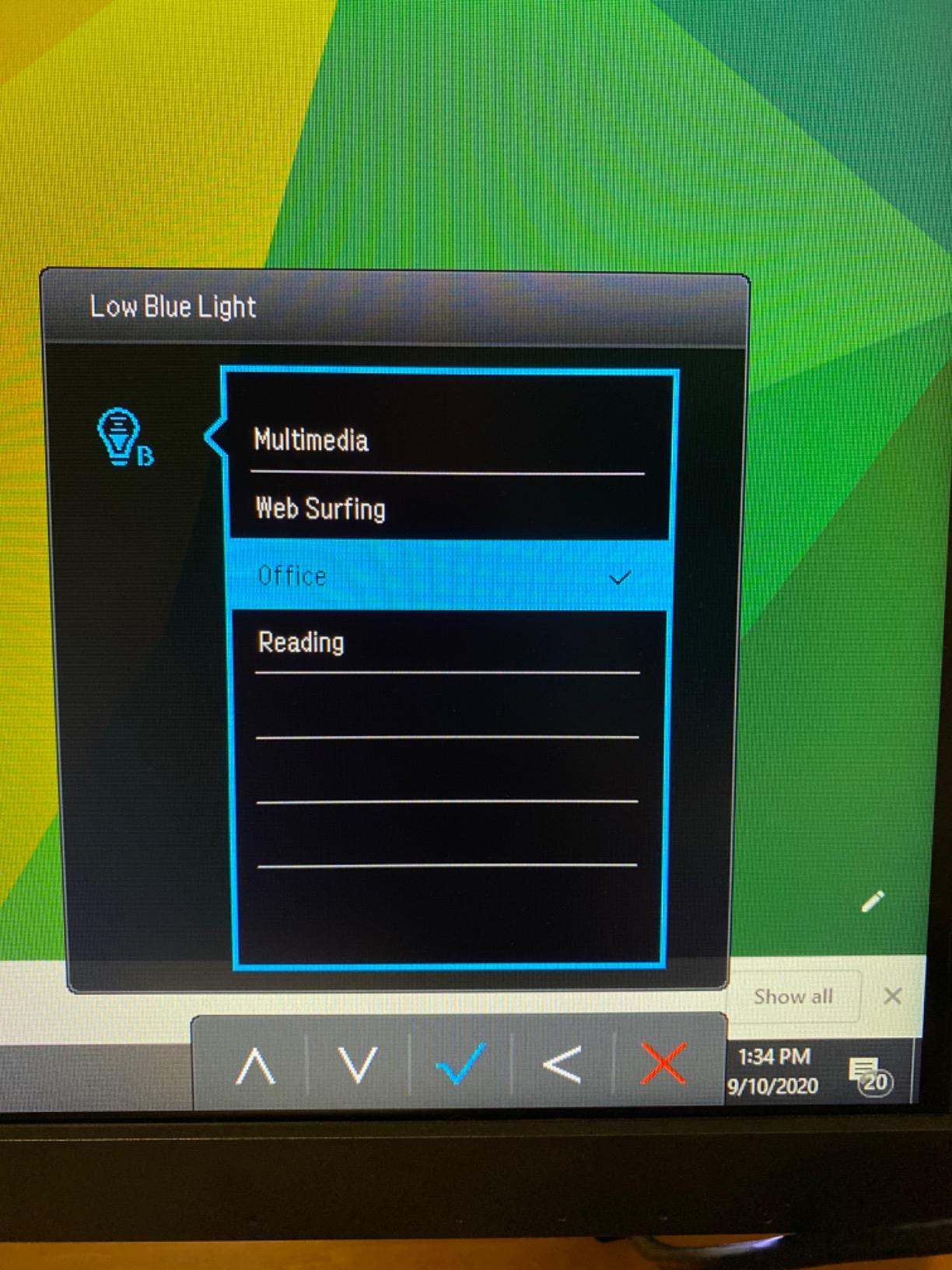
Is the 60Hz refresh rate a problem for long days?
For text-heavy office work, no. Documents, email and code scrolling look perfectly acceptable and the flicker-free backlight does the heavy lifting for comfort. Motion feels less smooth than a 120Hz panel, but smoothness and strain are different things.
If you also play competitive games, look at the Acer KB272 G0bi or the ViewSonic VA2756a-MHD instead. Both run at 120Hz instead, at the cost of the ambient light sensor and the eye-care feature depth.
Who should skip the BenQ GW2780?
Anyone working next to a window or under a bright overhead light. The glossy surface is a persistent annoyance there, and matte alternatives like the Dell SE2725HM cost nothing extra for that reason alone.
Also skip it if you edit photos or video. The 72% sRGB gamut is a colour-work limitation, not a comfort one, and you would want one of the higher-gamut panels further down this list.
2. Dell SE2725HM – the best pick for multi-monitor office setups
Dell 27 Monitor SE2725HM, FHD, IPS, 100Hz, Eye Comfort, Anti-Glare
27-inch IPS at 1920x1080
100Hz, 250 nits, matte finish
TUV 3-star with ComfortView Plus
Pros
- Highest rating in this roundup
- TUV Rheinland 3-star viewing certification
- Colour temperature matches across displays
- Centred VESA mount suits arms and portrait use
Cons
- No speakers and no USB hub
- Supplied stand tilts only
- 8ms response time is slow for gaming
This monitor holds the highest average rating of anything in this roundup, and the reason is unusually specific: it is one of the few business displays where colour temperature matches from screen to screen out of the box. On a desk with two or three panels that matters more than almost any other spec, because mismatched whites make you constantly re-adjust between displays, and that adjustment is what tires your eyes.
ComfortView Plus handles blue light without the colour shift that cheap filters bring, and the TUV Rheinland 3-star certification is a real third-party rating rather than a vendor badge. The matte coating is explicitly designed for office fluorescent lighting, which is the environment most people actually work in.
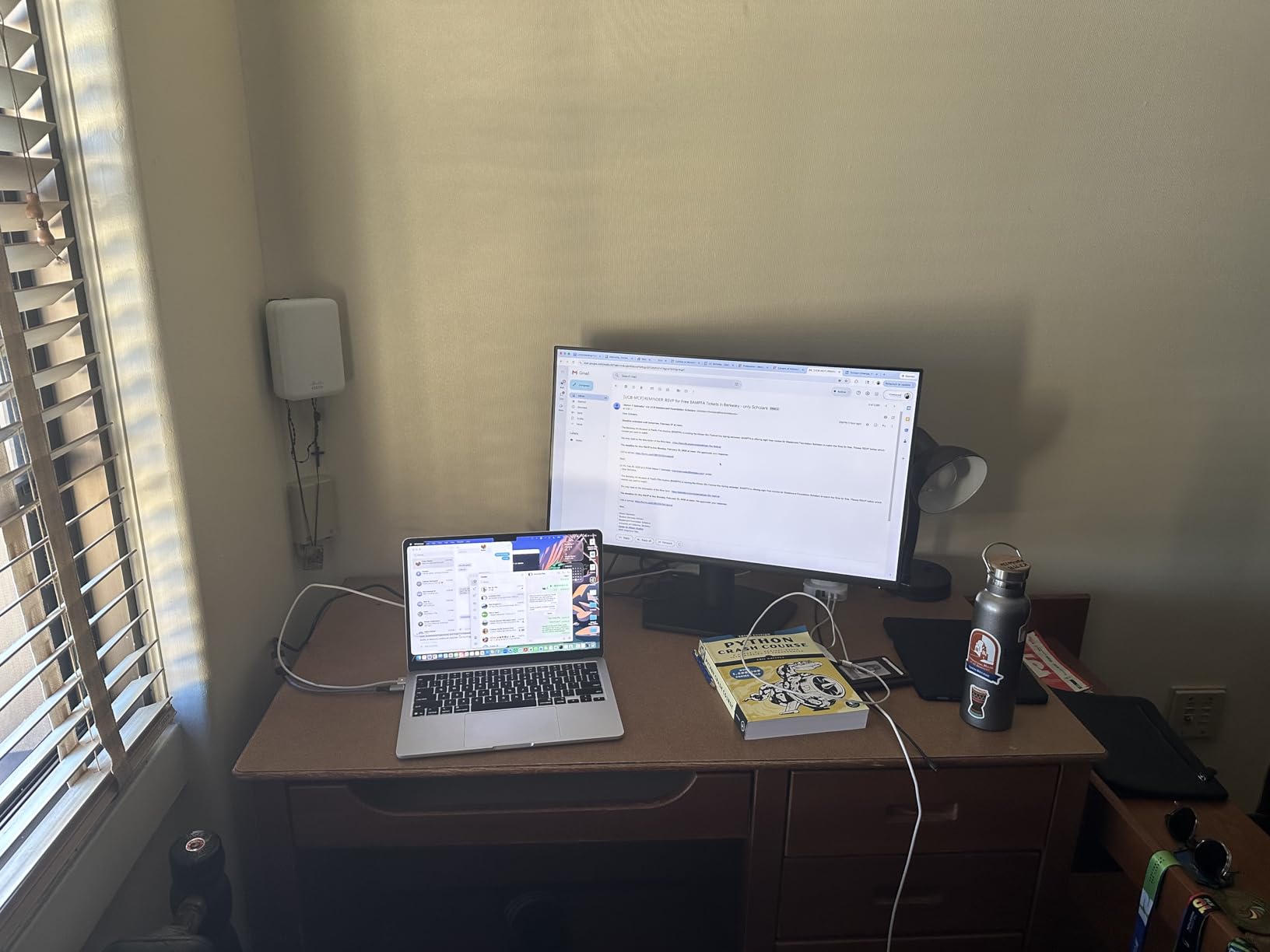
The centred 100x100mm VESA pattern is an underrated ergonomic feature. Most monitors put the mount high on the rear, which makes portrait rotation lopsided; this one sits dead centre, so an articulating arm carries the load evenly and rotating to portrait for document reading is clean. The built-in power supply and cable holder also keep the desk footprint small.
The trade-offs are all connectivity and ergonomics rather than image quality. There is no audio at all, so you need external speakers or headphones. The port selection is HDMI and VGA only, with no USB-C power delivery for a single-cable laptop setup. The supplied stand tilts and nothing else, which is where the VESA mount earns its keep.
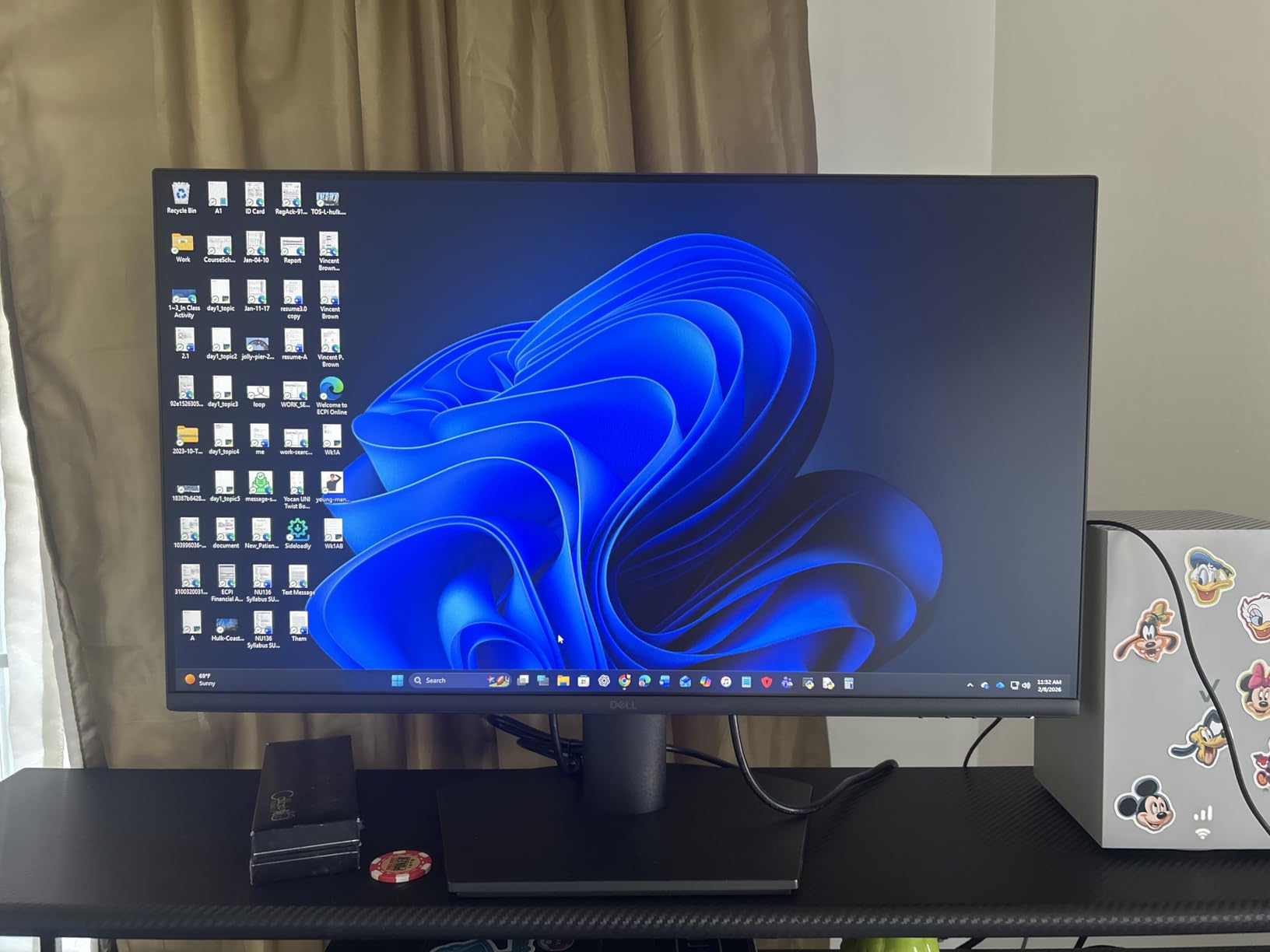
Why does matching colour across monitors matter for strain?
Because your eyes read colour temperature as brightness. When two side-by-side panels have different white points at the same setting, every time you glance from one to the other your pupil and cone cells re-adapt. Over a nine-hour day that repeated re-adaptation produces the same tired, dry feeling as flicker.
IT departments buying in bulk care about this more than individuals do. If you are running two or three screens, consistency out of the box saves you an afternoon of calibration.
Who should skip the Dell SE2725HM?
Gamers. An 8ms response time and 100Hz are fine for desktop work and poor for competitive shooters. If you want one display for both, the Dell S2725QS gives you 4K and 120Hz with a properly adjustable stand.
Skip it too if you work from a laptop on a single cable. There is no USB-C here, so you are carrying two cables or adding a dock.
3. Dell S2725QS – the best 4K pick for aging eyes and long documents
Dell 27 Monitor S2725QS, 4K UHD IPS, 120Hz, 5ms, FreeSync Premium
27-inch 4K IPS at 120Hz
350 nits, 1500:1 contrast
ComfortView Plus blue light filter
Pros
- 4K makes text exceptionally crisp
- Full height tilt swivel and pivot stand
- 120Hz scrolling is noticeably smooth
- Deeper blacks than a standard 1000:1 IPS panel
Cons
- Slower pixel response shows ghosting in shooters
- No USB-C and no audio out jack
- Default brightness is set too high
Higher pixel density is the most under-rated anti-strain feature on this list. At 27 inches and 4K, text is small enough to read without the half-squinting that people with early presbyopia do to make 1080p text legible. Several owners in the reviews specifically name this as the reason the monitor fixed their tired eyes, and it is a purely ergonomic win that no eye-care badge can give you.
ComfortView Plus reduces blue light emission to 35% or less while holding colour accuracy, which is the correct way to do it. The 120Hz refresh rate makes scrolling and window dragging feel smoother than a 60Hz panel, and the 1500:1 contrast ratio gives visibly deeper blacks than a standard 1000:1 IPS screen.
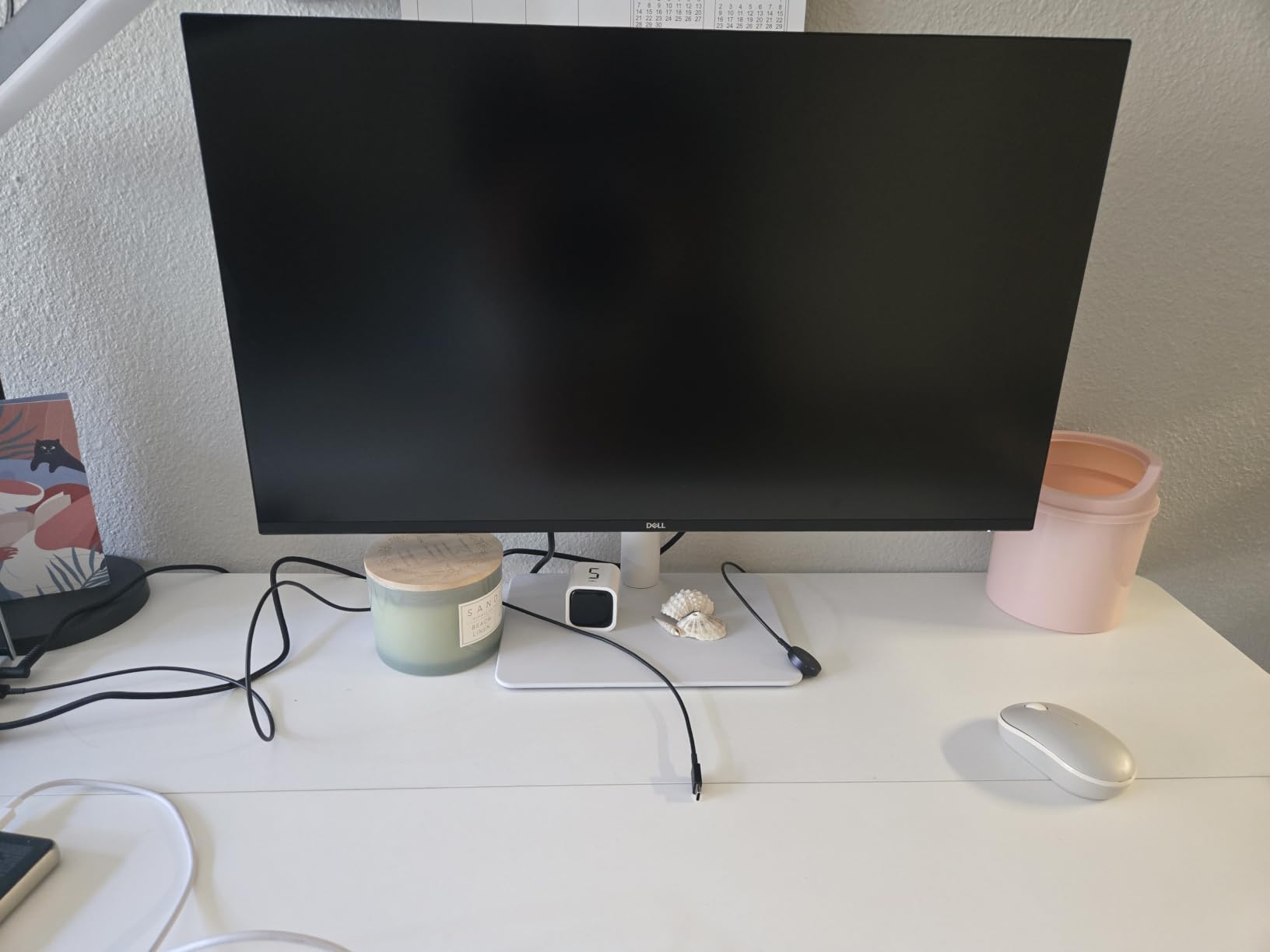
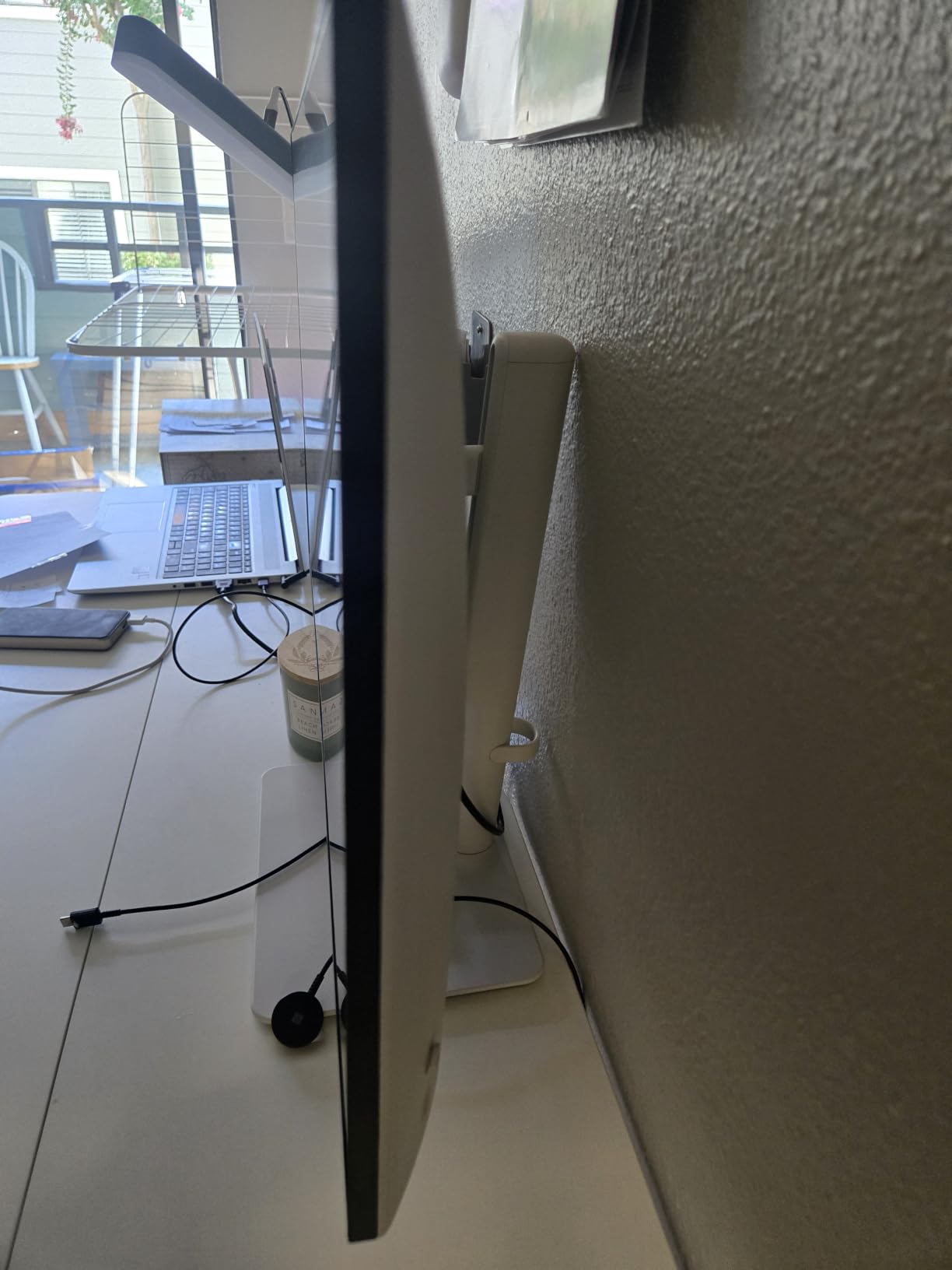
The stand is among the best in this roundup. Height, tilt, swivel and pivot means you can put the top of the panel at or just below eye level and set the distance precisely, which closes the fourth cause of strain – bad geometry – properly. The VESA mount is also centred, so arm use is balanced.
What you give up is modern connectivity and gaming response. There is no USB-C, so a laptop user needs a dock. There is no 3.5mm audio out, which is an odd omission on a display with built-in speakers that lack strong bass. Pixel response is slow enough that competitive shooters show noticeable ghosting. The default brightness is also set too high and needs manual adjustment on day one.
Does 4K resolution actually reduce eye strain?
Yes, indirectly, and mostly for anyone over 35. Sharper text means you can hold a comfortable font size at native scaling instead of increasing it and blurring the result. If your eyes already struggle with small print, this is the single most effective pick in the roundup.
It does nothing for flicker or glare. Those are backlight and coating problems, and a 4K panel with a glossy screen and PWM dimming will still give you trouble.
Who should skip the Dell S2725QS?
Competitive gamers. The pixel response shows ghosting in fast shooters, and if that matters to you, take the same brand’s gaming-oriented route or the KTC H27P6 instead.
Laptop-only users should also look elsewhere. No USB-C means no single-cable docking, and at this size you will want a display you plug a full desktop into.
4. KTC H27P6 – the best 4K dual-mode pick for gamers and laptop users
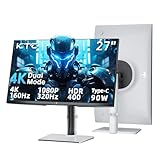
KTC 27 Inch Gaming Monitor 4K, Dual Mode UHD 160Hz & FHD 320Hz, PD 90W Type-C, HDR 400, Fast IPS, 125% sRGB, Adaptive Sync, HDMI 2.1&DP 1.4, Eye Care, Tilt/Swivel/Pivot/Height Adjustment, VESA, H27P6
27-inch 4K Fast IPS
4K 160Hz or FHD 320Hz dual mode
90W USB-C with flicker-free backlight
Pros
- Switch between 4K 160Hz and FHD 320Hz
- 90W USB-C handles video and charging on one cable
- Full height tilt swivel and pivot stand
- Flicker-free backlight with low blue light mode
- Delta E under 2 colour accuracy
Cons
- Default brightness is very high out of the box
- G-Sync compatible but not certified
- Brief pixelated artefacts when switching input
The dual-mode refresh rate is the hook here, and it is a genuinely useful one. You run 4K at 160Hz for desktop work where text sharpness matters, then drop to FHD at 320Hz for competitive games where motion clarity matters. You get both from one panel without a second monitor, which also means one fewer screen competing for desk space and neck movement.
For eye comfort, the flicker-free backlight and low blue light mode do the standard job, and the matte finish handles reflections well. The 90W USB-C port is the sleeper feature for anyone on a laptop: one cable carries video, audio and laptop charging, so your desk stays clear and your posture stays put.
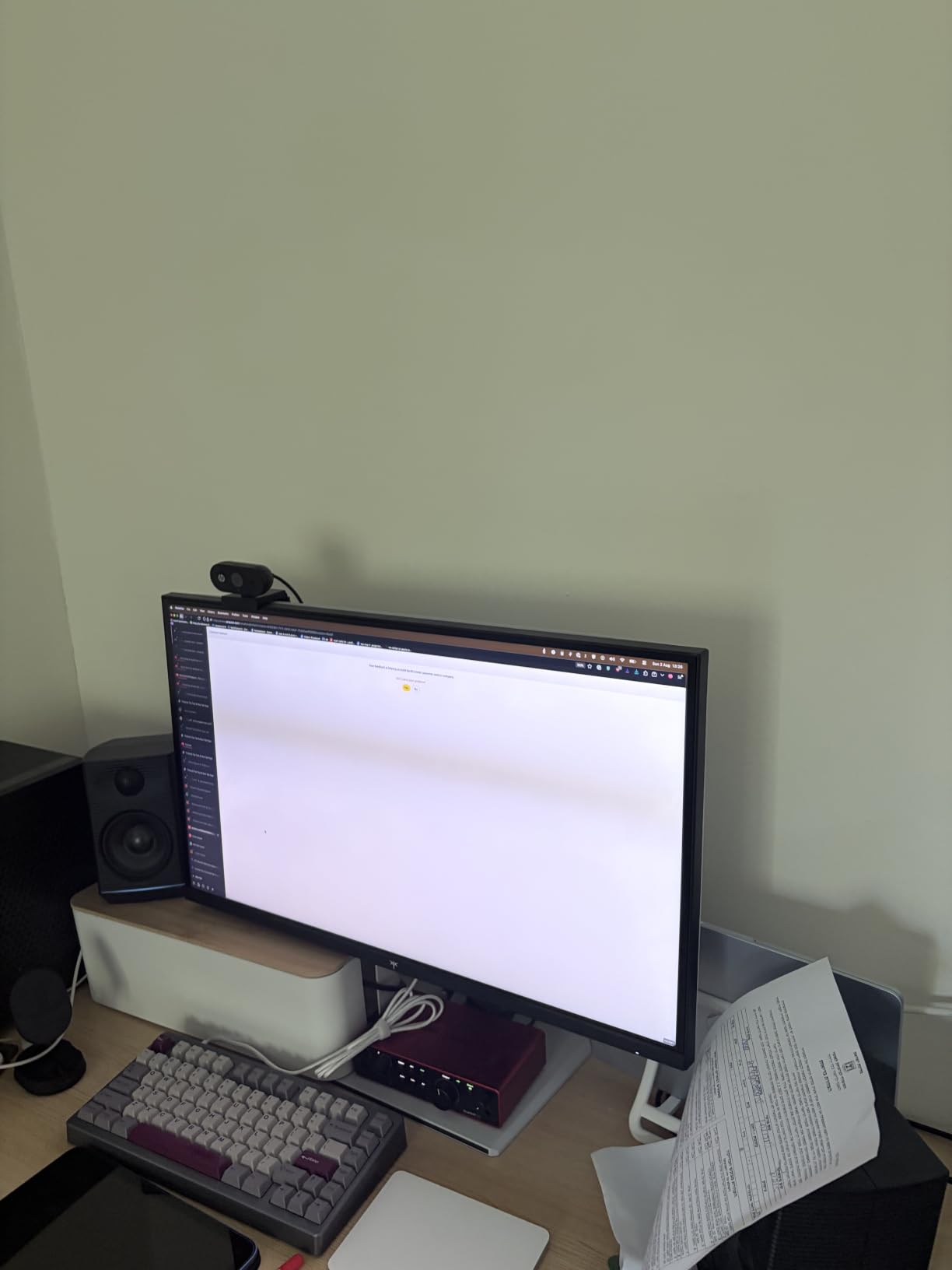
Reviewers repeatedly mention using this for long programming sessions, where the sharp 4K text and steady backlight together did more for their eyes than any previous screen. The fully adjustable stand means the panel can be positioned correctly, and the Delta E under 2 factory calibration means you are not fighting the default colour.
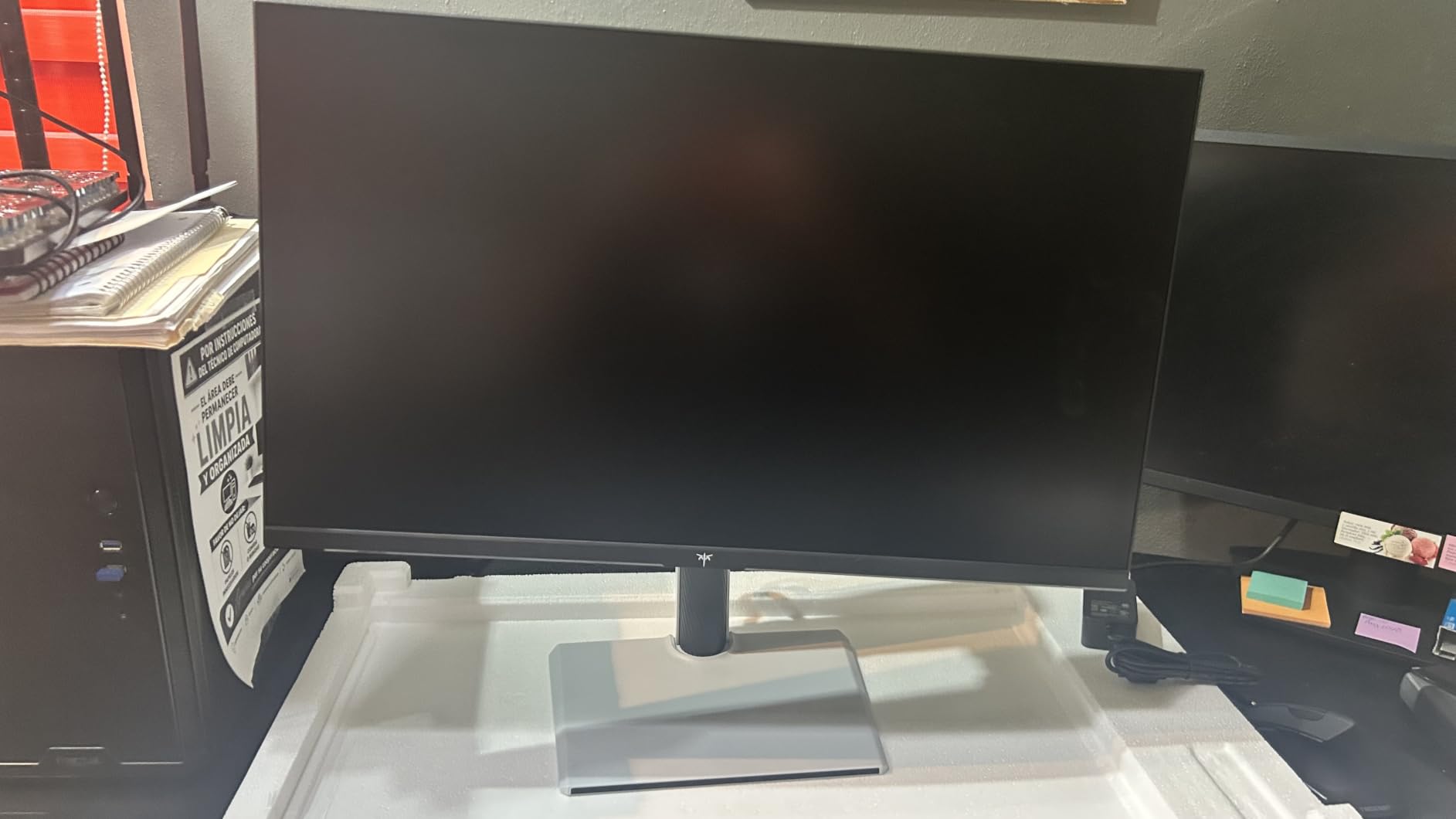
The honest caveats are threefold. The default 50% brightness is genuinely high, so dial it down immediately or your first impression will be the opposite of eye-friendly. G-Sync compatibility is not certified and multi-monitor VRR setups can need troubleshooting. And the matte screen, while great for glare, needs a light touch to clean.
Is a 320Hz mode useful outside competitive gaming?
Almost never, and it is worth being honest about that. For office work, documents and video, the 4K mode at 160Hz is the one you will live in. The high-refresh mode exists for fast shooters where frame-time clarity actually changes outcomes.
If you do not play competitive games, the ViewSonic VA2756a-MHD or the Acer KB272 G0bi give you 120Hz IPS with far less complexity, so spend the difference on an ergonomic arm.
Who should skip the KTC H27P6?
Colour-critical workers. The 125% sRGB gamut is good for general use but well short of what photo and video editing needs. Check our studio monitor picks if that is your work.
Also skip it if you want a monitor with an established long-term service record. The 4204-review BenQ and the multi-year owner reports behind it are a different category of confidence.
5. Philips 271V8LB – the Top Rated VA panel with a reading mode
Philips 27″ Computer Monitor FHD 100Hz VA VESA Eye Care, 271V8LB
27-inch VA at 1920x1080
3000:1 contrast, 250 nits
Flicker-Free with Blue Light Filter
Pros
- VA panel gives deeper blacks than budget IPS
- EasyRead mode is built for long documents
- Four-year parts and labour warranty
- Three-sided bezel-free design
Cons
- Glossy finish is reflective in bright rooms
- 4ms response and 100Hz are dated
- Glossy surface shows fingerprints
The VA panel is the reason to look here. On the forums, VA is frequently described as the most comfortable panel type for long sessions, and the mechanism is contrast: deeper blacks mean less visible grey haze in dark interface elements, which reduces the constant micro-adjustment your eyes do when text sits on a washed-out background.
EasyRead mode is the feature most people in this category never find. It shifts the display to a warm, paper-like rendering specifically tuned for reading long documents, and Philips pairs it with flicker-free operation and a blue light filter. The 178/178 degree viewing angle means colour holds when you lean to one side of a wide desk.
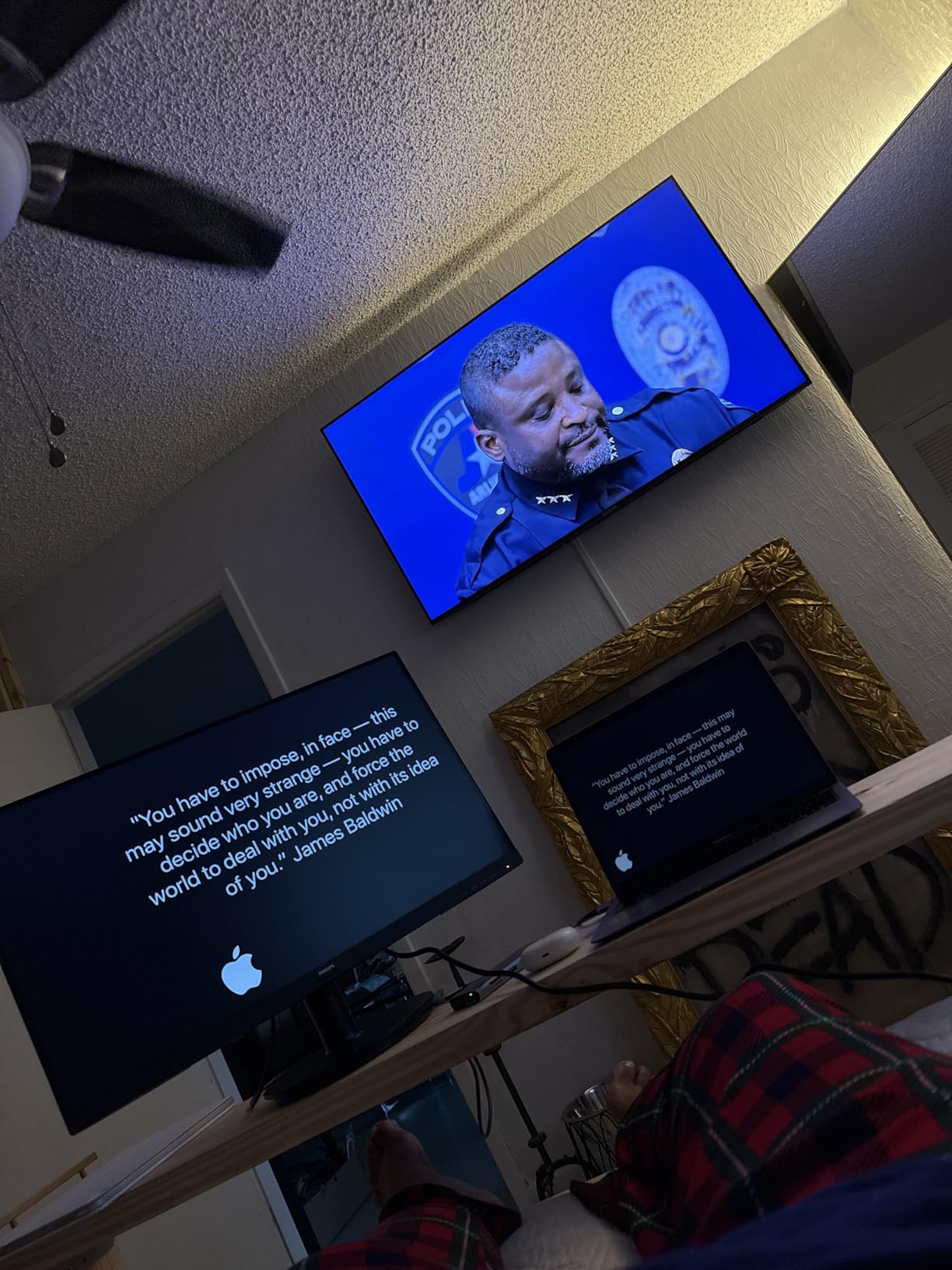
Two things stand out beyond the panel itself. The four-year parts and labour warranty is unusually long for a display of this class, which matters if you are replacing a monitor every four or five years like most people do. And the three-sided bezel-free design makes a two-monitor setup look deliberate rather than assembled.
The glossy finish is the catch, and for a monitor aimed at eye comfort it is a meaningful one. It mirrors whatever light is in front of it, so it works well in a controlled room and badly in a bright one. The 4ms response time and 100Hz refresh are behind current standards, and neither matters much outside games.
Is a VA panel really easier on the eyes than IPS?
For text-heavy office work, often yes, and the reason is contrast rather than the panel name. A 3000:1 VA panel shows darker blacks than a 1000:1 IPS panel, so white text on a dark background has more separation and your eyes work less to resolve edges.
The trade is viewing angle consistency and response speed. VA panels shift contrast faster when you move off-axis, and 4ms is slower than a good Fast IPS panel. If you sit dead centre and read documents, VA wins on comfort.
Who should skip the Philips 271V8LB?
Anyone in a bright room. The glossy surface is a hard limitation, not a minor one, and matte alternatives in this list cost nothing more.
Also skip it for colour work. The panel is not wide gamut, and gloss plus a bright room compounds an already limited colour range.
6. ViewSonic VA2756a-MHD – the smoothest 120Hz panel at this tier
ViewSonic VA2756A-MHD 27 Inch Full HD Computer Monitor, IPS 120Hz Display
27-inch SuperClear IPS at 120Hz
Eye ProTech flicker-free with blue filter
250 nits, matte anti-glare
Pros
- Eye ProTech measurably reduced fatigue on long shifts
- 120Hz Adaptive Sync makes scrolling very smooth
- DisplayPort-out supports daisy-chained multi-monitor
- Three-year warranty covering backlight
Cons
- No height adjustment on the stock stand
- 250 nits is modest for bright rooms
- No USB hub and a rear rocker control
This is the one I would recommend for someone whose eyes hurt specifically during long scrolling sessions. Owners moving from older 60Hz office panels describe the 120Hz step as the change they notice most, and combined with Eye ProTech flicker-free operation and a blue light filter it is a strong combination for a full workday.
The ViewMode presets are more useful than they sound. A dedicated Text and Mono mode adjusts brightness and gamma for document work, which is a cheap way to take strain out of an eight-hour day without touching system settings. The SuperClear IPS panel holds colour and brightness steady as you shift position in your chair.
DisplayPort-out daisy chaining is the feature that sets it apart for desk builders. You can run two monitors from a single cable run to the PC, which keeps a 27-inch display from turning your desk into a cable thicket and removes one more thing to route around your neck.
The stand is the real compromise. It has no height adjustment and minimal tilt, and some owners call it wobbly on an uneven desk. That matters more here than on the Dell models because correct screen height is one of the four causes of strain. The fix is a monitor arm on the VESA mount, which most owners end up buying anyway. The 250 nits peak brightness is fine indoors but not in a very bright room.
Does a higher refresh rate reduce eye strain?
Smoothness and strain are related but not the same thing. Higher refresh reduces the perception of judder during scrolling and mouse movement, and many users find that easier on their eyes over a long day. It does not address flicker, glare or brightness mismatch, which are the bigger causes.
Some flicker-sensitive users report the opposite effect at high refresh rates, which is why 120Hz is a safer recommendation here than chasing 240Hz.
Who should skip the ViewSonic VA2756a-MHD?
Anyone who will not add a monitor arm. Without height adjustment you are relying on desk height alone, and many desks sit too low for a comfortable top-of-screen position.
Photo and video editors should look elsewhere; this is an office and general-use panel, not a colour tool.
7. ASUS VL279HE – the certified flicker-free IPS with third-party proof
ASUS VL279HE 27” Eye Care Monitor, 1080P Full HD (1920 x 1080), IPS, 75Hz, Adaptive-Sync, FreeSync, HDMI D-Sub, Frameless, Slim, Wall Mountable, Flicker Free and Blue Light Filter
27-inch IPS at 1920x1080
75Hz, 250 nits
TUV Rheinland flicker-free and low blue light
Pros
- TUV Rheinland certification for flicker-free and low blue light
- Matte anti-glare panel
- Multi-year owners report no defects
- 178 degree IPS viewing angle
Cons
- 75Hz refresh rate is low by current standards
- No built-in speakers and only two ports
- VESA mount placement makes portrait rotation awkward
The reason this one is worth your attention on a list full of eye-care claims is that TUV Rheinland certification is a third-party measurement, not a marketing badge. An independent lab has tested that the backlight does not flicker perceptibly at any brightness setting, which is exactly the claim you cannot verify yourself before buying.
The matte anti-glare panel absorbs ambient and direct light with minimal glare, which handles the second mechanism behind digital eye strain. On the forums, this certification is the specific thing people ask sellers to confirm, and having it printed in the spec sheet removes the guesswork.
Long-term ownership reports are strong. Multiple owners describe several years of use without defects, and the IPS panel gives consistent brightness and colour from screen to screen, so a second one later will look like the first. The blue light filter gives you real control for evening work, and the brightness options cover the full range you would need.
Three limitations are worth weighing. The 75Hz refresh rate is low by any current standard and the 5ms response shows mild smearing in fast games. There are only two ports and no built-in speakers. The VESA mount sits on the lower half of the panel, so rotating to portrait is awkward – which is a shame for a monitor whose selling point is reading comfort.
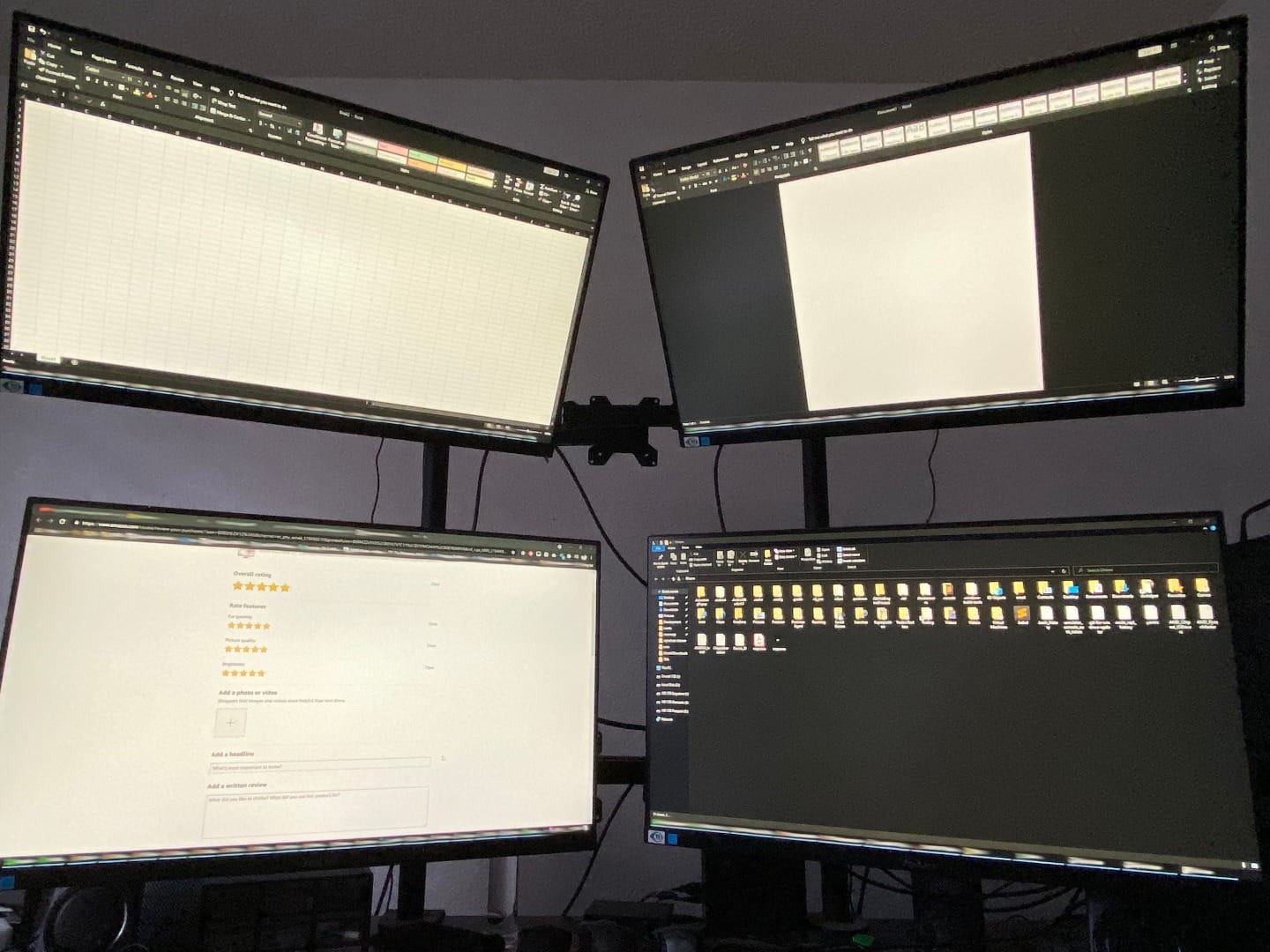
Does a TUV Rheinland certification actually mean anything?
Yes, more than a vendor claim, and this is a category full of those. TUV Rheinland is an independent testing body that measures flicker under controlled conditions at multiple brightness levels. Eyesafe works similarly for blue light, rating both emission level and colour accuracy retention.
A vendor badge reading eye care or eye comfort means nothing verifiable. When a third party has published a measurement, it is worth paying a little more for.
Who should skip the ASUS VL279HE?
Anyone moving from a 120Hz panel. The step down to 75Hz is jarring and scrolling feels noticeably less smooth. The ViewSonic VA2756a-MHD covers the same ground with 120Hz.
Portrait-mode readers should also skip it, because of where the VESA mount sits.
8. Acer KB272 G0bi – the best budget IPS with 120Hz
Acer 27in FHD 1920×1080 IPS 120Hz Gaming Monitor | Office KB272 G0bi
27-inch IPS at 1920x1080
120Hz with 1ms VRB
250 nits, matte anti-glare
Pros
- IPS wide viewing angles with 99% sRGB
- 120Hz makes scrolling noticeably smoother
- Matte finish reduces reflections
- Three-year parts and labour warranty
Cons
- Tilt adjustment only on the stand
- 250 nits is modest in bright rooms
- HDMI and VGA with no DisplayPort or USB
This is the pick if your whole brief is get an IPS panel with a smoother image than my old 60Hz office screen, without spending much. The 120Hz refresh rate is the upgrade that matters and it costs almost nothing here, while the IPS panel gives you wide viewing angles and consistent colour, which matters on a shared desk or a sit-stand setup.
The matte finish handles reflections in ordinary office lighting, and its 18W power consumption suits an always-on office display. The three-year parts and labour warranty is longer than most competing office monitors at this level, which matters more than the spec sheet suggests for something you will keep for years.
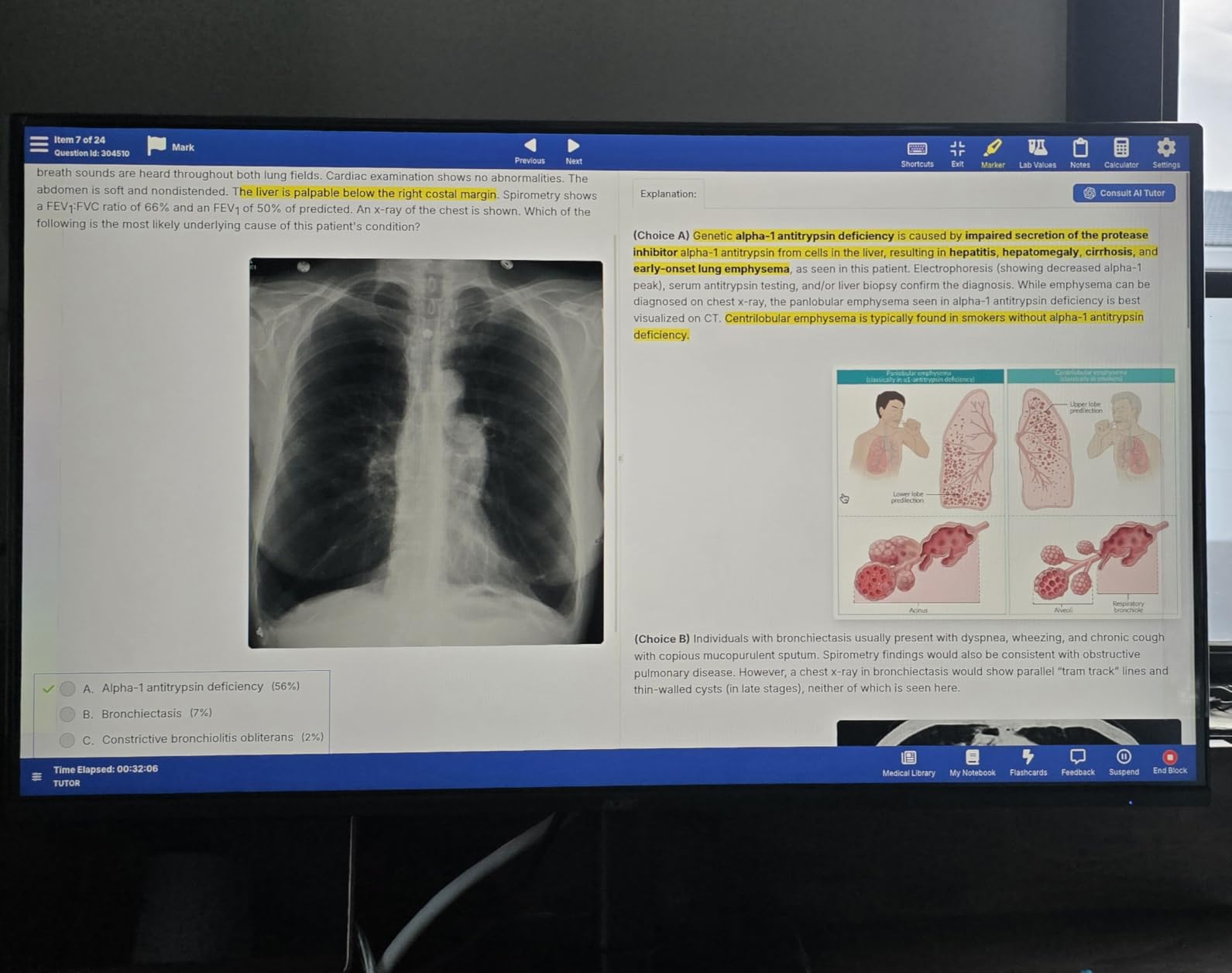
Review sentiment is unusually consistent for a budget panel: owners describe it as a meaningful upgrade from older 60Hz office displays, specifically on motion smoothness and viewing angles. The limitation everyone names is ergonomic rather than visual, and that tells you something important about where the problem actually is.
That limitation is the stand. Tilt only, with no height, swivel or pivot range. Most owners solve it with a VESA arm, which the panel supports. Two smaller gaps: 250 nits is modest if your room is bright, and there is no DisplayPort or USB hub for modern single-cable setups.
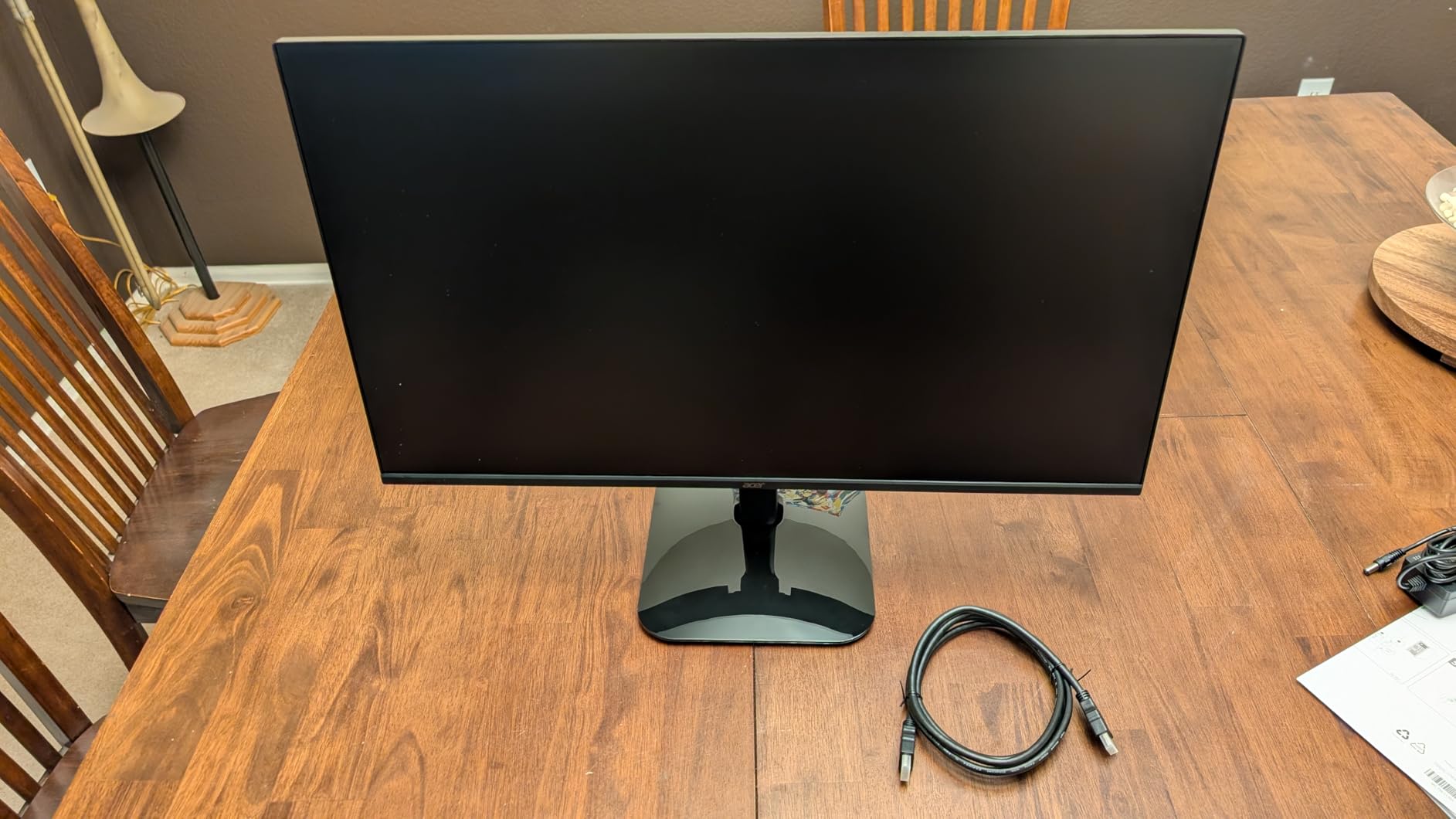
Is 120Hz worth it for office work?
For most people, yes, once you have had it. Scrolling, window dragging and cursor movement all feel smoother, and a lot of users who moved from 60Hz describe it as the change they notice most. It is not a cure for strain, but it removes a constant low-grade source of visual friction.
If you never scroll and mostly read static pages, put the money towards a monitor with a better anti-glare coating or an ambient light sensor instead.
Who should skip the Acer KB272 G0bi?
Anyone in a very bright room. At 250 nits with a matte finish, you will be running it near maximum brightness and still fighting glare, which is exactly the brightness-mismatch situation that causes strain.
Port-dependent users should note there is no DisplayPort, so a high-refresh desktop without HDMI is a problem.
9. Sceptre E275W-FW100T – the best value with built-in speakers
Sceptre 27-inch Prime Gaming Monitor 100Hz 1ms DisplayPort HDMI x2 100% sRGB AMD FreeSync Build-in Speakers, Eye Care Frameless Machine Black 2025 (E275W-FW100T Series)
27-inch LED at 1920x1080
100Hz, 1ms response
Blue Light Shift mode, matte finish
Pros
- Blue Light Shift reduces blue light output
- Sharp text at 1920x1080 with no visible pixel structure
- Built-in speakers save desk space
- Two HDMI and one DisplayPort with audio out
Cons
- Built-in speakers are tinny with little bass
- Single-button controls can fail over time
- Stand does not rotate
The Sceptre earns its place on one specific strength: it is one of the few picks in this roundup with three video inputs and working audio, which removes the need for a dock or a separate speaker bar on a small desk. The 100Hz panel and 1ms response give a smooth image, and several long-hours users describe it as easy on the eyes.
Blue Light Shift is the eye-care feature here. It reduces blue light output through a single button press rather than a multi-step menu, so you are far more likely to actually use it. At 1920×1080 on 27 inches the text is sharp with no visible pixel structure in documents, which is the practical test that matters for office work.
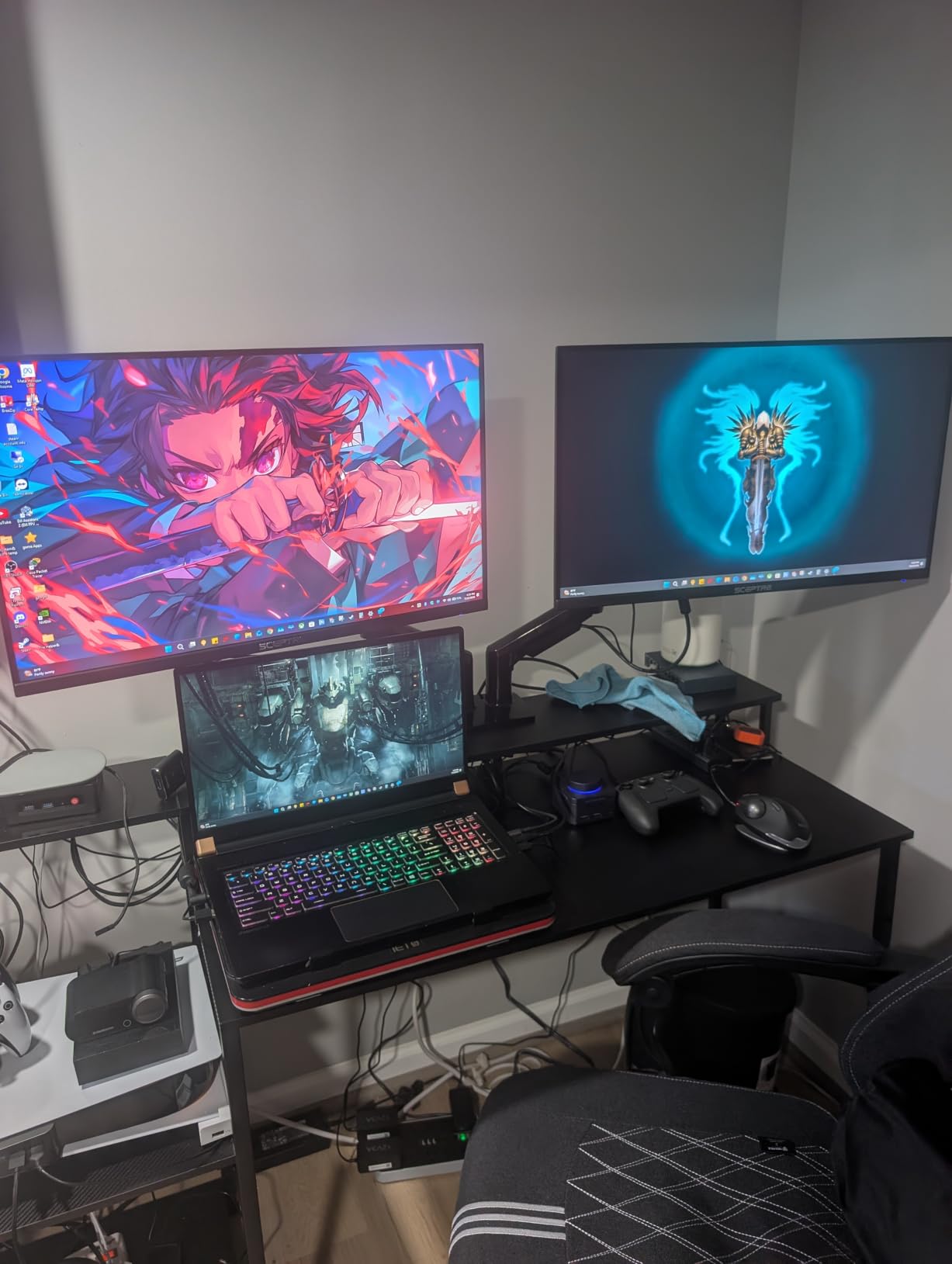
The custom FPS and RTS game modes are a nice touch that cost nothing and give you a sensible starting point per title. Setup is quick and the unit is light enough to reposition easily, which makes it a painless home office upgrade.
The complaints are consistent and minor. The speakers are tinny and flat, so treat them as desk filler rather than a music system. The single-button control design has been reported to become unreliable over time, and a small number of owners ended their purchase because of it. The stand does not rotate, and there is a slight gap visible in the plastic bezel layers at the extreme screen corners.
Does a blue light filter mode actually help?
The honest answer from the communities that argue about this most is that it is the least important of the four mechanisms. Warm-shifting the output does reduce short-wavelength light, but the effect on reported strain is small compared to flicker and glare. It is worth using, but not worth choosing a monitor over.
Treat it as a comfort feature, not a treatment. If your strain is real and persistent, flicker-free operation and correct brightness matter more.
Who should skip the Sceptre E275W-FW100T?
Colour-sensitive users. Average colour accuracy is average, and it is not a panel for anyone grading or editing.
Long-term durability seekers should also note the control button reliability reports, and that it is one more reason the higher-reviewed picks above might suit you better.
10. SANSUI ES-24X5AL – the best secondary office display
SANSUI Computer Monitor 24 inch Eye Care FHD 1080P Display HDMI,VGA Ports with 178° Viewing Angle/Frame-Less/Tilt/VESA Compatible for Office and Home
24-inch LED LCD at 1920x1080
250 nits, matte finish
Flicker-Free with Low Blue Light filter
Pros
- Flicker-Free and Low Blue Light for office work
- 178 degree viewing angles
- Tool-free assembly
- HDMI cable included and VESA mountable
Cons
- No speakers and no headphone jack
- Not true HDR
- Needs brightness and contrast adjustment out of the box
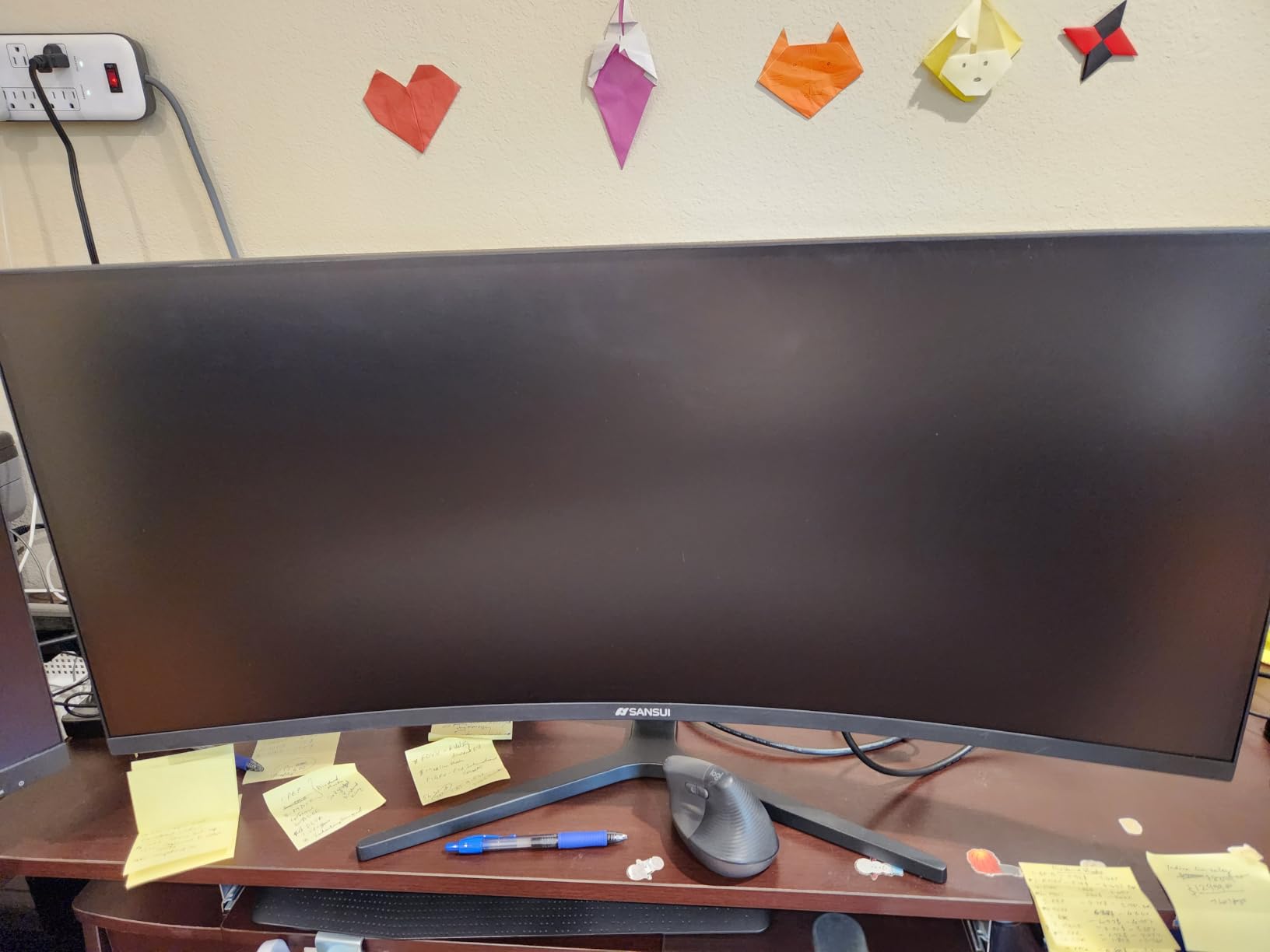
The role this monitor plays well is being the second screen: email, documents, a chat window, a reference tab. At 24 inches it sits comfortably next to a main display without demanding more desk depth than you have, and 178-degree viewing angles mean it looks fine from the edge of your vision, which is how a secondary screen is actually used.
Flicker-Free operation and a low blue light filter are both present, and with 4661 reviews across the size range it is one of the most thoroughly owner-tested budget displays available. Assembly is tool-free and the HDMI cable is in the box, which removes the most common setup friction.
On ergonomics there is one important limitation. The stand adjusts tilt only, between negative 5 and positive 22 degrees, so if you are taller than average you will need the 75x75mm VESA mount and an arm to get the top of the panel at eye level. That is worth budgeting for if strain is the reason you are shopping.
There are no speakers and no headphone jack, so audio needs separate equipment. The 250 nits brightness and 4000:1 contrast ratio are adequate for office lighting but not for a bright room. A number of owners also report needing to correct brightness, sharpness and contrast out of the box before it looks right.
Is a 24-inch monitor better for eye strain than a 27-inch?
Often, yes, and the reason is distance rather than size. A 24-inch panel can sit closer to your eyes, so the angular size of the content is smaller and your eye muscles move through a smaller range. That is one reason forum users who moved from a 34-inch ultrawide to a 23-inch panel reported their strain disappearing.
The compromise is screen real estate. If you work with multiple windows side by side, 27 inches at 4K gives you more usable space than 24 inches at 1080p.
Who should skip the SANSUI ES-24X5AL?
Anyone whose desk position is fixed and who needs height adjustment. Tilt-only is a real ergonomic ceiling on a monitor you are buying specifically for comfort.
Also skip the larger curved sizes in the same family. Owners report washed-out colour and black-level problems on some of those variants that OSD adjustments do not fix.
11. Philips 27E2N2100 – the sharpest 1080p text rendering
Philips 27 Inch Computer Monitor FHD 120Hz IPS VESA, 27E2N2100
27-inch IPS W-LED at 1920x1080
120Hz, 300 nits
LowBlue Mode with flicker-free
Pros
- Very sharp text rendering at 1080p
- LowBlue Mode praised by owners with eye strain
- 300 nits outshines most budget rivals
- Four-year advance replacement warranty
Cons
- Stand does not tilt at all
- Glossy finish is reflective in bright rooms
- Audio out port is inconsistent between examples
Owners with eye strain and reduced vision rate this one highly, and two themes dominate the reviews: the text rendering is unusually sharp for a 1080p IPS panel, and the LowBlue plus flicker-free pairing is genuinely comfortable over long sessions. LowBlue Mode is a one-click setting, so it gets used, which is more than can be said for buried filters.
At 300 nits this is a brighter panel than most of its direct rivals, which gives you headroom to run it well below maximum in a lit room. That headroom matters more than raw brightness, because a panel that forces you to maximum brightness in a dark room creates exactly the contrast mismatch that causes strain.
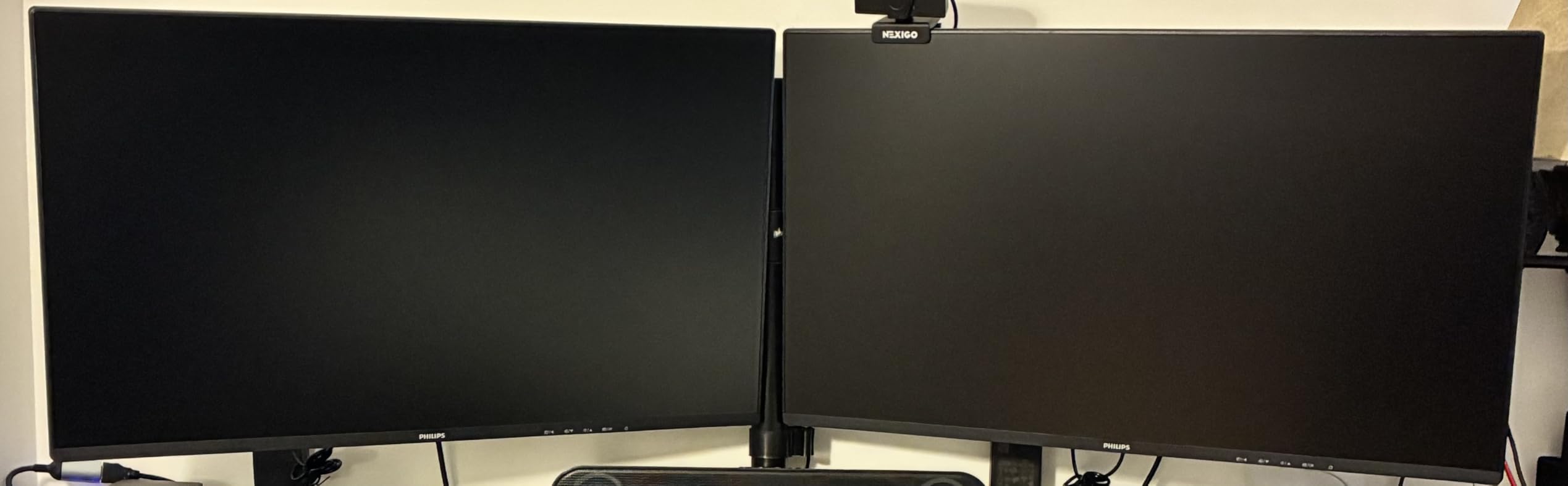
The four-year advance replacement warranty is unusually generous at this level. The flat 27-inch form suits students and writers better than a curved screen, and the three-sided frameless design supports multi-monitor pairs, which is how most owners deploy it.
Two limitations stand out. The stand does not tilt at all, so the viewing angle is completely fixed, the least ergonomic arrangement in this roundup. And the glossy finish will mirror a window or a lamp. There is also an inconsistency in whether the audio out port is present between otherwise identical monitors, with no Bluetooth option to work around it.
Is a completely fixed stand a dealbreaker for eye strain?
It is a significant handicap. Screen height is one of the four causes of strain, and a stand with no tilt and no height range gives you no control over it. You are relying entirely on the height of your desk and the height of your chair.
Look at the viewing angle instead. A panel designed for a fixed stand is often built to look good straight on, so if you sit centred at a conventional desk this works. If your setup is unusual, add an arm to the cost.
Who should skip the Philips 27E2N2100?
Anyone in a bright room. A glossy panel in daylight is a glare problem that no eye-care mode addresses.
People who want a display with a deep review history should also note that 108 reviews is a much thinner evidence base than the 4204 behind the BenQ at the top of this list.
12. INNOCN 34C1R – the best ultrawide for replacing a multi-monitor desk
INNOCN 34″ Ultrawide Monitor WQHD 3440 x 1440P 180Hz IPS PC Adaptive-Sync G-SYNC Compatible, HDMI, DP, PIP/PBP, 21:9, HDR, MPRT, Built-in Speaker, Height Adjustable, Eye Care – 34C1R
34-inch ultrawide IPS at 3440x1440
180Hz overdrive, 400 cd/m2
Eye Care with flicker-free, 130mm height
Pros
- One screen replaces a multi-monitor array
- 130mm height adjustment gets the top of the panel right
- Eye Care flicker-free with anti-glare
- DisplayPort-out plus PIP and PBP
Cons
- Needs a deep desk and more viewing distance
- Flat 34-inch panel can look bowed to some users
- Only a one-year manufacturer warranty
The productivity argument here is straightforward. Owners consistently describe a single 34-inch 3440×1440 panel replacing a two or three monitor array, which removes the neck movement that comes with constantly swiveling between screens and eliminates the bezel seam you were reading across. One screen, one focal distance, one neck position.
The Eye Care flicker-free operation and anti-glare coating do their job, and the 130mm of height adjustment is the most generous in this roundup. At 400 cd/m2 you have plenty of headroom to run it dim in a bright office, which matters more for comfort than the headline brightness number.
IPS colour consistency holds at steep viewing angles, which is important on a sit-stand desk where your eye level changes through the day. PIP and PBP let a PC and a console display at once, and the DisplayPort-out plus audio jack make it a practical single hub for a desk.
The honest problem is distance, not the panel. A 34-inch ultrawide sits wider than your natural focal range, and forum users who switched to one report strain unless they can sit far enough back. That needs desk depth. Two further caveats: brightness arrives set to 70% and needs adjusting, and a flat 34-inch panel can look bowed outward when you sit close to it, where a curved model suits better. Our ultrawide monitor guide covers the geometry properly.

Is a bigger monitor always better for eye comfort?
No, and it can be the opposite. Larger panels demand more viewing distance to keep text at a comfortable angular size. A 34-inch ultrawide sat too close gives you constant eye movement across the width, which is a common source of the strain people report after switching to one.
Bigger helps when the gain is density rather than size. A 27-inch 4K panel gives you sharper text at the same viewing distance. Big and low density at close range is the worst combination.
Who should skip the INNOCN 34C1R?
Anyone on a shallow desk or in a small room. You need the distance, and if you cannot get it, this monitor will cause the problem you are trying to solve.
Colour-critical workers should skip it too, and buyers who want a long warranty should note this one carries only one year.
How to test any monitor for flicker in two minutes
You can check a monitor before you buy it, or on arrival before the return window closes, and the test takes about two minutes. Bring a phone with a decent camera and you do not need any equipment.
Open the camera app, point it at the screen, and set the monitor brightness to about 20% – the level where PWM dimming shows its worst behaviour. Slow down the camera’s exposure or video mode. On a PWM-dimmed display you will see horizontal bands travelling down the screen, like a slow scanline. On a DC-dimmed or high-frequency display the screen looks solid even at that low brightness.
Then raise the brightness to 60% and 90% and repeat. A monitor that flickers badly at low brightness but is clean at high is using PWM with a low-frequency floor, which is the exact profile that causes strain. This is why the brightness at which a display looks comfortable in a shop tells you almost nothing.
A second, simpler check is the stare test. Look at the corners of a white screen at low brightness for 30 seconds while moving your eyes slightly. If you see shimmer or a faint crawling in your peripheral vision, that is flicker. Do this before the box goes back in the cupboard, not after.
Panel type ranked for eye comfort: VA vs Fast IPS vs IPS vs TN vs OLED
VA is the most comfortable panel type for most people, because its higher native contrast produces deeper blacks and less grey haze behind text. Fast IPS comes second: excellent viewing angles and a fast response, with contrast that is lower but still good. Standard IPS is a close third. TN is the one to avoid for comfort, and OLED is smooth and excellent for motion but can be very bright at low settings.
VA wins on contrast. A 3000:1 VA panel shows blacks that a 1000:1 IPS panel simply cannot produce, and that difference shows up as reduced haze around white text on dark backgrounds, which is where your eyes spend most of a workday. The weakness is that VA contrast shifts noticeably when you move off-axis, so it suits a viewer sitting centred in front of the screen.
Fast IPS is the safe all-rounder. Response times are quick, colour holds at wide angles, and modern Fast IPS panels have closed most of the old IPS glow problem in dark rooms. If your work involves both documents and motion, this is the sensible compromise, and nine of the twelve monitors on this list use an IPS or Fast IPS panel.
TN panels get named as the worst option on eye-comfort forums, and that reputation is deserved. Viewing angles are narrow and colours shift as you lean, so you end up holding your head in one position. None of these twelve picks use TN.
OLED is the smoothest image available and the fastest response, and none of these picks are OLED. That is deliberate rather than an oversight. OLED panels are typically dimmable only digitally, so brightness control becomes coarse steps rather than smooth adjustment, and the ones that support analog dimming at low brightness get very warm. For most people a well-chosen LCD with proper PWM behaviour is more comfortable over a full day.
The buying guide: eight specs that matter and two that do not
Dimming method comes first, ahead of everything else on this list. If a monitor dims with low-frequency PWM, no other feature compensates. Look for an explicit flicker-free claim or a TUV Rheinland certification, and test at low brightness before you commit. The two Philips models and the BenQ in this roundup carry third-party certification, and the Dell SE2725HM carries a 3-star rating.
Second is surface finish. Matte anti-glare is the right choice for almost everyone. Glossy panels look better in a product photo and worse in a real room, because every light source in front of the screen gets mirrored. Three picks here are glossy, and all three carry that as a stated drawback.
Third is panel type, covered above. Fourth is brightness headroom, which is not the same as peak brightness. You want a panel bright enough that you can run it below maximum in your room, because running a bright monitor at minimum brightness in a dark room creates a contrast mismatch that causes strain.
Fifth is stand adjustability. Height adjustment matters more than swivel or pivot because it sets the top of the panel at or just below eye level. Tilt-only stands, on the Acer KB272 G0bi and the SANSUI ES-24X5AL here, push you toward buying an arm, so budget for one.
Sixth is resolution matched to size. 27 inches at 1080p gives roughly 82 pixels per inch, 24 inches at 1080p about 92, and 27 inches at 4K about 163. Higher density means you can hold a comfortable font size at native scaling instead of enlarging and blurring text, which is a real ergonomic gain for anyone over 35.
Seventh is refresh rate, with an honest caveat. Moving from 60Hz to 120Hz genuinely reduces the perception of judder during scrolling, and most users notice it immediately. Pushing to 240Hz or beyond adds little for comfort and some flicker-sensitive users report it feels worse, which is why nothing above 180Hz appears in this roundup. If motion is your problem rather than text, our gaming monitor picks go into it further.
Eighth is size matched to distance, and this is where buyers go wrong. A 34-inch ultrawide needs noticeably more desk depth than a 27-inch panel. The forum pattern is consistent: people who upgraded to a large ultrawide and then developed strain were sitting too close. If you work away from a desk regularly, a portable monitor keeps your viewing distance close to your face.
Two things not to over-weight: response time, which is a gaming specification with little bearing on comfort, and peak brightness in nits, which only matters as headroom as described above. Colour gamut matters for image quality but has almost no relationship to eye strain. What about blue light filters? They are the most marketed feature in this category and the least important one, for the reason covered in the Sceptre review above.
Setting up the monitor so your eyes stop complaining
Hardware only gets you part of the way. The 20-20-20 rule is the most reliable single habit for screen users: every 20 minutes, look at something 20 feet away for 20 seconds. It works because it gives the focusing muscles in your eye a break from sustained near work, and it costs nothing.
Set your viewing distance at roughly an arm’s length, so the top of the screen is at or just below eye level. Looking slightly downward at text puts your eyelids in a more relaxed position than looking straight ahead or up, which is why a monitor with height adjustment beats a fixed one.
Match brightness to the room rather than to the panel. If a white document looks as bright as a sheet of paper held at arm’s length, you are roughly in the right place. If the room gets dark in the evening, turn the monitor brightness down rather than leaving it blazing, and consider a bias light behind the monitor or a monitor lamp to lift the ambient level without adding contrast.
Finally, use the software you already have. Night Shift and equivalent features shift the output warmer in the evening, and display scaling settings that match your panel’s native resolution keep text sharp rather than smeared. These are free and they work alongside a good panel rather than replacing one.
When eye strain is not a monitor problem
Some strain has nothing to do with your hardware, and buying a monitor will not fix it. Persistent headaches, blurred vision that clears when you look away, or dry eyes that continue after you stop working are symptoms worth taking to an optometrist rather than to a product page.
Uncorrected vision is a very common cause of screen-related headaches, and no monitor corrects a refractive error. Users who needed reading glasses found their eye strain disappeared entirely with a prescription, which is the quickest fix available to anyone reading this. Another common factor is dry eye, often worsened by long unbroken screen sessions and by air conditioning or fans pointed at your face.
The graphics card deserves its own note. Forum users report identical monitors causing strain on AMD hardware and none on Intel hardware, and temporal dithering in the display pipeline is the usual explanation. If your strain appears on one computer but not another with the same monitor, change one variable at a time before replacing hardware. Switching graphics cards resolved symptoms for some users within minutes, even on flicker-free displays.
Frequently Asked Questions
What type of monitor is best for eye strain?
A monitor with a flicker-free (non-PWM or high-frequency PWM) backlight, an IPS or VA panel, a matte anti-glare finish, and a height-adjustable stand. Flicker-free operation matters most, followed by anti-glare coating, then blue light filtering. Verify flicker-free claims by looking for TUV Rheinland certification or testing the panel at low brightness with a phone camera.
Which monitor panel is best for eye strain?
VA is generally the most comfortable panel because its higher native contrast produces deeper blacks and less grey haze behind text. Fast IPS is the best all-rounder, with wide viewing angles and quick response. TN panels are the worst choice for comfort because colours shift as you move off-axis. OLED is smooth but coarse brightness control makes it less comfortable over long sessions.
Does 240Hz reduce eye strain?
Mostly no. Higher refresh rates reduce the perception of judder during scrolling, and moving from 60Hz to 120Hz is often noticeable. Beyond 120Hz the comfort benefit is small, and some flicker-sensitive users report high refresh rates feel worse rather than better. Refresh rate does not address flicker, glare or brightness mismatch, which are the larger causes of digital eye strain.
Is LCD or OLED worse for eyes?
For most people over long sessions, LCD is the safer choice. OLED panels are typically dimmed digitally, so brightness control becomes coarse steps, and models supporting analog dimming at low brightness run noticeably warm. OLED is smoother and faster for motion, which is a genuine benefit in games, but LCD monitors with DC dimming or high-frequency PWM give finer brightness control over a workday.
Which monitor is best for reducing eye strain?
The BenQ GW2780 is the strongest all-round choice here because it combines flicker-free operation, a low blue light mode, and a Brightness Intelligence sensor that matches screen brightness to ambient light. For multi-monitor desks the Dell SE2725HM matches colour temperature across monitors. For sharper text at native scaling the Dell S2725QS 4K panel reduces squinting.
What should I do if my eyes still hurt after switching monitors?
Check the basics first: viewing distance at roughly an arm’s length, the top of the screen at or just below eye level, and screen brightness matched to room lighting. Then rule out other causes. If strain persists on one computer but not another, the graphics card and display driver may be involved. If headaches, blurred vision or dry eyes continue after you stop working, book an eye test.
Final verdict: the best monitors for eye strain in 2026
The BenQ GW2780 takes the top spot among these best monitors for eye strain because it is the only pick with a sensor that adjusts screen brightness to the room in front of it, layered on flicker-free operation, a low blue light mode and 4204 reviews of long-term ownership. Two things to know before committing: the glossy finish will mirror a bright window, and the stand tilts only, so add an arm if you need to set screen height precisely. In a bright room, the Dell SE2725HM is the better-matched alternative.
Match your pick to your desk rather than to your spec wish list. Multi-monitor office work points to the Dell SE2725HM. Smaller text and aging eyes point to the Dell S2725QS at 4K. At the budget end, the Acer KB272 G0bi or the Sceptre give you 120Hz IPS or a blue light mode respectively. Whatever you choose, set the height, set the distance and dial the brightness down before you start working.