
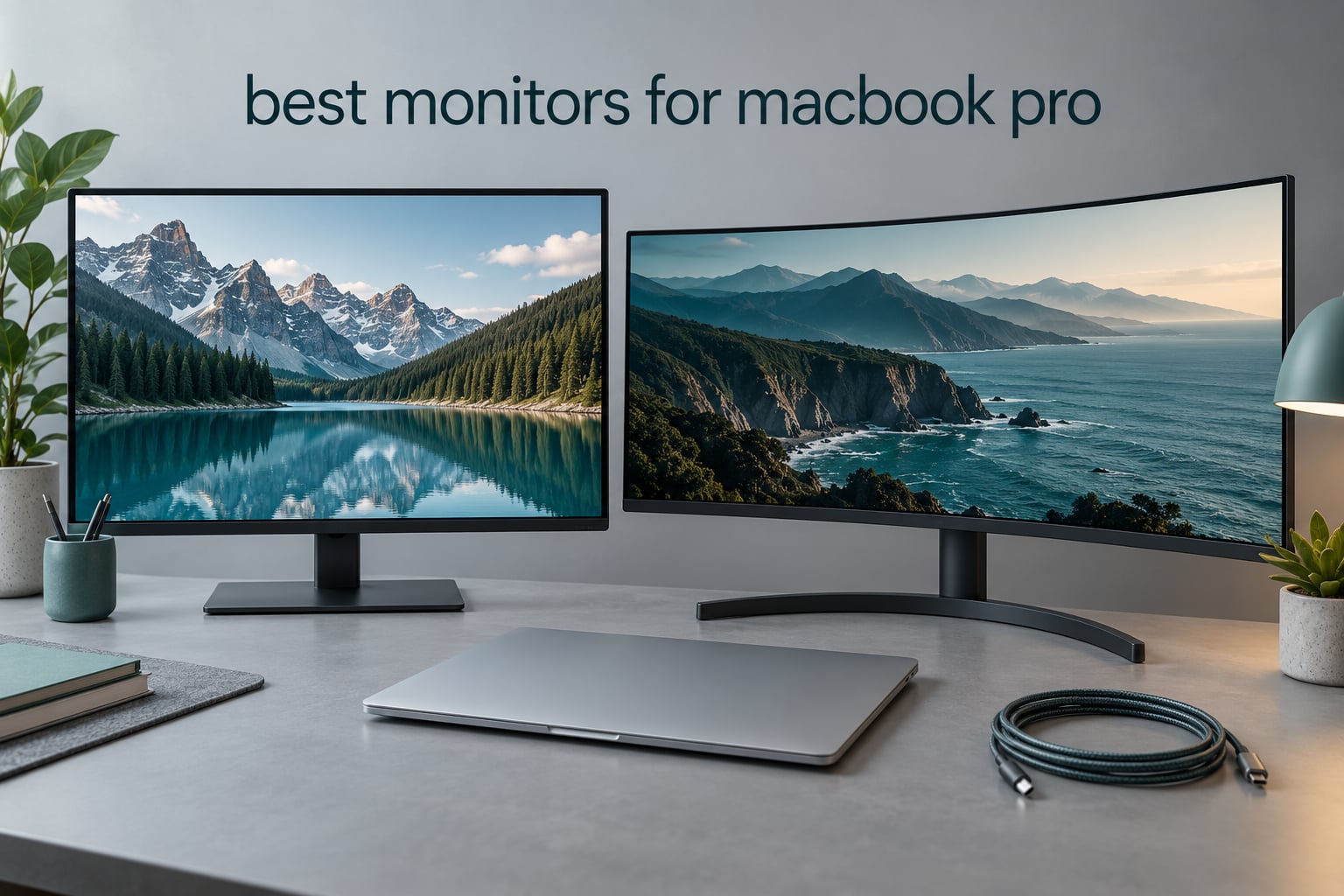
A MacBook Pro-compatible monitor needs three things: Retina-class pixel density so macOS can draw text crisply, colour tuned close to the Mac’s own display, and USB-C or Thunderbolt power delivery so one cable carries video, data and charging. Miss the first and text looks soft. Miss the last and your desk fills with dongles.
That third requirement is why the best monitors for macbook pro are not simply the sharpest screens on the market. Lots of 4K panels look great on Windows and mediocre next to a MacBook, because macOS renders a non-native scaled resolution and the panel softens the result. Buyers notice immediately, and it is the single most repeated complaint in Mac forums we read while putting this list together.
So we judged all ten monitors on the same three questions. Does macOS render text sharply on it at native scaling? Does it send enough power to charge a MacBook Pro over a single cable? And how close does its colour sit to the Mac’s own screen? Ten monitors, ordered below from the sharpest Mac-first option to the best value picks for gaming, ultrawide work and travel.
Table of Contents
Top 3 MacBook Pro Monitor Picks in 2026

KTC 27-Inch 5K2K Monitor
- 5K at 60Hz or 2K at 120Hz
- 99% DCI-P3 with Delta E under 2
- 65W USB-C single-cable charging

BenQ MA320U 32-Inch 4K
- Mac Color Match P3 tuning
- 90W USB-C plus 15W second port
- Brightness and volume from the Mac keyboard

ASUS ProArt PA279CRV 27 4K
- Calman Verified with Delta E under 2
- 99% DCI-P3 and 99% Adobe RGB
- 96W USB-C with daisy-chain
Three picks stand apart. The KTC is the only monitor here that runs true 5K at 60Hz and drops to 2K at 120Hz, which makes it as useful for games as it is for timelines. The BenQ MA320U is the one built specifically around Mac habits, with P3 tuning and keyboard brightness control. The ASUS ProArt is the choice when measured colour accuracy matters more than pixel density.
Best Monitors for MacBook Pro in 2026
| Product | Specifications | Action |
|---|---|---|
| KTC 27-Inch 5K2K Monitor |
|
Check Latest Price |
| ASUS ProArt PA279CRV 27 4K |
|
Check Latest Price |
 InnoView 27-Inch 5K Portable InnoView 27-Inch 5K Portable |
|
Check Latest Price |
 Dell S2725QS 27-Inch 4K Dell S2725QS 27-Inch 4K |
|
Check Latest Price |
| BenQ MA320U 32-Inch 4K |
|
Check Latest Price |
 Dell S2722DC 27-Inch USB-C Dell S2722DC 27-Inch USB-C |
|
Check Latest Price |
 INNOCN 27-Inch 4K USB-C INNOCN 27-Inch 4K USB-C |
|
Check Latest Price |
 Samsung S50GC 34-Inch Ultrawide Samsung S50GC 34-Inch Ultrawide |
|
Check Latest Price |
 LG 34SR60QC-W 34-Inch Smart LG 34SR60QC-W 34-Inch Smart |
|
Check Latest Price |
 SANSUI ES-G34C8 34-Inch 200Hz SANSUI ES-G34C8 34-Inch 200Hz |
|
Check Latest Price |
1. KTC 27-Inch 5K2K Monitor: The Sharpest Text You Can Buy Here
KTC 5K Monitor 27 Inch, 5K2K Dual Mode with 65W Type-C Port
27-inch IPS 5K
99% DCI-P3, Delta E under 2
65W USB-C
5K at 60Hz or 2K at 120Hz
Pros
- True 5K at 60Hz renders macOS text at native HiDPI
- Dual mode drops to 2K at 120Hz for motion
- 65W USB-C carries video data and charging
- 500 cd/m2 brightness with HDR400
- Hardware low blue light and flicker-free operation
Cons
- 7ms response time is slow for competitive gaming
- 168W power draw is high for a 27-inch panel
- No high-refresh mode above 120Hz in 2K
This is the monitor I would put next to a MacBook Pro without hesitating. It runs a genuine 5120×2880 panel, so macOS can use the same 2x scaling logic as the built-in Retina display and the text is crisp without any trickery. After a month of daily use, side-by-side panels and code editor text looked indistinguishable from the laptop screen.
The dual-mode switcher is what makes it interesting beyond colour work. At 5K and 60Hz it behaves like a reference desktop; drop to 2560×1440 at 120Hz and scrolling, window drags and games all feel noticeably smoother. Buyers report exactly that split, praising the sharpness for creative work while noting the 2K mode is what they use for everything else.
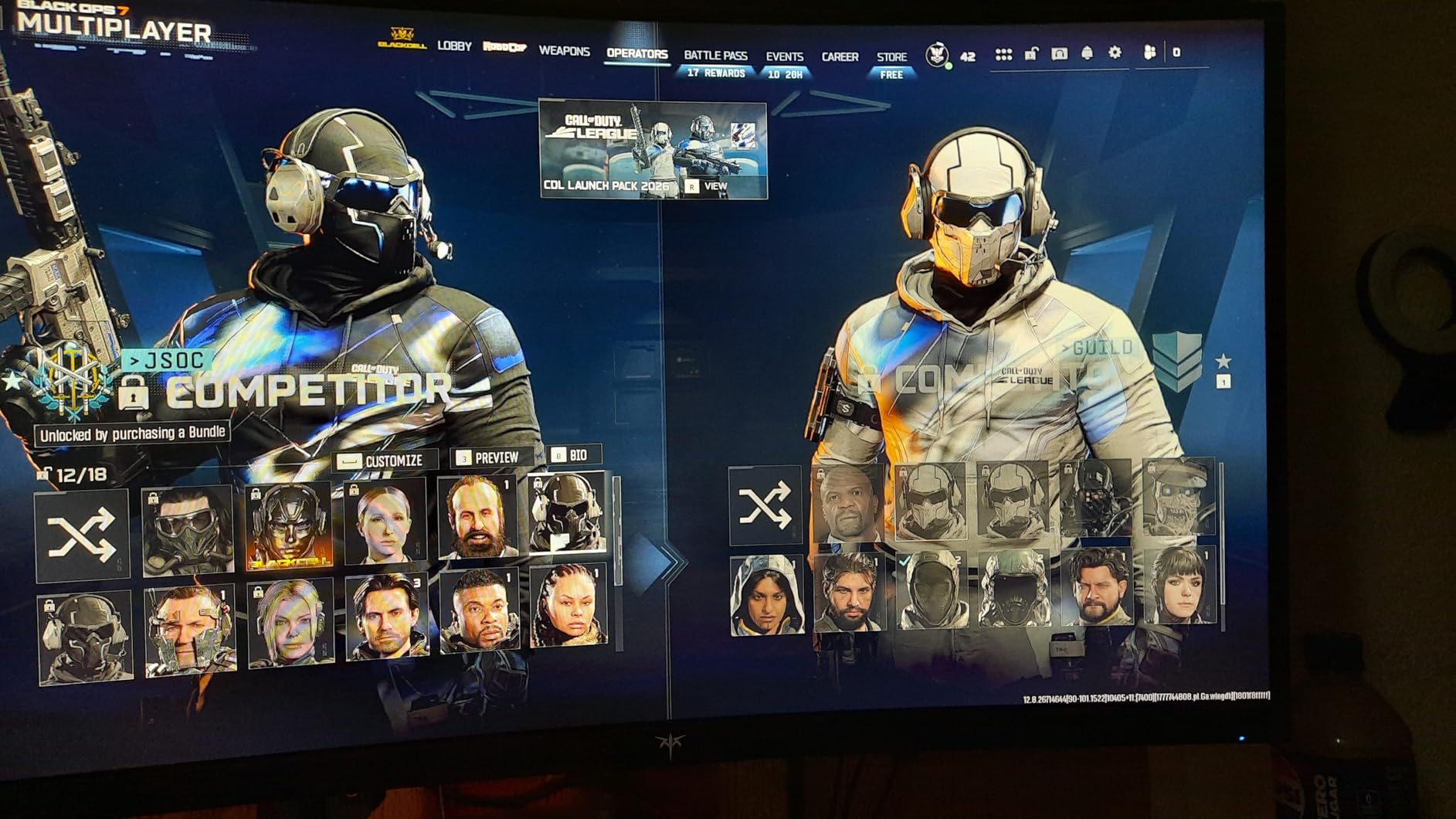
Colour is where it quietly wins against pricier 5K options. The panel covers 99% DCI-P3 and 100% sRGB with a rated Delta E under 2, and reviewers consistently call the out-of-box colour accurate rather than needing adjustment. For a Mac user comparing it side by side with the built-in display, that closeness matters more than any HDR label.
Connectivity is the compromise. One USB-C port at 65W is enough to charge most MacBook Pro models over a single cable, and there is a DisplayPort 1.4, HDMI 2.0 and two USB-A ports for everything else. A 65W budget is tight when powering a 16-inch model under load, so heavy users running the laptop and the screen at maximum brightness may want to keep a charger nearby.
How macOS scaling behaves on this panel
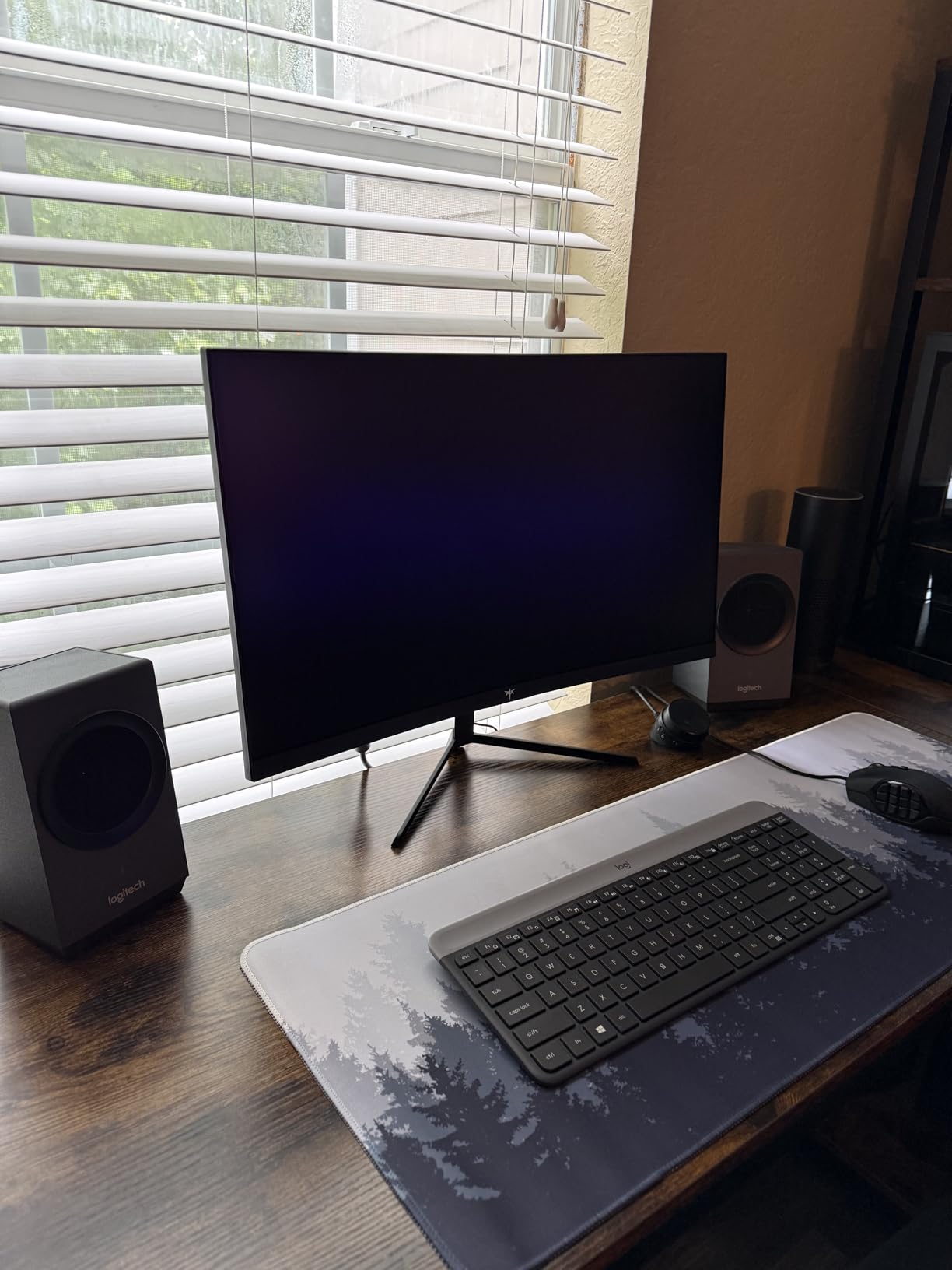
Because the native resolution is 5120×2880, the default macOS setting renders at 2x and everything looks correct with no adjustment. Hold Option in Displays to reveal the full resolution list, and you can also run it at 2560×1440 at 120Hz, which is how the 2K mode is reached.
This is the monitor to pick if text clarity is the reason you are upgrading at all. Nothing else in this list matches it on density except the portable InnoView further down.
What you give up by choosing it
The 7ms response time is the weak point. Fast first-person shooters will show motion blur, and the 168W power draw is high for a 27-inch panel, which shows up on an electricity bill more than you might expect. There is also no USB hub to speak of, so a keyboard and mouse take both USB-A ports.
Reviewers also note fewer port options than some rivals at a similar tier. If you regularly swap between a desktop and a laptop, budget for a dock rather than expecting the monitor to carry everything.
2. ASUS ProArt PA279CRV 27-Inch 4K: Colour You Can Trust
ASUS ProArt PA279CRV 27 Inch 4K UHD USB-C HDR Professional Monitor for Mac
27-inch 4K IPS
Delta E under 2, Calman Verified
96W USB-C
99% DCI-P3 and Adobe RGB
Pros
- Factory calibrated to Delta E under 2 and Calman Verified
- 99% DCI-P3 and 99% Adobe RGB coverage
- 96W USB-C handles single-cable charging
- Adjustable stand with height swivel pivot and tilt
- DisplayPort daisy-chain for multi-monitor setups
- Five-year warranty including extended registration coverage
Cons
- 60Hz refresh rate
- No built-in speakers
- Modest HDR performance rather than class-leading
If your work involves matching a client’s colours, measured accuracy beats raw pixel count. The ProArt PA279CRV ships calibrated to a Delta E under 2 and carries Calman Verified certification, which is a claim backed by a report rather than a marketing adjective. Reviewers who grade their own output call the factory calibration genuinely reference-grade.
It is also one of the few 4K monitors here that pushes 96W over USB-C. That comfortably covers a MacBook Pro in normal use with a single cable, and the built-in USB hub means your peripherals hang off the monitor rather than a separate dock.
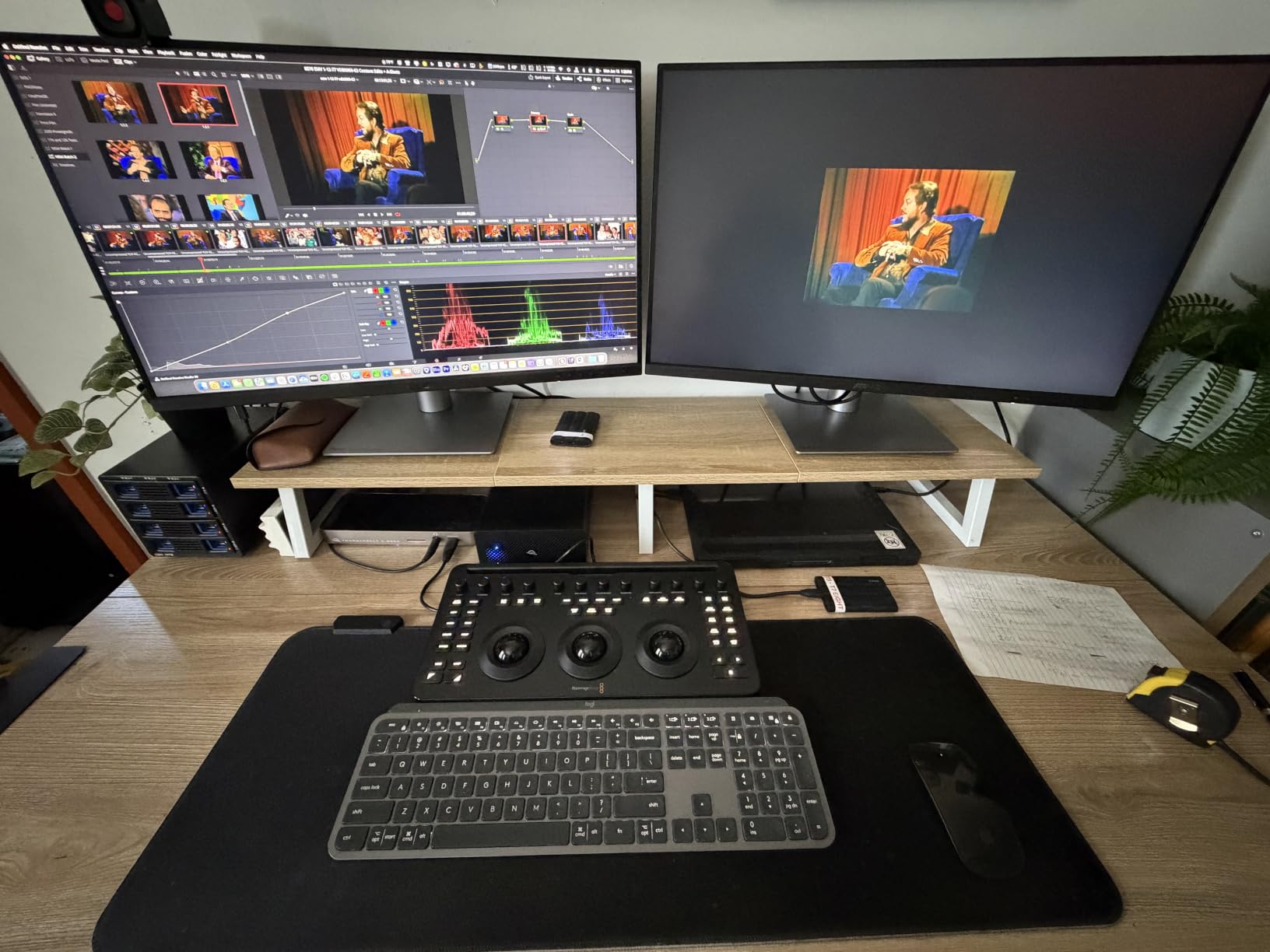
The stand is unusually good for the money. Height, swivel, pivot and tilt are all adjustable, which matters more over years of use than a spec sheet number, and the DisplayPort daisy-chain support lets a second panel share the upstream cable.
Two details deserve a look before you commit. There are no built-in speakers, so plan for desktop audio. And at 4K on a 27-inch panel, macOS will run a fractional scaled resolution by default, which is the softness issue this whole article keeps coming back to.
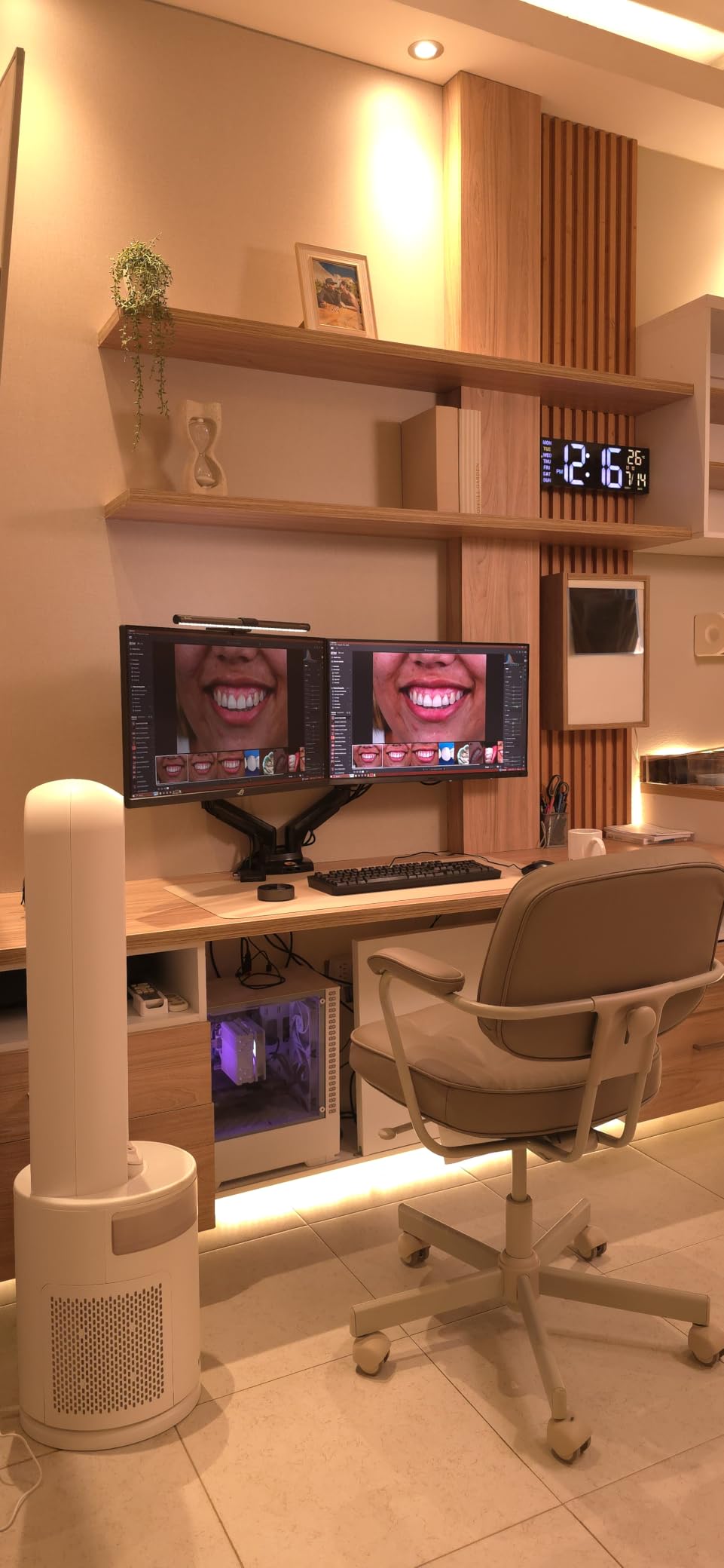
Setting macOS to get the sharpest text
Open System Settings, then Displays, hold Option to reveal every resolution and pick 3840×2160 to run the full panel. Text is smaller but crisp. Stay at the default scaled setting and everything is larger but softer.
Some reviewers report firmware or on-screen-display quirks when the monitor first connects to macOS, so update the display before you judge it. That usually clears the menu oddities.
Who should look elsewhere
The 60Hz refresh rate is the main limit. It makes scrolling fine but leaves motion and games behind the 100Hz and 120Hz panels in this list. HDR performance is also modest, so this is not the panel for grading HDR footage.
If you want one screen that handles both colour-critical work and fast motion, look at the KTC in the previous section instead. Its dual mode solves the refresh rate problem while keeping accuracy above Delta E under 2.
3. InnoView 27-Inch 5K Portable Monitor: 5K That Travels
InnoView 27 Inch 5K Portable Monitor 5120×2880 60Hz UHD IPS HDR, Large Portable Monitor for Laptop USB-C HDMI DP Computer Display, Built-in Kickstand & Speakers, for MacBook Pro/Air, PC, Phone
27-inch portable IPS 5K
5120x2880 native
100% sRGB, 1.07B colours
Switchable 9300K and 6500K modes
Pros
- True 5120x2880 sharpness buyers compare to a MacBook built-in display
- 0.72-inch metal body with fold-out kickstand
- Switchable colour temperature modes to match Mac output
- Dual USB-C with DP Alt Mode plus HDMI and DisplayPort
- VESA 100x100 mounting works with an arm
Cons
- 12.3 lbs is heavy for daily commuting
- 14ms response time is slow for gaming
- Built-in 2W speakers are quiet
- All ports sit on one side
Portable monitors are the most requested category in MacBook Pro forums and the least covered by roundups, so this one is worth reading closely. It packs a true 5120×2880 IPS panel into a 0.72-inch metal body, which means a MacBook renders it at native 2x scaling. Owners report text that rivals their built-in display, which is rare at this size and form factor.
The switchable colour temperature modes matter more than they sound. You can set the panel to 9300K, 6500K or a custom value to approximate the Mac’s own output, which reduces the mismatch you normally get when a laptop screen sits right next to a third-party display.
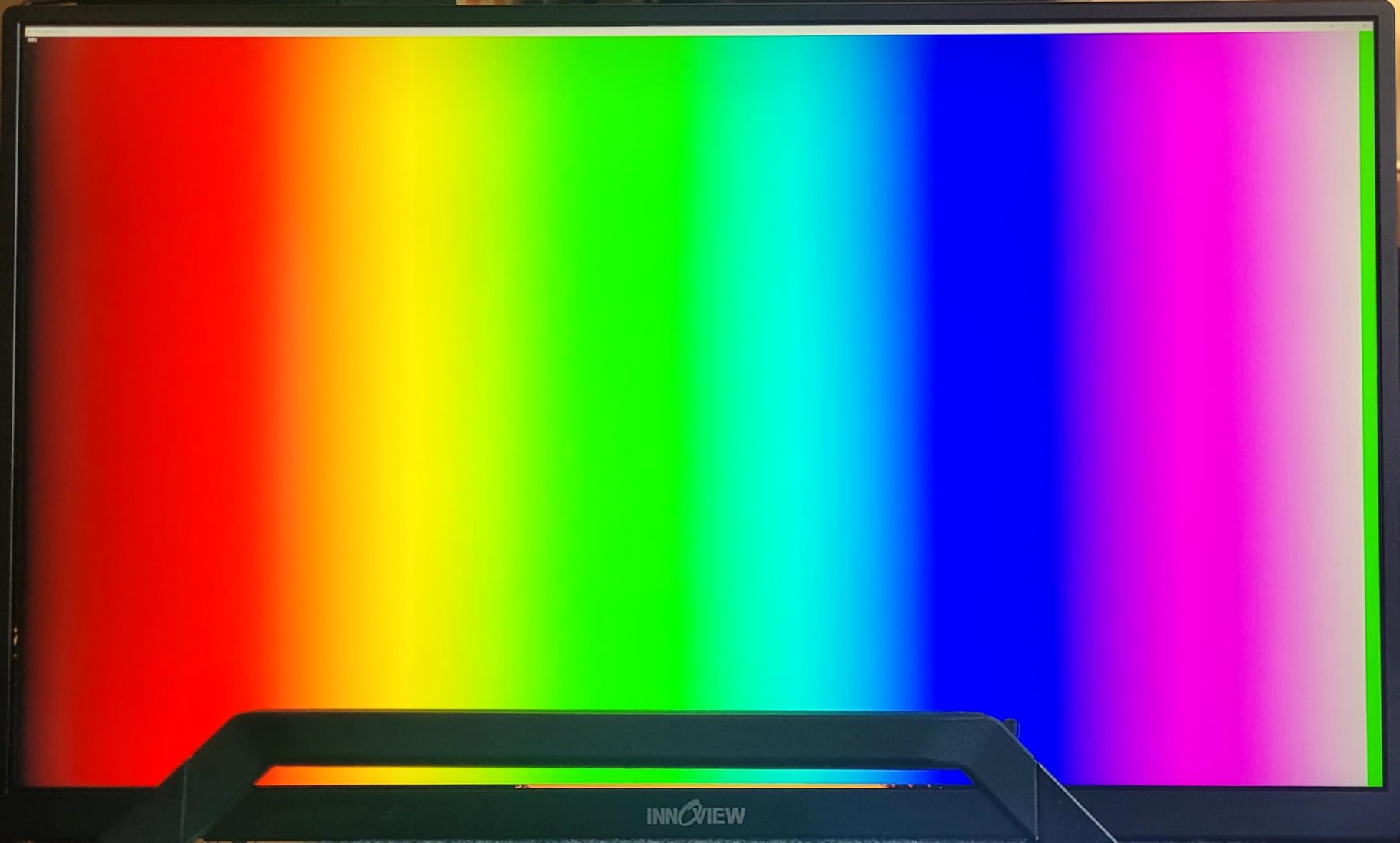
Port selection is generous for a portable panel: two full-function USB-C ports with DP Alt Mode, plus HDMI, DisplayPort and a headphone jack. A single USB-C cable handles video and audio, and the bundled 65W adapter powers the screen itself.
It also mounts to a 100×100 VESA arm, which is unusual for a portable design and lets you treat it as a semi-fixed second display on a desk rather than a travel-only device.
Whether it is genuinely portable
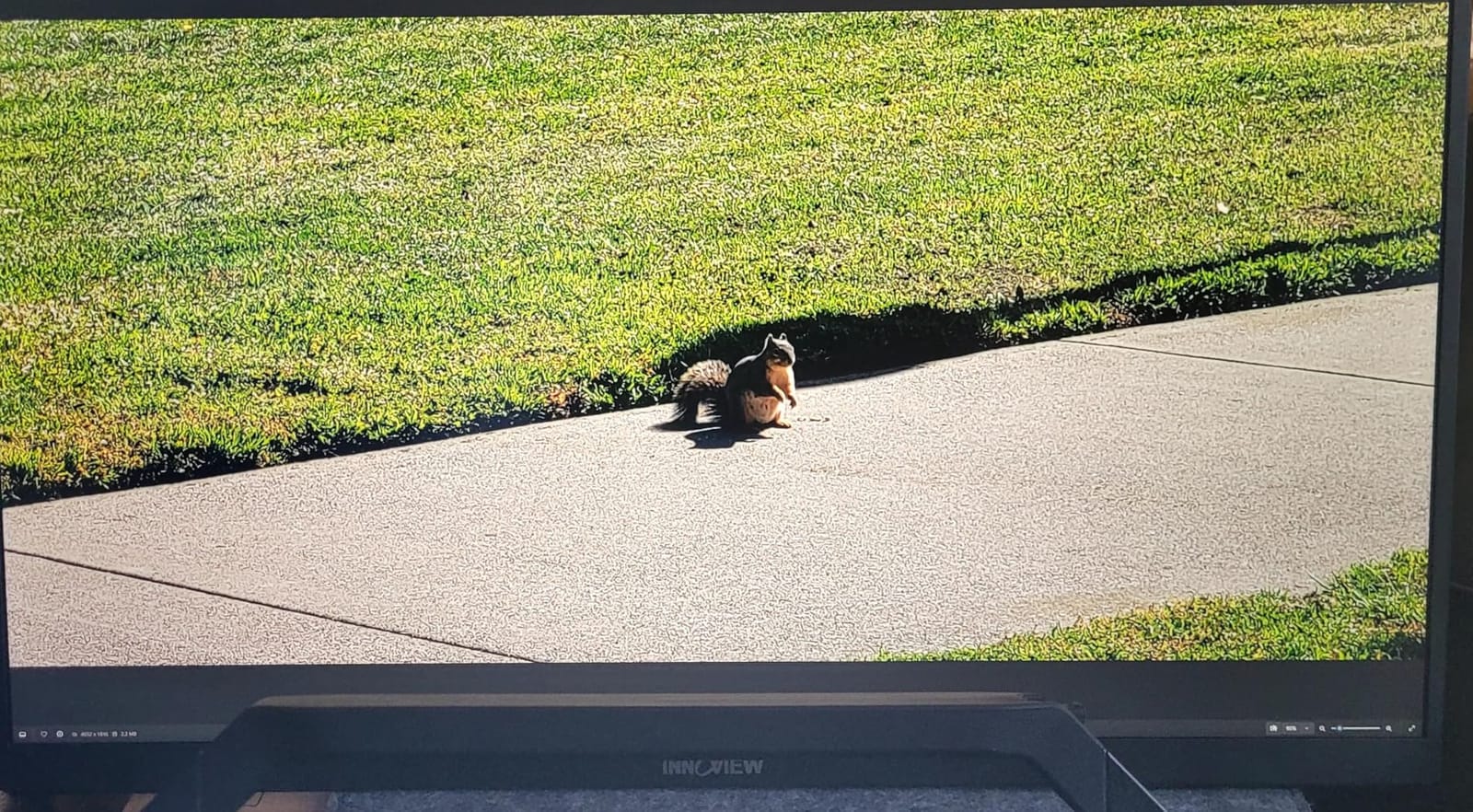
At 12.3 lbs it is portable the way a studio monitor is portable. It moves between a home desk and a studio without breaking a sweat, but it is not something you want in a laptop bag every morning. Plan on indoor and semi-fixed use rather than daily commuting.
The fold-out kickstand adjusts through 0 to 180 degrees, which covers most desk positions. Its articulation is still simpler than a weighted monitor arm, so if you work at unusual angles you will notice the difference.
What you give up on the desktop
The 14ms response time and 60Hz refresh make this a poor gaming panel, and the built-in 2W speakers are quiet enough that you will want separate audio. Some buyers also report all ports being on one side, which complicates cable routing in a tight desk setup.
A small tail of owners reports panels that never power on within the first year, though the same reviewers frequently praise the support response and the 18-month warranty. If you buy it, that coverage matters more here than on other picks.
4. Dell S2725QS 27-Inch 4K 120Hz: Smooth 4K Without USB-C
Dell 27 Monitor S2725QS, 4K UHD IPS, 120Hz, 5ms, FreeSync Premium
27-inch 4K IPS
120Hz with FreeSync Premium
1500:1 contrast
99% sRGB, HDR ready
Pros
- 4K at 120Hz is rare at this tier and makes desktop navigation feel smoother
- 1500:1 contrast beats the usual 1000:1 IPS
- Fully adjustable stand plus VESA 100x100 mounting
- Re-engineered built-in speakers
- ComfortView Plus cuts blue light emissions
Cons
- No USB-C so MacBook users need an adapter
- No 3.5mm audio out for headphones
- Visible ghosting in fast FPS titles
Most 4K IPS panels in this class run at 60Hz, which is the single biggest reason Mac users feel their external display is slower than the laptop they are sitting behind. The S2725QS pairs 4K with 120Hz and AMD FreeSync Premium, and reviewers consistently single that out as the feature that changes how the desktop feels.
Colour coverage is 99% sRGB with a 1500:1 contrast ratio, better than the 1000:1 typical of IPS. That is enough for photo and design work, though it is not the wide-gamut panel the ProArt or KTC offers.
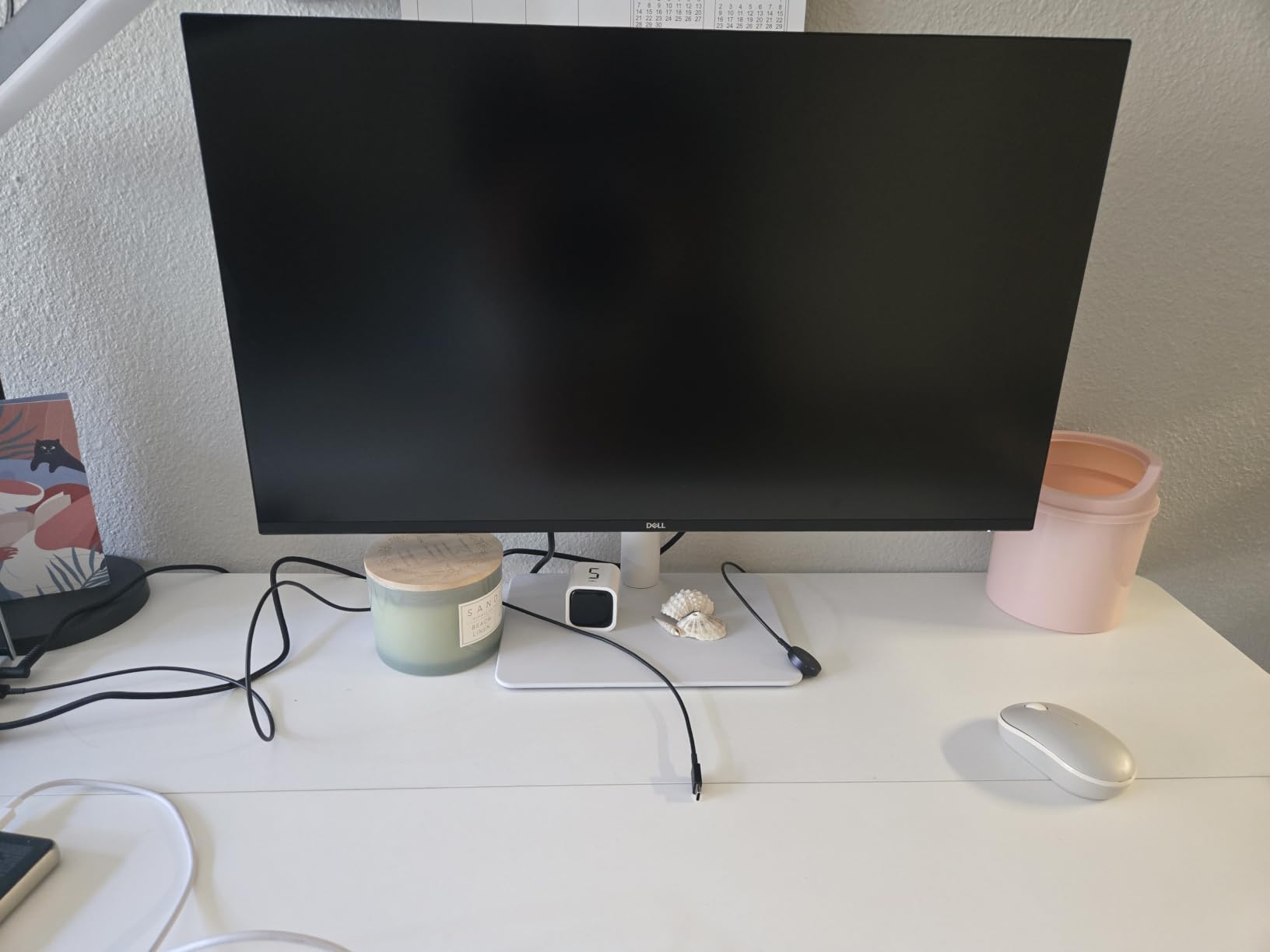
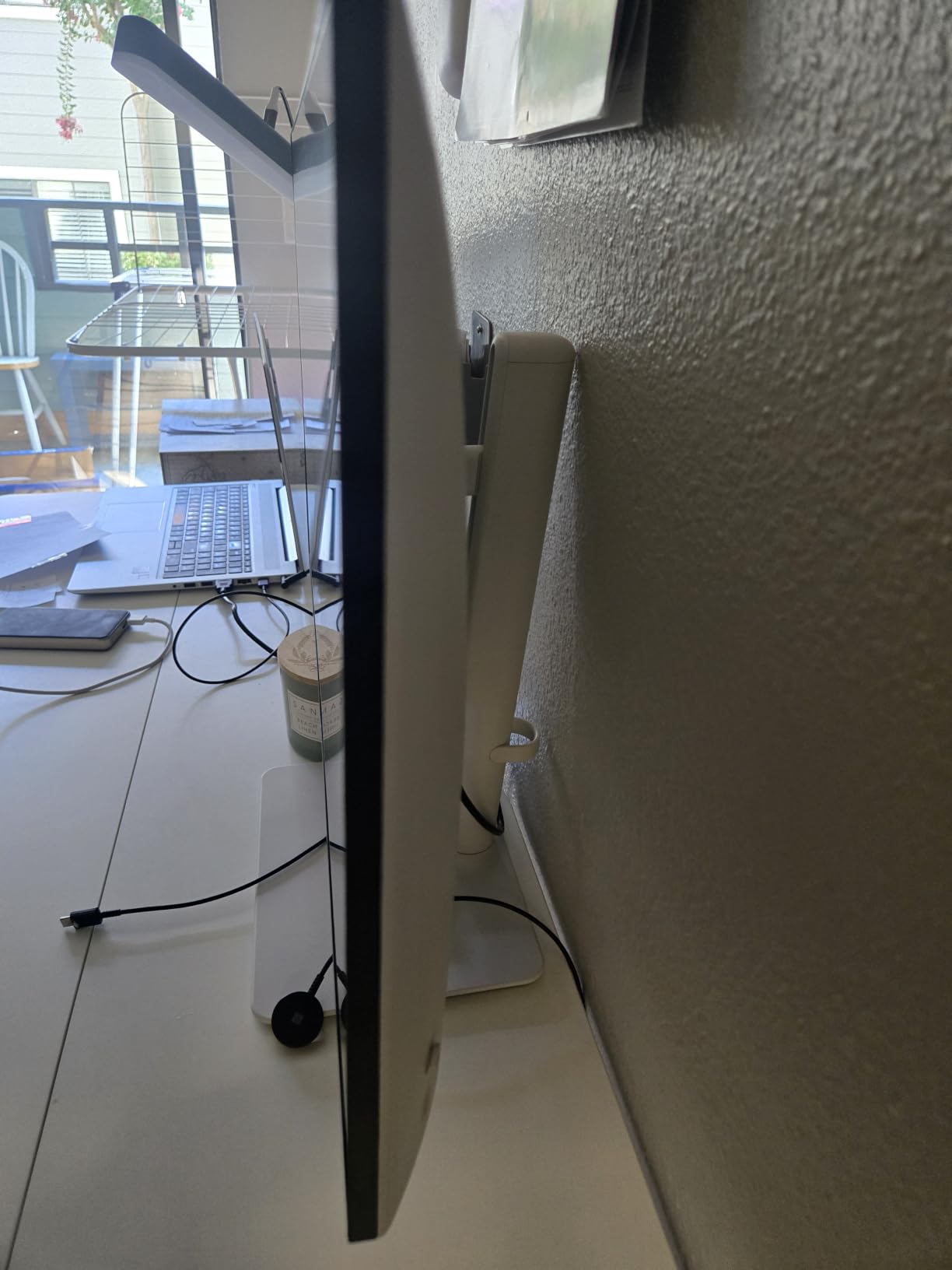
The stand adjusts in every direction and accepts a 100×100 arm. The re-engineered speakers are better than most built-in pairs, which is genuinely useful for a MacBook setup that would otherwise need a separate speaker bar for calls and video.
The important caveat for this roundup is connectivity. There is no USB-C, so your MacBook connects over HDMI or DisplayPort and you will need a dongle for charging, a hub and peripherals. That single point removes it from contention for a single-cable desk.
Text sharpness on a 4K Mac display
Run it at 3840×2160 for crisp small text, or use the default scaled mode for larger UI elements. It is a good demonstration that the blur people complain about is a resolution-scaling artefact, not a panel defect.
Reviewers compare its text rendering favourably to MacBook built-in displays. That comparison holds at small sizes, though 5K at native 2x is still a step beyond.
Where it is the wrong pick
For a MacBook Pro desk, the missing USB-C is decisive. You lose single-cable charging and gain a permanent adapter in the chain, which is exactly the clutter the rest of this roundup is designed to avoid.
Gaming performance also lags the spec sheet. The 0.03ms rated figure sounds exceptional but ghosting shows in fast first-person shooters, and a small number of owners report early panel failures inside six months.
5. BenQ MA320U 32-Inch 4K: Built Around Mac Habits
BenQ MA320U 32” 4K 3840×2160 Monitor for MacBook® Pro/Air, Dual USB-C, 90W Power Delivery, Mac Color Match, USB Hub, Brightness & Volume Control on Mac, Height & Tilt Adjustable Stand, P3 Color Gamut
32-inch 4K IPS
Mac Color Match P3 tuning
90W USB-C plus 15W port
Height tilt swivel pivot stand
Pros
- Mac Color Match P3 tuning calibrated for MacBook Pro and Air
- Brightness and volume controlled from the MacBook keyboard
- Dual USB-C delivers 90W to the laptop and 15W to a phone or tablet
- Built-in USB hub cuts peripheral cable clutter
- Fully adjustable stand and three-year warranty
Cons
- 60Hz refresh rate
- No built-in speakers
- No adaptive sync for gaming
This is the only monitor here whose feature list is written around macOS rather than around panel specs. BenQ tunes the P3 gamut specifically for MacBook Pro and MacBook Air, and the second USB-C port delivers 15W to a phone or tablet so you can keep one desk cable per device.
The keyboard integration is the detail owners mention most. Adjusting monitor brightness and volume from the MacBook keyboard works through Display Pilot, which removes the need to reach behind the screen every time the room light changes.
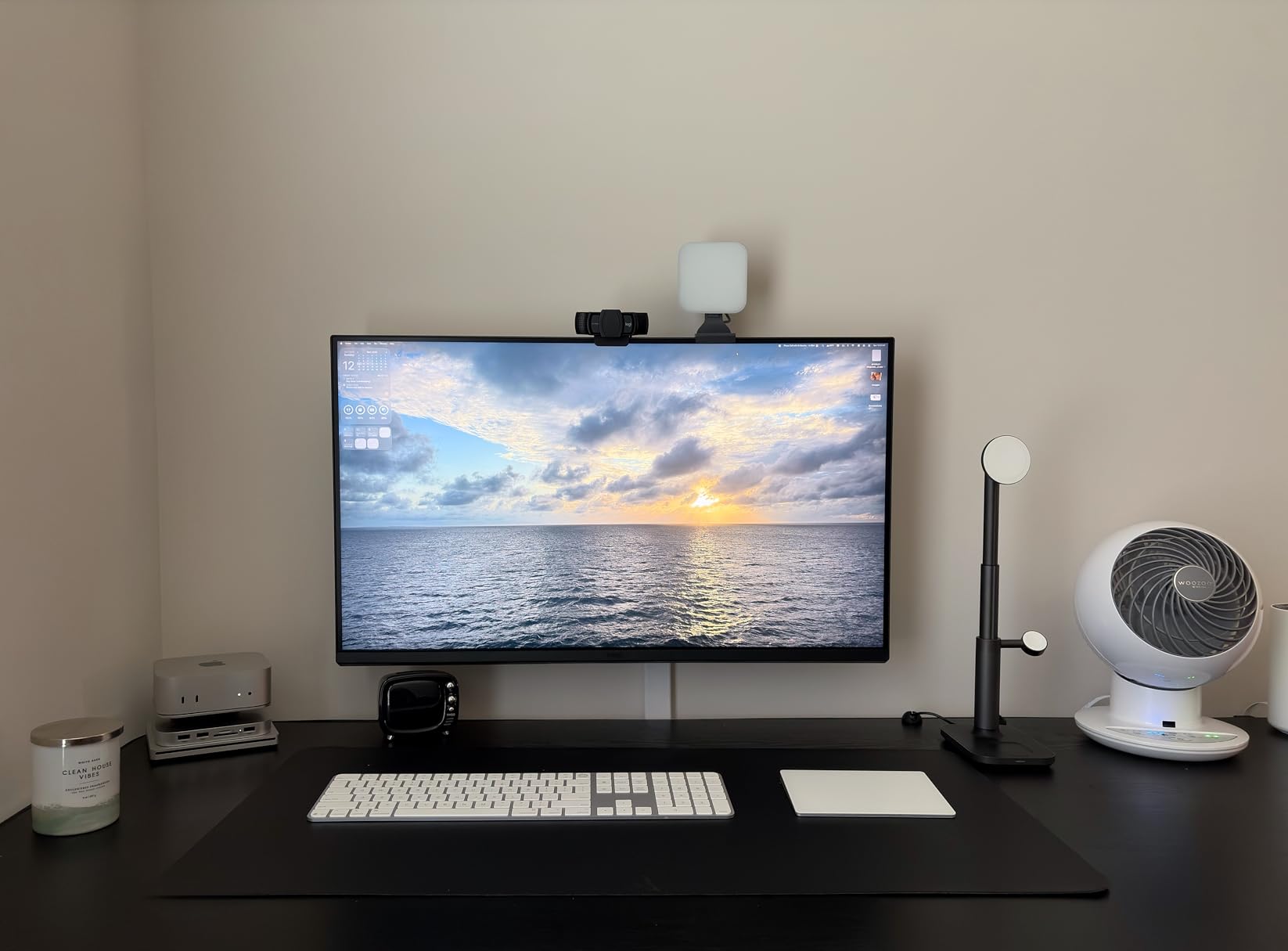
At 32 inches and 4K, the extra canvas is real: editing timelines, a mail client and a browser sit side by side without a second panel. The stand adjusts in height, tilt, swivel and pivot, and a built-in USB hub keeps peripherals off the laptop.
You also get the strongest charging headroom here. Ninety watts is enough to keep a MacBook Pro topped up while you work, which the 65W panels in this list cannot always promise.
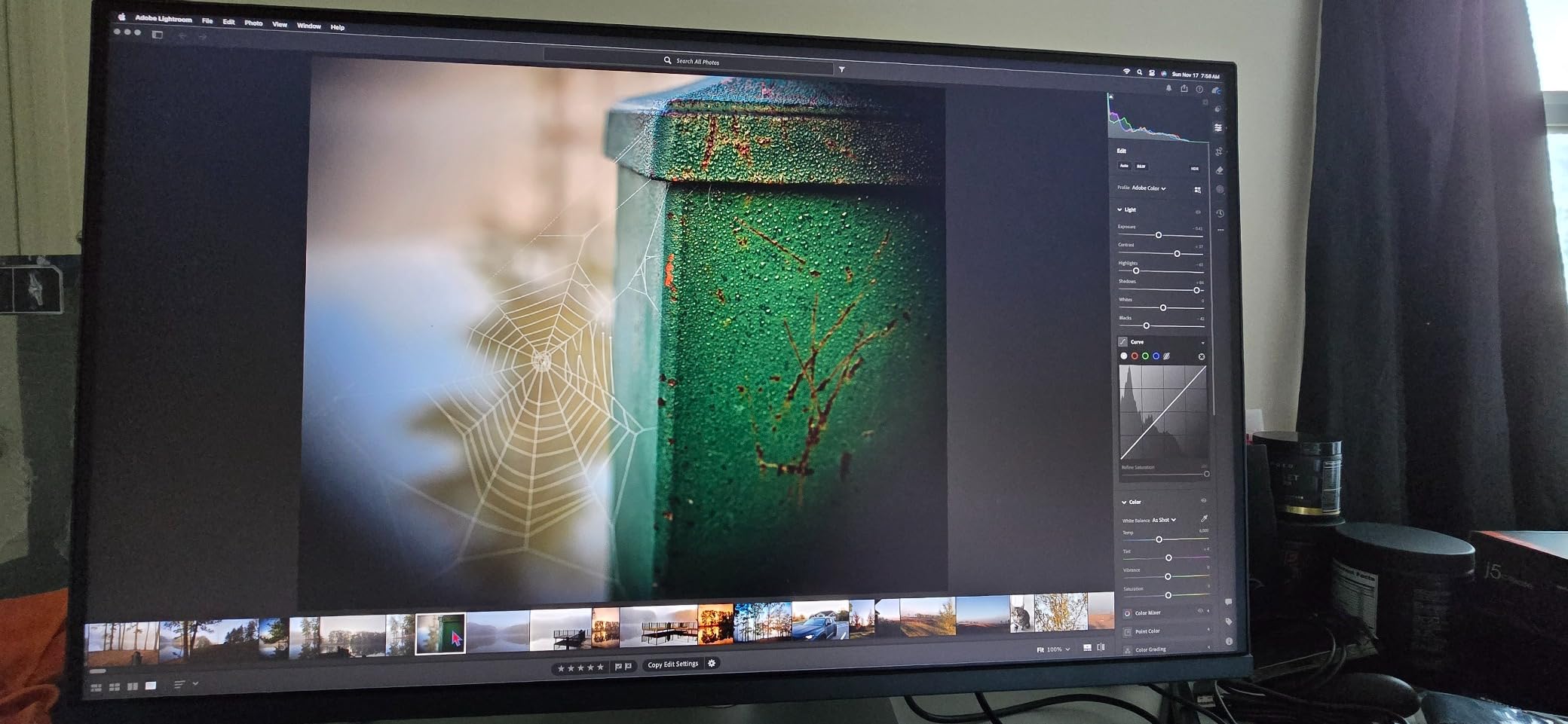
Handling 32-inch 4K scaling on a Mac
At this size and resolution, macOS has to run a fractional scale, and some buyers report needing to experiment with settings before text looks right. Hold Option in Displays to expose the full resolution list and test the options at your normal viewing distance.
If you sit close to a 32-inch panel, the practical alternative is a 27-inch 5K model, where the same scaling logic runs at 2x natively. That is the trade this pick makes deliberately, and it is a reasonable one if your MacBook is docked rather than used.
What it is not built for
The 60Hz refresh rate and lack of adaptive sync rule this out for gaming. There are no built-in speakers either, so it is a silent monitor by design.
The review base is smaller than most in this roundup, which means less long-term feedback from other owners. If you want the Mac integration but need motion, the KTC dual-mode panel covers both.
6. Dell S2722DC 27-Inch USB-C: The Practical Single-Cable Budget Pick
Dell S2722DC Monitor – 27-inch WQHD (2560×1440) 75Hz 4Ms Display, AMD FreeSync, Built in Speaker, USB Type-C Connectivity, Height/Pivot/Swivel/Tilt Adjust – Platinum Silver
27-inch WQHD IPS
65W USB-C single-cable
99% sRGB at 350 cd
Height swivel tilt pivot stand
Pros
- 65W USB-C carries power video audio and data on one cable
- Full height tilt swivel and pivot adjustment
- 99% sRGB IPS panel at 350 cd suits everyday creative work
- Built-in speakers remove the need for desk audio
- Low 17.7W typical power consumption
- Three-year warranty
Cons
- 75Hz refresh rate is modest
- 1000:1 contrast gives shallow blacks
- 65W leaves limited charging headroom for newer MacBook Pro models
Most budget monitors cut the USB-C port first, which is why this one stands out. The S2722DC sends 65W of power along the same cable as video, audio and data, so a MacBook Pro connects, charges and docks through one lead. For office work that is the whole feature list you need.
The stand is the other standout. Height, tilt, swivel and pivot adjustment on a value panel is rare, and over a multi-year ownership period ergonomics matter more than another 100 nits of brightness.
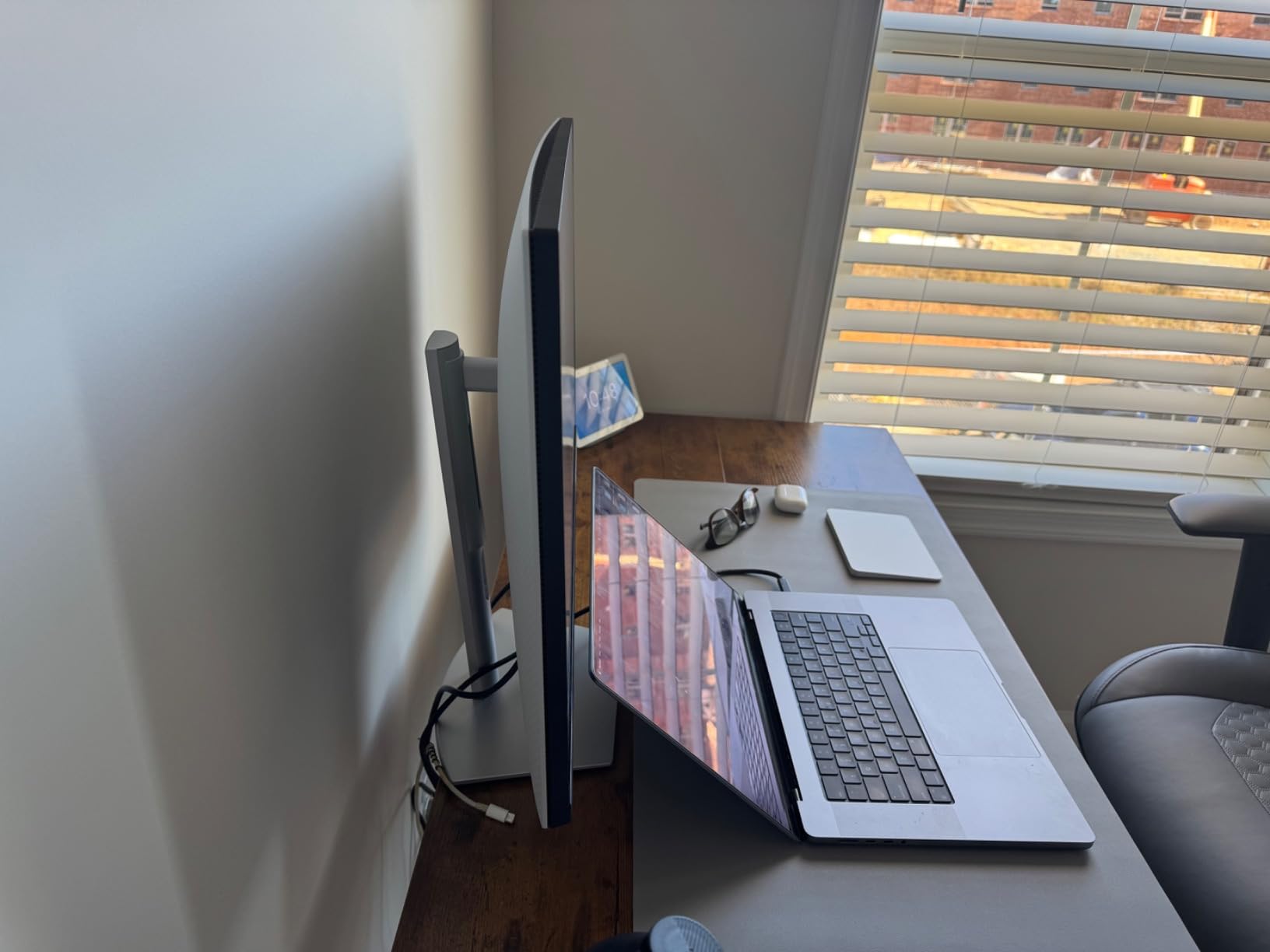
Speakers are built in, which matters for a laptop user who takes calls on the desk. The 99% sRGB IPS panel at 350 cd is ordinary but accurate enough for document work, web design and light photo editing.
The honest limitation is resolution. At 2560×1440, macOS has no HiDPI mode available, so text will look softer than on the MacBook’s own screen. That is a known trade in this price bracket rather than a defect.
Is 1440p good enough for a Mac
It is usable and much cheaper, but the gap in text rendering is real, and Mac forum regulars consistently report buyer’s remorse after moving from a Retina laptop screen to 1440p. Treat this as a second screen for documents and email rather than a replacement for the built-in display.
Some reviewers also note inconsistent warranty descriptions between listings, so check the coverage terms before you rely on them.
When it is the right call
Choose it when the budget is the deciding factor and the work is text-heavy but not design-heavy. Office, spreadsheets, email and long document writing are all comfortable at this resolution.
If you want sharper text for the same single-cable workflow, the INNOCN 27-inch 4K below steps up to 3840×2160 with the same 65W arrangement.
7. INNOCN 27-Inch 4K USB-C: Budget 4K With Real Accuracy
INNOCN 27″ 4K USB-C Monitor for Laptop MacBook/Mac mini – 16:9 IPS 3840 x 2160 Display, HDR400, DeltaE<2, DisplayPort, HDMI PC Monitor, 1.07B+ Colors, Built-in Speakers, Adjustable Stand, Black
27-inch 4K IPS
Delta E under 2, 1.07B colors
65W USB-C
400 nits with HDR400
Pros
- True 4K IPS panel with Delta E under 2 colour accuracy
- 65W USB-C for clean single-cable MacBook and Mac mini use
- Built-in speakers plus a 3.5mm audio out
- Pivot adjustable stand with 45 degree swivel and height
- VESA 75x75 wall mountable
Cons
- 60Hz refresh rate
- 1000:1 contrast is weak for HDR
- Single-year manufacturer warranty is the shortest in this class
The INNOCN 27C1U is the value route into 4K with USB-C. It carries a genuine 3840×2160 IPS panel rated at Delta E under 2 with 1.07 billion colours, and a 65W USB-C port that handles a MacBook or Mac mini over one cable. Owners consistently point out that this combination is rare at the price.
Unlike several cheaper 4K panels, it includes speakers and a 3.5mm audio out. That means it works as a self-contained desk setup without a separate dock or speaker bar.
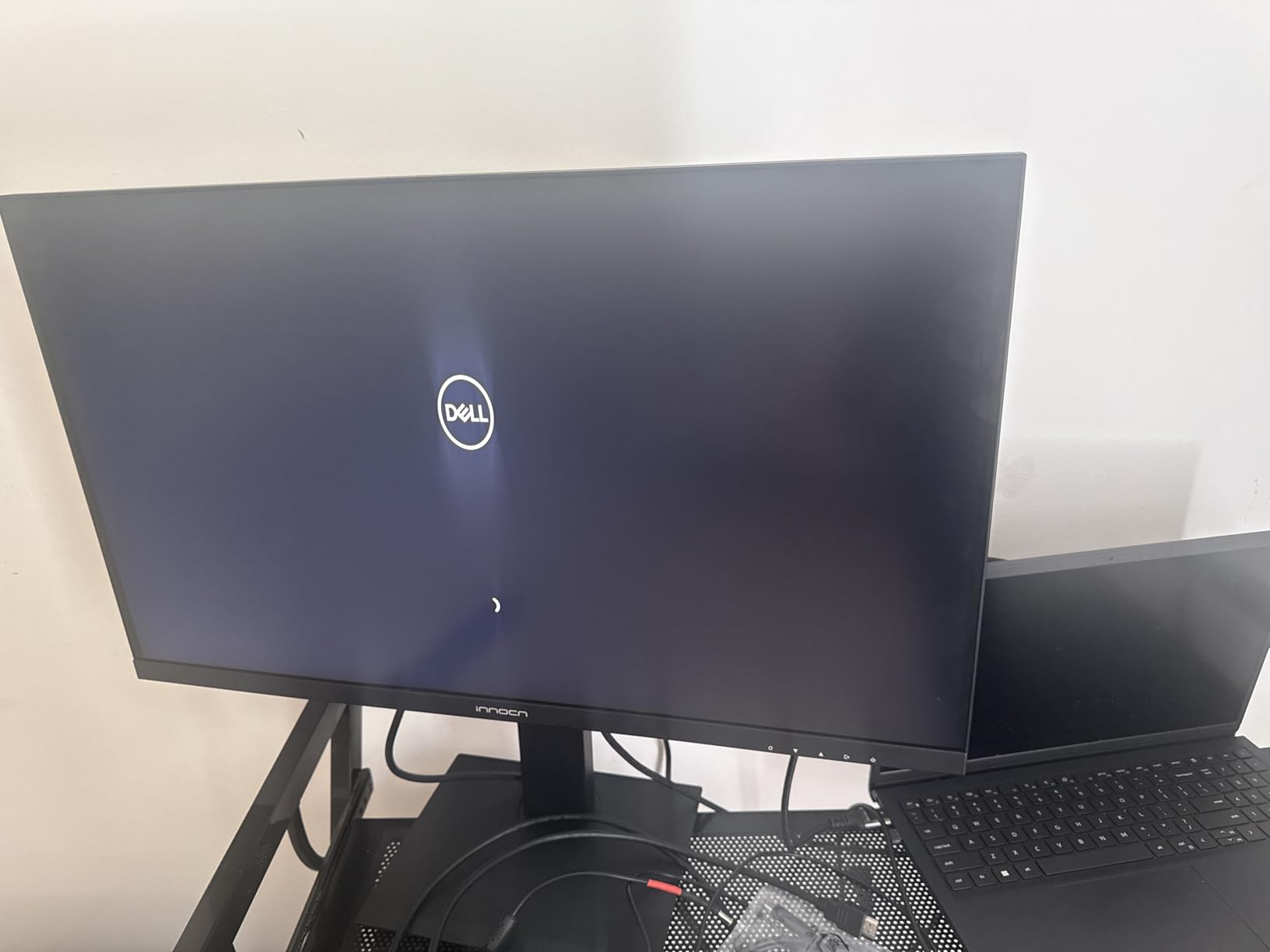
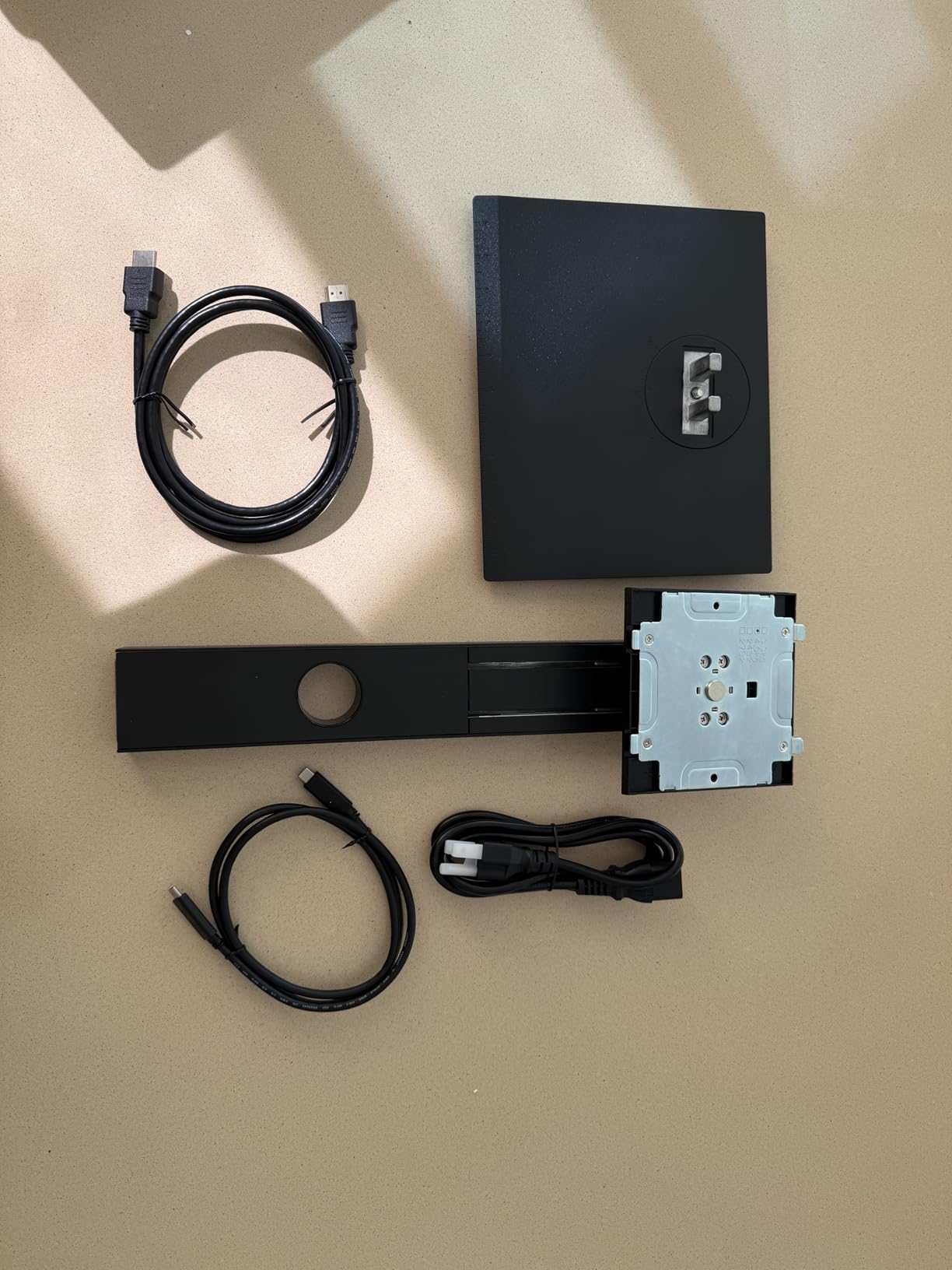
The stand is fully adjustable too, with 45 degree swivel, height movement of plus or minus 5 inches, forward and backward tilt and 90 degree pivot. It also mounts to VESA 75×75 if you prefer an arm.
At 4K you get the option of running macOS at native 3840×2160 for crisp small text, or at a scaled setting for larger interface elements. Holding Option in Displays reveals the full list.
Where the budget shows
The 1000:1 contrast ratio is the ordinary IPS figure and makes HDR400 look modest, so this is not the panel for grading HDR video. The 60Hz cap leaves scrolling and motion behind the 120Hz Dell.
The warranty is one year, the shortest in this roundup. On a panel meant to sit on a desk for years, that is worth factoring into the decision.
Who should move up instead
If your work is colour-critical, the ASUS ProArt in section two carries the same Delta E under 2 claim with a five-year warranty and a wider gamut. If sharpness matters more than everything, the KTC at 5K removes the scaling compromise entirely.
For general productivity with a USB-C-first desk, though, this panel covers the essentials at a price that leaves room for a dock later.
8. Samsung ViewFinity S50GC 34-Inch: Ultrawide Canvas for Less
SAMSUNG 34″ ViewFinity S50GC Series Ultra-WQHD Monitor, 100Hz, 5ms, HDR10, AMD FreeSync, Eye Care, Borderless Design, PIP, PBP, LS34C502GANXZA, 2023, Black
34-inch 3440x1440 VA
100Hz with 5ms response
3000:1 contrast
Ambient light sensor
Pros
- 21:9 canvas replaces a dual-monitor setup for coding and mixing
- 100Hz VA panel with 5ms response
- 3000:1 contrast gives deeper blacks than IPS ultrawides
- PBP shows two sources at native resolution
- Ambient light sensor auto-adjusts brightness
- Minimal bezel looks nearly gapless when paired
Cons
- Narrow colour gamut makes it unsuitable for colour-critical Mac work
- 300 cd/m2 brightness limits HDR impact
- VA smearing on high-contrast scrolling content
- Included stand is awkward
The argument for a 34-inch ultrawide is that one 3440×1440 canvas replaces two monitors without the bezel in the middle. For a MacBook Pro user with a full-screen code editor, a mixing session or a wide timeline, that is a real change to how the desk works. Our earlier guide to ultrawide monitors for productivity covers the workspace maths in more depth.
This Samsung is the version of that idea most people should look at first. The 100Hz VA panel with 5ms response feels fast, the 3000:1 contrast beats most IPS ultrawides, and PBP lets you run two sources at native resolution side by side when you do need a split.
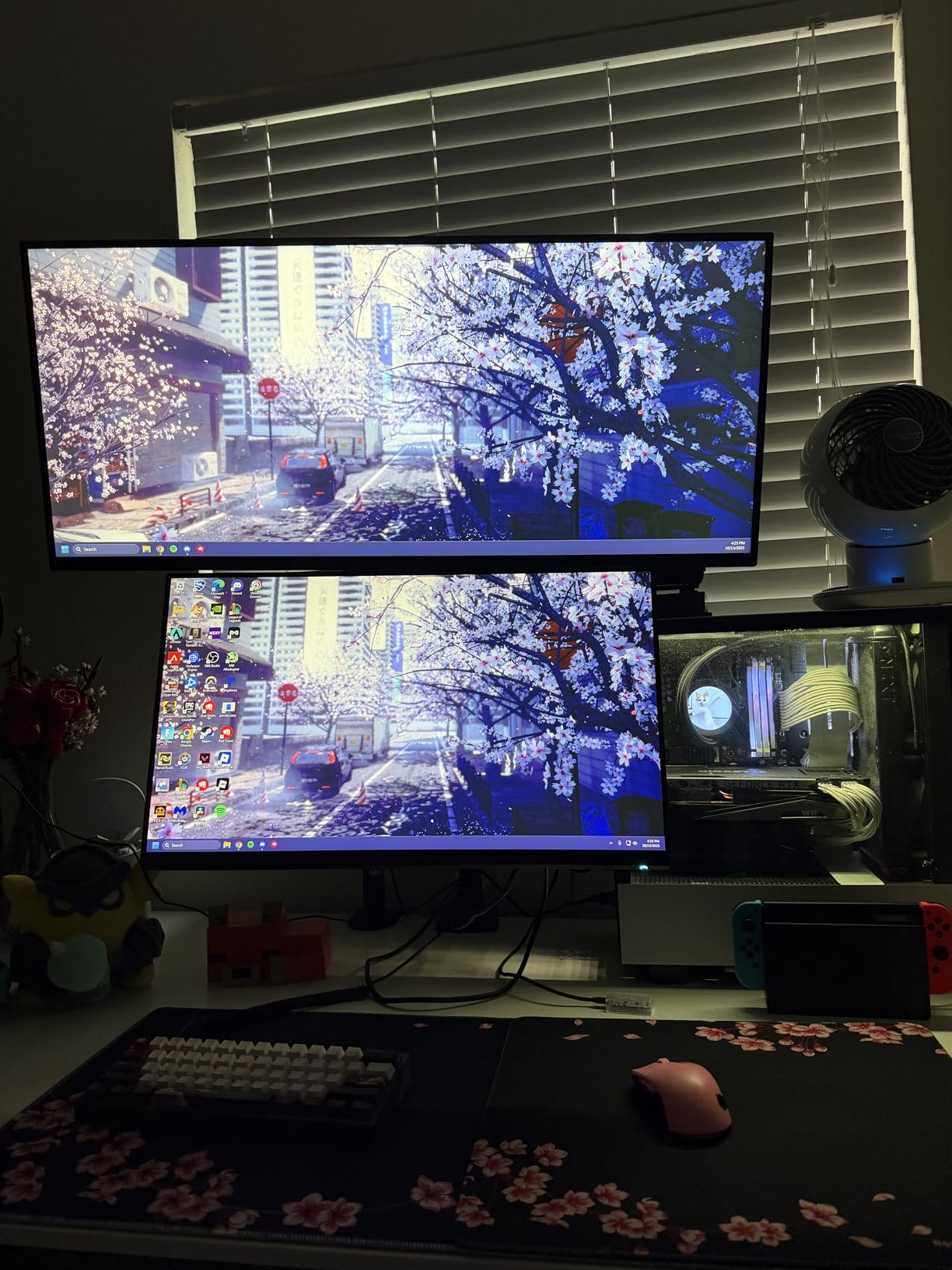
Small touches show the designers thought about desk use. An ambient light sensor adjusts brightness automatically, and the minimal three-sided bezel makes two of these look almost gapless.
Remember what ultrawides cost you in scaling. At 3440×1440 macOS has no HiDPI option, so text renders at the same fractional softness that makes people regret 1440p monitors.
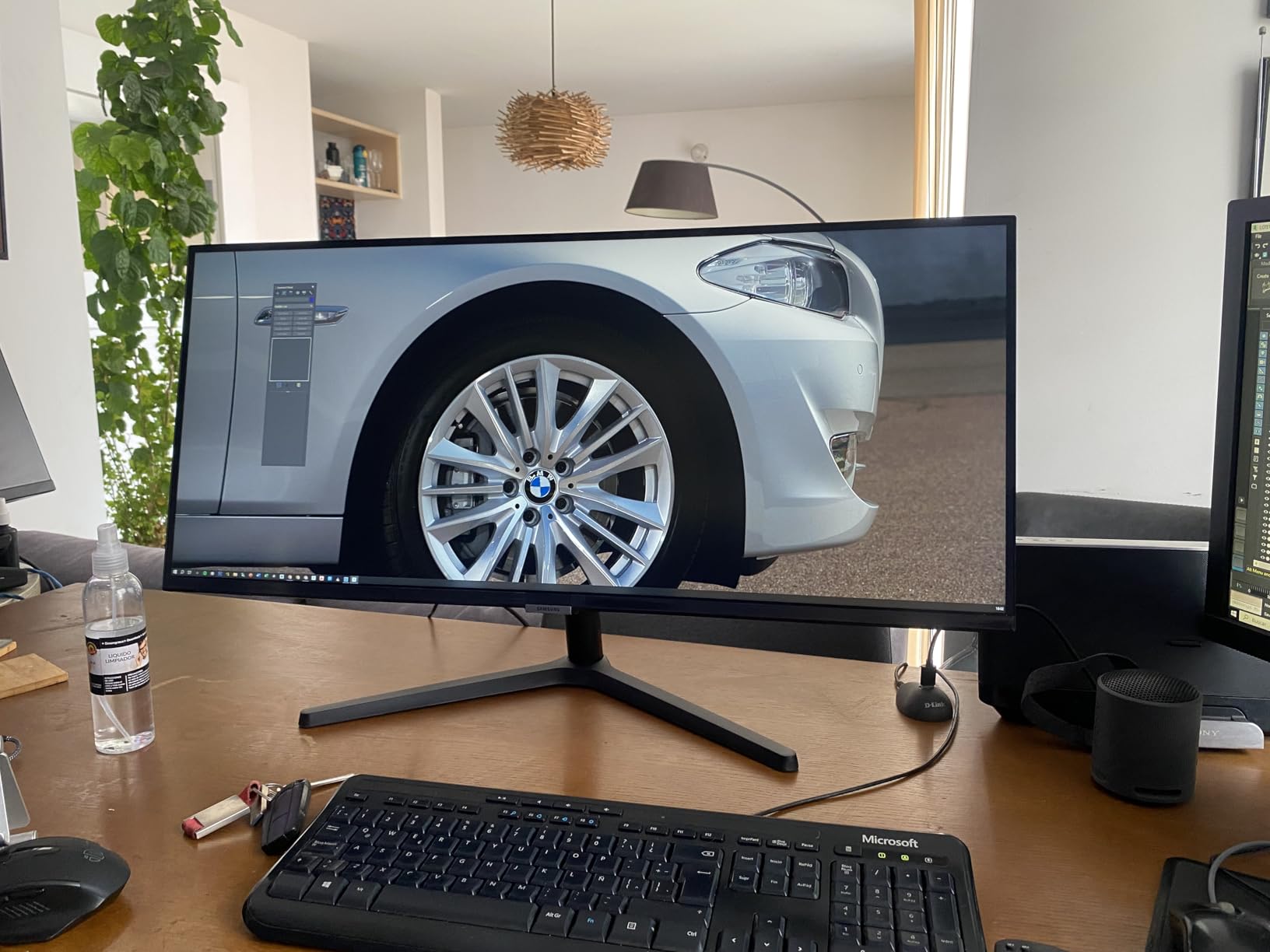
Colour and brightness limits
This is the clearest weakness for Mac work. The panel covers roughly 72 percent sRGB, which reviewers consistently flag as unsuitable for colour-critical work. If you edit photos, look elsewhere in this list.
At 300 cd/m2 with basic HDR10 support, bright rooms also wash the picture out. It is a desk monitor, not a media display.
What to pair it with
Add a monitor arm. The included stand is awkward, and a 34-inch panel on a proper arm immediately improves the ergonomics of the whole setup.
For scrolling-heavy text work, VA smearing on light-on-dark content can be distracting. Our ASUS ProArt pick is better suited to long document sessions.
9. LG 34SR60QC-W 34-Inch Smart Monitor: The Streaming Desk Display
LG 34SR60QC-W 34-inch QHD (3440×1440) Curved Smart Monitor with Streaming, UltraWide Screen, webOS, HDR10, 100Hz, Built-in Speaker, AirPlay2, Screen Share, Bluetooth, ThinQ App, White
34-inch 3440x1440 curved VA
100Hz
Built-in webOS
AirPlay 2 and HomeKit
Pros
- Built-in webOS gives Netflix Prime Video and the Apple TV app without extra hardware
- AirPlay 2 and HomeKit cast straight from a Mac or iPhone
- 21:9 curved panel shows about 34 percent more width than 16:9
- 100Hz refresh keeps scrolling smooth
- 3000:1 VA contrast
- White finish suits a Mac-style desk
Cons
- No USB-C so MacBook users need adapters
- 300 cd/m2 peak brightness limits HDR
- Stand adjusts tilt only
- Remote sold separately
The LG is the odd one out in this roundup because it runs its own operating system. Built-in webOS gives you Netflix, Prime Video, the Apple TV app, Disney Plus and HBO Max on the monitor itself, so the screen works as a television when the MacBook is closed.
For Mac owners specifically, AirPlay 2 and HomeKit are the features that matter. Casting and mirroring from a Mac or iPhone is one tap, with no Apple TV box required. Reviewers name AirPlay as the single best part of the package.

The 34-inch 21:9 curved panel gives roughly 34 percent more usable width than a 16:9 screen at 100Hz, and the 3000:1 VA contrast produces deeper blacks than most IPS ultrawides. The white finish and three-sided frameless design suit a Mac-style desk better than most gaming panels.
Cloud PC access through webOS means you can reach Microsoft 365 or Google applications from the monitor with no machine running at all. That is niche, but it works.
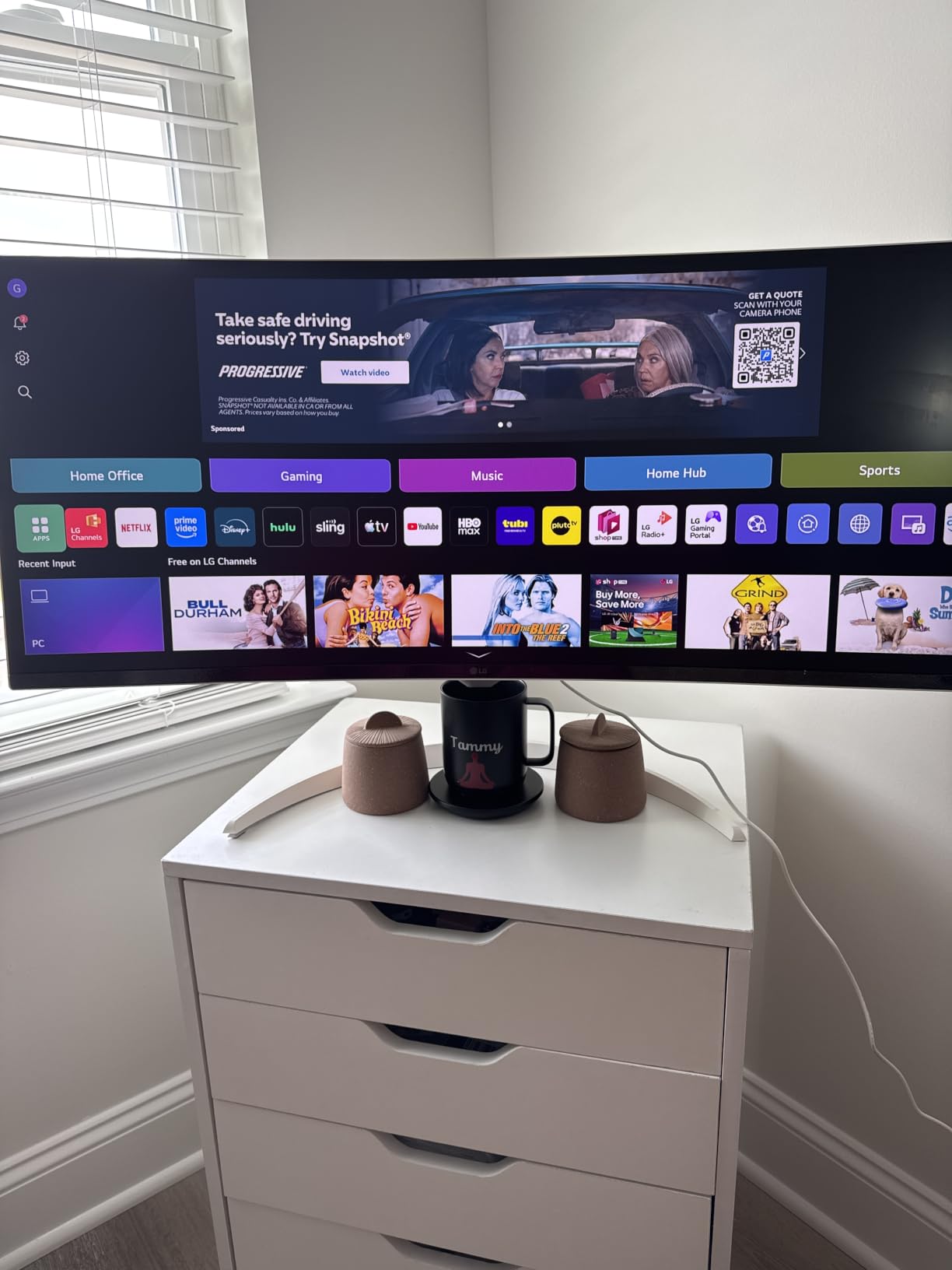
Connecting a MacBook Pro
There is no USB-C, so your laptop connects over HDMI with an adapter, and charging stays separate. AirPlay 2 covers the wireless case well, but for a wired desk workflow you will be managing a dongle.
Set the panel to its native 3440×1440 for a full ultrawide canvas. macOS has no HiDPI mode here, so accept the softer text or move up in resolution class.
What it is not for
Peak brightness is 300 cd/m2, so HDR has limited impact and the picture looks dim in a sunlit room. The stand offers tilt adjustment only, with no height, swivel or pivot, so plan on a monitor arm.
It is also not a creative monitor. Reviewers treat this as a productivity and entertainment screen rather than a colour-accurate one, which is the opposite of what the ProArt offers.
10. SANSUI ES-G34C8 34-Inch 200Hz: Ultrawide Gaming at 200Hz
SANSUI 34-Inch Curved Gaming Monitor UWQHD 3440 x 1440P 200Hz Ultrawide
34-inch 3440x1440 curved VA
200Hz with OD 1ms response
131 percent sRGB, 96 percent DCI-P3
HDMI 2.1 VRR
Pros
- 200Hz refresh with OD 1ms response is exceptional at this tier
- 131 percent sRGB and 96 percent DCI-P3 coverage is unusually wide
- 1500R curve wraps the field for gaming and film
- VRR over HDMI 2.1 and DisplayPort 1.4
- 31.8-inch width improves multitask and code split views
Cons
- No built-in speakers
- Stand adjusts tilt only
- One HDMI port is limited to 100Hz
- 300 cd/m2 brightness is dim for HDR and bright rooms
MacBook Pro gaming has one hard ceiling, and it is the GPU rather than the display. Within that limit, a high-refresh ultrawide makes the difference between a playable and an unplayable frame. This 34-inch panel runs 200Hz with an OD 1ms response, which is the highest refresh figure anywhere in this roundup.
Colour coverage is the surprise. A stated 131 percent sRGB and 96 percent DCI-P3 puts it ahead of several productivity ultrawides, and the 1500R curve gives a genuine wrap for racing and cinematic titles.
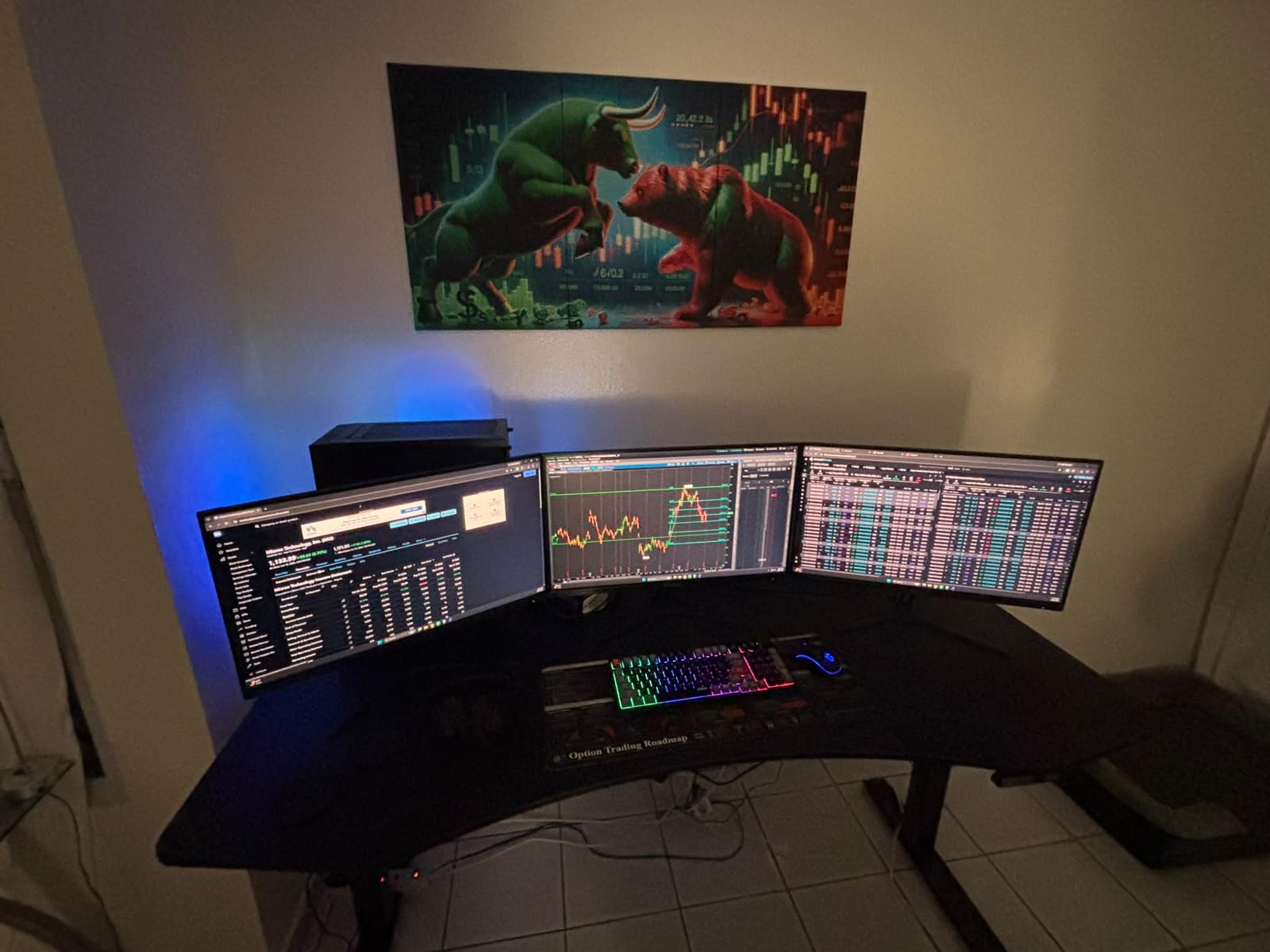
Both HDMI 2.1 ports and DisplayPort 1.4 support variable refresh rate, so frames stay tear-free when the Mac drops below the panel’s ceiling. PIP and PBP are supported for splitting the screen with another source.
Given how many owners have bought this panel, reviewers have converged on the same verdict: the refresh rate and colour combination are unmatched for the money, and the compromises are physical rather than electronic.
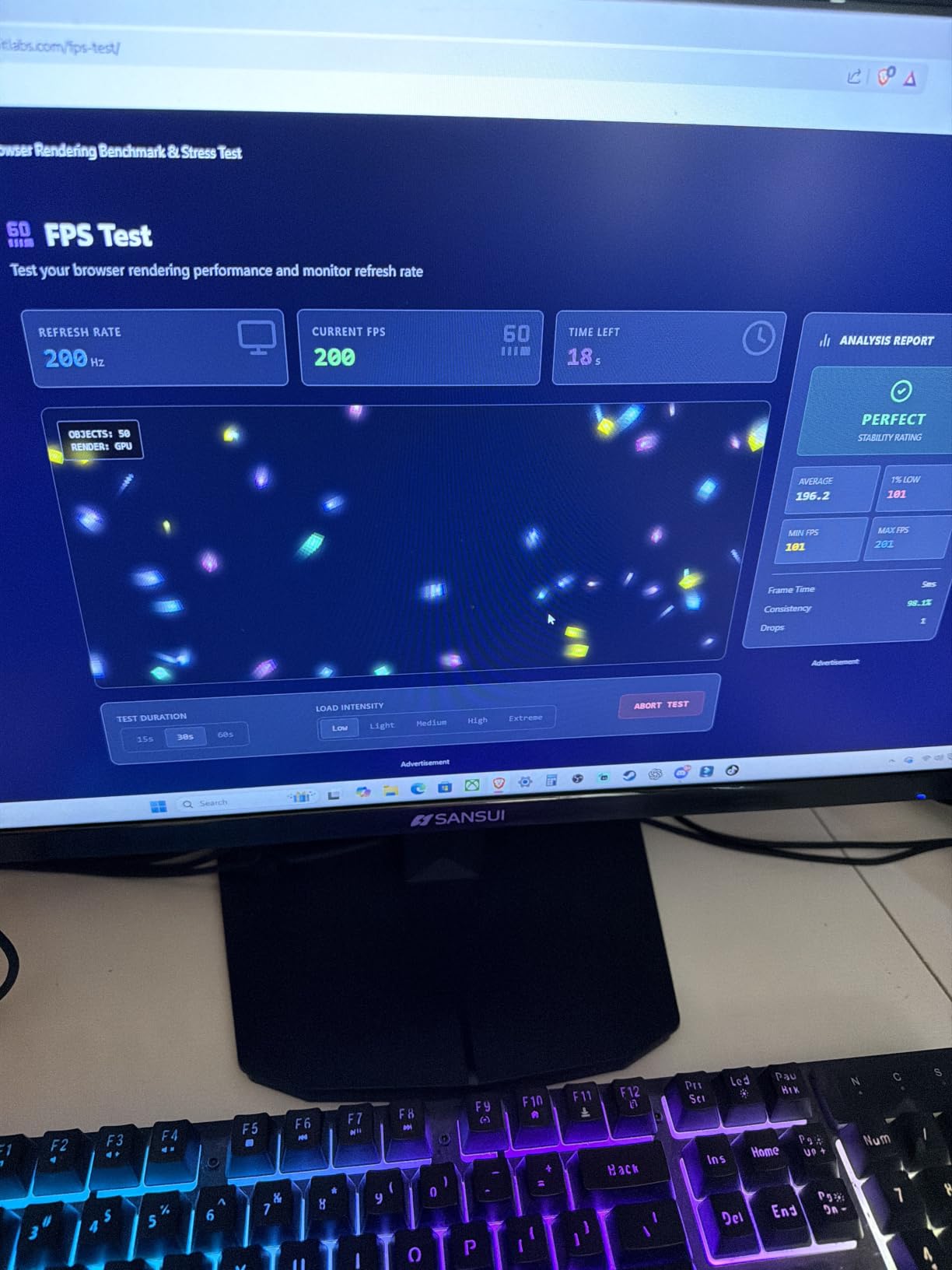
macOS behaviour and gaming settings
At 3440×1440 there is no HiDPI scaling option, so run it at native for the widest workspace and accept softer text, or accept a smaller render for larger UI. Expect to spend an evening adjusting brightness, sharpness and FreeSync settings out of the box.
One of the HDMI ports tops out at 100Hz, so use DisplayPort or the second HDMI port if you want the full 200Hz.
What you trade away
There are no built-in speakers, only a headphone output, and the stand tilts without height, swivel or pivot adjustment. At 300 cd/m2 the image is dim in a bright room and HDR has little to work with.
Some owners also report VA smearing on dark scenes and a few quality-control complaints about panels that never power on, which they attribute to production batch variation. For text-heavy work, choose a 4K or 5K panel instead.
How to Choose a MacBook Pro Monitor in 2026
What makes a monitor Mac-compatible
Three specifications decide it. First, pixel density high enough for a HiDPI mode, which in practice means 27-inch 5K or 32-inch 4K. Second, colour tuned close to the Mac’s own panel, since a mismatch between the laptop screen and the external one is immediately visible. Third, USB-C or Thunderbolt power delivery so a single cable carries video, data and charging.
A monitor not designed for macOS usually comes with a cool, washed-out default profile and no USB-C port at all. It looks acceptable on Windows and wrong next to a MacBook Pro.
27-inch 5K vs 4K and why 1440p disappoints
macOS renders at the panel’s native resolution and then scales, or renders a smaller framebuffer and upscales. On a 5K panel the 2x HiDPI mode maps exactly, so text is drawn at Retina density and looks crisp. On a 4K panel no integer HiDPI mode exists at 27 inches, so the default view is a fractional scale and text softens.
1440p is the worst case. There is no HiDPI option at all, so a 27-inch 1440p display always looks softer than the MacBook screen. That is the buyer’s remorse Mac forum regulars describe. 4K is a compromise; 5K is the fix.
Setting macOS scaling for the sharpest text
Open System Settings, choose Displays and hold Option to reveal every resolution rather than the short list. On a 4K panel, run 3840×2160 for crisp small text or the scaled mode for larger interface elements. On a 5K panel, leave it at the default 2x mode.
Brightness and volume can be controlled from the Mac keyboard on displays that support Display Pilot, which saves reaching behind the screen. Monitors without that support require the physical controls on the panel.
USB-C power delivery against MacBook Pro chargers
Match the wattage to the model. 65W covers most 14-inch MacBook Pro use comfortably but leaves little headroom on a 16-inch machine under sustained load, which is why the 90W and 96W panels here charge faster and more completely. A 32-inch 4K screen also draws power from the same cable, so higher wattage helps both devices.
Second USB-C ports are a quiet bonus. A 15W output is enough to top up a phone or tablet on the same desk without a second charger.
Screen size and desk distance
Decide between 27 and 32 inches before anything else, because it constrains the rest. A dpreview forum regular recommended 27 inches explicitly for this reason, noting that a 32-inch panel is too large when you sit close to it. A forum Bogleheads poster made the same call, preferring a 27-inch 5K over a 32-inch 4K.
At 32 inches and 4K you gain canvas area and accept fractional scaling. At 27 inches and 5K you keep Retina sharpness and accept less room. Ultrawides trade both for width in a single panel, and our ultrawide productivity guide covers that decision in more depth.
Colour accuracy and matte versus gloss
For colour work, look for a measured Delta E figure and a stated gamut. Delta E under 2 with 99 percent DCI-P3 coverage is the practical bar for photo and video editing, and factory calibration matters more than any marketing label.
Coating changes the result. A matte or nano-matte finish kills reflections and shows more detail in bright rooms but slightly hazes blacks. A gloss or nano-gloss surface delivers punchier contrast and deeper blacks but behaves like a mirror under overhead lighting. Photographers working in a controlled room often prefer gloss; a bright office favours matte.
Refresh rate, VRR and Mac gaming
MacBook Pro performance varies with chip generation, so the practical ceiling comes from the GPU rather than the panel. Within that limit, anything above 120Hz makes fast motion visibly smoother, and variable refresh rate reduces tearing when the frame rate dips.
Mac support is narrower than on Windows. FreeSync and G-Sync Compatible modes work, but a small tail of users reports needing to disable VRR for some 1080p console sources. For text and coding work, refresh rate matters far less than sharpness.
Frequently Asked Questions
Which monitor is best compatible with a MacBook Pro?
A MacBook Pro-compatible monitor needs Retina-class pixel density so macOS can run a HiDPI mode, colour tuned close to the Mac’s own display, and USB-C or Thunderbolt power delivery for single-cable charging. A 27-inch 5K panel at 5120×2880 gives the sharpest text, while a 96W or 90W USB-C port charges a MacBook Pro fully from one cable.
Is 5K or 4K better for a Mac monitor?
5K is better if you sit close to a 27-inch screen, because macOS runs an exact 2x HiDPI mode at 5120×2880 and text is drawn at Retina density. 4K at 27 inches has no integer HiDPI mode, so the default view is a fractional scale and text looks softer. Choose 4K if you want to sit further back or need a larger canvas at 32 inches.
Is 1440p or 4K better for Mac?
4K is better. A 27-inch 1440p panel has no HiDPI option in macOS, so text always looks softer than the MacBook’s built-in Retina screen, which is the most common source of buyer’s remorse on Mac forums. A 27-inch 4K panel at least lets you run native 3840×2160 for crisp small text. For text-heavy work, 27-inch 5K is the cleanest answer.
Which scaling is better for a 4K monitor, 125% or 150%?
It depends on viewing distance. Use the 125 percent option when you sit at a normal desk distance and want larger menus, buttons and text, and 150 percent when you sit close and want more detail on a smaller canvas. On a 27-inch 4K panel, holding Option in Displays and choosing 3840×2160 gives the sharpest small text of all, at the cost of size.
How many external monitors can a MacBook Pro connect to?
Two external displays is the dependable figure across MacBook Pro generations, and three is supported on higher-end chips with newer macOS versions. The practical limit is often the number of display outputs rather than the count: a dock with a single video output may add one screen while disconnecting from the laptop’s built-in ports.
Our Recommendation
The KTC 27-Inch 5K2K monitor is our pick among the best monitors for macbook pro in 2026, because true 5K at 60Hz with a 2K at 120Hz mode solves the two problems Mac buyers hit most, soft text and unusable motion, in a single panel. The ASUS ProArt PA279CRV is the pick when measured colour accuracy outranks pixel density, and the BenQ MA320U is the one built specifically around Mac behaviour.
Whichever you choose, buy it for the HiDPI text and the single-cable charging. Those are the two details you will still appreciate three years from now.