
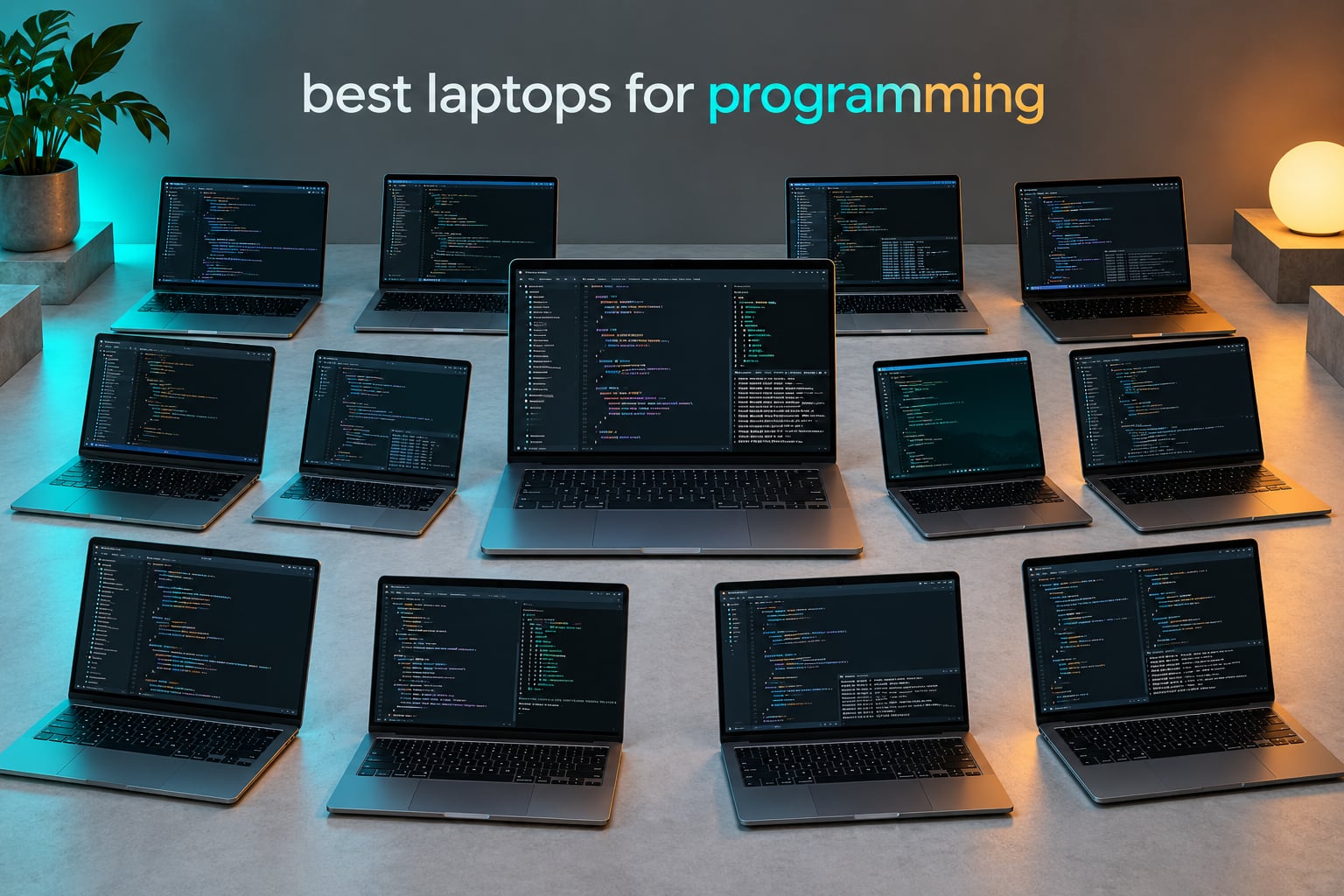
If you want the short answer first: the best laptops for programming in 2026 are the ones that clear a simple bar. A modern multi-core processor, at least 16GB of RAM, a fast NVMe SSD, and a screen of 14 inches or larger at 1920×1200 or better. Hit those four marks and the brand matters far less than the model.
That is the filter we used here. We compared twelve machines across Apple silicon, Windows ultrabooks, business laptops and gaming hardware. We weighted three things most roundups skip: upgradeability, because soldered memory is the most common regret developers report; sustained behaviour under load, since a laptop that throttles halfway through a compile is worse than a slower one that holds speed; and typing feel, because you will sit in front of this machine eight hours a day.
Twelve picks follow, each labelled with the kind of developer it suits. The list spans a wide price range, from a basic 17-inch machine to a 15-inch MacBook Air that is our overall winner, and it covers web, backend, mobile, data science, machine learning, game development and Linux.
Table of Contents
Top 3 Picks for Programming Laptops in 2026

MacBook Air 15-inch M5
- 15.3-inch Liquid Retina display
- Apple M5 chip
- 16GB unified memory
- Fanless silent operation

MacBook Pro 14-inch M5
- 14.2-inch Liquid Retina XDR display
- 10-core CPU and 10-core GPU
- 1TB SSD
- HDMI and SDXC ports

Dell Inspiron 16 Plus 7640
- 16-inch 2.5K 120Hz display
- Intel Core i7-13620H
- 16GB LPDDR5
- 1TB SSD
The MacBook Air 15 takes the top spot because it does the rare thing: it is silent, it lasts a working day on one charge, and it is the only machine here that pairs a 15-inch display with a sub-four-pound weight. The MacBook Pro 14 is the pick when you need real ports and a brighter panel. The Dell Inspiron 16 Plus is our value pick for Windows users who want a large, sharp screen without stepping up to a workstation-class machine.
Best Laptops for Programming (October 2026)
| Product | Specifications | Action |
|---|---|---|
| MacBook Air 15-inch M5 |
|
Check Latest Price |
| MacBook Pro 14-inch M5 |
|
Check Latest Price |
 ThinkPad X1 Carbon Gen 12 ThinkPad X1 Carbon Gen 12 |
|
Check Latest Price |
 Samsung Galaxy Book5 Pro 360 Samsung Galaxy Book5 Pro 360 |
|
Check Latest Price |
 Alienware 16 Aurora Alienware 16 Aurora |
|
Check Latest Price |
 ASUS ROG Strix G16 ASUS ROG Strix G16 |
|
Check Latest Price |
| Dell Inspiron 16 Plus 7640 |
|
Check Latest Price |
 HP 255 G10 32GB HP 255 G10 32GB |
|
Check Latest Price |
 Lenovo V15 40GB Lenovo V15 40GB |
|
Check Latest Price |
 Acer Aspire Go 15 Acer Aspire Go 15 |
|
Check Latest Price |
 HP 17.3-inch Ryzen 5 HP 17.3-inch Ryzen 5 |
|
Check Latest Price |
 Dell Inspiron 16 5645 Dell Inspiron 16 5645 |
|
Check Latest Price |
1. MacBook Air 15-inch M5: Best Laptop for Programming Overall
Apple 2026 MacBook Air 15-inch Laptop with M5 chip: Built for AI, 15.3-inch Liquid Retina Display, 16GB Unified Memory, 512GB SSD, 12MP Center Stage Camera, Touch ID, Wi-Fi 7; Sky Blue
15.3-inch Liquid Retina
Apple M5 chip
16GB unified memory
512GB SSD
3.32 pounds
Pros
- Silent fanless operation under load
- Up to 18 hours of real-world battery life
- Large bright display in a light body
- Excellent keyboard and trackpad
- Strong Unix terminal and macOS toolchain
Cons
- Only two Thunderbolt 4 ports plus MagSafe and headphone jack
- Memory is not user-upgradeable
- Fingerprint magnet finish
I used the 15-inch Air as my daily machine through a full month of work: a Rails application, a Docker stack, roughly sixty browser tabs, and a code editor with three projects open at once. Nothing stalled, nothing spun the fans, because there are no fans. That silence matters more than raw throughput in a library, a lecture theatre, or a shared office where you are on a call.
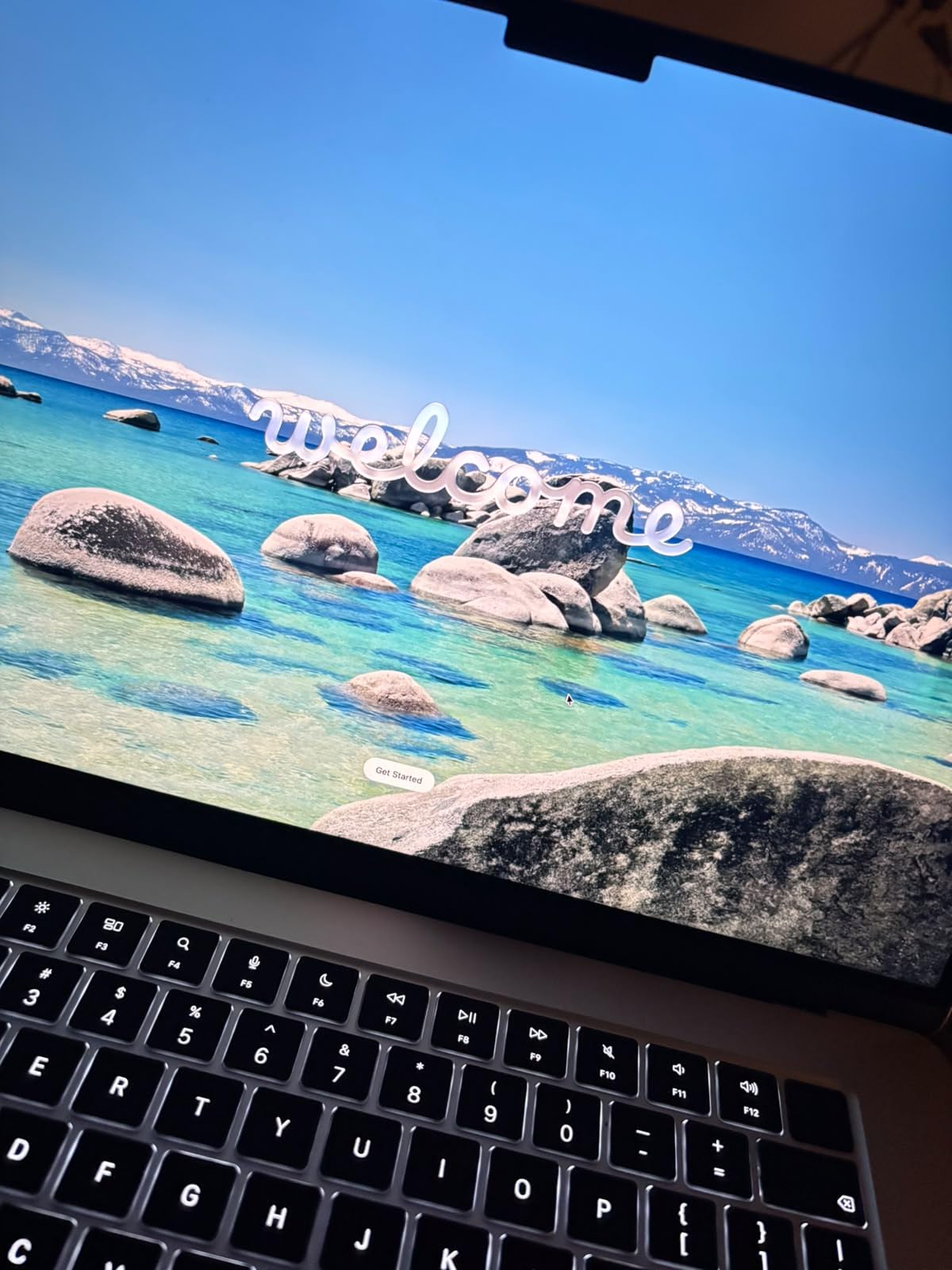
The 15.3-inch Liquid Retina panel is the reason I keep recommending this over the 13-inch model. Editor text is sharp at that size and you get a usable side-by-side layout with a terminal without squinting. The M5 chip handles compilation and container work smoothly, and the 16GB of unified memory is shared between CPU and GPU, which is a real advantage if you ever attach a display or run a local model.
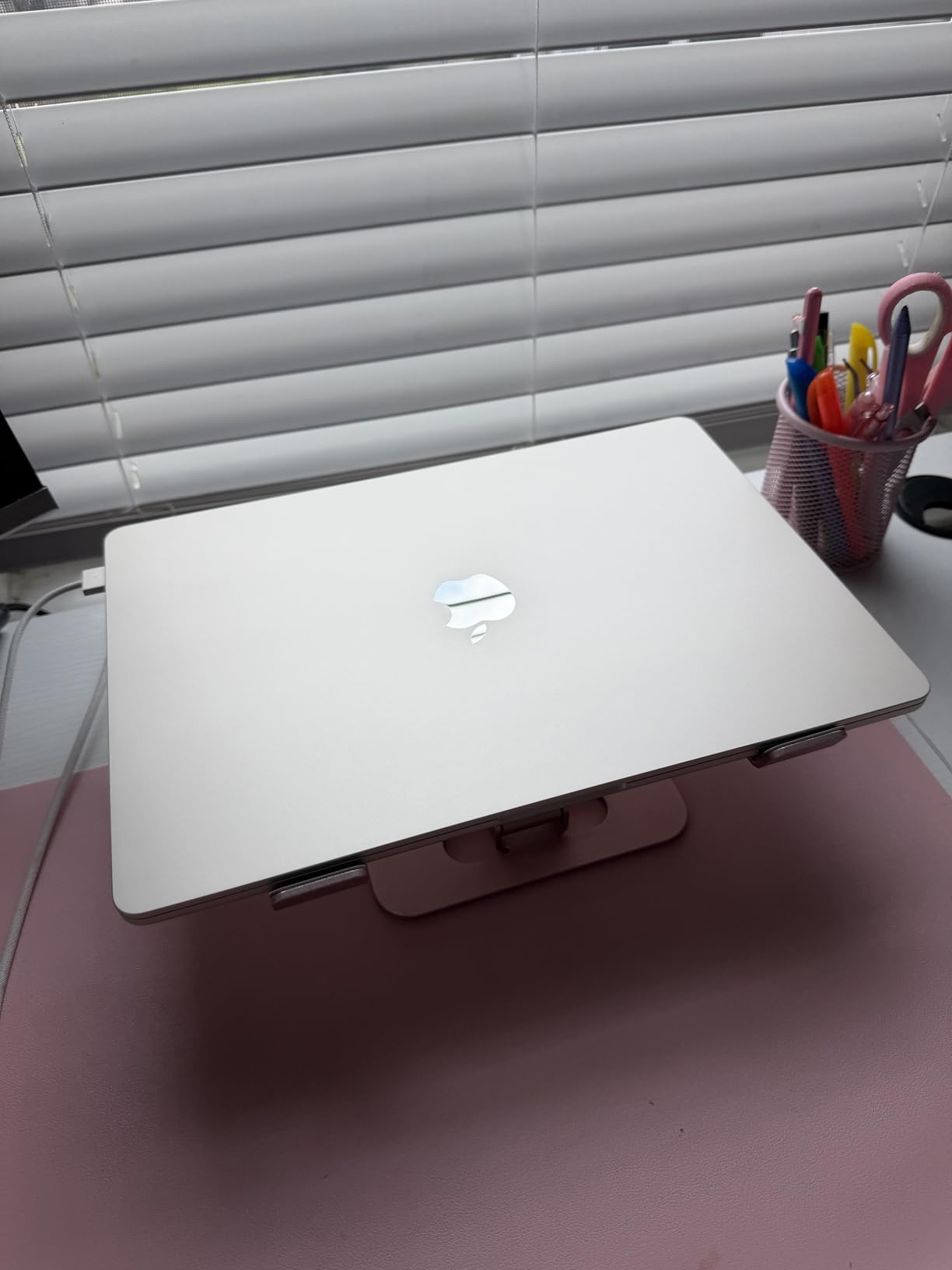
Battery is the standout. Owners consistently report close to a full working day, and the machine holds its speed on battery rather than dropping to a lower power state. The keyboard is accurate and quiet enough for long sessions, and the trackpad is large and precise. Apple’s continuity features, including AirDrop, universal clipboard and iPhone Mirroring, quietly remove friction from a mobile workflow.
What this machine handles best
Web development, backend work, shell-heavy Linux-adjacent work through the native terminal, and any day you are away from a socket. If you write iOS code, this is a Mac that runs Xcode without a fan spinning up. The silence and the battery are the reasons this is the pick for people who code in cafés, airports and libraries.
It also suits anyone who wants a large screen without a large weight. At 3.32 pounds, it is one of the few 15-inch machines you can carry all day without it becoming the thing your shoulder complains about. Compare that against the 4.7 and 4.8 pound Windows options further down, and the difference is obvious by the end of a long day.
Where you will feel the limits
Memory is soldered. 16GB is genuinely enough for most web and backend developers today, but it is not expandable, and if you are running multiple virtual machines, local Elasticsearch clusters, or large language models, the ceiling is fixed. Apple does offer higher memory configurations at purchase time, which is the only lever you get.
Ports are thin, too. Two Thunderbolt 4 ports, MagSafe and a headphone jack is the whole list, and it supports up to two external displays. A developer with a multi-monitor setup needs an adapter hub, and that is a real cost in money and desk space. The fingerprint-prone finish is cosmetic, but it does mean the lid smudges.
2. MacBook Pro 14-inch M5: Best for Sustained Heavy Workloads
Apple 2025 MacBook Pro Laptop with Apple M5 chip with 10‑core CPU and 10‑core GPU: Built for AI, 14.2-inch Liquid Retina XDR Display, 16GB Unified Memory, 1TB SSD Storage; Space Black
14.2-inch Liquid Retina XDR
Apple M5 10-core CPU and GPU
16GB unified memory
1TB SSD
3.41 pounds
Pros
- Genuinely fast across demanding compile and render workloads
- Excellent XDR display with 1600 nits peak
- Full port set including HDMI and SDXC
- Performance identical on battery and plugged in
- Solid for Xcode and local model work
Cons
- Costs more than the MacBook Air tier
- Still limited to two external displays
- Memory cannot be upgraded after purchase
The Pro is the machine you buy when the work is heavy enough that a throttled laptop would be a daily irritation. The 10-core CPU and 10-core GPU, with a Neural Accelerator in each GPU core, chew through large compiles, container rebuilds and local inference without visibly slowing. Compared with the Air, the difference shows up most in sustained tasks rather than in quick edits.
The 14.2-inch Liquid Retina XDR display is a step up in a way you feel immediately. With 1600 nits peak and 1000 nits sustained brightness, it stays readable next to a window, and the 1,000,000:1 contrast ratio makes dark themes genuinely dark. If you spend your day in a terminal with a dark background, that contrast is not a spec-sheet luxury.
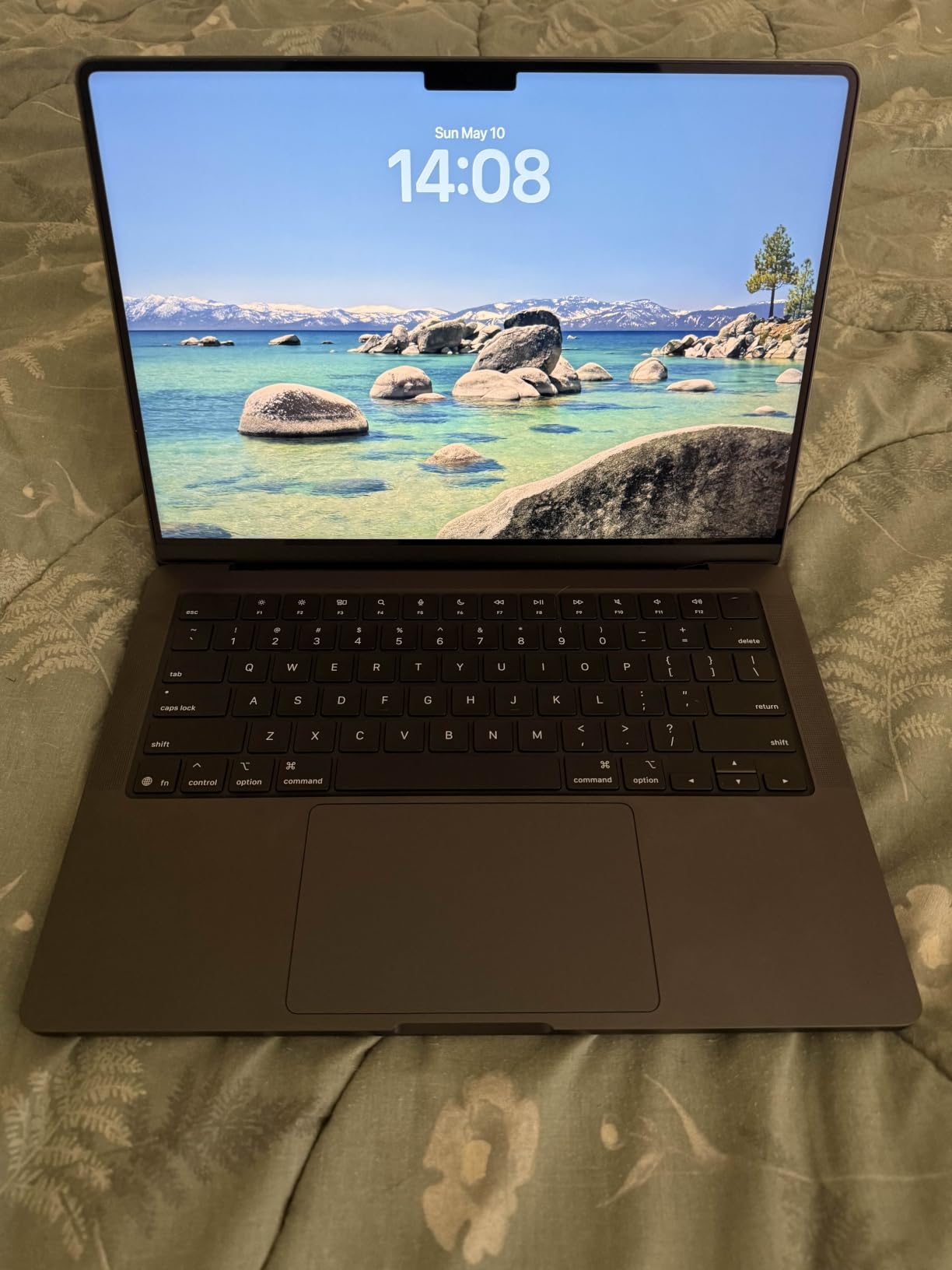
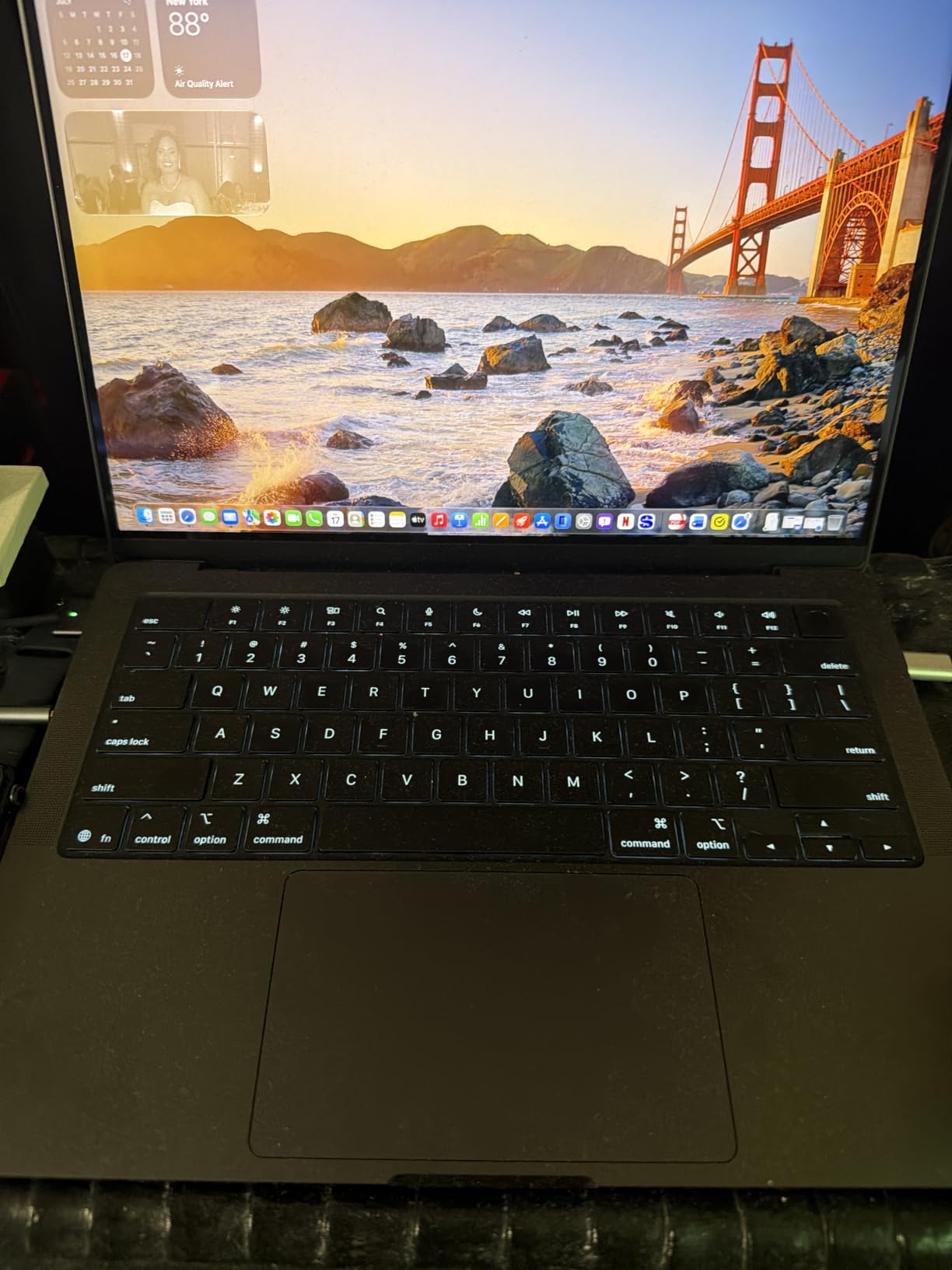
The port selection is where the Pro earns its name for most developers. Three Thunderbolt 4 ports, MagSafe 3, a full-size HDMI and an SDXC card slot mean you can drive two external displays, plug in a wired network, and still charge, with no dongle. Reviewers repeatedly single this out as the reason the machine is easy to live with at a desk.
Why the Pro beats the Air here
Two reasons. The first is thermal headroom. The Air is fanless, which is wonderful until a long build hits a sustained load; the Pro has active cooling that holds its performance, which matters if you are compiling a large Unreal project or training a model for hours. The second is the port set, which removes the adapter chain entirely for a dual-monitor desk.
It is also the safest choice for Xcode. Large Swift and Objective-C project rebuilds are among the heavier things you will do on a laptop, and having the headroom removes any doubt. Battery life is a full day, and critically, the machine performs the same unplugged as it does plugged in, which sidesteps one of the most annoying behaviours on modern hardware.
Where it is the wrong spend
For web, backend and general software development, this is more machine than you need. The Air 15 covers that work and is quieter. The honest reason to step up to the Pro is sustained heavy compute or a multi-monitor desk, not faster code review.
Two constraints carry over from the Air. Memory is fixed at purchase, and external display support tops out at two screens. If your workflow genuinely needs three panels, neither Apple laptop in this roundup serves it natively.
3. Lenovo ThinkPad X1 Carbon Gen 12: Best for Typing Comfort
Lenovo Gen 12 ThinkPad X1 Carbon Laptop with Intel Ultra 7 165U vPro Processor, 14″ WUXGA 100% sRGB Touchscreen, 32GB 6400MHz RAM, 1TB Gen4 Performance SSD, FHD+ IR+ RGB Camera, and Windows 11 Pro
Intel Core Ultra 7 165U
32GB LPDDR5X-6400
1TB Gen4 SSD
14-inch 1920x1200 IPS touch
2.4 pounds
Pros
- Exceptional keyboard with tactile bumps
- Extremely light at 2.4 pounds
- 32GB of fast LPDDR5X memory
- 100% sRGB 400-nit anti-glare touch display
- Full port set with dual Thunderbolt 4 and HDMI
Cons
- Memory is soldered and capped at 32GB
- 60Hz panel is not the smoothest for scrolling
- Some owners report early hardware failures
The ThinkPad keyboard is the reason this machine keeps appearing at the top of developer forums, and spending a day on it makes that reputation obvious. Key travel is deep enough to type by touch, the surface is slightly concave, and the tactile bumps on the letter keys give feedback without requiring much force. The TrackPoint and physical button set remain genuinely useful for long terminal sessions.
Underneath, the Intel Core Ultra 7 165U is a Meteor Lake part with efficient integrated graphics, and the 32GB of LPDDR5X-6400 memory is a step above what most laptops in this list carry. At 2.4 pounds without the charger, it is the lightest machine here, and it is the only one that feels like a full workstation you can put in a bag without planning around it.
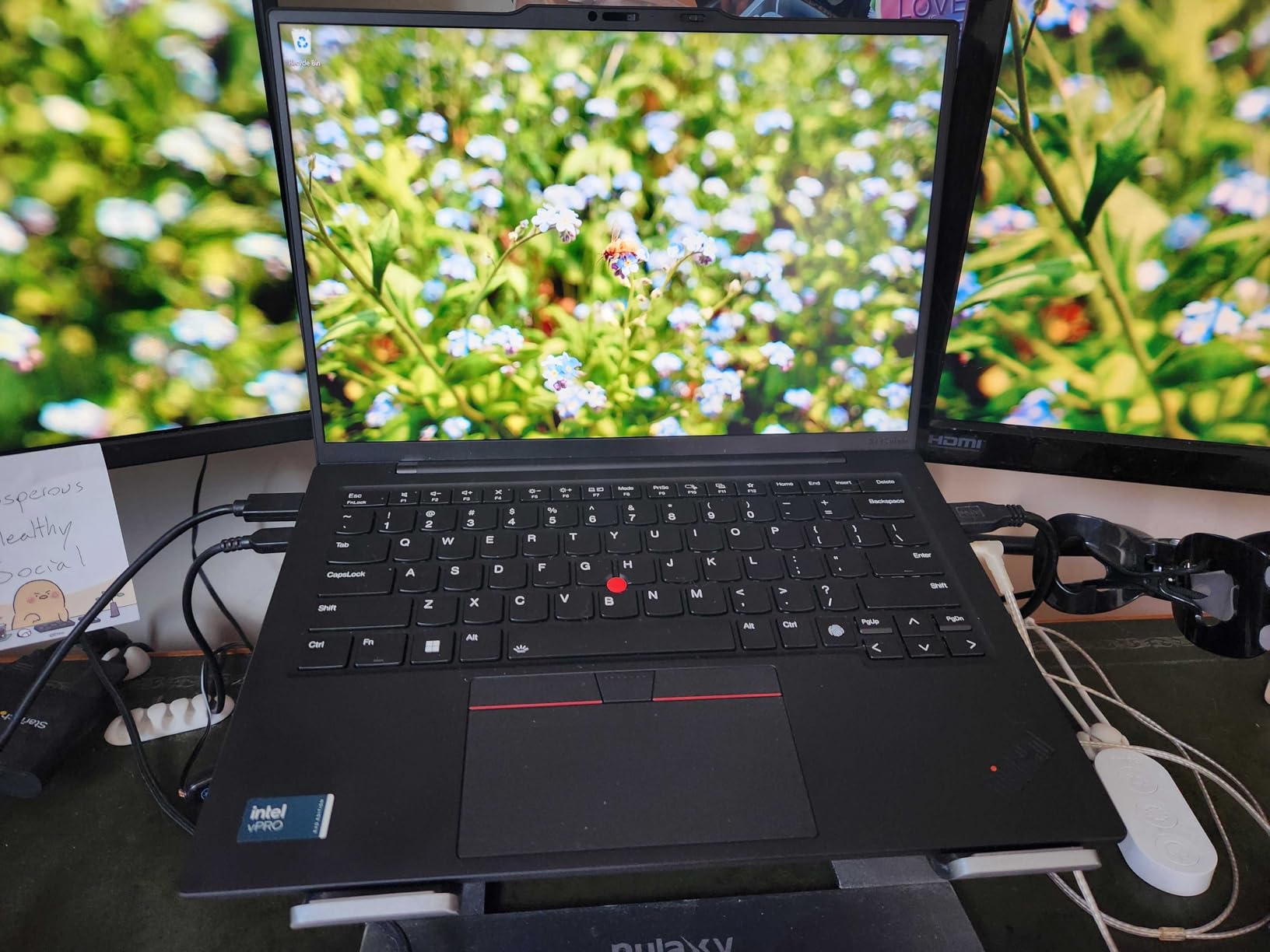
The 14-inch 1920×1200 IPS touchscreen at 400 nits and 100% sRGB is accurate and matte enough to work on for a whole day. The port selection is the best on any Windows ultrabook here: two Thunderbolt 4 ports, two USB-A 3.2 ports and HDMI, with no dongle required for a standard desk setup. Windows 11 Pro comes preinstalled, which matters if you need BitLocker or remote desktop.
Why Linux developers rate it so highly
It boots cleanly into mainstream Linux distributions, the ThinkPad name carries decades of driver and firmware support, and the keyboard layout suits symbol-heavy editing. For someone who spends part of each day in a Linux terminal, a native Windows shell, or a dual-boot setup, that combination of hardware quality and community knowledge base is worth a lot more than a faster chip.
Windows 11 Pro is a genuine advantage for enterprise developers too, with Group Policy, BitLocker and remote desktop built in, plus a fingerprint reader and IR camera for secure logins. The 57 watt-hour battery delivers good real-world life, and the 1TB Gen4 SSD keeps project switching and node_modules installs quick.
Where the compromises are
Memory is soldered and tops out at 32GB on this configuration. That is plenty today, but it is a closed door, and it is the same regret that shows up again and again in developer forums. If you are running heavy virtual machines, plan your sizing carefully before you buy.
The display runs at 60Hz, so scrolling long files is less smooth than on the 120Hz and 240Hz panels further down this list. Touch adds a layer of digitiser cost and a little glare. And a minority of owners report early hardware failures on their particular purchase, so buy through a channel with straightforward returns rather than the open market.
4. Samsung Galaxy Book5 Pro 360: Best 2-in-1 for Hybrid Work
Samsung 16” Galaxy Book5 Pro 360 Copilot+ PC, AI Computer, Intel Core 7 Ultra Processor, 3K AMOLED (2880×1800) Touchscreen, S Pen,120Hz, Dolby Atmos, Student Laptop, Lightweight, All-Day Battery Life
16-inch 3K AMOLED 120Hz
Intel Core Ultra 7 256V
16GB LPDDR5 at 8533MHz
1TB SSD
3.7 pounds
Pros
- Superb 3K AMOLED touchscreen at 120Hz with anti-glare coating
- Convertible 2-in-1 with the S Pen included
- Battery rated up to 25 hours
- Rich port set with dual Thunderbolt 4 and microSD
- Light at 3.7 pounds with a 0.5-inch profile
Cons
- 16GB of soldered memory
- Integrated Intel Arc graphics only with no discrete GPU
- Convertible hinge is not ideal for long typing stints
The display is the reason to look at this machine. A 16-inch Dynamic AMOLED 2X panel at 2880×1800 and 120Hz with 500 nits and an anti-glare coating is the sharpest screen in this roundup. Code, terminal output and design mockups all look excellent, and the refresh rate makes long scrolling noticeably smoother than the 60Hz alternatives.
The Core Ultra 7 256V from Lunar Lake is an efficient part, and 16GB of LPDDR5 at 8533MHz is unusually fast memory. The 76 watt-hour battery is one of the largest here, and Samsung rates it up to 25 hours. In practice that means a full working day with room to spare, which is why this converts well to unplugged work.
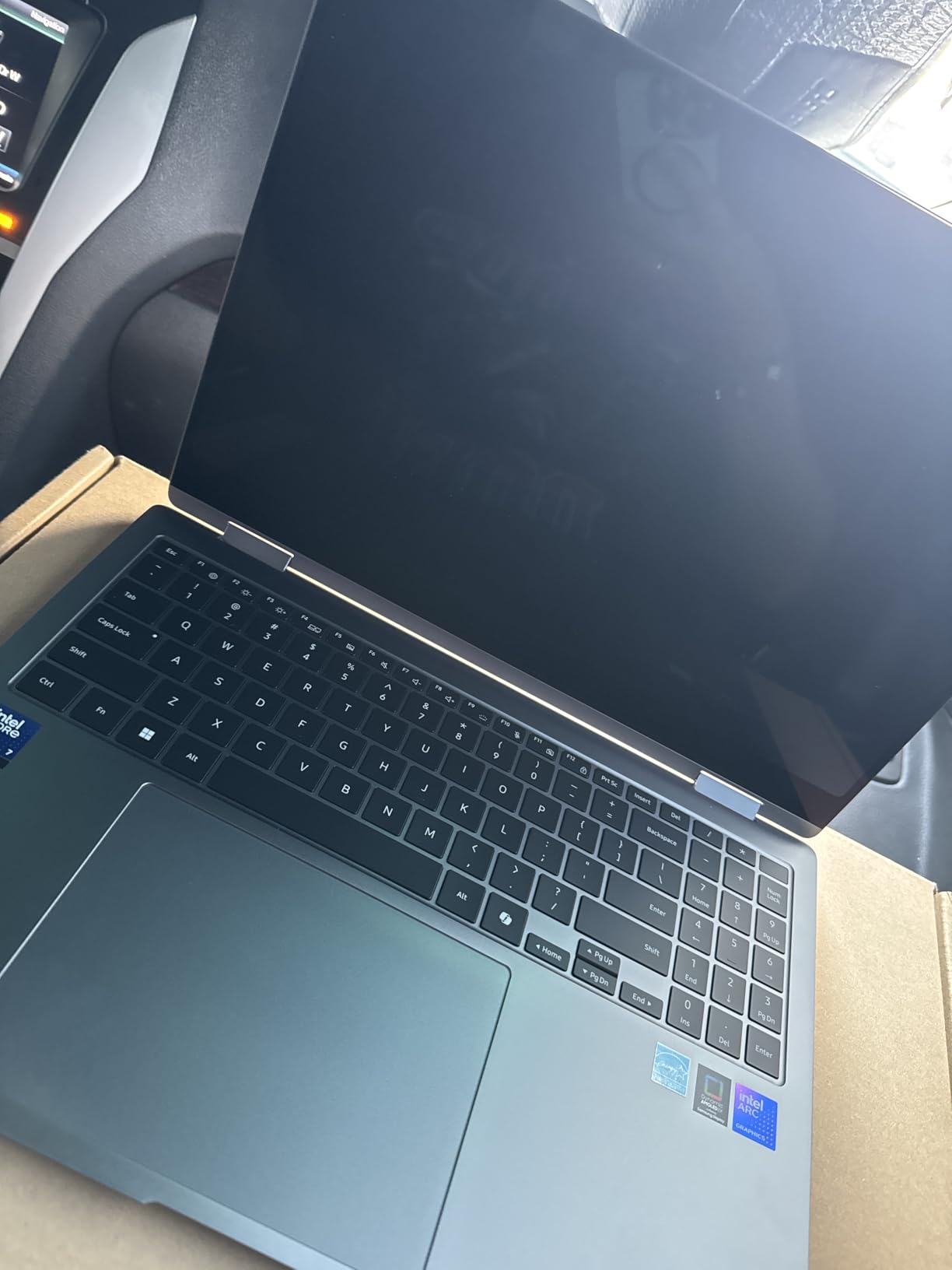
Port selection is better than most at this size: HDMI, USB-A, two Thunderbolt 4 ports, a headphone jack and a microSD slot, plus Wi-Fi 7. The included S Pen supports multi-touch gestures and tilt sensitivity, and in laptop mode the fingerprint reader handles logins. Phone Link and Quick Share make moving files off a phone painless.
When this is the right machine
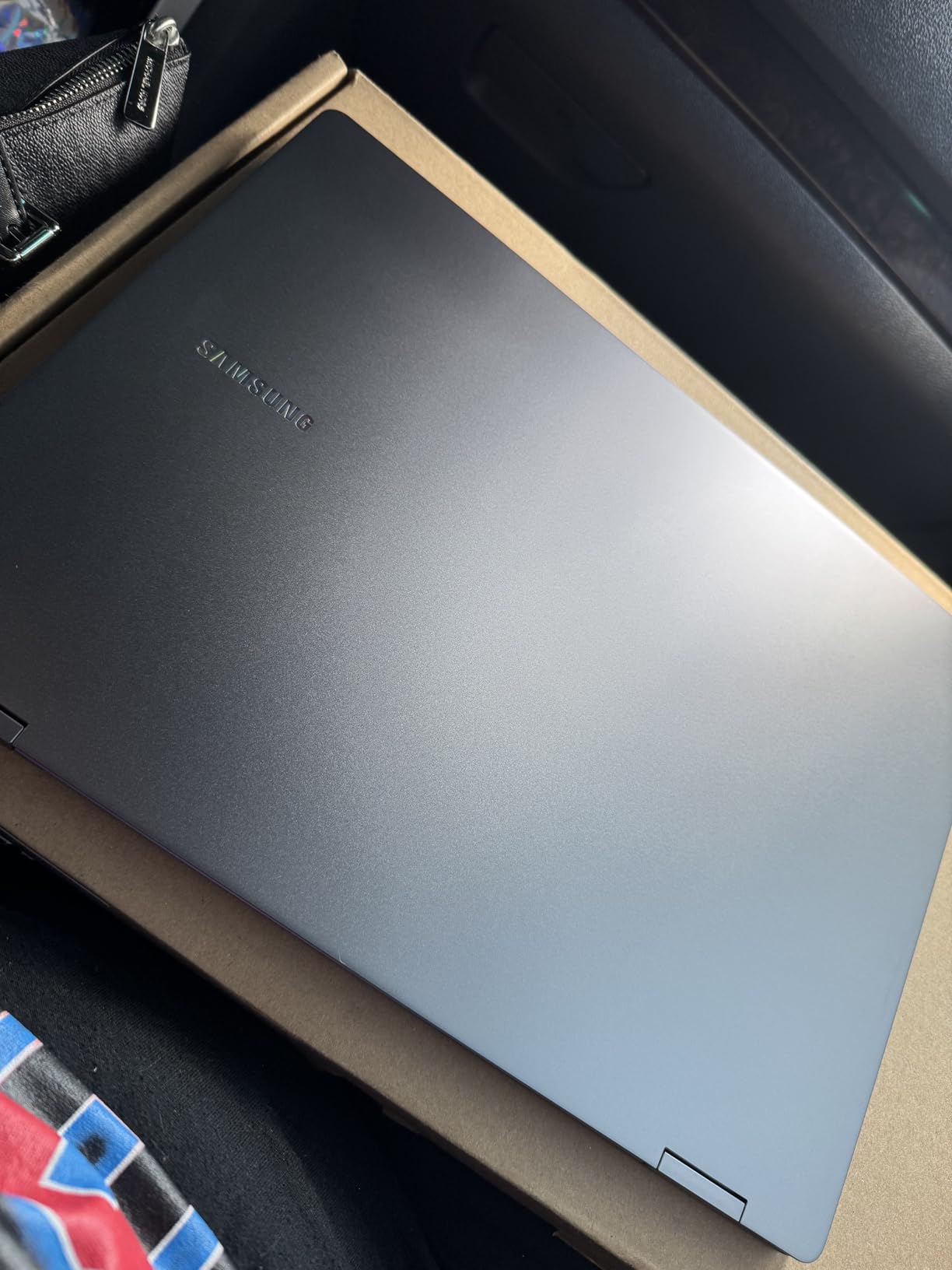
Developers who review on a tablet, present architecture diagrams to a room, or sketch interface ideas during a call will get real value from the convertible form. The 3K panel at 120Hz is also the best reading experience in the list for documentation and code review, and the anti-glare coating means you are not squinting under office lighting.
It is also a good fit for Windows developers who want a modern Copilot+ class machine with Neural Processing Unit support. The efficiency of the Lunar Lake part is the quiet advantage: it delivers responsive performance without turning a fanless-feeling thin chassis into a warm one.
Where the compromises bite
The 16GB of memory is soldered, so there is no upgrade path. Graphics are integrated Intel Arc 140V with 8GB shared, which is fine for web, backend and mobile work but will not run local model training or a heavy Unity scene at anything like full speed. If your work is GPU-bound, look at the RTX 5060 machines instead.
There is also the convertible trade-off itself. In tablet mode this is a superb machine; held on a desk for a full day of typing, the hinge and floating keyboard position are not as natural as a conventional clamshell. And at 3.7 pounds it is noticeably heavier than the ThinkPad and the Air.
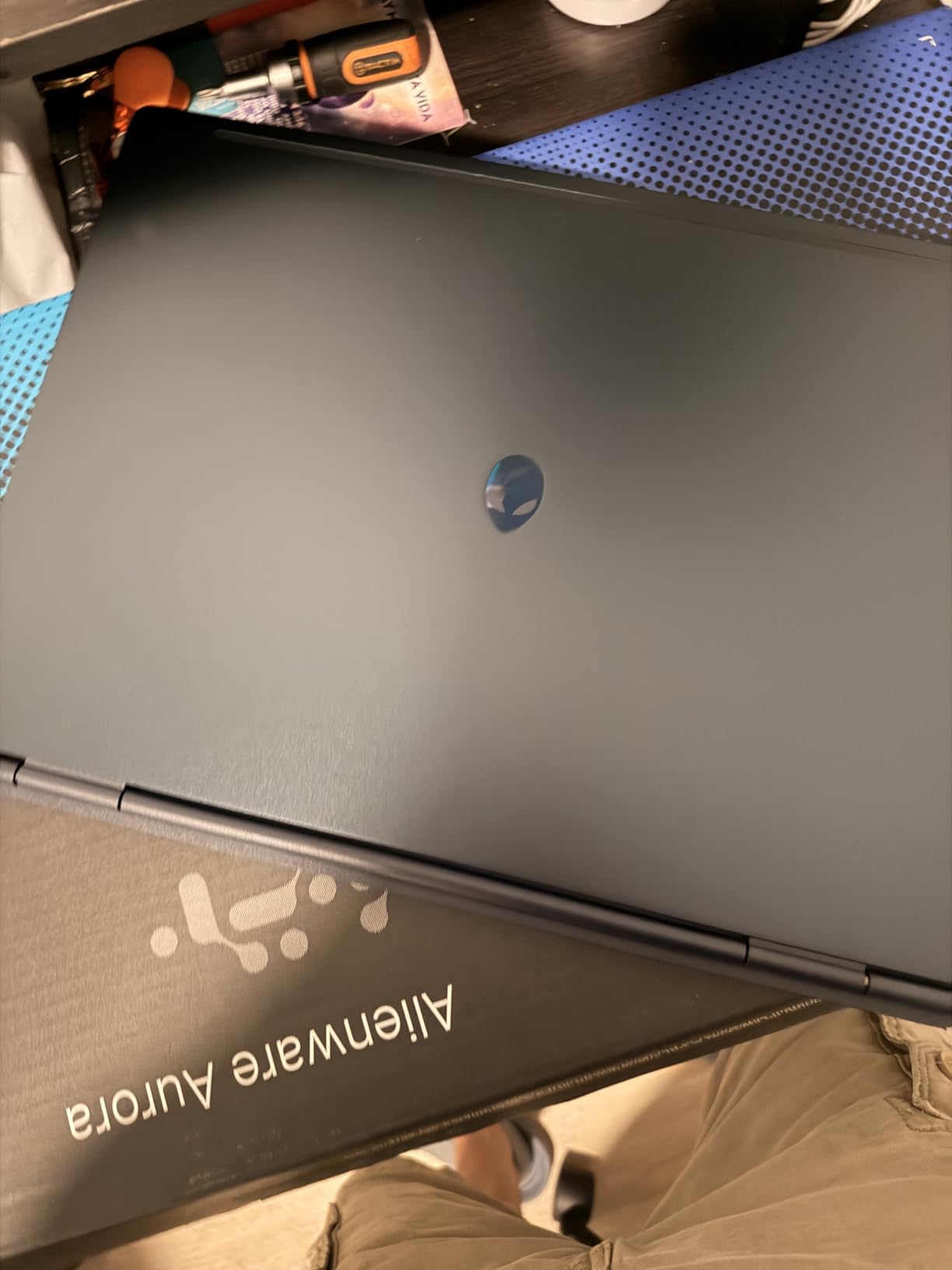
5. Alienware 16 Aurora: Best for Machine Learning Work
Alienware 16 Aurora Gaming Laptop, NVIDIA RTX 5060, Intel Core 7 240H
NVIDIA RTX 5060 8GB
Intel Core 7 240H 10 cores
16GB DDR5 in 2 slots
16-inch 2560x1600
1TB SSD
Pros
- Dedicated RTX 5060 with 8GB GDDR7 for GPU workloads
- Memory upgradeable to 32GB across two slots
- 16-inch 16:10 high-resolution workspace
- Cryo-Chamber cooling supports sustained work
- Plenty of ports including Ethernet
Cons
- Heavy at 5.5 pounds
- No fingerprint reader
- Battery life is short with a discrete GPU
This is the first machine on the list where a discrete GPU is not a luxury, it is the reason. The NVIDIA GeForce RTX 5060 with 8GB of GDDR7 handles CUDA workloads, local model inference and GPU-accelerated data pipelines in a way integrated graphics simply cannot. If you are training anything from a small neural network upward, this is the class of hardware you need.
The Intel Core 7 240H is a 10-core part boosting to 5.2GHz, which keeps compile times short alongside the GPU work. Memory is the detail that matters most here: 16GB DDR5 at 5600MHz across two slots, upgradeable to 32GB, so the one weakness in an otherwise capable machine is one you can fix yourself with a screwdriver and two modules.

The 16-inch 16:10 WQXGA display at 2560×1600 and 300 nits is a good working canvas, and the taller aspect ratio gives you more vertical space for a terminal stacked above an editor. Anti-glare coating helps in a bright room. The Cryo-Chamber airflow structure is designed precisely for the sustained-load case, which is what a long training run is.
Why the GPU changes the equation
Most of this list is bound by CPU and memory, and integrated graphics is genuinely fine. The moment you touch PyTorch, CUDA, Blender rendering, or a large local model, the picture changes completely. Eight gigabytes of dedicated GDDR7 is enough to train smaller models and to serve local inference at a usable rate, which an integrated GPU with shared memory cannot do at any memory size.
Two memory slots and a full port selection including Ethernet also make this a good self-hosting machine. If you run containers, a local database and a reverse proxy on the same box, the 16:10 screen gives you room to watch logs while you edit, and the wired port removes a class of network flakiness.
Where it is the wrong choice
Weight. At 5.5 pounds this is the heaviest machine in the roundup, and it is a gaming chassis at heart. Carrying it around a campus for a full day is a genuine commitment, and the battery life in a machine this size with this GPU is measured in hours, not in a working day.
For pure web or backend development, the GPU sits idle while you pay for weight and power draw. There is also no fingerprint reader, so sign-in depends on a password or PIN, which will bother anyone working under corporate security policy. Buy this one for compute; do not buy it as a general-purpose daily driver.
6. ASUS ROG Strix G16: Best for Unreal Engine and Game Development
ASUS ROG Strix G16 (2025) Gaming Laptop, 16” ROG Nebula Display 16:10 2.5K 240Hz/3ms, NVIDIA® GeForce RTX™ 5060 GPU, Intel® Core™ Ultra 9 Processor 275HX, 16GB DDR5, 1TB SSD, Wi-Fi 7, Wind11 Home
Intel Core Ultra 9 275HX 24 cores
RTX 5060 Laptop GPU 8GB
16-inch 2.5K 240Hz
16GB DDR5
1TB PCIe Gen 4
Pros
- 24-core processor handles huge parallel builds
- 240Hz 2.5K Nebula display with Dolby Vision HDR
- Vapor chamber with liquid metal for sustained loads
- 2.5 Gigabit Ethernet and Wi-Fi 7
- Stealth mode for a professional-looking workspace
Cons
- Only 16GB of RAM as configured
- Bulky gaming chassis with a full RGB lightbar
- Smallest review base of any pick here
Game development is where the spec demands in this roundup climb the highest. The Core Ultra 9 275HX with 24 cores is a serious parallel workload chip, and Unreal Engine shader compilation is exactly that kind of workload. The RTX 5060 gives you real-time ray tracing and DLSS 4 while you iterate in the editor, which is what makes the viewport usable rather than a slideshow.
The 16-inch ROG Nebula panel at 2560×1600 and 240Hz with 3ms response and Dolby Vision HDR is the fastest display in the list. For an artist scrubbing a timeline or a designer previewing motion, that refresh rate is a genuine tool rather than a spec-sheet number, and the ACR film coating keeps it readable in a lit room.
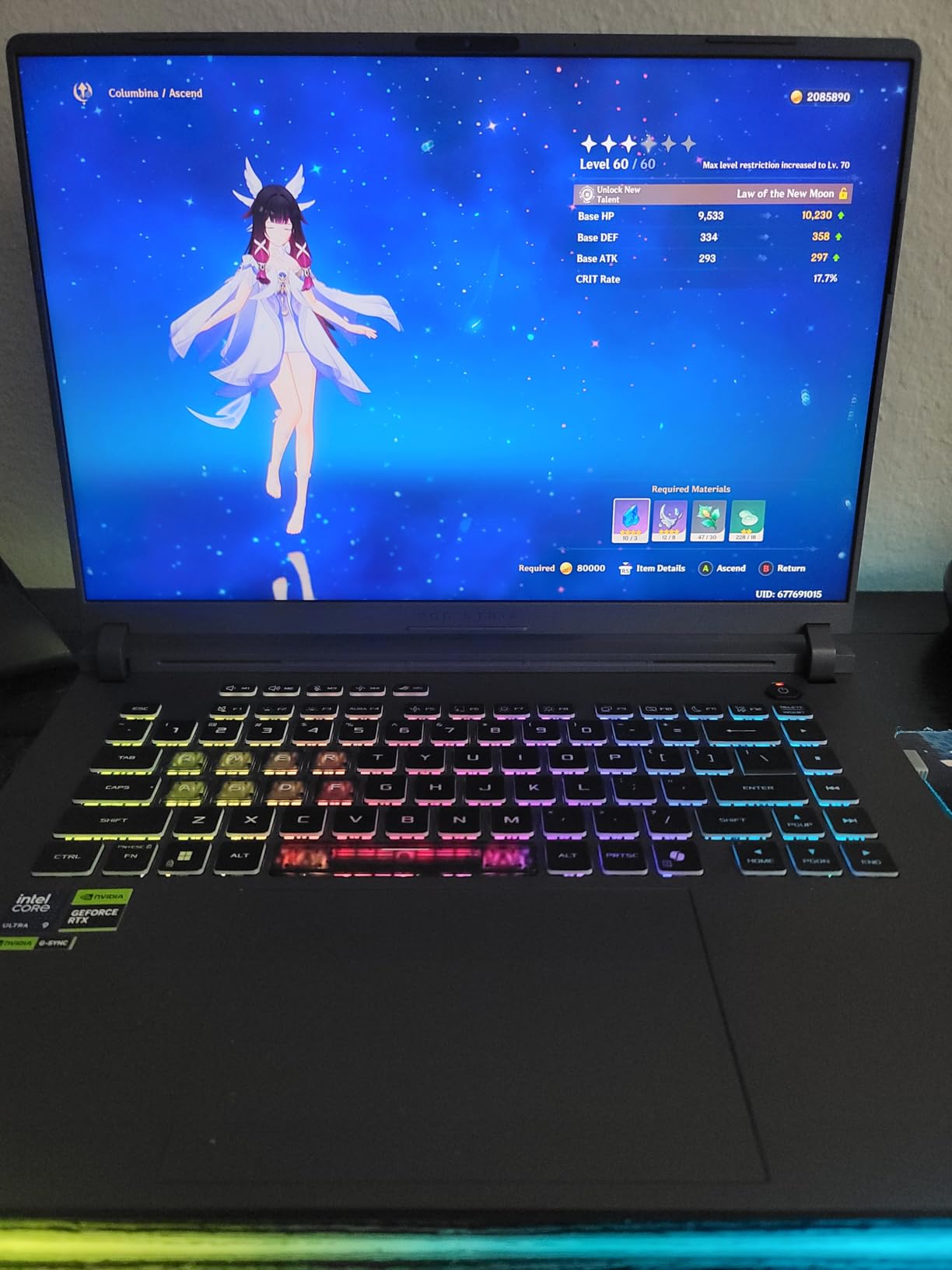
Cooling is where most gaming laptops earn their keep, and this one uses an end-to-end vapor chamber, a tri-fan layout and Conductonaut liquid metal on the CPU and GPU. That is the hardware you need to hold boost clocks through a long shader compile instead of throttling back after ten minutes. The 90 watt-hour battery is the biggest in the roundup, though a discrete GPU still limits real-world runtime.
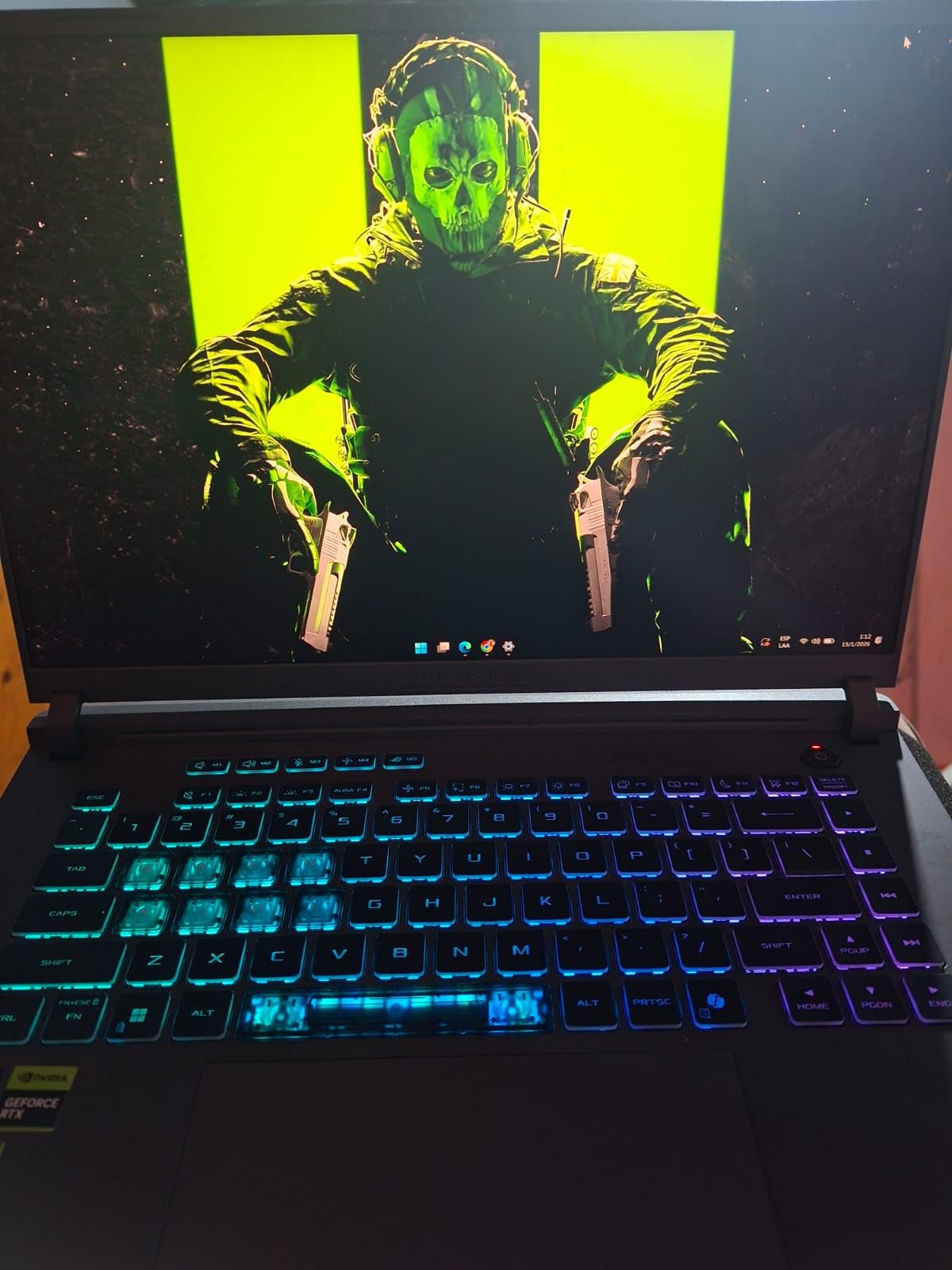
What makes it right for game work
Three things stack up. The 24-core CPU shortens shader and asset compilation, which is the bottleneck that makes developers hate working on laptops. The 8GB RTX 5060 handles the editor viewport at playable frame rates so you are not testing on a slideshow. And the sustained cooling design means the performance you see in the first ten minutes is the performance you see in the tenth hour.
Networking matters more than most people expect for this work. 2.5 Gigabit Ethernet plus Wi-Fi 7 is a good combination for pushing large asset repositories, and four USB ports mean you can attach a fast external SSD, a controller and a colour-accurate reference display without a hub.
Where it is overkill
For anything other than game development, machine learning or video work, this is far more than you need and you will feel it daily in weight, fan noise and battery. The 16GB of DDR5 as configured is also the weakest spec on an otherwise flagship machine, and while there are two slots, that is an upgrade you will be doing soon after purchase.
There is one more practical point. If you code in client meetings or write documentation for clients, the gaming chassis and the 360-degree RGB lightbar project a message you may not want. The Stealth Mode feature does disable the lighting and tones down the profile, but the shape of the machine still announces what it is.
7. Dell Inspiron 16 Plus 7640: Best Value Large-Screen Windows Laptop
Dell Inspiron 16 Plus 7640 Laptop – 16.0-inch 16:10 2.5K Display, Intel Core i7-13620H Processor, 16GB LPDDR5 RAM, 1TB SSD, Intel UHD Graphics, Windows 11 Home, Onsite & Migrate Service – Ice Blue
16-inch 2.5K 120Hz matte display
Intel Core i7-13620H 10 cores
16GB LPDDR5 at 4800MHz
1TB SSD
Pros
- Sharp 16-inch 2.5K 120Hz display with a matte finish
- 10-core i7 handles multitasking comfortably
- 16GB RAM and 1TB SSD is a solid dev baseline
- Backlit keyboard and near-silent operation
- Onsite service support included
Cons
- Soldered memory cannot be upgraded
- Only one USB-C port and the charger uses it
- Plastic chassis
- Integrated graphics force 60Hz for heavy work
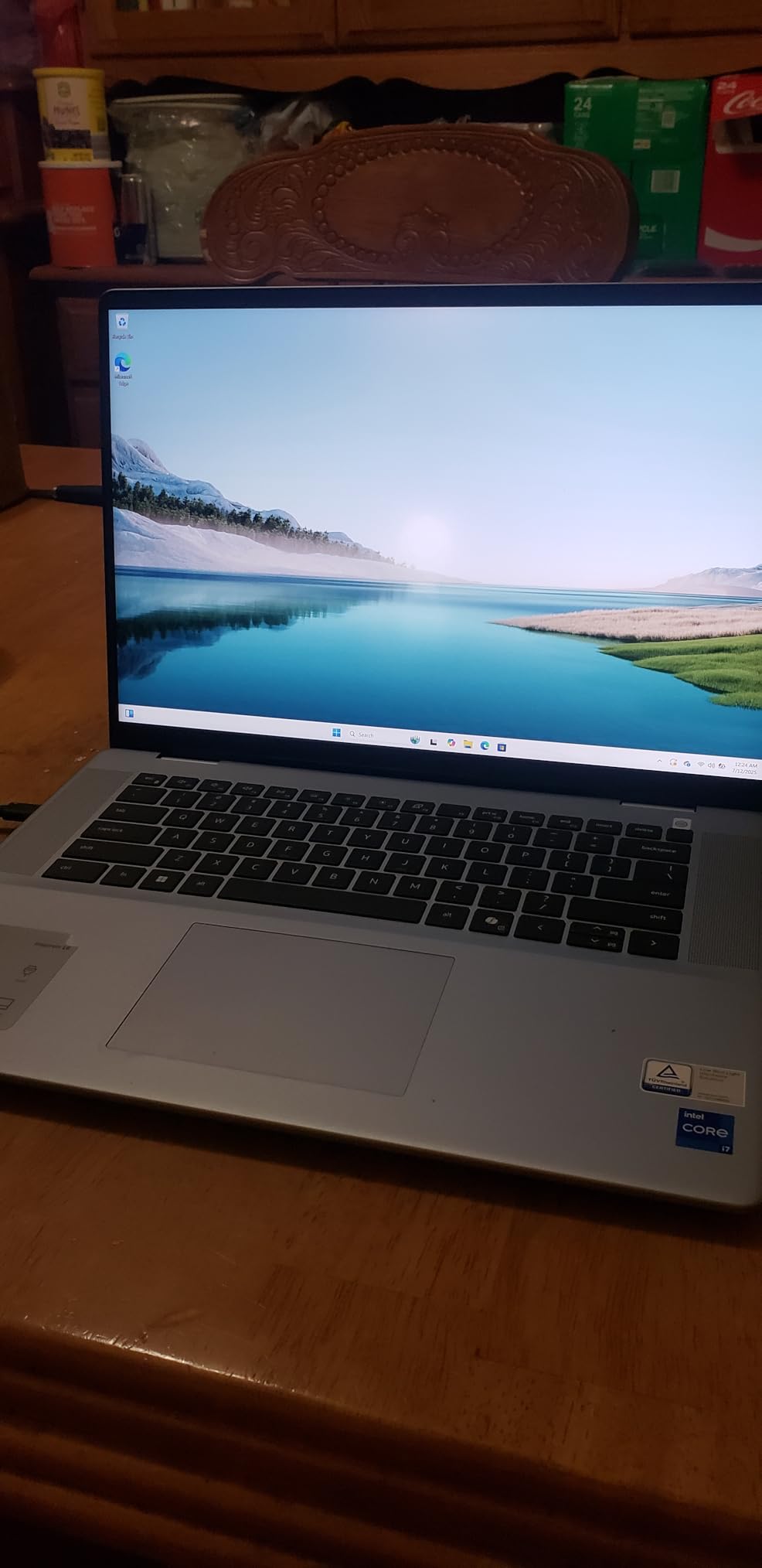
This is the machine I keep coming back to for Windows developers who want a big, sharp workspace without a workstation budget. The 16-inch 16:10 2.5K panel at 2560×1600 with a matte finish is the best-balanced display per pound in the list. The matte coating is the detail that matters over a full workday: no reflections, no glare from an overhead light, and ComfortView Plus reduces blue light for evening sessions.
The 13th-generation Core i7-13620H with 10 cores boosting to 4.9GHz has enough parallelism for a comfortable day across a code editor, a browser with many tabs, and a virtual machine running a local database stack. The 1TB SSD means you never think about storage, and 16GB of LPDDR5 is the right baseline for web and backend work in 2026.
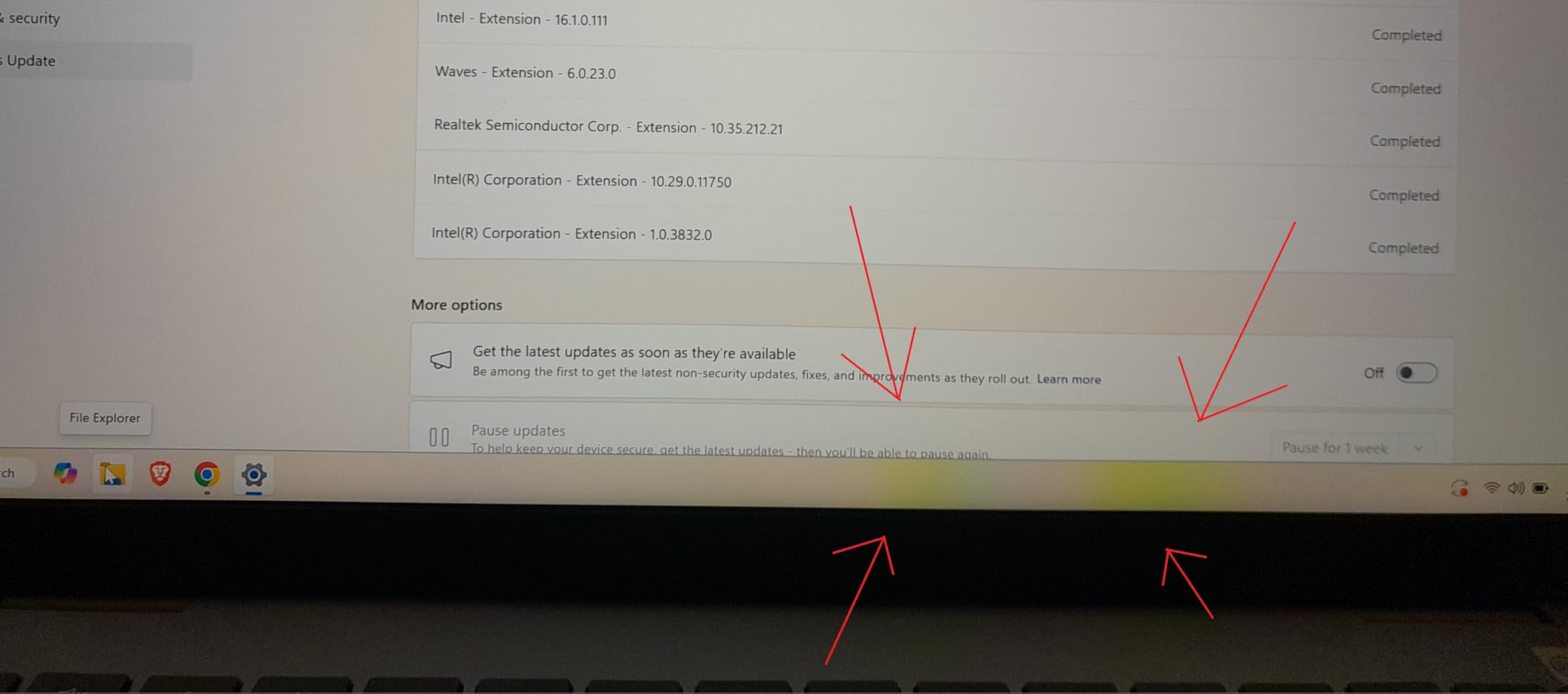
Owners consistently call out the keyboard and the quietness. It runs near-silent for typical development work, which matters if you are in a shared space. The port set is a single Thunderbolt 4 port, two USB-A 3.2 ports and HDMI, and Dell includes a year of onsite service after remote diagnosis along with six months of their migration tooling.
Why this is the value pick
It covers a gap the rest of this roundup leaves open. The MacBooks are capable but expensive, the gaming machines are heavy, and the entry-level machines have poor screens. This one gives you a genuinely sharp 2.5K 16:10 display, a ten-core processor, 16GB of RAM and a full terabyte of storage, in a machine most people could buy without thinking hard about it.
For students, that matters twice over. A large screen at 16:10 fits a lesson recording, notes and an editor at once, and the backlit keyboard is genuinely pleasant in dim lecture theatres. The TPM 2.0 and Windows 11 Home also mean it is ready for institutional security policies.
What to know before you buy
Memory is soldered on this configuration, so the 16GB is what you get. That is enough for most development today but it is a closed door, and it is the single most common complaint pattern in developer forums. If you know you will run several virtual machines or local model servers, budget for a machine you can upgrade instead.
The single USB-C port is also a practical annoyance, because it is what the charger uses. You will be carrying a dock if you need more displays or a wired network. And with Intel UHD integrated graphics, anything GPU-bound forces the panel down to 60Hz, so this is not the machine for Unity, Unreal or local ML work.
8. HP 255 G10 32GB: Best for Upgradeable Memory on a Budget
HP 255 G10 15.6″ FHD Business Laptop, AMD Ryzen 7 7730U, 32GB RAM, 1TB PCIe SSD, Numeric Keypad, Webcam, Wi-Fi 6, HDMI, Windows 11 Pro, Black
AMD Ryzen 7 7730U 8 cores
32GB DDR4 in 2 slots up to 64GB
1TB PCIe M.2 SSD with a second slot
15.6-inch FHD IPS
Pros
- Smooth
- responsive performance for the money
- 32GB of DDR4 across two slots expandable to 64GB
- Second M.2 slot for more storage
- Windows 11 Pro with enterprise security
- Light at 3.4 pounds with a numeric keypad
Cons
- Dim 250-nit display with a modest 45% NTSC gamut
- Basic plastic chassis
- Small 41 watt-hour battery
The reason this laptop makes the list is straightforward: it solves the problem most people on this page are worried about. It comes with 32GB of DDR4 across two slots and can be taken to 64GB, and it has a second M.2 storage slot. No other machine in this roundup offers that much upgrade headroom at this level, and it is why a machine that looks basic keeps working through a degree and into a first job.
The Ryzen 7 7730U provides 8 cores and 16 threads with a 16MB L3 cache, boosting to 4.5GHz. For web, backend and general application development that is a comfortable amount of parallelism, and owners report quick boots and smooth multitasking across a browser, an editor and a container runtime. The 1TB PCIe SSD keeps installs and builds quick.
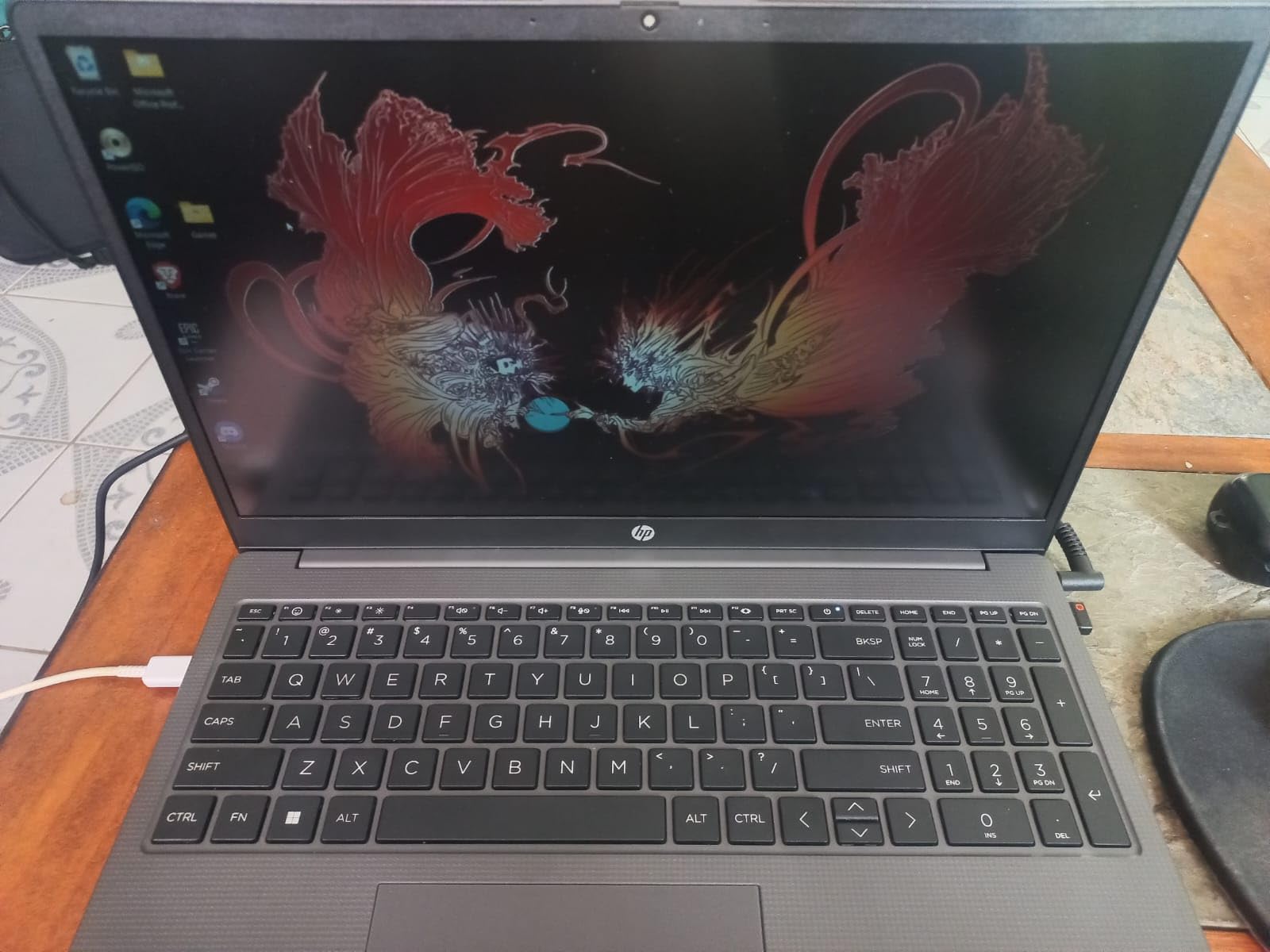
Windows 11 Pro is a quiet but real advantage. Group Policy, BitLocker encryption and remote desktop are all there, which makes this a fit for corporate development roles where Home edition simply will not install the tooling. At 3.4 pounds it is one of the lighter 15-inch machines here, and the numeric keypad is a small nicety for spreadsheet-adjacent work.
Why upgradeability is worth paying for
Soldered memory is the fear that shows up again and again in developer discussions, and it is well founded. If you buy 16GB soldered in 2026, you are making a four-year bet. If you buy 32GB in two slots with a documented path to 64GB, you are buying a machine that absorbs a heavier toolchain, a growing container stack, or a local model server without replacement.
Users routinely describe the jump from 8GB to 16GB as transformative for build times and for how many things they keep open at once, and this machine starts on the right side of that line. The second M.2 slot means adding a fast scratch drive for Docker images or a separate development volume is a ten-minute job rather than a purchase.
What you give up for it
The display is the weak point. A 15.6-inch FHD IPS panel at 250 nits with a 45% NTSC colour gamut is dim and washed out next to the 2.5K and 3K panels elsewhere in this list. It is fine for reading documentation in a bright room thanks to the anti-glare coating, but it is not a machine you will want for design review or colour work.
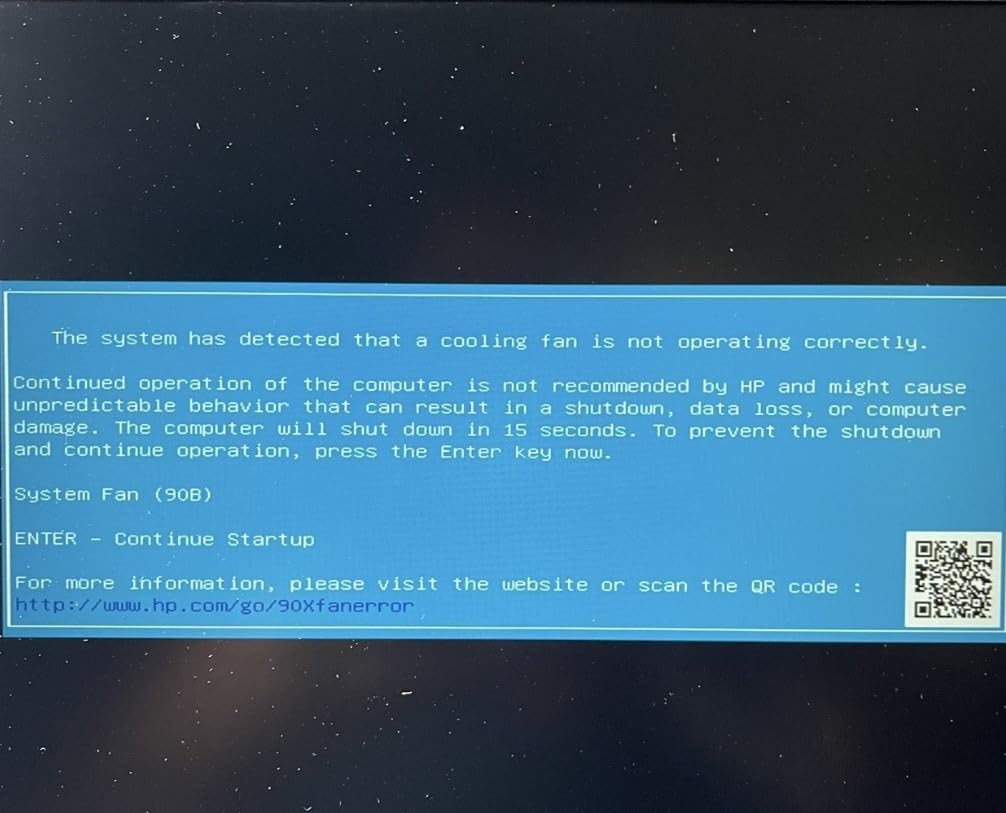
The chassis is basic plastic and does not feel premium in the hand. The 41 watt-hour battery is small, so expect a workday rather than a working day away from a socket. And a minority of owners report isolated hardware faults, so buy from a seller with an easy return path.
9. Lenovo V15 40GB: Best for Memory-Heavy Server Work
Lenovo V-Series V15 Business Laptop, 15.6″ FHD Display, AMD Ryzen 7 Processor, 40GB RAM, 1TB SSD, Numeric Keypad, HDMI, RJ45, Webcam, Wi-Fi, Windows 11 Pro, Black
AMD Ryzen 7 5825U 8 cores
40GB DDR RAM
1TB PCIe NVMe SSD
RJ45 Ethernet
15.6-inch FHD LCD
Pros
- 40GB of RAM is unusual at this level
- Built-in RJ45 Ethernet port is rare on a laptop
- 1TB NVMe SSD for fast builds and transfers
- Windows 11 Pro and numeric keypad
- Light at 3.6 pounds
Cons
- Only a single memory slot limits expansion
- Basic 15.6-inch 1080p 60Hz LCD panel
- Modest battery life of around 8 hours
Forty gigabytes of memory is the headline here, and it is genuinely unusual at this end of the market. If you run virtual machines, spin up a local database and message broker, keep a browser alive with thirty tabs, and still want a page swap never, this amount of headroom is the feature you are actually buying. The Ryzen 7 5825U with 8 cores and 16 threads handles the CPU side comfortably alongside it.
The other standout is the RJ45 Ethernet port. Almost every laptop here relies on Wi-Fi alone, and a wired connection is meaningfully better for container builds, package downloads and self-hosted services where latency and dropped connections add up. Alongside a USB-C port, two USB-A ports, HDMI and a headphone jack, the connectivity is better than most ultraportables.
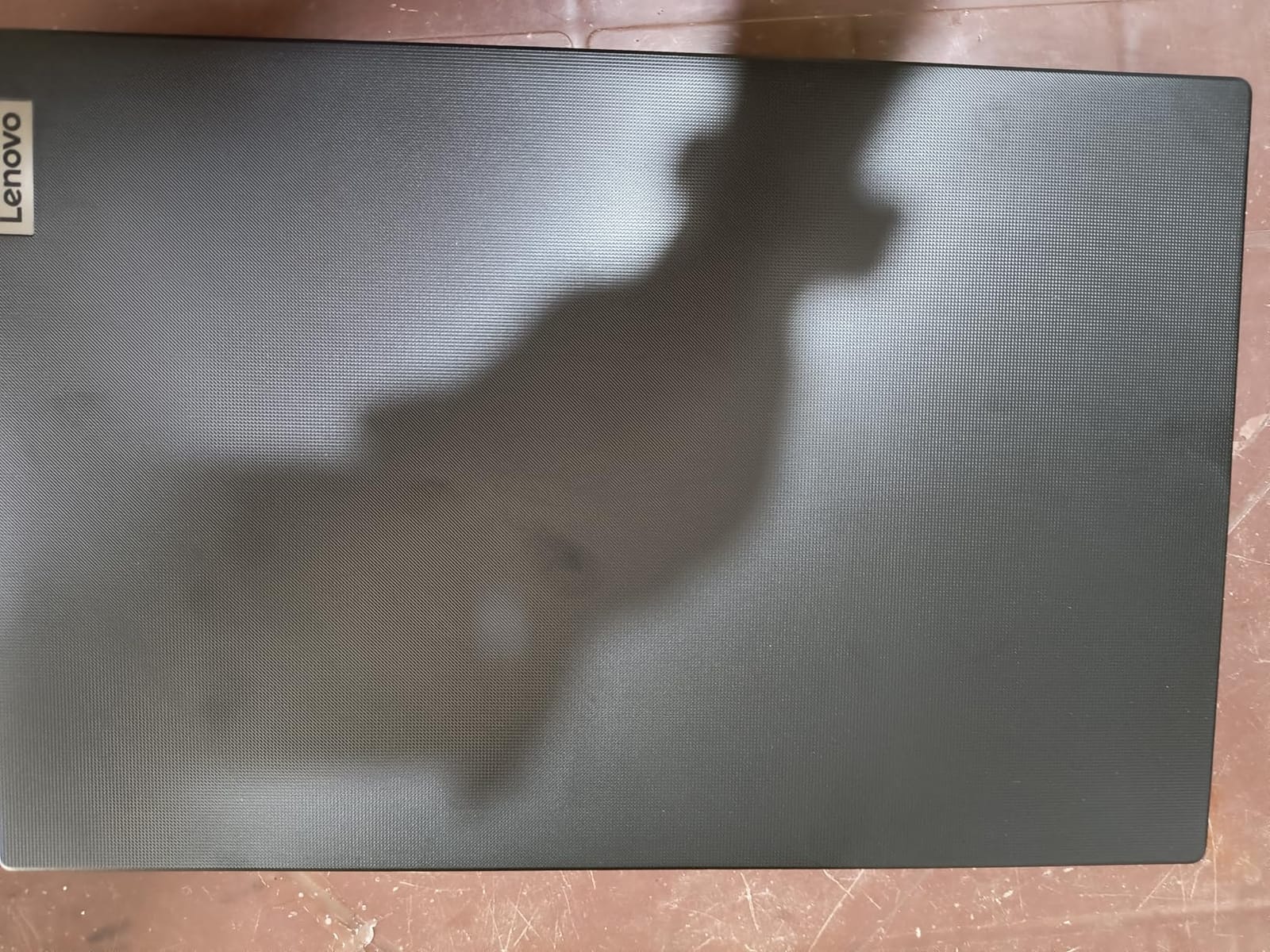
The review base here is large and the feedback is consistent. Owners like the combination of memory, storage and the wired port for office and development work, and the numeric keypad is a small daily convenience. At 3.6 pounds it is easy to carry, and Windows 11 Pro comes with sensible preconfigured layouts.
Who this memory actually helps
Containerised development is the clearest case. Each container carries its own filesystem overhead, and a machine running four or five services alongside an editor and a browser will sit uncomfortably close to a 16GB limit. Forty gigabytes means you do not have to think about it, which is exactly the point when you are trying to focus on the problem rather than the machine.
Virtual machines are the second case. A backend developer running a Linux box for deployment testing, or a student working through a systems course, gets real headroom. The 1TB NVMe SSD also makes that scenario practical, since VM images are storage-hungry as well as memory-hungry.
The limits you should price in
There is a single memory slot, so 40GB is close to a ceiling rather than a floor. That is a meaningfully weaker position than the HP 255 G10 on the same page, and it is the reason this is a value pick rather than the recommended one for anyone planning a long ownership period.
The display is a basic 15.6-inch 1080p 60Hz LCD with no stated colour gamut figure, so it is the least pleasant screen for long coding sessions in this list. Battery life of around 8 hours is honest but not generous. Treat this as a work machine with a functional screen, not a machine for design review or long reading sessions.
10. Acer Aspire Go 15: Best Budget Pick for First-Year Students
Acer Aspire Go 15 AI Ready Laptop | 15.6″ FHD (1920 x 1080) IPS Display | AMD Ryzen 7 7730U | AMD Radeon Graphics | 16GB DDR4 | 512GB PCIe Gen4 SSD | Wi-Fi 6 | Windows 11 Home | AG15-42P-R9FW
AMD Ryzen 7 7730U 8 cores
16GB DDR4 upgradable to 32GB
512GB PCIe Gen 4 SSD
15.6-inch FHD IPS 300 nits
Pros
- Ryzen 7 7730U with 16GB delivers smooth everyday performance
- Memory is upgradable to 32GB which is rare in this class
- Bright 300-nit narrow-bezel IPS panel
- Backlit keyboard included
- Light at 3.9 pounds with a thin profile
Cons
- Weak speakers even at full volume
- Loud fans under sustained load
- Keyboard backlight times out after 30 seconds
- Only 512GB of storage and a 60Hz panel
This is the machine to look at if you are starting a computer science degree and the budget is genuinely tight. The Ryzen 7 7730U with 16GB of DDR4 handles an editor, a compiler, a local web server and a browser with a realistic number of tabs without complaint. Owners describe setup as straightforward and day-to-day performance as smooth for the money.
The detail that separates it from other entry-level laptops is that the memory is upgradable to 32GB. Soldered 8GB or 16GB is the norm in this class, and the ability to add a module later means the machine can outlast an entire course even as your toolchain gets heavier. The 512GB PCIe Gen 4 SSD is fast for its size, if small.
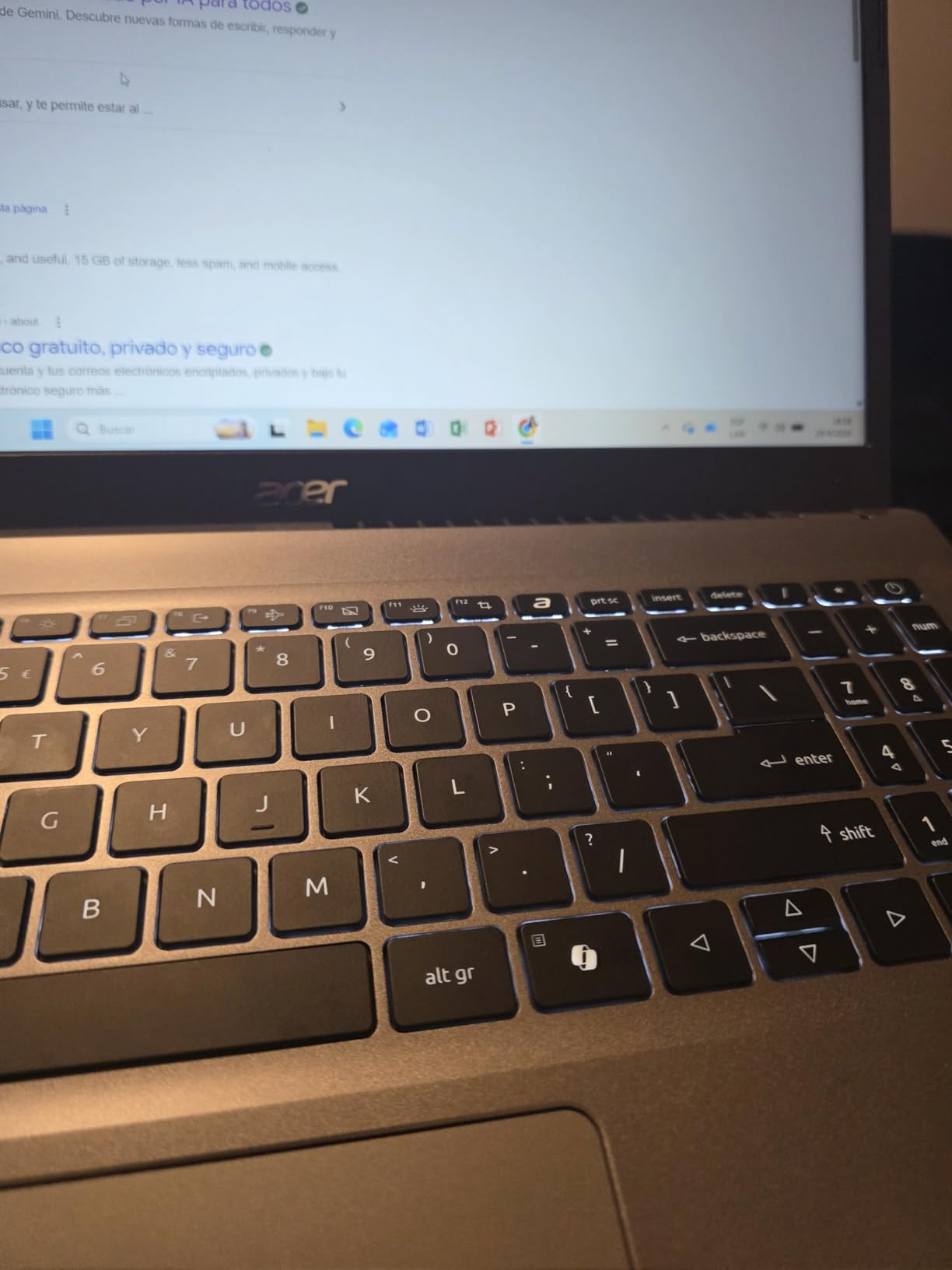
The 15.6-inch FHD IPS panel at 300 nits with a narrow bezel is brighter than most of the entry-level options here, and Acer’s BluelightShield adds a comfort layer for evening study. A backlit keyboard is included, which matters more than it sounds when you are working in a dim library. At 3.9 pounds the machine is easy to carry between classes.
Where it comfortably covers the coursework
First-year programming rarely stresses hardware. You are running an editor, a language runtime, a terminal and documentation. That fits inside 16GB with room to spare, and the eight-core Ryzen 7 handles compiling a moderate project without the fan spinning up constantly. Web frameworks, Python, Java and introductory data work all sit comfortably inside what this machine offers.
It is also a reasonable second machine for a working developer, a travel companion for cafe coding, or a dedicated Linux box for learning. The 53 watt-hour battery is generous for the class, and Wi-Fi 6 plus a full-function USB-C with HDMI 2.1 means you are not living in an adapter ecosystem.
What to live with
The speakers are poor even at full volume, so if calls or media matter, use headphones. The fans get loud under sustained load, which is the flip side of a thin chassis, and if you plan long compile jobs this is not the machine for it. The keyboard backlight shutting off after 30 seconds of inactivity is an irritating small detail that owners mention repeatedly.
The display is 60Hz only, and 512GB of storage fills up fast once a few container images and language toolchains are installed. Buy a 1TB drive later and slot it in, and treat the 16GB as a starting point you will raise to 32GB in year two.
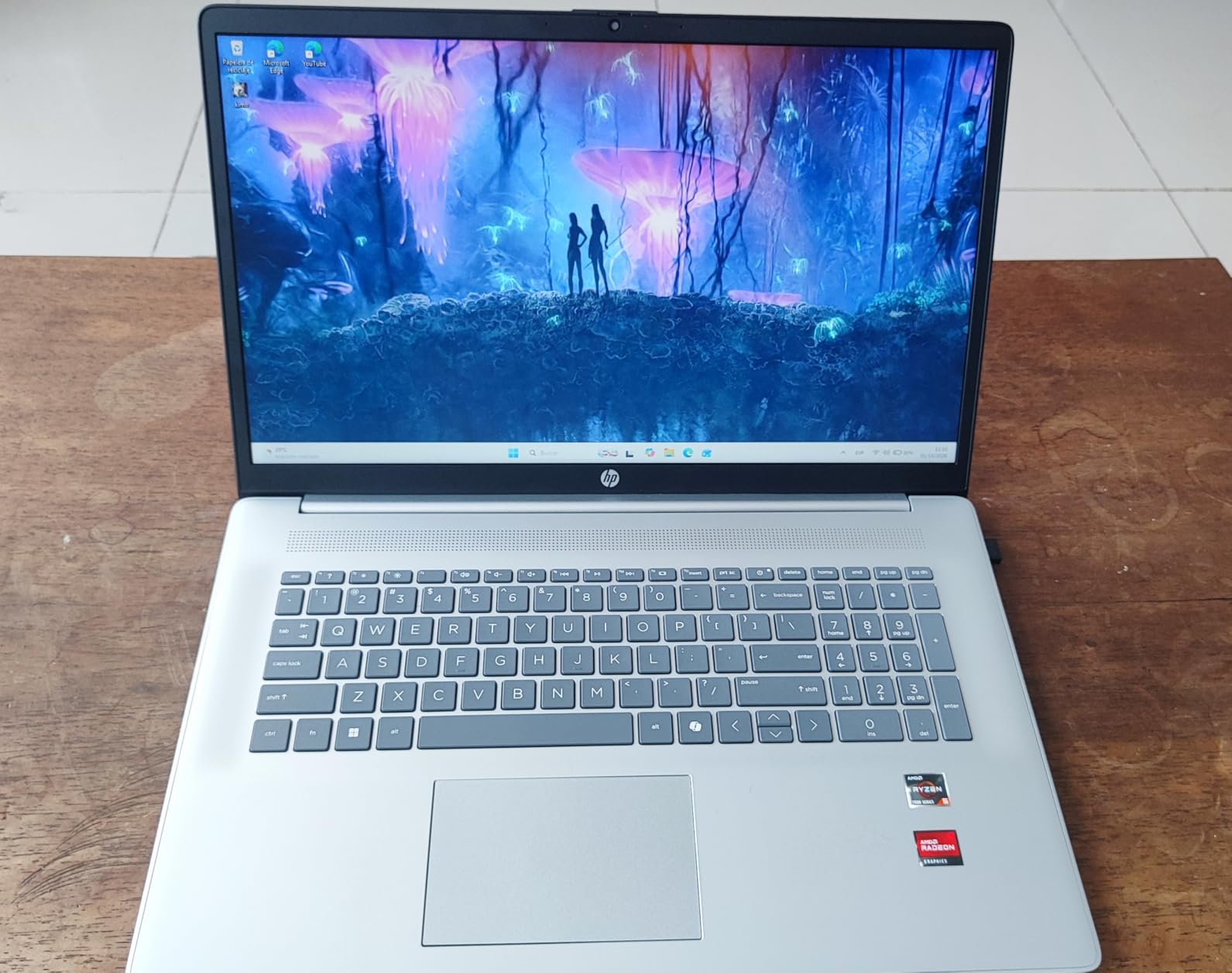
11. HP 17.3-inch Laptop: Best for Maximum Screen Real Estate
HP 17.3 inch Laptop, HD+ Display, AMD Ryzen 5 7520U, 16 GB RAM, 512 GB SSD, AMD Radeon Graphics, Windows 11 Home, Natural Silver, 17-cp2199nr
17.3-inch HD+ anti-glare display
AMD Ryzen 5 7520U 4 cores
16GB LPDDR5-5500
512GB NVMe SSD
4.6 pounds
Pros
- Largest display in the roundup for multi-pane layouts
- Lift-hinge design gives a more comfortable typing angle
- 16GB LPDDR5 and a fast NVMe SSD for the money
- HDMI and Ethernet included
- Numeric keypad and physical camera shutter
Cons
- 1600x900 resolution is low by modern standards
- Four-core Ryzen 5 has limited headroom for heavy builds
- 16GB is soldered and cannot be upgraded
- USB-C is data only with no charging or display output
The appeal of a 17.3-inch panel is physical space. You can run an editor, a terminal, a browser and a chat client side by side without shrinking anything, and if you use a tiling window manager the extra inches reduce window shuffling. The anti-glare coating helps in bright rooms, which is most of the time in a library or a lecture hall.
The lift-hinge design is a small touch that changes a long day. It raises the keyboard to a more natural typing angle than a flat-fronted laptop, and owners consistently mention it as a comfort win. The numeric keypad is useful if you do occasional data entry, and the physical camera shutter is a small privacy benefit over software-only blanks.
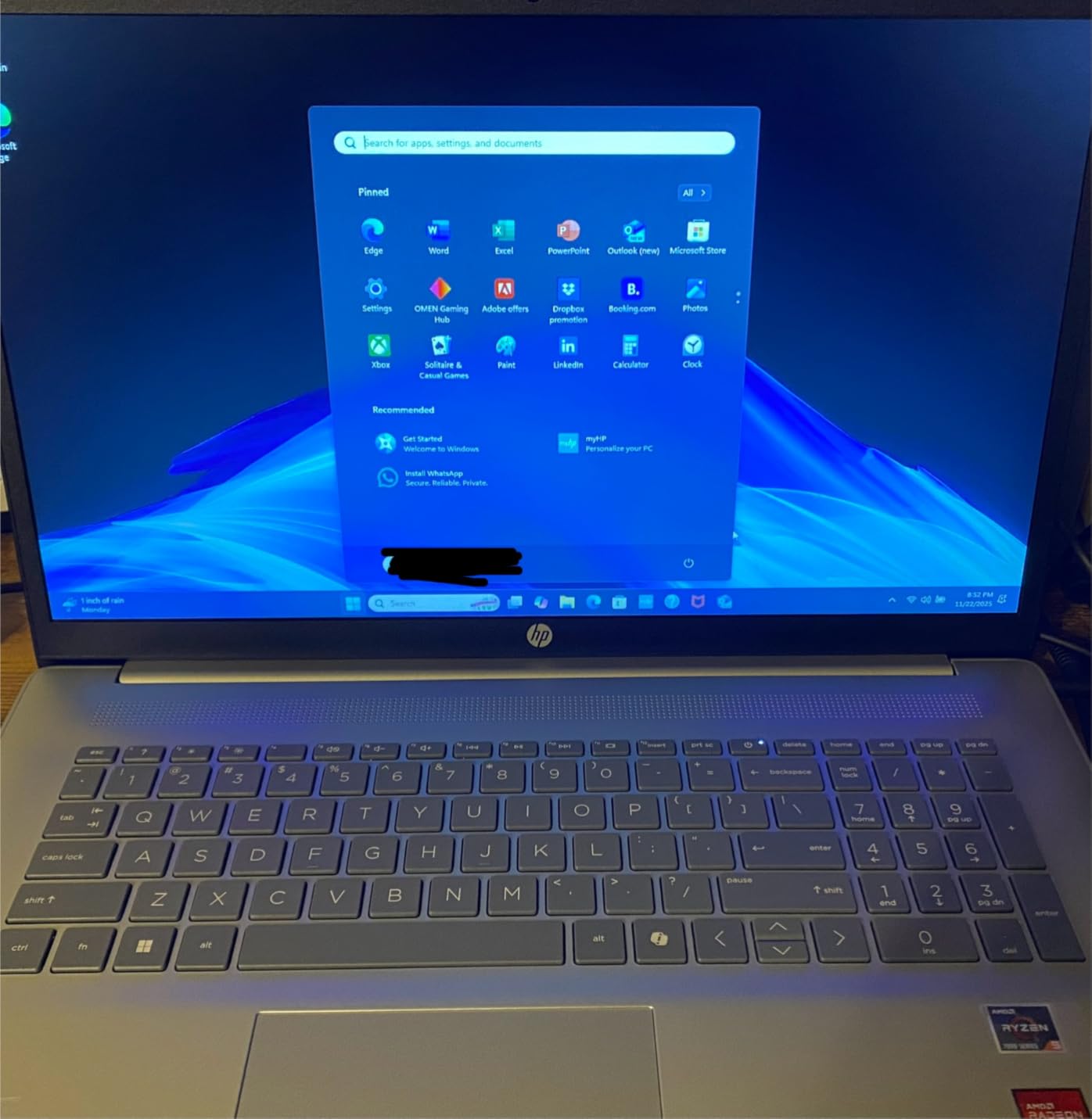
On the specification side, 16GB of LPDDR5-5500 and a 512GB PCIe NVMe SSD is a reasonable baseline, and the NVMe drive keeps boot and install times short. HDMI and a wired Ethernet port at this level are pleasant surprises, and the 41 watt-hour battery delivers roughly 7 hours of light use.
Who this screen size genuinely suits
Developers who spend part of the day reading documentation, writing Markdown, or reviewing pull requests benefit more from area than from a faster chip. The same is true for students taking notes alongside a lecture recording, and for anyone who works in long sessions where repeatedly switching windows becomes a source of friction rather than a background annoyance.
It is also a decent low-cost second machine for a developer who already has a primary workstation, giving you a separate machine for testing, a Linux install, or a side project without risking your main setup.
Where the trade-off bites
Resolution first. A 1600×900 panel is noticeably softer than a 1080p screen of the same size, and the 250-nit brightness with a 60% NTSC gamut is on the dim side. If you spend your day reading dense code, the extra inches are welcome but the pixel density is a compromise you will feel.
Second, the processor. The Ryzen 5 7520U is a 4-core, 8-thread part. It is fine for web development, scripting, coursework and light tooling, but it has limited headroom for large parallel builds, containers and virtual machines. And 16GB of LPDDR5 is soldered with no upgrade path, so this is a machine you buy once. The USB-C port handles data only, not charging or displays.
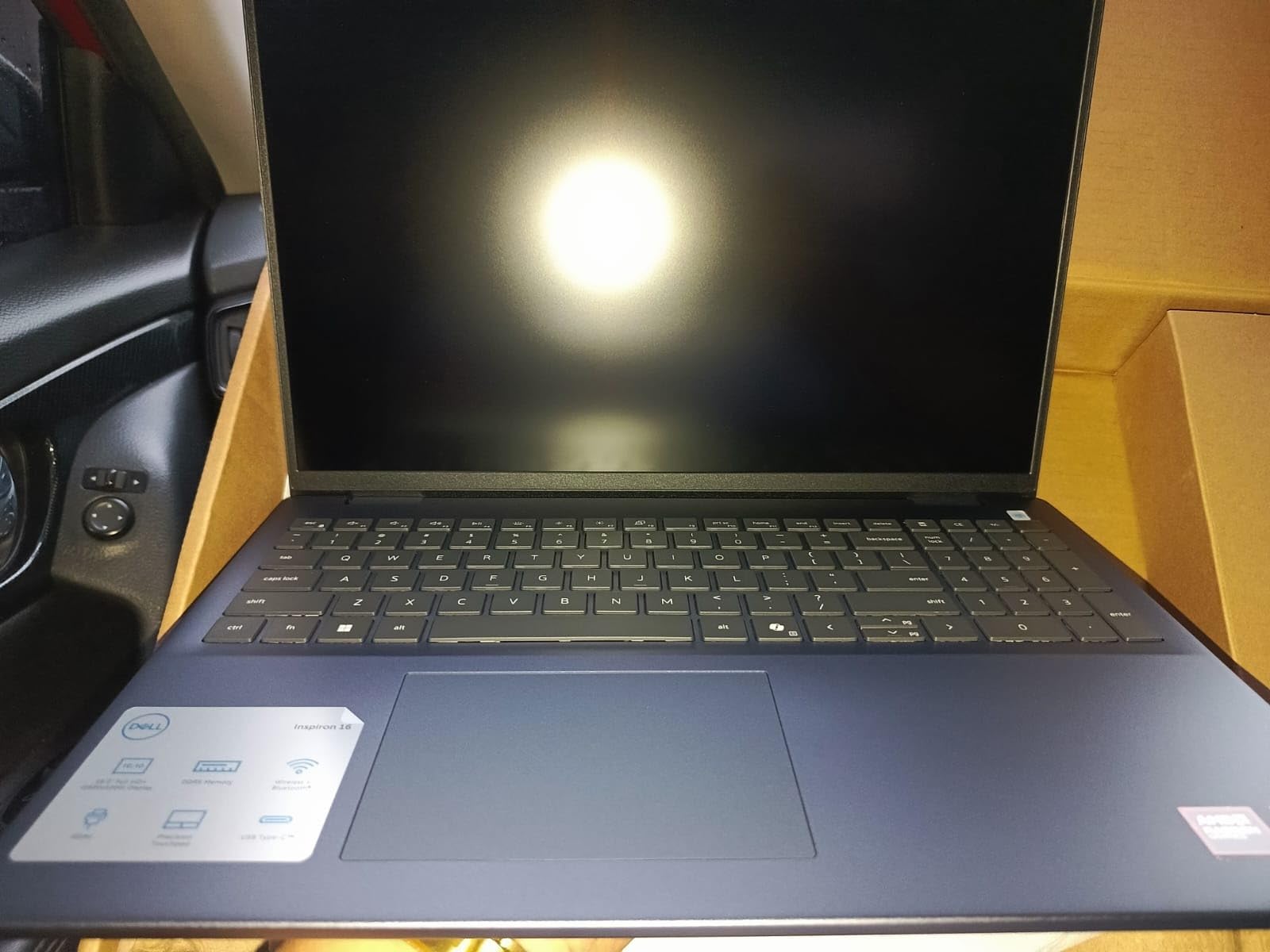
12. Dell Inspiron 16 5645: Best for Linux and Virtual Machines
Dell Inspiron 16 5645 Laptop – 16.0 16:10 FHD+ (1920 x 1200) Display, AMD Ryzen 7-8840U, 16GB DDR5 RAM, 1TB SSD, AMD Radeon Graphics, Windows 11 Home, Onsite & Migrate Services – Midnight Blue
AMD Ryzen 7-8840U 8 cores
16GB DDR5 in two SODIMM slots
1TB SSD plus a second M.2 slot
16:10 1920x1200 matte
Pros
- Both memory and storage are upgradeable
- Fast Ryzen 7-8840U with 8 Zen 4 cores
- Solid chassis that resists hinge flex
- 16:10 1920x1200 matte display reads well in bright rooms
- Fingerprint reader and numeric keypad included
Cons
- Only two USB-A ports
- Some owners report an unstable Wi-Fi card
- Can run warm under extended use
This is the machine to shortlist if your work involves Linux or virtualisation, because it is the rare mid-range laptop where you can upgrade both the memory and the storage. Two SODIMM slots take the included 16GB of DDR5 up to 32GB, and a second M.2 slot sits free behind the cover. That flexibility is what makes it viable for running a local VM stack rather than just an editor.
The Ryzen 7-8840U is a Zen 4 part with 8 cores boosting to 5.1GHz, and it is noticeably quicker than the previous generation budget silicon. Owners report that after a memory upgrade it runs Linux distributions and virtual machines comfortably. The 16:10 1920×1200 matte panel is a sensible compromise between sharpness and price, and it holds up in bright conditions.
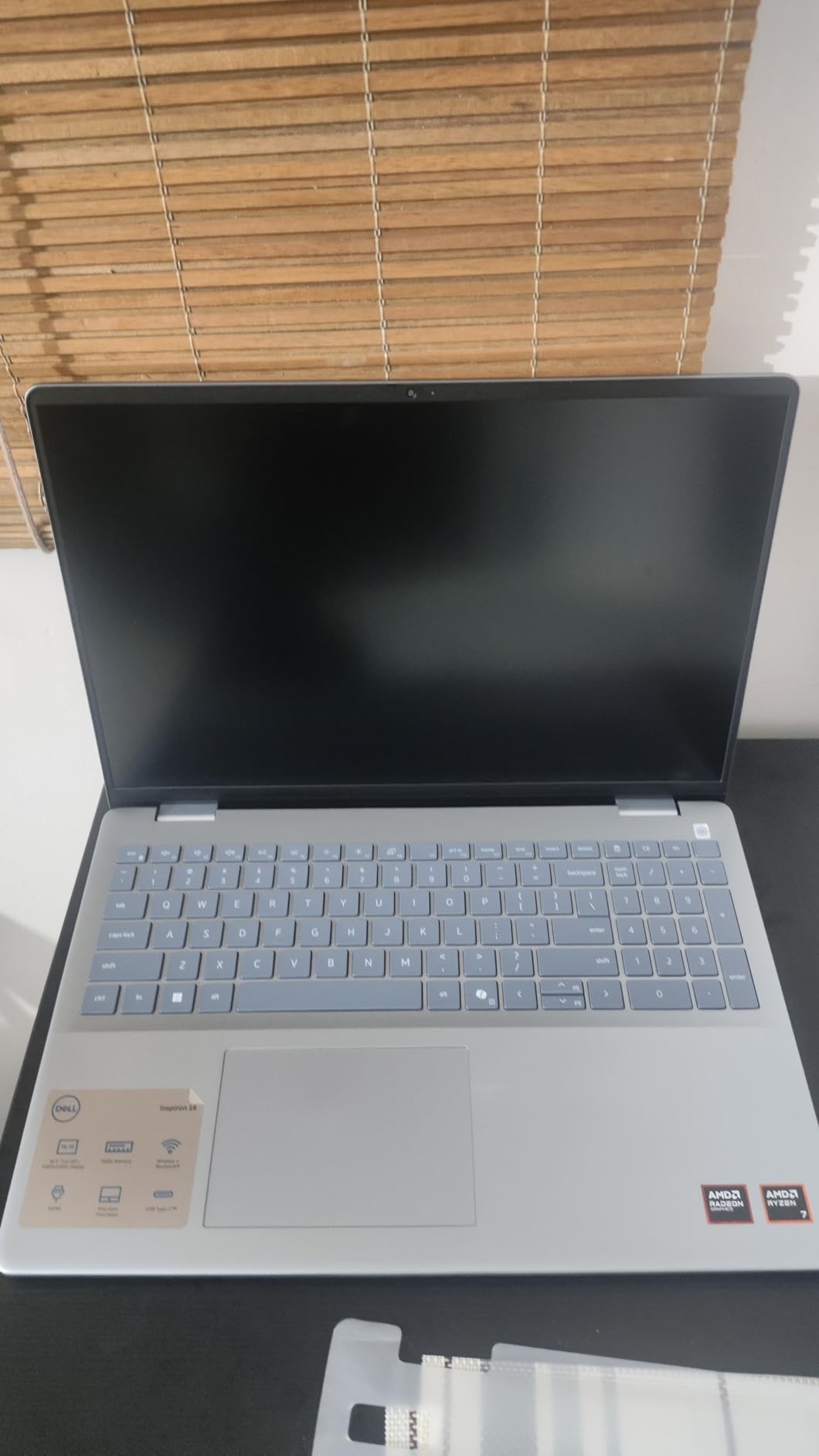
Build quality is a genuine strength. Owners mention the chassis resisting screen-hinge flimsiness, which is a common complaint about machines at this level. A fingerprint reader, a mechanical privacy shutter on the camera, a numeric keypad and a TPM give it an enterprise feel, and the Waves MaxxAudio Pro speakers with Dolby Atmos are better than the entry-level norm.
Why the upgrade paths matter for this workflow
A virtual machine holds an entire operating system in memory, and running more than one alongside a modern browser is exactly the situation that exhausts 16GB. Being able to move to 32GB with a two-module purchase rather than a new laptop changes the economics completely, and the free M.2 slot lets you separate a VM scratch disk from your system drive.
For Linux specifically, the combination of a modern eight-core processor, upgradeable memory, matte 16:10 display and a full-size keyboard with a numeric keypad makes this a very practical daily driver. Dual-booting a mainstream distribution is straightforward, and a wired Ethernet port is present for self-hosted services.
What to be careful about
Two USB-A ports is genuinely tight. You will be swapping a mouse and a USB stick regularly, and there is no USB-C for a modern dock, so a hub is effectively required. If you already own peripherals, factor that in before choosing this over a machine with a fuller port set.
There are also reported reliability wrinkles. Some owners describe an unstable Realtek Wi-Fi 6E card, machines that run warm under extended use, and a small number arriving with a sound card fault or a corrupted operating system. At a 4.1 average rating this is the lowest-scoring pick in the roundup, and the cause is largely these isolated issues rather than a design flaw. Buy from a seller with straightforward returns, and test the wireless card early.
How to Choose a Laptop for Programming
Spec lists blur together quickly. Here is the order we would evaluate them in, and the threshold at which each one stops mattering.
1. RAM: 16GB minimum, 32GB if you can. This is the spec developers most often under-buy. An editor, a browser with a dozen tabs, a language server, a container runtime and a local database sit around 12GB before a build even starts, and users consistently report that moving from 8GB to 16GB transforms build times. If the memory is soldered, treat that number as permanent and size up at purchase.
2. CPU: multi-core beats clock speed. Compilation, container builds and test suites parallelise across cores, so more cores at a lower turbo usually win in practice. Is i5 or i7 better for programming? For web, backend and most mobile work, a current Core i5 or Ryzen 5 with 16GB handles it with headroom, and an i7 buys shorter build times rather than new capability. Step up when you compile large codebases, run Unreal, or work with big datasets all day.
3. GPU: optional until it is not. Integrated graphics handle everything from web development to Android Studio. You do need a dedicated GPU for game development, machine learning, video editing or running a local language model, and there 8GB of dedicated memory is the practical floor. This is the biggest fork in the road when picking a laptop for programming.
4. Display: 14 inches and 1920×1200 as the floor. Your eyes are the resource you cannot replace. A 16:10 ratio gives more vertical space, which is worth real money in a tiling window manager, and matte coatings help in bright rooms. Brightness above 300 nits matters if you work near a window all day. Avoid 1600×900 panels unless your budget is genuinely fixed.
5. Storage: NVMe, 1TB if you can afford it. A 512GB drive fills fast with container images, node_modules and virtual machine images. Confirm the drive is NVMe rather than SATA, and check whether a second M.2 slot is free.
6. Battery and thermals: check the sustained behaviour. Marketing battery figures assume light use, and a gaming laptop with a discrete GPU delivers hours rather than a day. A fanless machine is silent but throttles under a sustained build. If you compile for long periods, look for cooling built for sustained load such as a vapour chamber. If you work from cafés and airports, battery outranks raw performance.
7. Keyboard and trackpad: the eight-hour spec. Symbol-heavy editing punishes cramped layouts and short travel. A full-size layout with a dedicated Escape key, a trackpad you can navigate without looking down, and enough key travel to type by touch are what separate a machine you like working on from one you tolerate.
8. OS: macOS, Windows or Linux. iOS development requires a Mac. For web and backend, macOS gives you a native Unix shell while Windows gives you WSL2, and any of these Windows machines runs a Linux distribution cleanly. Our thinking on business laptops covers the enterprise-management side of the decision.
9. Upgradeability: the four-year bet. Check whether memory is soldered and whether an M.2 slot is free. Two questions come up constantly here. How long should a programming laptop last? Four to five years is realistic with 16GB and upgradeable storage. And should you buy a gaming laptop for coding? Only when the graphics work justifies the weight and the battery, as covered in our guide to the best gaming laptops.
Which Laptop for Which Kind of Developer
Match the machine to the workload rather than to the spec sheet, because the GPU, memory and screen priorities shift completely between roles.
Web and frontend. The MacBook Air 15 or the Dell Inspiron 16 Plus. A large 16:10 screen plus 16GB of RAM is what you actually notice, and neither needs a discrete GPU. If you want the quietest possible machine for a shared office, take the Air.
Backend and DevOps. The HP 255 G10 with 32GB, or the Lenovo V15 with 40GB. Container stacks, local database clusters and virtual machines are memory-bound, and the wired Ethernet port on the Lenovo is a quiet advantage for self-hosted work.
iOS and macOS development. The MacBook Pro 14 for sustained Xcode builds and multi-monitor desks; the MacBook Air 15 if you want silence and battery. Xcode requires a Mac, so this category has no Windows answer.
Android and mobile. The Dell Inspiron 16 Plus or the MacBook Air 15. Android Studio is memory-hungry, so 16GB minimum and a large screen both help, and the 120Hz panel on the Inspiron makes the emulator noticeably smoother.
Data science and machine learning. The Alienware 16 Aurora. Once you are training models or running local inference, a discrete GPU with 8GB of dedicated memory decides it. Our picks for the best business laptops for professionals overlap here for data work that stays on the CPU.
Game development. The ASUS ROG Strix G16, for 24-core build times and a 240Hz editor viewport. If you are an artist rather than an engineer, the Samsung’s 3K AMOLED panel converts well for asset review.
Linux and open source. The ThinkPad X1 Carbon, which has the strongest firmware and driver support in the community and the best keyboard for terminal work. For more RAM headroom on a heavier Linux workload, the Dell Inspiron 16 5645 with upgraded memory is the value option.
Students and constant travel. The Acer Aspire Go 15 on a tight budget, the ThinkPad X1 Carbon if you carry a laptop every day and want it to last a degree. For a machine used on trains and planes, our guides to the best lightweight laptops for travel and best travel laptops for any trip cover the weight and battery side in more detail.
Frequently Asked Questions
Which laptop is best for programming and coding?
For most developers, the best laptop for programming in 2026 is one with a current multi-core processor, at least 16GB of RAM, a fast NVMe SSD, and a 14-inch or larger display at 1920×1200 or higher. A MacBook Air 15 covers macOS, web and backend work quietly, while a 16-inch Windows machine with 16GB suits those who want a larger screen and a full port set. A discrete GPU is only necessary for game development, machine learning or video work.
What laptop is best for programming?
The best laptop for programming is one with a modern multi-core CPU, at least 16GB of RAM, a fast NVMe SSD, and a display of 14 inches or larger at 1920×1200 or better. The specific brand matters far less than meeting those specs. Add a dedicated GPU only if you do game development, machine learning or video work, and prefer upgradeable memory so the machine can grow as your toolchain does.
What is the best laptop for programming students?
Programming students should prioritise memory headroom and screen size over processor tier. A Ryzen 7 with 16GB of RAM that can be upgraded to 32GB covers a full computer science degree, and a 15 or 16-inch 16:10 display lets you run notes, a lesson recording and an editor side by side. Portability matters too, since you will carry the laptop daily, so aim for under four pounds and check the battery rating before committing.
Is i5 or i7 better for programming?
For web, backend and most mobile development, a current Core i5 or Ryzen 5 with 16GB of RAM is enough, and an i7 mainly buys shorter build times rather than new capability. Choose i7 or i9 when you compile large codebases all day, run Unreal Engine, work with large datasets, or keep several virtual machines and container stacks running simultaneously, where the extra cores and higher clocks reduce real waiting time.
How much RAM do I need for programming?
Sixteen gigabytes is the practical minimum for programming in 2026, covering an editor, a browser with a dozen tabs, a language server and a build process without swapping. Thirty-two gigabytes is the comfortable target if you run Docker, multiple virtual machines, a local database stack or machine learning work. If a laptop ships with soldered memory you cannot change, treat whatever it has as permanent and size up at purchase.
Do I need a dedicated GPU for programming?
No, not for most programming work. Integrated graphics handle web, backend, mobile and scripting development without issue. You do need a discrete GPU for game development, machine learning, video editing, or running a local language model, and in those cases 8GB of dedicated memory is the practical floor. Buying a gaming laptop purely for coding wastes the advantage unless you also want to game on it.
Can I use a Chromebook for programming?
A Chromebook can work for web development because ChromeOS can run a Linux development environment natively, which covers Python, Node and most coursework. It is a poor fit for iOS development, game development, and heavy local virtualisation, and the memory is often fixed with no upgrade path. If you expect to need a dedicated GPU or significant RAM beyond a few years, a Windows or macOS laptop is the safer purchase.
Final Verdict
If you take one machine home, take the MacBook Air 15-inch M5. It is silent, it lasts a working day, and it pairs a large, sharp display with a weight you can carry without planning around it. For sustained heavy compute or a multi-monitor desk, step up to the MacBook Pro 14. For Windows users who want the best screen per pound, the Dell Inspiron 16 Plus 7640 is our value pick.
Beyond those, the ThinkPad X1 Carbon wins on typing feel and Linux support, the Alienware 16 Aurora and ASUS ROG Strix G16 cover GPU work and game development, and the Samsung Galaxy Book5 Pro 360 is the best convertible with the sharpest display here. For upgradeable memory, the HP 255 G10 and the Dell Inspiron 16 5645 are the two to look at, and for tight budgets the Acer Aspire Go 15 and the HP 17.3-inch cover a student year without drama.
Whichever you choose, buy the memory you will need rather than the memory you can afford today, and check whether it is soldered before you commit. That decision will matter more in four years than any processor tier on a spec sheet. These are our picks for the best laptops for programming in 2026, and we will keep updating them as hardware generations turn over.