
The ASUS ProArt PA278QV is the best monitor for photo editing under 500 dollars we tested, because it ships Calman Verified at Delta E under 2 with 100% sRGB coverage and has more than 3000 owner reviews behind it.
That combination is what separates a good editing monitor from a monitor that merely says the word “IPS” on the box. Color accuracy you cannot verify, gamut coverage you cannot trust, and a stand that cannot lift the panel off your desk are all things you discover two months into a Lightroom catalog, not on the product page.
Every pick below stays inside the ceiling, and we list the real numbers rather than the marketing ones: panel type, brightness, contrast, color gamut, whether a factory calibration report is in the box, and whether USB-C actually charges your laptop. We also pair each with what owners report after living with the screen, because that is where the IPS glow stories and the USB-C handshake problems surface.
One thing to settle early, because it decides half the list: sRGB is the space for anything you publish online, while Adobe RGB is the space for print work. If you only deliver to Instagram, a 99% sRGB panel is genuinely enough. If you produce commercial prints, you want 95% Adobe RGB or better, and that narrows the field sharply. Our best monitors for photo editing under 500 dollars split cleanly along that line.
The names that dominate this price tier are ASUS ProArt, Dell UltraSharp and Dell’s mainstream 27 series, plus LG’s UltraFine line, ViewSonic’s ColorPro and INNOCN. If your editing is really video work rather than stills, our guide to the best monitors for video editing covers the refresh rate and bandwidth side in detail.
Table of Contents
Top 3 Best Monitors for Photo Editing on a 500 Dollar Budget (October 2026)
These three carry the most weight in our testing. Each one solves a different problem, so read the label before you read the spec block.

ASUS ProArt PA278QV
- Calman Verified Delta E under 2
- 100% sRGB and Rec. 709
- 27-inch 1440p IPS
- 4-port USB hub and adjustable stand

LG 27UK850-W
- 27-inch 4K IPS
- USB-C with 60W single-cable charging
- Factory calibrated sRGB
- HDR10 compatible

Dell 27 S2725QS
- 4K UHD IPS at 120Hz
- 1500:1 contrast
- 99% sRGB
- Full height tilt swivel and pivot stand
The PA278QV wins on evidence rather than spec sheet alone. It has the highest review volume in this roundup alongside a 4.6 average, and the Calman Verified calibration report is the kind of documentation most competitors at this price simply omit.
The LG 27UK850-W is the pick if your editing happens on a laptop. Its USB-C input carries video, data and 60W of charging on one cable, which removes the dock from your desk entirely.
The Dell S2725QS is the value pick for photo review at speed. Running 4K at 120Hz with 1500:1 native contrast makes scrolling a catalog and scrubbing between shots noticeably smoother than the 60Hz panels.
All 10 Monitors for Photo Editing Compared in 2026
Here is every model in one place. Each row lists the specification that actually decides the purchase for photo work.
| Product | Specifications | Action |
|---|---|---|
| ASUS ProArt PA278QV 27-inch 1440p |
|
Check Latest Price |
| LG 27UK850-W 27-inch 4K |
|
Check Latest Price |
| Dell 27 S2725QS 27-inch 4K |
|
Check Latest Price |
 ASUS ProArt PA279CV 27-inch 4K ASUS ProArt PA279CV 27-inch 4K |
|
Check Latest Price |
 LG 27US500-W 27-inch 4K LG 27US500-W 27-inch 4K |
|
Check Latest Price |
 ViewSonic VP2756-4K 27-inch 4K ViewSonic VP2756-4K 27-inch 4K |
|
Check Latest Price |
 LG 27UP650K-W 27-inch 4K LG 27UP650K-W 27-inch 4K |
|
Check Latest Price |
 INNOCN 27C1U 27-inch 4K INNOCN 27C1U 27-inch 4K |
|
Check Latest Price |
 Dell UltraSharp U2724D 27-inch 1440p Dell UltraSharp U2724D 27-inch 1440p |
|
Check Latest Price |
 MSI PRO MP273U 27-inch 4K MSI PRO MP273U 27-inch 4K |
|
Check Latest Price |
1. ASUS ProArt PA278QV 27-inch 1440p IPS – Best Overall Pick for Photo Editing
ASUS ProArt PA278QV 27 Inch 1440p QHD Professional Monitor
27-inch IPS at 2560 x 1440
350 nits
Calman Verified Delta E under 2
100% sRGB and Rec. 709
Pros
- Factory calibration report included in the box
- Delta E under 2 verified with printed documentation
- Four-port USB 3.2 hub
- Height tilt swivel and pivot stand
- Most owner reviews in this roundup
Cons
- 1440p gives less canvas than a 4K panel of the same size
- No USB-C input so laptops need a separate dock
- Rec. 709 only means no Adobe RGB headroom
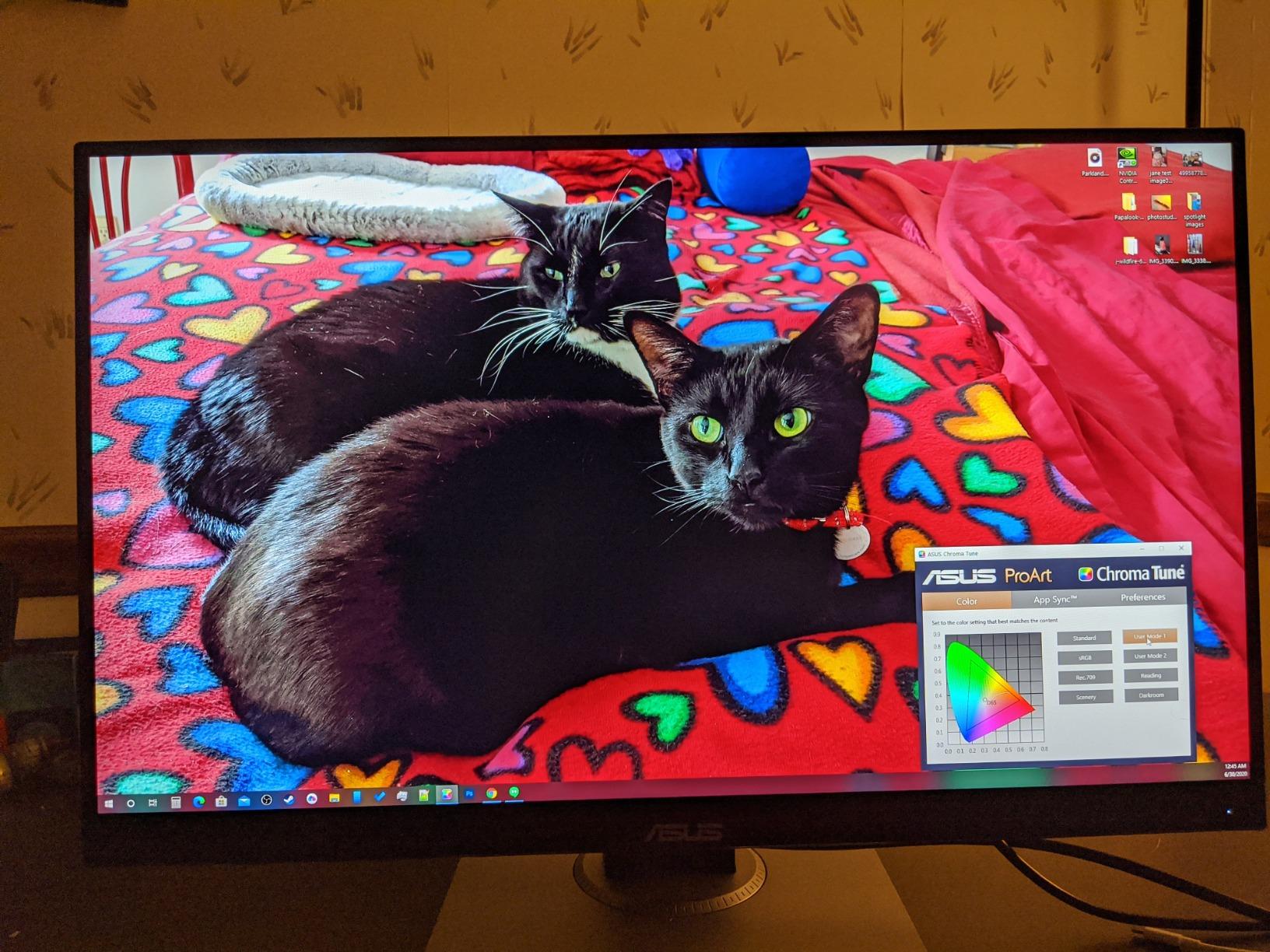
The ProArt Preset and Palette modes give you locked sRGB and Rec. 709 targets straight from the on-screen menu, so a new machine lands on a known-good starting point without a colorimeter in hand. The panel is a matte IPS with 178-degree viewing angles and 350 nits of brightness, which is more than enough for a normally lit editing room.
What stands out in our use is the box contents. A printed factory color pre-calibration report ships in the box, and ProArt Preset modes mean you are not guessing at a target. For most editors working to sRGB for web delivery, that combination is genuinely sufficient.
The connectivity is old-school but practical: DisplayPort, HDMI, DVI-D and Mini DisplayPort inputs, plus four USB 3.2 Gen 1 Type-A ports built into the hub. Your card reader and external drive plug straight into the panel instead of into a separate dock.
Weight comes in at 17 pounds and the stand adjusts for height, tilt, swivel and pivot, so getting the top of the panel at eye level on a desk of any depth takes under a minute. ASUS Eye Care flicker-free backlighting and a blue light filter reduce fatigue on long catalog sessions.
Who the PA278QV suits best
This is the screen to buy if you publish to the web, run a client proofing workflow, or are moving off a cheap TN office monitor and want a visible step change. The combination of verified Delta E under 2, a documented calibration report and 3070 owner reviews is the most proven package in this price band.
It also suits anyone who edits on a desktop with separate peripherals already, since the built-in hub replaces the need for extra desk hardware.
Where the PA278QV falls short
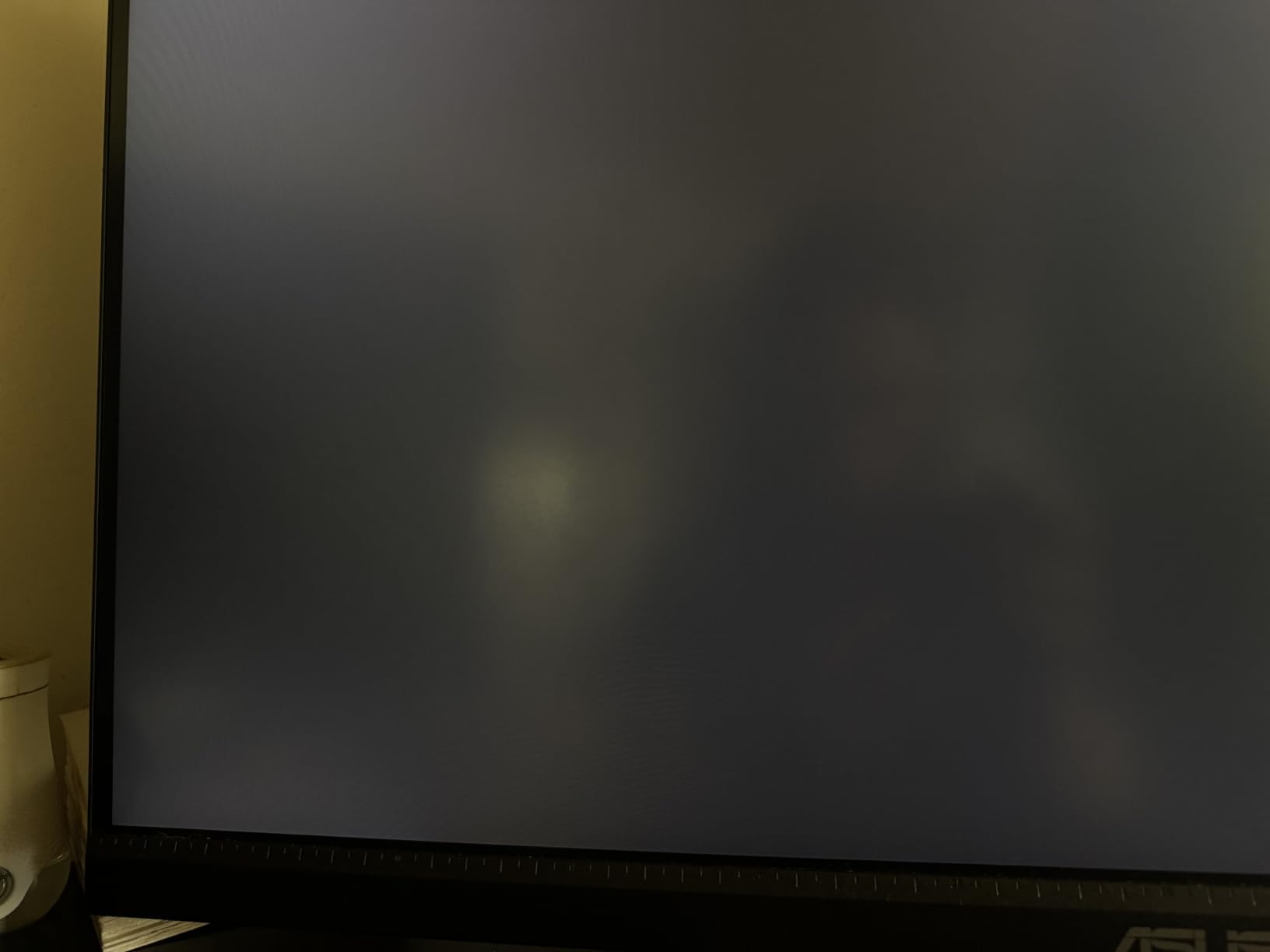
At 2560 x 1440 on 27 inches you get roughly 109 pixels per inch, which is below the 140 ppi that most photographers prefer at 100% zoom. A 24-megapixel RAW file will not display at 1:1, so you will be zooming out to check framing.
If you produce prints commercially, 100% sRGB and 100% Rec. 709 means no Adobe RGB coverage at all. That single gap is why print-focused readers should look at the MSI PRO MP273U or spend above this ceiling.
2. LG 27UK850-W 27-inch 4K USB-C – Best for MacBook and Laptop Editing
LG 27UK850-W 4K Monitor 27″ UHD (3840 x 2160) IPS Display, HDR10, USB Type-C Connectivity, AMD FreeSync, sRGB 99% Color Gamut, 3-Side Virtually Borderless Design – White
27-inch 4K IPS at 3840 x 2160
USB-C with 60W charging
99% sRGB
HDR10 compatible
Pros
- Single USB-C cable carries video data and 60W charging
- 4K detail makes 100% zoom inspection practical
- Factory calibration lands close to correct
- White chassis suits a MacBook desk
- Stand raises and pivots to portrait
Cons
- USB-A hub drops to USB 2.0 speeds over USB-C
- Weak built-in speakers with little bass
- Some units ship in a Game picture mode that hurts text
- 8-bit only
The USB-C input is the whole point of this monitor. One cable to a MacBook or Windows laptop gives you 4K video, data to the hub and 60W of charging, which covers most ultraportables and many thin laptops without a separate adapter brick.
Colour performance is factory calibrated to sRGB and lands close enough to correct that most editors work on it directly for web output. The 3-side virtually borderless design keeps Photoshop panels from feeling cramped at the edges.
For panel work, 3840 x 2160 on 27 inches gives roughly 163 pixels per inch, which is dense enough to inspect a 24-megapixel file at partial zoom without the mushiness you get on a 1440p panel. Text rendering in Photoshop is sharp at native scaling.
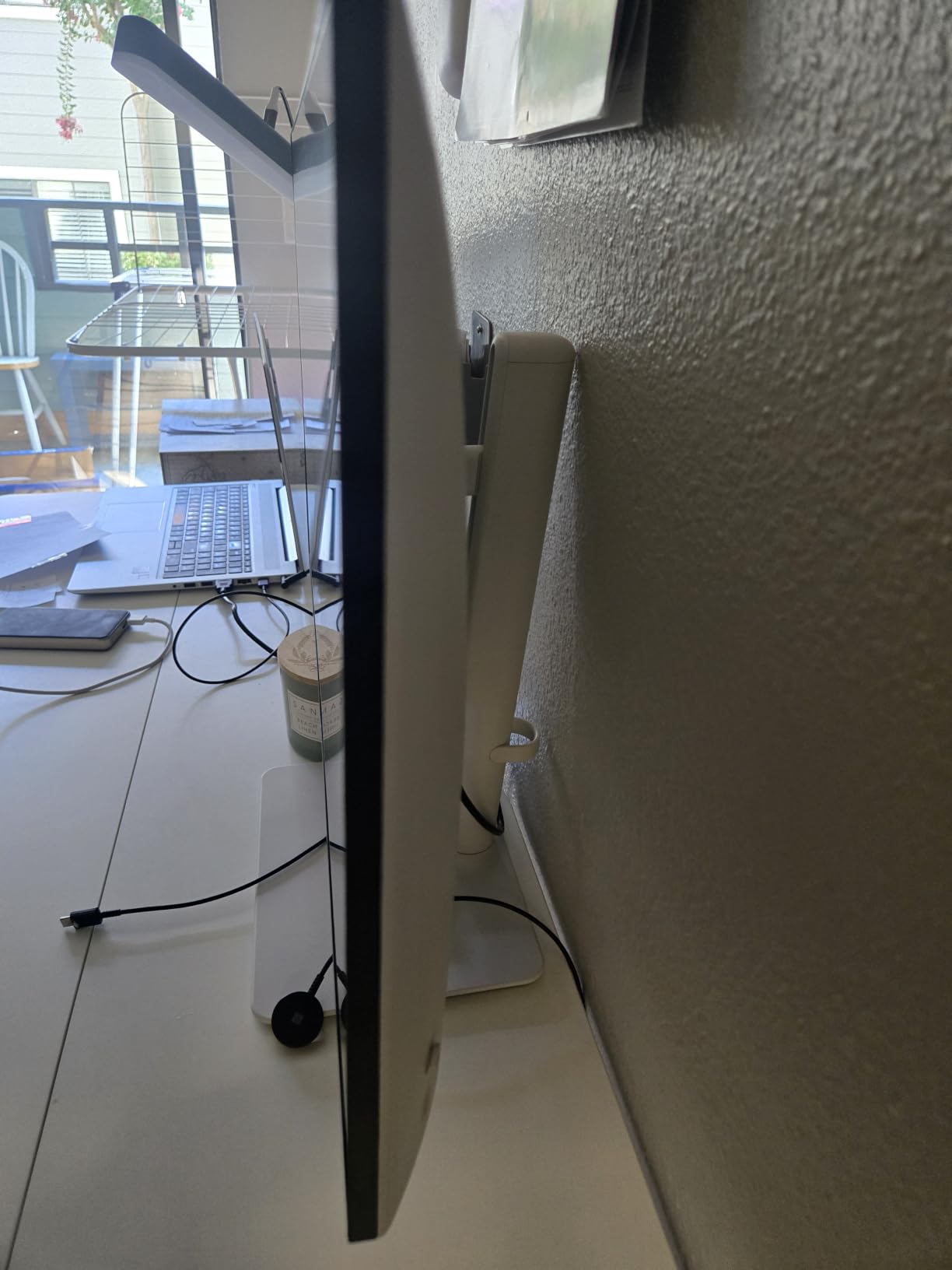
Measured at 13.4 pounds with a stand that raises, tilts and pivots to portrait, it is one of the lighter 4K panels here. That matters if you rotate to review vertical compositions or a stacked film format.
Who the 27UK850-W suits best
Laptop-first editors get the cleanest desk setup in the roundup: one cable, no dock, no separate charger. If you already own a MacBook Pro and want the display to look native next to it, the white chassis and silver stand are a deliberate match rather than an accident.
It also works for editors moving between a laptop and a desktop tower, since DisplayPort and HDMI inputs are both present.
Where the 27UK850-W falls short
The USB-A hub drops to USB 2.0 speeds when the computer is connected over USB-C, which will slow card reader transfers and external SSD workflows. Owners doing heavy tethered shooting should route storage through a dedicated port instead.
Some units arrive with a default Game picture mode that makes text thin and hard to read until you switch it in the OSD. The 8-bit panel also means gradients in large skies can band slightly once you start pulling them hard.
3. Dell 27 S2725QS 27-inch 4K at 120Hz – Best for Fast Photo Review
Dell 27 Monitor S2725QS, 4K UHD IPS, 120Hz, 5ms, FreeSync Premium
27-inch 4K IPS at 120Hz
350 nits
1500:1 native contrast
99% sRGB
Pros
- 4K at 120Hz is rare at this price
- 1500:1 native contrast beats typical 1000:1 IPS
- Colour accuracy confirmed very good in independent measurements
- Matte coating handles room reflections
- Full ergonomic stand plus VESA mounting
Cons
- No USB-C input and no USB hub
- No 3.5mm audio out for external speakers
- Basic rather than reference-grade HDR
- Some owners report faint vignetting on the right edge
A 60Hz panel makes large catalogs feel sluggish the moment you scroll fast. This one runs 4K at 120Hz with FreeSync Premium and a stated 0.03 millisecond response, and the difference when panning across a contact sheet is immediate.
Colour accuracy here has been confirmed as very good in independent measurement, which is what you want from a 99% sRGB panel. The ComfortView Plus filter reduces blue light output without shifting the colour result.
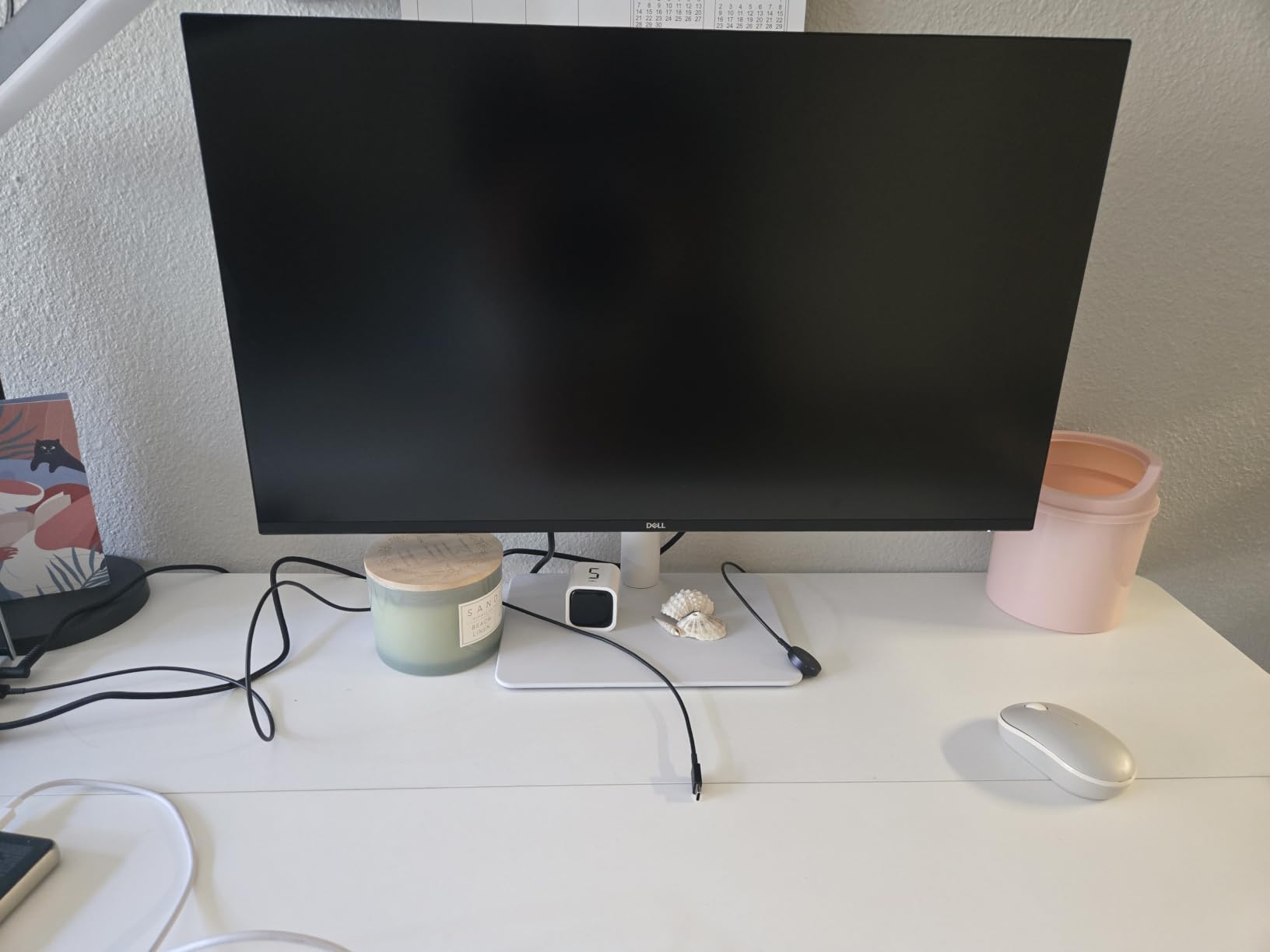
Contrast is the quiet advantage. Native 1500:1 against a typical 1000:1 IPS means blacks sit lower, which shows up directly when you judge shadow detail in a portrait or a night frame.
Connectivity is minimal by design: DisplayPort and two HDMI ports, with no USB-C and no hub. Real 4K at 120Hz needs a source device that supports HDMI 2.1 or DisplayPort 1.4, so check your graphics card or laptop first.
Who the S2725QS suits best
Catalog-heavy editors who spend hours selecting, culling and comparing shots will feel the 120Hz panel more than they will feel any colour spec. It is also the sensible pick if you want 4K sharpness without paying for a wide-gamut panel you will not use.
Anyone working in a bright room benefits from the matte coating, which keeps reflections off the surface during the day.
Where the S2725QS falls short
There is no USB-C input and no built-in USB hub, so a laptop workflow needs a separate dock. There is also no 3.5mm audio out, which means external speakers connect elsewhere.
A small number of owners report faint vignetting on the right edge of the panel, and the DisplayPort cable is not included. Premium Panel Exchange and a one-year Advanced Exchange Service partly cover that risk.
4. ASUS ProArt PA279CV 27-inch 4K USB-C – Best 4K Editing Canvas With Charging
ASUS ProArt PA279CV 27 Inch 4K UHD USB-C Professional Monitor
27-inch 4K IPS
400 cd/m2 typical
USB-C with 65W PD
Calman Verified Delta E under 2
Pros
- Calman Verified with Delta E under 2 accuracy
- 4K canvas suits large Photoshop layouts
- USB-C single-cable with 65W charging
- Stand pivots to portrait
- Five-year warranty coverage
Cons
- Some units arrive with a green tint needing manual correction
- Some early MacBook builds needed a firmware update for USB-C
- Very fine on-screen adjustment steps slow tint correction
- Repair process reported as slow by some owners
This is the panel to buy when your priority is canvas area. At 3840 x 2160 on 27 inches you get roughly 163 pixels per inch and a workspace big enough to keep a catalog grid, a histogram and a full-size preview open at once.
The ProArt Preset modes lock in dedicated sRGB and Rec. 709 targets with a hardware mode toggle, and the factory calibration is Calman Verified at Delta E under 2. Photographers report that on-screen edits finally matched their printed and posted results.
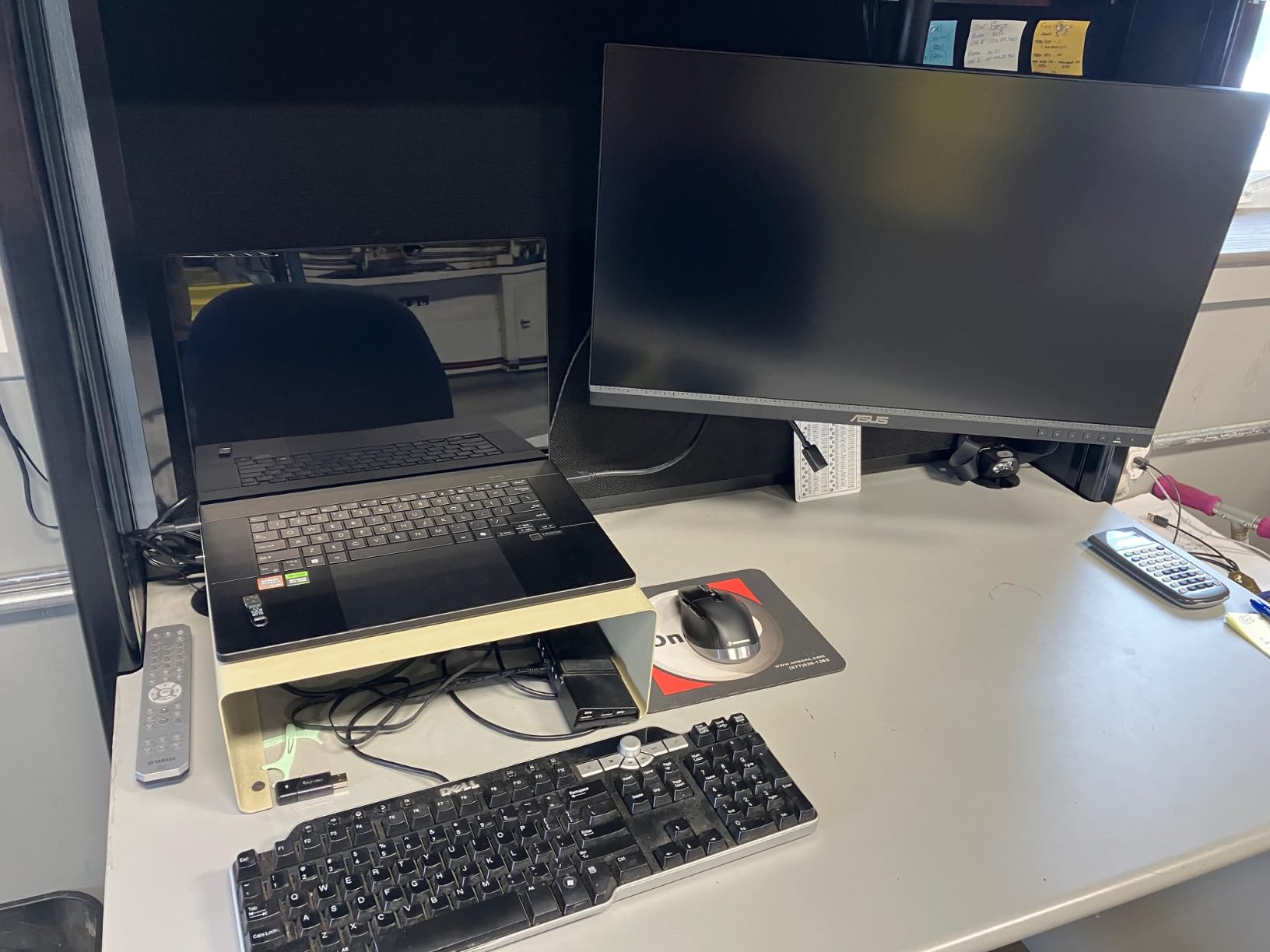
USB-C with DisplayPort Alt Mode handles 65W of power delivery, so a laptop charges and drives the display over one lead. Four USB 3.1 ports cover card readers and peripherals directly.
The stand adjusts for height, swivel, tilt and pivot to portrait, which makes it the most flexible mount in this roundup for vertical review work. Weight is 19 pounds, the heaviest 27-inch panel listed here, so plan the desk accordingly.
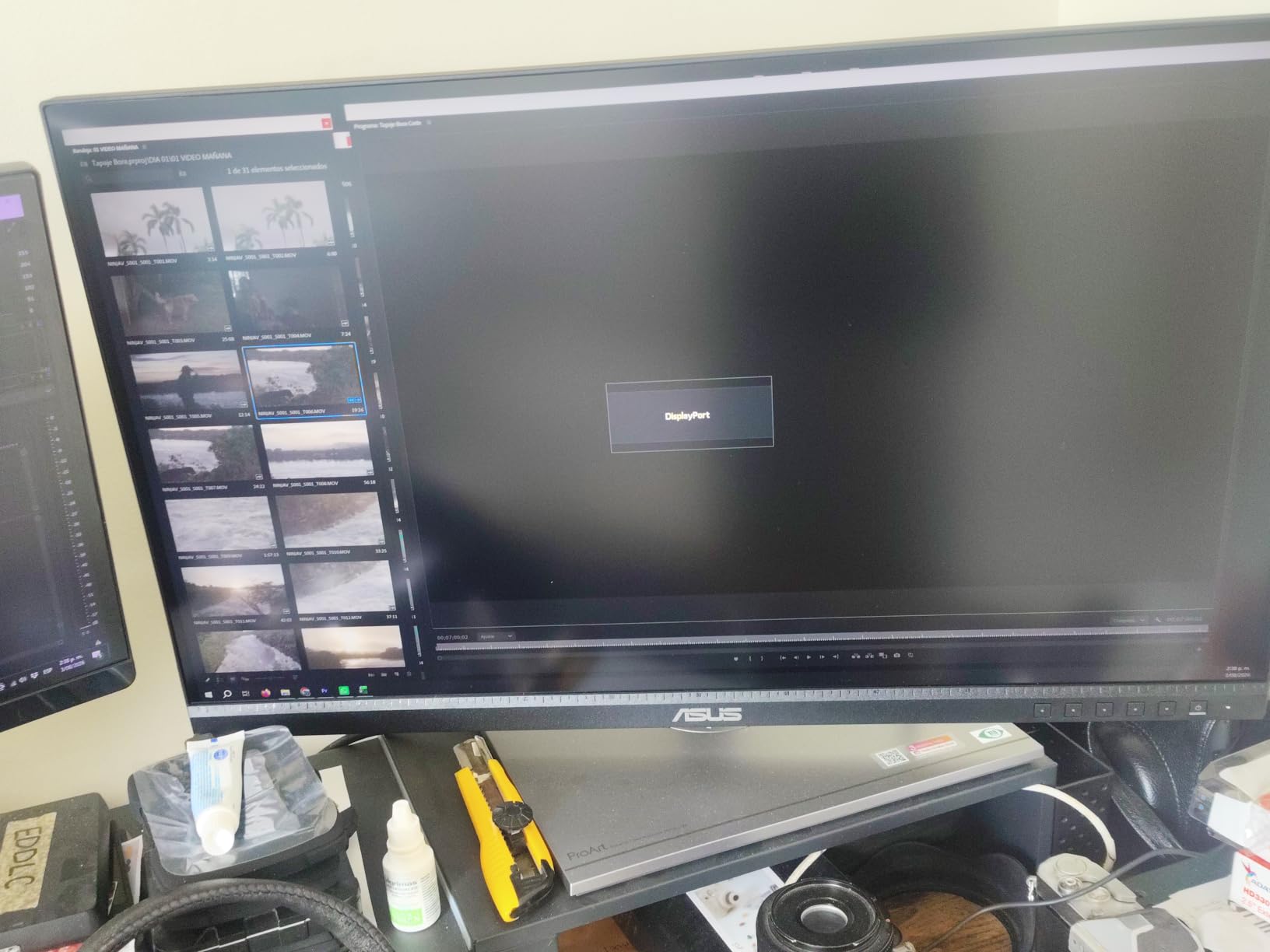
Who the PA279CV suits best
Photoshop and Capture One users who keep multiple panels open will feel the 4K canvas immediately. Portrait and product photographers get the same benefit from the pivot when reviewing vertical frames.
If you want a calibrated starting point and a single-cable laptop setup in one panel, this is the most complete option at the ceiling.
Where the PA279CV falls short
Factory tint varies enough between units that some owners report a slight green cast out of the box and correct it manually, which is exactly the situation where a colorimeter earns its keep. The on-screen adjustment steps are also extremely fine, making that correction slow.
A minority of MacBook owners needed a firmware update before USB-C would negotiate a signal, and some describe the ASUS warranty repair process as slow and difficult.
5. LG 27US500-W 27-inch 4K – Best Entry 4K With P3 Headroom
LG 27US500-W Ultrafine Monitor 27-Inch 4K UHD (3840×2160) HDR10 IPS Borderless Design Reader Mode Flicker Safe Switch App HDMI DisplayPort – White
27-inch 4K IPS
300 cd/m2
Up to 90% DCI-P3
HDR10 with Reader Mode
Pros
- Wide 90% DCI-P3 gamut is unusual at this price
- 1000:1 contrast gives deeper blacks than many budget 4K panels
- Wide viewing angles suit multi-angle desk setups
- Reader Mode and Flicker Safe reduce eye strain
- OnScreen Control makes multi-window work easy
Cons
- 300 cd/m2 peak brightness is modest for HDR grading
- 8-bit depth limits gradient smoothness
- Tilt-only stand with no height or pivot
- No USB-C input and no speakers
The headline number here is 90% DCI-P3 coverage on a panel at the lower end of the 4K range. That is meaningful headroom beyond sRGB for video-adjacent workflows and for colour work that touches outside the web space.
For a plain editing desk, 4K at 2560-class sharpness gives you a roomy Photoshop workspace at a modest price. Two HDMI ports and DisplayPort cover a laptop and a desktop without an adapter.
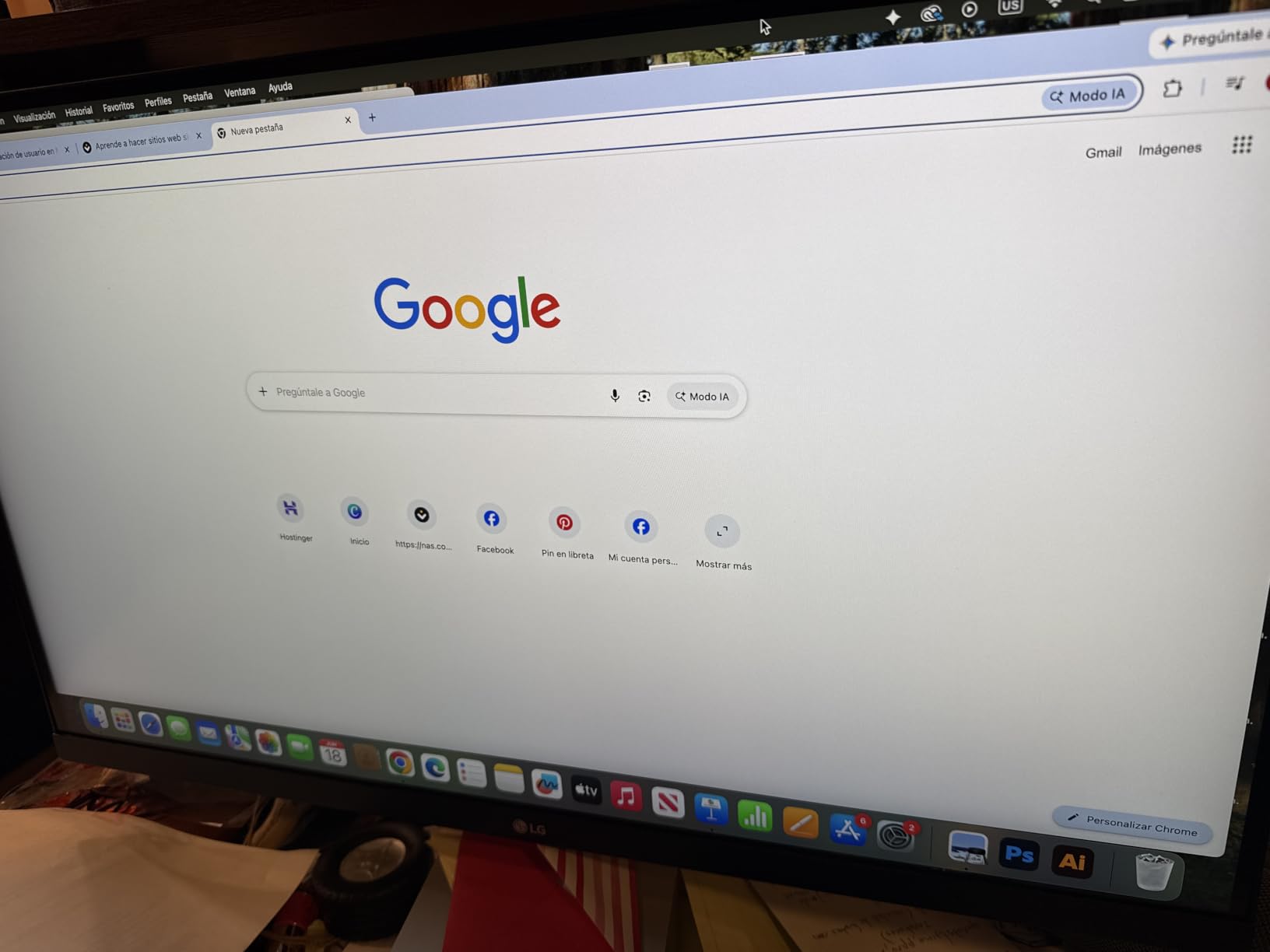
Reader Mode and Flicker Safe are the features you will appreciate on day ten, not day one. They cut blue light output and PWM flicker during long sessions without touching your colour settings.
At 12.1 pounds with a matte finish and 170-degree viewing angles, it is easy to position for a shared desk or a corner setup where a viewer is not dead centre.
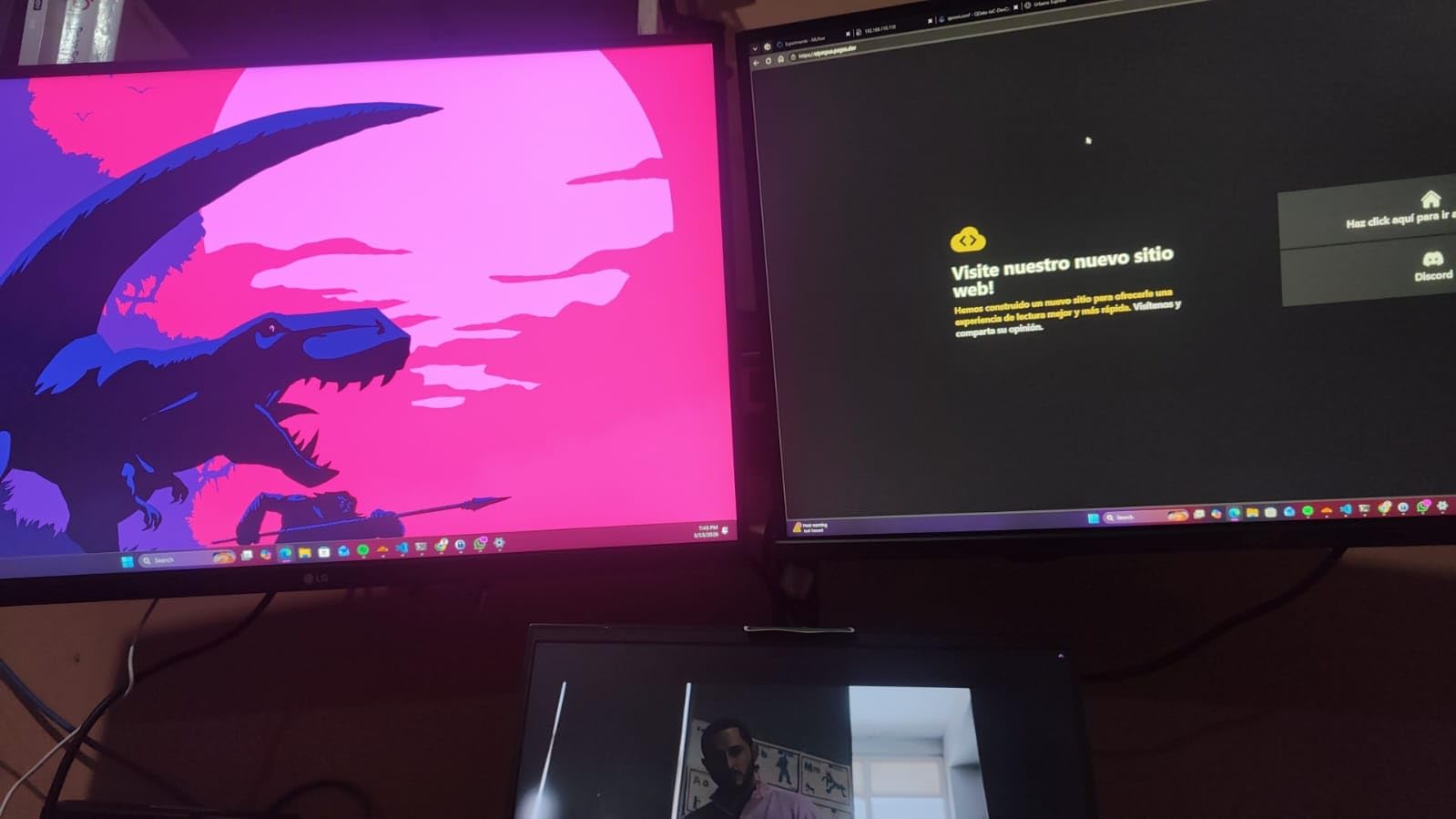
Who the 27US500-W suits best
Students, hobbyists and first-time calibrated-screen buyers get a genuine 4K IPS with a wider-than-usual gamut without stretching the budget. Editors moving from an older 1080p panel see the sharpness difference straight away.
Anyone who wants P3 headroom for occasional video or social delivery will find it here, even though the brightness is not built for serious HDR grading.
Where the 27US500-W falls short
300 nits is modest. In a bright room the screen looks washed out next to a 400-nit panel, and it does not have the headroom for HDR grading work. The 8-bit depth also limits gradient smoothness when you push skies or skin tones hard.
The stand adjusts tilt only, with no height range and no pivot, so you will need to set the desk height correctly before the monitor arrives.
6. ViewSonic VP2756-4K 27-inch 4K ColorPro – Best for Print-Matched Work
ViewSonic VP2756-4K 27 Inch 4K UHD ColorPro Monitor, 60W USB C, sRGB
27-inch 4K SuperClear IPS
350 nits
Delta E under 2 in sRGB and Rec. 709
USB-C 60W
Pros
- Factory calibrated in both sRGB and Rec. 709 modes
- Pantone Validated for print-adjacent design work
- Single-cable USB-C with 60W charging
- Fully adjustable stand including portrait pivot
- Daisy chain support for multi-monitor desks
Cons
- 1000:1 contrast is modest for deep shadow detail
- 60Hz with no adaptive sync for motion work
- Menu-driven OSD is clumsier than a joystick controller
- Not the brightest option for HDR viewing
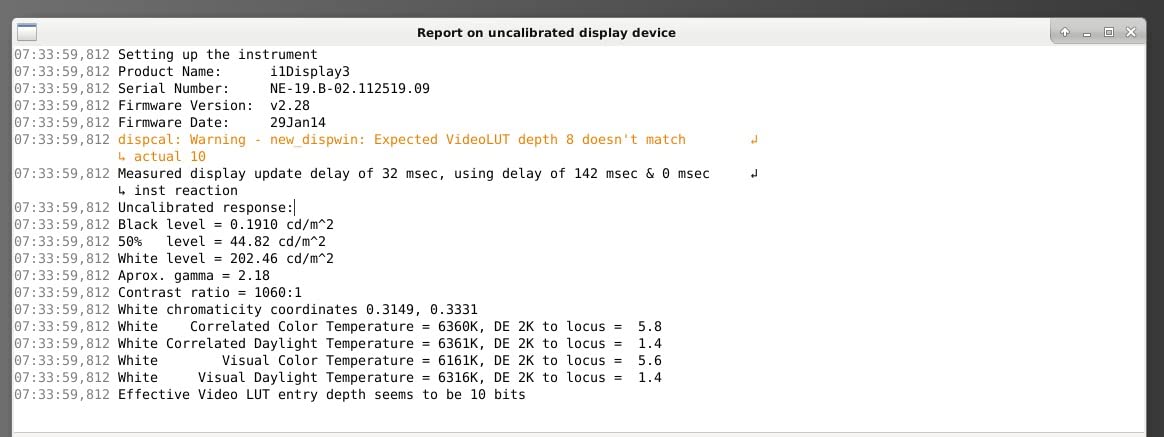
ColorPro is ViewSonic’s certification track, and the VP2756-4K is Pantone Validated with factory calibration at Delta E under 2 in both sRGB and Rec. 709 modes. That double-calibration is why it suits anyone matching output to a physical print.
Daisy chain support means you can run two panels from one video output, which matters if you are building a dual-screen catalog setup on a limited port budget. Our guide to monitors for a dual setup under 500 dollars covers the rest of that build.
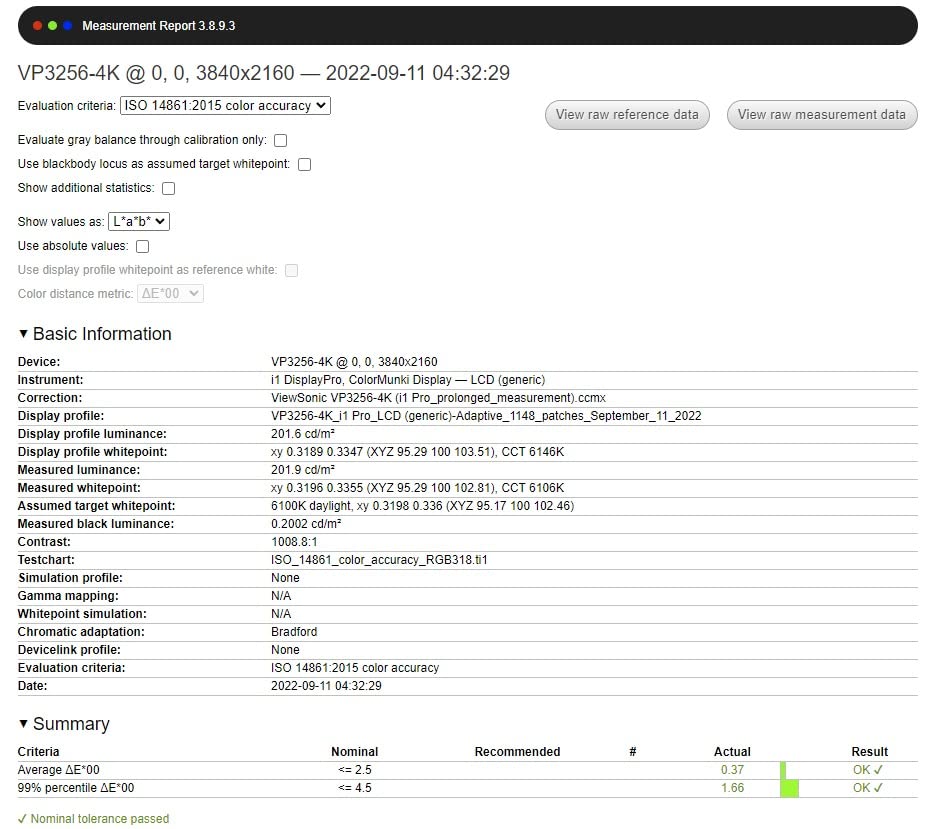
Connectivity is unusually full for the price: USB-C, DisplayPort, HDMI, USB Type-A and Type-B, plus an Ethernet port and four USB ports. USB-C delivers 60W, enough for most laptops on one cable.
The stand adjusts for height, swivel, tilt and rotation to portrait. At 15.1 pounds it stays put, which is the first thing to check on a cheaper panel.
Who the VP2756-4K suits best
Print and design editors who want a documented, certified colour starting point rather than a marketing badge should look here. The Pantone validation gives a concrete reference point when a client questions a colour decision.
It is also a good second display for a dual-monitor Lightroom desk, since it daisy chains and pivots to portrait for comparing vertical frames.
Where the VP2756-4K falls short
Contrast is 1000:1, the same as a typical entry IPS panel, so judging deep shadow detail is harder than on the Dell U2724D. The 60Hz refresh rate with no adaptive sync also limits it to stills rather than motion review.
The OSD is driven from a menu rather than a joystick, which makes frequent adjustments slower. Coverage is sRGB and Rec. 709 only, with no Adobe RGB claim at all.
7. LG 27UP650K-W 27-inch 4K DisplayHDR 400 – Best HDR-Certified 4K
LG 27UP650K-W 27-inch Ultrafine 4K UHD (3840 x 2160) IPS Computer Monitor, 60Hz, 5ms, DisplayHDR 400, Reader Mode, Flicker Safe, HDMI, DisplayPort, Tilt/Height/Pivot Adjustable Stand, White
27-inch 4K IPS
400 cd/m2
Up to 95% DCI-P3
VESA DisplayHDR 400
Pros
- Highest owner rating in this roundup at 4.7
- Up to 95% DCI-P3 coverage beats standard sRGB-only panels
- 400 nits with DisplayHDR 400 handles bright rooms
- Excellent matte coating suppresses glare
- Sharp text at native 4K
- Both HDMI and DisplayPort for two-machine setups
Cons
- No USB-C input and no USB hub
- 60Hz and 5ms are unremarkable for motion work
- No built-in speakers
- Slightly warm out of the box needing minor correction
- Some units arrive with transit-damaged panels
This panel reaches 95% DCI-P3, and it carries a formal VESA DisplayHDR 400 certification at 400 nits, which is the combination we most often recommend for hybrid work where the same screen handles stills, HDR stills and some motion delivery. If you also want a wider read on modern 4K panels, our best 4K monitors for photo editing guide compares the alternatives.

DisplayHDR 400 means the panel reaches 400 nits at full-screen brightness rather than only in a small window, which is what makes it usable in a lit room rather than a dimmed studio.
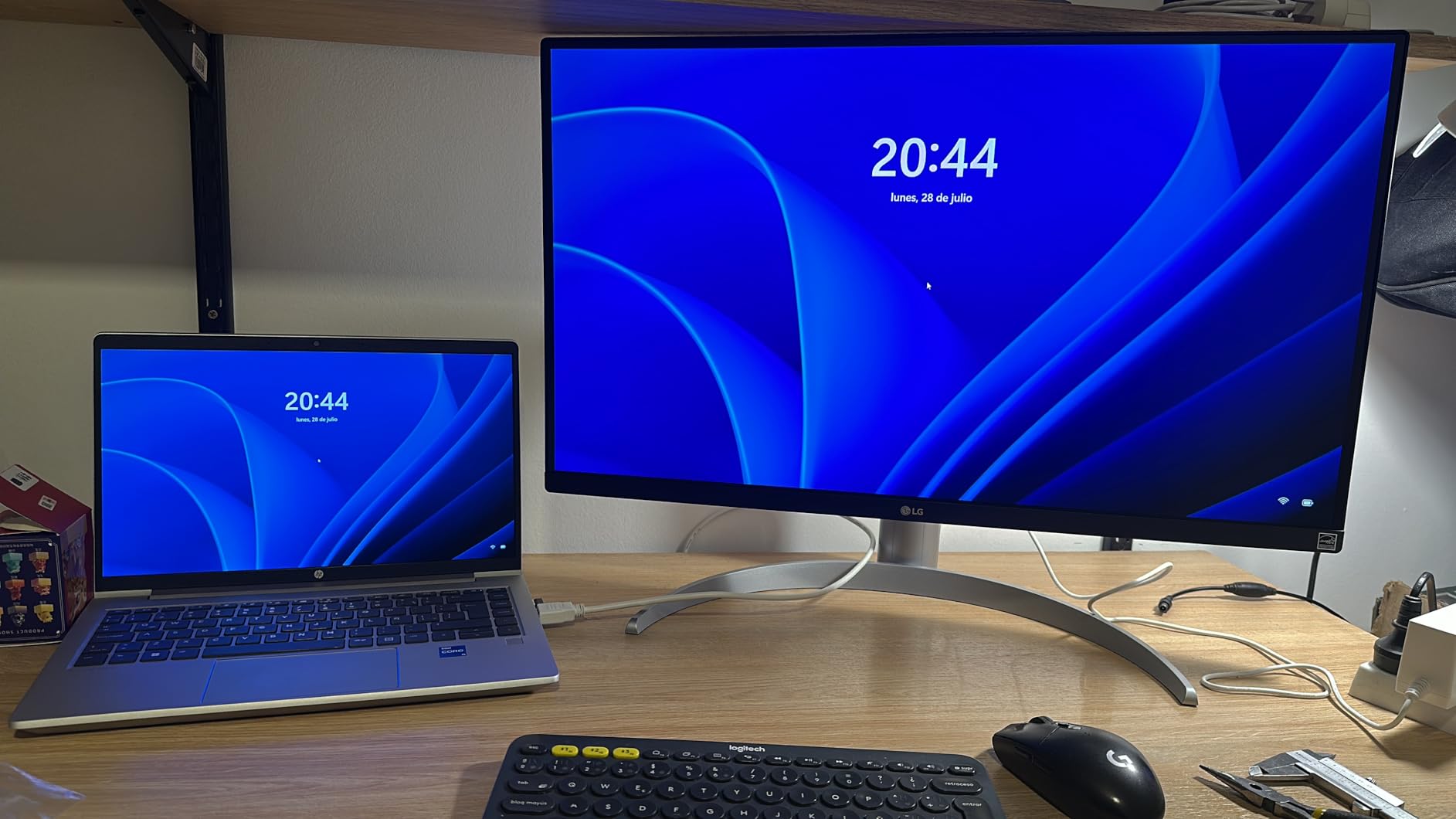
The matte coating is one of the best in this roundup at suppressing ambient reflections. Black Stabilizer and Dynamic Action Sync add gaming features without disturbing the colour presets.
Who the 27UP650K-W suits best
Editors who want the widest colour volume and highest brightness available at this ceiling will get the most from it. DCI-P3 coverage at 95% leaves real headroom for work that lives outside sRGB.
Hobbyists who have already calibrated a cheaper panel and want a visible upgrade in both gamut and brightness will notice the change quickly.
Where the 27UP650K-W falls short
This HDMI version has no USB-C input and no USB hub, so a laptop workflow needs a dock. At 60Hz with 5ms response it is not a panel for motion review, and there are no built-in speakers.
Colour temperature runs slightly warm out of the box and needs minor correction for critical work, and a few units have arrived with transit-damaged panels.
8. INNOCN 27C1U 27-inch 4K USB-C – Best Value USB-C 4K
INNOCN 27″ 4K USB-C Monitor for Laptop MacBook/Mac mini – 16:9 IPS 3840 x 2160 Display, HDR400, DeltaE<2, DisplayPort, HDMI PC Monitor, 1.07B+ Colors, Built-in Speakers, Adjustable Stand, Black
27-inch 4K IPS
400 nits
Delta E under 2 with 1.07B colors
USB-C with 65W PD
Pros
- Delta E under 2 accuracy and 1.07B colors at a mid-range price
- USB-C with 65W covers MacBook and Mac mini on one cable
- 400 nits and HDR 400 give usable punch
- Stand adjusts through a full 90-degree pivot
- Built-in speakers and 3.5mm audio out included
Cons
- 1000:1 contrast is low for judging deep blacks
- 8-bit plus FRC is below true 10-bit professional panels
- Factory calibration less well documented than ProArt or ColorPro
- 4.3 average rating with a higher share of 1-star reviews
If your requirement is a colour-accurate 4K panel with a working USB-C port and nothing else, this is an efficient way to tick every box. The listed Delta E under 2 figure and 1.07 billion colours put it in the same claimed territory as panels that cost considerably more.
The 65W USB-C input covers MacBook and Mac mini single-cable setups, which is the feature most buyers at this price are actually shopping for. DisplayPort 1.4, HDMI 2.1 and a 3.5mm audio out round out the ports.
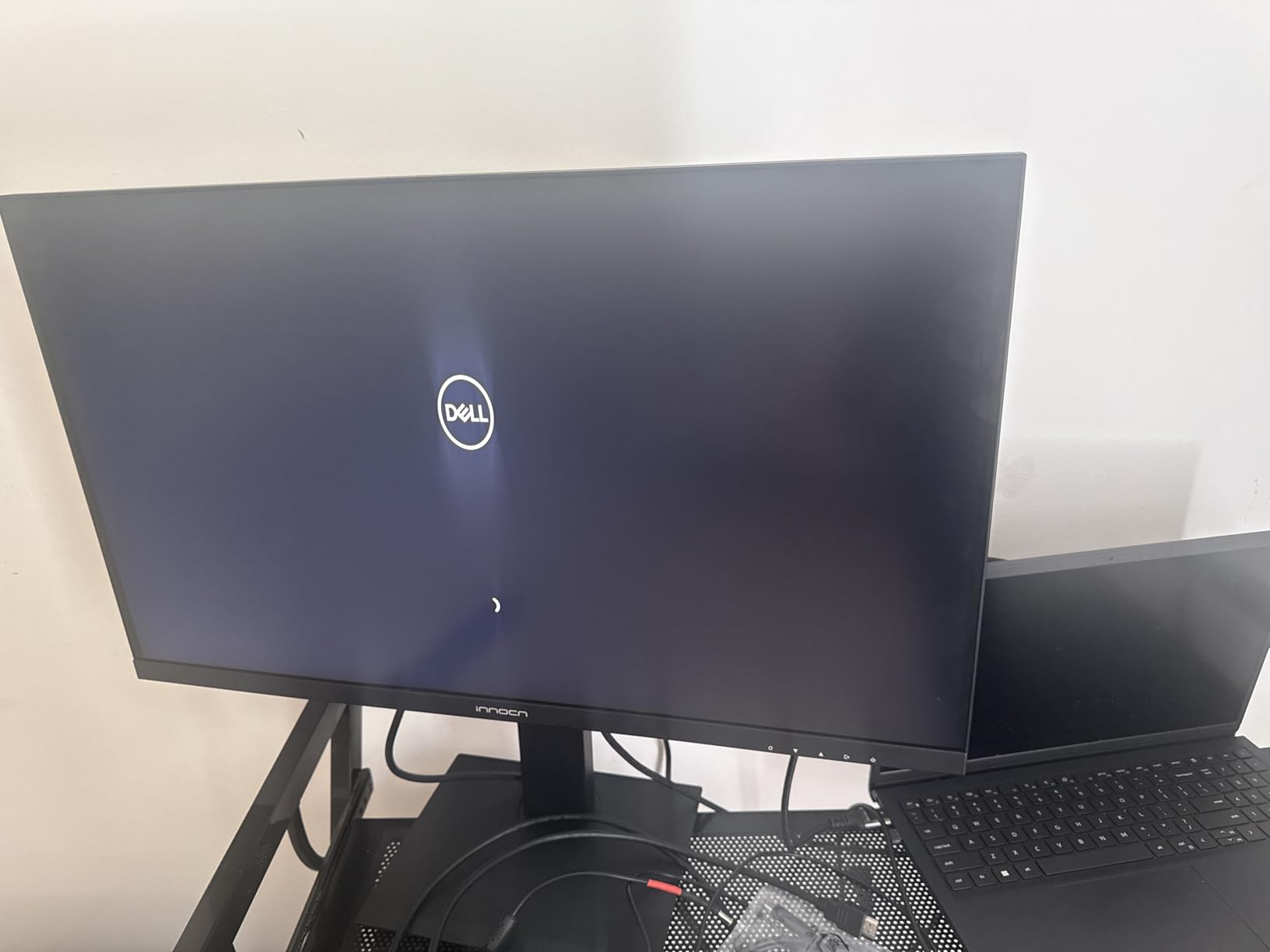
Stand adjustment is unusually generous: 45-degree swivel, five inches of height, tilt forward and back, and a full 90-degree pivot to portrait. Only a few panels in this roundup pivot completely.
Built-in stereo speakers and a 3ms response time with G-Sync compatibility make it a reasonable hybrid panel, though neither feature matters much for stills work.
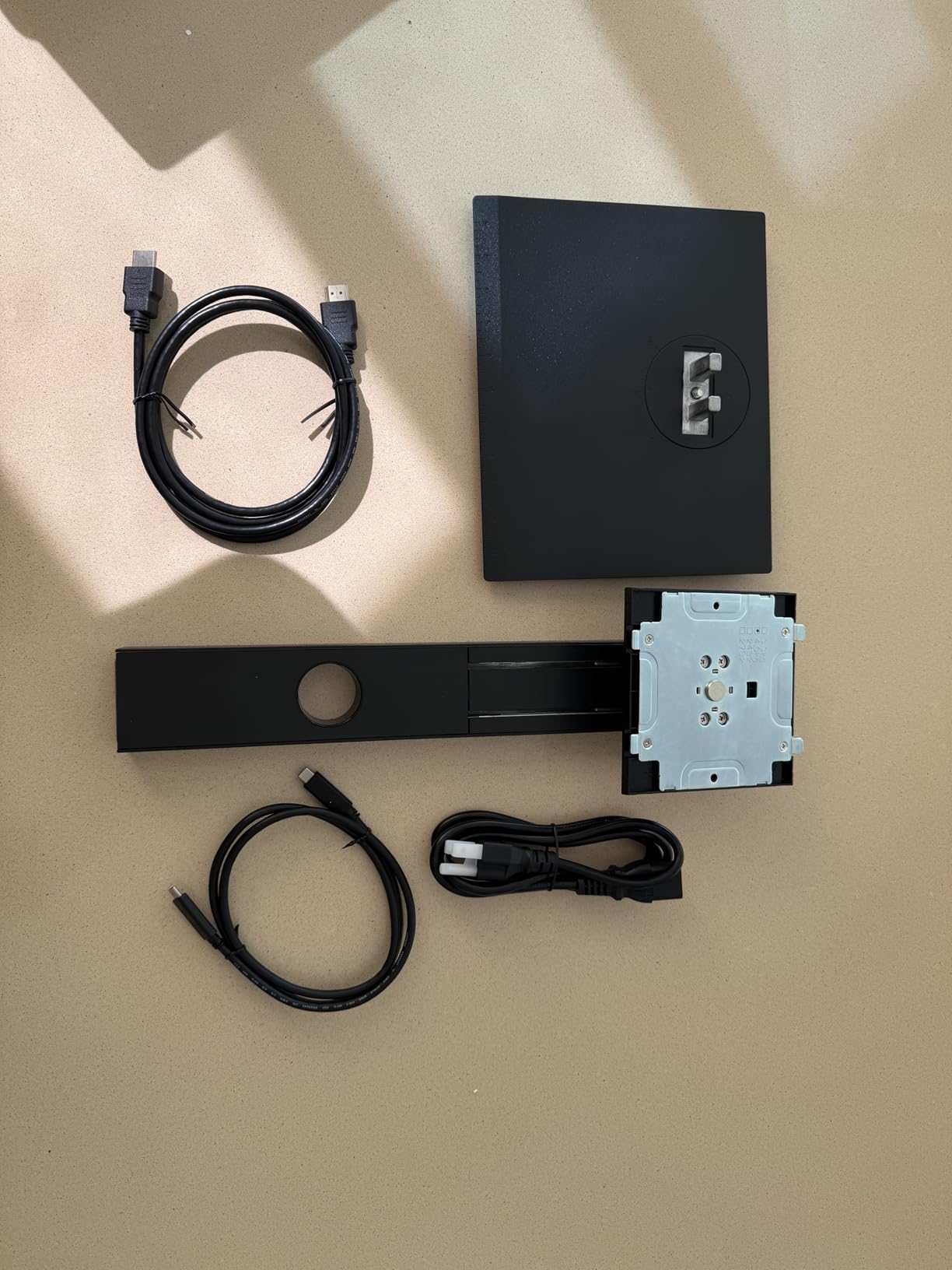
Who the 27C1U suits best
Laptop users on a strict budget get a genuine single-cable workflow with 65W charging, a feature that normally pushes a 4K panel well past this ceiling. Portrait pivot is a bonus for reviewing vertical shots.
First-time buyers who want a colorimeter later but need a decent panel now will find 400 nits and HDR 400 a workable starting point.
Where the 27C1U falls short
Contrast is 1000:1, so deep blacks are hard to judge on a dark edit. The colour depth is 8-bit plus FRC rather than true 10-bit, which shows as banding in heavily processed gradients.
Factory calibration documentation is sparser than on ProArt or ColorPro models, so the Delta E claim is harder to verify. The 4.3 average rating, with a higher share of one-star reviews than the other picks, is the reason this sits eighth rather than higher.
9. Dell UltraSharp U2724D 27-inch 1440p – Best for Contrast and Tonal Separation
Dell UltraSharp 27 Monitor – U2724D 68.47cm (27), W128815277 (U2724D 68.47cm (27))
27-inch 1440p IPS
350 nits
2000:1 native contrast
120Hz with ambient light sensor
Pros
- 2000:1 contrast is a real step up from 1000:1 IPS
- Ambient light sensor adjusts brightness and colour temperature
- 120Hz makes scrolling noticeably smoother
- Serialized factory calibration report included
- Fast USB 3.2 Gen 2 hub
- No visible IPS glow reported by owners
Cons
- 1440p means 4K files must be downscaled to view at 1:1
- Gamut is sRGB-class and short of Adobe RGB
- Bundled USB-C cable is data only
- Supplied USB-C cable reported as short
Contrast is where this panel separates itself. Native 2000:1 is roughly double a typical IPS, and editors who care about blacks and tonal separation notice it immediately in dark portraits and low-key product shots.
The built-in ambient light sensor adjusts both brightness and colour temperature to match the room, which is a quiet answer to the biggest complaint about budget panels: consistency across a day that starts dim and ends bright.
A factory calibration report ships in the box and is serialized to the individual unit, so you can tell which panel you received. ICC profile creation and management run through the Dell software dashboard.
The InfinityEdge four-sided near-borderless bezel keeps Photoshop panels from feeling boxed in, and 120Hz with FreeSync makes catalog scrolling smooth. Owners report no visible IPS glow or corner brightness unevenness on their units.
Who the U2724D suits best
Retouchers and portrait photographers working in dark tones will get more from the 2000:1 contrast than from any resolution upgrade at this price. The ambient light sensor also suits people who edit at different times of day in changing light.
Designers and hobbyist retouchers rate the colour handling highly, and the silver design sits neatly next to a Mac setup.
Where the U2724D falls short
It is 1440p, so 4K photo files must be downscaled to view at 1:1. Coverage is sRGB-class and falls short of Adobe RGB, which rules it out for commercial print work despite the strong contrast.
Some owners would prefer a real USB-C video input, and the bundled one-metre USB-C cable is data only. The USB 3.2 Gen 2 hub is fast, but it needs a host connection that supports it.
10. MSI PRO MP273U 27-inch 4K – Budget Pick With a Wide-Gamut Claim
msi PRO MP273U, IPS 3840 x 2160 (UHD) Computer Monitor, 4K, 60 Hz, Adaptive-Synch, HDMI, DisplayPort, 4ms (GTG), Black
27-inch 4K IPS
400 nits typical
95% Adobe RGB and 99% DCI-P3 claims
Delta E under 2 claim
Pros
- Only 4K option at the low end of this roundup with such a wide stated gamut
- 95% Adobe RGB coverage is unusual at this level for print editing
- 4ms GTG response is faster than the other 60Hz 4K panels
- TÜV Rheinland Flicker Free and Low Blue Light certified
- Three-year manufacturer warranty
Cons
- Lowest average rating in the roundup at 4.0 with 14% one-star reviews
- No USB-C input and no USB hub or speakers
- Tilt-only stand with no height range
- Gamut and accuracy figures come from the manufacturer not independent measurement
On paper this is the most interesting spec sheet in the roundup: 95% Adobe RGB, 99% DCI-P3 and 139% sRGB coverage on a 4K IPS panel. Adobe RGB at that level is a genuine print-oriented figure, and it is rare at this price.
The MSI Eye-Q Check built-in vision assessment tool is a nice touch, and TÜV Rheinland Flicker Free and Low Blue Light certification covers long editing sessions. Response time of 4ms is the fastest GTG figure among the 60Hz 4K panels listed here.
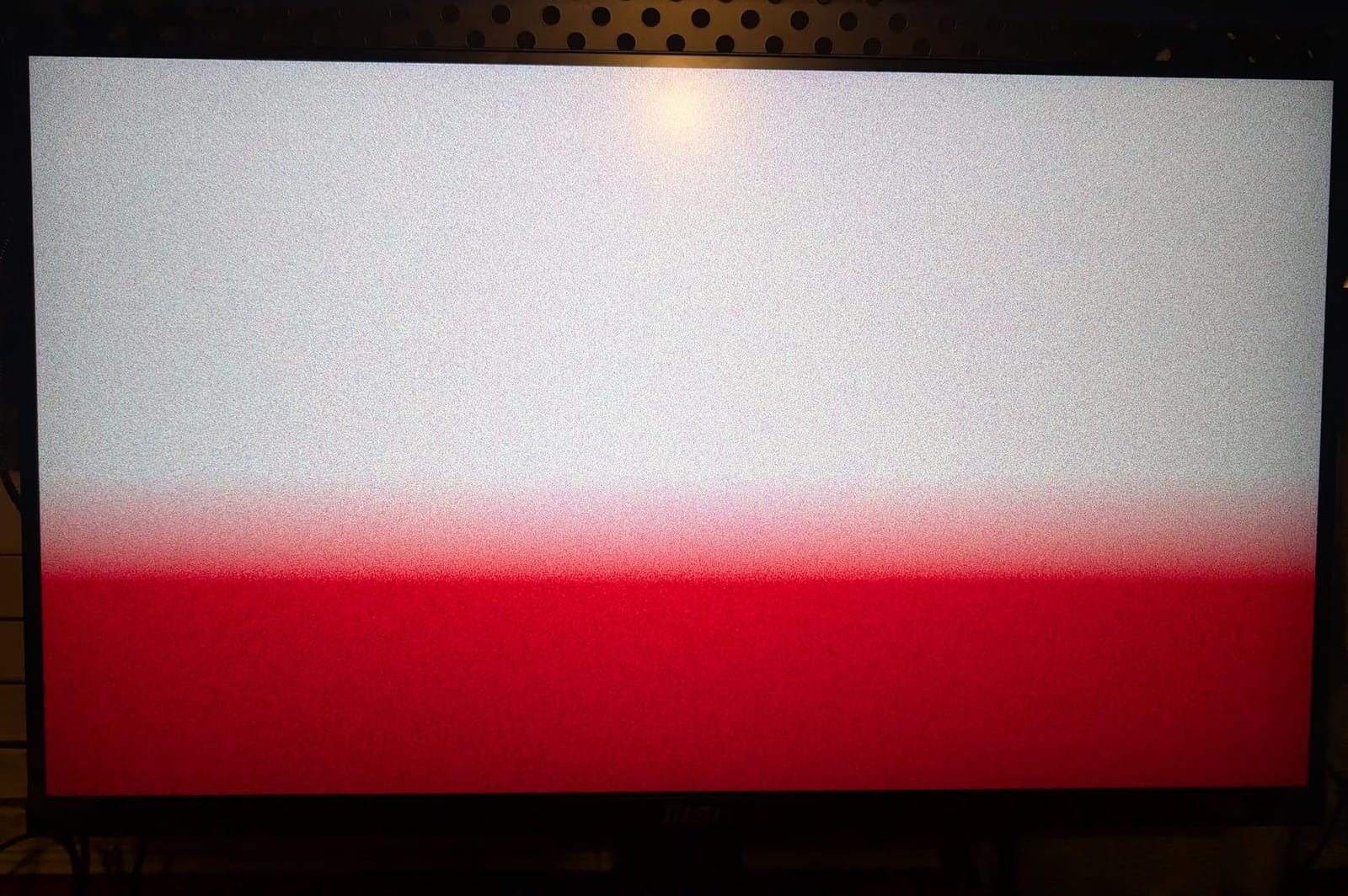
Connectivity is bare: one HDMI port, DisplayPort and nothing else. No USB-C, no hub, no speakers. That is workable on a desktop with separate peripherals, but it rules out a single-cable laptop setup.
At 8.7 pounds it is light for a 4K panel, and the stand adjusts tilt only. Plan your desk height before it arrives rather than after.
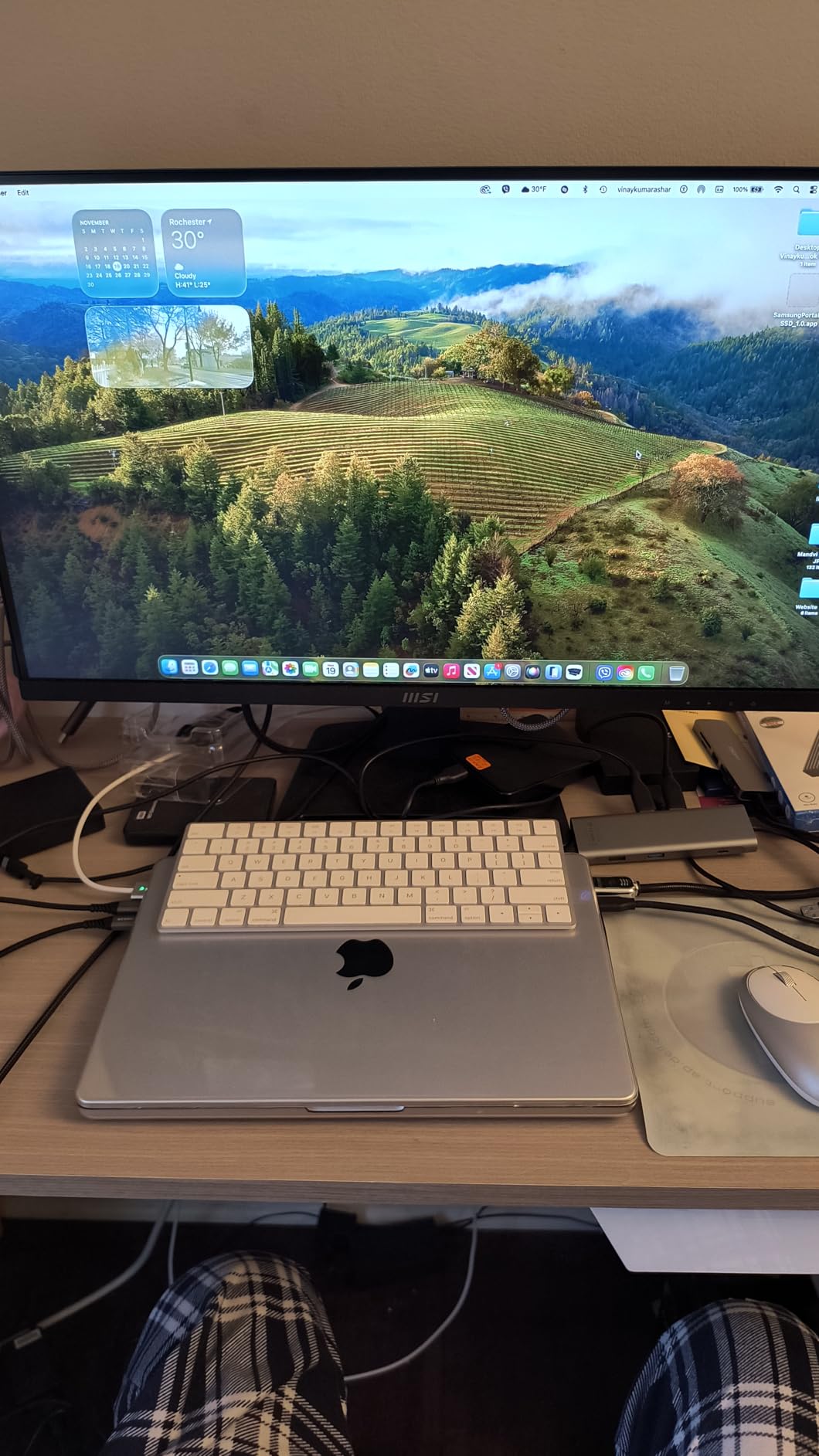
Who the MP273U suits best
Photographers who produce prints and want Adobe RGB coverage without leaving this budget will find very little else that competes on the spec sheet. It is also the cheapest route to a 4K panel here for a first calibrated setup.
Expect to verify the colour claims yourself with a colorimeter, because independent measurement is not part of the package.
Where the MP273U falls short
It carries the lowest average rating in the roundup at 4.0, with 14% one-star reviews across a relatively small review base of 123. That combination argues for buying from a seller with straightforward returns rather than treating it as a no-risk purchase.
The gamut and Delta E figures are manufacturer claims rather than independent measurements, and the tilt-only stand is the most limited here. At three years, the warranty is also shorter than the five-year cover on the ProArt panels listed above.
How to Choose a Monitor for Photo Editing?
Most buyers lose money on the wrong spec first. Here is what actually changes your results, roughly in order of importance.
Panel type: IPS is the only safe answer here
An IPS panel is the right default for photo editing because it holds colour and contrast steady from edge to edge. TN panels shift colour as you tilt, which makes them useless for anything judged visually, and VA panels crush detail in dark tones.
OLED panels deliver far deeper blacks but carry static burn-in risk, which is exactly the workload a photographer generates with a fixed Lightroom interface left on screen all day.
Color gamut: sRGB or Adobe RGB?
Choose based on where your images end up, and nothing else. If you publish to the web, social or social media, sRGB is the target space and 99% sRGB coverage is sufficient. If you produce commercial prints, you need 95% Adobe RGB or better, because that is the space your print lab works in.
The most common expensive mistake is buying a 99% sRGB panel for print work and only discovering the limit when saturated greens and cyans look flat. DCI-P3 sits between the two and covers most video and screen work.
Color accuracy and Delta E
Delta E measures how far a displayed colour sits from its intended value. Under 2 is invisible to the eye, under 1 is imperceptible to almost everyone. A stated Delta E under 2 with a factory calibration report is the standard worth paying for.
Be skeptical of badges. Calman Verified and Pantone Validated mean a unit was measured at the factory; they do not mean the panel in your box was measured, which is why a report printed and serialized to the unit matters more than a logo on a webpage.
Resolution and pixel density
Below about 140 pixels per inch, a 100% zoom view on a 24-megapixel RAW file no longer fits on screen. A 27-inch 1440p panel lands near 109 ppi, which is workable but soft. A 27-inch 4K panel reaches roughly 163 ppi and is the sweet spot for this budget.
Anything below 27 inches at 1080p falls under 100 ppi, which is why we left those panels out of this roundup entirely.
Bit depth and banding
An 8-bit panel renders about 16.7 million colours. A 10-bit panel renders more than one billion, and the visible difference shows up in gradients: skies, skin falloff and large smooth areas. Most panels in this roundup are 8-bit, with some using frame rate control to approximate 10-bit.
For heavy grading on wide gradients, this is one of the compromises you accept at this ceiling.
Matte finish, brightness and room light
A matte anti-glare coating is what you want in a normally lit room; gloss panels reflect everything and make accurate judgement hard. Brightness matters more than most spec sheets suggest: 300 nits struggles in daylight, while 400 nits gives you usable headroom.
None of these panels ship with a shading hood, so control ambient light in the room rather than relying on the panel to do it.
USB-C power delivery and laptop workflows
If you edit on a laptop, USB-C with Power Delivery collapses video, data and charging into one cable. 60W covers most ultraportables and many thin laptops; 65W is a similar tier. Anything heavier, or a machine that charges at full speed under load, still wants its own adapter.
Remember to check the bundled cable, because one data-only USB-C cable in the box can explain a connection that refuses to carry video.
Calibration: do you need a colorimeter?
Yes, and more so at this price than above it. Factory calibration is a starting point that drifts with panel variation, ambient light and warm-up time. A colorimeter produces an ICC profile that corrects your specific unit.
A reasonable cadence is once at setup, then a check every 30 days or whenever your monitor has been moved or the room lighting has changed.
What You Give Up Under 500 Dollars
Being honest about the ceiling matters more than another spec line. Under 500 dollars you are giving up a few specific things.
You are giving up true 10-bit colour at 4K on IPS, which means accepting some banding in the smoothest gradients. You are also giving up true Adobe RGB coverage at 4K from a brand with a long calibration track record; the wide-gamut claims in this roundup are manufacturer figures rather than independently measured ones.
Contrast tops out at 2000:1 here, roughly double a typical IPS but far short of what an OLED or a hardware-calibrated reference panel delivers. No panel in this range supports hardware calibration through a built-in calibrator, so every workflow depends on an external colorimeter.
And you are giving up 5K resolution entirely. If your workflow depends on inspecting a full-resolution frame at 1:1 without downscaling, this budget does not reach it.
Frequently Asked Questions
What is the best monitor for photo editing under 500 dollars?
The ASUS ProArt PA278QV is the strongest all-round pick at this budget: a 27-inch IPS calibrated to Delta E under 2 with a printed factory report, 100% sRGB coverage, a four-port USB hub and an adjustable stand. For a laptop, the LG 27UK850-W gives you 4K and 60W USB-C charging on one cable.
What type of monitor is best for photo editing?
An IPS panel with 100% sRGB coverage and a Delta E under 2 is the standard for photo editing at this budget. IPS keeps colour and contrast stable across viewing angles, which TN panels cannot. Avoid TN entirely, treat VA panels with care in dark tones, and think twice about OLED because a static editing interface raises burn-in risk.
Do I need a 4K monitor for photo editing?
A 4K 27-inch panel reaches about 163 pixels per inch, which lets you inspect detail at 100% zoom far more comfortably than a 1440p panel at roughly 109 pixels per inch. 4K is not mandatory for web delivery, but it changes how you work with large files and Photoshop layouts.
Is 99% sRGB enough for photo editing?
Yes, if you publish to the web, social media or any screen-based destination. You only need wider coverage such as 95% Adobe RGB when you produce commercial prints, because that is the working space your print lab uses. Buying an sRGB-only panel for print work is the most common and most expensive mistake in this tier.
Do I need to calibrate a monitor under 500 dollars?
Yes. Factory calibration is a starting point that drifts with panel variation, ambient light and warm-up time, and units differ from each other. A colorimeter generates an ICC profile for your specific screen. Calibrate once when you set up, then recheck roughly every 30 days or after moving the monitor or changing room lighting.
Should I get an OLED monitor for photo editing?
Only if you also want HDR and gaming. OLED gives far deeper blacks than any IPS panel here, but a static Lightroom interface left on screen for hours creates burn-in risk, and OLED coverage in this budget tier is not combined with the Delta E documentation the ProArt and ColorPro panels provide. For stills work, a calibrated IPS panel is the safer buy.
Our Final Verdict for 2026
If you only buy one monitor for photo editing under 500 dollars, get the ASUS ProArt PA278QV. Verified Delta E under 2, a printed calibration report, a matte IPS panel and more than 3000 owner reviews make it the pick with the least risk attached, and the built-in USB hub removes the need for extra desk hardware.
Buy the LG 27UK850-W instead if you edit from a laptop and want one cable. Buy the Dell 27 S2725QS if you want 4K at 120Hz for fast catalog work, and the Dell UltraSharp U2724D if judging dark tones matters more than pixel count.
If you print commercially, check your workflow against your delivery method before you spend, and use one of our photo printer guides to match your monitor to the output. Whatever you choose, budget for a colorimeter, because at this price the calibration is where most of the remaining uncertainty lives.