
The best curved monitors for office work in 2026 come down to resolution, panel type and how the panel fits your desk, not to how dramatic the curve looks in a product photo. The Sceptre C248W-1920RN takes our top spot because it holds 4.6 stars across more than 22,000 reviews, and it is the only pick here that costs almost nothing to live with while still giving you a genuine curved panel.
That said, a 24-inch 1080p screen is not the right answer for a full day of spreadsheets. Analysts, developers and anyone splitting a video call with three documents open will want more width than a 16:9 panel can give, which is where the 21:9 ultrawides in this roundup earn their place. We looked at 12 curved monitors for this guide, weighing native resolution, pixel density, panel technology, refresh rate, connectivity and physical footprint.
Two things shaped every pick. First, desk fit. Curved panels need noticeably more front-to-back depth than flat ones, and a 34-inch ultrawide is roughly 32 inches wide before the stand, so it will swallow a standard 48-inch desk. Second, stand adjustment. Most curved monitors in this price range tilt only, which is the single most common complaint in owner reviews, and it is the thing that pushes good buyers toward a monitor arm.
We updated this guide for 2026 and pulled specifications from manufacturer listings alongside thousands of owner reviews. Where owners repeatedly flag a problem, we call it out rather than smoothing it over.
Table of Contents
Top 3 Picks for Curved Monitors for Office Work in 2026

Best Curved Monitors for Office Work (October 2026)
| Product | Specifications | Action |
|---|---|---|
 Sceptre C248W 24-inch Sceptre C248W 24-inch |
|
Check Latest Price |
 SANSUI ES-27C1 27-inch SANSUI ES-27C1 27-inch |
|
Check Latest Price |
| SANSUI ES-G34C8 34-inch |
|
Check Latest Price |
 Samsung S36GD 27-inch Samsung S36GD 27-inch |
|
Check Latest Price |
 Sceptre C345B 34-inch Sceptre C345B 34-inch |
|
Check Latest Price |
 SANSUI ES-G32C3 32-inch SANSUI ES-G32C3 32-inch |
|
Check Latest Price |
 Samsung Odyssey G55C 32-inch Samsung Odyssey G55C 32-inch |
|
Check Latest Price |
 Acer Nitro EDA270U 27-inch Acer Nitro EDA270U 27-inch |
|
Check Latest Price |
 Samsung ViewFinity S50GC 34-inch Samsung ViewFinity S50GC 34-inch |
|
Check Latest Price |
 LG 32MR50C-B 32-inch LG 32MR50C-B 32-inch |
|
Check Latest Price |
 Dell S3425DW 34-inch Dell S3425DW 34-inch |
|
Check Latest Price |
 Alienware AW3425DWM 34-inch Alienware AW3425DWM 34-inch |
|
Check Latest Price |
Are Curved Monitors Good for Office Work?
Yes, with one caveat: curved monitors work best for office tasks on panels of 27 inches and larger, and they are most useful on 21:9 ultrawides where the curve solves a real problem. A curvature rating tells you the radius of the circle the panel matches, so an 1800R panel curves along a circle 1.8 meters in radius and a 1000R panel curves much more tightly. The effect is to rotate the outer portions of the screen toward you so the center and the edges sit at a more even distance.
For text-heavy work, that even distance matters more than the spec-sheet resolution you might expect. When a window sits at the far edge of a flat 34-inch ultrawide, you turn your head, and over eight hours those small neck rotations add up. On a curved panel the same window is already angled toward your eyes. A 1500R curve is the sweet spot for a desk at normal viewing distance; 1000R wraps tighter and suits gaming and very wide panels, while 1800R is the gentlest and the easiest to sit in front of for a full day.
The caveat is desk depth. Curved panels sit further forward than flat ones, so you need roughly 24 to 30 inches of front-to-back desk depth for a 34-inch model. On a shallow desk the bottom edge of a curved screen is the first thing you will fight with, and tilting the panel back to fix it can wash out the image. If your desk is under 24 inches deep, a flat 27-inch is the more sensible buy.
Owners on r/Monitors and r/ultrawidemasterrace reach the same conclusion from different directions. The curve earns its premium on 34-inch and larger ultrawide panels; on a 16:9 screen the productivity gain is small and mostly cosmetic.
1. Sceptre C248W-1920RN 24-Inch Curved Monitor: Best Overall Pick for Everyday Office Work
Sceptre Curved 24-inch Gaming Monitor 1080p R1500 98% sRGB HDMI x2 VGA Build-in Speakers, VESA Wall Mount Machine Black (C248W-1920RN Series)
24-inch 1800R VA panel
1920x1080 native
75Hz with FreeSync
98% sRGB, 220 cd/m2
Pros
- Highest rated pick in the guide with 22763 reviews
- Cheapest entry point to a genuine curved panel
- Dual HDMI plus VGA gives flexible input options
- Lightweight 6-pound chassis with VESA wall mount support
Cons
- 75Hz refresh rate is modest
- Stand offers tilt only with no height or swivel adjustment
- Built-in speakers are bass-light and fine mainly for system alerts
This is the monitor we keep recommending to people who want a curve without a rebuild. At 24 inches it fits a small desk without drama, it weighs 6 pounds, and it does the one thing a curved panel is meant to do: soften the hard edges of the screen so nothing at the periphery pulls your attention sideways.
Owners consistently describe the picture as clear with rich, accurate colors, which is not what you would expect from a VA panel at this price. The 1800R curve is gentle, so the wraparound is present but subtle, and the matte anti-glare finish handles a bright room better than glossy alternatives. At 98% sRGB coverage it stays inside the color box for everyday document and web work.
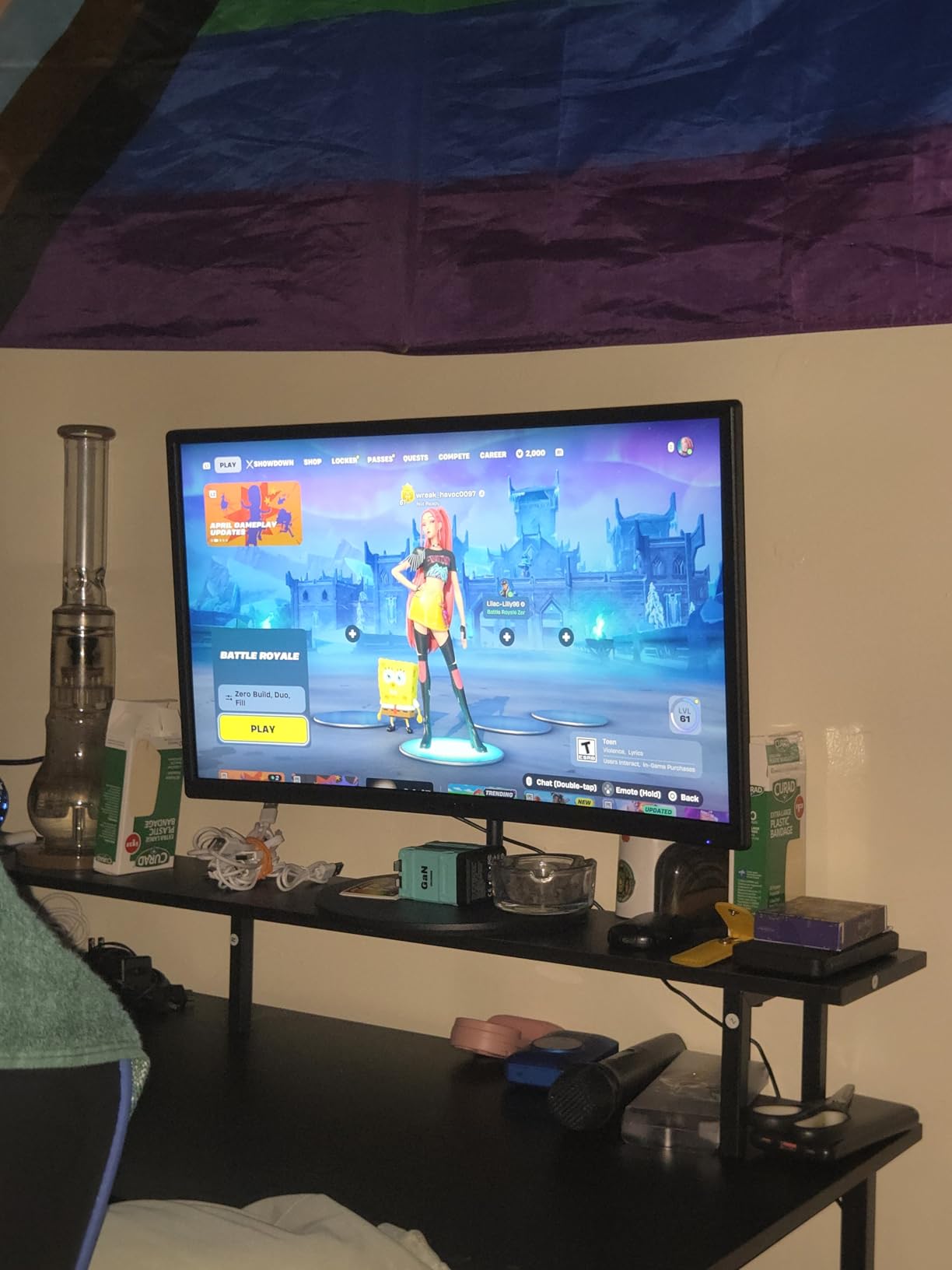
The spec sheet is where this budget panel shows its age. The refresh rate is 75Hz, which is fine for reading but noticeably less smooth than the 100Hz and 120Hz panels later in this list when you scroll a long spreadsheet or drag a window. The listed brightness is 220 cd/m2, the lowest figure in this roundup, so it is a poor fit for a sunlit room without blinds.
Connectivity is the quiet strength. Two HDMI ports plus one VGA input and a PC audio-in give you room to connect a laptop, a desktop and a capture card without hunting for a switch. The 3000:1 contrast ratio is respectable for VA, and FreeSync adaptive sync keeps a modern GPU from tearing during video playback.
Who this curved monitor suits
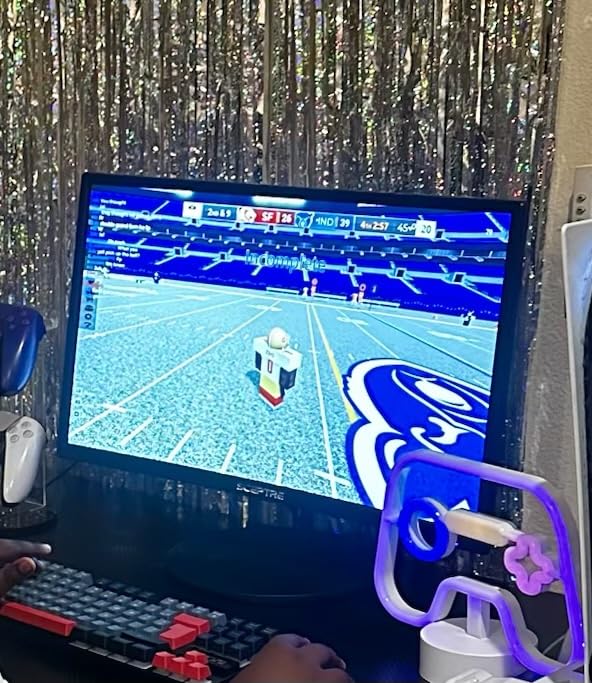
This suits students, reception staff and anyone doing two to four hours of email, documents and browser work on a desk that cannot take a 34-inch panel. It also works as a second screen beside a laptop, where the 21.6-inch width is easy to place. The VESA wall mount compatibility means you can reclaim desk space entirely if your stand is too shallow.
Where it falls short for office work
Full HD across 24 inches is a real ceiling. If your work is spreadsheet grids wide enough that you already scroll horizontally, this monitor will not fix that, and the SANSUI 32-inch later in this list delivers more usable pixels. The stand is also the limiting factor for ergonomics: tilt only, no height adjustment, which is why so many owners end up on boxes or a riser.
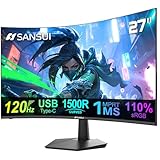
2. SANSUI ES-27C1 27-Inch 120Hz USB-C Monitor: Budget Pick Curved Screen
SANSUI Curved Monitor 27 inch 120Hz USB Type-C Computer Monitor
27-inch curved LED panel
1920x1080 native
120Hz with 1ms MPRT
USB-C and HDMI 1.4
Pros
- 120Hz refresh rate is a real upgrade for scrolling and cursor motion
- USB Type-C input suits laptop and tablet workflows
- 110% sRGB coverage and 4000:1 contrast
- Assembles in minutes with no screws
Cons
- Picture can look soft until brightness and sharpness are tuned
- Stand is tilt-only with no height or swivel
- Darker corners reported on some curved panels
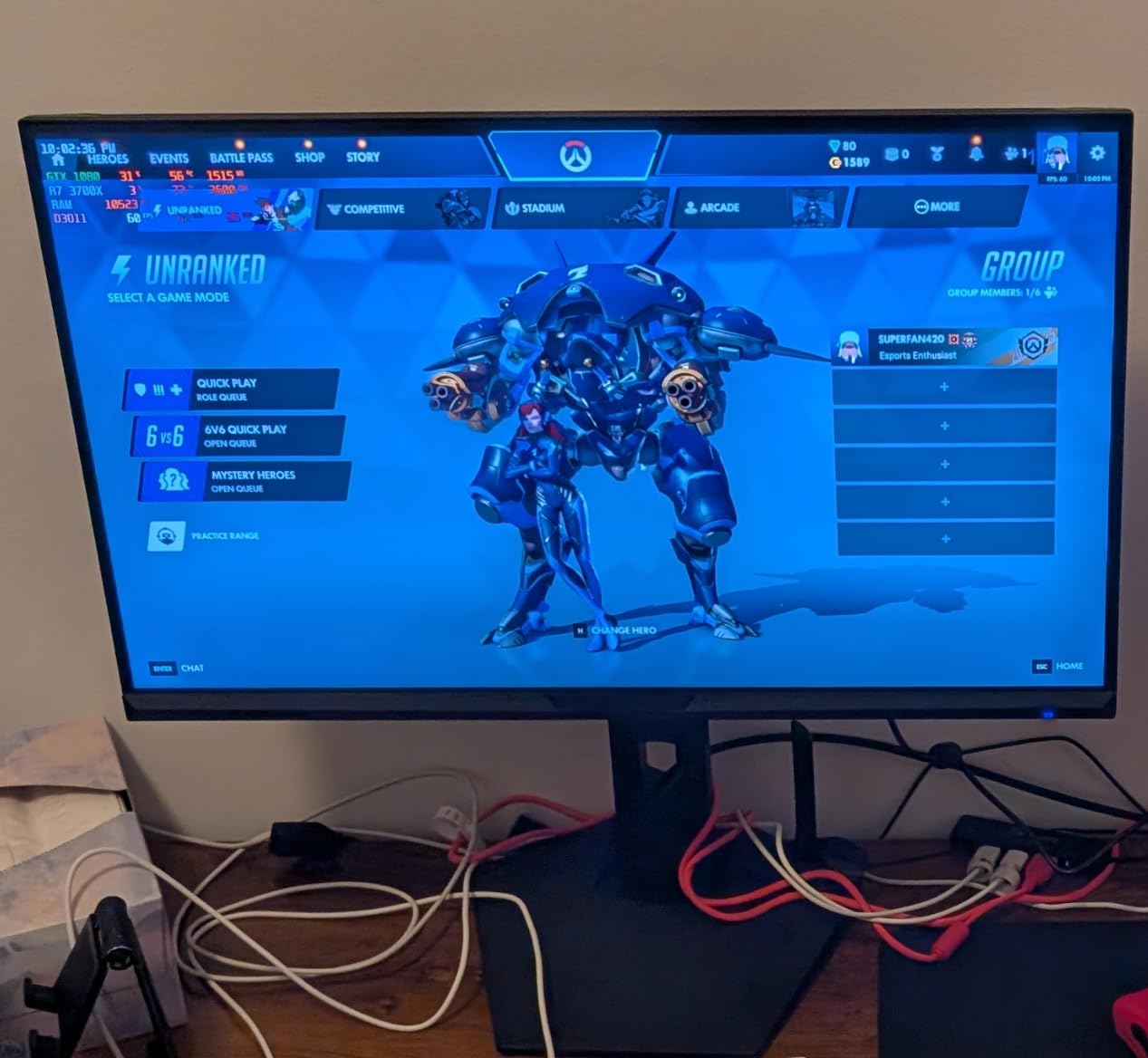
The headline number here is 120Hz on a 27-inch curved panel, which is unusual at this price. Office work is not a twitch genre, but refresh rate shows up in ways people notice every day: cursor movement, scrolling through a long PDF, dragging a spreadsheet selection box, the animation when a window snaps to a side. At 120Hz those interactions are visibly smoother than the 75Hz panel in our top pick.
The USB Type-C input is the second reason this one appeals to laptop-only workers. It accepts a single cable from a modern notebook for video and data. Be clear about what it is not, though: this is a video and data input, not a charging dock with meaningful power delivery, so you still need your laptop charger.
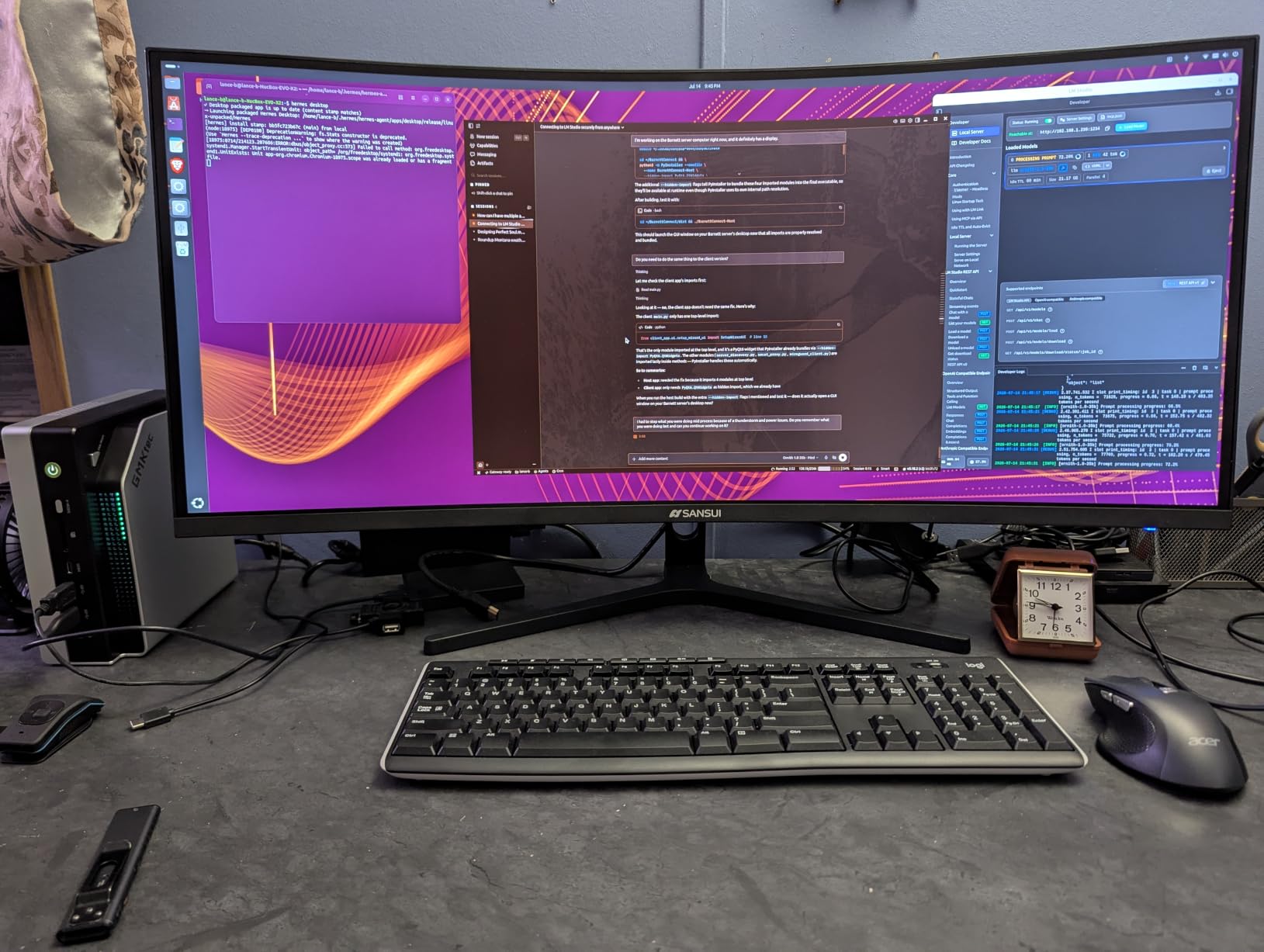
Color numbers are strong for the money: 110% sRGB coverage, 4000:1 contrast and 300 nits brightness. The recurring owner complaint is that the panel needs adjustment out of the box. Several buyers report the image looking softer than expected until they push brightness up and tune sharpness in the on-screen menu. Some also notice darker corners toward the edges of the curve, which is a common trait of curved VA panels at modest prices.
Feature-wise you also get anti-flicker and low blue light modes, a 178-degree viewing angle and a VESA 100x100mm mount. Built-in 2x2W speakers handle system alerts and short video calls, though nobody buys this for audio quality.
Who this curved monitor suits
This is the pick for a student or a hybrid worker who wants a smooth panel and modern connectivity without moving into ultrawide territory. It also works well as a secondary display for a laptop user who wants a second panel that mirrors the same smooth motion. At 24.1 inches wide it still fits most desks comfortably.
Where it falls short for office work
It is still 1920×1080. On a 27-inch panel, text rendering is noticeably softer than the QHD and ultrawide models further down, and analysts who stare at dense grids will feel that first. The tilt-only stand is the other limit; with no height adjustment you are either craning or stacking. Budget for a monitor arm if this becomes your main screen.
3. SANSUI ES-G34C8 34-Inch 3440×1440 Ultrawide: Best Curved Monitor for Multitasking
SANSUI 34-Inch Curved Gaming Monitor UWQHD 3440 x 1440P 200Hz Ultrawide
34-inch 1500R curved ultrawide
3440x1440 native 21:9
Up to 200Hz with 1ms overdrive
DCI-P3 96% coverage
Pros
- 3440x1440 gives genuine two-screen width without a bezel seam
- Up to 200Hz makes every scroll and drag feel fluid
- sRGB 131% and DCI-P3 96% coverage for media work
- HDMI 2.1 and DisplayPort 1.4 with PIP and PBP
Cons
- Some owners report quality control inconsistency with power-related failures
- No built-in speakers
- Stand is tilt-only with no height adjustment
This is the monitor that changes how a workday feels. A 34-inch 3440×1440 panel gives you 3440 pixels of horizontal room, which is enough to keep a spreadsheet, a terminal and a browser side by side with no overlapping windows and no bezel seam cutting through the middle of your view. For office work that is the single biggest quality-of-life upgrade in this entire roundup.
The 1500R curve on a 21:9 panel is the combination that makes the width usable. The outer thirds of the screen angle toward you, so a window parked at the far edge stays readable without a big neck turn. Owners describe the experience in exactly those terms, and the same forum consensus that treats the curve as pointless on 16:9 panels treats it as essential here.
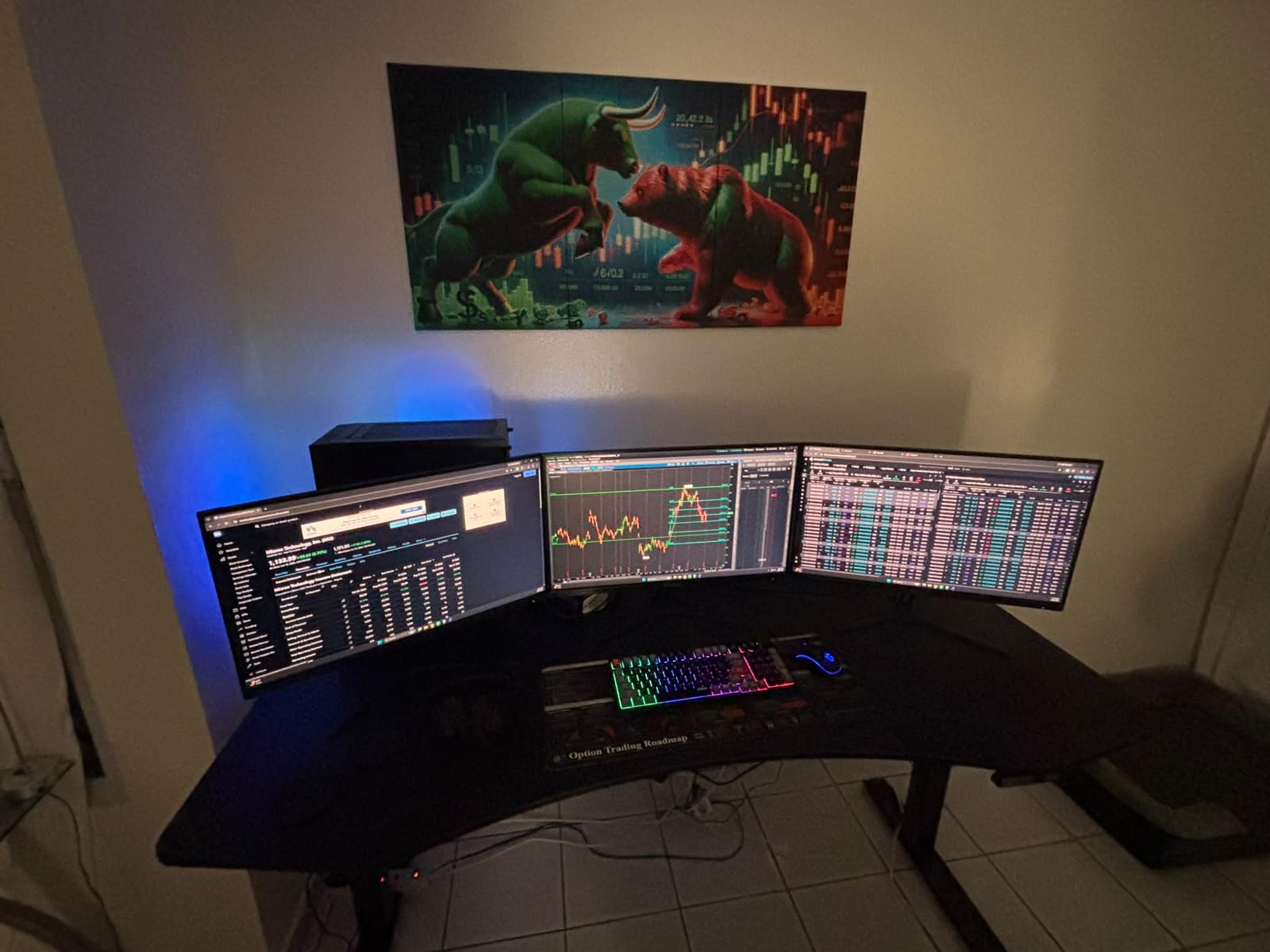
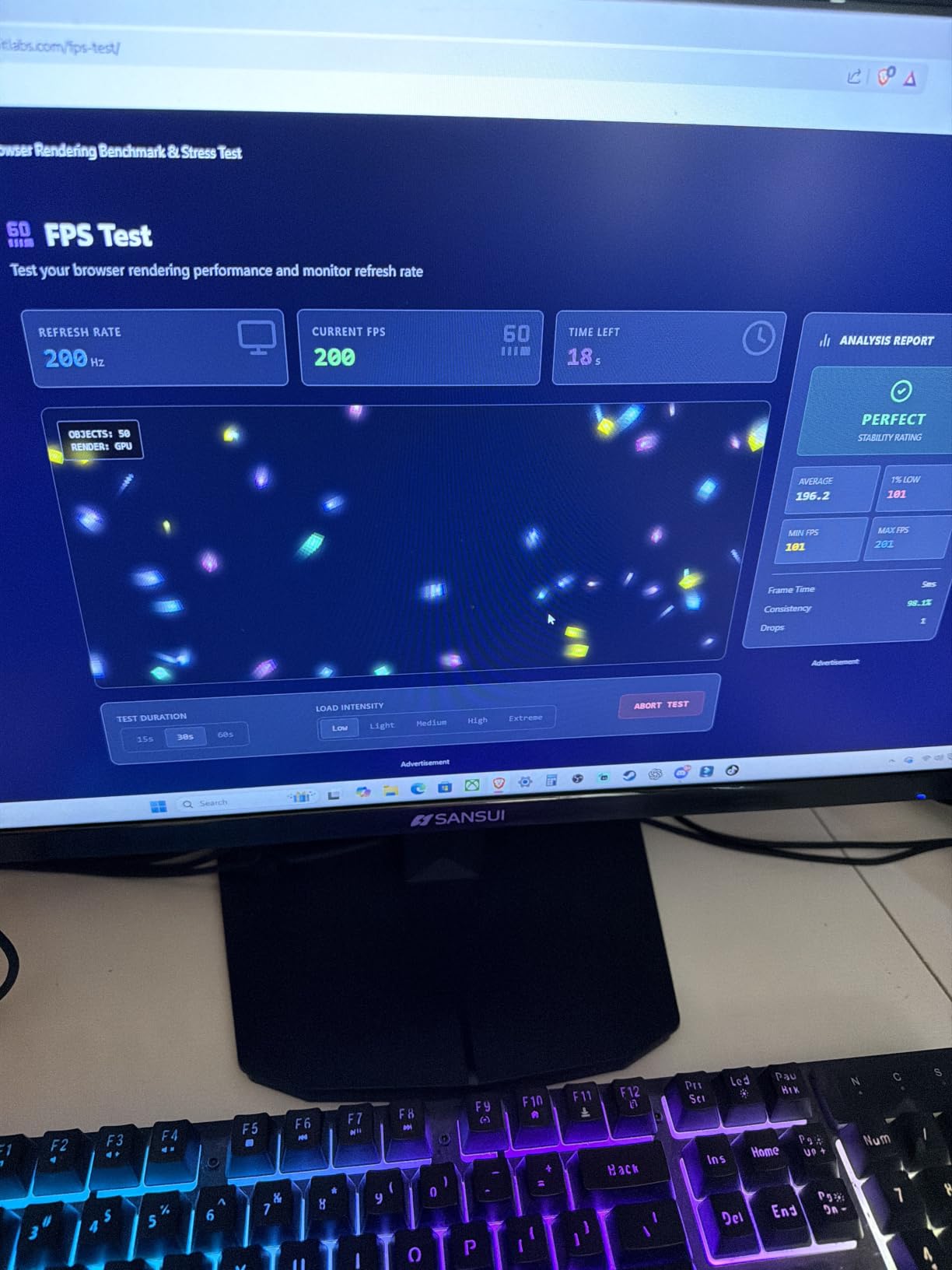
The refresh rate is where this separates itself. It runs up to 200Hz with a 1ms overdrive response, which is far beyond what office tasks need and exactly what makes menus, scrollbars and window animations feel immediate. Color coverage is also unusually broad for the price, at 131% sRGB and 96% DCI-P3, with HDR support included.
Connectivity is properly modern: DisplayPort 1.4 plus two HDMI 2.1 inputs with VRR, a headphone output, PIP and PBP for viewing two sources, a Kensington lock and a VESA 100x100mm mount. There are no built-in speakers, which owners rarely penalize at this size because desk space is tight enough already.
Who this curved monitor suits
Analysts, engineers and developers get the most out of this. If you live in VS Code with a terminal and a browser, the extra width removes window juggling entirely. It also suits hybrid workers who want one panel for spreadsheets during the week and a wide cinematic view on the weekend. Budget for a desk at least 32 inches wide and about 30 inches deep.
Where it falls short for office work
The most important caveat is the most serious one: some owners report power-related failures and quality control inconsistency, so keep your purchase protection in place. Beyond reliability, the tilt-only stand is a real problem on a panel this heavy at 7.01 kg, and there is no height adjustment. A monitor arm is close to mandatory here, and you need one rated well above 15 pounds.
4. Samsung Essential S3 S36GD 27-Inch 1800R: Best Curved Screen for Eye Comfort
Samsung 27″ Essential S3 (S36GD) Series FHD 1800R Curved Computer Monitor
27-inch 1800R curved panel
1920x1080 native
100Hz with 4ms response
TUV-certified eye comfort mode
Pros
- TUV-certified eye comfort reduces blue light and flicker over long sessions
- 100Hz refresh rate is a step up from standard office panels
- 1800R curve is gentle enough for all-day sitting
- HDMI cable included for straightforward setup
Cons
- Full HD on 27 inches limits real estate for heavy multitasking
- VGA input is dated for modern setups
- 250 cd/m2 brightness is modest in bright rooms
This is the pick to look at if eye comfort over a long day is your main worry. Samsung’s TUV-certified eye comfort technology here means two specific things in practice: reduced blue light output and flicker-free operation at all brightness levels. Flicker-free matters more than most buyers expect, because PWM dimming on cheaper panels is a genuine source of fatigue for people who stare at text for eight hours.
The 1800R curve is the gentlest in this roundup, and that is deliberate for productivity. A tighter curve on a 16:9 panel forces you to sit close and slightly off-axis; 1800R wraps just enough to soften the edges without wrapping around your field of vision. If you are sensitive to curved panels, this is the most neutral implementation on the list.
The 100Hz refresh rate puts it ahead of most office monitors. Combined with a 4ms response time, scrolling a long document or moving between windows feels noticeably more settled than on a 60Hz display. Contrast is a solid 3000:1 and the panel covers 95% of sRGB, with brightness listed at 250 cd/m2.
Game Mode gives you adjustable contrast and color presets for dark scenes, which is a nice extra for video editing reviews. Connectivity is the weak spot: HDMI and D-Sub VGA only, no DisplayPort and no USB hub, so external high-refresh laptops are limited by the HDMI port.
Who this curved monitor suits
Long-session office workers, people who work in a dim room, and anyone who has had trouble with headaches on a high-refresh gaming panel. It also suits hybrid workers who want a gentler curve than most of the gaming options here. At 24.5 inches wide and 8.4 pounds it is easy to place on an average desk.
Where it falls short for office work
Full HD across 27 inches is the defining limitation. The curved panel gives you a wider feel, but the pixel count is the same as a flat 24-inch, so a spreadsheet wide enough to scroll horizontally is still a problem. Without a USB hub, a laptop-only setup also means a separate dock if you need wired peripherals.
5. Sceptre C345B-QUT168 34-Inch Ultrawide: Best Dual-Monitor Replacement
Sceptre 34-Inch Curved Ultrawide WQHD Monitor (3440 × 1440), R1500, up to 180Hz/165Hz, DisplayPort x2, 99% sRGB, 1ms, Built-in Speakers, Machine Black, 2025 (C345B-QUT168)
34-inch 1500R curved ultrawide
3440x1440 native at 21:9
Up to 180Hz with 1ms MPRT
99% sRGB on a matte VA panel
Pros
- 3440x1440 ultrawide replaces a dual-monitor setup without a bezel seam
- 1500R curve is comfortable across long work sessions
- Joystick-style on-screen control is straightforward to navigate
- Two DisplayPort and two HDMI inputs plus audio out
Cons
- Some units show horizontal lines and backlight bleed up close
- Built-in speakers are weak
- Stand is tilt-only with no height adjustment
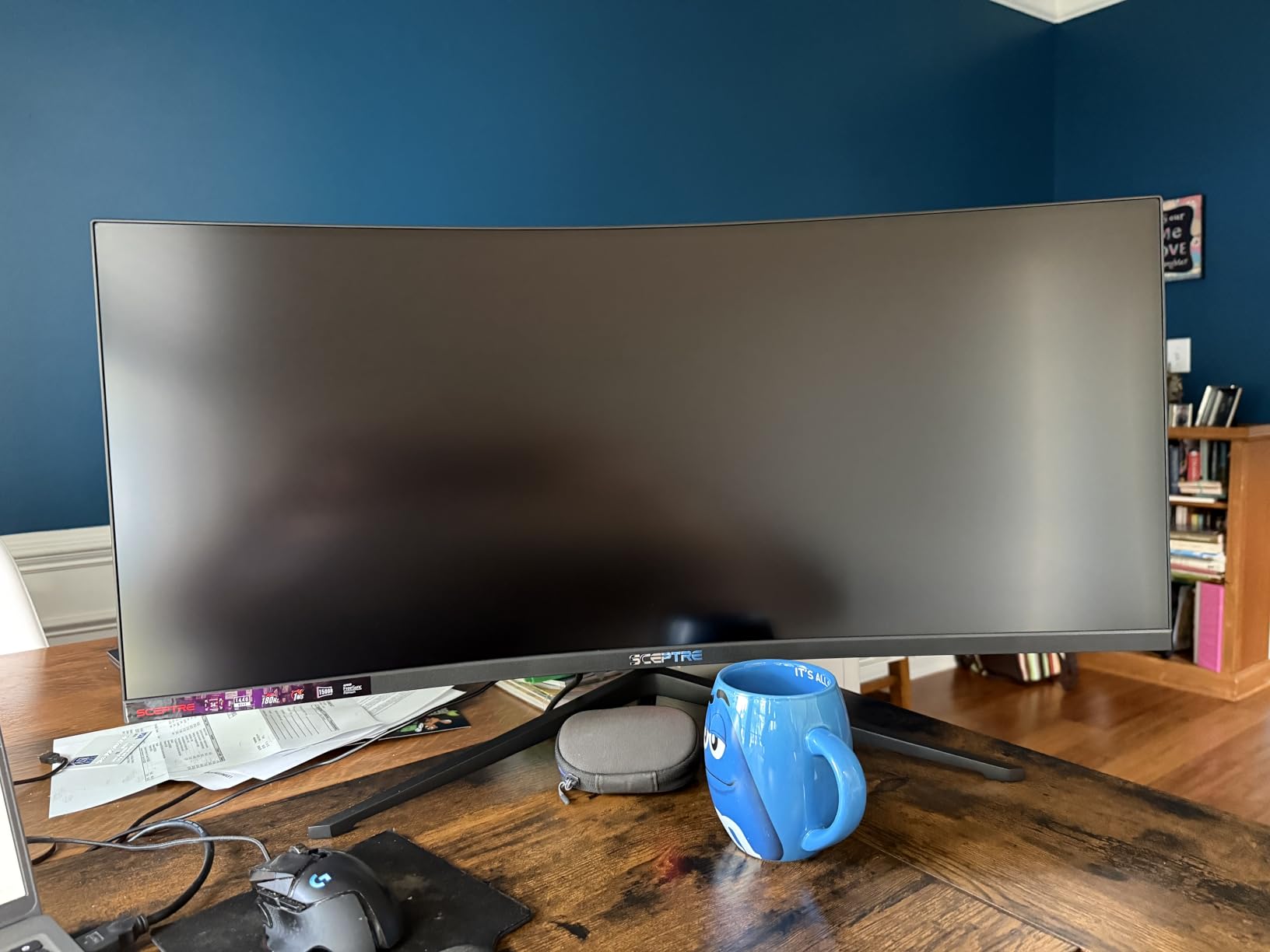
The clearest way to think about this monitor is as a two-monitor rig in one panel. If your desk currently holds two 24-inch screens with arm clamps fighting for space, a single 34-inch 3440×1440 curved display gives you close to the same usable width with one power cable, one stand and no bezel seam splitting your text down the middle. Owners describe that seam elimination as the main reason they stopped using two monitors.
The 1500R curve is well judged here. It is strong enough to keep the far edges of the panel usable without pulling the whole image into a tight wrap, which makes it a comfortable shape to sit in front of for a full workday of documents and code.
The refresh rate runs up to 180Hz with a 1ms MPRT response, and that smoothness carries into office use in a way that is easy to underrate. Menus, scrollbars, drag-select boxes and window animations all read as more immediate than on a 100Hz panel. The joystick-style on-screen controller is also a genuine improvement over the small button clusters on cheaper monitors.
Connectivity is unusually generous for a curved ultrawide: two DisplayPort and two HDMI inputs, a 3.5mm audio out and built-in speakers, plus a luminous back cover. The matte finish and 99% sRGB coverage suit document work. The weight to plan for is 15.3 pounds.
Who this curved monitor suits
Anyone moving from a dual-monitor setup to a single screen, and anyone whose desk cannot hold two monitors properly. It also suits hybrid workers who want a wide work surface that doubles as a large display, and music or timeline editors who like the extra horizontal room for tracks.
Where it falls short for office work
Quality control is the recurring complaint. Some owners report visible horizontal lines and backlight bleed when sitting close to the panel, which matters more on a 34-inch than it would on a 24-inch because your eye is nearer the corners. The built-in speakers are weak, and the stand is tilt-only, so plan on an arm.
6. SANSUI ES-G32C3 32-Inch 1500R QHD: Best Curved Monitor for Sharp Text
SANSUI 32-Inch Curved Gaming Monitor WQHD 2560 x 1440 180Hz Curved 1500R
32-inch 1500R curved panel
2560x1440 native
180Hz with 1ms overdrive
sRGB 125% and DCI-P3 95%
Pros
- QHD resolution at 32 inches keeps text crisp without ultrawide stretching
- 180Hz panel makes fast motion and scrolling fluid
- sRGB 125% and DCI-P3 95% coverage suits media work
- Two HDMI and two DisplayPort inputs plus headphone output
Cons
- No built-in speakers
- VA panel smears when shifting between bright and dark content
- Stand is tilt-only with limited ergonomic adjustment
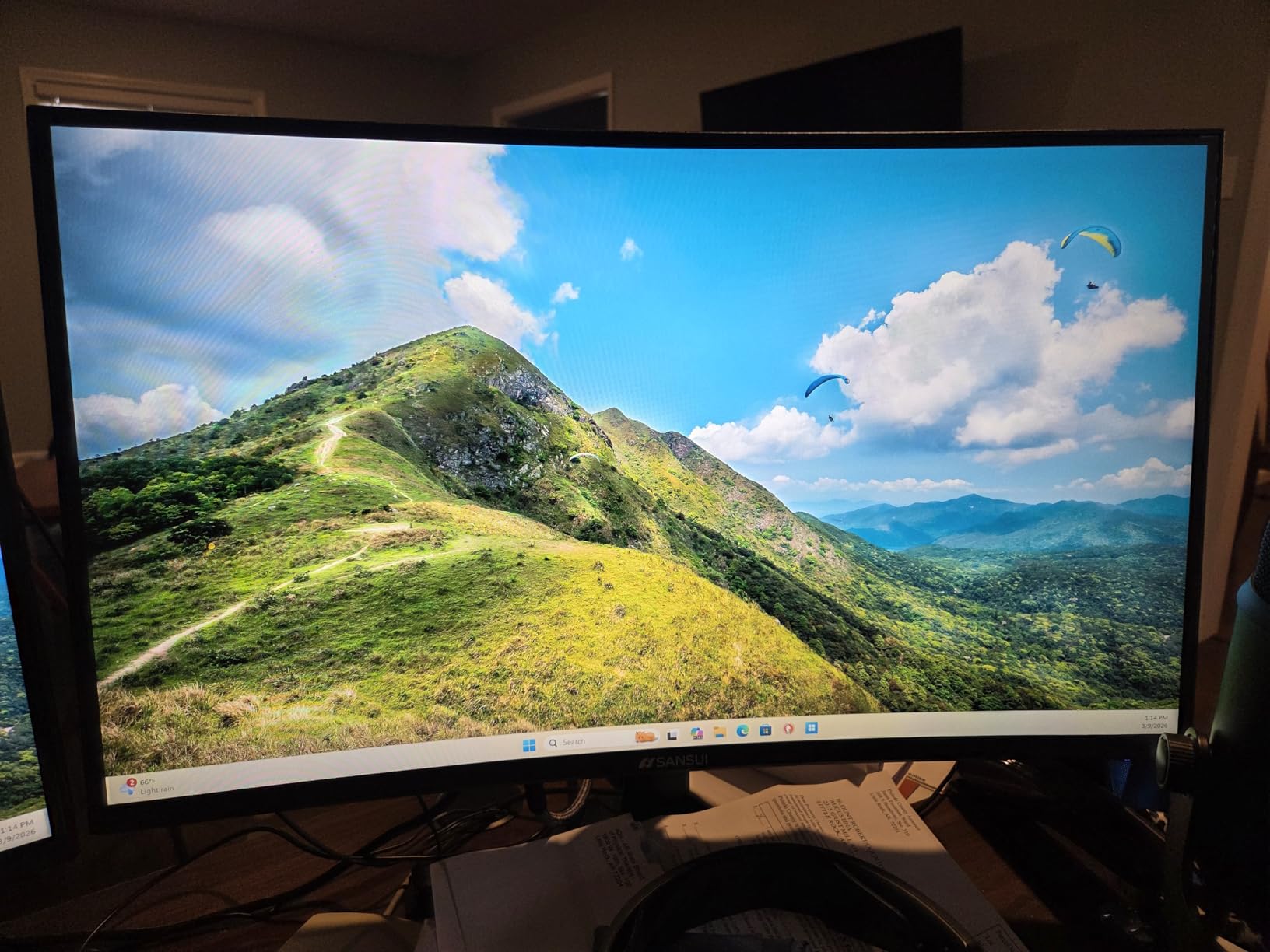
This is the resolution sweet spot in the roundup. 2560×1440 on a 32-inch panel gives you roughly 92 pixels per inch, which is dense enough that text in a code editor or a dense financial model looks properly resolved without any scaling. You get real pixel density without needing Windows or macOS display scaling, which is a genuine relief if you have ever squinted at blurry 150% scaled text.
The panel is 16:9, so this is not an ultrawide, but the 1500R curve still softens the edges and slightly widens the perceived field of view. At 24.19 inches wide it is narrower than the 34-inch options, which makes it one of the few curved monitors in this list that fits without drama on a standard desk.
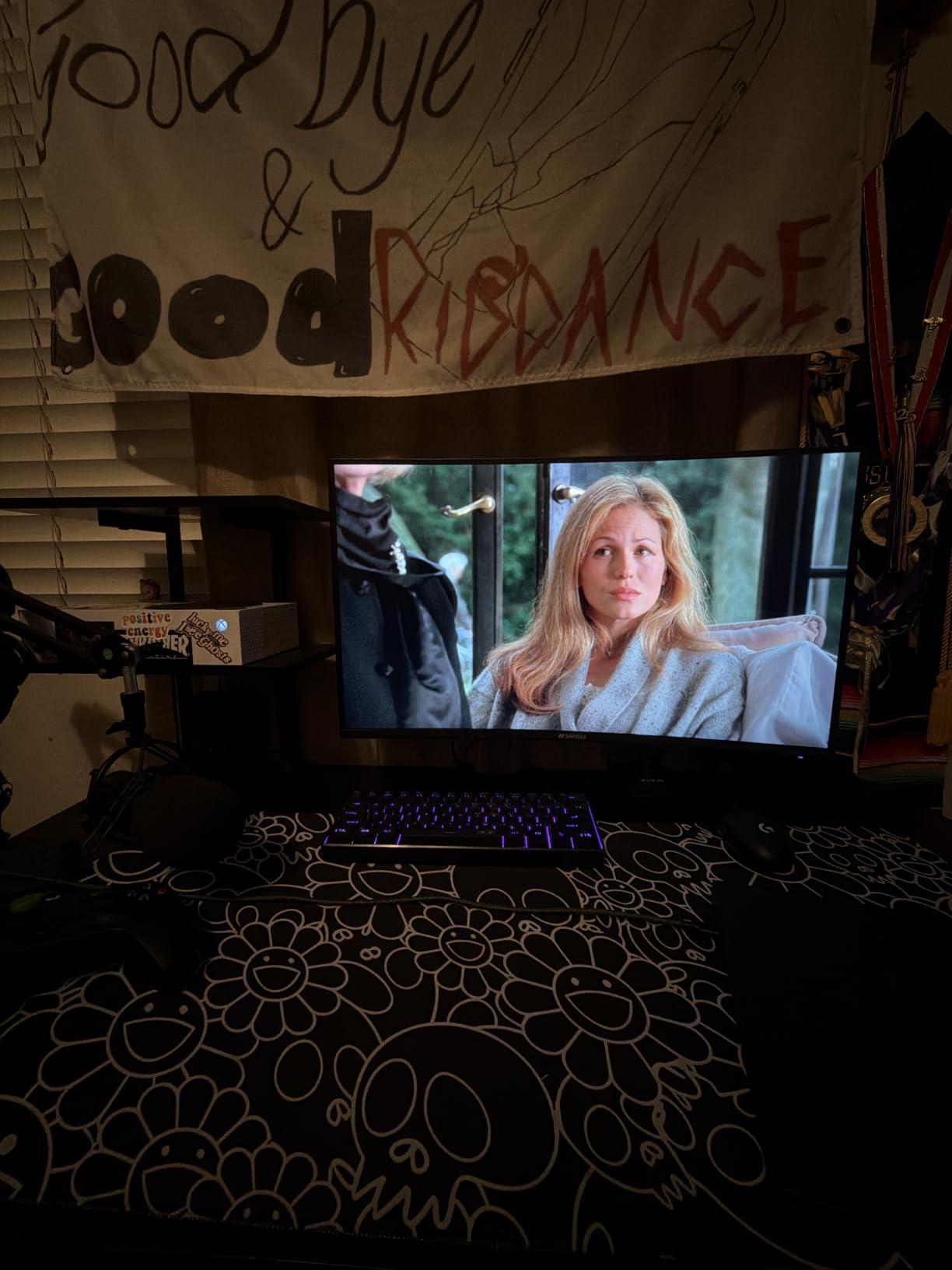
The refresh rate of 180Hz with 1ms overdrive response and FreeSync is far more than office software needs, but it is the difference between scrolling that feels locked in and scrolling that feels slightly stepped. Brightness is listed at 300 nits with flicker-free operation and blue light reduction, both useful for long sessions.
Port selection is generous: two HDMI inputs that run up to 144Hz, two DisplayPort 1.4 inputs that reach the full 180Hz, and a headphone output. One detail worth knowing is that the top refresh rate is listed on DisplayPort and not over HDMI, so use the DP cable for the highest rates.
Who this curved monitor suits
People who want crisp text more than they want maximum width. Writers, coders, students and finance professionals get QHD density without the desk-width commitment of an ultrawide. It is also the compromise pick for hybrid workers who game on the same panel.
Where it falls short for office work
You are giving up the ultrawide width that makes multitasking easy, so heavy multi-window users will still be rearranging windows. The VA panel smears when moving between very bright and very dark content, which is visible when scrolling past dark code blocks into white documents. And the stand is tilt-only again.
7. Samsung Odyssey G55C 32-Inch 1000R QHD: Best Deep-Curve All-Rounder
Samsung 32″ Odyssey (G55C) Series QHD 1000R Curved Gaming Monitor,
32-inch 1000R curved QHD panel
2560x1440 native
165Hz with 1ms MPRT
HDR10 with 2500:1 contrast
Pros
- 1000R curve fills peripheral vision and feels the most immersive
- 165Hz refresh rate with 1ms response keeps fast action clean
- HDR10 support with solid 2500:1 contrast for the class
- Eye Saver Mode and flicker reduction help on long sessions
Cons
- VA panel dark scenes can look washed out and smear
- Stand offers tilt adjustment only with limited height range
- Glossy finish picks up reflections in bright rooms
The G55C is the tightest curve in this roundup at 1000R, and on a 32-inch panel that radius is noticeable. It wraps around your peripheral vision, which is why this is the pick for someone who wants the curve to be felt rather than merely present. Office work still benefits, because the side edges of a spreadsheet stay within a comfortable forward axis.
Resolution is 2560×1440, the same density-friendly QHD as the SANSUI 32-inch, and the refresh rate of 165Hz with 1ms MPRT response is quick enough that scrolling and window motion look smooth in a way a 60Hz office panel cannot match.
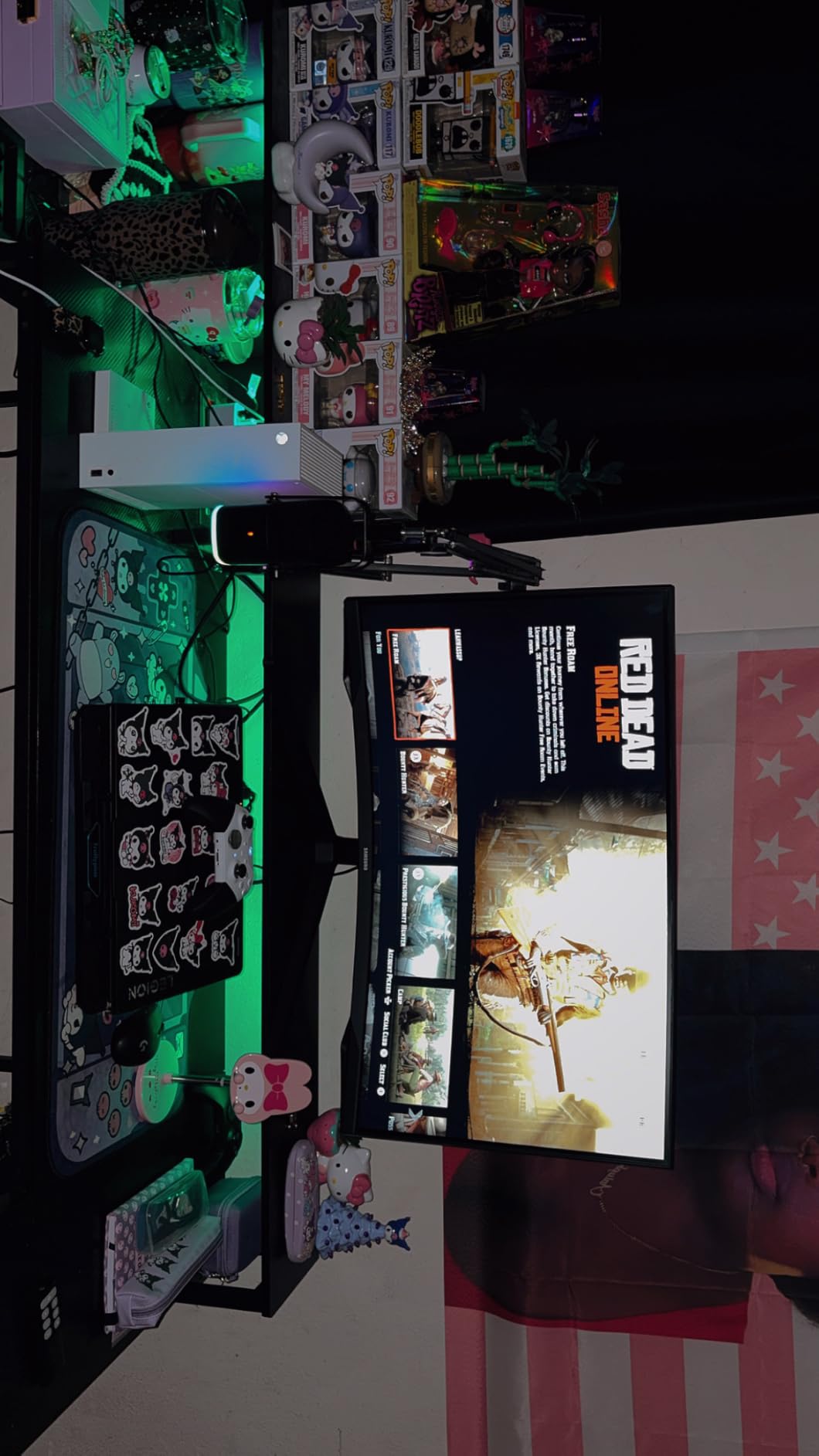
Color and contrast are respectable: 99% sRGB coverage, 2500:1 contrast and 300 cd/m2 brightness, with HDR10 support for a little extra punch when the source allows it. Eye Saver Mode reduces blue light output and flicker reduction is built in, both of which help if you keep the screen on for eight hours straight.
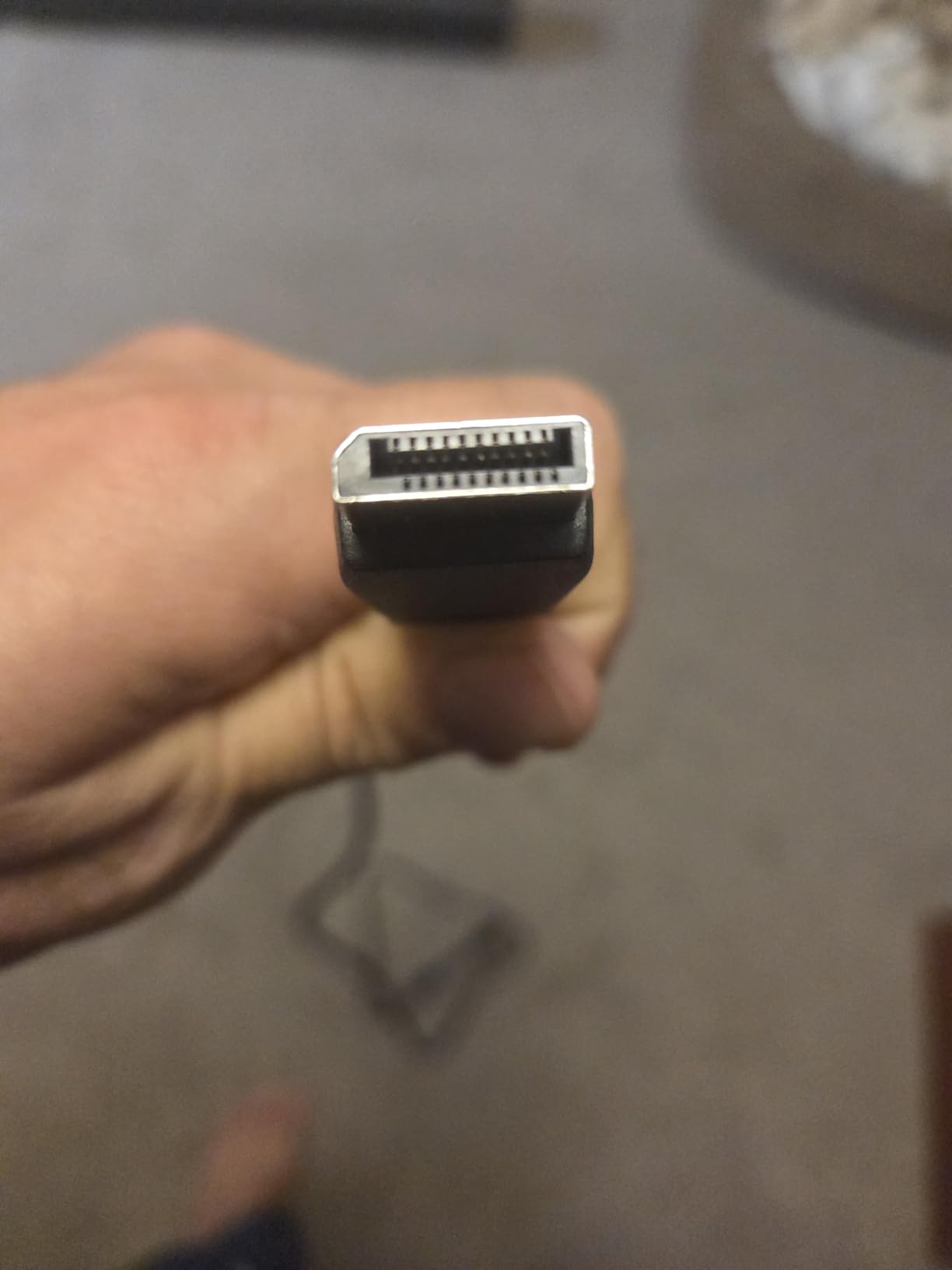
Inputs are DisplayPort and HDMI, and the DP cable and power cord are included. The stand is the weak point, with tilt adjustment only and a limited height range, and the glossy finish will mirror a window if your desk faces daylight. Weight is 11.5 pounds.
Who this curved monitor suits
Hybrid workers who want the wraparound feel without going ultrawide, and anyone who finds gentle curves too subtle. It also works for photo and video review where the 99% sRGB coverage and HDR10 are useful, though not for color-critical grading.
Where it falls short for office work
VA dark-scene smearing is the honest limitation, and it shows most when you scroll from a dark code editor into a bright white document. Owners also report tearing on some units when adaptive sync is not engaged, so make sure FreeSync is on in your OS. The stand adjustment is minimal for a panel this size.
8. Acer Nitro EDA270U 27-Inch QHD 1500R: Best Curved Monitor for Small Desks
Acer Nitro 27in QHD 2560×1440 Curved 180Hz Gaming Monitor EDA270U Pbmiipx
27-inch 1500R curved panel
2560x1440 native
180Hz with up to 1ms VRB
FreeSync Premium and HDR ready
Pros
- QHD resolution at 27 inches keeps text sharp in a compact footprint
- 1500R curve is a comfortable middle ground for long use
- Three-year parts and labor warranty
- DisplayPort and HDMI cables included in the box
Cons
- 250 nit brightness is modest in a brightly lit room
- Built-in 2x2W speakers are basic
- Viewing angles are narrower than most competing curved panels
- Stand is tilt-only so an arm is needed for height
Most curved monitors we looked at for this guide assume a desk at least 32 inches wide. This one does not. At 24.6 inches wide with a 27-inch panel, the Acer Nitro EDA270U gives you QHD sharpness and a 1500R curve in a footprint that behaves like a normal office monitor, which makes it the pick if your desk is on the small side or if you share a workspace.
Resolution is 2560×1440, so text is genuinely sharp with no display scaling required. The refresh rate of 180Hz with up to 1ms VRB response is well beyond office needs and makes the panel competent for gaming on the same setup, with AMD FreeSync Premium and HDR readiness included.
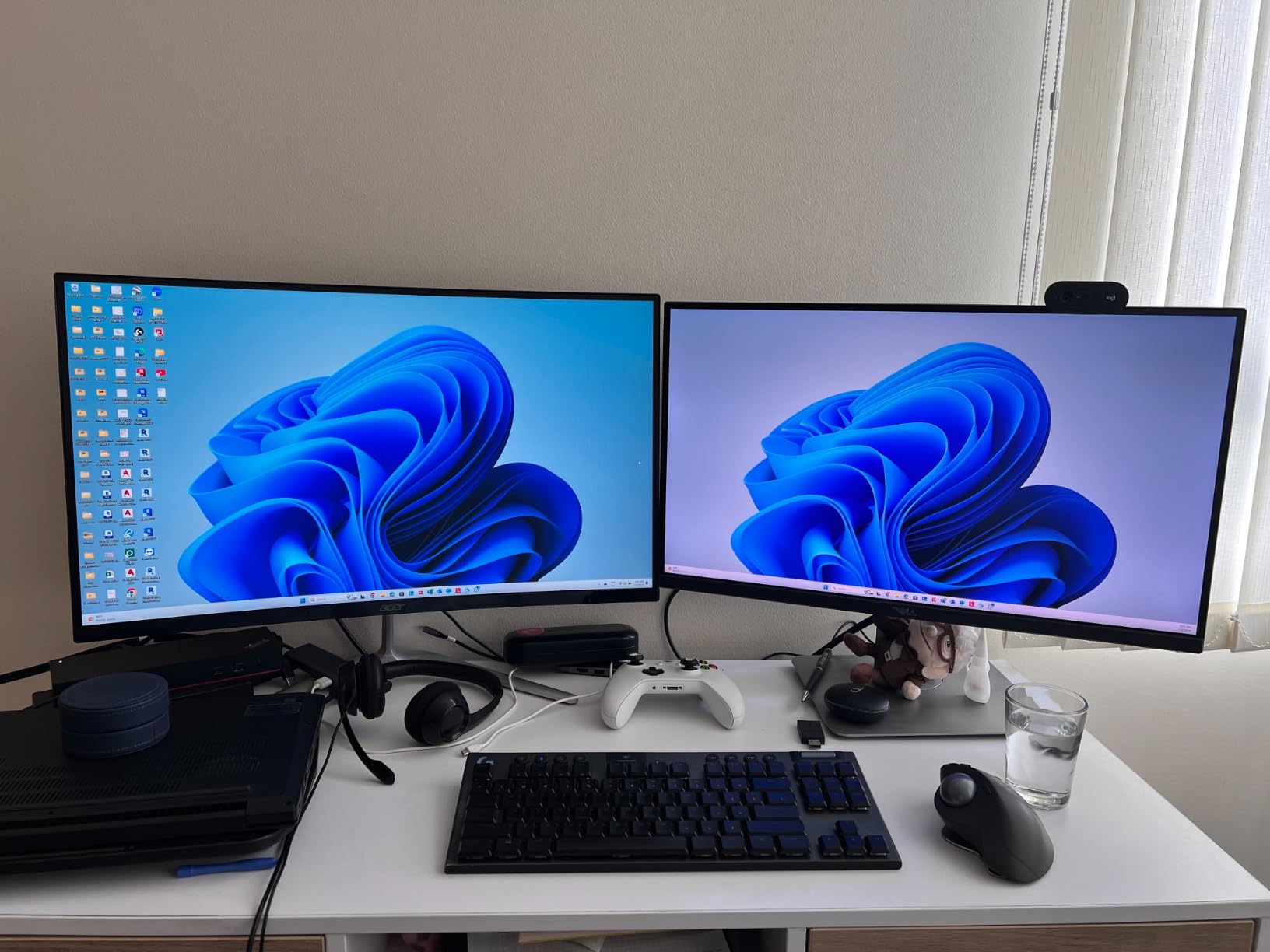
The warranty is worth noting. A three-year parts and labor warranty is longer than most curved monitors in this range offer, and it is a meaningful difference if the panel develops an issue during a long ownership cycle. The zero-frame bezel design keeps the footprint tight and the look clean.
Connectivity is one DisplayPort 1.2 and two HDMI 2.0 ports, with both cables included so you are not hunting for one on setup day. Brightness is listed at 250 nits, which is fine in a normal room and marginal in direct sun.
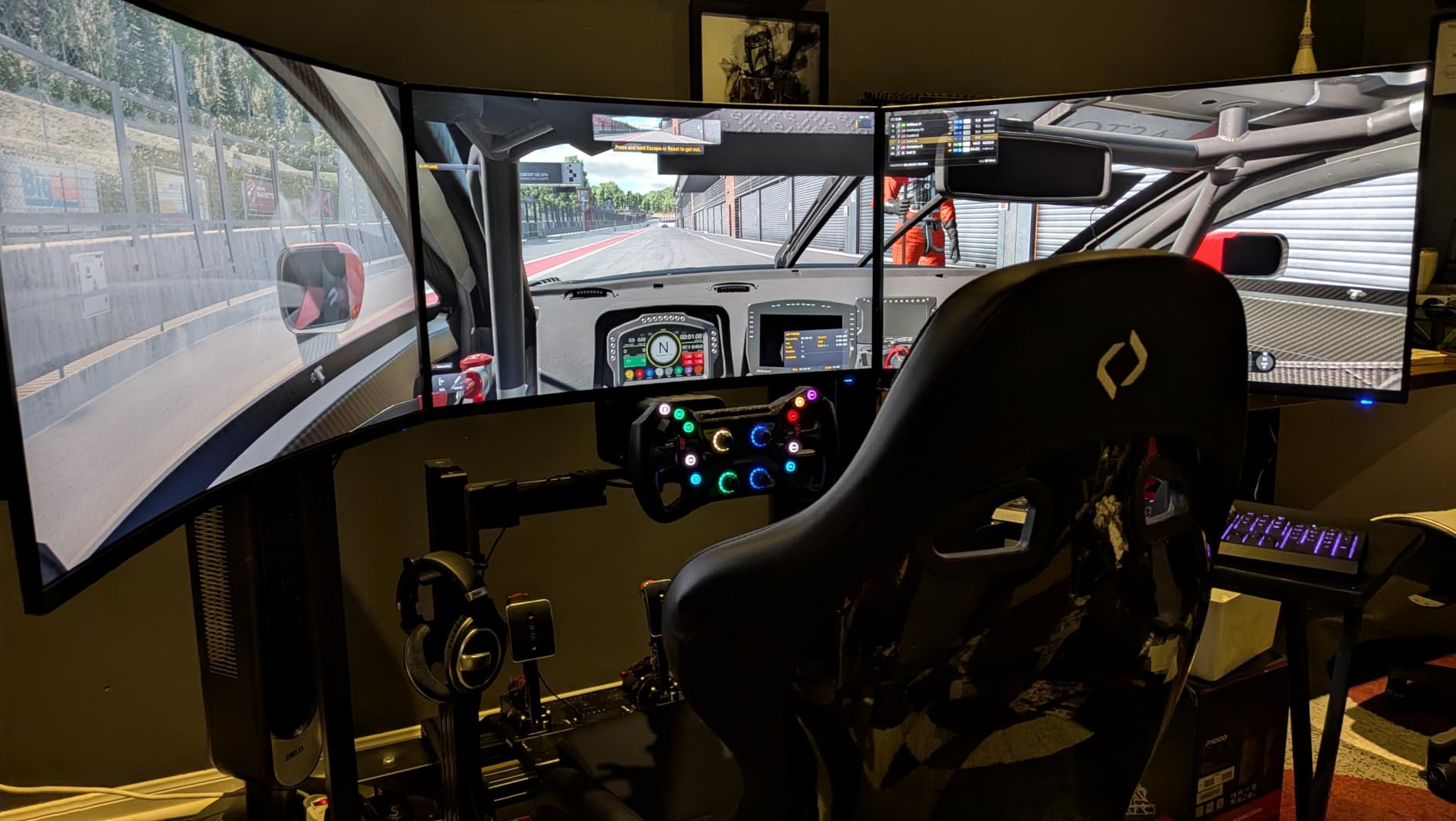
Who this curved monitor suits
Anyone who wants QHD text sharpness without a wide desk, plus hybrid workers who game. It suits students and analysts in shared or rented spaces where replacing the desk is not an option. The three-year warranty also makes it a lower-risk first curved monitor.
Where it falls short for office work
There is no extra width here, so multi-window workflows still need window tiling. Viewing angles of 170 degrees are narrower than the 178-degree figures most curved panels claim, which matters if you sit noticeably off-axis. The tilt-only stand is the recurring limit, and the built-in speakers are for system alerts only.
9. Samsung ViewFinity S50GC 34-Inch: Best for Two-Source Office Work
SAMSUNG 34″ ViewFinity S50GC Series Ultra-WQHD Monitor, 100Hz, 5ms, HDR10, AMD FreeSync, Eye Care, Borderless Design, PIP, PBP, LS34C502GANXZA, 2023, Black
34-inch 21:9 Ultra WQHD panel
3440x1440 native
100Hz with 5ms response
PIP and PBP multi-source viewing
Pros
- 3440x1440 gives genuine two-monitor-equivalent working space
- Ambient light sensor tunes brightness automatically through the day
- PIP and PBP let you watch a laptop and desktop at once
- TUV-certified eye care with flicker-free operation
Cons
- 100Hz refresh rate is modest among ultrawides
- VA smearing shows when shifting between dark and bright content
- Color gamut coverage is limited for color-critical editing
- Stand is bulky and many owners recommend an arm
This is the ultrawide to buy if you routinely work with two computers at once. PIP and PBP let you display a second source directly on the same screen, and combined with 3440×1440 of width you can have a spreadsheet on one side and a remote session or a chat window on the other without a second physical display.
The ambient light sensor is the sleeper feature in a working office. It adjusts brightness automatically through the day, which means you are not squinting at a panel tuned for the morning after the sun moves, and it removes one more thing from the list of daily adjustments.
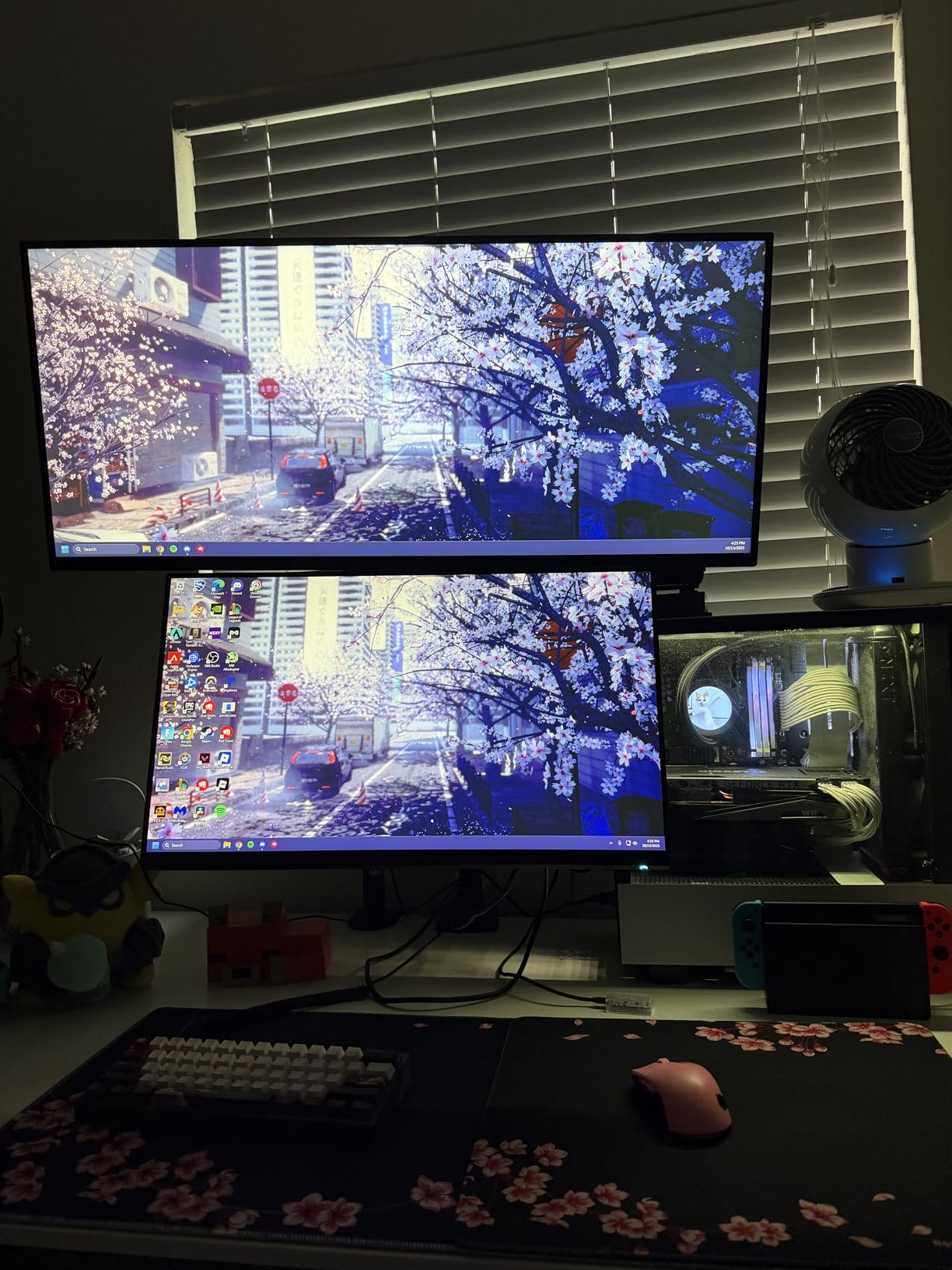
Eye care features are properly implemented, with Eye Saver Mode, flicker-free operation and TUV certification. Contrast is 3000:1 with 300 cd/m2 typical brightness, and HDR10 support is present. The borderless design looks clean and pairs well with a second display if you eventually go that way.
Connectivity is two HDMI 2.2 ports and one DisplayPort 1.2. The refresh rate is 100Hz, the lowest among the 34-inch ultrawides here, which you will notice when scrolling compared with the 180Hz and 200Hz panels. Weight is 10.8 pounds and the width is 32.1 inches.
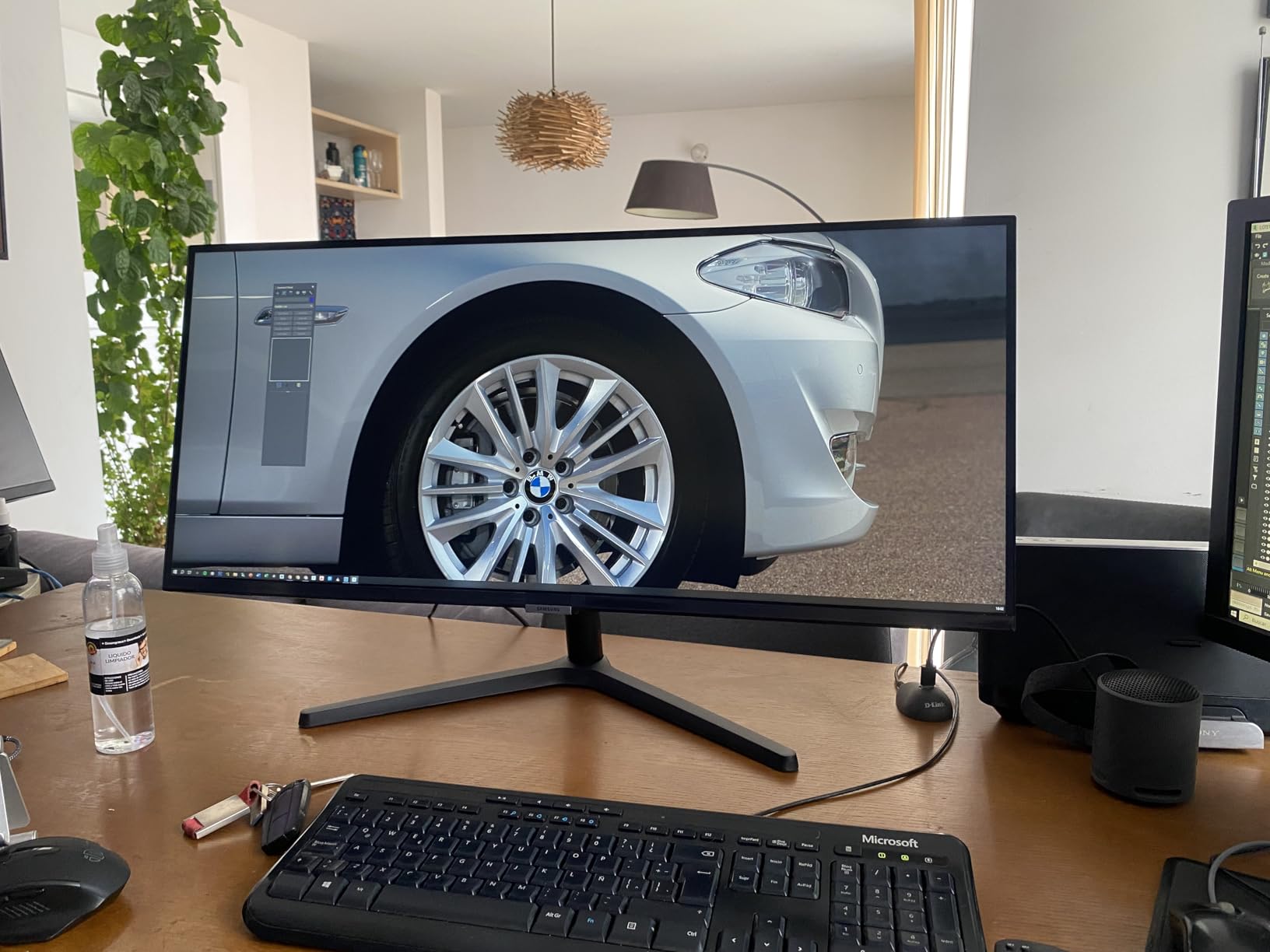
Who this curved monitor suits
Analysts and developers who keep a laptop and a desktop in play, and remote workers who run a second machine for testing or monitoring. It is also well suited to anyone in an office with changing light, since the ambient sensor handles brightness for you.
Where it falls short for office work
Color gamut coverage is listed at 72%, which is narrow. That is irrelevant for documents and code but rules it out for photo and video editing. The 100Hz rate is smooth, just not as smooth as the faster panels here, and the stand is bulky enough that many owners move to a monitor arm.
10. LG 32MR50C-B 32-Inch Curved VA: Best Value for Reading Heavy Work
LG 32MR50C-B Curved Monitor 32-Inch FHD 100Hz AMD FreeSync OnScreen Control Dynamic Action Sync Black Stabilizer Tilt Stand (HDMI) – Black
32-inch curved VA panel
1920x1080 native
100Hz with 5ms response
Reader Mode for long reading sessions
Pros
- Reader Mode reduces blue light during long document reading
- OnScreen Control makes splitting the display easy in a few clicks
- Black Stabilizer brightens dark scenes for better visibility
- 100Hz refresh rate with AMD FreeSync for fluid motion
Cons
- Full HD stretched across 32 inches is less crisp than higher resolutions
- VA panel looks washed out and smears in dark scenes
- Tilt-only stand with no height adjustment
- No USB hub for peripherals
LG’s Reader Mode is the reason this is worth considering for document-heavy roles. It filters blue light from the backlight specifically for long reading sessions, and for lawyers, academics, editors and anyone reading PDFs all day it is a real comfort feature rather than a checkbox. OnScreen Control is also one of the better software utilities in this price class, with display splitting handled in a few clicks from the desktop.
The 32-inch curved VA panel runs at 100Hz with 5ms response and AMD FreeSync, so scrolling and cursor motion feel settled. Dynamic Action Sync and Black Stabilizer both help you see detail in dark scenes, which is useful when reviewing night-shift security or astronomy footage.
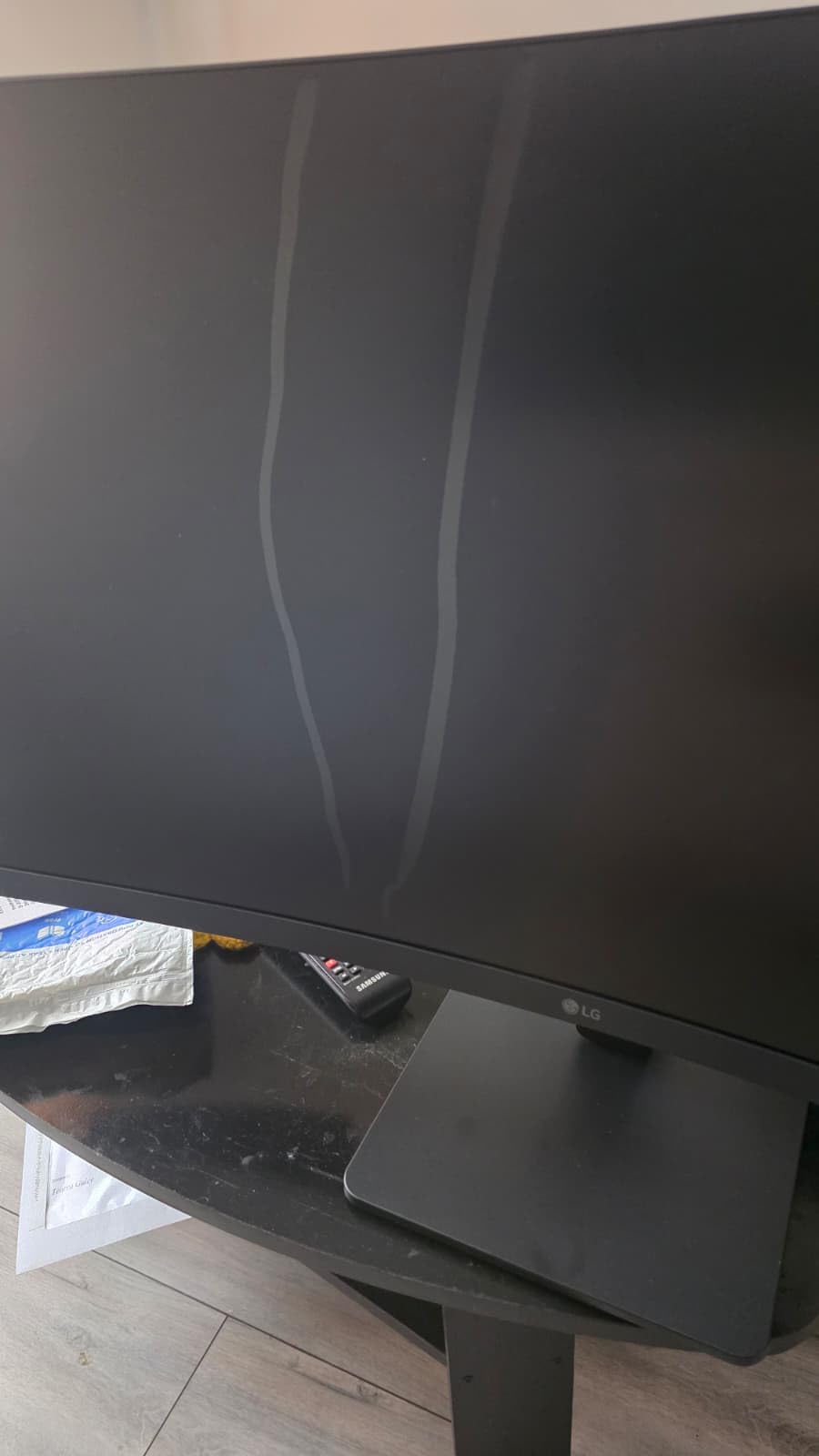
Connectivity is D-Sub and two HDMI inputs with a headphone output, which is enough for a desktop plus a laptop. At 27.9 inches wide and 11.3 pounds it is one of the larger footprints in this list for a 32-inch panel, so check your desk depth before committing, especially since the listed depth is 9.2 inches.
The limitation is resolution. Full HD across 32 inches gives roughly 70 pixels per inch, so text is visibly softer than on the QHD models, and any of them will feel noticeably sharper for spreadsheet work. That softness is the trade for a curved 32-inch panel at this tier.
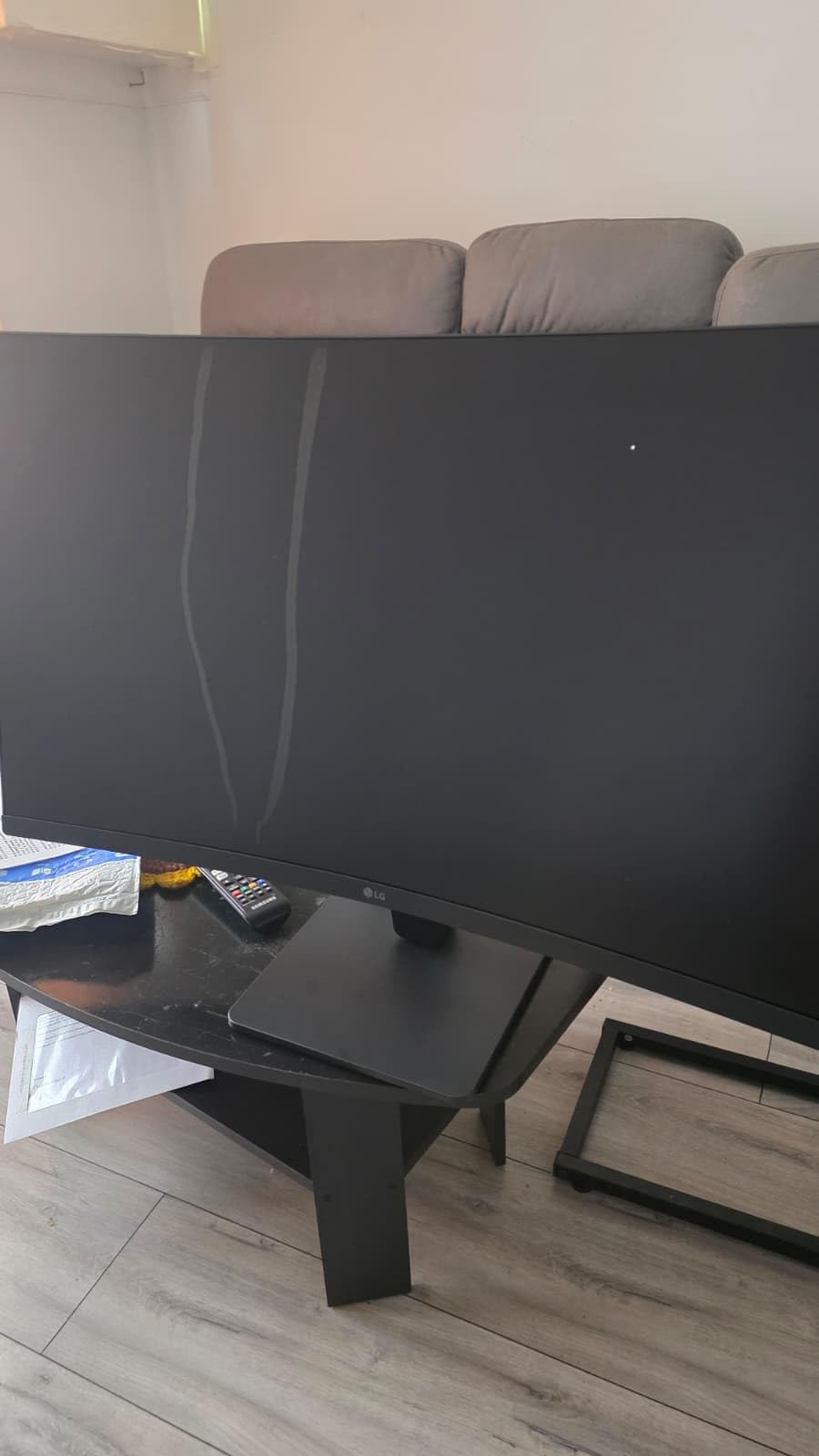
Who this curved monitor suits
Readers, students and budget-conscious workers who want a large curved screen without stepping up in resolution class. It suits anyone who wants simple display splitting without buying a dock, and it handles general office and media use comfortably.
Where it falls short for office work
Softness is the main issue, and it is worse here than on other 32-inch options because the panel is Full HD. VA dark-scene smearing and washed-out blacks show in any dark interface, and the stand has no height adjustment, so you will be adjusting your chair more often than the screen.
11. Dell S3425DW 34-Inch USB-C Hub Monitor: Best Curved Monitor for Laptop Docking
Dell 34 Monitor S3425DW, WQHD VA, 120Hz, FreeSync Premium, Eye Comfort
34-inch 21:9 curved WQHD VA panel
3440x1440 native
120Hz with FreeSync Premium
USB-C with 65W power delivery
Pros
- Single USB-C cable handles video
- data and up to 65W laptop charging
- Height and tilt adjustable stand makes ergonomic positioning easy
- Sharp text rendering suits spreadsheets
- code and documents
- 3440x1440 real estate replaces multiple smaller monitors
Cons
- Fewer ports than Dell's higher-end hub monitors and no DisplayPort
- VA smearing between very bright and dark content
- VESA bracket sits recessed which complicates third-party arm mounting
This is the one to buy if you run a laptop and want a single-cable desk. USB-C carries video, data and up to 65 watts of charging at the same time, and four USB ports mean your keyboard, mouse and webcam plug into the monitor instead of into a separate dock. For most office laptops 65W is enough to keep the battery steady through a full day.
It is also the only 34-inch ultrawide in this guide with a stand that actually adjusts. Height and tilt adjustment are both present, which removes the single most common complaint we saw about every other curved monitor here, and it makes the difference between a screen you can position at eye level and one you live with at whatever height the factory chose.
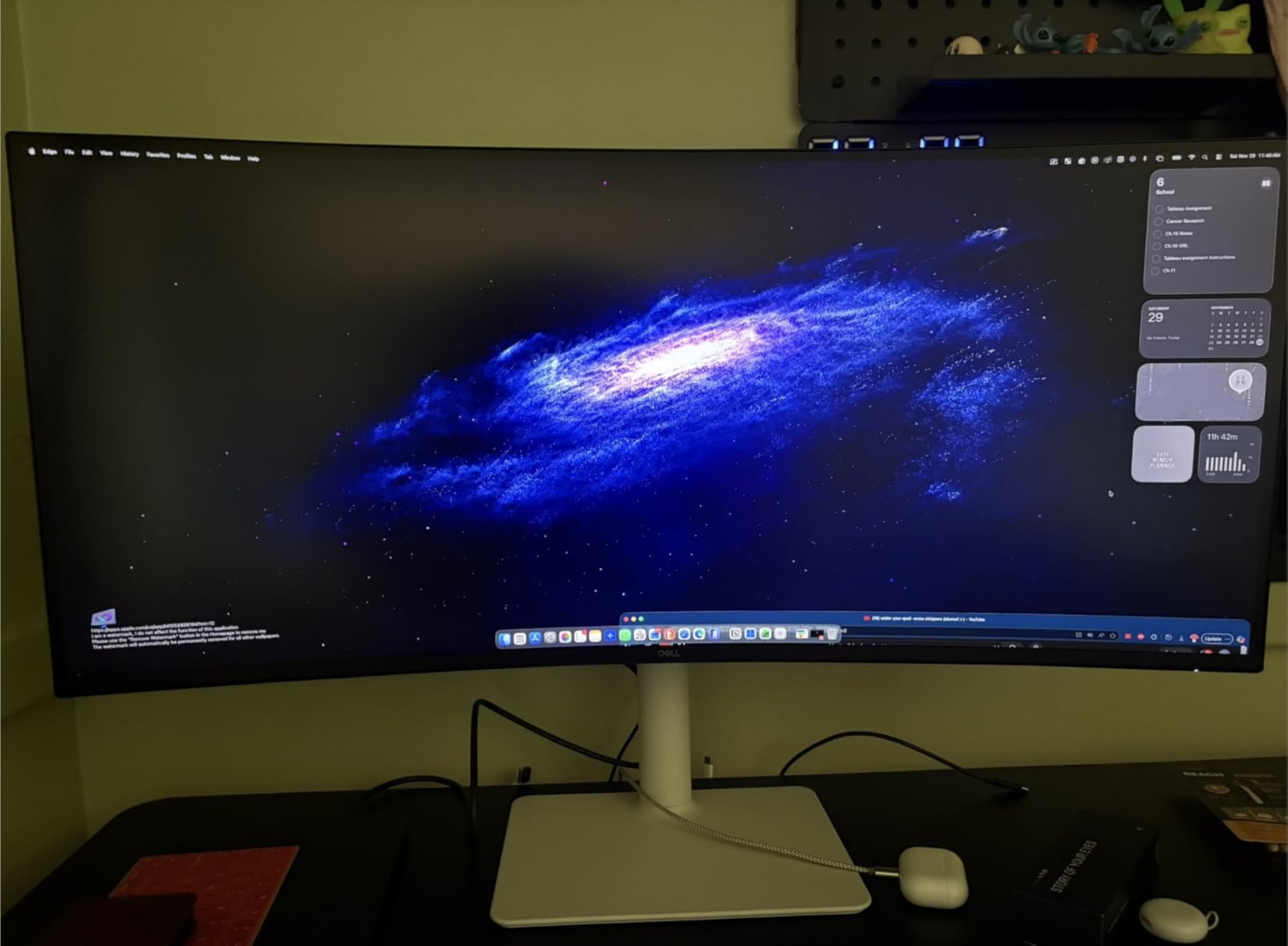
The panel itself is 3440×1440 on a VA surface with 99% sRGB and 95% DCI-P3 coverage, 3000:1 contrast and HDR readiness at 300 nits brightness. ComfortView Plus reduces blue light emission to 35% or less, and 120Hz with FreeSync Premium keeps scrolling and motion smooth without the power draw of a 180Hz gaming panel.
Two details worth knowing before you buy. There is no DisplayPort, so your inputs are USB-C and two HDMI, and the VESA bracket sits recessed, which makes third-party monitor arms fiddly to attach. The 1-year Advanced Exchange Service is shorter than the three-year coverage some productivity panels carry.
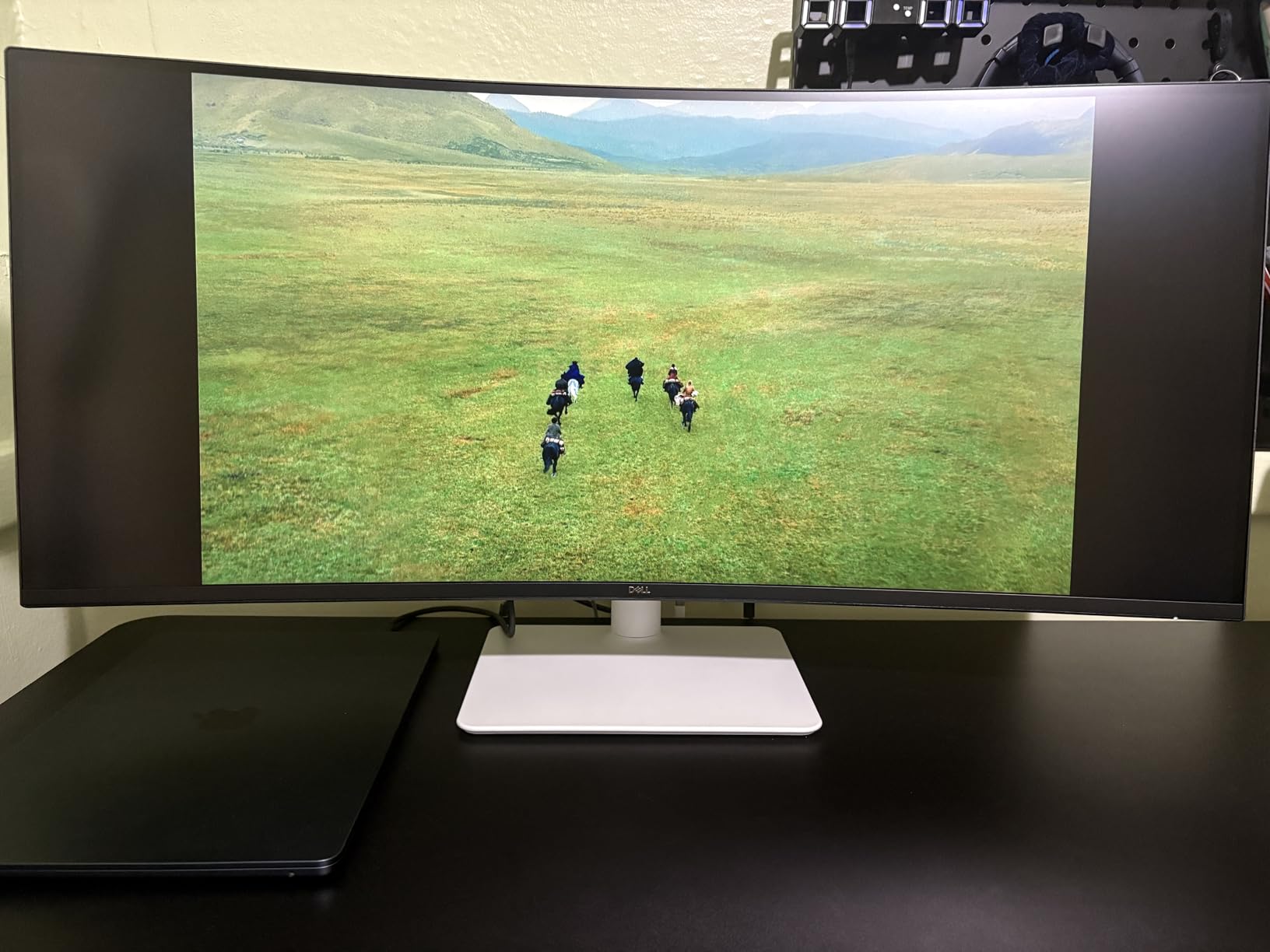
Who this curved monitor suits
Laptop-only workers, hybrid employees who move between a desk and a couch, and anyone who wants their peripherals wired into the display rather than a separate dock. The adjustable stand matters most if you sit at a tall desk or use a riser, and it pairs well with one of our recommended office desks.
Where it falls short for office work
It is the heaviest panel here at 20.7 pounds and 31.78 inches wide, so it needs a desk with real depth behind it. VA smearing is visible when moving between very bright and very dark content, and if your laptop needs more than 65W to charge you will still need the brick.
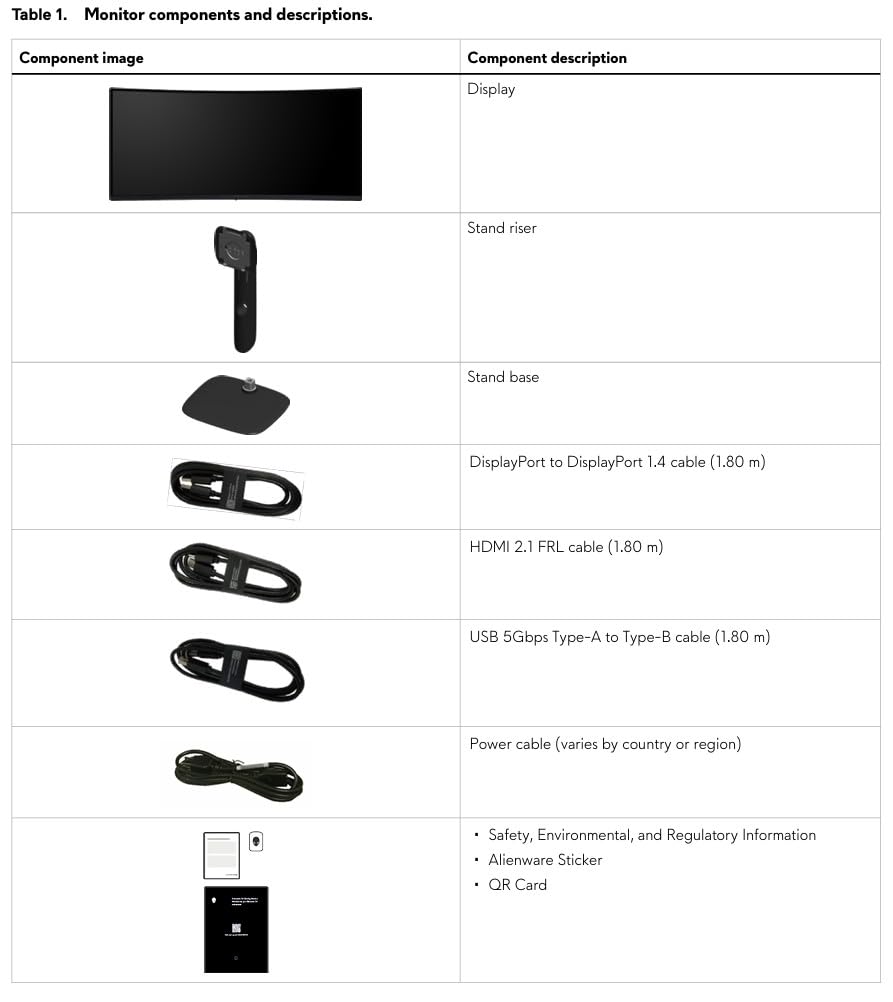
12. Alienware AW3425DWM 34-Inch Curved Ultrawide: Best for HDR and Media Work
Alienware 34 Curved Gaming Monitor – AW3425DWM – 34-inch WQHD 180Hz 1ms Display, 1500R, AMD FreeSync Premium, VESA AdaptiveSync.
34-inch 1500R curved ultrawide WQHD
180Hz with 1ms gray-to-gray response
400 nits with DisplayHDR 400
DCI-P3 95% coverage
Pros
- Brightest panel in this roundup at 400 nits with DisplayHDR 400180Hz refresh rate and 1ms response keep fast motion crisp
- Hardware-based low blue light filter works without software setup
- Height and tilt adjustable stand handles the 21-pound weight
- Dedicated console mode and a three-year warranty
Cons
- Costs more than comparable 34-inch curved ultrawides from other brands
- Power draw is comparatively high at 85 watts
- Large footprint and weight need a sturdy desk
- VA characteristics can show smearing in dark scenes
This is the pick if brightness and color matter to your work. At 400 nits it is the brightest panel in this roundup by a wide margin, and it carries VESA DisplayHDR 400 certification with DCI-P3 95% coverage. That combination shows up in video review, photo editing and any room where a dimmer panel would make you tilt your head to check detail.
The hardware-based low blue light filter is worth calling out because it needs no software, no menu digging and no OS setting. For a display you will have switched on before coffee, that simplicity matters. A dedicated console mode is a small extra that simplifies switching inputs.
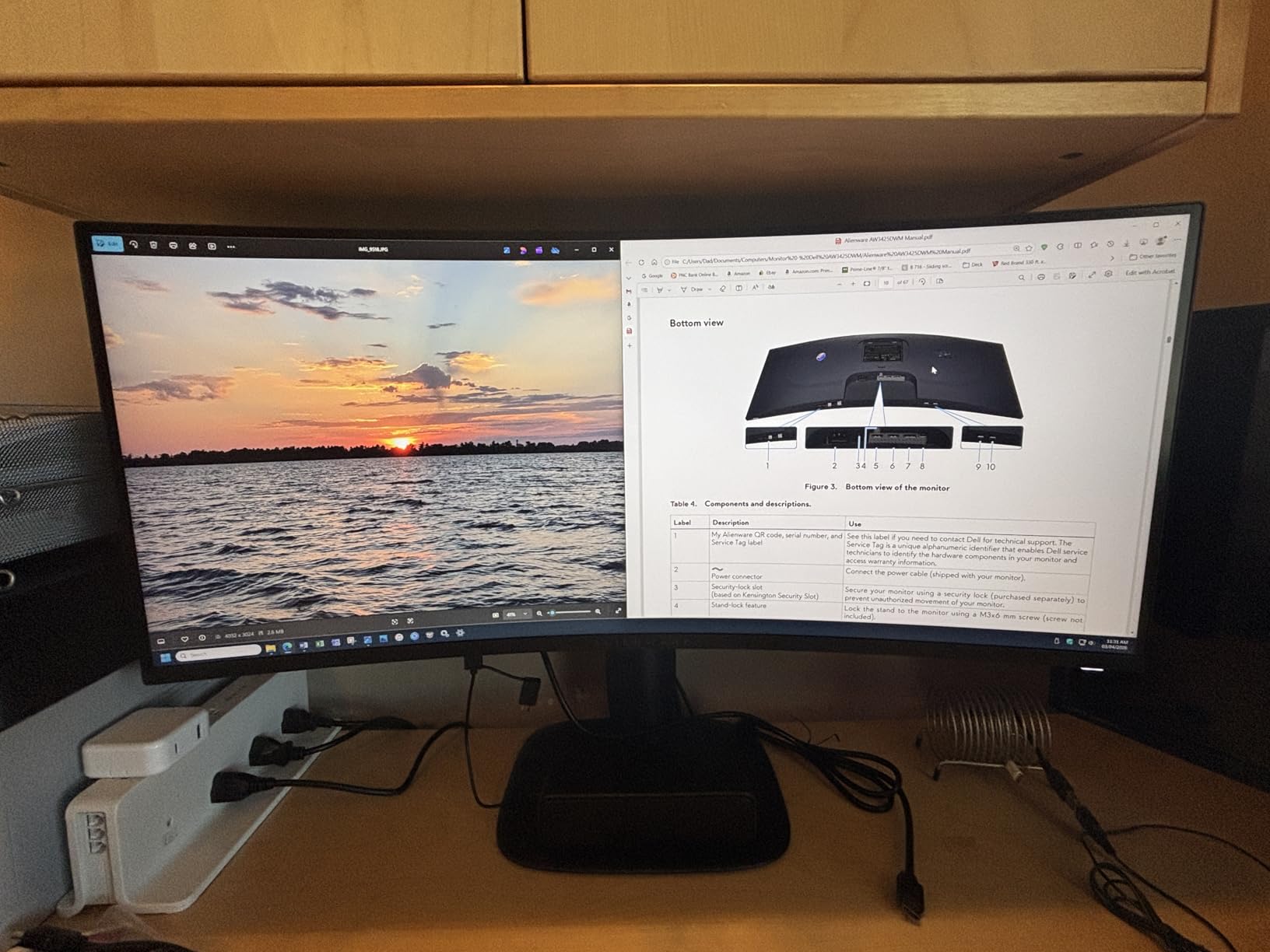
Motion handling is first class, with 180Hz refresh, 1ms gray-to-gray response, AMD FreeSync Premium and VESA Adaptive Sync. The stand offers both height and tilt adjustment, which is essential at 21 pounds, and the three-year warranty is the joint longest here alongside the Acer Nitro.
Connectivity covers HDMI, DisplayPort, USB and Bluetooth, so a Bluetooth keyboard can pair directly. The tradeoffs are real: this costs more than the other 34-inch curved ultrawides in this list, the power draw of 85 watts is the highest here, and VA smearing still appears in dark scenes.
Who this curved monitor suits
Video editors, photographers, animators and color-adjacent work where brightness and wide gamut coverage are part of the job. It also suits hybrid workers who want one bright, fast panel for a bright office during the day and gaming at night without a second display.
Where it falls short for office work
It is the heaviest and deepest item here, and the 85-watt draw is worth noting on a laptop-only setup running from a single USB-C cable. For plain document work the extra brightness and HDR certification are paid for but not used, and a cheaper QHD ultrawide does the same job.
How to Choose a Curved Monitor for Office Work
Measure your desk before you pick a size
Desk fit is the most commonly missed buying criterion for curved monitors, and it is the one that decides whether you love or regret the purchase. A curved panel bows toward you, so it needs more front-to-back room than a flat screen of the same diagonal. Before choosing a 34-inch model, measure the depth of the space between your desk edge and whatever is behind it, including any wall.
The rule of thumb we use is at least 28 to 30 inches of desk depth for a 34-inch ultrawide, and at least 24 inches for a 32-inch 16:9 panel. On width, expect a 34-inch ultrawide to measure roughly 32 inches across before the stand, so a 48-inch desk is comfortable and a 44-inch desk is tight. The 27-inch options in this guide measure about 24 inches wide and fit almost anywhere.
Desk shape matters too. If you sit at an L-shaped desk, the corner layout gives you more usable surface but also more edges to clear. If you swap between sitting and standing, check that the panel is light enough for your riser or that you are mounting it on an arm. And if you sit for eight hours a day, your chair matters as much as your monitor, which is why we keep a separate guide to ergonomic office chairs.
Curvature ratings explained: 1000R, 1500R and 1800R
A curvature rating is the radius of the imaginary circle your screen matches. An 1800R panel curves along a circle with an 1,800mm radius; 1000R is much tighter. Smaller numbers mean a deeper curve. The practical effect is how much of the outer screen angles toward your eyes, which determines how far you have to turn your head to read something at the edge.
For office work we recommend 1500R on a 34-inch panel as the middle ground, 1000R if you sit close and want maximum wraparound, and 1800R if you are sensitive to curves or plan to share the screen. Below 1000R starts to feel like a cinema screen, which is great for media and uncomfortable for reading spreadsheets. For a 27-inch 16:9 panel, the curve matters far less, so choose on resolution and refresh rate instead.
Resolution and pixel density for text-heavy work
For office work, pixel density beats every other spec. Text clarity is determined by pixels per inch, not by panel type or curve. The useful thresholds are roughly 90 pixels per inch or higher for comfortable reading of body text and code, and roughly 110 or higher for dense spreadsheets and small terminal fonts.
That means 2560×1440 at 27 or 32 inches is a solid office baseline, 3440×1440 at 34 inches is the productivity sweet spot, and 1920×1080 works at 24 inches but starts to look soft past about 27 inches. If your operating system offers fractional scaling, prefer a native resolution you can run at 100% rather than a higher one you have to scale down.
USB-C power delivery and single-cable laptop setups
For laptop-only workers, USB-C power delivery is the feature that determines whether your desk is tidy or a nest of cables. One port handles video, data and charging, so you plug the laptop in once. What matters is the wattage, and you need to match it to your machine.
Budget laptops and ultrabooks generally charge at 45 to 65 watts. Mainstream 14-inch and 16-inch notebooks and most Windows work laptops need 65 to 90 watts. Larger 16-inch and 17-inch machines, and many gaming laptops, want 100 watts or more and will run slower on a lower-wattage dock. In this roundup, the Dell S3425DW delivers up to 65W, and the SANSUI 27-inch has a USB Type-C input for video and data.
Also check how many downstream USB ports you get. Four or more means you can plug a keyboard, mouse, webcam and headset directly into the display. Anything under three and you are buying a separate hub, which defeats the point.
Panel type for long text sessions
Most curved monitors use VA panels, which deliver the high contrast ratios you see in the specs above, typically 2500:1 to 4000:1. The tradeoff is dark-scene smearing, where a bright window dragged past a dark one leaves a trail. You will notice it in code editors with dark themes and in any dark interface.
IPS panels give more accurate colors and no smearing, but far lower contrast, typically around 1000:1, and very dark text on a black background looks grey rather than black. OLED and QD-OLED panels deliver the best of both, perfect blacks with no smearing, but most carry a one-year warranty rather than the three years typical on productivity IPS panels, and organic panels age.
For spreadsheets, code and documents, VA with a matte anti-glare finish is the pragmatic choice. For color-critical work, look at wide-gamut coverage above 95% DCI-P3, and be aware that the Samsung ViewFinity S50GC in this guide covers only 72% of sRGB and is not that panel.
Refresh rate and what it does for office work
Refresh rate is not a gaming-only number. It governs how many times per second your screen redraws, which determines how smoothly the mouse cursor moves, how fluidly a long document scrolls and how quickly window animations and menus resolve. Going from 60Hz to 100Hz or 120Hz is one of the cheapest visible upgrades available for long sessions.
Beyond 120Hz the returns for office work get small, though the 180Hz and 200Hz panels in this guide cost little more and give you a gaming-ready display on the same screen. Lower refresh rates also tend to pair with slower response times, which can make text scrolling look slightly hesitant. Adaptive sync support is worth having regardless, since it prevents tearing during video playback even when you are not gaming.
KVM switches and multi-PC workflows
If you run a desktop and a laptop, you have three ways to move between them. A hardware KVM switch built into the monitor swaps inputs with a button press, and some models swap USB peripherals at the same time. A separate KVM box does the same for any display. Software window tiling manages windows but does nothing about inputs, so you still switch sources manually.
For most office setups, software tiling such as the split-screen utilities bundled with Samsung and LG monitors is enough, and it costs nothing. Hardware KVM only earns its place when you genuinely alternate between two machines several times a day and you want peripherals to follow. None of the monitors in this guide includes a full hardware KVM, though the Samsung ViewFinity S50GC offers PIP and PBP for viewing two sources simultaneously.
Ergonomics, stands and monitor arms
Look at stand adjustment before anything else in the spec sheet. Height adjustment puts the top of the screen at or slightly below eye level, which is the single biggest factor in neck comfort over a full day. Tilt helps with glare. Swivel helps when your desk is in a corner. Pivot, which rotates the panel to portrait, is essentially unavailable on curved displays, and that rules them out for long-document reading in portrait orientation.
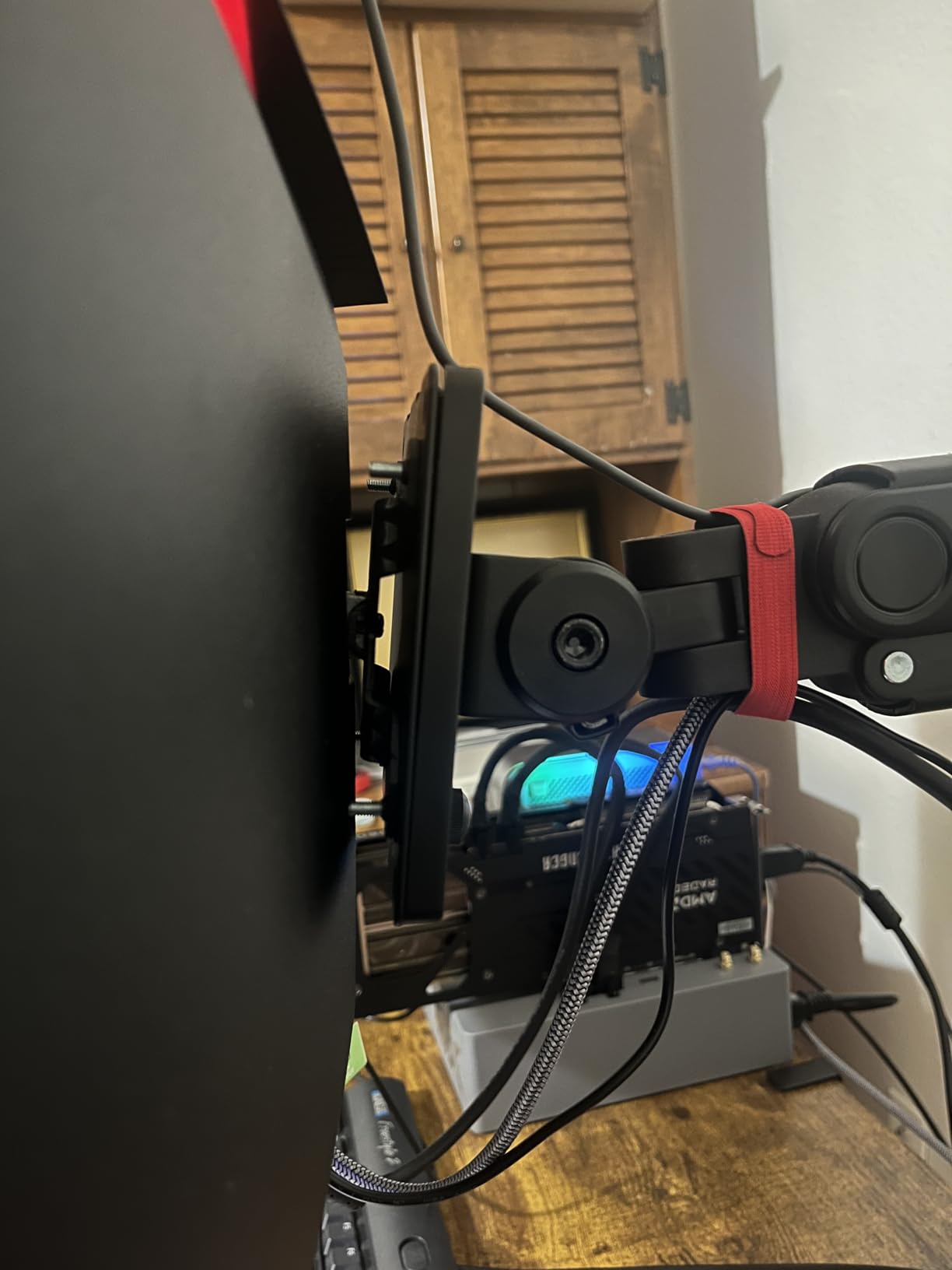
Most curved monitors in this price range, including several in this roundup, offer tilt only. That is where a monitor arm comes in. Arms give you height, tilt, swivel and pull-forward depth control that no bundled stand matches, and they free up desk space, which matters most on the 34-inch panels. Check the panel weight against your arm’s capacity, since several 34-inch models here weigh between 15 and 21 pounds.
Key features to consider at a glance
Resolution and pixel density first, then curvature rating matched to viewing distance, then USB-C power delivery if you use a laptop, then stand adjustment. After that, refresh rate for scrolling smoothness, adaptive sync for tear-free video, and color coverage only if your work is visual. Add VESA mount compatibility to your list if you plan to use an arm, and check the warranty length, since one year and three years are both common in this category.
Who Should Not Buy a Curved Monitor
Honest advice matters more than a long list, so here is who should skip this category entirely.
If your desk is shallow. Curved panels bow toward you and need real front-to-back depth. Under about 24 inches of depth, a 32-inch curve will push the bezel into your space and force you to tilt back, which distorts the image. A flat monitor handles a shallow desk gracefully.
If you read long documents in portrait orientation. Curved panels almost never offer pivot to portrait, because rotating the arc is mechanically awkward. If you compare two documents side by side vertically all day, a flat IPS monitor you can rotate is the right tool.
If you plan to stack two curved monitors. Two arcs meeting in the middle leave a wedge-shaped gap, and mismatched curvature produces an uneven seam. If you want two screens, buy two flat monitors on arms.
If you work below about 27 inches of desk width. A 27-inch curved panel offers a subtle wraparound but no meaningful width gain over a flat equivalent, while costing more. At that size you are paying a premium for an aesthetic.
If your work is strictly text on a 1080p budget. A 24-inch 1080p flat monitor gives the same pixel density and the same text clarity as a 24-inch curved one, with better vertical adjustment options. The curve does nothing for readability.
If you need certified color accuracy. Curved VA panels in this price range vary in color rendering between units, and wide-gamut coverage is inconsistent. If your work is judged on color, a calibrated flat IPS monitor is the safer choice.
Frequently Asked Questions
Are curved monitors good for office use?
Yes. The curve rotates the outer edges of the screen toward you so the center and edges sit at a more even viewing distance, which reduces neck rotation when windows sit at the side of a wide screen. For office work the benefit scales with size: it is meaningful on 34-inch ultrawides and minimal on 27-inch 16:9 panels. Panel type, resolution and pixel density matter more for text clarity than curvature does.
What is the best curved monitor for a home office?
For most home offices, a 34-inch 3440×1440 ultrawide is the best curved monitor for office work because it gives you the width of two monitors with no bezel seam. The Sceptre C248W 24-inch is the pick for a small desk or a light workload, and the Acer Nitro EDA270U gives you QHD sharpness in a compact 27-inch footprint.
Is a 27 or 32 monitor better for office work?
For text-heavy office work, a 32-inch monitor at 2560×1440 gives better pixel density than a 27-inch at Full HD, so text and spreadsheet grids look sharper. A 27-inch at QHD is the better choice on a small desk. Either way, prefer QHD resolution over a larger panel running Full HD.
Is there a downside to curved monitors?
The main downsides are desk footprint, stand adjustment, panel smearing and color consistency. Curved panels need more desk depth, most bundled stands tilt only, VA panels smear between bright and dark content, and curved panels generally cannot rotate to portrait. They also cost more than flat equivalents of the same size.
Do curved monitors cause eye strain?
Not inherently. A well-matched curve keeps the whole screen at a similar distance from your eyes, and flicker-free operation with reduced blue light helps over long sessions. Eye strain more often comes from an undersized desk forcing you to sit too close, a stand with no height adjustment, or a 60Hz panel making scrolling feel choppy.
Do I need USB-C docking on a curved monitor?
Only if you work from a laptop. USB-C power delivery lets one cable carry video, data and charging, which removes a dock and a bundle of cables. Match the wattage to your laptop: 45 to 65W for small ultrabooks, 65 to 90W for mainstream notebooks, and 100W or more for large 16-inch and 17-inch machines.
Final Verdict on the Best Curved Monitors for Office Work in 2026
The Sceptre C248W-1920RN is our pick for the best curved monitors for office work because it pairs the highest rating in this roundup with a footprint that fits almost any desk, and nothing else in this guide combines that level of owner satisfaction with a near-zero barrier to entry. If you want the curve to do real work rather than just exist, step up to a 34-inch 3440×1440 ultrawide, where the width replaces a second monitor and the curve becomes an ergonomic asset instead of a styling choice.
Three decisions drive everything else. Measure your desk depth before you choose a size. Prioritize pixel density over panel type, because text clarity is what you will notice at hour six. And if you work from a laptop, match USB-C wattage to your machine or commit to a monitor arm, since most curved stands tilt only. Those three answers will narrow twelve options down to one in about a minute.
We will keep this list current as new curved panels land in 2026, and the review counts and specs above are the ones to check first when you compare listings.