
Choosing the best monitors for video editing comes down to four numbers: color gamut coverage, color depth, panel technology and resolution. Everything else on the spec sheet is either irrelevant to an editor or a nice-to-have. A 0.03ms response time means nothing when you are trimming dialogue, and a 360Hz refresh rate buys you nothing on a static NLE interface. Wide gamut and 10-bit color are what change your grade.
We spent weeks putting these twelve panels through editing workloads rather than gaming benchmarks. That means grading skies, skin tones and night exteriors in DaVinci Resolve, scrubbing 4K timelines in Premiere Pro and Final Cut Pro, and checking whether the image on screen survives the trip to a client. This guide covers what actually matters, where each panel falls short, and which one to buy for the way you work in 2026.
If you also shoot stills, our picks overlap heavily with the best 4K monitors for photo editing, though video work shifts the weighting toward sustained brightness and timeline real estate rather than still-image detail.
Table of Contents
Top 3 Picks for Video Editing Right Now in 2026

Best Monitors for Dual Setup Under $500 (October 2026)
| Product | Specifications | Action |
|---|---|---|
| ASUS ProArt PA278QV 27-inch QHD |
|
Check Latest Price |
 LG UltraFine 32UN650-W 32-inch 4K LG UltraFine 32UN650-W 32-inch 4K |
|
Check Latest Price |
 Dell S2725QS 27-inch 4K 120Hz Dell S2725QS 27-inch 4K 120Hz |
|
Check Latest Price |
 LG UltraFine 27US500-W 27-inch 4K LG UltraFine 27US500-W 27-inch 4K |
|
Check Latest Price |
 Dell UltraSharp U2725QE 27-inch 4K Dell UltraSharp U2725QE 27-inch 4K |
|
Check Latest Price |
 ViewSonic ColorPro VP3256-4K 32-inch ViewSonic ColorPro VP3256-4K 32-inch |
|
Check Latest Price |
 BenQ PD3205U 31.5-inch 4K BenQ PD3205U 31.5-inch 4K |
|
Check Latest Price |
 BenQ MA320U 32-inch 4K for Mac BenQ MA320U 32-inch 4K for Mac |
|
Check Latest Price |
 LG 32UP83AK-W 31.5-inch 4K LG 32UP83AK-W 31.5-inch 4K |
|
Check Latest Price |
 INNOCN 27C1U 27-inch 4K USB-C INNOCN 27C1U 27-inch 4K USB-C |
|
Check Latest Price |
 ASUS ProArt PA279CRV 27-inch 4K ASUS ProArt PA279CRV 27-inch 4K |
|
Check Latest Price |
 BenQ PD2725U 27-inch 4K Thunderbolt 3 BenQ PD2725U 27-inch 4K Thunderbolt 3 |
|
Check Latest Price |
1. ASUS ProArt PA278QV – Best Overall for Video Editing
ASUS ProArt PA278QV 27 Inch 1440p QHD Professional Monitor
27-inch WQHD IPS
100% sRGB and Rec.709
Calman Verified Delta E under 2
75Hz
Pros
- Calman Verified Delta E under 2 factory accuracy
- Full 100% sRGB and 100% Rec.709 coverage
- Generous port selection with built-in USB hub
- Ergonomic stand with height tilt swivel and pivot
- Five-year warranty coverage
Cons
- 1440p gives less timeline real estate than 4K
- 75Hz refresh rate is modest
This is the panel we keep coming back to. Across more than three thousand ratings it holds a 4.6 average, and in our sessions the out-of-box color was close enough to the factory profile that we did not reach for a colorimeter at all. That Calman Verified certification and Delta E under 2 figure mean a Rec.709 deliverable graded here should land where the client expects it.
The 100% sRGB and 100% Rec.709 coverage is the whole point. Rec.709 is what most web, social and broadcast work is mastered to, so you are viewing the actual target space rather than an approximation of it. Full sRGB matters too if you cut in Premiere’s Lumetri with a Rec.709 timeline interpretation.
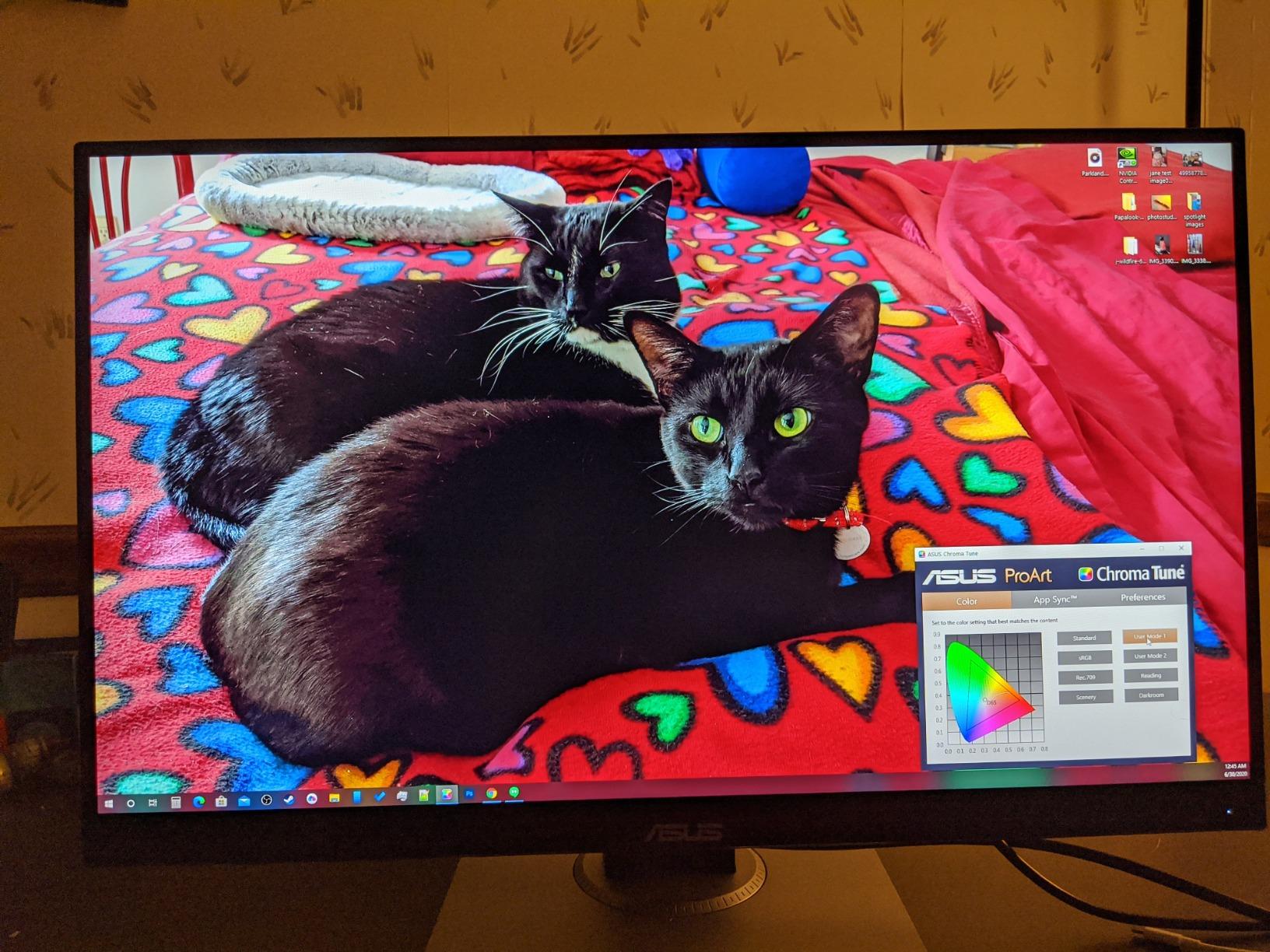
Connectivity is unusually generous for a 27-inch: DisplayPort, HDMI, DVI-D and Mini DisplayPort alongside a four-port USB 3.2 hub. The stand adjusts for height, tilt, swivel and pivot, which matters over a ten-hour session more than any spec on the box. ASUS Eye Care flicker-free backlighting also earns its keep during long nights.
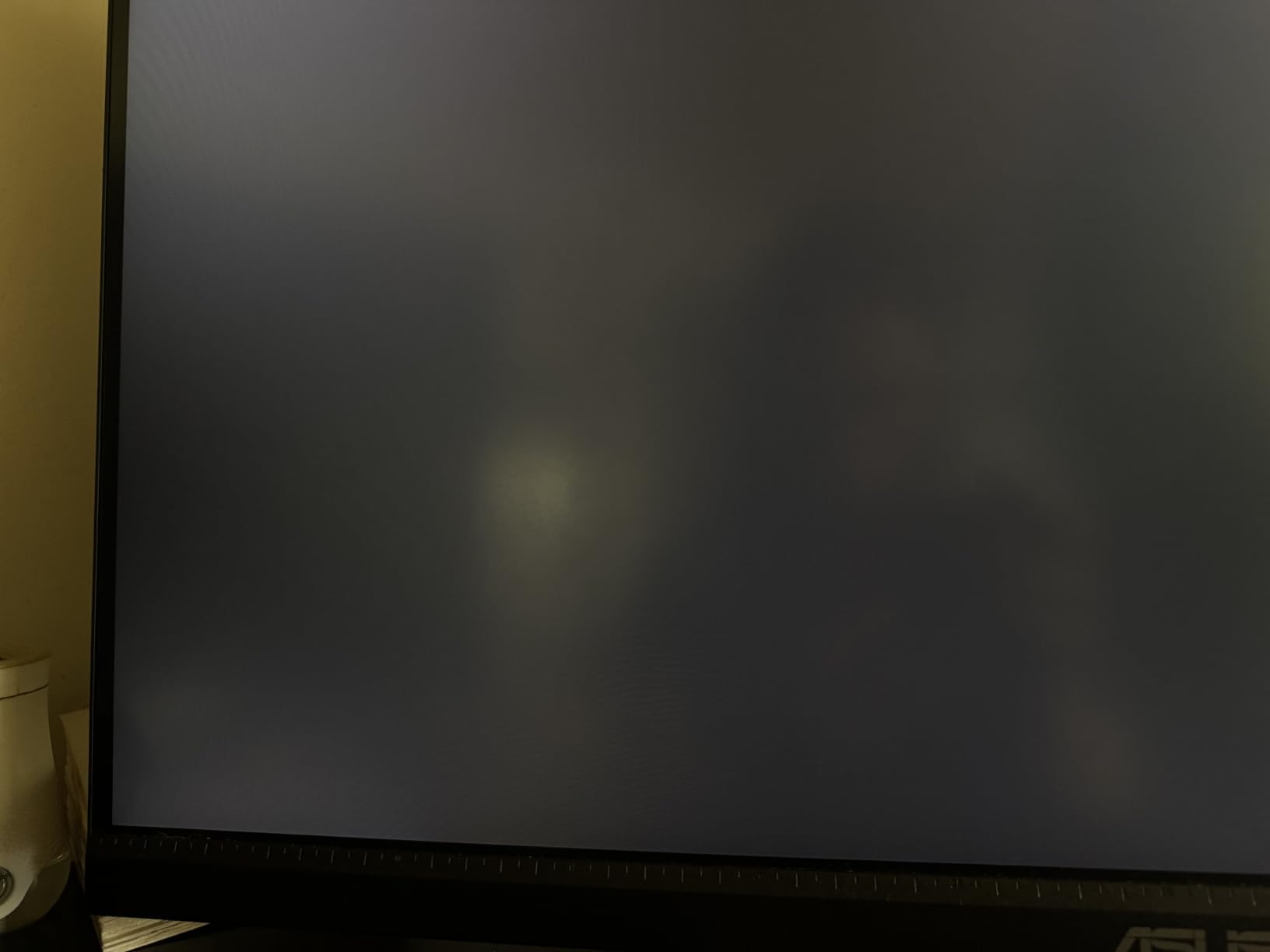
The honest limitation is resolution. At 2560 by 1440 you get less usable area for a timeline plus a viewer plus scopes than a 4K panel of the same size delivers, and 1440p on a 27-inch means smaller interface elements. Owners report the same thing, and it is why this sits at number one on accuracy while a 4K screen wins on room.
Who this monitor suits
Freelancers and small studios delivering Rec.709 work, and anyone grading on a tight budget who would rather spend on a proven accurate panel than on resolution. The five-year warranty, which runs three years plus two more with online registration, is the strongest in this group and reduces the risk on a display that will be on your desk for years.
It is also the right pick for hybrid editing and office work, since the matte coating and Eye Care features handle long document and timeline sessions. At 17 pounds it is substantial without being unmanageable on a standard desk.
Who should skip it
If your work involves large projects with dozens of tracks and you want the timeline, program monitor and scopes visible at once, 1440p will feel cramped. Reviewers on r/Monitors repeatedly point this out, and they are right for heavy narrative and documentary work.
It is also sRGB only. If you need Adobe RGB coverage for print-adjacent or photography work, look at the ASUS ProArt PA279CRV further down instead. And 75Hz is fine for editing but leaves the gaming headroom you would want on a hybrid machine.
2. LG UltraFine 32UN650-W – Top Rated 32-Inch 4K
LG 32UN650-W Monitor 32″ UHD (3840 x 2160) IPS Ultrafine Display, HDR10 Compatibility, DCI-P3 95% Color Gamut, AMD FreeSync, 3-Side Virtually Borderless Design, Height Adjustable Stand – Silve/White
32-inch 4K IPS
95% DCI-P3
HDR10 compatible
60Hz
Pros
- Large 32-inch 4K canvas for timeline and bin real estate
- 95% DCI-P3 color gamut
- Minimal backlight bleed
- Three-side virtually borderless design
- Built-in 5W speakers
Cons
- 60Hz refresh rate
- No USB-C or USB hub
- Plastic stand can wobble when typing
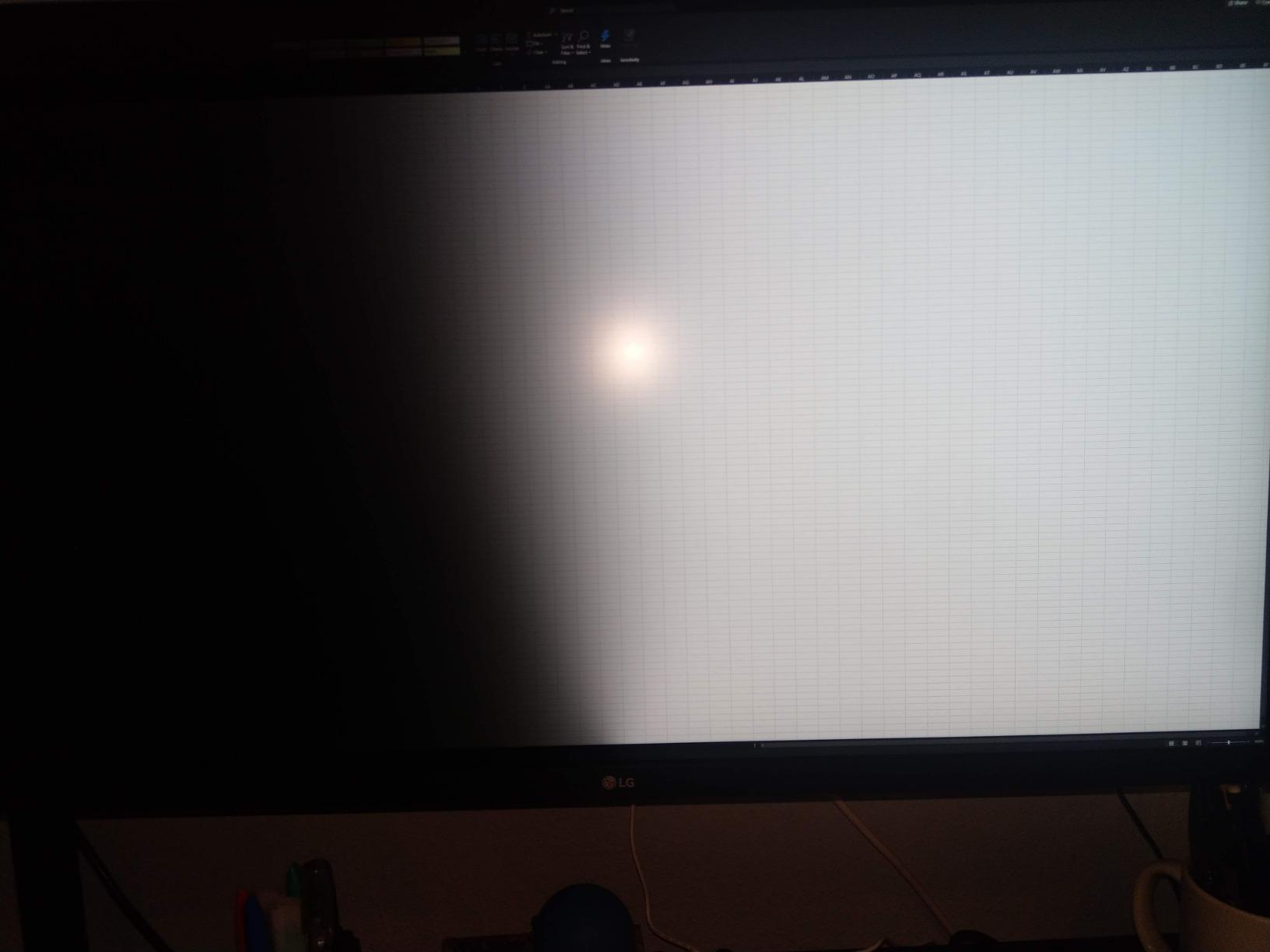
A 4.5 rating across several hundred reviews is not a fluke, and this one earns its place for one reason: 95% DCI-P3 coverage on a 32-inch 4K panel. That is the working color space for most commercial grading, and it is bright enough for a controlled room without a calibration light.
Screen real estate is the quiet hero here. Owners editing long-form projects point out that 32 inches of 4K fits a timeline, a source viewer and a program monitor without the window juggling you get on a 27-inch display. The three-side virtually borderless design keeps the frame out of the way of that layout.
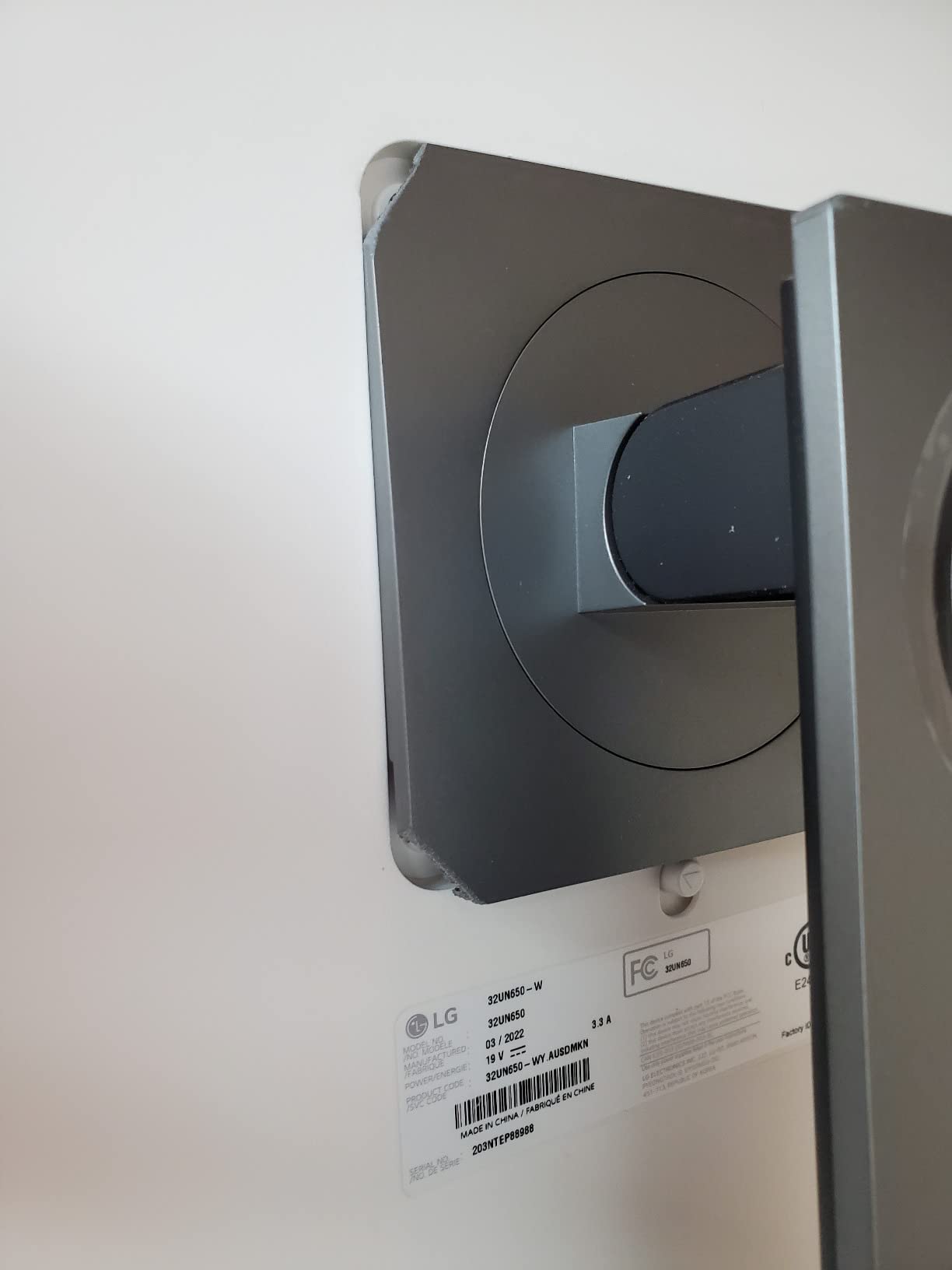
There is also a set of built-in 5W speakers, which is unusual on a monitor of this class and genuinely useful for reviewing client reference audio without reaching for a desk setup. Viewing angles are rated at 178 degrees in both directions, so a colorist checking an angle is not seeing a shifted image.
Menus are controlled by a single joystick-style stick rather than a bank of buttons, which speeds up switching between picture modes during a session. HDR10 compatibility is there, though it is an entry-level implementation rather than a real HDR grading workflow.
Who this monitor suits
Editors who need room more than they need width. If you are cutting documentary, event or multi-camera work with lots of tracks, the 32-inch canvas reduces the time lost to panel rearrangement. It also works well as a second screen beside a laptop, since a single cable from a USB-C laptop is not required here and you can use HDMI or DisplayPort directly.
It suits editors who work in DaVinci Resolve, where the interface is node-heavy and horizontal space translates directly into usable node graphs.
Who should skip it
There is no USB-C connectivity and no USB hub, so if you want a single-cable laptop setup you will be adding a dock. The stand is largely plastic and reviewers report it can wobble while typing, which is annoying with a full-size keyboard. And 60Hz rules it out for anyone who also games seriously.
Brightness is fine in a dim suite but marginal in a sunlit room. If your editing space is bright, the INNOCN 27C1U or the Dell UltraSharp U2725QE will serve you better.
3. Dell S2725QS – Best 4K 120Hz for Editing and Gaming
Dell 27 Monitor S2725QS, 4K UHD IPS, 120Hz, 5ms, FreeSync Premium
27-inch 4K UHD IPS
120Hz and 0.03ms response
99% sRGB
1500:1 contrast
Pros
- Rare 4K 120Hz IPS pairing
- 1500:1 contrast beats typical 1000:1 IPS
- Sharp text rendering at 27 inches
- Height tilt swivel and pivot adjustment
- Built-in speakers
Cons
- No USB-C and no USB hub
- No 3.5mm audio out
- Slow pixel response causes ghosting in fast games
This is the answer for the recurring question of whether one monitor can do editing and gaming without compromise. A 4K UHD IPS panel running at 120Hz with 0.03ms response is genuinely uncommon in this class, and it means you can scrub a timeline with fluid motion and still play a competitive game on the same screen.
The 1500:1 contrast ratio is a quiet upgrade over the 1000:1 that most IPS panels manage, and in graded footage you can see it in shadow separation on dark interiors. It is bright enough for a normally lit office, and 99% sRGB coverage covers the standard web delivery space comfortably.
Two HDMI 2.1 ports and one DisplayPort 1.4 handle the input side, and the stand offers full ergonomic adjustment. Text rendering at 27 inches on 4K is sharp, which matters more than most buyers expect when they are reading clip names and timecode all day.
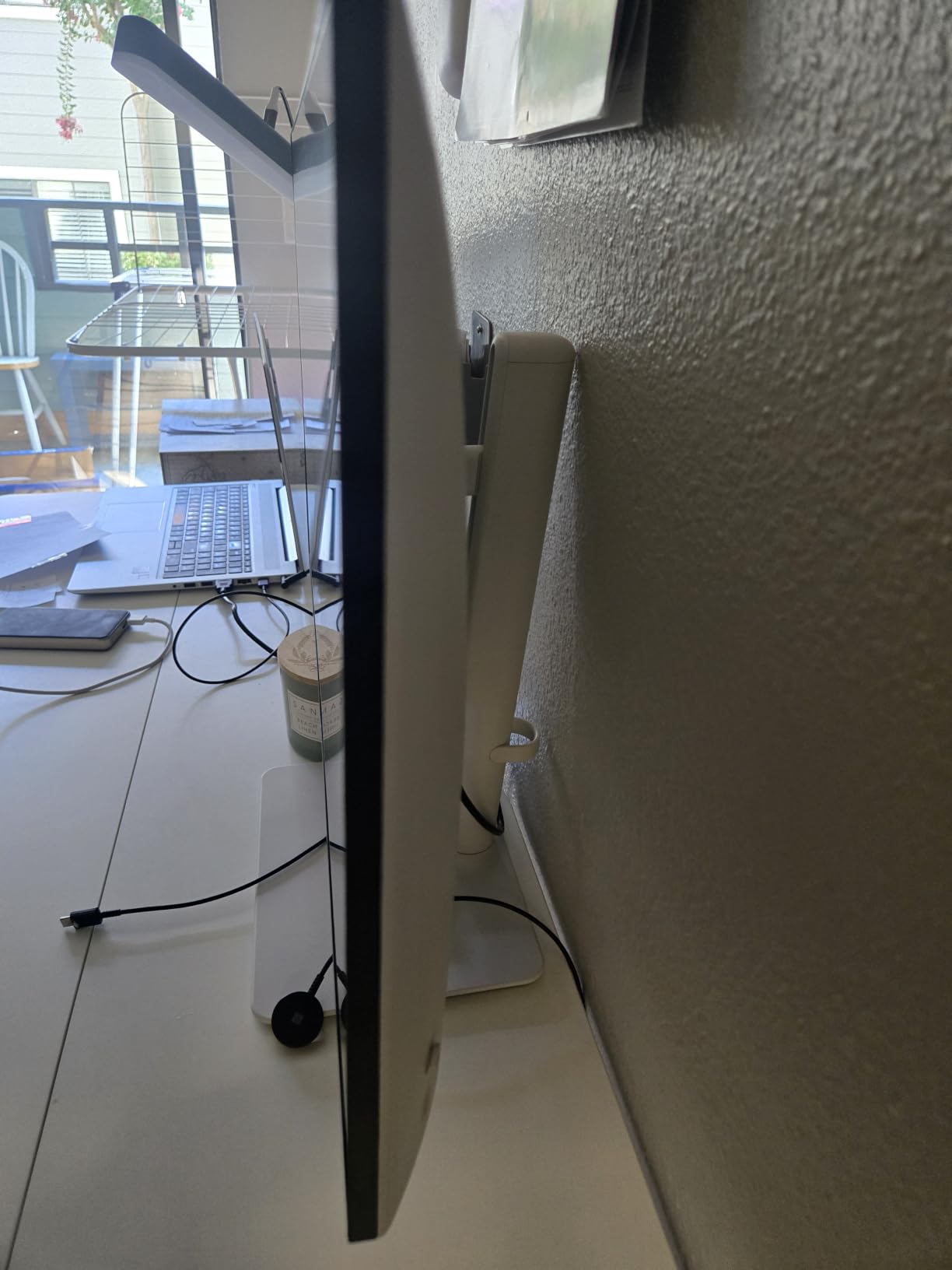
ComfortView Plus reduces blue light emissions, and the re-engineered built-in speaker system is more capable than the previous generation. The ultra-thin three-sided bezel keeps the ash white chassis visually light on a desk.
Who this monitor suits
Editors who game, or who work on motion-heavy projects where smooth playback in the viewer genuinely helps you judge timing. Motion designers cutting to beat, animators scrubbing previews and editors reviewing high-frame-rate rushes all benefit in a way that a 60Hz panel cannot offer.
It is also a strong all-round desktop panel for someone who edits during the day and works in other applications afterwards, since the improved contrast and sharp text make it a competent general display.
Who should skip it
There is no USB-C and no built-in USB hub, which makes it a poor single-cable companion to a laptop without a dock. There is also no 3.5mm audio out jack, so external headphones or speakers need a separate route.
Color coverage stops at sRGB, so if your grading involves DCI-P3 or Adobe RGB work the panel cannot show you those colors. And the slow pixel response shows ghosting in fast competitive games, which is the one place the 120Hz rating does not fully deliver.
4. LG UltraFine 27US500-W – Best Budget 4K for Everyday Editing
LG 27US500-W Ultrafine Monitor 27-Inch 4K UHD (3840×2160) HDR10 IPS Borderless Design Reader Mode Flicker Safe Switch App HDMI DisplayPort – White
27-inch 4K UHD IPS
Up to 90% DCI-P3 with HDR10
1000:1 contrast
60Hz
Pros
- 4K UHD IPS with 1000:1 contrast
- Up to 90% DCI-P3 with HDR10
- OnScreen Control split-screen workflow
- Lightweight borderless white design
- Reader Mode and Flicker Safe
Cons
- 60Hz refresh rate
- Tilt-only stand with no height or pivot
- No USB-C or USB hub
For a straightforward editing setup at the entry level, this panel does the essential things and stops there. The 4K UHD IPS screen with up to 90% DCI-P3 coverage under HDR10 gives you real wide-gamut headroom rather than the sRGB-only panels that still dominate the cheap end of the market.
That 90% DCI-P3 figure matters more than it sounds. It is enough to build a grade and check it, and it is a step above the sRGB-only screens you find at similar cost. Owners editing social and YouTube content report that the DCI-P3 and HDR10 support is what makes this feel like more than a monitor.
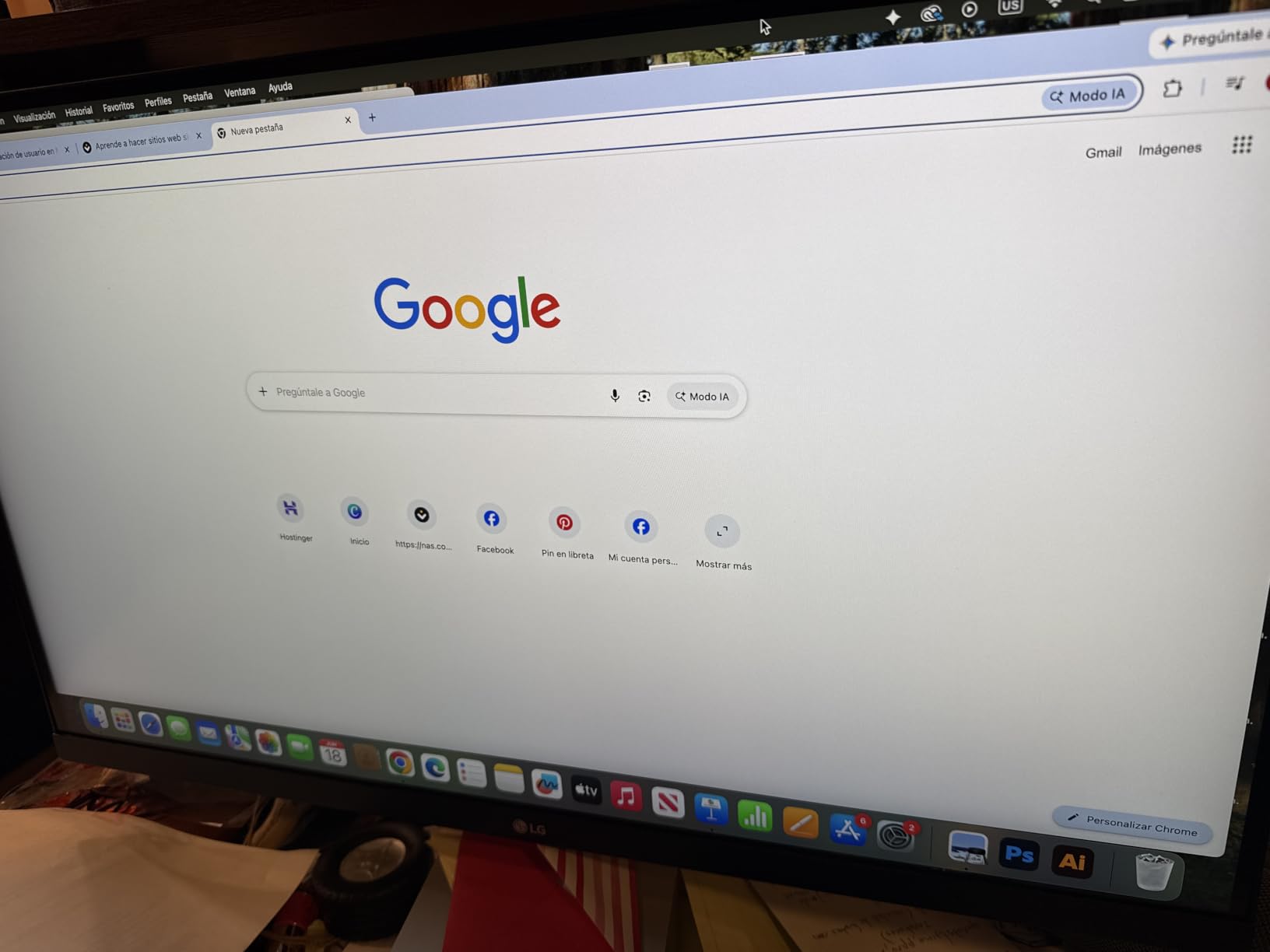
OnScreen Control is the quiet feature here. The split-screen workspace lets you park a reference clip and your NLE side by side without manual window arranging every time you sit down, which is a small daily time saver that adds up over a year.
At 12.1 pounds it is the lightest panel in this group, and the slim three-side borderless white design suits a small studio desk. Connectivity is straightforward: two HDMI ports and DisplayPort, with the box including an HDMI cable and a quick start guide.
Who this monitor suits
Students, freelancers cutting their first paid work, and anyone assembling an editing suite on a lean budget. A 4.4 average across more than four hundred ratings suggests owners are satisfied with what they get rather than disappointed by what they do not.
It is also a good second screen for a laptop user who wants a single upgrade over the built-in panel, since the 4K resolution gives timeline and bin space that a laptop screen cannot. Reader Mode and Flicker Safe help on long text-heavy sessions.
Who should skip it
The stand offers tilt adjustment only, with no height or pivot. On a desk where the monitor top needs to align with the top of a laptop screen, that is a daily annoyance, and a monitor arm is effectively required to get the ergonomics right.
Gamut coverage of 90% DCI-P3 is short of the 95% or 99% that professional work usually targets, so this is a learning and delivery monitor rather than a grading reference. Sixty hertz is the other limit for anyone cutting high-frame-rate footage.
5. Dell UltraSharp U2725QE – Best for Color Grading
Dell UltraSharp U2725QE 27-Inch 4K UHD IPS Black Monitor
27-inch 4K IPS Black
99% DCI-P3 and Delta E under 1.5
450 nits
120Hz
Pros
- Factory calibrated to Delta E under 1.5 with 99% DCI-P3 coverage
- 120Hz keeps playback fluid
- Thunderbolt 4 with high-wattage charging and daisy chain
- Ambient light sensor plus ComfortView Plus
- Ethernet and full port selection
Cons
- Premium price against other 4K IPS panels
- Gamut stops at DCI-P3
- Heavy stand needs desk depth
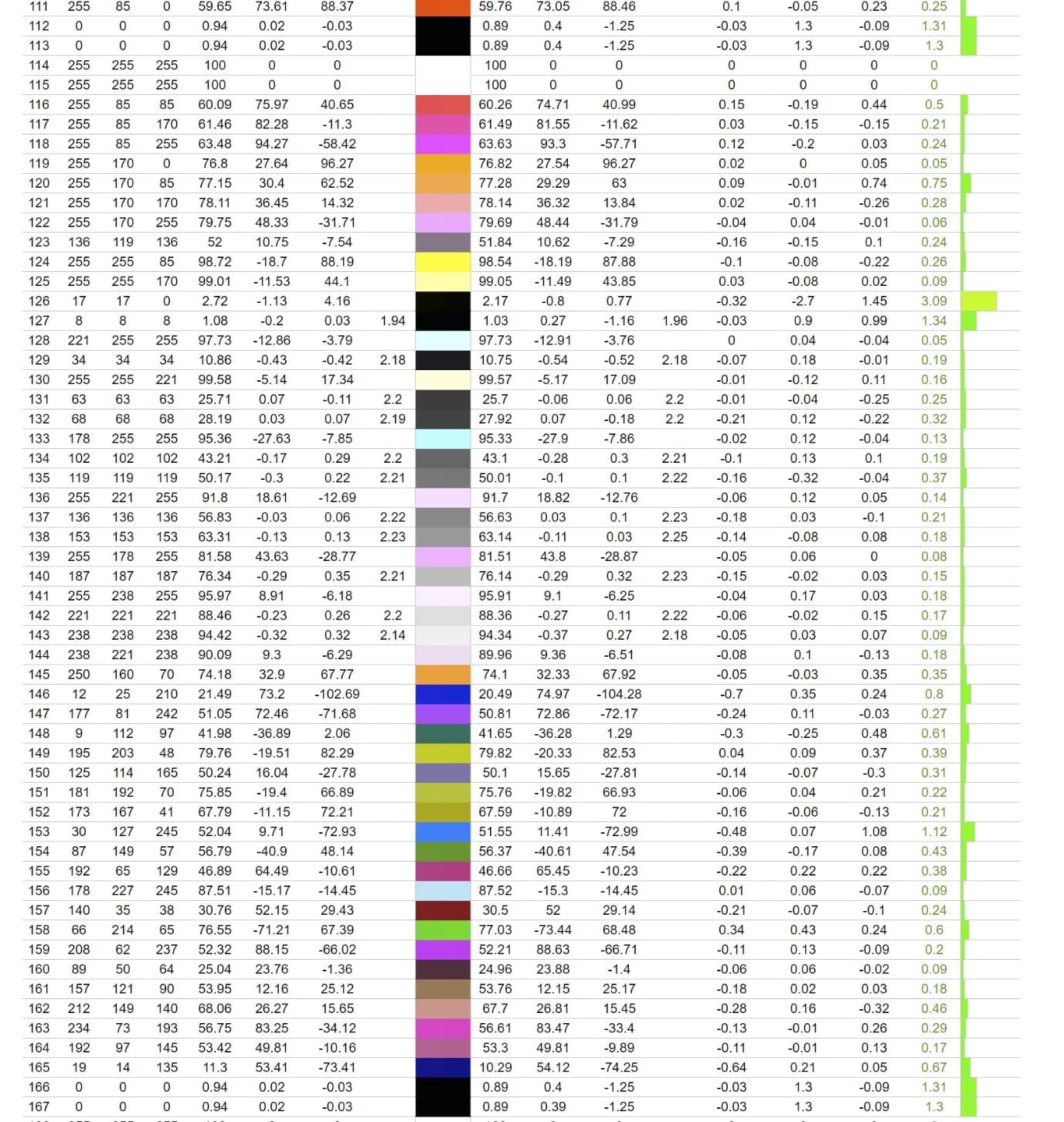
This is the most color-accurate monitor in the group and the one we trust with grading. Factory calibration to Delta E under 1.5 is a materially tighter tolerance than the Delta E under 2 on most ProArt and ColorPro panels, and 99% DCI-P3 coverage covers essentially the entire working space you are likely to grade in.
IPS Black technology raises the contrast baseline above what a standard IPS panel delivers, which shows up as better shadow separation when you push a night exterior. It is the brightest option here, and 120Hz with a 5ms response keeps timeline playback and viewer motion smooth.
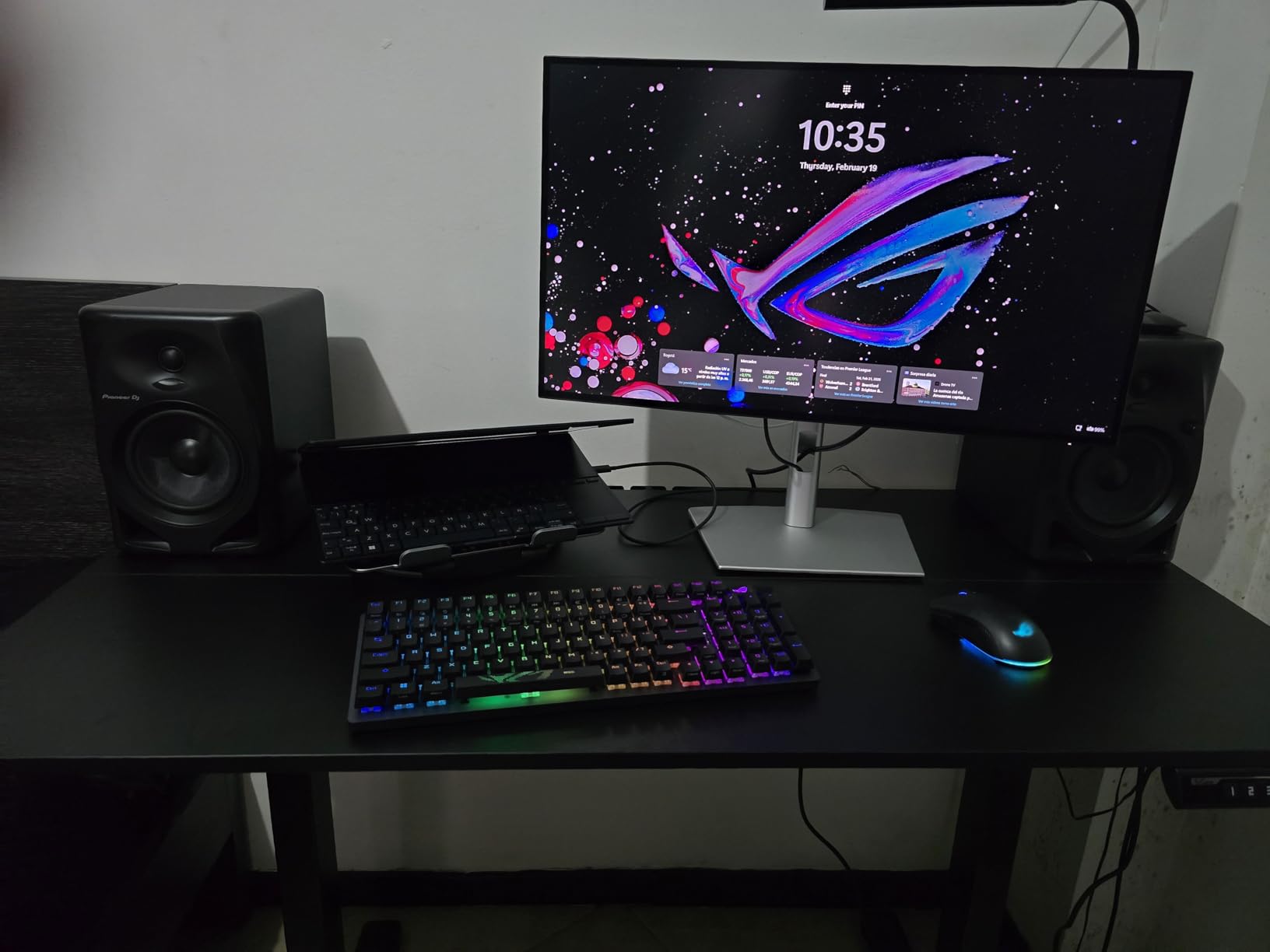
The Thunderbolt 4 implementation is the standout feature. A single cable carries video, data and power delivery, and daisy-chaining supports additional 4K monitors. For a MacBook Pro or a workstation laptop, that means one cable instead of three, which is the cleanest desk setup we tested.
ComfortView Plus combines with an ambient light sensor for automatic brightness adjustment, and the stand offers 15 height positions plus tilt, swivel and pivot. The port selection includes HDMI 2.1, USB-C, USB-A and Ethernet, and a three-year Advanced Exchange Service covers the panel.
Who this monitor suits
Colorists and editors delivering paid client work where a mismatch between the graded image and the client playback would mean re-work. The Delta E under 1.5 factory figure means you can trust the panel without immediately buying a colorimeter, which is the reason forum editors usually cite for a monitor like this.
It is also the right call for a laptop-driven setup because Thunderbolt 4 power delivery can run a workstation-class machine from a single lead. Anyone working in a bright room will appreciate the 450-nit brightness.
Who should skip it
The cost is the obvious barrier. It is priced well above the other 4K IPS options here, and forum discussions repeatedly make the point that most editors can get accurate-enough color for a fraction of it. If your deliverables are web and social only, the accuracy difference will not show up in the finished file.
Coverage also stops at 99% DCI-P3, so Adobe RGB and P3 print work needs a different panel. And at 9.72 kg with a full-featured stand it needs real desk depth, which is a problem in smaller studio spaces.
6. ViewSonic ColorPro VP3256-4K – Best 32-Inch Pantone-Validated Panel
ViewSonic VP3256-4K 32 Inch 4K UHD ColorPro Monitor, HDR10, 65W USB C, sRGB
32-inch 4K ColorPro
100% sRGB and DICOM-SIM
Pantone Validated, Delta E under 2
60W USB-C
Pros
- 32-inch 4K canvas for timeline and bin space
- Pantone Validated with Delta E under 2 calibration
- Single-cable USB-C with 60W charging
- DisplayPort daisy chain for multi-monitor setups
Cons
- 60Hz refresh rate only
- Basic HDR10 rather than a full HDR workflow
- No hardware calibration
- Heavy 24-pound chassis and bulky stand
The VP3256-4K is one of the few 32-inch 4K panels with Pantone Validated certification on top of a factory calibration to Delta E under 2. For editors who also deliver stills, or who work with clients who specify Pantone references, that validation is the reason to choose it over a generic 4K screen of the same size.
DICOM-SIM grayscale support is unusual in this class and useful for medical, scientific and technical imaging work, which is a niche that some freelance editors serve. Colour gamut is 100% sRGB, so this is a Rec.709 and sRGB panel rather than a wide-gamut one, and that is the honest limit of it.
Single-cable USB-C delivers 60W of charging alongside data and audio, which is enough to run most editing laptops and keeps a laptop-based suite tidy. DisplayPort daisy-chain support means you can drive a second display from the same output, and there are two HDMI inputs plus a USB hub for controllers and card readers.
The stand is fully adjustable with tilt, swivel, rotate and height, and a three-year limited warranty covers parts, labor and the backlight. Flicker-Free technology and a blue light filter handle long sessions.
Who this monitor suits
Editors working in hybrid post and photo who need a large, accurate sRGB canvas and do not need wide gamut. The 32-inch 4K area is the real draw: owners cite the timeline and bin real estate as the primary reason for choosing this size over a 27-inch.
Laptop users benefit from the 60W single-cable setup, and the daisy-chain makes a two-screen suite straightforward. If you deliver broadcast or client work graded to Rec.709, sRGB coverage at Delta E under 2 is exactly the target.
Who should skip it
If your work needs DCI-P3 or Adobe RGB, this is the wrong panel, and its 100% sRGB coverage is a hard ceiling. The 60Hz refresh rate and the basic HDR10 implementation also mean it is not an HDR grading monitor, despite the label.
There is no hardware calibration path, so accuracy relies on the factory profile remaining accurate over the panel’s life. And at 24 pounds with a bulky stand, it demands desk depth that smaller workspaces do not have.
7. BenQ PD3205U – Best 32-Inch Monitor for Mac and PC
BenQ PD3205U Mac-Ready Monitor 32″ 4K UHD 99% Rec.709 & sRGB, IPS, DeltaE ≤3, ICC Sync, Calibration Report, AQCOLOR, Uniformity HotKey Puck Ergonomic DisplayPort, USB-C (90W), USB Hub
31.5-inch 4K IPS
99% sRGB and 99% Rec.709
USB-C with 90W
Hotkey Puck G2
Pros
- 99% sRGB and 99% Rec.709 with Delta E under 3
- Calman Verified and Pantone SkinTone Validated
- Hotkey Puck switches color modes instantly
- ICC Sync matches profiles to macOS
- Built-in KVM switch and DualView
Cons
- Weak built-in speakers
- Portrait rotation is not usable on the stock stand
- Ports sit on an awkward downward-facing ledge
The PD3205U is the most workflow-oriented panel here. The Hotkey Puck G2 controller is a physical dial that switches color modes and inputs without diving into an on-screen menu, and once you have set up a Rec.709 mode and a DCI-P3 mode you can toggle between them mid-session in a second. For grading work that is a real efficiency gain.
Colour coverage is 99% sRGB and 99% Rec.709, with Calman Verified and Pantone SkinTone Validated certification and a factory calibration report included in the box. The SkinTone validation matters more than it sounds, because skin tone accuracy is the single most important color decision in most narrative and documentary work.
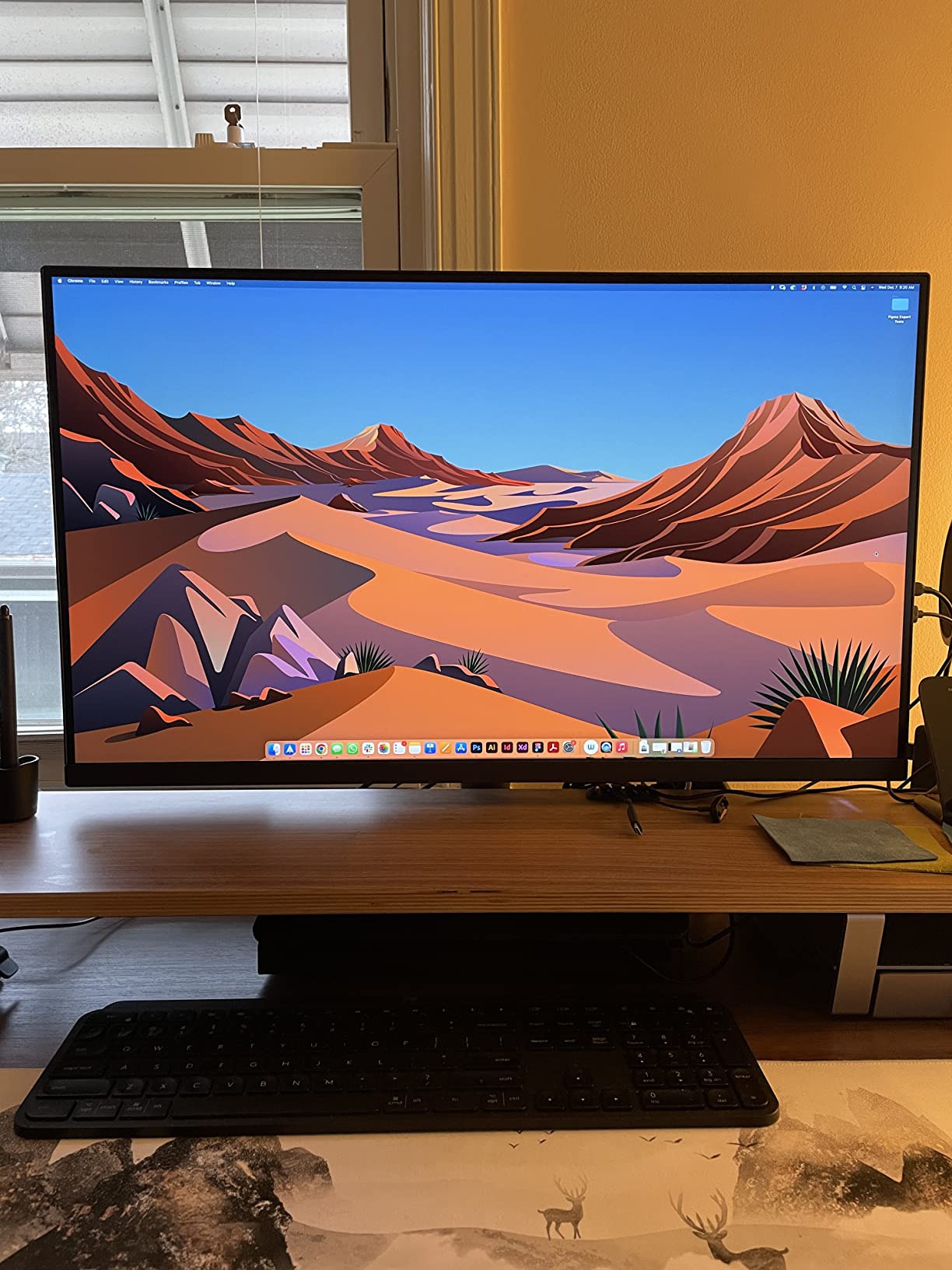
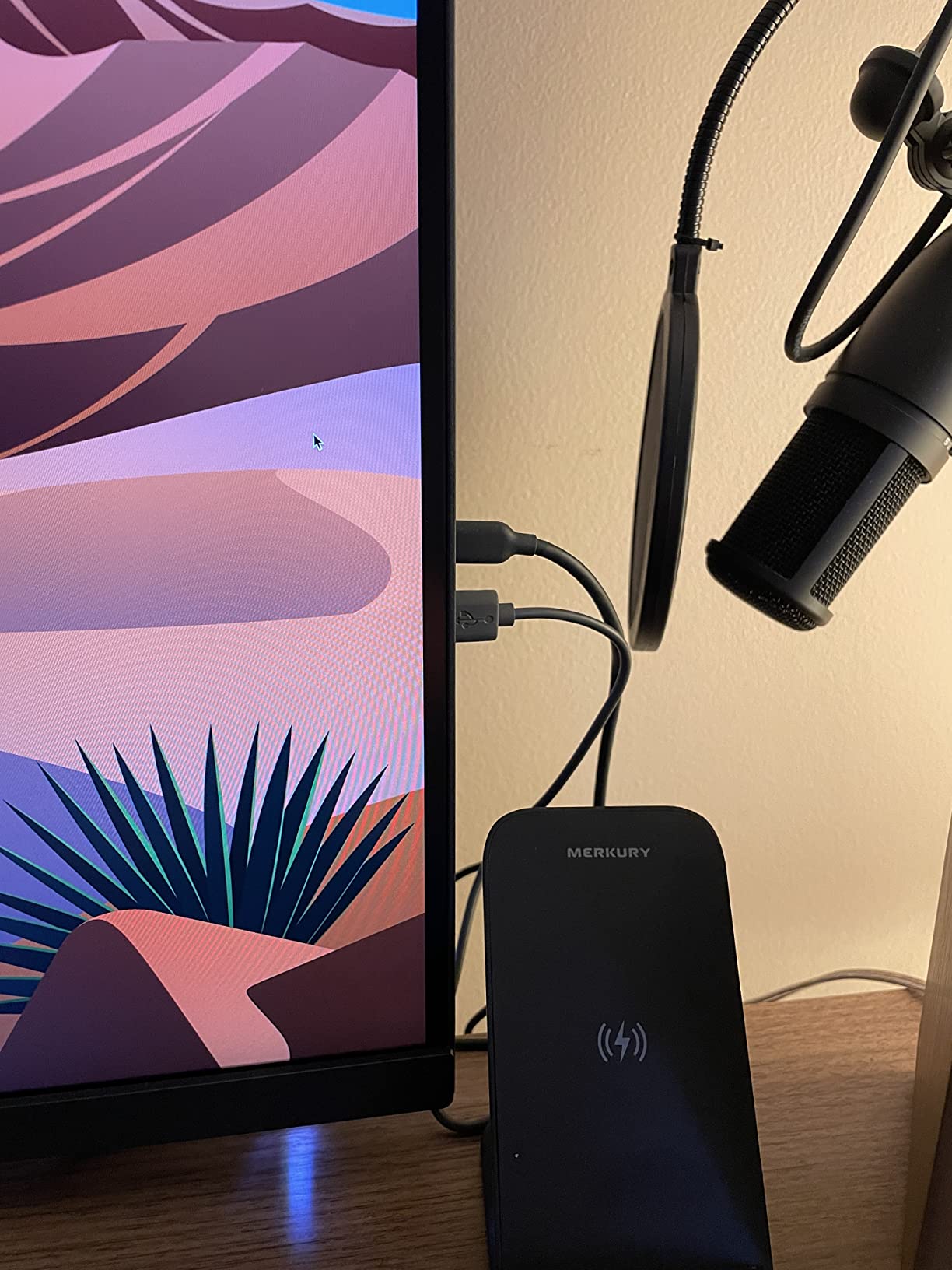
ICC Sync matches the monitor profile to macOS in about a second, which is what makes this the best 32-inch option for a Mac user who also wants to work on Windows. USB-C provides 90W power delivery with DisplayPort Alt Mode, and there is a built-in KVM switch plus DualView for multi-machine setups.
The anti-glare matte coating holds up in bright rooms, better than the glossy panels some creators prefer for perceived punch. The stand adjusts for tilt, swivel, pivot and height.
Who this monitor suits
Editors who move between a MacBook and a Windows workstation, since ICC Sync and the KVM switch remove the usual reconfiguration friction. SkinTone Validated coverage is a genuine advantage for anyone cutting interviews, documentaries or anything with a lot of faces in it.
It is also a good fit for two-machine desks, because the built-in KVM means one keyboard and mouse without a separate switch box. The 31.5-inch 4K panel solves the window overlap that owners of 1440p screens hit constantly when a timeline and a viewer need to sit side by side.
Who should skip it
The built-in speakers are poor, with tinny output and almost no bass, so plan on external audio. More importantly the stock stand does not rotate to portrait in practice, despite the advertised capability, which is a problem for anyone who reviews vertical or social content all day.
Ports sit on a narrow downward-facing ledge that is awkward to reach, and reviewers report the puck and KVM source switching can be slow. Brightness is also modest for a genuinely sunny room.
8. BenQ MA320U – Best 32-Inch 4K Monitor for MacBook Pro
BenQ MA320U 32” 4K 3840×2160 Monitor for MacBook® Pro/Air, Dual USB-C, 90W Power Delivery, Mac Color Match, USB Hub, Brightness & Volume Control on Mac, Height & Tilt Adjustable Stand, P3 Color Gamut
32-inch 4K IPS
P3 gamut with Mac color tuning
Dual USB-C with 90W and 15W
Pros
- Show Mac Colors calibration matches MacBook rendering
- Single USB-C cable for video data and 90W charging
- Brightness and volume controlled from the MacBook keyboard
- Second USB-C port charges an iPad or iPhone
- P3 wide gamut coverage
Cons
- 60Hz refresh rate
- Tuned primarily for the Apple ecosystem
- Thinner published spec detail than pro-class monitors
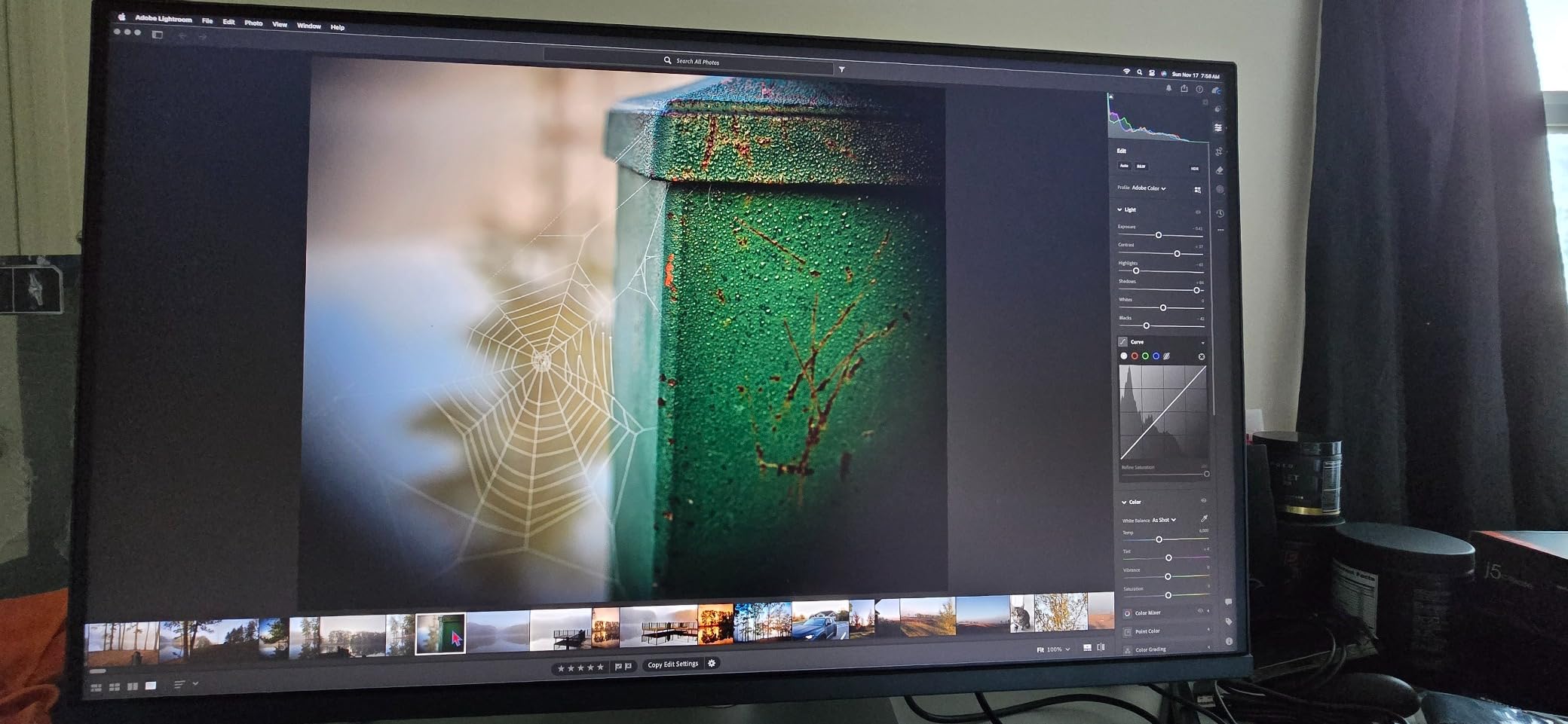
Mac editors have a specific problem: most third-party monitors render differently from the laptop screen next to them, so scopes, skin tones and UI accents all shift when you move windows between displays. The MA320U is built specifically to solve that, and the Show Mac Colors calibration is tuned for MacBook Pro and MacBook Air rendering.
That single feature is why this is on the list. When your grading monitor and your cut monitor agree, you can trust what you see. Add P3 wide color gamut coverage and you have a panel that can hold its own for photo and video work, not just as a laptop companion.
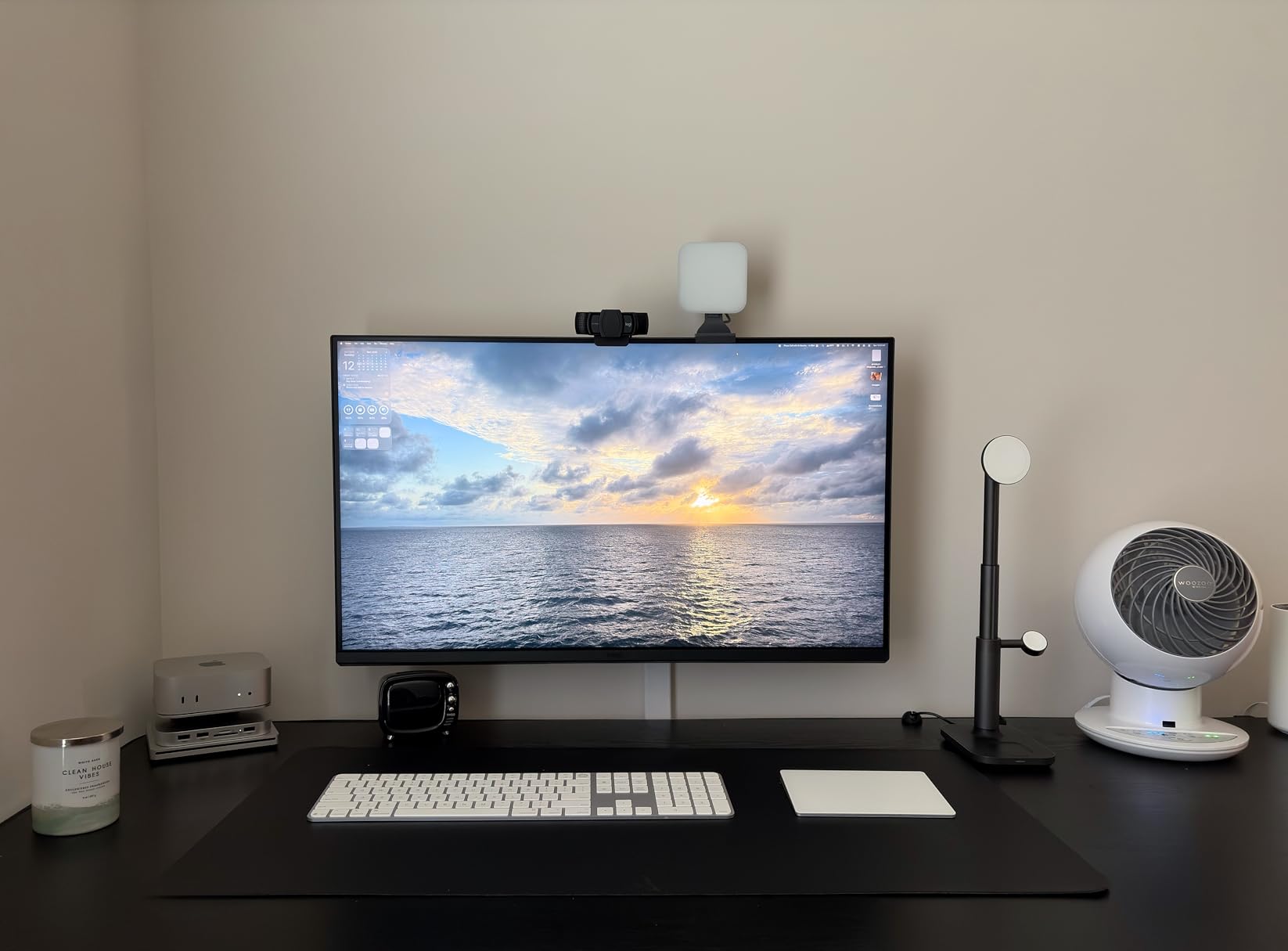
The dual USB-C arrangement is genuinely useful. One port delivers 90W to charge the MacBook while carrying video and data, and the second delivers 15W to an iPad or iPhone. You can also adjust brightness and volume directly from the MacBook keyboard, which sounds minor until you are ten hours into a session and the monitor is across the desk.
Two HDMI ports and a built-in USB hub cover peripherals, and the stand adjusts for height, tilt, swivel and pivot. Blue Light Filter and Eye Care cover the long-session comfort angle.
Who this monitor suits
Mac-only editors, obviously, and especially those using a MacBook Pro as their main machine. Final Cut Pro users get a display that matches their laptop’s rendering, and the single-cable setup means the desk stays clean with one lead between devices.
It is also a strong general 32-inch 4K IPS for content creators who shoot and edit, since P3 coverage handles both stills and Rec.709 delivery without recalibrating for each task. The second USB-C port is a nice touch for anyone with an iPad alongside.
Who should skip it
PC-only users get nothing from the Mac tuning, and the 60Hz refresh rate limits fast motion preview. Published specification detail is thinner than the professional-class monitors here, so if you need a documented Delta E figure or wide-gamut percentages for client paperwork, this does not provide them.
It is also priced at the upper end for a 32-inch 4K IPS, and there is no hardware calibration route, so accuracy depends on the factory tuning holding over time.
9. LG 32UP83AK-W – Best 32-Inch 4K with USB-C Docking
LG 32UP83AK-W 32-inch Ultrafine 4K UHD (3840 x 2160) IPS Computer Monitor, 60Hz, HDR10, Built-in Speaker, Reader Mode, HDMI, DisplayPort, USB Type-C 60W PD, Tilt/Height/Pivot Adjustable Stand, White
31.5-inch 4K UHD IPS
Up to 95% DCI-P3 with HDR10
USB-C with 60W
60Hz
Pros
- Sharp 4K IPS with consistent wide-angle brightness
- Up to 95% DCI-P3 with HDR10
- USB-C handles 4K video data and 60W charging
- Built-in speakers
- Height tilt and pivot adjustment
Cons
- 60Hz refresh rate
- One-year warranty is short for this class
- HDR10 is not a full editing workflow
- No hardware calibration or published Delta E
The 32UP83AK-W is a 31.5-inch 4K IPS with up to 95% DCI-P3 coverage under HDR10, which puts it in the same working color space as the LG 32UN650-W while adding the USB-C connectivity that the cheaper model lacks. For a laptop-based editor who wants one-cable operation, that is the deciding feature.
The USB Type-C port carries 4K video, data transfer and up to 60W of charging over a single cable. Sixty watts is not enough to charge a large workstation laptop at full speed, but it comfortably runs an ultrabook, a MacBook Air or a lighter Pro configuration, and it removes the need for a separate dock in most cases.
Two HDMI ports and DisplayPort cover the multi-machine case, and built-in speakers handle casual monitoring. The stand adjusts for height, tilt and pivot, which is more than most 32-inch panels in this price bracket offer, and the fine pixel pitch gives a 31.5-inch 4K image with a pixel density that suits mixed desktop work.
Reader Mode, Dynamic Action Sync and Black Stabilizer round out the feature set, and the box includes both HDMI and USB Type-C cables, which saves a trip. At 8.3 kg it is one of the lighter 32-inch 4K options.

Who this monitor suits
Editors working primarily on a laptop who want a large, accurate 4K display without carrying a dock. Up to 95% DCI-P3 coverage is enough to build and check a DCI-P3 grade, and the 31.5-inch panel gives proper timeline and bin space without going ultrawide.
It is also a straightforward choice for hybrid desks where the display does editing during the day and general office work otherwise, since the ergonomic stand and reader features cover long document sessions.
Who should skip it
The 60Hz refresh rate is the main compromise, and the one-year parts and labor warranty is the shortest in this group. On a display you will use for years, that is a thinner safety net than the three or five years offered elsewhere here.
HDR10 is supported but is not a real HDR editing or mastering workflow, and there is no hardware calibration and no published Delta E figure, so you are trusting the factory profile. If certified accuracy matters to your deliverables, choose a panel with a documented calibration instead.
10. INNOCN 27C1U – Best Delta E Under 2 Value at 27 Inches 4K
INNOCN 27″ 4K USB-C Monitor for Laptop MacBook/Mac mini – 16:9 IPS 3840 x 2160 Display, HDR400, DeltaE<2, DisplayPort, HDMI PC Monitor, 1.07B+ Colors, Built-in Speakers, Adjustable Stand, Black
27-inch 4K UHD IPS
Delta E under 2
400 nits
USB-C with 65W
Pros
- Delta E under 2 accuracy at a budget price
- 400 nits brightness with 1000:1 contrast
- 1.07B colors from 8-bit plus FRC
- USB-C 65W plus DisplayPort 1.4 and HDMI 2.1
- Swivel height tilt and pivot stand
Cons
- 60Hz refresh rate
- Entry-level HDR400
- One-year warranty and limited brand support
The INNOCN 27C1U is the spec-sheet outlier in this group. A published Delta E under 2 color accuracy figure, 400 nits of brightness and 1.07 billion colors via 8-bit plus FRC, on a 27-inch 4K IPS, is a combination you normally see on panels costing substantially more. Owners consistently single out the color accuracy as the reason they are satisfied.
That 1.07 billion color figure comes from 8-bit plus frame rate conversion rather than true 10-bit, and the distinction matters. FRC dithers the banding you would otherwise see in skies and gradients, but it is a simulation. If you need guaranteed 10-bit for heavy grading, treat this as 8-bit with smoothing rather than a true 10-bit panel.
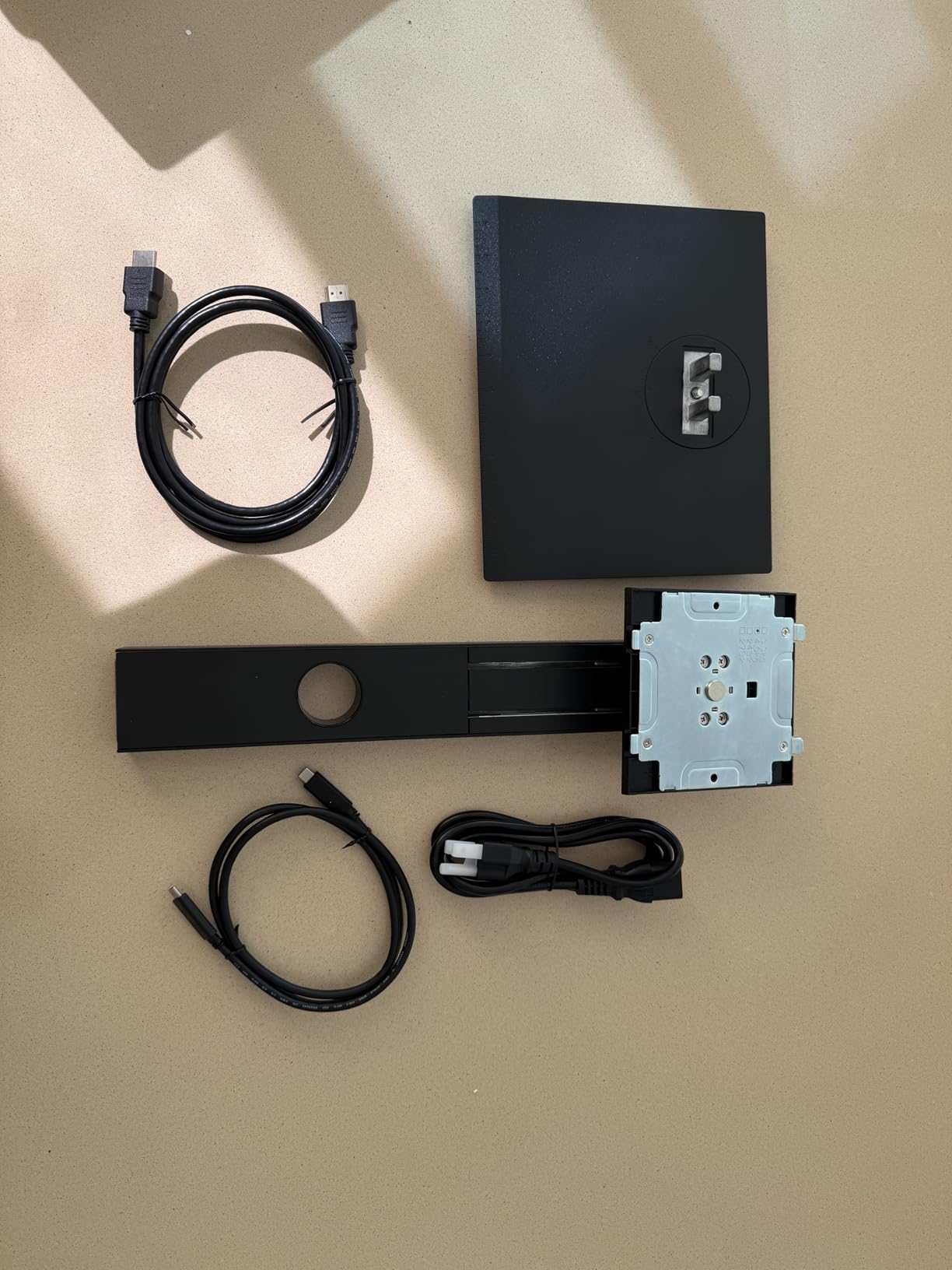
Connectivity is better than most at this tier: DisplayPort 1.4, USB Type-C with 65W charging, HDMI 2.1 and a 3.5mm audio out. Having the audio out matters more than it should on a monitor with basic built-in speakers, because you will end up using headphones for client review.
The stand is unusually capable for the price, with 45-degree swivel, plus or minus five inches of height, five degrees of forward tilt, 20 degrees back and 90 degrees of pivot. It is also VESA wall mountable if you would rather put it on an arm.
Who this monitor suits
Editors on a limited budget who want a real 4K IPS with documented accuracy and enough brightness for a normally lit room. The 400-nit figure is among the highest here, and at 27 inches on 4K the pixel density also makes text in the timeline and node graphs sharp.
It suits laptop users too, since 65W of USB-C charging covers most ultrabooks in a single-cable setup, and the HDMI 2.1 input gives headroom for high-refresh sources.
Who should skip it
Support is the honest risk. The warranty is one year and brand-level support is thin compared with Dell, ASUS or BenQ, so if a panel develops an issue you will be relying on the retailer rather than a manufacturer advance-exchange program.
HDR400 is entry-level, so this is not an HDR grading monitor, and the 60Hz refresh rate limits motion work. There is also no published uniformity data or hardware calibration report, so the Delta E under 2 figure applies to the factory state only.
11. ASUS ProArt PA279CRV – Best Wide-Gamut Value for Photo and Video
ASUS ProArt PA279CRV 27 Inch 4K UHD USB-C HDR Professional Monitor for Mac
27-inch 4K UHD
99% DCI-P3 and 99% Adobe RGB
Calman Verified Delta E under 2
USB-C
Pros
- 99% DCI-P3 and 99% Adobe RGB coverage
- Calman Verified to Delta E under 2
- 3000:1 contrast is unusually high for IPS
- USB-C with a built-in USB hub
- DisplayPort daisy chain and five-year warranty
Cons
- 60Hz refresh rate
- Entry-level HDR relative to the gamut coverage
- Bundled setup can be fiddly
- Heavy 18-pound chassis
The PA279CRV is the widest-gamut monitor in this group relative to what it costs. 99% DCI-P3 and 99% Adobe RGB coverage on a 27-inch 4K panel is a combination that normally demands a professional-tier display, and it means the panel can show you both video working spaces and print-oriented Adobe RGB work without switching monitors.
The 3000:1 contrast ratio is remarkable for an IPS panel, roughly three times what a standard IPS delivers, and you can see it in graded footage as deeper blacks and better separation in dark scenes. Calman Verified factory calibration to Delta E under 2 covers the accuracy side, and the ASUS ProArt Preset and Palette system lets you save and recall custom profiles.
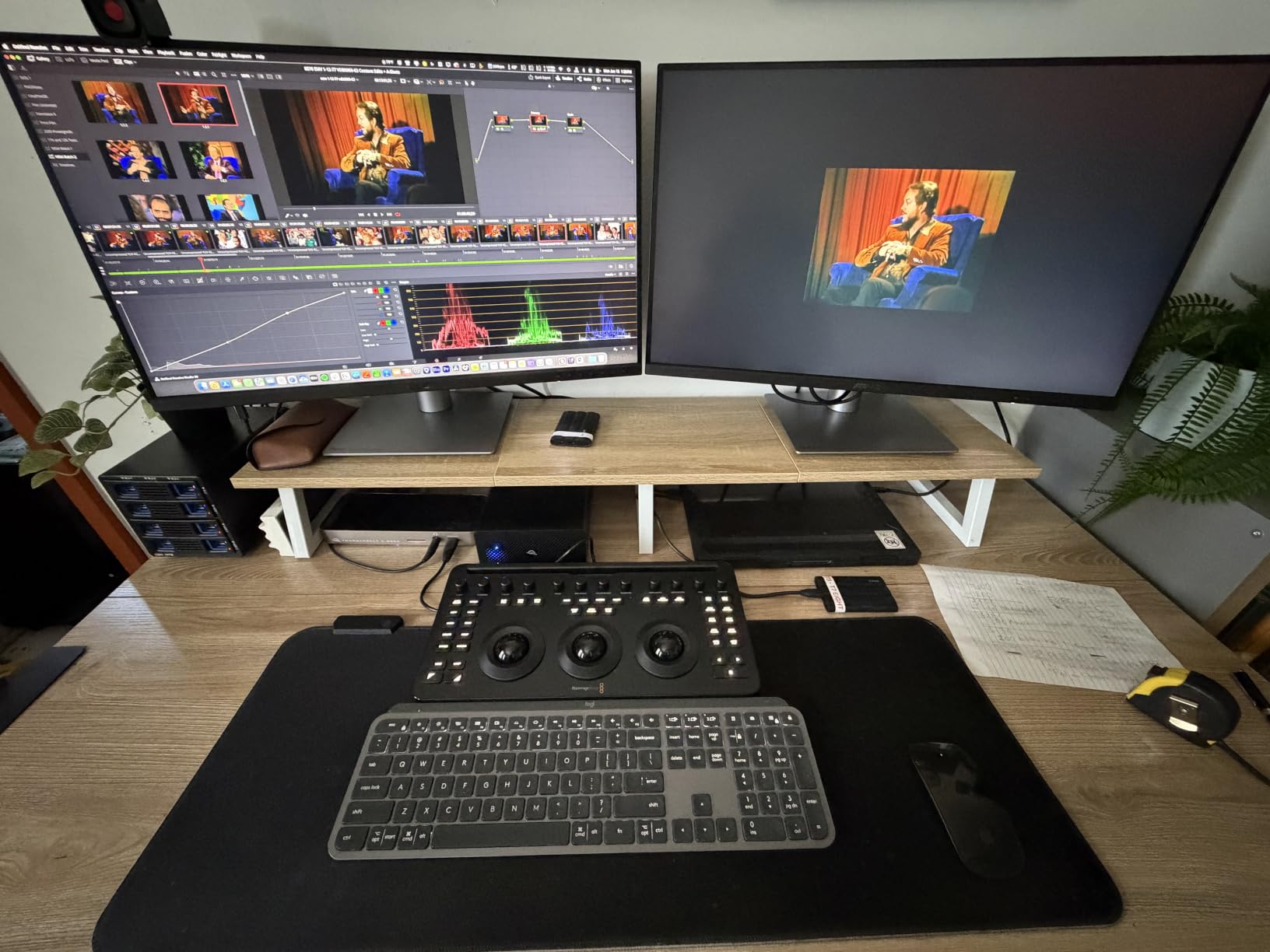
USB-C carries meaningful power delivery alongside DisplayPort Alt Mode, enough to charge most editing laptops over one lead, and there is a built-in USB hub for peripherals. DisplayPort daisy-chain support means a second display can run from the same output, which suits a two-screen grading setup.
The five-year warranty, split into three years plus two more with online registration, is among the longest here, and a three-month Adobe Creative Cloud subscription is included. The ergonomic stand covers tilt, swivel, pivot and height.
Who this monitor suits
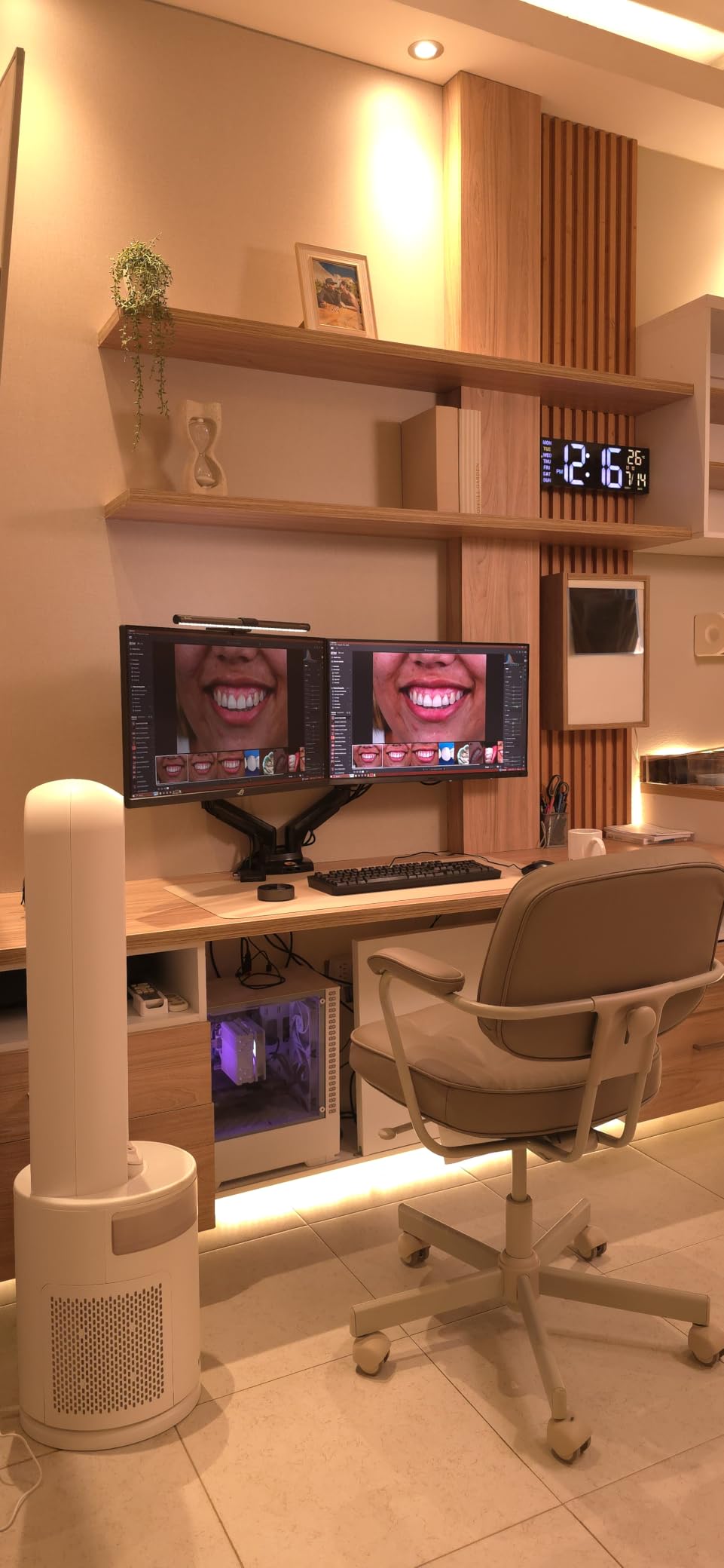
Editors who also shoot stills or do any Adobe RGB work, since this is one of the few mid-priced panels that covers that space. It is a strong choice for a studio that handles both video and photo deliverables on the same screen.
The USB-C and daisy-chain make it a good laptop companion with a second display in the plan. Anyone working in a dim grading suite will appreciate the high contrast, and Eye Care low blue light and flicker-free technology handle long sessions.
Who should skip it
HDR is entry-level next to the gamut coverage, so wide gamut does not equal HDR capability here. The 60Hz refresh rate is another limit for motion work, and owners report the bundled documentation and initial setup can take some working through.
At 18.3 pounds with a large footprint, it needs desk space, and the 4.2 average across more than six hundred ratings is lower than the other ProArt model here. If pure accuracy and a longer warranty matter more to you, the PA278QV is the alternative.
12. BenQ PD2725U – Best 27-Inch 4K with Thunderbolt 3
BenQ PD2725U 27″ 4K IPS Thunderbolt 3 Creative Pro Monitor for Mac/Windows
27-inch 4K UHD IPS
100% sRGB, 100% Rec.709, 95% P3
Thunderbolt 3 with 65W
Pros
- Thunderbolt 3 single-cable workflow with 65W charging
- Delta E under 3 with 100% sRGB and 95% P3 coverage
- Pantone validated for professional reproduction
- ICCsync matches Mac profiles in about a second
- Daisy-chain to dual 4K monitors
Cons
- 250 nits brightness is low for a bright room
- 60Hz refresh rate
- No meaningful built-in audio
The PD2725U is the Thunderbolt 3 option, and for an older Intel-era Mac Pro or a MacBook Pro setup that remains a reason to buy it. A single Thunderbolt 3 cable carries synchronized images, video, data at 40 Gb/s and 65W of charging, and daisy-chaining drives dual 4K monitors from one port.
Colour coverage is 100% sRGB, 100% Rec.709 and 95% P3, with a factory calibration to Delta E under 3 and Pantone validation. Delta E under 3 is looser than the Delta E under 1.5 or under 2 figures on the Dell and ASUS panels here, so treat it as very good rather than reference-grade, particularly at the edges of the screen.
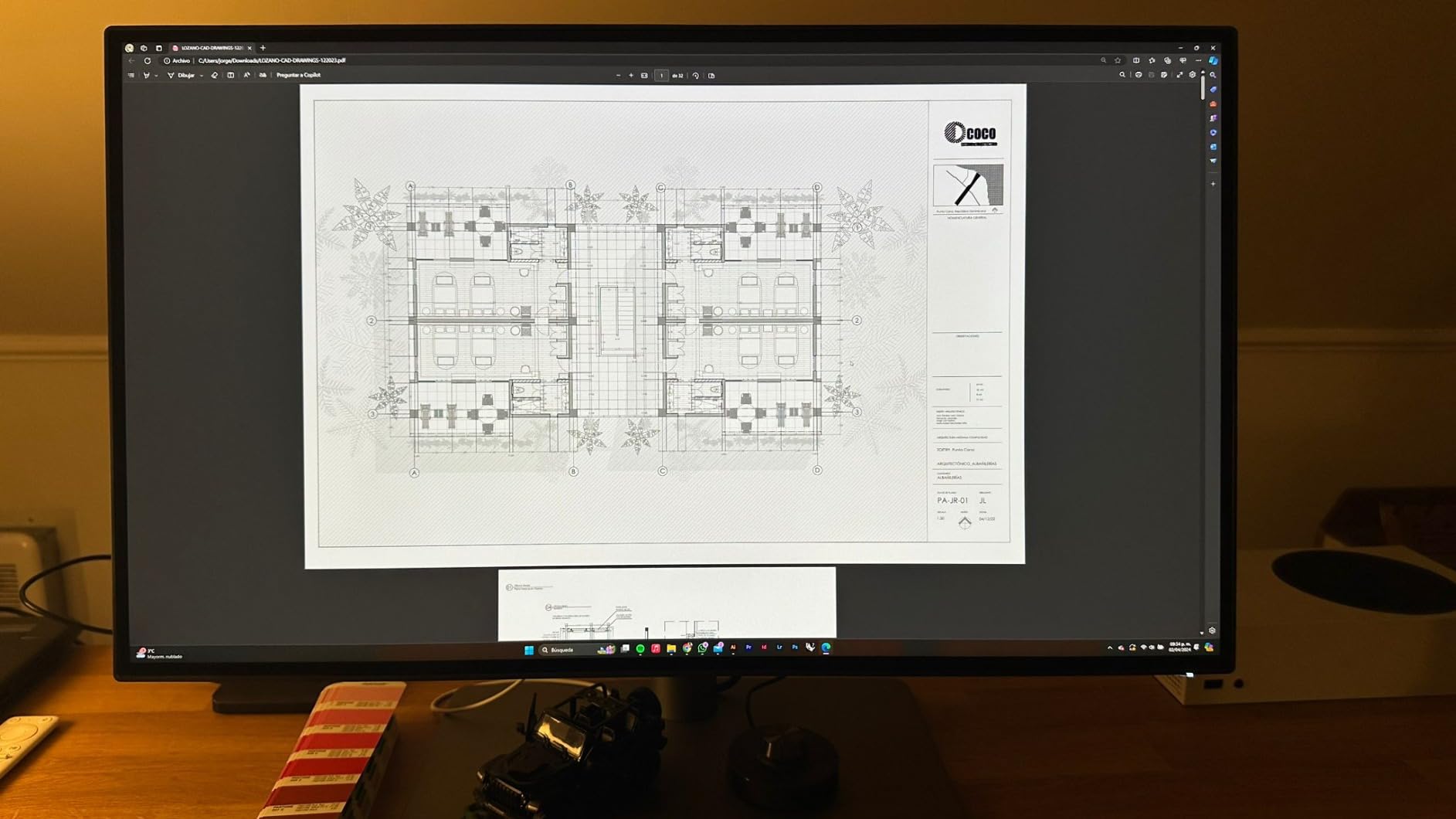
BenQ ICCsync with Display P3 support handles Mac workflows, syncing the monitor profile in about a second through Display Pilot. The Hotkey Puck G2 controller speeds up switching between color modes and inputs, and the port selection includes two USB-C, two HDMI, one DisplayPort, a three-port USB hub and a headphone jack.
AQCOLOR uniformity and factory calibration come as standard, and the stand offers height, tilt, swivel and pivot adjustment with a three-year manufacturer warranty. The matte coating keeps reflections manageable in a lit room.
Who this monitor suits
Mac-centric creative professionals who already own Thunderbolt 3 equipment and want the cleanest possible single-cable desk. If your Mac has Thunderbolt ports and your peripherals hang off a hub, this removes most of the cable clutter from an editing desk.
The P3 coverage and Pantone validation suit color work at a professional standard without the price of a reference monitor, and the headphone jack is a small quality-of-life win over panels with no audio out at all.
Who should skip it
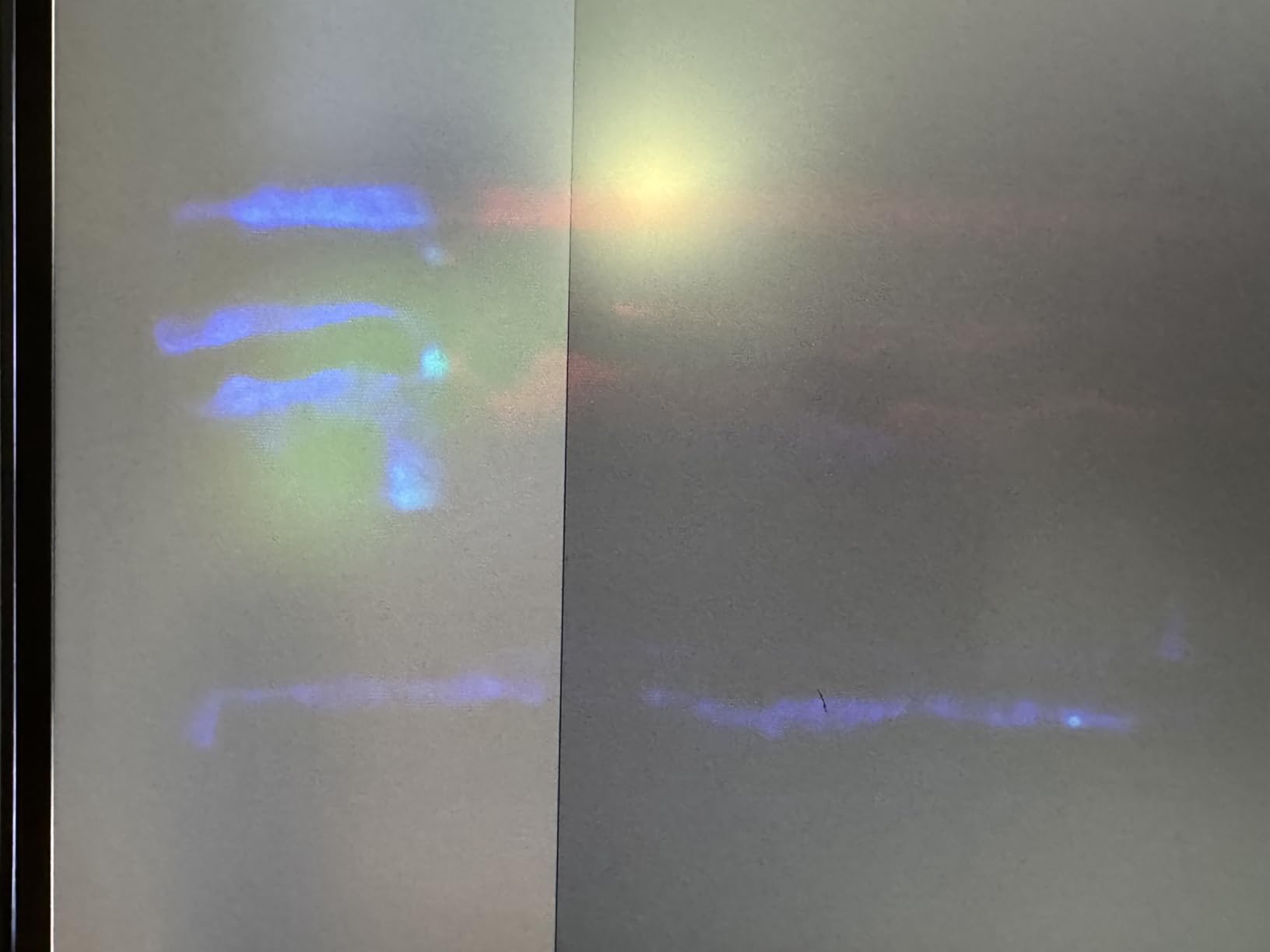
250 nits is the significant limitation. In a dimly lit suite it is perfectly usable, but in a bright room you will be pushing brightness to the point where accuracy drifts, and it is not a monitor for HDR grading. The 60Hz refresh rate is another limit, and there is no meaningful built-in audio.
It also costs more than 4K IPS alternatives without Thunderbolt, and with the newest ports moving toward USB-C and Thunderbolt 4, buying Thunderbolt 3-specific hardware in 2026 is a deliberate choice rather than a default one.
What Specs Actually Matter for Video Editing
Most monitor spec sheets are written for buyers, not editors. These are the numbers that actually change the work, and roughly where each one should sit before you spend anything.
Color gamut coverage
Match your monitor to your delivery target. For web, social and most broadcast work, that means 100% sRGB and 100% Rec.709 coverage, which the ASUS ProArt PA278QV and the BenQ PD3205U both provide. If you grade in DaVinci Resolve’s wide gamut working space or handle DCI-P3 master deliverables, you want 95% DCI-P3 or better, which points to the Dell UltraSharp U2725QE, the ASUS ProArt PA279CRV or the LG 32UN650-W.
Adobe RGB matters only if your work crosses into print or stills. Nobody needs it purely for video, and paying for it otherwise is wasted budget.
Color depth and banding
8-bit gives you roughly 16.7 million colors and 10-bit gives about 1.07 billion, and the practical difference shows in gradients: skies, skin falloff, dark shadows. Eight-bit panels can visibly band on a blue sky if the bitrate is low or the grade is contrasty. Ten-bit is the minimum for serious work, though note that some panels advertise 1.07 billion colors through frame rate conversion rather than native 10-bit, as the INNOCN 27C1U does.
Panel type and IPS Black
IPS remains the safe default for editing because of its viewing angles and text rendering, and every panel in this list is IPS or IPS Black. IPS Black raises the native contrast ratio above the standard 1000:1, which improves shadow detail, and that is what the ASUS ProArt PA279CRV at 3000:1 and the Dell UltraSharp U2725QE exploit.
Resolution and screen size
4K at 27 inches gives a pixel density of about 163 pixels per inch, so text in the timeline and node graphs stays sharp without HiDPI scaling. 32-inch 4K is better for timeline and bin real estate, which is why several editors here choose the larger panel despite the lower density. A 27-inch 1440p screen is a real option for timeline-heavy work on a budget, but you will feel the lack of room, and the text rendering is a step behind.
Ultrawide panels give timeline width without a second screen, but none of the twelve here are ultrawide, and dual 27-inch setups are still a common alternative for editors who want scopes and a viewer visible simultaneously.
Brightness, HDR and nits
For SDR Rec.709 delivery, around 300 to 400 nits covers a normally lit room. Above 400 nits you gain headroom for HDR grading: the Dell UltraSharp U2725QE at 450 nits and the INNOCN 27C1U at 400 nits are the brightest here. Note that HDR10 on a 250-nit panel is a compatibility label rather than a real HDR workflow, which is true of the LG 32UN650-W and the BenQ PD2725U.
Connectivity and refresh rate
USB-C with 60W to 96W of power delivery means one cable to a laptop for video, data and charging, and the Dell UltraSharp U2725QE offers the highest charging wattage in this group over Thunderbolt 4 with daisy-chaining for extra 4K displays. If your machine has no USB-C, budget for a dock.
On refresh rate, forum consensus is consistent: 60Hz is plenty for editing. A static NLE interface does not benefit from a higher rate. It is only worth paying for if you also game, or if you work with high-frame-rate footage where smooth viewer playback genuinely helps you judge motion.
OLED vs IPS for Video Editing
IPS is the safer choice for most editors, and OLED is the better one for picture quality. That is the short version of a debate that comes up constantly on r/Monitors and r/videography.
OLED panels deliver true blacks, effectively infinite contrast and wide gamut in one package, and the picture quality advantage on a graded night scene or a dark title sequence is not subtle. IPS gives you consistent brightness across a large area, no burn-in risk and text rendering that stays readable over a ten-hour timeline session.
The burn-in question is the real objection, and it is legitimate. Premiere and Resolve interfaces are the worst-case pattern for an OLED: the timeline, the scopes and the node panel sit in exactly the same screen position for the entire working day. Pixel wear from static UI is a real mechanism, not folklore. The mitigations that help are the panel’s own pixel-shift and logo-dimming routines, plus the habit of dimming the desktop brightness and using dark UI themes so fewer pixels are lit at high levels.
Editors who buy OLED anyway typically do so because they work short sessions, keep the interface dark, and accept the tradeoff for the contrast. If you edit eight hours a day in a brightly lit room on an uncalibrated OLED, the accuracy advantage mostly disappears anyway, since OLED panels drift more than IPS as they warm up.
Our list contains no OLED panels, and that is a deliberate editorial choice rather than an oversight. For a monitor meant to sit on a desk running a static NLE interface for years, the reliability of IPS is worth more than the contrast advantage for most people. If your work is finishing and grading rather than daily timeline work, an OLED is a different conversation.
Do You Need a Colorimeter?
No, not if you buy a factory-calibrated panel. This is the most common recurring question in monitor forums, and the consensus answer is consistent: a monitor that ships with a calibration report and a stated Delta E is usable out of the box, and a colorimeter is a helpful addition rather than a requirement.
What factory calibration guarantees is that the panel ships accurate. It does not guarantee it stays accurate, and it says nothing about the difference between your monitor and your client’s. Panel-to-panel variation between two units of the same model is a real effect, and it is the reason two editors grading the same footage can deliver different results.
Where a colorimeter genuinely earns its place is if you work across multiple displays, if you grade next to a laptop screen and need them to agree, or if your work requires certified accuracy for client delivery. A device like a SpyderX or Calibrite colorimeter with a hardware LUT workflow will get you to a known, repeatable state and let you generate a 3D LUT. It will not make a cheap panel behave like a reference monitor, and that expectation is where a lot of people waste money.
Our advice is to buy the most accurate panel you can reasonably afford, use the factory profile, and only add a colorimeter when your deliverables demand it. The Dell UltraSharp U2725QE at Delta E under 1.5 and the ASUS ProArt PA278QV at Delta E under 2 are the two picks where that approach works without extra hardware.
Which Monitor for Which Machine and NLE
Mac users. A MacBook Pro or Mac Studio rendering in Display P3 next to a standard sRGB monitor will shift your grade, because the two screens are not showing the same colors. The BenQ MA320U and the BenQ PD3205U both address this directly, with Mac color tuning and ICC Sync respectively. The Dell UltraSharp U2725QE is the strongest option if you want Thunderbolt 4 and one-cable operation at high wattage.
Windows and Linux users. The ASUS ProArt PA278QV, Dell UltraSharp U2725QE and Dell S2725QS are the straightforward picks, with the widest port selection and the longest warranty coverage. Colour management in Premiere and Resolve is well documented on those platforms, so there are fewer variables between the panel and the file.
DaVinci Resolve. Resolve’s Wide Gamut working space needs a wide-gamut panel to grade in meaningfully, so target 95% DCI-P3 or better. The ASUS ProArt PA279CRV, Dell UltraSharp U2725QE and LG 32UN650-W fit. Resolve also benefits most from screen area because of its node graph, so a 32-inch panel is a genuine productivity gain rather than a cosmetic one.
Adobe Premiere Pro. Lumetri works fine in sRGB or Rec.709, so the ASUS ProArt PA278QV with its 100% sRGB and 100% Rec.709 coverage is a direct fit. The bundled Adobe Creative Cloud subscription on the ProArt models is a small practical benefit if you are not already subscribed.
Final Cut Pro. Everything here runs on Mac, and the BenQ MA320U is the panel tuned for that workflow. Set the timeline to Rec.709 and the viewer to sRGB rather than Display P3 unless you are delivering in P3, because matching your delivery space is what keeps a Rec.709 master from shifting.
Broadcast delivery. If your work goes to broadcast, grade and check in Rec.709 and keep your scopes in legal range unless the broadcaster has specified otherwise. The ASUS ProArt PA278QV and the ViewSonic ColorPro VP3256-4K both cover 100% sRGB and Rec.709 with documented factory accuracy.
Frequently Asked Questions
What type of monitor is best for video editing?
A color-accurate 4K IPS panel with at least 100% sRGB and Rec.709 coverage, a stated factory Delta E figure, and 10-bit or frame rate converted color depth. Add 95% DCI-P3 coverage if you grade in DaVinci Resolve Wide Gamut or deliver in P3. Screen size matters next: 27 inches keeps text sharp, 32 inches gives timeline and bin room.
What is the best monitor for professional video editing?
The Dell UltraSharp U2725QE is the strongest professional choice in our testing, with factory calibration to Delta E under 1.5, 99% DCI-P3 coverage and Thunderbolt 4 connectivity. Editors on a tighter budget should take the ASUS ProArt PA278QV, which is Calman Verified at Delta E under 2 with full sRGB and Rec.709 coverage.
Is IPS or OLED better for video editing?
IPS is safer for most editors because it has no burn-in risk, better text rendering over long sessions and more stable brightness as the panel warms. OLED gives true blacks, higher contrast and better shadow detail, which is a real advantage for grading. The catch is static NLE interfaces: Premiere and Resolve panels sit in the same screen position all day, which is the worst-case pattern for OLED wear.
Do I need a 4K monitor for video editing?
For most work, yes. A 27-inch 4K panel gives about 163 pixels per inch, so timeline text and node graphs stay sharp without HiDPI scaling, and you get more usable interface area than 1440p. A 27-inch 1440p screen is workable for timeline-heavy editing on a budget, but you will notice the difference in room and in legibility.
Which 4K monitor has the most color accuracy?
The Dell UltraSharp U2725QE, factory calibrated to Delta E under 1.5 with 99% DCI-P3 coverage, is the most accurate panel here. The ASUS ProArt PA278QV and ASUS ProArt PA279CRV follow at Delta E under 2, and the ViewSonic ColorPro VP3256-4K matches that figure with Pantone Validated certification.
What is the best monitor for video editing and color correction?
For color correction specifically, the ASUS ProArt PA279CRV is the widest-gamut option, covering 99% DCI-P3 and 99% Adobe RGB with Calman Verified calibration and a 3000:1 contrast ratio. The Dell UltraSharp U2725QE is the more accurate choice at Delta E under 1.5, and the LG 32UN650-W gives you 95% DCI-P3 on a 32-inch canvas for Resolve node work.
Do I need a colorimeter for video editing?
Only if your deliverables demand certified accuracy, you work across multiple displays, or you need your monitor to match a laptop screen. A factory-calibrated panel with a stated Delta E and a calibration report is usable out of the box. A SpyderX or Calibrite colorimeter with a hardware LUT workflow gets you to a repeatable state, but it cannot make a cheap panel behave like a reference monitor.
Is 32GB RAM enough for 4K video editing?
This is a system question rather than a monitor one, but it comes up constantly in the same searches. 32GB is workable for 4K editing with proxy workflows, though 64GB gives more headroom for complex multi-track timelines, Fusion effects and Resolve work. The monitor and the memory are separate decisions, and a better display will not offset a machine that stalls during playback.
Which Monitor Should You Buy in 2026
Buy the ASUS ProArt PA278QV if you want the most dependable color accuracy per pound and your work fits in 1440p. Step up to the Dell UltraSharp U2725QE when you are grading for paying clients and can justify the spend. If timeline area beats everything, the LG UltraFine 32UN650-W or BenQ PD3205U put a full 4K canvas on your desk, and Mac users should take the BenQ MA320U.
Use the buttons on each review above to check the current price and availability for your region, and check back as 2026 progresses since panel pricing in this class moves often.