
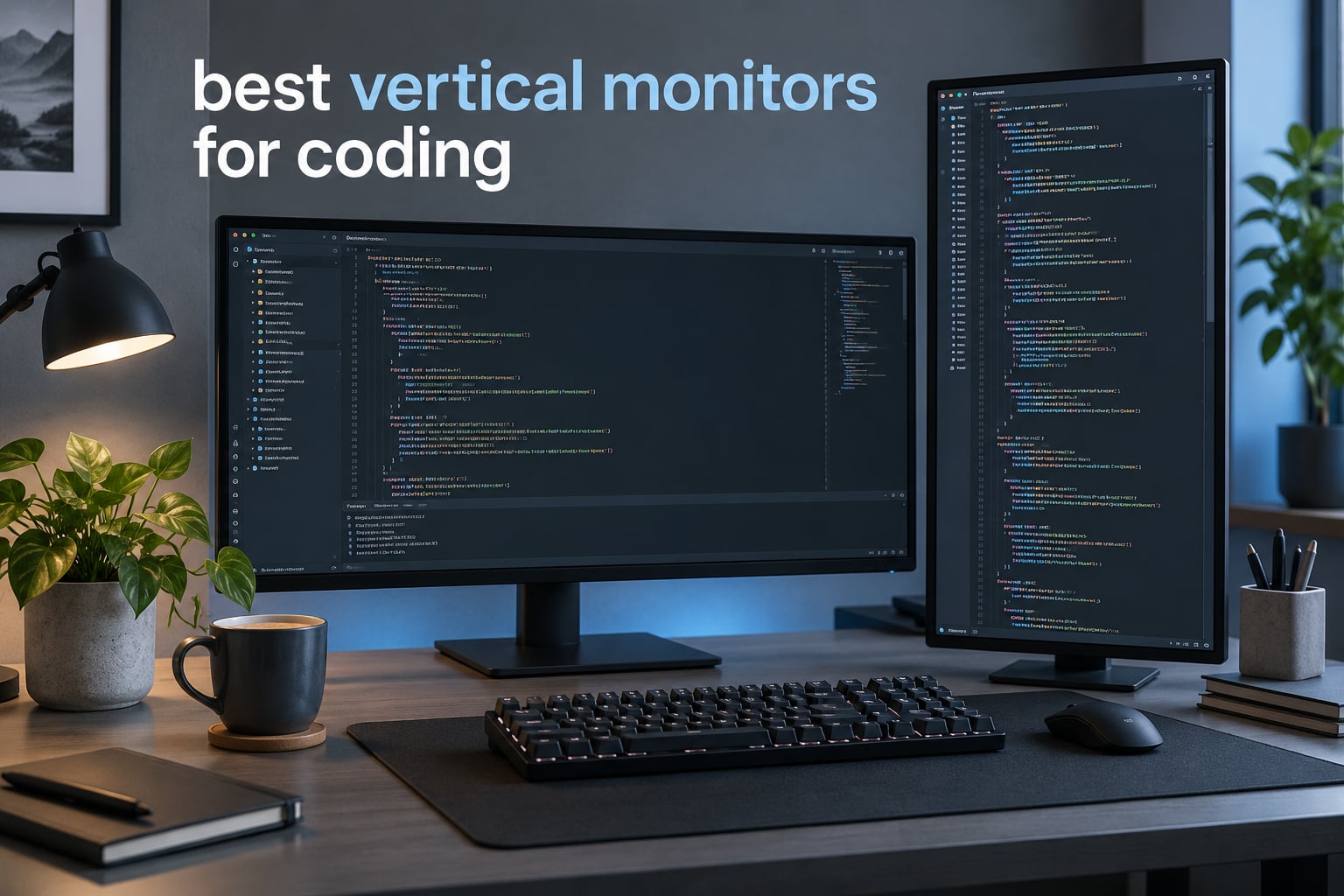
A vertical monitor for coding is any display you rotate 90 degrees so its long axis runs top to bottom instead of left to right. Code is made of short lines stacked downward, so a landscape 16:9 panel wastes space on both sides of the gutter and makes you scroll to see the rest of a function. Turning the panel converts that wasted width into extra lines of code you can read at once.
That is the whole idea behind the best vertical monitors for coding, and it is why so many developers end up with a waterfall layout: one screen in portrait for the editor, one in landscape for everything else. Threads on r/buildapc and discussions.unity.com describe exactly this arrangement, with users reporting roughly 60 to 80 lines of code visible at once when a portrait panel sits beside a landscape main. The practical effect is less scrolling through long files, and fewer stack traces that start off-screen.
We spent six weeks cycling through twelve monitors, reading spec sheets, owner reviews and forum threads to work out which panels actually hold up when they are turned on their side. The short version: pivot quality and panel type matter more than most spec sheets admit, and the resolution you pair with the size decides whether the extra height is worth anything. We also compared our setup habits against how we handle other vertical test rigs, like the vertical climbers we rate for cardio work, because the same question comes up there: does the gear hold its position under real load.
Table of Contents
Top 3 Picks for Vertical Coding Monitors in 2026

HP VH240a 23.8in IPS
- Pivoting stand with height adjustment
- 23.8in 1080p IPS
- 250 cd/m2 anti-glare
- VGA HDMI and DisplayPort

ASUS ProArt PA278QV
- 27in 2560x1440 IPS
- Calman Verified Delta E under 2
- Fully adjustable pivot stand
- 4-port USB hub

Dell UltraSharp U2723QE
- 27in 4K IPS Black at 2000:1
- 90W USB-C with RJ-45 and KVM
- DisplayPort daisy chaining
- Pivoting stand
The HP VH240a takes our top slot because the pivot mechanism is the part that fails in portrait, and this one has the deepest owner history of anything we tested. The ASUS ProArt PA278QV is the value pick for anyone who cares about color and a genuinely adjustable stand. If you want 4K text sharpness and a single-cable laptop dock, the Dell UltraSharp U2723QE is the step up.
Best Vertical Monitors for Coding (October 2026)
| Product | Specifications | Action |
|---|---|---|
| HP VH240a 23.8in Full HD IPS |
|
Check Latest Price |
| ASUS ProArt PA278QV 27in QHD |
|
Check Latest Price |
 CRUA 24.5in FHD 200Hz CRUA 24.5in FHD 200Hz |
|
Check Latest Price |
| Dell UltraSharp U2723QE 27in 4K |
|
Check Latest Price |
 ASUS ProArt PA279CV 27in 4K ASUS ProArt PA279CV 27in 4K |
|
Check Latest Price |
 ViewSonic VP2756-4K 27in ViewSonic VP2756-4K 27in |
|
Check Latest Price |
 Dell S2722DC 27in QHD Dell S2722DC 27in QHD |
|
Check Latest Price |
 LG 27UP650K-W 27in 4K LG 27UP650K-W 27in 4K |
|
Check Latest Price |
 Dell UltraSharp U2725QE 27in Dell UltraSharp U2725QE 27in |
|
Check Latest Price |
 Philips 27E1N5900R 27in 4K Philips 27E1N5900R 27in 4K |
|
Check Latest Price |
 ViewSonic VG2448A 24in ViewSonic VG2448A 24in |
|
Check Latest Price |
 BenQ RD280U 28.2in 3:2 BenQ RD280U 28.2in 3:2 |
|
Check Latest Price |
1. HP VH240a: Best Overall Vertical Monitor for Coding
HP VH240a 23.8-inch Full HD 1080p IPS LED Monitor with Built-in Speakers and VESA Mounting, Rotating Portrait & Landscape, Tilt, and HDMI & VGA Ports (2DS80AA#ABA) – Black
23.8in 1080p IPS
250 cd/m2 anti-glare
5ms response, 60Hz
Height, tilt, swivel and pivot
Pros
- Pivots smoothly into portrait and holds position
- Very sharp text with accurate color off-axis
- Height adjustment tilt and a base that does not wobble
- Integrated speakers and VESA wall mounting
Cons
- Integrated speakers are weak and thin on bass
- No USB-C so newer laptops need an adapter
- OSD buttons are tiny and tucked under the bezel
The pivot is the reason to buy this monitor. It swings into portrait smoothly, stays where you put it, and does not drift back toward landscape over a long workday, which is the failure mode forum users complain about most with cheaper stands. Height adjustment is included, so you can bring the top edge down to eye level once the panel is on its side.
Text rendering at 1920×1080 on a 23.8-inch panel is clean at 100 percent scaling, and the 178-degree viewing angle means the bottom of a portrait screen reads as clearly as the top when you are sitting slightly off-centre. Owner reviews describe consistent color and brightness from top edge to bottom edge, which is exactly what you need when the screen is tall and narrow.
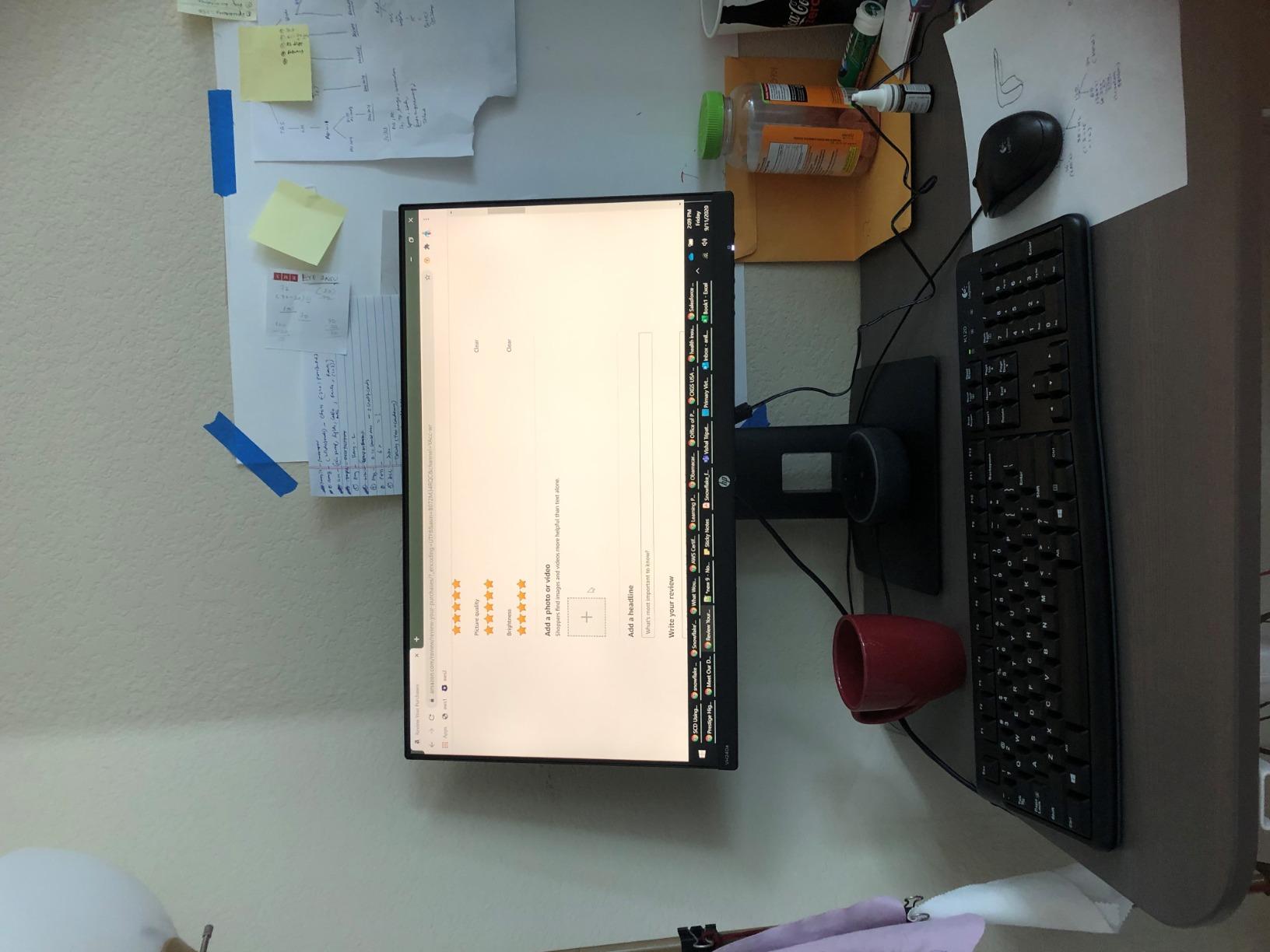
It is also the most proven design here. With more than 25k reviews behind it, patterns of failure and long-term comfort are well documented, and the recurring complaint is the same one: the built-in speakers are a placeholder for video audio, so buy external speakers or use a headset.
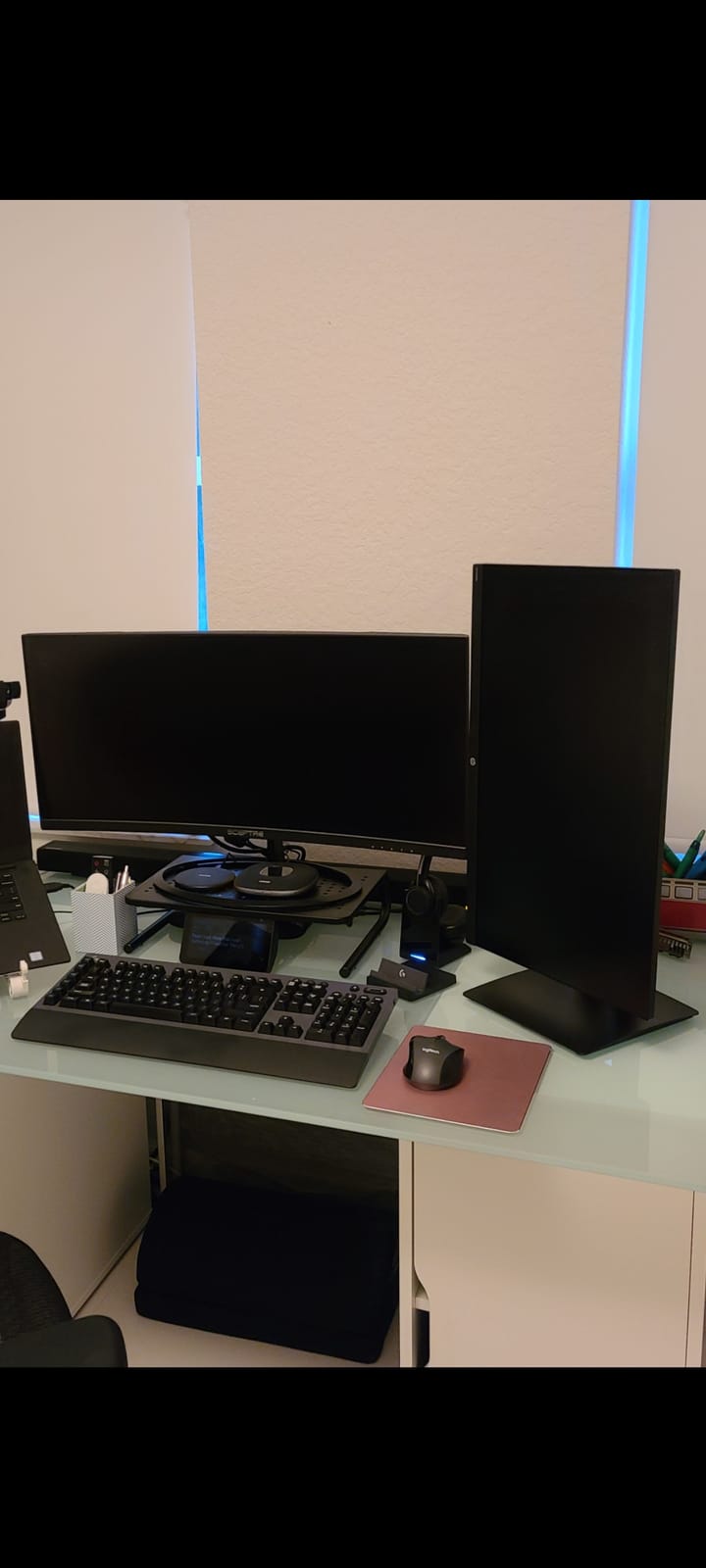
What you get in portrait mode
Rotated, the VH240a gives you a tall, narrow column that suits an editor with a minimap, a test panel and a terminal stacked in panes. Reviewers consistently report that the stand handles the rotation without loosening over time, and that the 10-pound chassis stays put without a monitor arm.
The trade-off is density. At 23.8 inches diagonal with 1920×1080 native, the panel does not give you 4K-level text sharpness, so it pairs better with a 4K landscape main than it does as your only display.
Where it falls short for a coding desk
There is no USB-C, so a modern laptop means an adapter or a separate dock, and the ports face in a way that gets awkward once the screen is turned. The on-screen controls are small, unmarked, and hidden under the bottom bezel.
Brightness is 250 cd/m2, which is fine in a controlled room but thin in a bright office. If your desk sits near a window all day, a 350-nit panel will serve you better.
2. ASUS ProArt PA278QV: Best Value Vertical Monitor for Coding
ASUS ProArt PA278QV 27 Inch 1440p QHD Professional Monitor
27in 2560x1440 IPS
350 cd/m2 matte finish
Calman Verified Delta E under 2
75Hz, 5ms response
Pros
- Factory color accuracy with Delta E under 2100 percent sRGB and Rec.709 coverage
- Fully adjustable stand including pivot for portrait
- Four-port USB hub with DisplayPort HDMI DVI-D and mini DP
- Five-year warranty coverage
Cons
- 1440p gives less text crispness than 4K at the same size
- 75Hz refresh rate is modest
- Only three height positions on the stand
This is the pick if you want a 27-inch portrait panel without stepping up to premium pricing. The stand is genuinely fully adjustable, so tilt, swivel, height and pivot all work, and owners report it holds portrait without sagging even at 17 pounds.
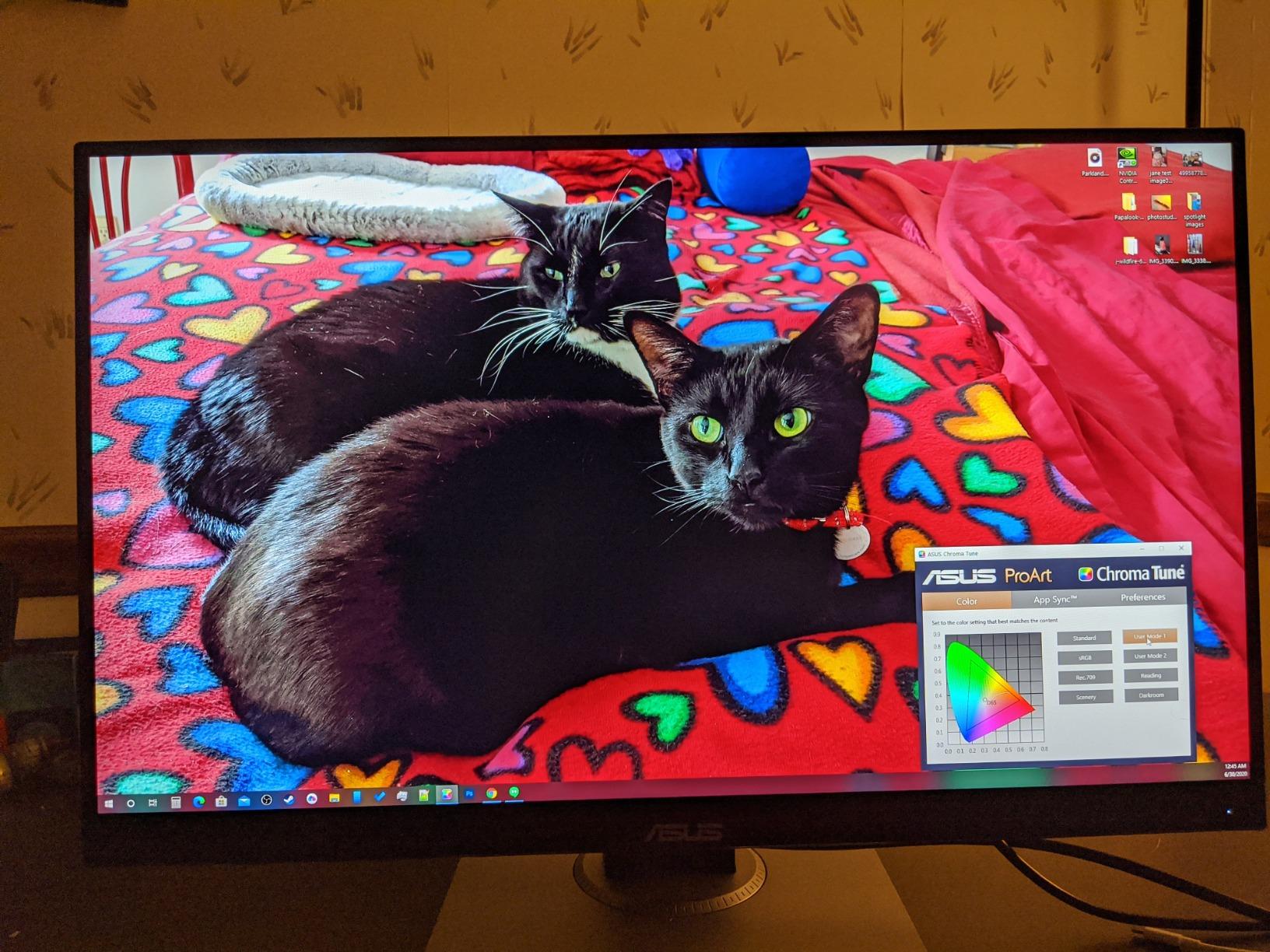
Color accuracy is the standout. The ProArt line ships factory calibrated and this panel is verified to Delta E under 2 with full sRGB and Rec.709 coverage, which matters if your work touches UI design, screenshots, or any kind of visual review alongside code.
The four-port USB hub is the feature most daily-useful: in portrait, the hub ends up at the top of your visual field where reaching up is awkward, so having peripherals plug straight into the display keeps your hands on the keyboard.
How 1440p behaves when you turn it sideways
At 2560×1440 on 27 inches, most developers run Windows or macOS at 125 percent scaling and report text that stays comfortable without looking soft. Because portrait height comes from the 2560-pixel vertical axis, you get more rows than a 1080p panel of the same size.
The gap versus a 4K panel shows up on long sessions. Reviewers who moved from 4K to this screen most often mention a step down in text crispness rather than brightness or contrast.
What to watch before you buy
The stand offers only three height positions, which is thin for a 27-inch pivot monitor. If you are sensitive to neck angle, budget for a monitor arm and confirm your desk clamp fits.
75Hz is fine for reading code but noticeable when you scroll fast through a large file compared with a 100Hz or 120Hz panel.
3. CRUA 24.5-Inch FHD 200Hz: Best Budget Vertical Monitor for Coding
CRUA 24.5″ FHD 200Hz Vertical Monitor, Height/Pivot/Swivel/Tilt Adjustable
24.5in 1920x1080 LCD
300 cd/m2, 1000:1 contrast
200Hz, 3ms response
120mm height adjustment
Pros
- Built around portrait rotation at a low price
- 200Hz with 3ms response and FreeSync
- 120 percent sRGB 8-bit color at 300 cd/m2
- Three-sided narrow bezels with cable hub
- Wall mounting hardware included
Cons
- 1080p resolution is coarse for text-heavy work
- 200Hz is only reachable over DisplayPort
- No USB-C or laptop charging
This is the one to look at if you want a dedicated portrait screen and the rest of your desk is already sorted. The stand is designed around 90-degree rotation, with 120mm of height adjustment and tilt plus swivel on top, so it holds portrait without an arm.
The refresh rate is the surprise. A 200Hz panel with 3ms response changes how long files feel to scroll, and the 178-degree viewing angle keeps text even from top to bottom. You need DisplayPort to hit the full rate though, since HDMI tops out lower.
Owners like the three-sided narrow bezels, which matter more than usual here because a portrait screen made of thick bezels wastes a lot of visible height. There is also a small cable-management hub at the back and a 75mm by 75mm wall mount pattern with the hardware in the box.
Where it beats pricier panels
Refresh rate is the one spec where this monitor outclasses monitors costing several times more. If you spend real time scrolling large files, jumping between files, or watching a build run, the difference against a 60Hz panel is obvious.
The low blue light mode is there for long sessions, and matte finish plus 300 cd/m2 brightness is workable in a normal room rather than a bright one.
Where the trade-offs bite
1920×1080 on a 24.5-inch panel is the weak point. Several reviewers describe text as coarse when reading long files or working with small font sizes, and there is no higher-resolution panel in this range from the brand.
Roughly 12 percent of reviews are one-star, higher than the big-name rivals, so expect more variability in panel quality and packaging. There is no USB-C, so it works best with a desktop rather than a docked laptop.
4. Dell UltraSharp U2723QE: Best Premium Vertical Monitor for Coding
Dell UltraSharp U2723QE 27″ 4K UHD WLED LCD Monitor – 16:9 – Black, Silver
27in 3840x2160 IPS Black
400 nits 2000:1 contrast
163 pixels per inch
90W USB-C
Pros
- Very high pixel density makes text noticeably sharper
- IPS Black panel with 2000:1 contrast for deeper blacks
- 90W USB-C single-cable charging that handles a laptop under load
- Built-in RJ-45 Ethernet with KVM and PBP PiP
- Height tilt swivel and pivot stand
Cons
- 60Hz refresh rate limits fast motion
- All ports face downward which is awkward in portrait
- No built-in speakers
Text sharpness is the reason to spend here. At 3840×2160 on 27 inches with 163 pixels per inch, this is the panel where code stops looking like text and starts looking like printed text, and the difference is most obvious in portrait because the eye tracks a long vertical column.
The IPS Black panel is rated at 2000:1 contrast, which is a genuine step up from the 1000:1 you get on most IPS screens. For a developer working in a dark theme, deeper blacks mean the background recedes instead of glowing.
The connectivity is what makes this a one-cable desk. USB-C with DisplayPort 1.4 Alt Mode delivers up to 90W, and there is a built-in RJ-45 Ethernet port, four USB-A downstream ports with battery charging, and a DisplayPort output for daisy chaining a second 4K panel.
Why the port layout matters in portrait
All ports face downward, which is manageable in landscape and genuinely awkward in portrait, where the connector cluster sits high off the desk. Plan your cable routing before you commit, and leave slack so cable tension does not pull on the display.
The KVM switch is useful if you move between a laptop and a desktop, though reviewers note it supports only one USB-C video and peripheral input, so source switching works best with a logged-in host.
What you give up
At 60Hz with 5ms response, this is a productivity panel rather than a fast one. Scrolling is smooth enough for code, but anyone who games seriously on the same machine will feel the ceiling.
There is a known issue where the USB-C link fails to re-establish after long idle periods and needs a power cycle. Owners also flag 400-nit brightness as modest, with the coating showing reflections in direct light.
5. ASUS ProArt PA279CV: Best Vertical Monitor for USB-C Docking
ASUS ProArt PA279CV 27 Inch 4K UHD USB-C Professional Monitor
27in 3840x2160 IPS
100 percent sRGB
Calman Verified Delta E under 2
65W USB-C power delivery
Pros
- 4K resolution with accurate vibrant color out of the box
- Fully adjustable stand including pivot for portrait
- USB-C with 65W power delivery keeps the desk tidy
- Four-port USB 3.1 hub plus DisplayPort and HDMI
- TUV flicker-free and low blue light certified
Cons
- Some units arrive with a slight green tint needing correction
- Factory calibration does not always hit Delta E under 2
- USB-C can fail to negotiate until the monitor is power-cycled
Where the U2723QE wins on Ethernet and wattage, this one wins on value for the same class of feature: 4K IPS, a fully ergonomic pivot stand, and 65W USB-C charging in one box. For a laptop-first desk it is a tidy single-cable arrangement with four USB-A ports on the monitor.
Color is the second strength. Calman Verified factory calibration and full sRGB and Rec.709 coverage make this a sensible choice if you review UI screenshots or design work next to your code, and TUV flicker-free and low blue light certification helps on long sessions.
It is heavier than most 27-inch panels at 19 pounds, and that is worth planning for. On an arm mount it is fine, but if you rely on the stock stand in portrait, put it on a desk rated for the weight rather than a light riser.
Calibration: what to check on day one
Owners report that some units arrive with a slight green tint and that calibration does not always hit the advertised Delta E under 2. If color matters to your work, run a quick calibration pass in the first week.
A color pre-calibration report is included in the box, so you have a baseline to compare against. ProArt Preset and Palette software gives you preset modes and fine control over black levels and brightness.
Connectivity caveats to plan around
The USB-C link can fail to negotiate until the monitor is power-cycled, which is a known annoyance in daily use. Keep a DisplayPort cable handy as a fallback input.
Around 10 percent of reviews are one-star, with a recurring theme of difficult ASUS after-sales repair experiences. The five-year warranty is a real plus, but register the monitor to get the full term.
6. ViewSonic VP2756-4K: Best Vertical Monitor for Color Accuracy
ViewSonic VP2756-4K 27 Inch 4K UHD ColorPro Monitor, 60W USB C, sRGB
27in 3840x2160 SuperClear IPS
350 cd/m2 matte
Pantone Validated Delta E under 2
60W USB-C
Pros
- Accurate Pantone Validated color out of the box
- Single USB-C cable handles data audio video and 60W charging
- Fully adjustable stand with tilt swivel rotate and height
- Flicker-Free and Blue Light Filter for long sessions
- Daisy chain support with HDMI and DisplayPort inputs
Cons
- 60Hz refresh rate limits smooth motion
- 1000:1 contrast is on the low side for an IPS panel
- 60W charging is modest for power-hungry laptops
This is the pick if your coding work sits next to anything visual. It is factory calibrated to Delta E under 2, carries Pantone Validated certification, and covers 100 percent of sRGB and Rec.709, which puts it alongside the ProArt panels on accuracy at a similar price.
The stand is fully adjustable including rotation, so it moves into portrait without an arm and stays there. That combination of verified color and a real pivot is rarer than it should be.
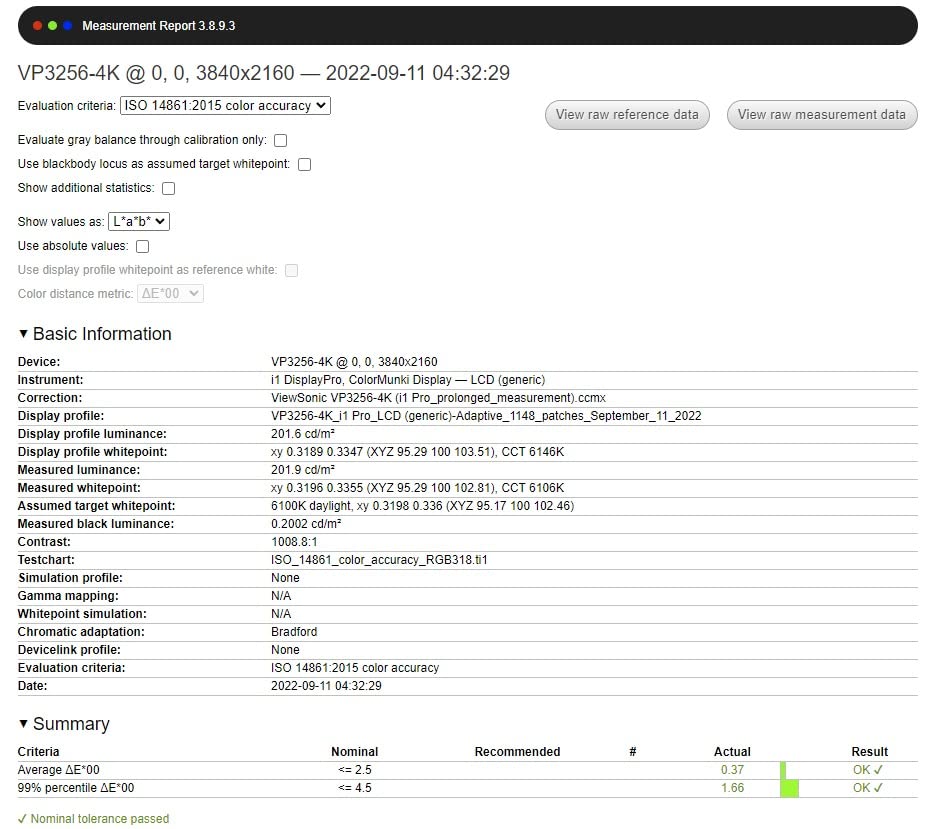
USB-C handles data, audio, video and up to 60W of charging on a single cable, and there is daisy chaining plus a full complement of HDMI, DisplayPort and USB inputs. Flicker-Free technology and a Blue Light Filter take the edge off long working days.
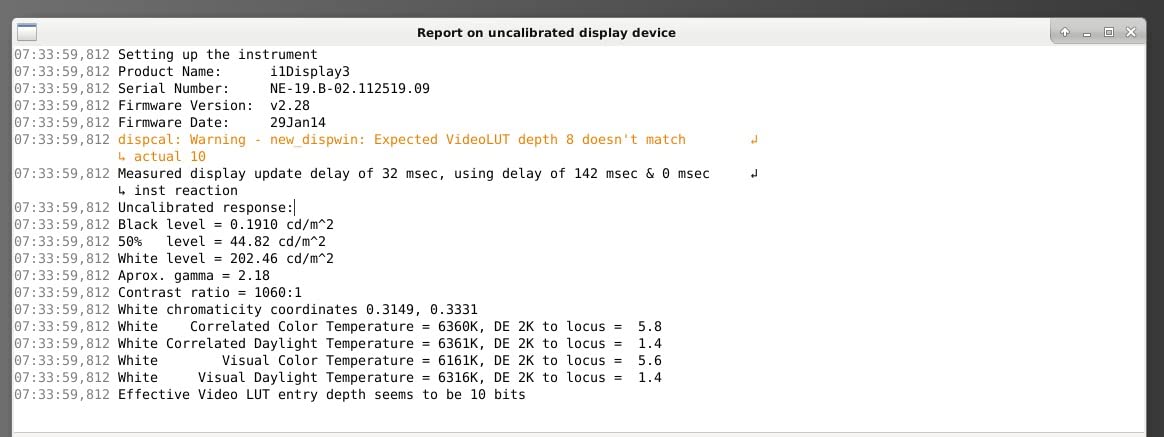
What color accuracy buys a developer
If you compare designs, review pull requests that include screenshots, or write front-end code where you judge spacing and contrast by eye, a calibrated panel removes one variable. The matte finish also keeps stray reflections out of the panel when the screen is tall and close.
Reviewers note this monitor is aimed at productivity and creative work rather than gaming, which matches the 60Hz specification.
Limits worth knowing
Contrast is listed at 1000:1, which is ordinary for an IPS panel and less deep than the Dell IPS Black models. Dark themes will look good, but not as black as a 2000:1 panel in a dim room.
60W of USB-C charging is fine for ultraportables and light laptops, and marginal for a workstation-class machine. There are no built-in speakers despite the chassis size.
7. Dell S2722DC: Best QHD Vertical Monitor for Productivity
Dell S2722DC Monitor – 27-inch WQHD (2560×1440) 75Hz 4Ms Display, AMD FreeSync, Built in Speaker, USB Type-C Connectivity, Height/Pivot/Swivel/Tilt Adjust – Platinum Silver
27in 2560x1440 IPS
350 cd/m2, 99 percent sRGB
75Hz, 4ms response
65W USB-C with USB 3.2 Gen1
Pros
- 65W USB-C single-cable setup cuts desk clutter
- Height tilt swivel and pivot adjustment for portrait
- 75Hz with AMD FreeSync for tear-free casual gaming
- Quick-access USB 3.2 Gen1 Type-A port on the side
- Built-in speakers and flicker-free operation
Cons
- 1440p is below the 4K standard many setups now expect
- 350 nit brightness is modest
- 1000:1 contrast ratio
Built-in speakers are the feature that quietly matters most on a real desk. This is one of the few monitors here with usable onboard audio, so a secondary screen in portrait does not need extra speakers bolted to it for calls and review stand-ups.
Otherwise it is a clean productivity panel: 27-inch 2560×1440 IPS at 75Hz with 4ms response and AMD FreeSync, USB-C with 65W power delivery, and a quick-access USB-A port placed where you can reach it.
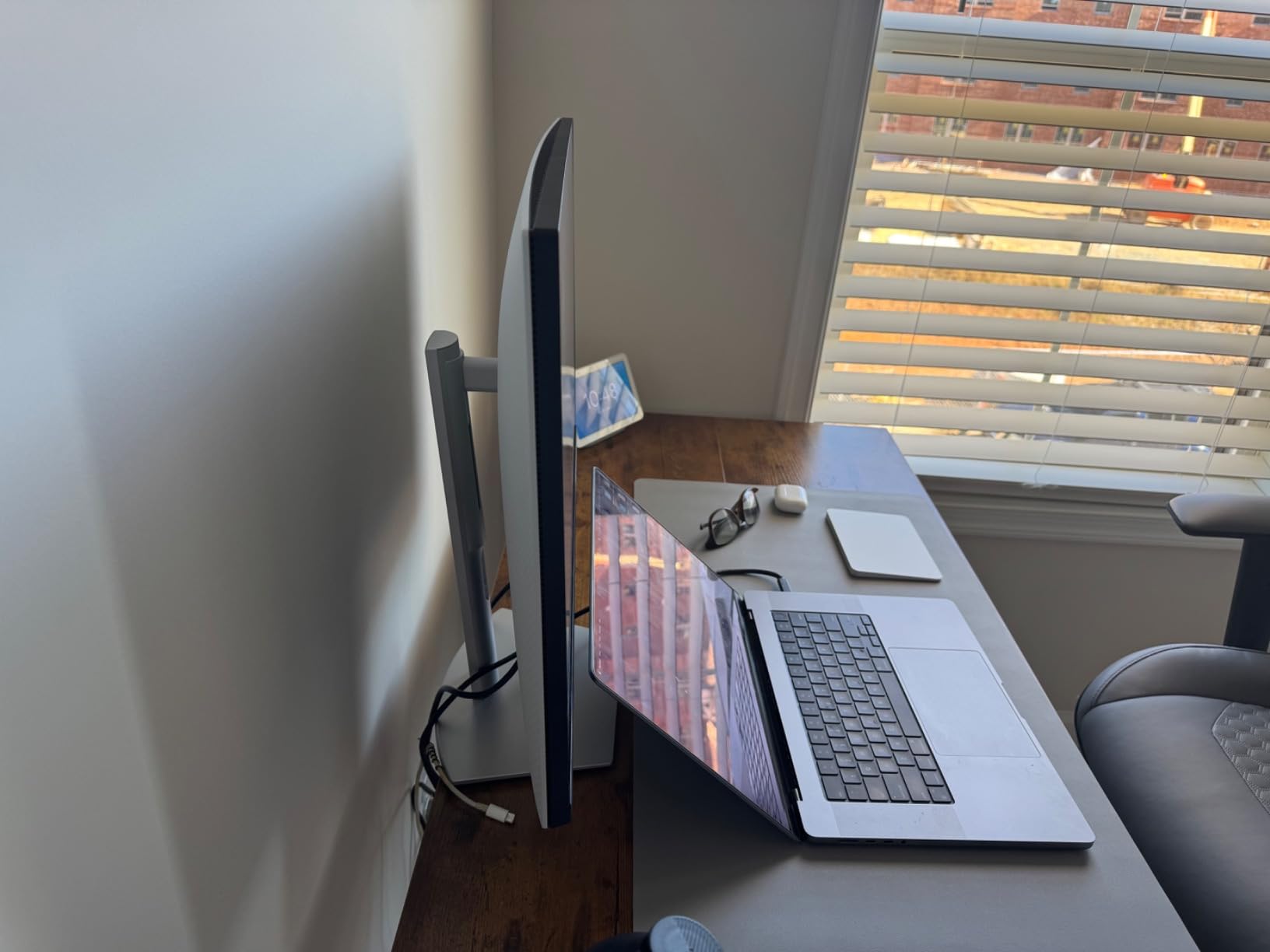
The stand offers height, tilt, swivel and pivot, which covers portrait properly. At 11.9 pounds it is light enough to rotate without an arm, and low power draw of 17.7W is a small win for a screen that runs all day.
Who this suits in portrait
Dell lists programming as a specific use for this model, and the adjustable stand plus dock-style connectivity match how most developers work: portrait for the editor, landscape for the browser, one cable to the laptop. At 1440p with 125 percent scaling, text stays readable in a portrait column.
Owners treat it as a solid everyday display rather than a specialist one, which is a fair summary of the trade-offs.
Where it falls behind the 4K options
Resolution is the limiting factor. Several reviews note that 2560×1440 limits text crispness against newer 27-inch 4K panels, and that difference grows when you are reading long files at small font sizes.
350 nits is on the dim side, contrast is a standard 1000:1, and 75Hz can feel sluggish next to a 100Hz or 120Hz panel when scrolling fast.
8. LG 27UP650K-W: Best 4K Vertical Monitor for Bright Rooms
LG 27UP650K-W 27-inch Ultrafine 4K UHD (3840 x 2160) IPS Computer Monitor, 60Hz, 5ms, DisplayHDR 400, Reader Mode, Flicker Safe, HDMI, DisplayPort, Tilt/Height/Pivot Adjustable Stand, White
27in 3840x2160 IPS
400 cd/m2 matte finish
95 percent DCI-P3, DisplayHDR 400
60Hz, 5ms response
Pros
- 4K resolution with crisp text at an accessible price
- Matte panel handles ambient light with very little glare
- Stand raises lowers tilts and pivots with minimal force
- Joystick-style front control is easy to reach
- Reader Mode and Flicker Safe for long sessions
Cons
- No USB hub or USB-C on this HDMI variant
- 60Hz and 5ms response are dated for gaming
- No built-in stereo speakers
- One-year manufacturer warranty is short for the tier
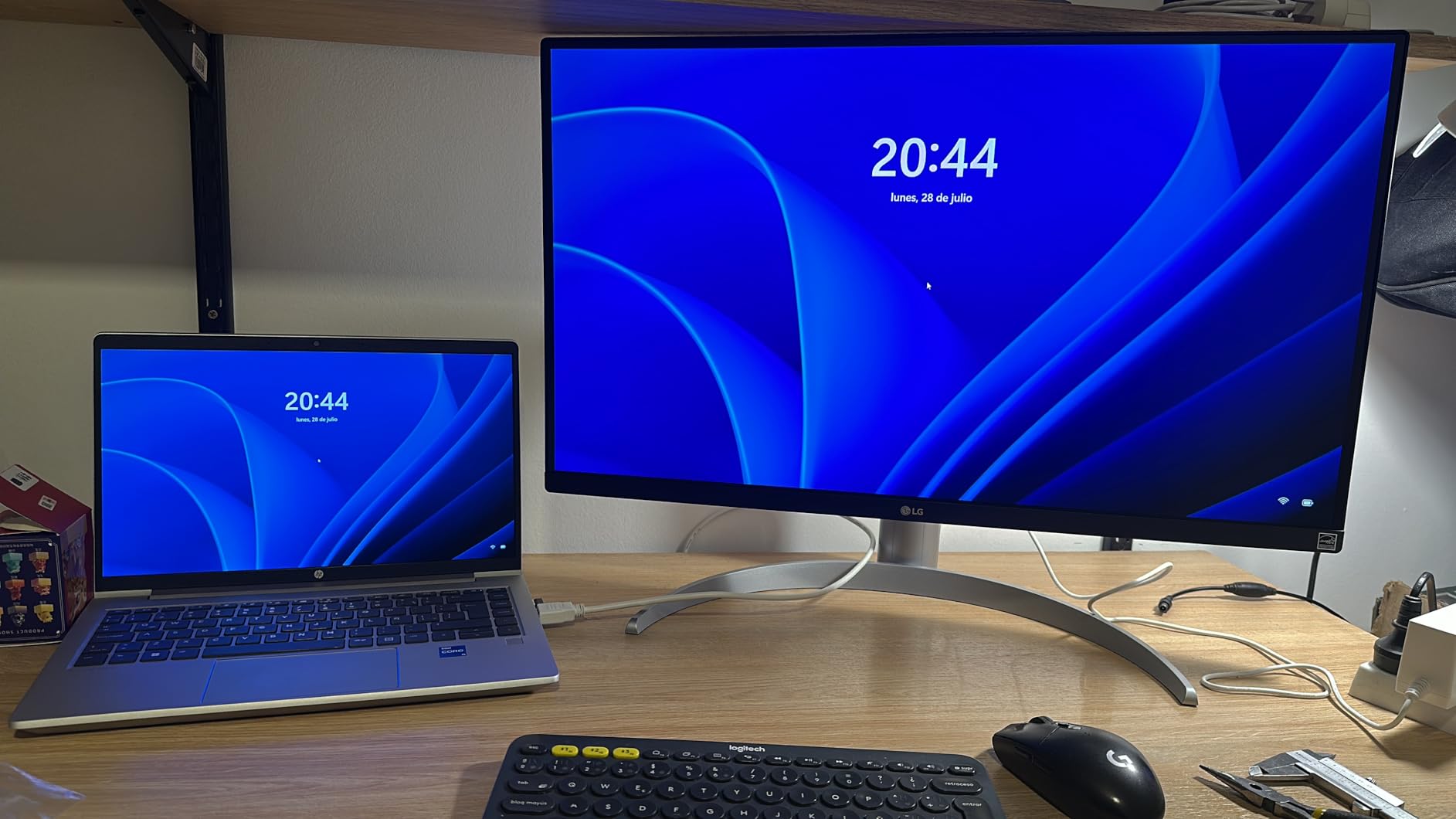
Glare handling is the reason to pick this one. The matte finish handles overhead and ambient light with very little reflection, which reviewers single out repeatedly, and 400 cd/m2 of brightness gives you headroom in a room that is not darkened for work.
The stand is worth noting too. Owners report it raises, lowers, tilts and pivots with minimal force, and the front-mounted joystick is far easier to reach than rear or hidden buttons, which matters more in portrait when the controls end up near your chin.

Color coverage is good for the money, with up to 95 percent DCI-P3 and solid shadow and highlight reach for photo work. The Switch app splits the screen into up to six sections with one hotkey, and there is a built-in webOS platform for quick switching between a laptop and another source.
What you get for the money
4K IPS sharpness with a matte anti-glare panel and a well-behaved pivot stand is a combination that is hard to find at this level. Two HDMI ports and DisplayPort make it easy to connect two machines.
Reader Mode and Flicker Safe are genuinely useful for long sessions, and the anti-glare coating means you can sit near a window without chasing reflections up a tall screen.
Trade-offs to accept
This HDMI variant has no USB-C and no USB hub, so a laptop user needs a separate dock. There are no built-in speakers, and the 60Hz plus 5ms specification is dated if you game.
HDR400 is described as underwhelming with slightly blown-out colors out of the box, and there is a visible black outline around the thin bezel that reduces the multi-screen advantage. The one-year warranty is short at this tier.
9. Dell UltraSharp U2725QE: Best Vertical Monitor for Smooth Scrolling
Dell UltraSharp U2725QE 27-Inch 4K UHD IPS Black Monitor
27in 3840x2160 IPS Black
450 cd/m2 brightness
120Hz, 5ms response
Thunderbolt 4 with up to 140W
Pros
- 4K IPS Black calibrated to Delta E under 1.5 with 99 percent DCI-P3120Hz refresh and 5ms response for smoother scrolling
- Thunderbolt 4 sends video data and up to 140W on one cable
- Daisy chaining supports up to two more 4K monitors
- ComfortView Plus with ambient light sensor for long coding sessions
Cons
- Premium pricing for the 27-inch 4K tier
- 9 percent of reviews are one-star on early units
- 1000:1 contrast is modest for an IPS Black panel
- Some buyers need 150 percent OS scaling at native 4K
If you read code for a living, refresh rate is the spec you feel but rarely evaluate. At 120Hz with 5ms response, this is the smoothest panel here for scrolling long files, jumping between tabs, and watching a build scroll past, and it pairs with G-Sync if you also game.
The display itself is class-leading on calibration, with factory calibration to Delta E under 1.5 and 99 percent DCI-P3 coverage using IPS Nano Color technology. Brightness is 450, the highest figure in this roundup.
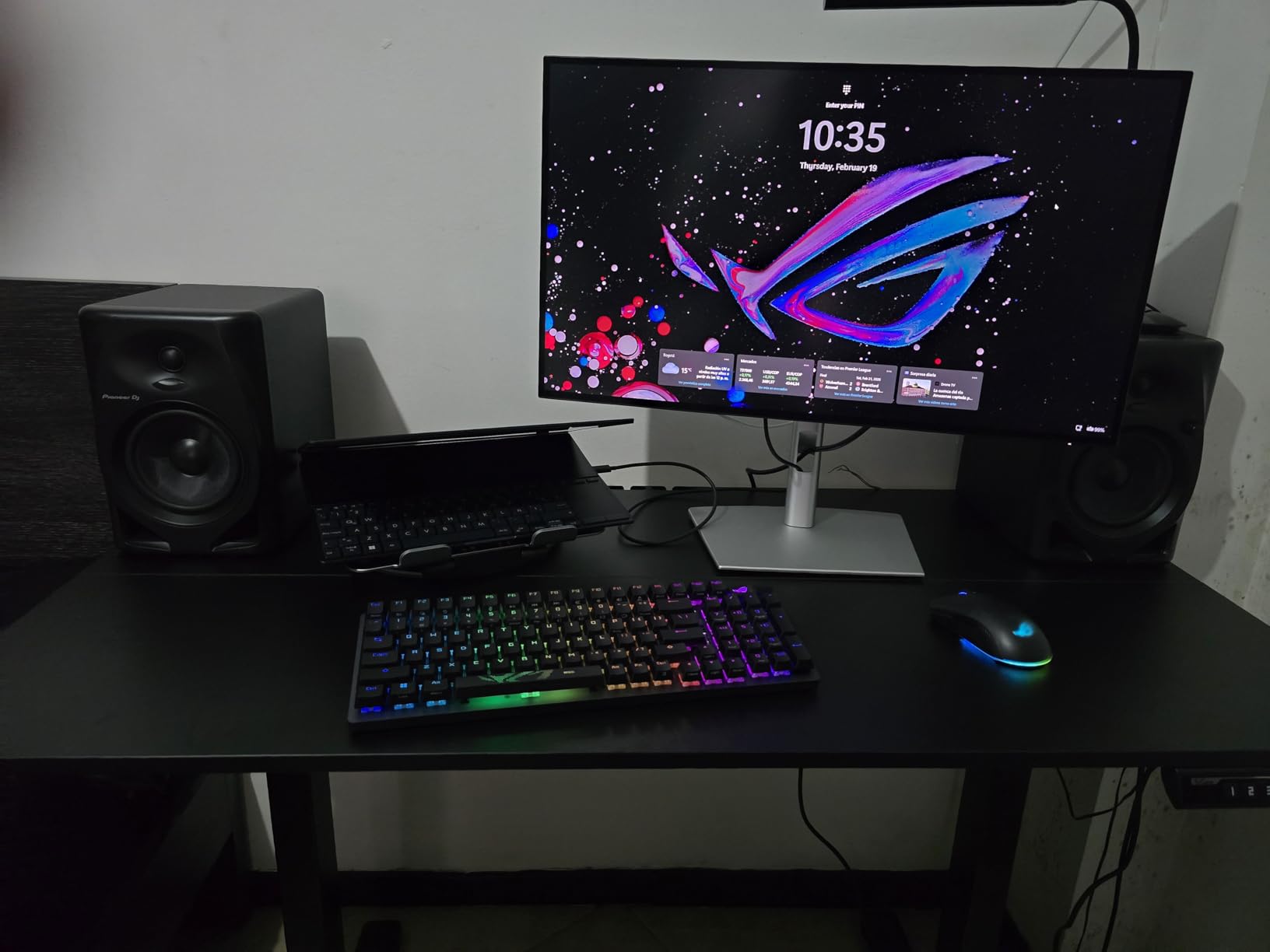
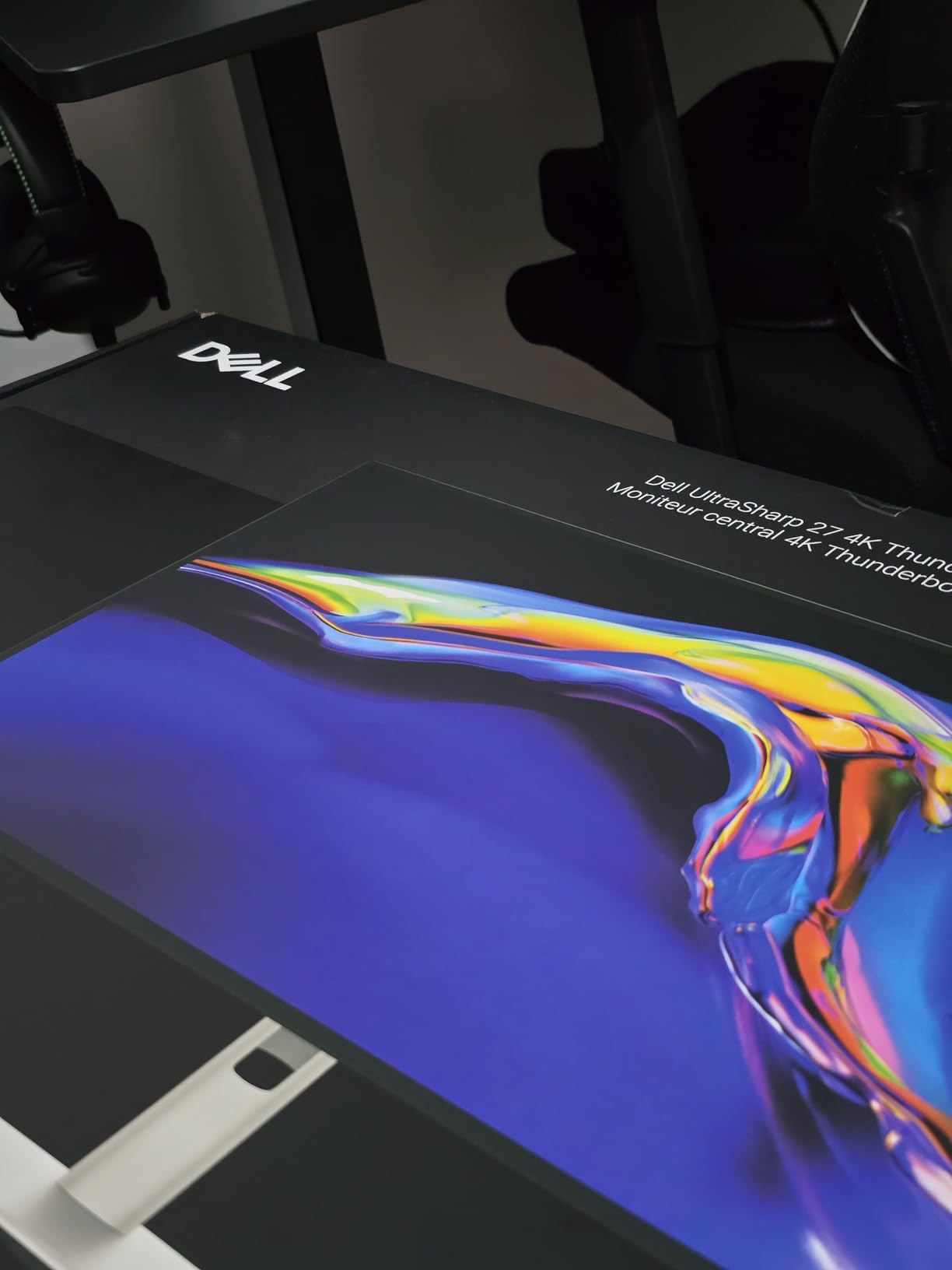
Thunderbolt 4 is the headline connectivity story: video, data and up to 140W of power over one cable, which is enough for most power-hungry laptops. Daisy chaining supports up to two additional 4K monitors, and there is Ethernet plus USB-A and HDMI 2.1.
Why 120Hz changes a coding day
Scrolling fatigue at 60Hz is a real complaint from developers on long files. Moving to 120Hz removes the judder that makes fast scrolling feel effortful, and the G-Sync support means the same monitor handles motion work well if you switch tasks.
ComfortView Plus with an ambient light sensor adjusts brightness automatically, which is a quiet quality-of-life win on a screen you face all day.
What to weigh up first
This sits at the top of the 27-inch 4K price tier, so it needs a reason. If you are on 60Hz panels now and spend hours in a long file, the smoothness alone justifies the step.
Contrast is listed at 1000:1 despite the IPS Black label, and some buyers report needing 150 percent OS scaling at native 4K to keep text comfortable. Around 9 percent of reviews are one-star, pointing to early-unit panel or delivery problems.
10. Philips 27E1N5900R: Best Vertical Monitor for Two Machines at Once
Philips 27″ Computer Monitor 4K UHD IPS USB-C Charging HDR400, 27E1N5900R
27in 3840x2160 UltraClear IPS
350 cd/m2 brightness
65W USB-C power delivery
MultiView dual-device support
Pros
- Genuine 4K IPS picture with sharp text and accurate color
- USB-C with 65W power delivery for a single-cable laptop setup
- Stable stand that owners report survived two moves
- LowBlue Mode and Flicker-Free eye comfort technology
- HDMI DisplayPort and USB-C inputs with MultiView
Cons
- USB-C does not work with some Mac mini systems
- Only three inputs despite imagery suggesting four-way splitting
- Rear-facing OSD controls are not intuitive
- 60Hz refresh rate limits motion
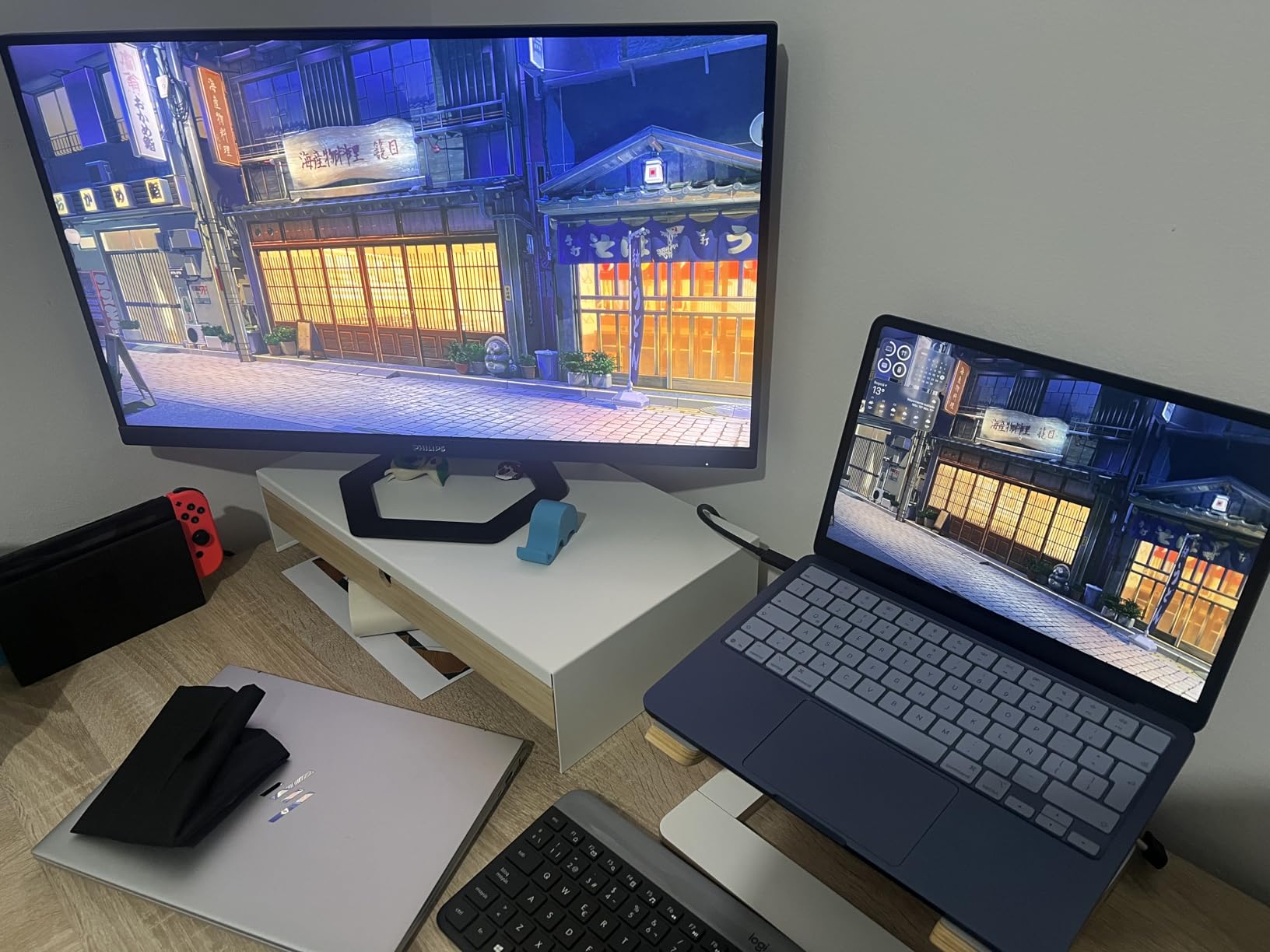
MultiView is the feature that sets this one apart for a specific workflow. It supports two devices side by side from a single screen, so you can keep a laptop and a desktop visible in one portrait column instead of splitting attention between two panels.
Otherwise it is a straightforward 4K IPS display with 65W USB-C power delivery, VESA DisplayHDR 400 support, SmartImage enhancement, and adaptive sync. Owners describe the stand as firm and stable with no wobble.
Note the review base is small at this point, so the long-term record is thinner than for the picks above. Within that record, value for a 4K IPS panel with USB-C is the consistent theme.
What MultiView is actually good for
Splitting a portrait screen into two halves and putting a laptop on one side and a server terminal on the other is genuinely useful for developers who dual-boot or work across two machines. LowBlue Mode and Flicker-Free support long sessions.
Four-year manufacturer warranty coverage is longer than most rivals at this tier, which matters given the thinner review history.
Compatibility caveats
Several buyers report that USB-C does not work with Mac mini M4 systems and that HDMI is required instead, so check your hardware before committing to the single-cable setup.
The on-screen controls sit on the back of the unit and are not intuitive, with no auto input detection. There are only three inputs despite listings suggesting four-way splitting, and the USB-A port is charge-only and cannot carry peripheral data.
11. ViewSonic VG2448A: Best Compact 24-Inch Vertical Monitor
ViewSonic VG2448A 24 Inch 1080p IPS Ergonomic Computer Monitor, USB Hub
24in 1920x1080 SuperClear IPS
250 cd/m2 matte finish
100Hz, 5ms response
5 USB 3.0 ports, 3-year warranty
Pros
- Genuinely good ergonomic stand with 40-degree tilt swivel rotate and height
- IPS panel with natural color and crisp text
- Built-in USB hub for plugging peripherals into the display
- DisplayPort HDMI and VGA inputs
- Quick-release stand with a carrying handle
Cons
- 1080p resolution limits text sharpness
- Stand height may not be high enough for everyone
- No USB-C or laptop charging
- 250 cd/m2 brightness is on the low side
Size is the argument here. At 24 inches, a portrait panel is much easier to fit on a desk, and its top edge stays closer to eye level, which removes most of the neck-strain complaint that comes with 27-inch portrait screens.
The stand is the standout. Forty-degree tilt, swivel, rotation and height adjustment on a monitor at this level is unusual, and reviewers repeatedly describe it as reducing neck and shoulder strain in daily office work. The quick-release stand even has a carrying handle built in.
Why compact works for portrait
Forum discussions about neck strain from 27-inch portrait setups usually land on the same fix: bring the top edge to or just below eye level. A 24-inch panel gets you there without a monitor arm, and it uses far less desk depth in portrait.
The five USB 3.0 ports are a genuine convenience in portrait, where reaching up to a laptop is awkward.
Trade-offs
1920×1080 is the main limitation, and reviewers note text sharpness suffers against higher-resolution alternatives. If you read long files all day, a 1440p or 4K panel will age better.
At 250 cd/m2 it needs a controlled room, and many owners end up on an arm mount because the stock stand height does not suit them. There is no USB-C and no HDMI cable in the box.
12. BenQ RD280U: Best Vertical Monitor for Programmers
BenQ RD280U 28.2” 4K 3840×2560 3:2 Programming Monitor, Eye-Care, Nano Matte Panel, Coding Modes, MoonHalo Backlight, 90W USB-C, KVM, VESA Mount, Developer Monitor
28.2in 3840x2560 3:2 IPS
Nano Matte anti-reflective coating
Coding modes and MoonHalo backlight
90W USB-C with KVM
Pros
- Rare 3:2 aspect ratio gives noticeably more vertical space for code
- Advanced coding modes make characters easier to differentiate
- MoonHalo backlight lights the room for night coding sessions
- Nano Matte coating performs well in bright rooms
- 90W USB-C with KVM simplifies a two-computer desk
Cons
- Included stand does not rotate to portrait so an arm is required
- HDMI 2.0 caps native resolution at 50Hz
- DisplayPort daisy chaining drops to 30fps
- BenQ control software has no Linux support
The 3:2 panel is the whole argument. At 3840×2560 the vertical axis is 2560 pixels rather than 2160, so in portrait you get roughly 18 percent more vertical real estate for code, IDE panels and dev tools than a 4K 16:9 screen of the same class gives you.
The programming-specific features are genuine rather than marketing. Dedicated coding modes adjust the panel for character differentiation, the MoonHalo ambient backlight lights the wall behind the screen for night sessions, and Brightness Intelligence Gen2 can dim the panel below the standard minimum for light-sensitive users.
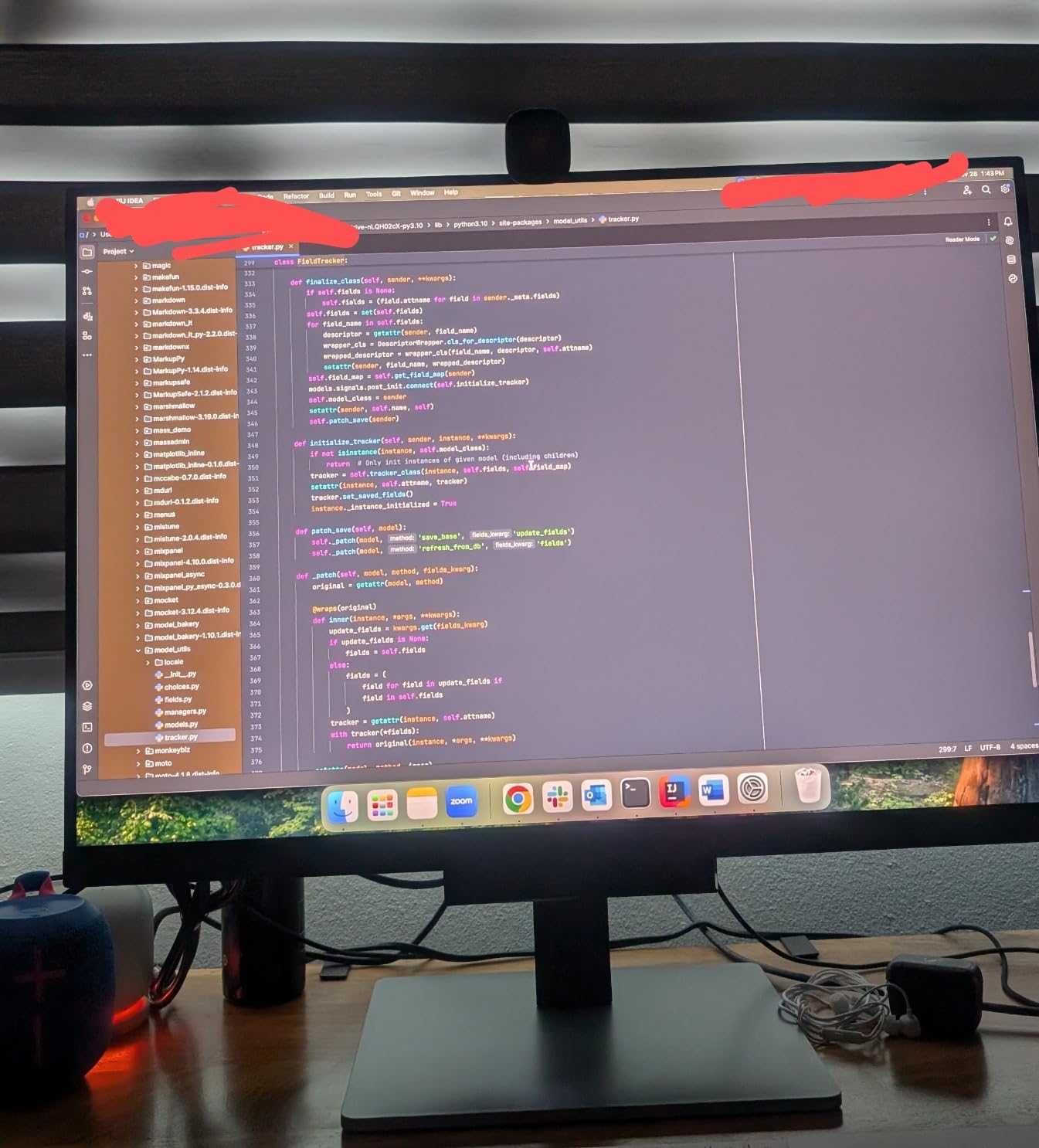
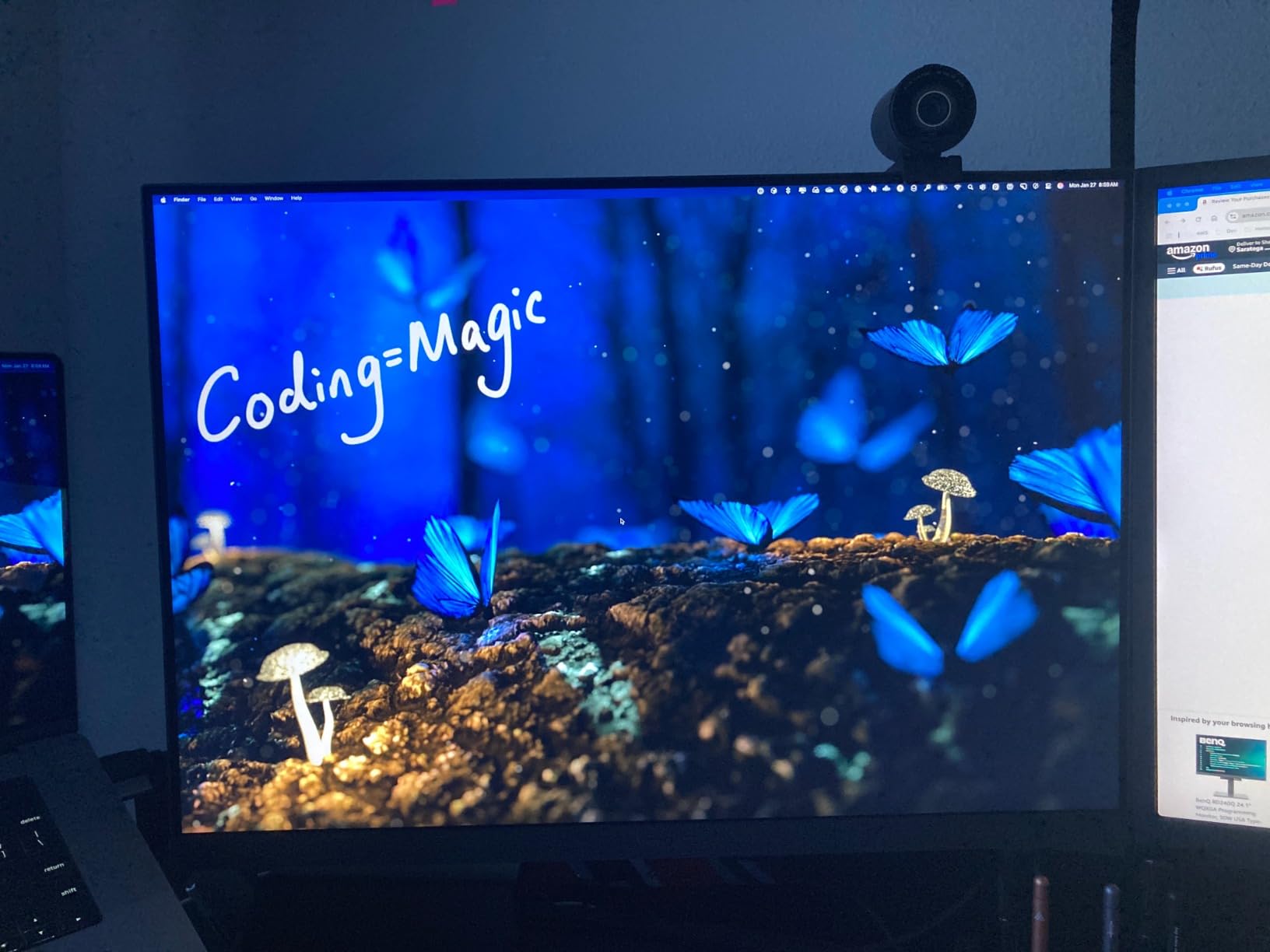
The Nano Matte anti-glare and anti-reflective coating is described by owners as the best they have used, which matters on a tall screen that catches room light differently than a landscape one. Display Pilot 2 handles multi-monitor setup, and 90W USB-C with a KVM switch keeps a two-machine desk to one cable.
Plan the mount before you buy
The included stand does not rotate to portrait. If portrait is the reason you are buying this monitor, budget for a monitor arm and confirm your desk clamp and VESA pattern fit, because a stand that cannot pivot defeats the purpose.
Height adjustment is present, and VESA mounting is supported, so an arm solves it cleanly. Treat that as a required extra rather than an optional upgrade.
Connectivity limits to know about
HDMI is limited to HDMI 2.0, which caps the native resolution at 50Hz. Use DisplayPort or USB-C if you want the full 60Hz, and note that no DisplayPort cable is included.
Daisy chaining a second panel drops to 30fps, KVM switching is slow and keeps the host detected when switched away, and the BenQ desktop software has no Linux support. The USB-A outputs lose power when the host sleeps.
How to Rotate a Monitor to Portrait on Windows, macOS, and Linux
Rotating a monitor in portrait is two separate jobs: physically turning the panel, and telling your operating system the display changed orientation. Most people do the first and forget the second, then assume the monitor is faulty.
Check that your monitor can pivot before you buy
Look for “Pivot: 90 degrees” or “Rotate: 90 degrees” in the spec sheet, and confirm the stand lists pivot, swivel, tilt and height adjustment rather than tilt only. If you plan to use an arm, check the VESA pattern, usually 75x75mm or 100x100mm.
Two checks we recommend for any monitor you intend to rotate: the total weight against the mount rating, and whether the panel is curved. Curved panels distort straight vertical lines of code and are not worth rotating for programming. Holding position under load is the same test we apply to technical crampons for vertical ice, where grip failure matters just as much as comfort.
Turn the panel physically
Loosen or remove the stand collar if required, then rotate the panel 90 degrees. On most stands you can rotate the base with the panel attached. Connect cables with enough slack that tension does not pull on the display, then tighten everything.
Set the orientation in your operating system
On Windows, right-click the desktop, choose Display settings, then Display orientation and pick Portrait. Older versions of Windows use the Graphics control panel instead. On macOS, the Displays preference pane does not offer portrait directly, so you need a tool that adds a rotation option or an app that renders content rotated.
On Linux, most desktops expose rotation in the display settings panel. If it is missing, the xrandr command sets it directly, using the normal or left-leaning transform for a 90-degree turn. After rotating, adjust the scaling percentage so text matches your other screens rather than shrinking everything.
What to Look for in a Vertical Monitor for Coding
Screen size: 24, 27, or larger
Twenty-four inches is the compact choice, and it is the easiest to fit without pushing the top of the screen above eye level. Twenty-seven is the mainstream size for a portrait coding column and the most common recommendation. Larger panels give you more height at the cost of desk depth and neck angle.
Direct answer to the size question: 24 inches if your desk is small or you sit close, 27 inches if you want the most code visible per glance and can raise the screen so the top edge sits at or just below eye level.
Resolution and display scaling
Resolution decides text crispness, and in portrait the vertical pixel count is what produces extra rows. A 1080p panel gives 1080 rows of content; a 1440p panel gives 1440; a 4K panel gives 2160, and the BenQ’s 3:2 gives 2560.
Scaling is where people get disappointed. 4K at 27 inches often runs at 150 percent scaling, which reduces the apparent size of everything and eats into the vertical gain you were buying. Pair a 4K 27-inch with a system that scales well, and test at 125 and 150 percent before committing. A 24-inch at 1080p runs natively at 100 percent with no adjustment.
Panel type and viewing angles
IPS or better, without much debate. Forum users are blunt about this: TN panels visibly shift color and lose brightness along the tall axis once rotated, so text looks inconsistent from top to bottom. VA panels are better than TN but still not ideal for a screen you view off-centre.
The specific thing to evaluate is consistency from the top edge to the bottom edge in portrait, not just the headline viewing angle number. Specs list the widest angle; owners report the difference you actually see.
Ergonomics, pivot range, and VESA mounting
A pivot range of minus 90 to plus 90 degrees lets you flip the screen in either direction. Height adjustment matters as much as pivot, because it is what lets you keep the top edge at eye level instead of craning upward. Number of height positions is worth checking, since three stops on a 27-inch panel is not much range.
For heavy 4K panels, plan on a monitor arm. They are lighter than they look, they make fine angle adjustment far easier in portrait, and they free desk space, which is the same argument we make in our premium vertical display mounts roundup. If you do use an arm, leave cable slack and check the mount pattern before ordering.
Connectivity for a docked laptop setup
If you run a laptop-first desk, USB-C with power delivery is the feature that removes the most friction. Sixty-five watts covers most ultraportables and light laptops; ninety watts and above is what you want for a workstation-class machine. A built-in USB hub means peripherals plug into the display, which in portrait is the box nearest your hands.
An RJ-45 Ethernet port on the monitor is rarer but genuinely useful, since it turns one cable into power, video, data and network. KVM switching and daisy chaining both matter if you plan more than two screens.
Eye comfort and coatings
Flicker-free backlighting and a low blue light filter are close to standard now and worth checking anyway for a screen you face for ten hours. LowBlue Mode, Reader Mode and Flicker Safe are the names LG, Philips and BenQ use for these.
Coating matters more in portrait than most marketing suggests. A matte finish on a tall screen keeps room light and reflections from turning the top half into a mirror while the bottom stays dark. BenQ’s Nano Matte coating and LG’s matte 4K panel are the two that reviewers single out here.
What not to rotate
Do not rotate a curved panel for programming. Straight vertical lines of code are exactly what curvature distorts, and the effect is worse in portrait. Do not rotate a very heavy display on its stock stand, and do not trust a stand with no height adjustment to hold a tall panel at the angle you want.
Some manufacturers advise against portrait use in multi-monitor configurations, so check the support documentation before you commit. And avoid TN panels entirely, whatever the price says.
Frequently Asked Questions
What is the best monitor that can be turned vertically?
The HP VH240a is the best monitor to keep vertical for coding: it is a 23.8-inch 1080p IPS panel with a stand that pivots 90 degrees, adjusts for height, and holds portrait position without drifting back to landscape. It also carries the deepest owner review history of any monitor in our roundup, which makes its long-term behavior easy to judge.
Is 27 inches too big for a vertical monitor?
No, 27 inches works well in portrait, but you have to raise the screen so the top edge sits at or just below eye level. If you cannot get that height, a 24-inch panel is the safer choice because its top edge stays closer to natural eye level and it uses less desk depth. Most neck strain in portrait comes from the screen sitting too high, not from the size itself.
What is the best size for a portrait monitor?
For coding, 27 inches is the mainstream answer and gives the most code visible per glance. Pick 24 inches for a compact desk or if you sit close to the screen. Go larger than 27 inches only if you can mount it high enough to keep the top edge at eye level, and note that scaling and desk depth both become harder to manage.
Which monitor is best for coders?
For sharp text and a single-cable laptop dock, the Dell UltraSharp U2723QE leads: 27-inch 4K IPS Black at 2000:1 contrast with 90W USB-C, built-in Ethernet and a pivoting stand. For a cheaper desk where text density matters more than ports, the ASUS ProArt PA278QV gives you a 1440p IPS panel with factory-calibrated color and a fully adjustable stand.
Can any monitor be used vertically?
Almost any monitor can be rotated physically, but only some are built for it. Check that the stand lists 90-degree pivot and height adjustment, and that the panel is flat rather than curved. If the display has no pivot, a VESA monitor arm is the reliable route, provided the panel weight falls inside the mount rating.
Is a vertical monitor good for gaming?
Vertical is not a natural fit for most modern games, but the panel underneath does not have to be compromised. Several options here run 100Hz or higher with adaptive sync, and the Dell UltraSharp U2725QE pairs 4K IPS Black with 120Hz, so a developer who also games can use one screen for both without settling for a slower panel.
Final Verdict
The best vertical monitors for coding come down to two things nobody puts on a spec sheet: whether the pivot holds, and whether the resolution you pair with the size actually gives you more readable rows of code. Get those two right and everything else is a preference.
Our pick is the HP VH240a. It costs less than most of the alternatives, its 23.8-inch IPS panel stays even from top to bottom when rotated, and the stand adjusts in every direction and stays where you put it. If your desk is tight or you sit close, it is also the least disruptive size in portrait.
If you want sharper text and a cleaner laptop dock, step up to the Dell UltraSharp U2723QE for 4K IPS Black, 90W USB-C and built-in Ethernet. If you want the most vertical real estate per pixel, the BenQ RD280U’s 3:2 panel delivers it, but budget for a monitor arm because its stand will not pivot. Whichever you pick, set the top edge at eye level before you start working, and you will wonder why you did not do this years ago.