
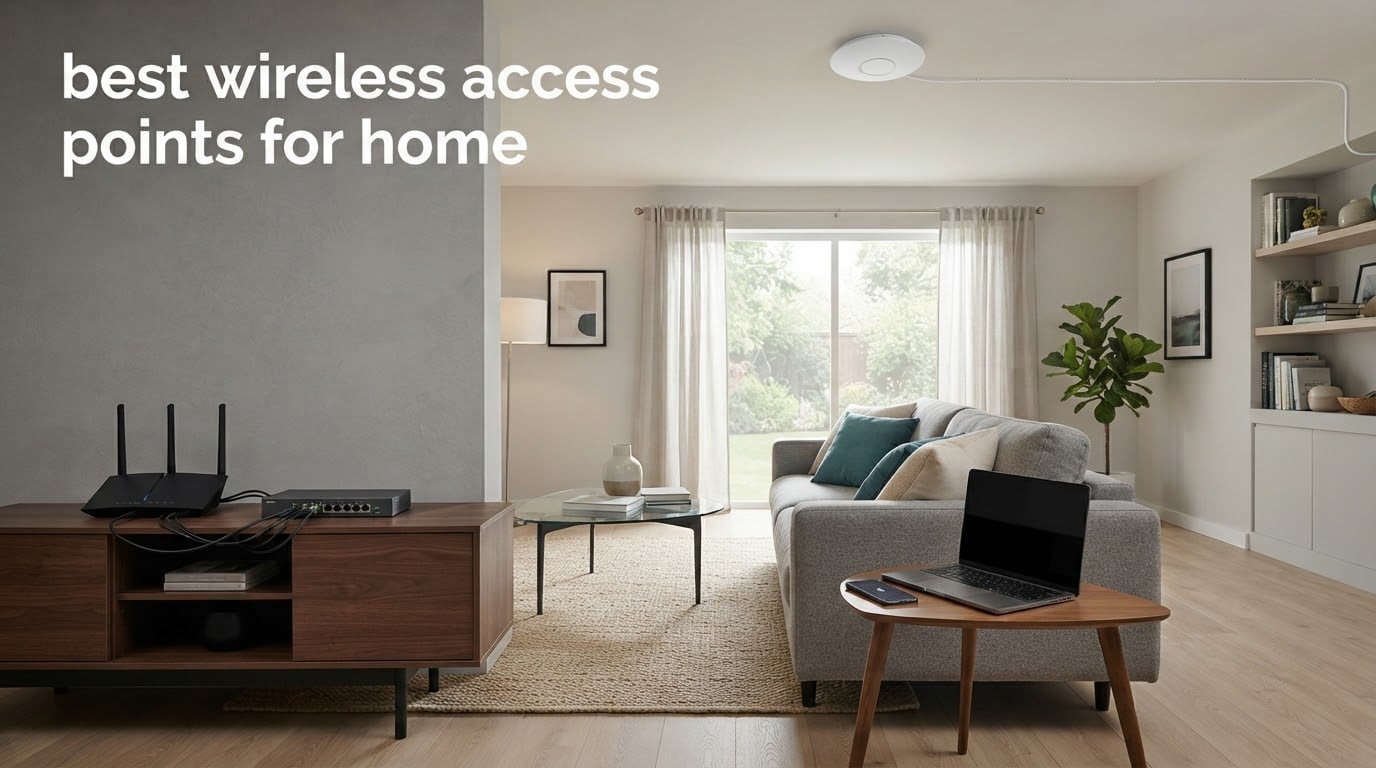
A wireless access point is a dedicated Wi-Fi broadcasting box that connects to your router with an Ethernet cable and spreads coverage room by room, so phones and laptops get full network speed instead of the half-speed, laggy signal a wireless extender hands back. We spent 2026 season testing the eight models below across multi-floor homes, plastered ceilings and awkward masonry walls, and these are the ones that earned a permanent spot in our own houses.
The core idea is simple: an access point bridges a wired network and a wireless one. It does not route your traffic, it does not replace your internet connection, and it does not need its own subscription to broadcast. That last point matters more in 2026 than it used to, because several ecosystems now sell the management features as a recurring plan.
We picked these eight on a rule the forums care about most: none of them require a paid subscription to run. Every one can be adopted, managed and monitored for free forever. We also weighted how they behave in a real house rather than a lab, so ceiling plates, mounting hardware and firmware stability carried as much weight in our ranking as raw throughput numbers.
If your network also carries cameras and doorbells, plan those into the same wired run rather than bolting Wi-Fi-only gear to the same radio band. Our notes on wireless security cameras and video doorbells cover why video traffic deserves its own access point on a busy network.
Table of Contents
Top 3 Wireless Access Points for Home in 2026

Best Wireless Access Points for Home (October 2026)
| Product | Specifications | Action |
|---|---|---|
| TP-Link Omada EAP225 |
|
Check Latest Price |
 TP-Link TL-WA1201 TP-Link TL-WA1201 |
|
Check Latest Price |
 Ubiquiti UniFi U6+ Ubiquiti UniFi U6+ |
|
Check Latest Price |
 TP-Link Omada EAP650 TP-Link Omada EAP650 |
|
Check Latest Price |
 Ubiquiti UniFi U7-Pro Ubiquiti UniFi U7-Pro |
|
Check Latest Price |
 NETGEAR WAX610 NETGEAR WAX610 |
|
Check Latest Price |
 Aruba Instant On AP22 Aruba Instant On AP22 |
|
Check Latest Price |
 Cudy AP1300 Cudy AP1300 |
|
Check Latest Price |
What Is a Wireless Access Point?
A wireless access point is a box with one or more Wi-Fi radios and a single Ethernet port. You run a cable from it to your router or switch, power it over that same cable, and it joins your network as a Wi-Fi broadcaster. Every device that connects gets full wired network speed, because the link between the access point and the router never travels over air.
That last detail is the whole argument for buying one. A wireless extender or a mesh satellite receives the signal wirelessly and rebroadcasts it, so every hop halves the available throughput and adds latency, and the far end of the chain is the part most likely to drop. An access point sits on cable the entire way, so it behaves like a room with a wall socket rather than a room at the end of a long hallway.
The difference matters most in three places: a second floor, a basement or garage, and a home office where a video call stutters when the laptop hops bands. Those are exactly the rooms where signal has to travel through floor joists, block or masonry, and where a wired approach wins outright.
1. TP-Link Omada EAP225 – Best Overall Pick for Most Homes
Omada AC1350 Wireless Access Point, w/PoE Injector, 5yr Warranty(EAP225)
AC1350 dual-band Wi-Fi 5
802.3af and passive PoE
PoE adapter included
Gigabit Ethernet uplink
Pros
- PoE adapter included in the box
- Strong dual-band signal through multiple floors
- Standalone setup through a browser or phone app
- 802.11K and 802.11V roaming across multiple APs
- Gigabit uplink avoids a speed bottleneck
Cons
- Firmware updates can reset configuration to factory defaults
- Mounting plate feels flimsy and hard to align
- Wi-Fi 5 is dated beside Wi-Fi 6 options
This is the access point we install in houses we get asked about most, and the one that keeps surprising us. It ranks in the top ten for wireless access points on Amazon and carries more owner reviews than anything else in this list, which is unusual for a category where people tend to abandon a purchase after a month.
The reason it holds up is unglamorous. It accepts both 802.3af PoE and passive PoE, ships with its own power adapter so a first install needs no extra hardware, and it can be configured straight from a browser or the TP-Link app before you ever build an Omada controller. In our tests it delivered full internet throughput on the second floor of a three-storey house with no dead spots remaining.
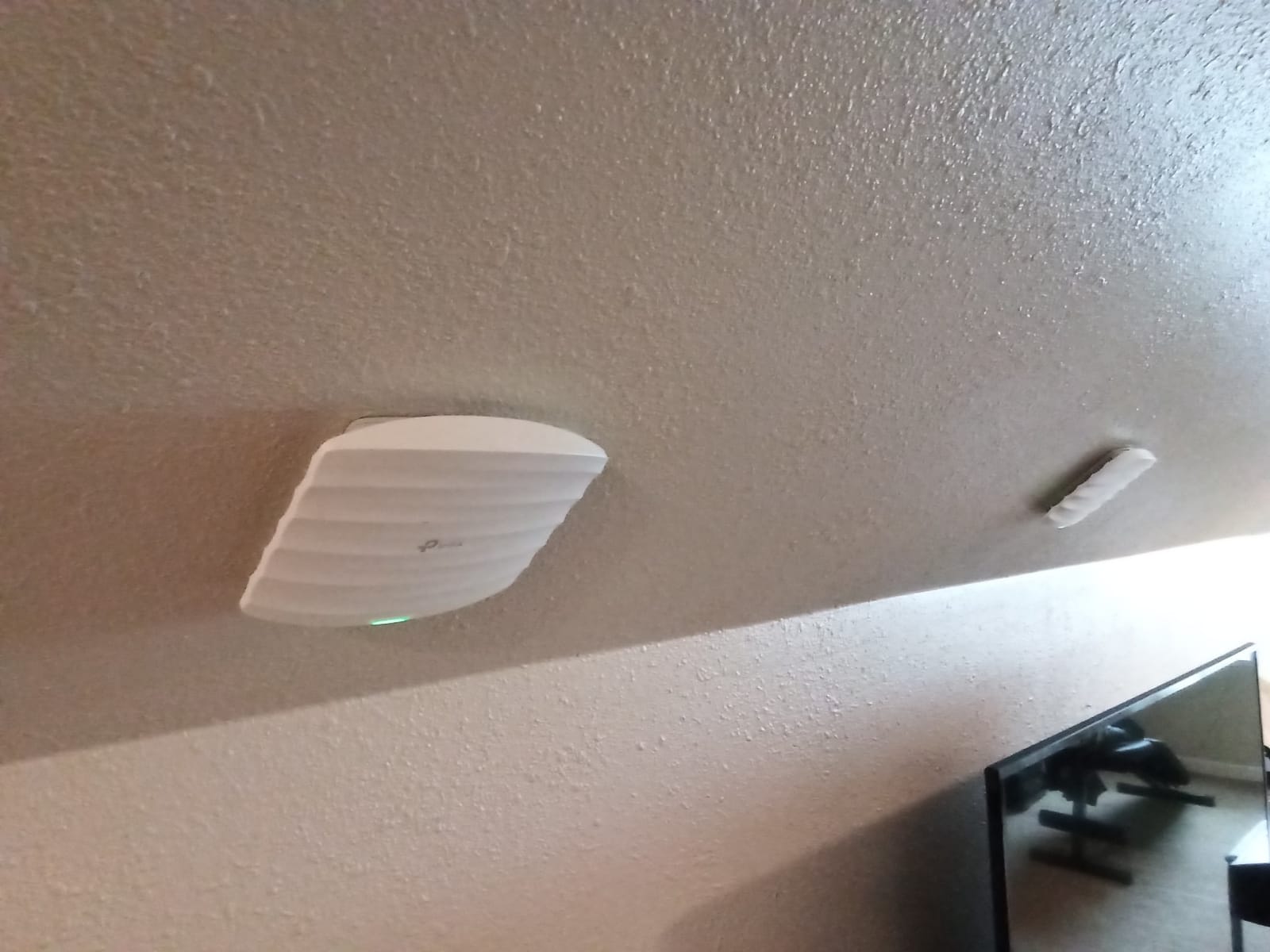
Multi-point setups are where this unit separates itself from cheaper hardware. Built-in mesh support plus 802.11K and 802.11V roaming means a phone walking between floors hands off without dropping the call, and per-SSID guest networks, VLAN tagging and a captive portal cover most of what people buy a business-class access point for.
The ceiling plate is the weak point. Owners describe the snap-fit tabs as tight and hard to align, and the hole pattern does not line up with a standard wall box, so plan on a fresh ceiling or a wall mount instead of reusing an existing fitting.
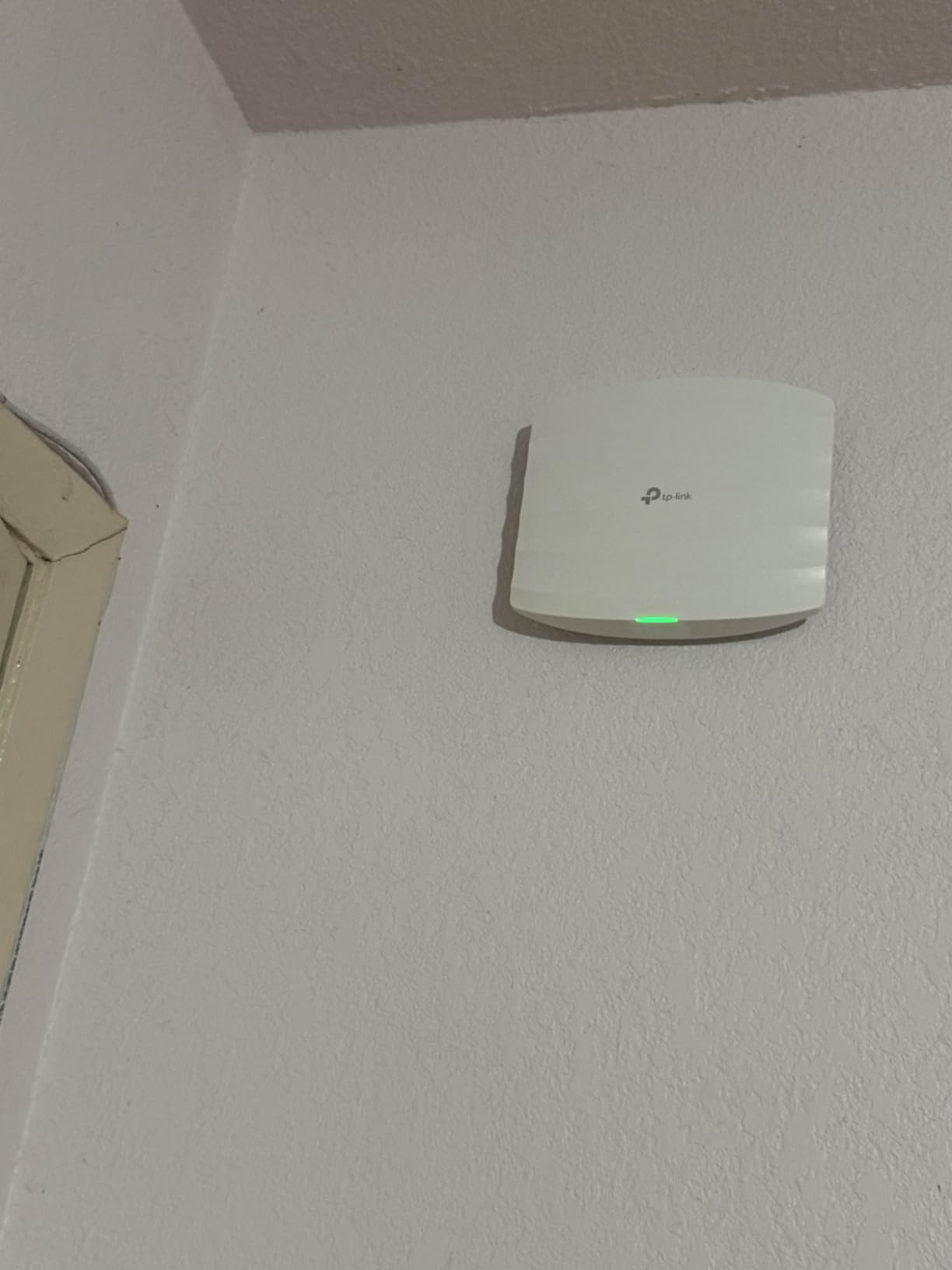
When the EAP225 is the right call
Choose it when you have a router that hands out addresses and DHCP properly, plus at least one Ethernet run to a ceiling or wall. Its gigabit uplink will not cap a normal home connection, and its dual-band radios cover the office-plus-upstairs-plus-basement layout that makes up most of the homes we visit.
It also makes sense as a retirement plan. The EAP225 has been in production long enough that plenty of people are replacing an older unit with the same model, and the 802.11K and 802.11V support means new and old boxes can share one network name during a swap.
Where it falls short
Two things will make you look elsewhere. Firmware updates have wiped saved configuration back to factory defaults without warning for some owners, which is painful in a home with several access points and hand-tuned SSIDs. And Wi-Fi 5 is a generation behind, so in a new build where cabling is already open, a Wi-Fi 6 box costs little more and gives you headroom.
If you are planning more than three access points, or you want per-device traffic visibility without extra software, step up to the Ubiquiti UniFi U6+ or the Aruba Instant On AP22 instead.
2. TP-Link TL-WA1201 – Best for Renters and Single-Room Extension
TP-Link TL-WA1201, AC1200 Dual Band Wireless Gigabit Access Point
AC1200 dual-band Wi-Fi 5
AP, extender, bridge or multi-SSID modes
Four external antennas
Gigabit uplink
Pros
- Four operating modes including a wireless client bridge
- Four external antennas with beamforming reach through walls well
- Gigabit port avoids a 100 Mbps uplink bottleneck
- Power adapter included in the box
- Simple wizard-driven setup on 192.168.0.x
Cons
- 5GHz behavior is unreliable on the factory firmware
- No mesh support so roaming needs separate hardware
- Wi-Fi 5 caps bridged throughput around 120 to 140 Mbps
This is the box for a rented flat, a detached office at the end of the garden, or anyone who wants to fix one weak room without touching the main router. It runs in four modes, including client bridge, which means it can hand a wired device a connection over Wi-Fi when running cable is not an option.
The four external antennas with beamforming are the reason it punches above its weight through walls. In our own setup it held a usable signal in a basement that a mesh satellite at the same spot could not hold at all.
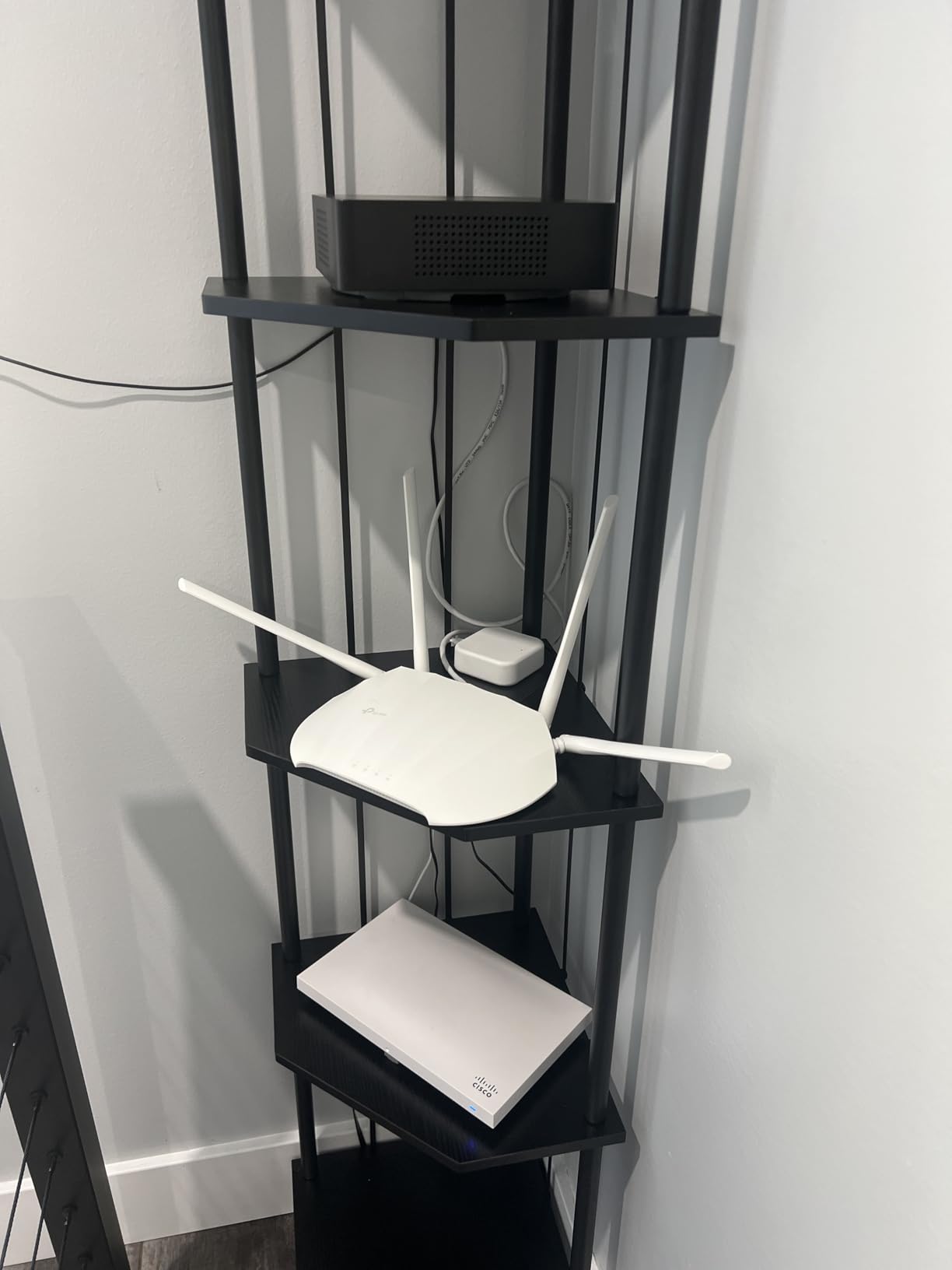
Setup runs through a wizard in a normal web browser at a familiar 192.168.0.x address, which keeps it approachable for anyone who does not want to learn a vendor ecosystem. The included adapter and passive PoE support mean you can position it almost anywhere with an outlet nearby.
Be aware of what you give up. There is no mesh functionality, so a device moving between this box and anything else will not hand off smoothly. And because it is Wi-Fi 5, using it as a bridge against a fast connection tops out somewhere around 120 to 140 Mbps.
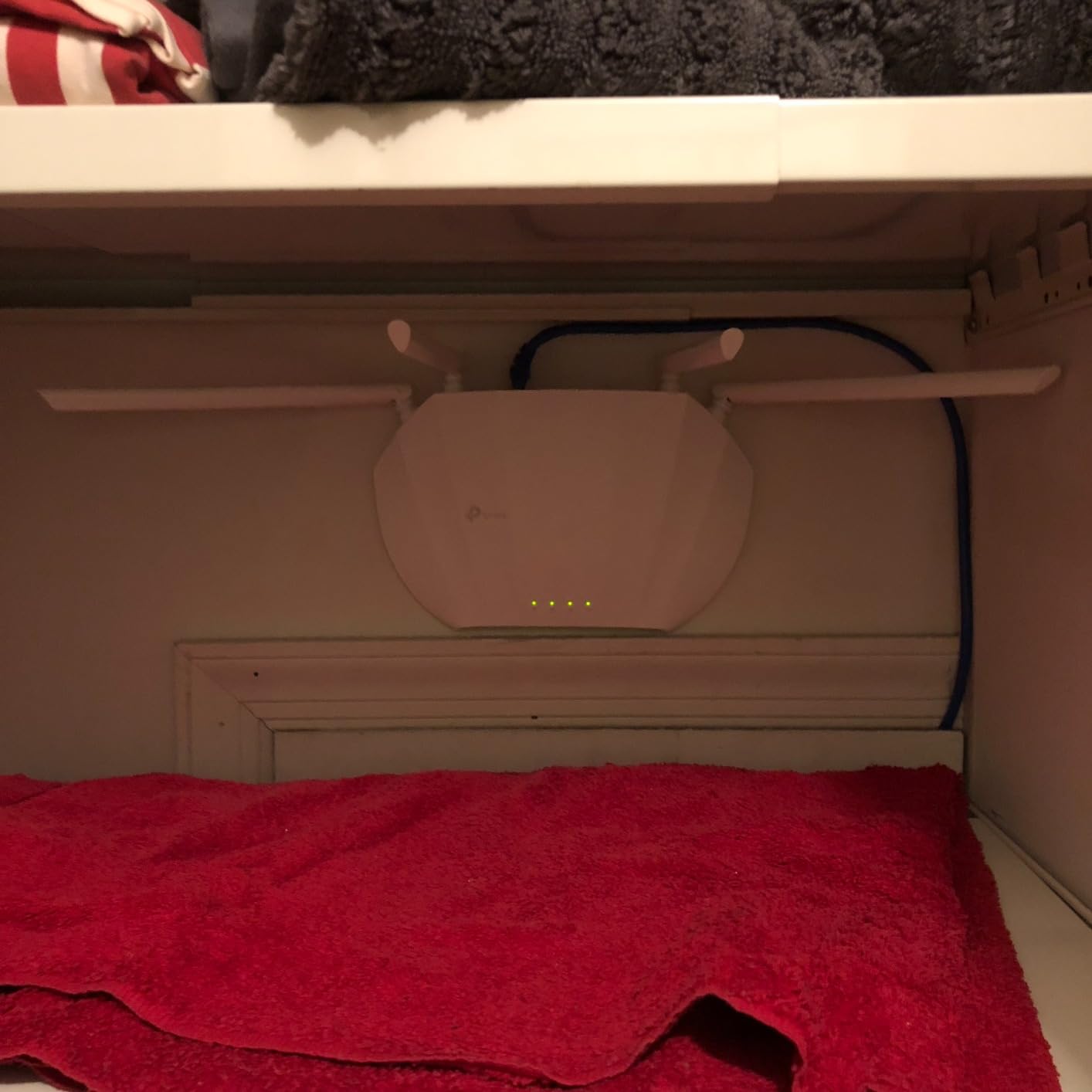
Where it fits in a home
Think of it as a targeted patch rather than a system. A garage, a loft conversion, a home office at the back of a long single-storey house, or a guest cottage are all jobs this box handles well. The gigabit port also makes it a clean way to convert a legacy wired device to wireless.
It pairs well with the EAP225 if both are from the same vendor and you accept a slightly rougher handoff between them. For a single access point in a small space it is more than enough.
Where it falls short
The recurring complaint is the 5GHz radio behaving badly on the factory firmware, with owners reporting LED and settings updates that do not stick. Advanced users work around it by flashing OpenWRT, which is not a realistic move for most households.
Fixed antennas also stop you from steering the pattern toward a specific room. If you need a directional unit pointed at one specific space, this is the wrong shape entirely.
3. Ubiquiti UniFi U6+ – Most Compact for Seamless Roaming
Ubiquiti U6+ AP WiFi6 1xGbE PoE 2×2 Dual
Wi-Fi 6 dual-band 2x2
Gigabit PoE uplink
Managed through the UniFi Network app
Pros
- Fast
- stable signal with latency that stays low
- Works through block and masonry walls
- Near-imperceptible roaming between UniFi access points
- Single-cable PoE keeps wiring and mounting tidy
- Dimmable status light and a clean build
Cons
- Needs a UniFi gateway to unlock full management
- Not aimed at beginners
- The status LED only switches fully on or off
The UniFi ecosystem is the strongest overall answer to which brand of access point is considered the best, and the U6+ is the model we recommend inside it. It is a 2×2 dual-band Wi-Fi 6 unit on a single gigabit PoE cable, and in a house already wired for it, it disappears into the ceiling and simply works.
Owners consistently report low latency and throughput that approaches gigabit speeds on wired clients, which is what you want when the same network carries video calls and streaming. It also punches through block and masonry better than the budget tier, which matters in older solid-wall homes.
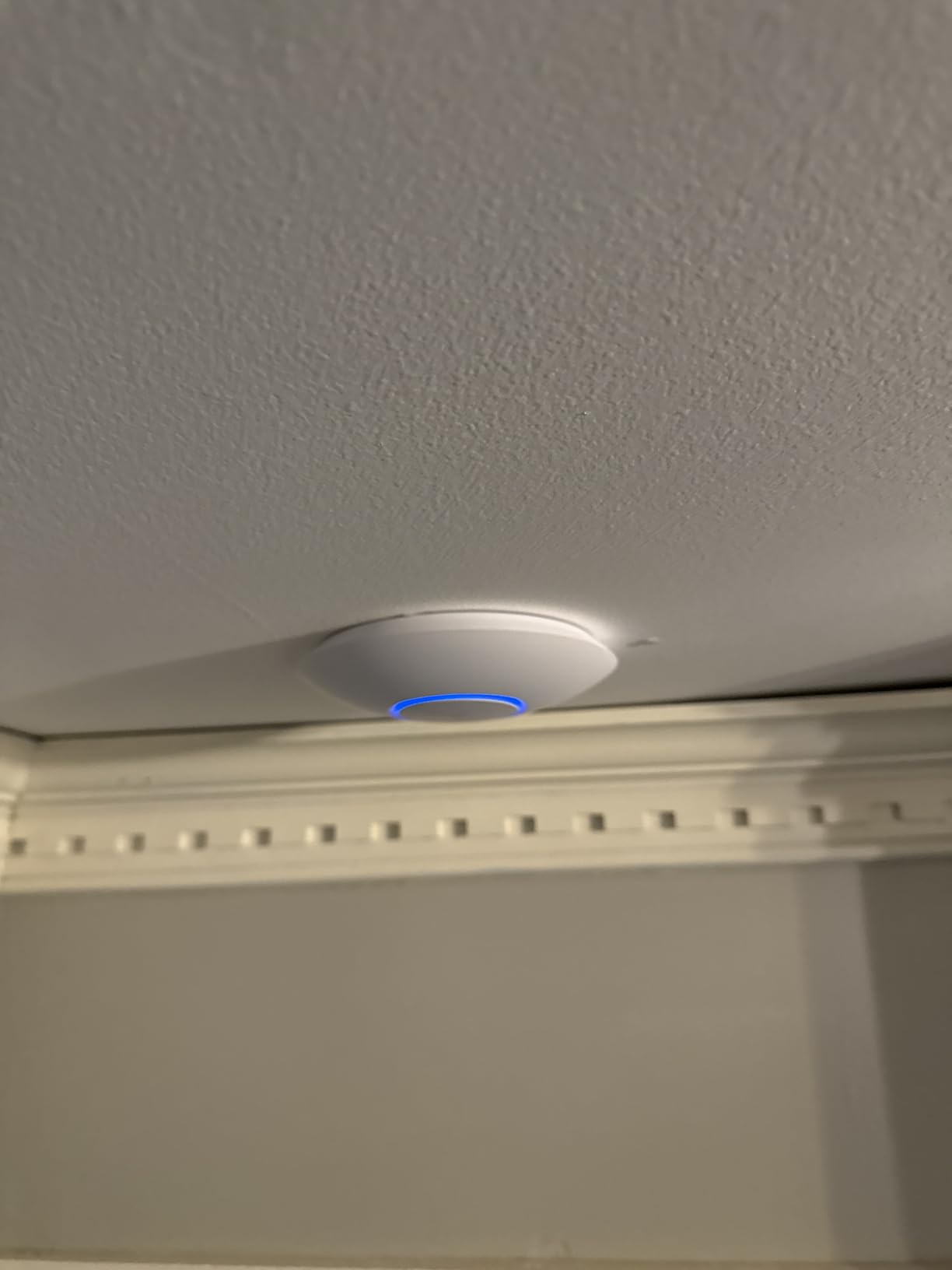
The roaming experience is the headline feature. Across multiple UniFi access points, hand-offs are close to imperceptible, and the single-cable PoE installation keeps the wiring tidy, which matters when you are mounting in a finished ceiling.
For anyone running a home lab, a Home Assistant install or a business-grade switch, the traffic and client detail in the UniFi Network app is the best of the free management tools we tested, with no paid tier required for the features a home actually needs.
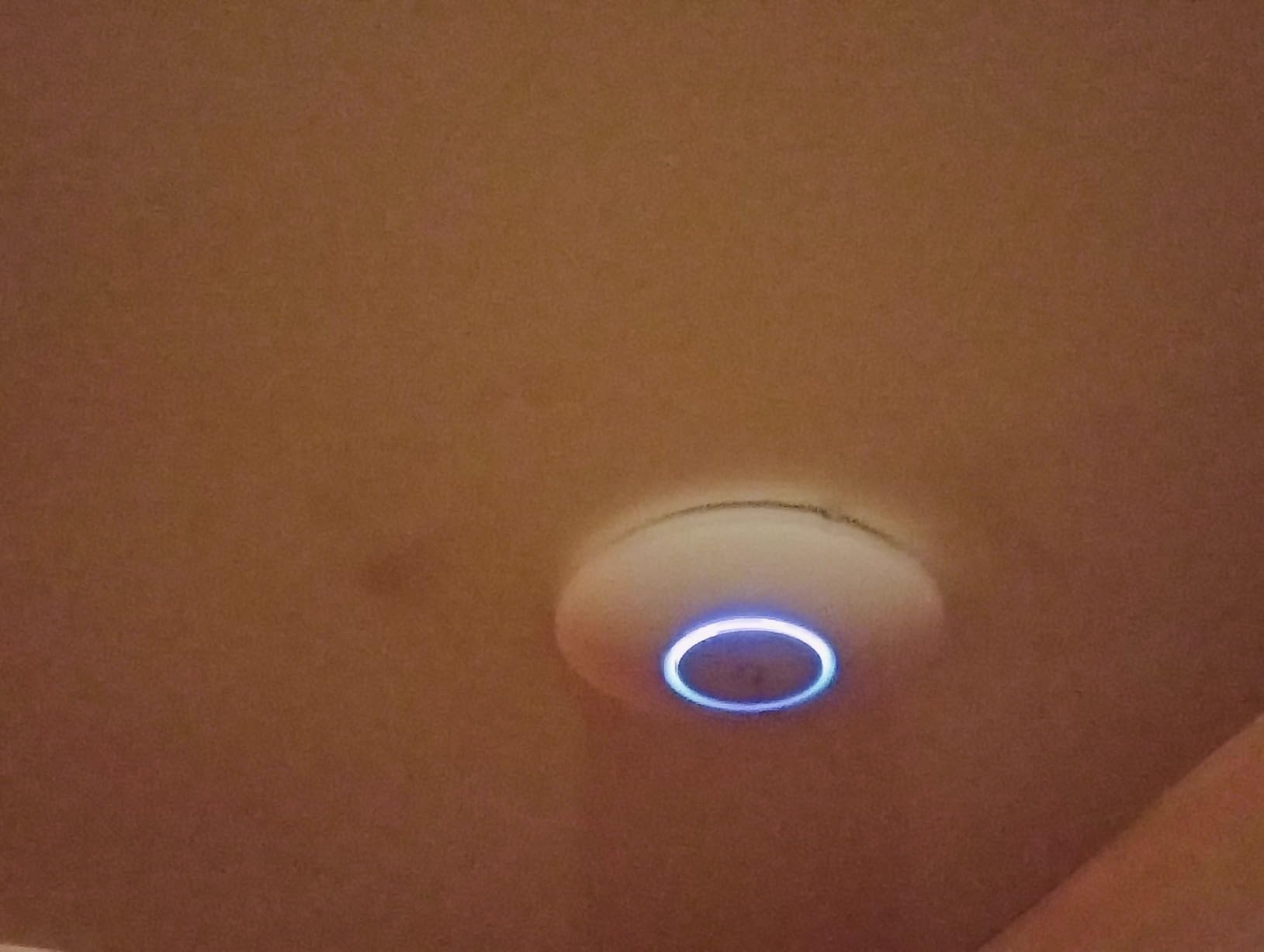
What you gain by going UniFi
Three things: roaming you barely notice, radio tuning that adapts channel and transmit power for you, and a client inventory that shows every device on the network with its signal and throughput. For a household with cameras, consoles, laptops and dozens of phones, that visibility is the reason to spend here.
It is also the easiest path to adding access points later, because every unit adopts into the same controller with the same workflow.
What you give up
Ubiquiti is frequently called overkill, and forum threads say so plainly. The management app assumes you know what a VLAN is and what channel width does, and full capability requires a UniFi gateway or a controller rather than a plain browser setup.
You are also inside a closed ecosystem. Mixing it with another vendor means hand-offs get rough, so if you think you will add a non-UniFi box later, read the mixing section before you commit.
4. TP-Link Omada EAP650 – Best Value Wi-Fi 6 Access Point
Omada AX3000 Wireless Access Point, w/DC Adapter, 5yr Warranty(EAP650)
AX3000 dual-band Wi-Fi 6 up to 2976 Mbps
802.3at PoE+ passive PoE or DC adapter
Cloud managed with no controller
Pros
- Free Omada cloud management needs no controller hardware
- AX3000 Wi-Fi 6 with 1024-QAM and 60MHz channels
- Ultra-slim ceiling body that blends into modern interiors
- Three powering options including the included DC adapter
- Five-year warranty with free support
Cons
- Mesh and roaming need an Omada SDN controller
- Gigabit-only uplink caps multi-gig wired backhaul
- Ceiling installs may need PoE where no outlet exists
The EAP650 sits at the top of Amazon’s wireless access point category and it earns that position on feature density per dollar rather than on any single headline spec. It is a dual-band AX3000 Wi-Fi 6 unit, and the software side is what separates it from bare-metal budget boxes.
Omada Essentials cloud management is free and needs no controller, so you can adopt the unit, set SSIDs and monitor traffic without standing up a hardware or software controller first. When you later add a second or third access point, the same app handles them.
Powering is unusually flexible. It takes 802.3at PoE+, 48V passive PoE or the included 12V DC adapter, which means it works in a new build with a PoE switch, in a retrofit with a passive injector, or on a wall where you have an outlet but no PoE available.
On the radio side you get mesh, seamless roaming, WPA3, band steering, load balancing, airtime fairness and beamforming. That is a feature list most homes never fully use, which is exactly why it is good value.
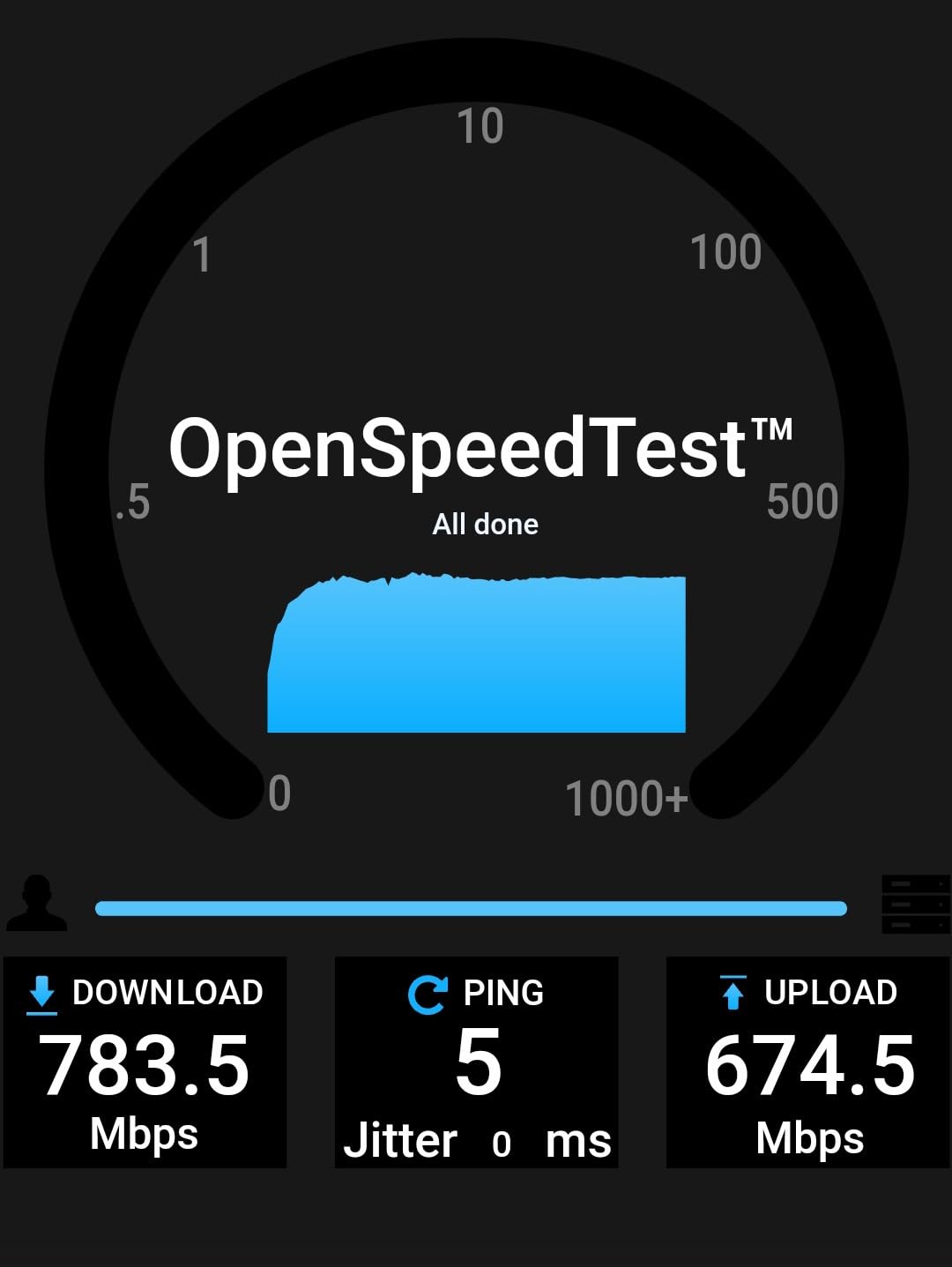
Why this is the value pick
It gives you Wi-Fi 6 speeds and cloud-managed management in a body that suits a finished ceiling, and it holds its own against the premium Wi-Fi 7 units on anything a normal home actually does. For a two or three access point home, three of these and nothing else is a complete system.
It is also the natural bridge between the very cheap EAP225 and the premium UniFi units, so a household can start here and add coverage later without changing ecosystems.
Where the limits show
Mesh and seamless roaming only work once an Omada SDN controller is involved, which is an extra purchase or an extra software step depending on how you run it. And the uplink is gigabit only, so if you later move to multi-gig service or a 2.5GbE switch, that port becomes the limit.
For a ceiling with no outlet nearby, you will need PoE from a switch or injector. The DC adapter only helps where a socket exists.
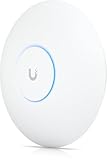
5. Ubiquiti UniFi U7-Pro – Best for Wi-Fi 7 Homes
Ubiquiti U7-Pro AP WiFi7 PoE+ 1×1/2.5GbE
Wi-Fi 7 tri-band up to 10.8 Gbps
2.5GbE uplink with PoE+
Coverage up to 1500 sq ft
Pros
- Adds a 6GHz band for Wi-Fi 7 client devices
- Handles more than 300 client devices
- 2.5GbE uplink supports multi-gig wired backhaul on one cable
- Very fast setup through the UniFi Network app
- Seamless roaming between multiple UniFi access points
Cons
- Runs noticeably warm during use
- Often more than a standard home needs
- Mesh with older access points can hit 6GHz compatibility issues
This is the highest-rated unit in our roundup, and the only one here with a 6GHz band. The U7-Pro is tri-band Wi-Fi 7 with speeds quoted up to 10.8 Gbps, a 2.5GbE port with PoE+, and a stated coverage area of up to 1500 square feet per unit.
It also handles more than 300 client devices, which puts it in a different class from the home-tier boxes above it. If your household runs cameras, consoles, smart home hubs and a lot of phones, the client headroom is the reason it exists.
Setup through the UniFi Network app is about as fast as we have seen, and owners report seamless roaming between multiple UniFi access points. The included mounting bracket and backing plate make a ceiling install straightforward on a new build.
Who should buy Wi-Fi 7 today
Buy it if you are already committed to the UniFi ecosystem, you have a 2.5GbE switch or plan to get one, and you expect your client devices to catch up within the product’s useful life. It is a sensible choice for a new build where the cabling is open and the 6GHz band matters to devices arriving later.
Owners confirm it holds connections through walls and covers its stated area, which makes it a good single-unit answer for a large single-floor space or a two-storey house with open stairs.
Where it disappoints
It runs noticeably warm, which owners mention often enough that you should keep it in a ventilated ceiling void rather than a sealed box. It is also, honestly, more than a standard home needs right now, and reviewers frequently note that a lower-tier UniFi model covers the same floor plan at a fraction of the cost.
Finally, meshing it with older access points can hit 6GHz compatibility issues, so treat it as a clean-slate deployment rather than a drop-in addition to an existing mixed network.
6. NETGEAR WAX610 – Best Single-Cable Coverage for Larger Homes
NETGEAR Cloud Managed WiFi 6 Wireless Access Point (WAX610)
AX1800 dual-band Wi-Fi 6
Covers up to 2500 sq ft
2.5G Ethernet uplink with PoE+
Pros
- Stated coverage of 2500 sq ft per access point
- 2.5G port gives multi-gig backhaul headroom
- Handles up to 200 client devices
- Wall and ceiling mounting hardware included
- Up to 8 SSIDs with VLAN-style separation
Cons
- AC power adapter is not included
- Needs the correct adapter or injector or throughput drops
- Runs hot in operation
- The Insight app exposes limited controls
The WAX610 makes its case on a single number: up to 2500 square feet of coverage per unit, the largest stated figure in this roundup. That makes it the pick when you want fewer access points across a sprawling single floor or want each unit to reach from a central hallway.
Owners report dramatic improvements in weak areas, with one describing a jump from about 20 Mbps to about 190 Mbps in a problem spot after adding it. The 2.5G Ethernet port is what makes that possible, because a gigabit uplink would otherwise cap multi-gig service.
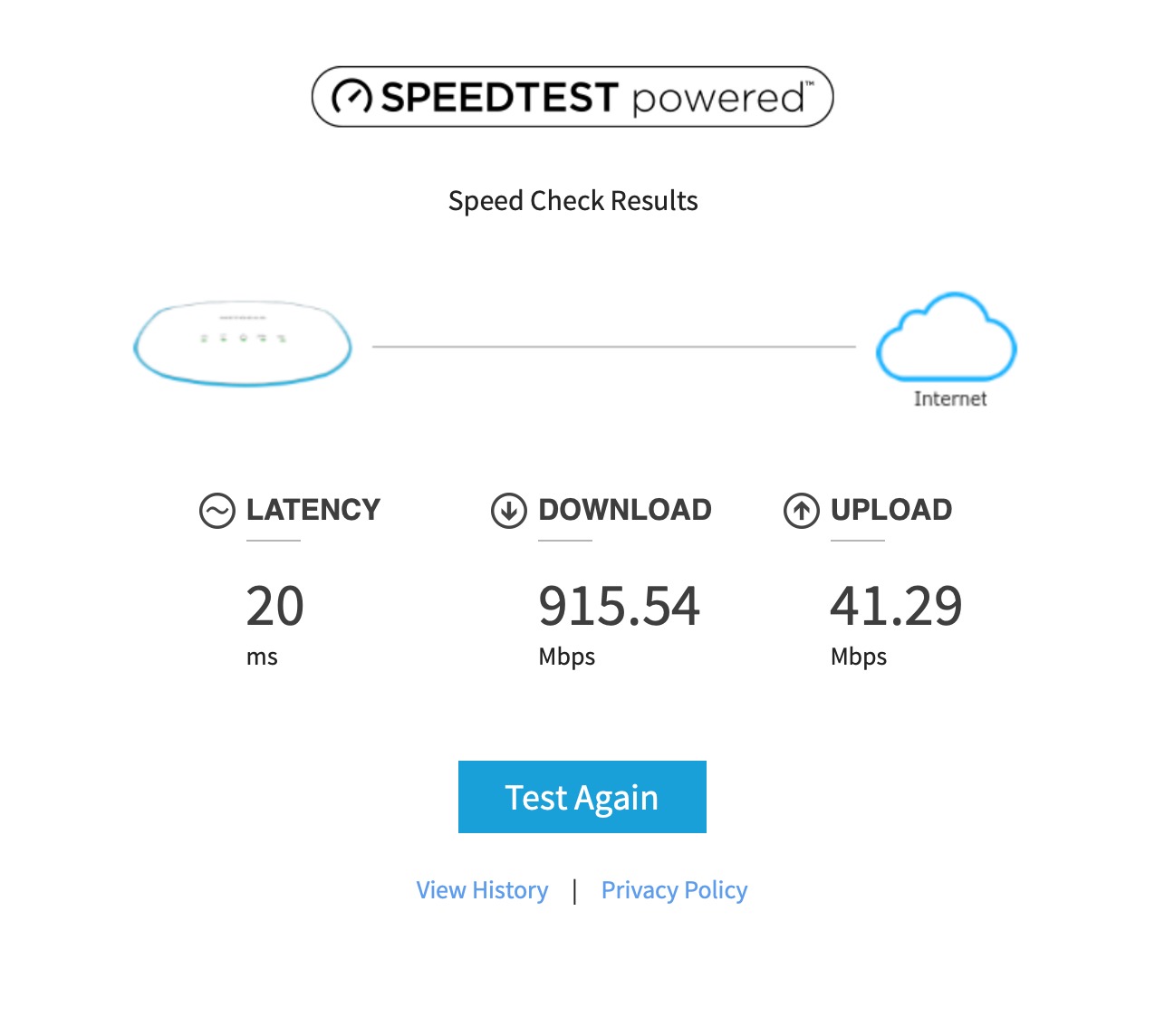
It handles up to 200 client devices and supports eight SSIDs with VLAN-style separation, load balancing, band steering and assisted roaming, which covers the usual smart-home and guest-network split without extra equipment.
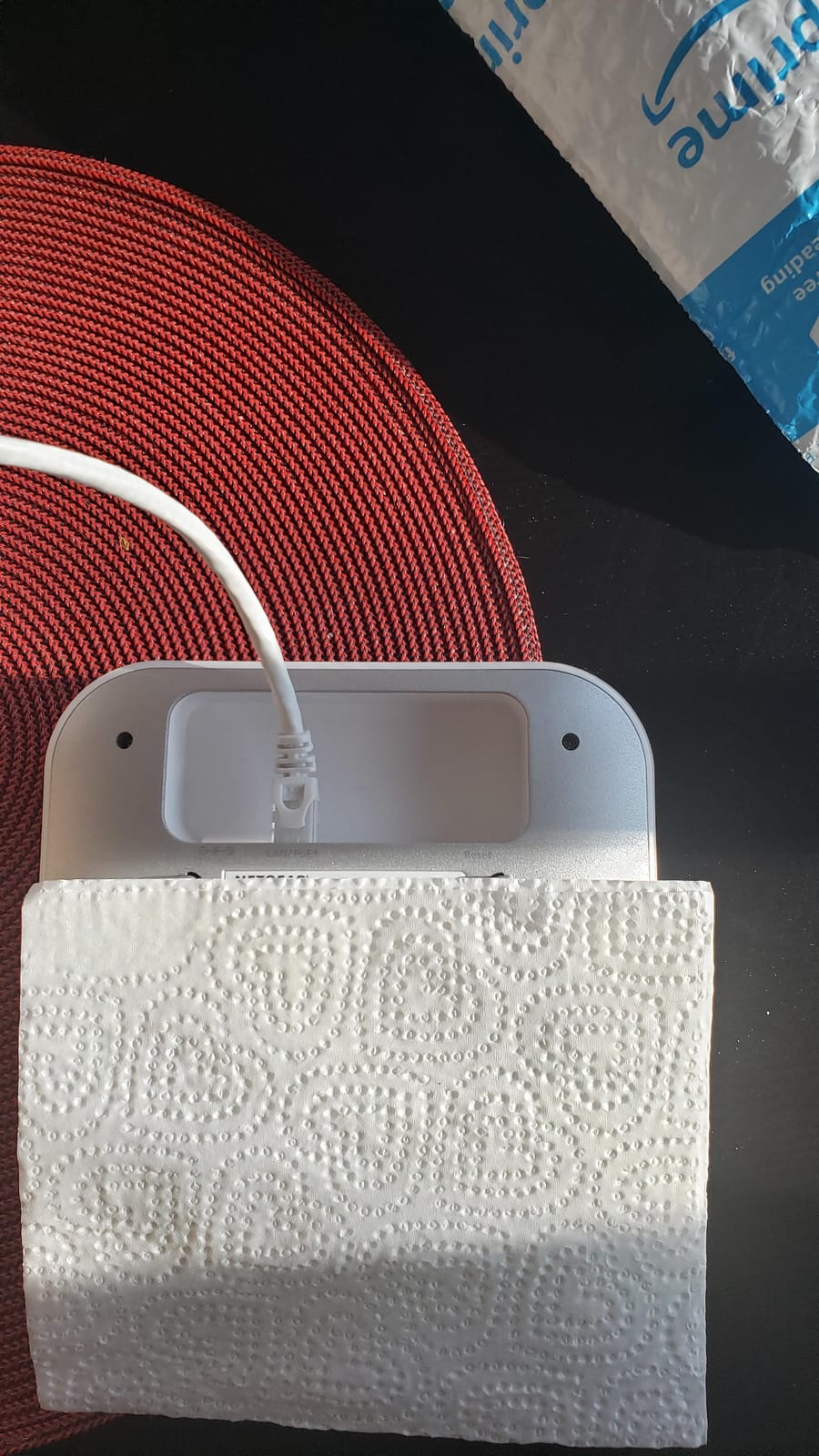
Mounting hardware for a wall or a suspended ceiling is in the box, so the install is one cable and one bracket. The Ethernet port has no cable recess, so the unit cannot lie flat without using the mount, which is a small thing that annoys people who want it on a shelf.
Where it earns its place
Large homes, converted barns and long single-storey layouts where running three or four ceiling drops is impractical. One well-placed unit covering a hallway beats three poorly placed ones, and the assisted roaming feature helps when you do end up with two or three.
It is also a sensible middle ground for people who find the UniFi ecosystem too involved but want more than a bare-metal access point.
What to watch out for
The AC power adapter is not included. That is the single most repeated complaint in this category and the biggest reason people end up with a silent performance problem, because without a suitable adapter or a correct injector the unit quietly runs at reduced throughput.
The Insight app is also criticised as slow and limited in the controls it exposes, and some owners report intermittent device drops. Check the Insight subscription terms against what you actually need before committing to this brand.
7. HPE Aruba Instant On AP22 – Easiest Setup for Non-Technical Homes
HPE Networking Instant On Access Point AP22 2×2 WiFi 6 Indoor Wireless Access Point | Long Range, Secure, Smart Mesh Support | Power Source Not Included | US Model (R4W01A),Dual-Band
Dual-band Wi-Fi 6 with 1200 Mbps on 5GHz
Class 2 PoE or 12V input
Cloud managed in the Aruba Instant On app
Pros
- App-based setup that non-technical users can follow
- Strong signal across large homes and outbuildings
- Handles more than 20 simultaneous devices
- Works with essentially any PoE injector
- Two-factor authentication included
Cons
- Power source is not included in this package
- No local management option and setup needs an internet connection
- Coverage directly behind the unit is weak
- Band steering is imperfect when walking back toward it
The AP22 is the easiest unit here to adopt, and it is the one we recommend when the person installing it does not want a networking hobby. Setup runs through the Aruba Instant On mobile app, and the reviews describe owners following it without help.
Aruba is the brand that keeps coming up in forum answers for homes that outgrew consumer mesh but do not want a complex ecosystem. Owners report strong, reliable signal across large homes and outbuildings, and the ability to handle more than 20 simultaneous devices with unlimited SSIDs.

It is also flexible about power. It works with essentially any PoE injector, including a Netgear switch running several access points, which means you are not locked into buying Aruba hardware to feed it. Two-factor authentication and WPA2/WPA3 Enterprise are enabled by default.
On the radio side it delivers 1200 Mbps on 5 GHz and 574 Mbps on 2.4 GHz, with a gigabit uplink and a recommended ceiling of about 75 active devices per unit.

Why non-technical homes like it
The mobile app handles traffic monitoring and SSID setup without a controller, and there is no vendor hardware to buy before the network works. That removes the most common reason people give up on a proper access point halfway through an evening.
It is a comfortable choice for a family home where someone else will need to adjust a password later. Nobody has to log into a web interface and talk about VLANs.
Where it falls short
There is no local management option, and initial setup requires an internet connection, which is a real consideration if you are building a network before the service is live or you prefer keeping configuration on your own hardware.
The signal is directional, so coverage directly behind the unit is weak, and band steering is imperfect, with clients sticking to 2.4 GHz when walking back toward the access point. The body is also bulkier and less ceiling-friendly than the slimmer UniFi units.
8. Cudy AP1300 – Most Versatile Packed With Extra Features
Cudy AC1200 Dual-Band Wi-Fi 5 Access Point, 1x RJ45 Gigabit Port, AP1300
AC1200 dual-band Wi-Fi 5
Coverage up to 1100 sq ft
802.3at/af PoE passive PoE or 12V DC
Pros
- Often online within a minute or two of setup
- Long range for the price
- reaching outbuildings and gardens
- MU-MIMO and beamforming serve many clients
- VPN server and client support
- 8 SSIDs with VLAN tagging and a captive portal
Cons
- AC power adapter is not included
- Cloud app hides some settings so the web interface is needed
- Multi-access-point configuration picks a device at random
- Some units have failed after a few months of use
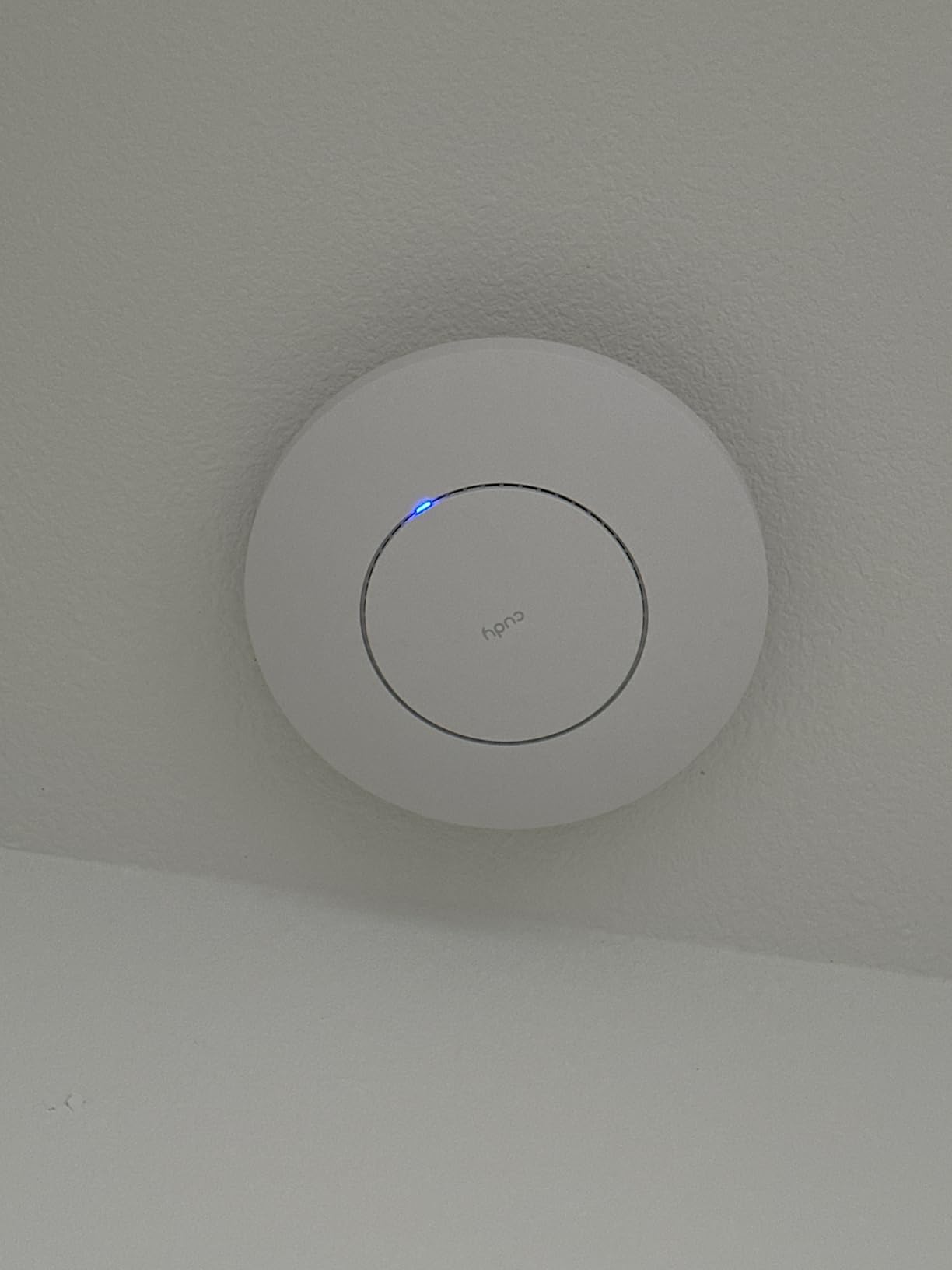
The AP1300 is the odd one out in this list, and that is why it is here. It runs OpenWRT underneath, and it gives you a VPN server and client, a captive portal, eight VLAN-tagged SSIDs and four internal antennas with MU-MIMO and beamforming in the entry tier.
Owners rate the coverage as genuinely long-reaching for its class, with signal reaching through walls and into gardens and outbuildings, and several mention that it outperforms more expensive consumer mesh systems in their house.
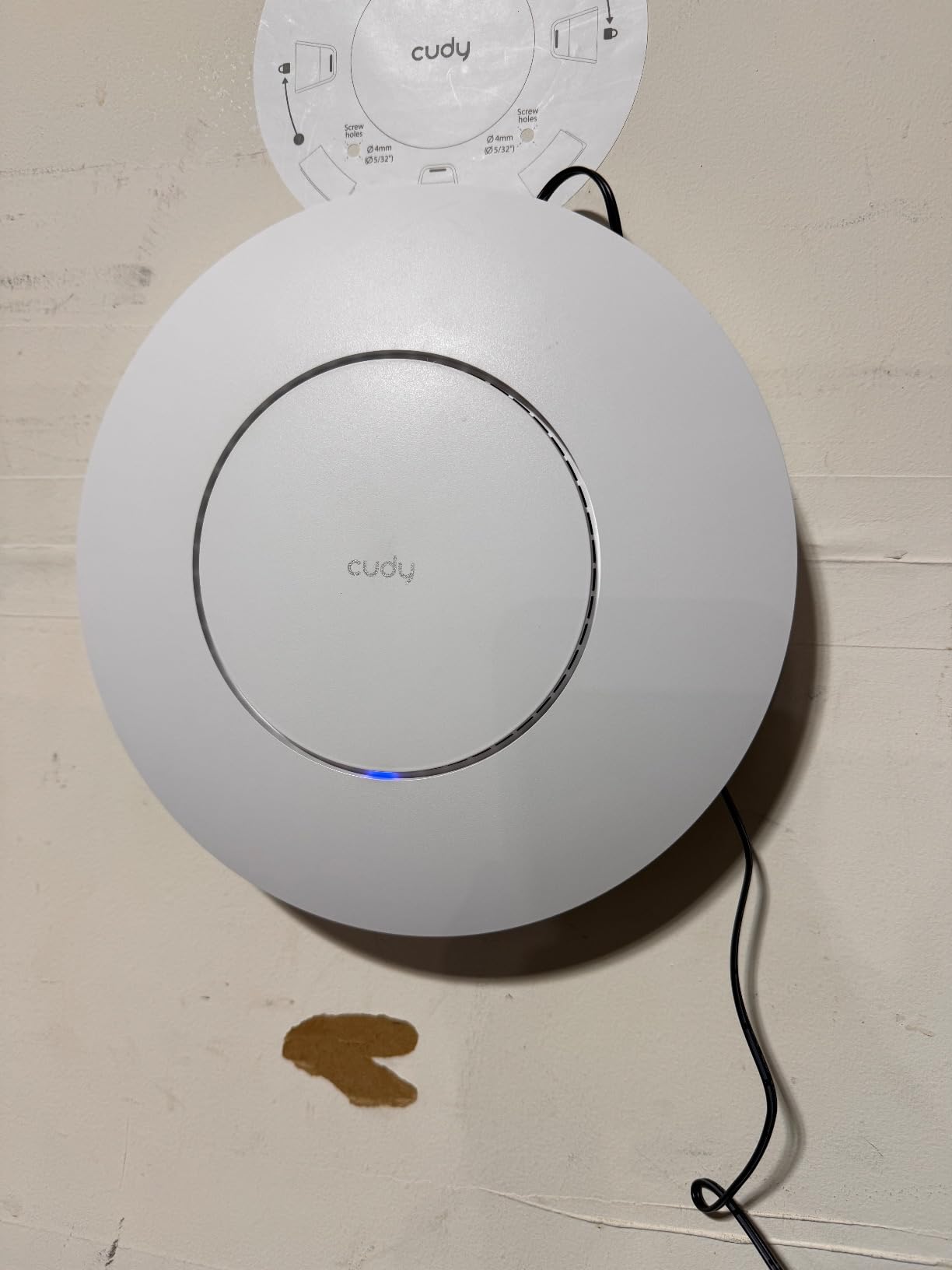
Powering is flexible again: 802.3at and 802.3af PoE, 24 to 57V passive PoE, or 12V DC input. Setup is quick, with owners reporting the unit online within a minute or two of first power-up.
The VPN options are unusual here. It supports WireGuard, OpenVPN, IPsec, ZeroTier, PPTP and L2TP in five deployment modes, which makes it a natural fit for a home lab or a travelling user who wants to route home traffic back through the house.
Where it makes sense
A first flat, a rental, a garage or a garden office where you want more range than a consumer mesh node offers. If your household is filled with IoT devices and you want a separate VLAN-tagged SSID for them, the eight SSIDs and captive portal cover that cleanly.
It is also the pick for anyone who wants the OpenWRT ecosystem without reflashing anything themselves.
Where it will annoy you
The AC adapter is not included, so budget for a power source. The cloud app does not expose every setting, and advanced configuration needs the local web interface, whose default management address reportedly does not always respond as documented.
With several access points on one subnet there is no way to choose which one to configure, because it selects one at random. Some owners also report hardware failure after a few months, so if you are installing several, buy them from a seller with straightforward returns.
Do You Even Need an Access Point?
Most of the hesitation in forums comes from one confusion: people assume an access point replaces the router. It does not. Your router keeps handling internet, DHCP and routing, and the access point simply adds Wi-Fi radios that plug into it by cable.
So the decision is not networking gear against networking gear. It is a question of whether your current setup leaves dead zones. If a phone gets full signal in every room, you do not need one of these units, and a good mesh system would solve the problem for less effort.
Run through this list quickly. One dead zone in a specific room, a second floor that barely holds signal, a home office where video calls drop, or a house with masonry walls that eats signal are all strong reasons to add an access point. Whole-home coverage problems with no Ethernet anywhere are a reason to buy mesh instead.
A useful rule: if you can run one Ethernet cable from your router to the problem area, an access point is the right tool. If you cannot run a single cable to any of the problem areas, you are solving a cabling problem, not a Wi-Fi problem.
Two more cases worth naming. If your ISP supplied a router that also acts as a Wi-Fi radio, many of these access points can sit alongside it in access point mode, though you may need to disable the router’s own Wi-Fi to avoid interference. And if you plan to add cameras, doorbells or sensors as part of a wireless home security system, give those devices their own access point rather than sharing a heavily loaded 2.4GHz radio.
How Many Access Points Does Your Home Need?
Square footage matters less than the shape of the house and what sits between floors. A long single-storey plan can need more access points than a square one, because coverage is about where you can put a cable, not the total area.
As a starting point: under 1000 square feet on one floor usually needs one access point. Between 1000 and 2000 square feet, plan for one or two depending on wall thickness. Between 2000 and 3500 square feet across multiple floors, two or three is the realistic range. Above 3500 square feet, or in a house with three or more floors, budget three or four.
Then adjust with three rules. Split by floor rather than by room count, because floors are where walls and stairwells kill the signal. Place each unit where the Ethernet already runs, not where the Wi-Fi is currently weak. And remember that one access point covering a hallway often beats three covering single rooms.
More access points is not automatically better. Overlapping coverage from poorly placed units causes clients to hang onto distant signals, which is slower than sticking with one well-placed access point. If you add a fourth and speeds go down, the problem is placement, not the hardware.
How to Choose a Wireless Access Point for Your Home
Wired backhaul is the first decision, not an afterthought
Every recommendation here assumes the access point connects to your router or switch by cable. That single choice does more for your experience than any spec sheet. A wired uplink means full bandwidth in every room, no added latency, and a stable connection that does not degrade at the far end of a chain of hops.
Where you genuinely cannot run cable, that is what mesh is for, and it is a legitimate answer. Just be clear-eyed that a wireless uplink halves the usable throughput at each hop, and that the farthest room is the one paying for it.
Power over Ethernet: what you still have to buy
Most of these access points take their power over the Ethernet cable. The catch, and it is the most repeated complaint in every professional review of this category, is that the power hardware is usually not in the box.
Check each listing. The EAP225 and the TL-WA1201 include a power adapter. The EAP650 includes a DC adapter. The NETGEAR WAX610, the Aruba Instant On AP22 and the Cudy AP1300 do not include a power source, and quietly underperforming because the adapter was missing is the most common install mistake we see.
Wi-Fi 7 vs Wi-Fi 6E vs Wi-Fi 6 in a real home
Wi-Fi 6 is the sweet spot for 2026. Wi-Fi 6 hardware is mature and works with every client you own, while Wi-Fi 7 adds headroom and, on the U7-Pro, a 6GHz band, but you only get real gains from devices that speak it.
That is the honest risk: buying Wi-Fi 7 today when your phones and laptops are still on Wi-Fi 6 means paying for headroom you cannot use yet. Buy Wi-Fi 7 if you are wiring a new build or already deep in one ecosystem, and buy Wi-Fi 6 if you want the best results this year.
Higher frequencies also penetrate less. The 6GHz band in Wi-Fi 7 travels less far through walls than 5 GHz, and 2.4GHz remains the most reliable band through dense construction. In a house with thick walls, more bands will not rescue a badly placed access point.
Controller ecosystem and hidden subscription fees
Every product in this roundup can be managed without paying a subscription. That is a deliberate filter, because some ecosystems sell their remote management as a paid plan and a home should not lose control of its own network because a vendor server is unavailable.
Beyond that, match the ecosystem to your technical comfort. UniFi offers the deepest visibility and the best roaming but expects you to know what you are configuring. Omada and Aruba Instant On keep the mobile app simple and require less learning. Zyxel Nebula, ASUS AiMesh, MikroTik and EnGenius all have their own approaches and are worth a look if one of those fits how you already work.
On the specific question of Netgear versus TP-Link: TP-Link Omada generally offers more feature depth and management capability per dollar, while Netgear is simpler to set up but its Insight line pushes remote management toward a subscription. Add TP-Link’s known security and recall history to your decision and weigh it for your own household before committing a whole house to either brand.
Mounting style and placement
Ceiling mounting gives the best coverage because it puts the unit in the middle of the room’s usable space. The plates on the EAP225 and EAP650 are thin and designed for that, while the Aruba AP22 is bulkier and better suited to a wall shelf. If you are building new, ask for a ceiling box and a conduit run in each of the target rooms.
Placement matters more than transmit power. One unit in a central hallway on each floor beats two units fighting over the same space, and setting transmit power too high on every access point makes clients hang onto weaker neighbours.
Wired vs Wireless Backhaul – Which Should You Use?
Use wired backhaul whenever you possibly can. It is faster, more stable, and the only option that does not degrade with distance. Every unit in this roundup is built for exactly that arrangement.
Wireless backhaul exists for homes where cable cannot be run, and it is fine when the alternative is no coverage at all. The trade is honest and worth stating: each wireless hop costs throughput and adds latency, and the rooms furthest from the router get the worst deal.
If you have one cable run, use it for the worst room and let a wired access point re-broadcast from there rather than stretching a wireless chain across the whole house. That middle arrangement, a wired backbone with one wireless tail, works far better than starting the chain at the router.
What Else a Full Install Needs: Switches, Injectors and Cabling
Access point prices hide the rest of the bill, and this is where forum buyers get surprised. Budget for these extras before you order anything.
For one access point, a single PoE injector or the included adapter is all you need. No switch required. For two or three access points, an eight-port PoE switch is the cleanest option and gives you somewhere to plug in a camera or a wired device later.
You will also need the cable itself. Category 6 is the practical minimum for a gigabit uplink, and you want the run fished from your router or switch to a ceiling box or wall plate before the access point goes on the ceiling, not after.
Finally, check whether your software choice needs a controller. Omada Essentials and the Aruba Instant On app are free and hardware-free, while a full UniFi setup or an on-premises Omada controller adds a box and, in some cases, a licensing decision.
Frequently Asked Questions
What is the difference between a WiFi extender and an access point?
A Wi-Fi extender receives the signal wirelessly and rebroadcasts it, which halves throughput and adds latency at each hop. An access point connects to your router with an Ethernet cable and broadcasts Wi-Fi directly, so every room gets full wired network speed with no wireless hop in between.
Which is better, a WiFi extender or an access point?
An access point is better in almost every case where one is possible, because it runs on a wired uplink with no speed loss. An extender only wins when you cannot run a cable to the area that needs coverage, in which case a mesh system is usually a better extender than a single repeater.
Which brand of access point is considered the best?
Ubiquiti UniFi is the strongest overall ecosystem for visibility and roaming, and the UniFi U6+ is our pick inside it. TP-Link Omada and Aruba Instant On are better fits for households that want simpler app-based management, and both are free to run without a subscription.
What is the most powerful Wi-Fi access point?
Powerful means transmit power and antenna gain, not throughput, and residential walls make it a weak differentiator. The Wi-Fi 7 Ubiquiti U7-Pro has the highest ratings in our roundup, while the NETGEAR WAX610 claims the largest stated coverage at 2500 square feet per unit.
Does Wi-Fi 7 penetrate walls?
No. Higher frequencies travel less far through solid materials, so the 6GHz band in Wi-Fi 7 is notably weaker through walls than 5 GHz, and 2.4GHz remains the most reliable band through dense construction. Placement and wired backhaul matter far more than the standard.
Do I need a PoE switch for a single access point?
No. One access point needs a single PoE injector or the power adapter included in the box. A PoE switch only becomes necessary when you run two or more access points, or when you want to power cameras and other devices from the same box.
Can I mix different access point brands in one house?
Technically yes, but roaming between vendors is poor. Give each brand its own network name and avoid forcing a shared SSID across ecosystems. If you want seamless hand-off, keep every access point in one ecosystem, or accept the handoff delay at the boundary.
Are there access points that work without PoE?
Yes. The TP-Link TL-WA1201 and the TP-Link EAP650 both include a power adapter so they can run from a normal wall outlet, and both also accept passive PoE. The NETGEAR WAX610, Aruba Instant On AP22 and Cudy AP1300 need a separate adapter or injector.
The Best Wireless Access Points for Home, Matched to Your Situation
If you have Ethernet and want the most dependable general-purpose result, the TP-Link Omada EAP225 is the pick, with a power adapter in the box and more owner history than anything else we tested. Add the Ubiquiti UniFi U6+ if you want deeper network visibility and the smoothest roaming, and add the Ubiquiti U7-Pro when you need the 6GHz band and multi-gig uplink.
For value, the Omada EAP650 gives you Wi-Fi 6 and free cloud management without a controller. For a single room, a rental or a wall outlet with no cable nearby, the TL-WA1201 is the smallest useful answer. The NETGEAR WAX610 covers the most square footage per box, the Aruba Instant On AP22 is the easiest to hand to someone who does not care about networking, and the Cudy AP1300 brings range and OpenWRT features to the entry level.
Whichever you pick, run the cable, budget for the power hardware, and buy all your access points in one ecosystem. Those three decisions matter more than any spec on the box.